Set up and score a pupil report card
Set report-card targets and periods, verify saved scores, record check-ins and review coverage before changing the live card.
Staff record what happened during each period, review how much of the day has actually been scored and decide when the support should change or end.
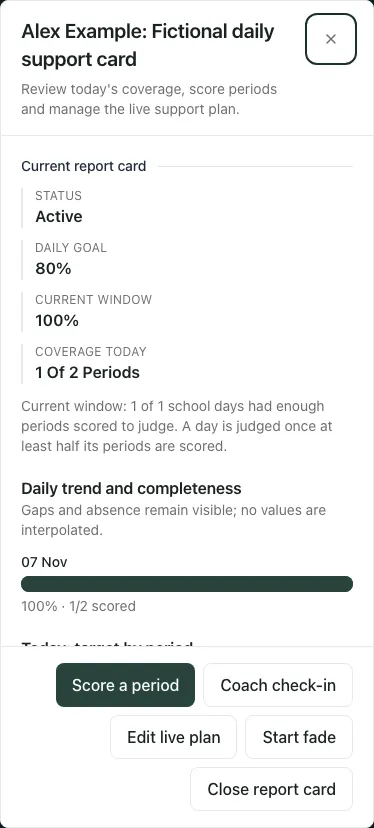
Screenshots show Alex Example, a fictional pupil, and a fictional support card. The example goal and scores demonstrate the controls; they are not recommended thresholds for a real child.
Before starting or changing a card
Section titled “Before starting or changing a card”Open Behaviour → Intervention → Report Cards. In an alternative-provision layout the rail may place it under Progress. The school must have Report Cards enabled. Access to read, apply, score, manage, close and share with families can differ; a visible record does not give every staff member all its actions.
First agree the purpose and targets with the appropriate staff and pupil. A card is a support and review record, not proof that behaviour has improved or an automatic sanction decision.
1. Find the right card
Section titled “1. Find the right card”The register has Today, Active cards, Proposals and History. Use Search, year, coach, status and progress filters where offered, then Open the pupil’s card. Refresh checks the latest records; paging changes which results you are viewing.
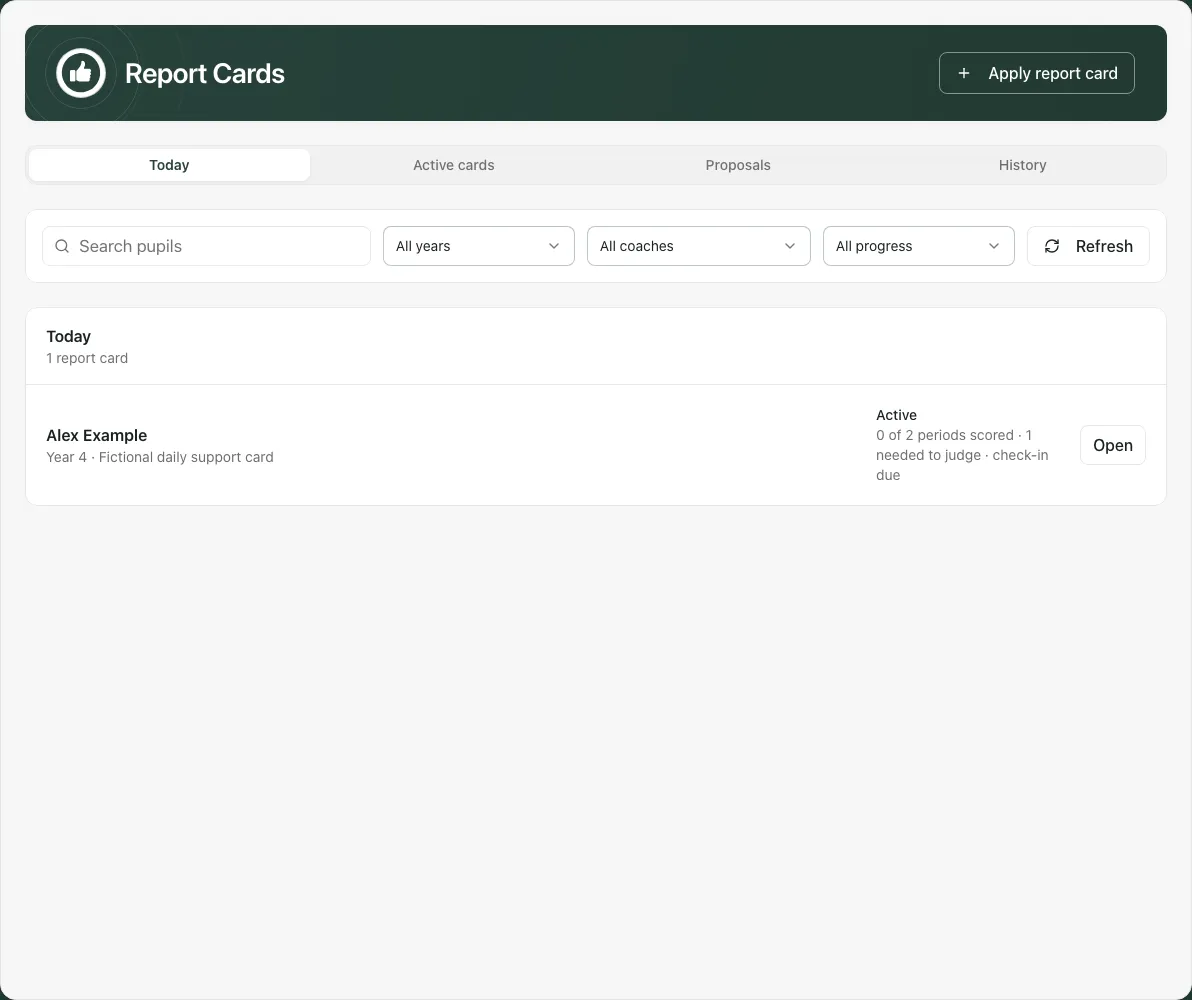
No data yet means there is not enough scored coverage to judge the day. It is different from Below goal. A proposed or closed card has its own lifecycle status rather than an outstanding daily scoring requirement. A paused card is not scored today; this page does not offer a general pause/resume action.
If a favourite cohort or another page opens the register, check its filters again. Do not assume the whole register is restricted to the cohort you came from.
2. Apply a new report card
Section titled “2. Apply a new report card”Use Apply report card and work through the three sections:
- Pupil & coach: search for and select the pupil, give the card a useful name and choose the check-in/out lead. Confirm the selected result rather than leaving only typed search text. A pupil with a live card must be reviewed through that card instead of starting a duplicate.
- Targets: add between one and five specific targets. Where an accessible Behaviour Support Plan is available, choose the relevant offered strategies or add bespoke targets. Check the final wording with staff who will score it.
- Schedule & scoring: tick at least one scoring period, name all three scores (values 0, 1 and 2), set the daily goal and choose a review date from today onwards if needed. The app accepts a goal from 1 to 100%; the appropriate goal is a staff decision, not a recommendation from that input range.
Read the Start report card blockers and return to the named section to resolve them. If periods could not load, close and reopen rather than inventing a timetable. Confirm any family-sharing choice separately; staff who cannot share must leave sharing off or ask an authorised lead.
Starting a card is an explicit action. Recheck the register after success. A refused proposal approval or changed pupil context can require a refresh before another decision.
3. Review the card before scoring
Section titled “3. Review the card before scoring”Open the card and check pupil, title, status, targets, periods, daily goal and review date. The record includes the trend/coverage view, today’s periods, the live plan and lifecycle history. An alternative-provision layout groups these into sections; use the section control to reach the same information.
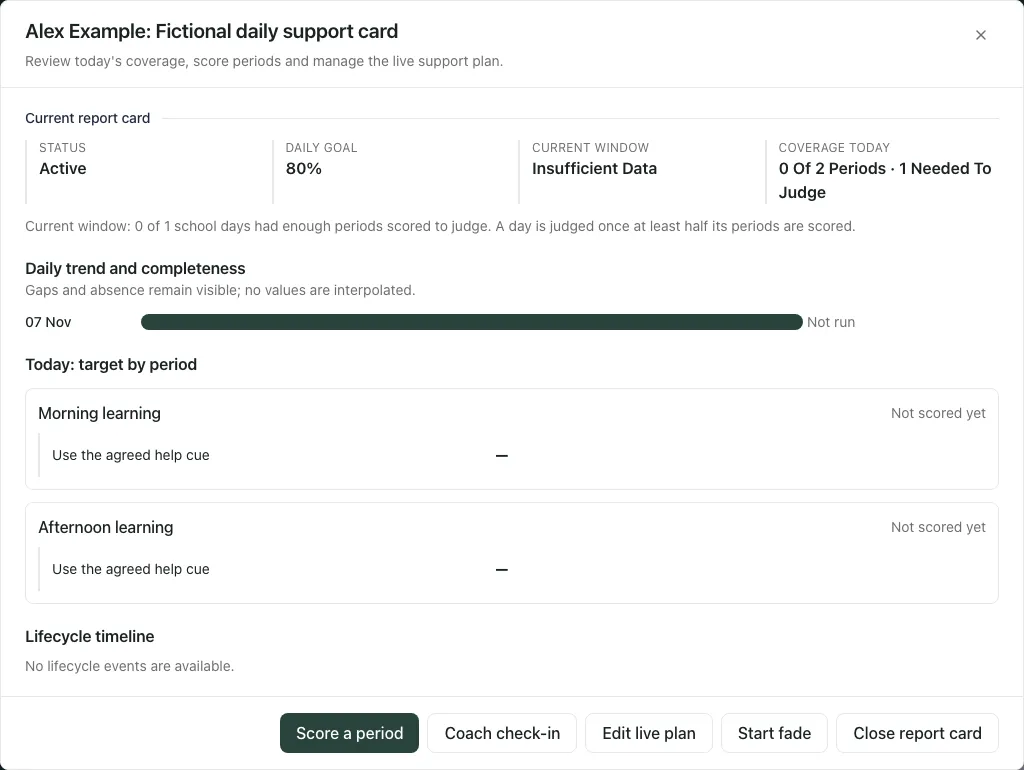
A blank period is Not scored yet. A recorded Absent, Not run or Not applicable state is different. A day recorded absent is not judged. The current scoring form scores a period; it does not offer a separate control for every non-scoring state that may appear in the record.
4. Score one period, then verify the saved entry
Section titled “4. Score one period, then verify the saved entry”- Select Score a period.
- Choose the Period. Confirm the lesson or part of the day you are recording.
- Select one of the displayed 0/1/2 choices for every live target. The words beside those values are the card’s agreed scoring labels.
- Add a factual Staff note (staff only, optional) if useful. This field is not the family summary.
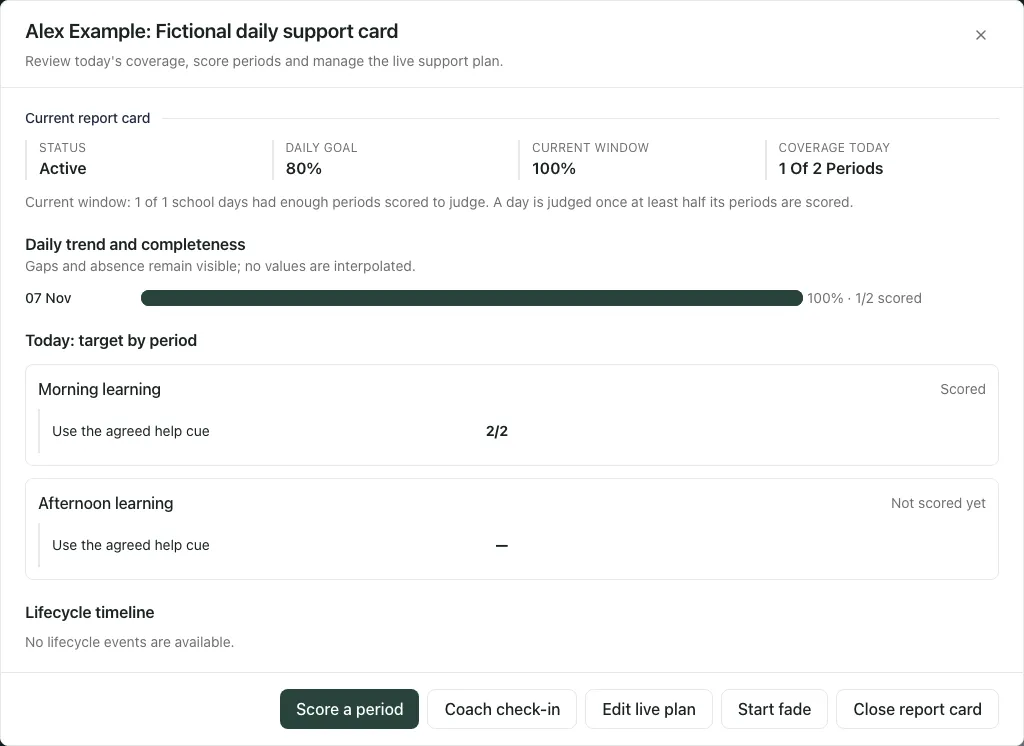
- Select Save and wait for success. Check the saved values in today’s period grid. The staff note is submitted with the score; the grid itself does not display that note.
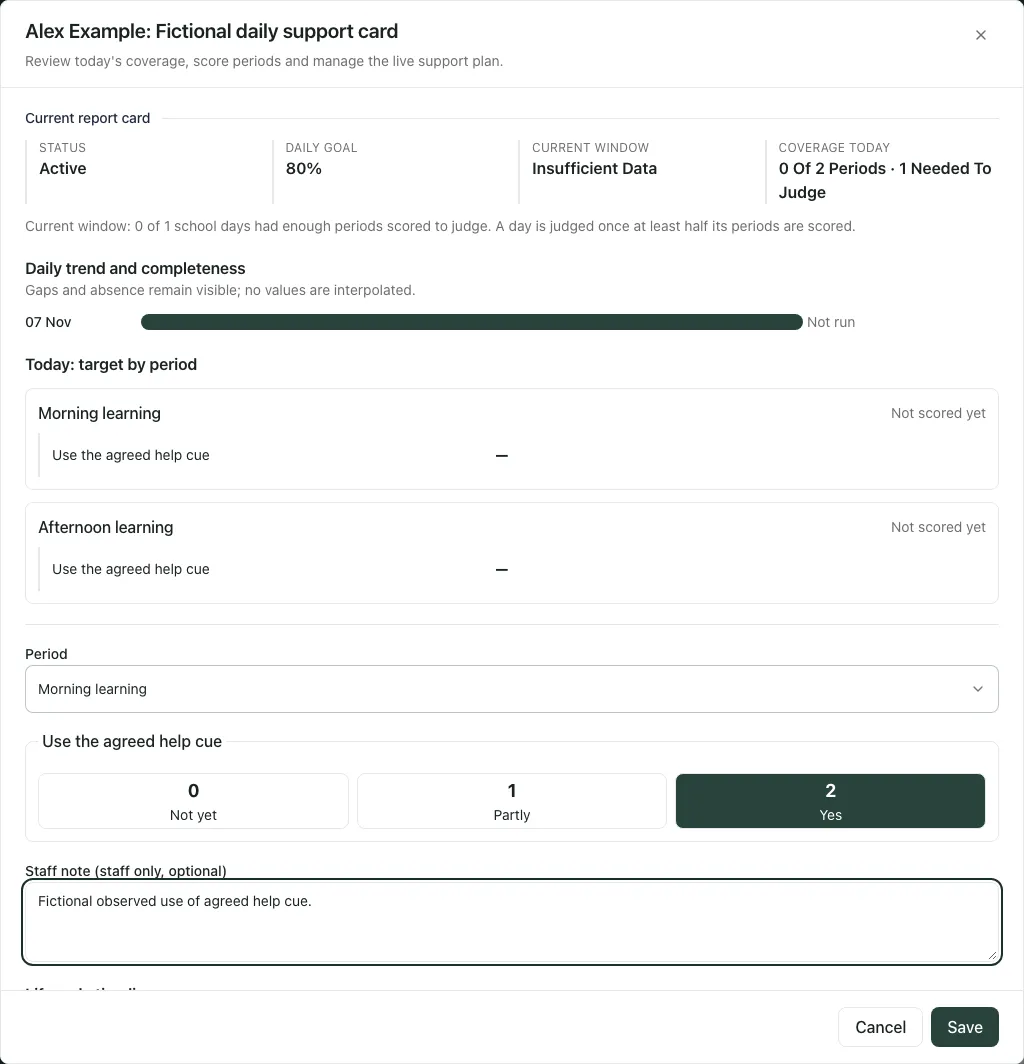
If the period already has a submission, its label indicates correct score. Check the existing entry and choose the replacement deliberately. Do not use a correction to hide a missing observation. A failed save is not a saved score; if the outcome is uncertain, reopen the card before submitting again.
5. Read percentages with coverage
Section titled “5. Read percentages with coverage”The day is judged only once at least half its eligible periods have been scored, rounded up, with at least one scored period required. Until then, missing information must not appear as a failed goal. The register shows scored/eligible periods and how many are needed to judge.
Once a day is judged, Goal met or Below goal describes the recorded scores against that card’s goal. It does not establish the cause of behaviour or show that the support caused a change. Check absent days, unscored periods, the actual scores and the observation context before comparing trends.
Baseline and current means use judged days. A high mean based on very few judged days is different from consistent coverage over a fuller period. Read any coverage counts alongside the percentage. Do not fill unknown periods with zero merely to obtain a result.
6. Use coach check-in and check-out
Section titled “6. Use coach check-in and check-out”For an active or fading card, an authorised manager or the relevant coach can use the offered Coach check-in and Coach check-out actions. Check-in records the conversation/reflection; check-out requires the coach summary and can include a pupil reflection.
The screen explains that only the coach summary and aggregate result can be shared with parents when sharing is enabled. Staff-only period notes are separate. Read what will be shared and the school’s actual family-portal arrangements before promising that a family will receive or see it. Do not infer delivery from a saved check-out.
Closed, proposed, rejected or paused cards do not offer the normal daily scoring/check-in workflow. A full-day absence also changes which daily actions apply.
7. Review and change the live plan deliberately
Section titled “7. Review and change the live plan deliberately”Edit live plan lets an authorised member of staff revise the card name, bespoke targets, scoring labels, goal and review date. It is not a general editor for the coach, scoring-period schedule or family sharing. If the old review date is in the past, choose today or later or clear it before saving.
Earlier scored targets remain understandable through their recorded history even when the current targets change. Compare scores against the targets that applied at the time, not only the current wording.
Start fade requires a reason. A fade suggestion is a prompt for staff review, not an automatic change. The current fade form does not choose a reduced set of periods; do not assume clicking it creates a new reduced timetable.
Close report card requires an Outcome and Closure summary. Choose Goal met, Partially met, Not met or No longer required based on reviewed evidence, then save. The lifecycle timeline keeps the reason/outcome for later review. Closing the work does not, by itself, prove impact.
8. Review proposals before deciding
Section titled “8. Review proposals before deciding”A proposal is not an active card. Inspect the pupil, proposed purpose and existing live support before Approve. If Reject is available, write the actual reason in its confirmation rather than assuming the app has supplied a professional judgement. Approval and rejection permissions can differ; read any refusal and refresh to see the current status.
9. Use the phone view
Section titled “9. Use the phone view”The register and dialog adapt to a phone. Scroll inside the card to reach its period details or action form, and check the fixed footer before saving. A selection can exist in a draft before it has been saved.
If something does not work
Section titled “If something does not work”| Situation | What to check |
|---|---|
| Report Cards disabled or access refused | Ask the school administrator to check the school setting and your required action. |
| Pupil already has a live card | Refresh and open that card; do not create a second pupil record. |
| Start is unavailable | Read the ordered blockers for pupil, coach, targets, periods, scoring labels, goal and review date. |
| No data yet | Inspect scored and eligible periods. Unknown is not zero or below goal. |
| Save refused after the card changed | Refresh/open the current card and review its state before retrying. |
| Review date prevents an edit | Move it to today or later, or clear it deliberately. |
| Family cannot find a summary | Check sharing, actual portal support and the school communication route; a saved card is not delivery evidence. |
| A reminder opens a task rather than the card | Find the pupil in Report Cards and open the original record. |
For wider evidence, formulation and consultation, see Use Support Plans.
Common questions
Section titled “Common questions”How should I interpret a partially scored day?
Section titled “How should I interpret a partially scored day?”Read the percentage with scoring coverage. Missing periods are not failed goals.
What should I check after entering a period score?
Section titled “What should I check after entering a period score?”Verify the saved entry for the intended pupil, period and target before drawing conclusions from the card.