Review behaviour patterns and trace exclusion indicators
Set the period and cohort, read the group denominators and open the source behind a behaviour or exclusion indicator. Use it to decide what to investigate, then open the relevant pupil or specialist record. A difference between groups or a rise in recorded incidents is a question for staff review, not an explanation of cause or an automatic decision about a pupil.
Screenshots use fictional school figures and Test Pupil. They include unavailable data to show how missing information differs from zero.
Before you start
Section titled “Before you start”Open Leadership → Teaching & pupils → Behaviour & Exclusions. The page heading is Behaviour & Exclusions. It uses the same analytics workspace as Behaviour Analytics; choose this route for the leadership review of recorded patterns and exclusions, then return to the specialist source for a case decision.
Check the school, named cohort, pupil count and exact dates. Your role can offer aggregate information without named pupil detail, and exclusions information can require separate access. A page link does not grant the underlying pupil or category access.
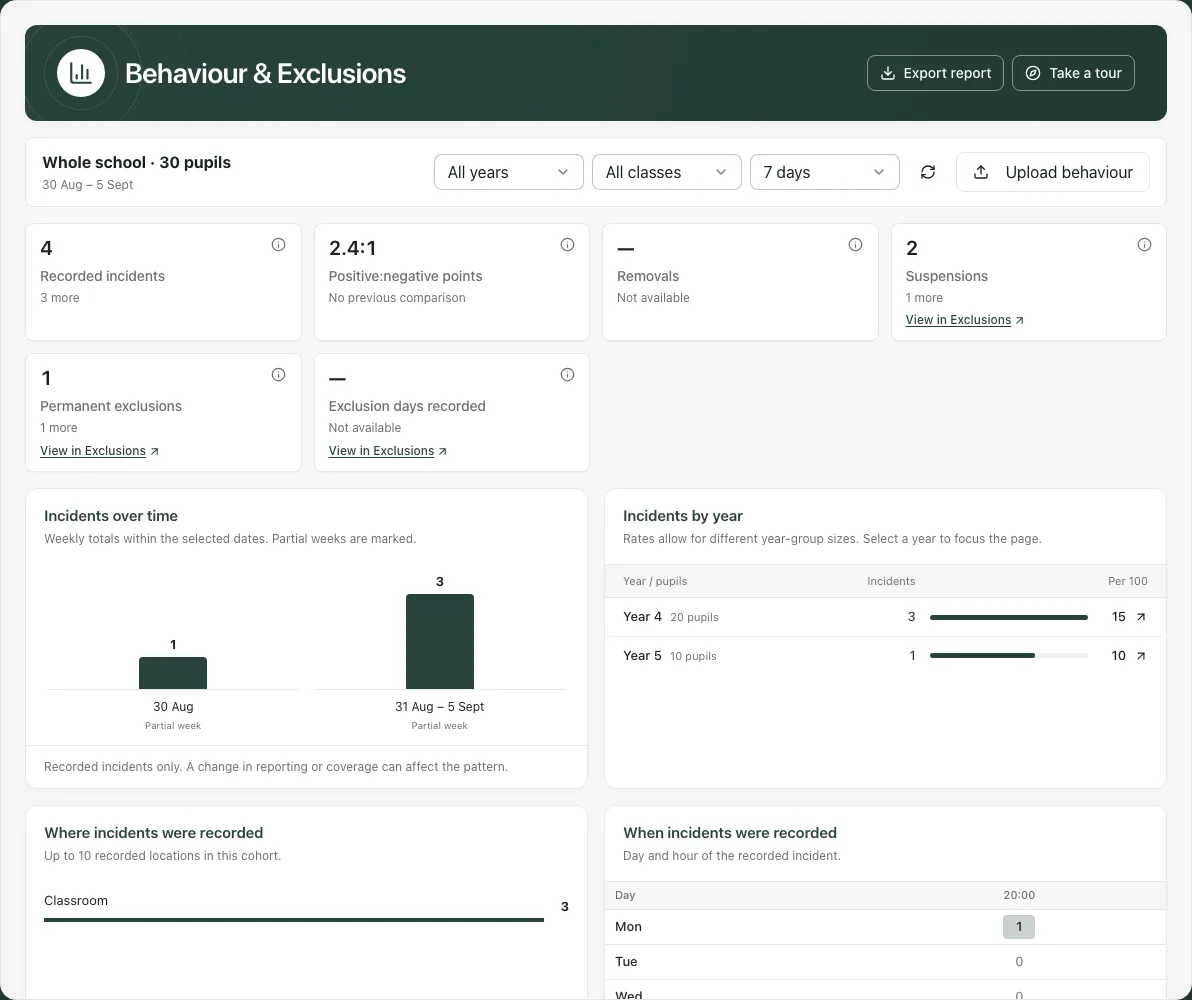
1. Set the reporting period and cohort
Section titled “1. Set the reporting period and cohort”Use Reporting period to choose 7 days, 28 days or This term. Read the dates shown beside the cohort after every change. This term needs usable term information; if the app explains that no current term is available, do not treat the result as today’s complete term.
Use Year group and Registration class to narrow the view. Changing year clears the previous class choice so you can choose a class in the new context. Clear filters returns to the wider year/class scope; it does not necessarily change the reporting period.
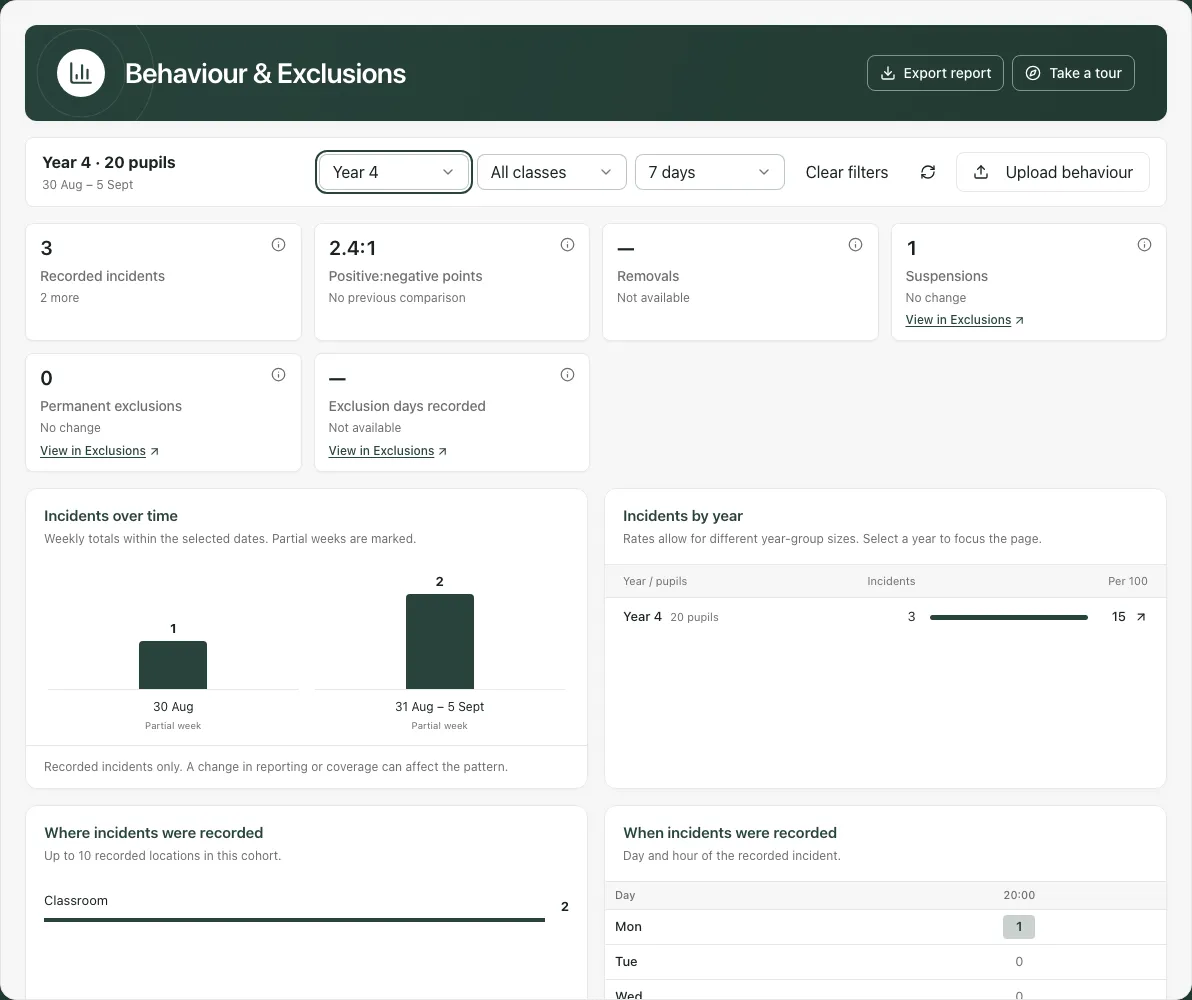
Select a year in Incidents by year to focus the page. Year rates account for different pupil counts; a larger raw incident total can reflect a larger group. Rates describe recorded incidents, not the chance that an individual pupil will behave in a particular way.
Use Refresh behaviour analytics when you need a new read, allowing it to finish before interpreting figures. If you changed school, check that old filters and pupil details have cleared.
2. Read the indicators without filling the gaps
Section titled “2. Read the indicators without filling the gaps”Open the information control beside a measure to read what it includes. Current and previous values can be compared only when the relevant comparison is available.
| Measure/state | How to read it |
|---|---|
| Recorded incidents | Current, non-deleted incident records in the chosen period and scope. Reporting practices and coverage can change the total. |
| Positive:negative points | A ratio of recorded points, not a count of pupils or a measure of wellbeing. No previous comparison is different from no change. |
| Removals / exclusions / suspension measures | Read the availability and source note. A missing connected source or restricted access is not zero. |
| Exclusion days not totalled | Read why: for example, an eligible record may lack duration, or your account may lack exclusions access. Do not invent a duration. |
| Dash / Not available | Unknown or unavailable for this read, not a confirmed absence of activity. |
A positive points award can be represented differently from a dated incident. Read any award-coverage note before comparing totals between this view and the source. Do not assume every counter describes the same set of records.
Check the exclusions record behind the headline
Section titled “Check the exclusions record behind the headline”Suspensions, Permanent exclusions and Exclusion days recorded must be read with their source notes. With whole-school scope, the current reader includes register cases involving pupils who have since left; a year/class focus concerns pupils now in that cohort. A whole-school period total and a current-cohort total therefore need not match. Read the note actually returned by your school’s connected source; do not reconstruct a missing duration.
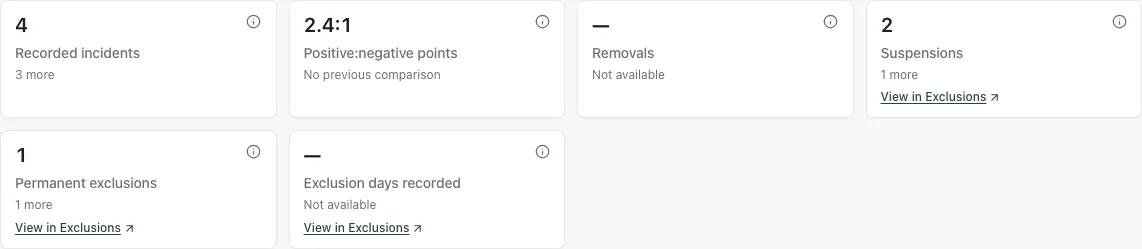
Where permitted, select View in Exclusions on the indicator (accessible names include View suspensions in Exclusions) to open the specialist register. Check the register’s dates and filters again: the link opens Exclusions and does not automatically carry every analytics filter. Compare the same period, case/source definitions and pupil population before explaining a difference.
An aggregate suspension or exclusion count is not authority to start, approve or amend a case. Use the Exclusions workflow for the actual record, review and authorised next action. No count or comparison here decides a sanction, supplies legal advice or establishes that an alternative response was effective.
3. Explore the pattern in time and place
Section titled “3. Explore the pattern in time and place”Incidents over time shows weekly totals within the selected dates. A partial week is labelled. A current partial week is not directly comparable with a complete week without considering the time covered. Wider periods can scroll horizontally; read the full labelled trend area.
Where incidents were recorded lists the available recorded locations, with a note about incidents without a location. A location total is not complete when some records have no usable location.
When incidents were recorded uses weekday and hour. Read the missing-time note: records with no usable time are excluded from the grid. Zero in a displayed hour means none recorded in that cell; it does not establish that no behaviour occurred.
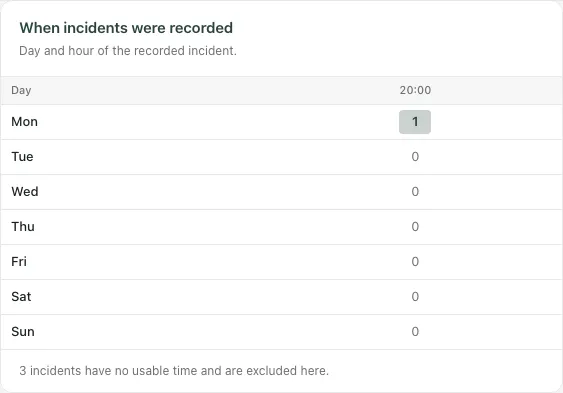
Use these patterns to ask practical questions about the environment, reporting and support. Check the source records before changing provision or taking a disciplinary decision.
4. Compare pupil groups fairly
Section titled “4. Compare pupil groups fairly”Incidents across pupil groups shows group pupil counts, incidents, rates per 100 pupils and the difference from the stated comparator. Read Comparator before interpreting the difference; it follows the current scope.
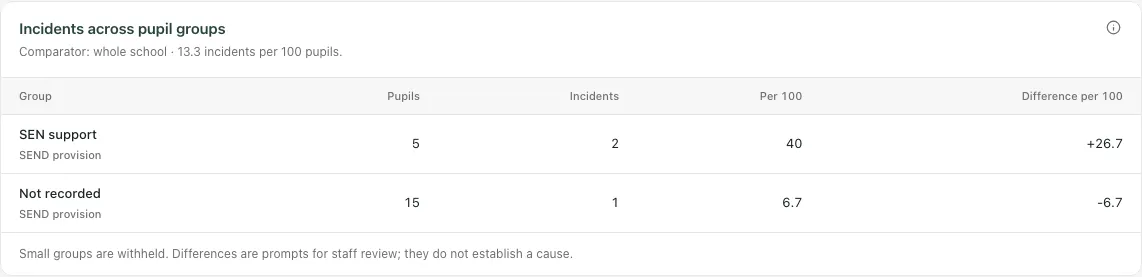
Small groups can be withheld; another group can also be withheld so the small group cannot be worked out by subtraction. If years or groups are suppressed, visible rows may not add up to the full cohort. Do not try to reconstruct the hidden values from another panel or export.
A recorded group difference does not establish that group membership caused the incidents. Consider missing data, pupil mix, reporting practices and the available evidence before agreeing a response. Not recorded is not always equivalent to a confirmed “No”.
5. Review pupils and recorded support
Section titled “5. Review pupils and recorded support”Where named detail is available, Pupils to review identifies pupils meeting the panel’s stated recorded-incident criterion. Choose the offered order and open a pupil to inspect the permitted record, dates and circumstances.
The review list is bounded. Read its total and any limit before assuming the displayed names are every pupil requiring attention. A pupil outside the list may still need support for another reason. The panel does not impose sanctions or diagnose a need.
Recorded support shows current behaviour-wave assignments for the cohort. An unrecorded assignment is not assumed to be Wave 1, and a support wave is not a risk label. Check the original plan and review before concluding that support was delivered or effective.
Where an exclusions indicator links to Exclusions, open that specialist record for the actual case and authorised next action. The analytics total is not a substitute for the case process.
6. Prepare a leadership briefing from the reviewed scope
Section titled “6. Prepare a leadership briefing from the reviewed scope”- Set the intended school, cohort and reporting period first.
- Select Export report.
- Check the cohort and dates in Export behaviour report.
- Select the sections to include: Key indicators, Exclusions & suspensions, Pupil group comparisons, Recorded locations and Recorded support, where available.
- Select Download CSV or Download PDF. Wait for the file, then inspect the result before sharing.
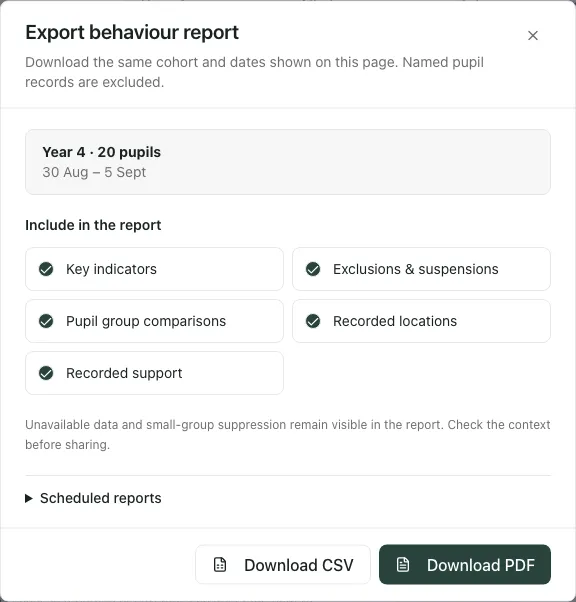
The export uses the page’s cohort/date snapshot and excludes named pupil records. Unavailable data and small-group suppression remain visible; export is not a way to obtain restricted details. If you change the page, school or scope while a download is being prepared, the app can stop it and ask you to export again.
For a leadership or governing-board briefing, state the selected dates/cohort, coverage limits, recorded pattern and the question or response leaders agreed. Do not describe a higher incident total as an explanation of cause or a completed action as improved pupil experience.
Scheduled reports, where offered, opens a separate reporting workflow. Opening that link does not itself schedule or send this report. Use your school’s normal approved recipients and report-sharing process.
7. Keep imported period summaries separate
Section titled “7. Keep imported period summaries separate”Upload behaviour handles supported platform period reports, such as Trackit Lights exports. It is not a general incident CSV importer and does not make period totals into dated incident records.
- Open Upload behaviour and choose the source platform.
- Select the supported CSV or Numbers report, within the shown file/row limits.
- Review the report headings, date range, school categories and pupil matches.
- Resolve or hold unmatched rows. Review colour/category reconciliation and any overlapping-period replacement choices before applying an import.
- Follow the explicit confirmation/publish controls only when an authorised person has reviewed the proposed result.
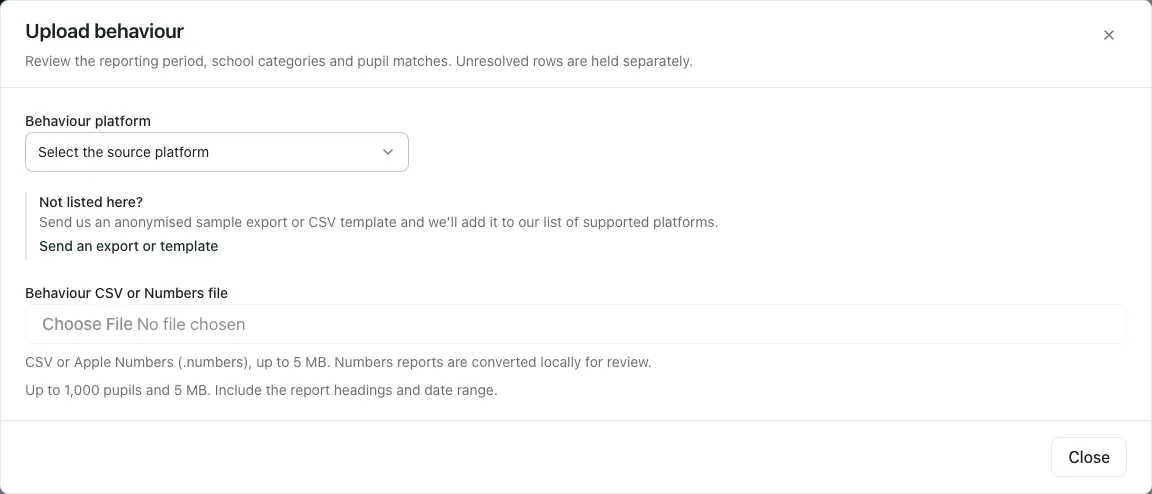
Imported behaviour summaries is a separate period-based view. Do not add its totals to the dated incidents above as though they were different events, or treat an unmatched/held row as published pupil evidence. If the platform is not supported, use the provided support route with an anonymised sample rather than placing real pupil data into an unreviewed format.
8. Use the phone view
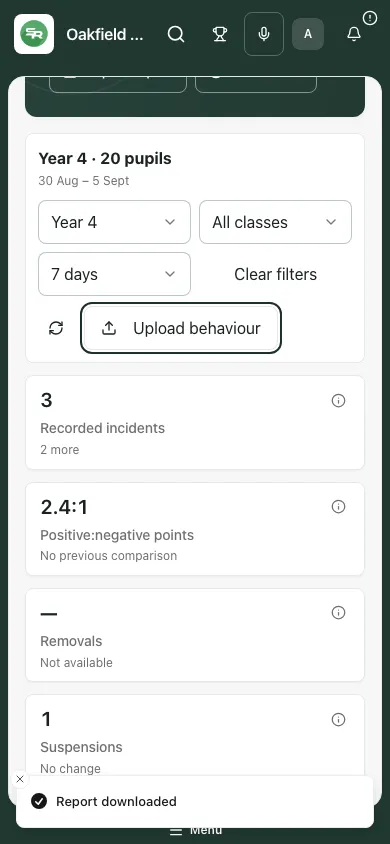
Section titled “8. Use the phone view”Check the cohort/date panel before scrolling through the indicators and charts. Some trend/grid areas scroll within their own panel. Use labels and counts, not colour alone, and keep named pupil detail out of public view.
If something does not look right
Section titled “If something does not look right”| Situation | What to do |
|---|---|
| No school selected | Select the correct school before refreshing or interpreting the view. |
| Access refused | Ask the authorised administrator to review your role; repeated refreshes will not grant access. |
| Filters invalid or no cohort | Clear year/class filters and select the intended available group again. |
| Small group withheld | Respect the suppression; do not infer the hidden count. |
| Missing location/time or duration | Treat the relevant chart/total as incomplete and inspect/correct the source through its normal authorised workflow. |
| No term information | Use the shown dates or an available day window; resolve term setup with the responsible administrator. |
| Export stopped because the page changed | Return to the intended cohort/date context, review it and export again. |
| Imported summary differs from incidents | Check source type, date window, pupil matching and what each view counts; they are not interchangeable datasets. |
Common questions
Section titled “Common questions”What should I check before comparing pupil groups?
Section titled “What should I check before comparing pupil groups?”Confirm the period, cohort, group denominators and unavailable or suppressed information. A difference is a question for review rather than an explanation of cause.
Can the leadership briefing expose named pupil records?
Section titled “Can the leadership briefing expose named pupil records?”The aggregate export excludes named pupil records and preserves unavailable data and small-group suppression. Open permitted specialist sources for individual review.