Set up and record classroom results in Digital Markbook
Written for: Teachers and assessment leads.
Create folders and assessment columns, enter marks with their scales and check the saved result or missing-mark reason.
Each row is a pupil and each column is a specific assessment with its own scale. Folders group columns by topic, term or purpose. Save each mark as you enter it; there is no separate whole-markbook save.
Use the markbook to preserve what a result means. A blank, an absence and a score of zero are different. The examples below use fictional pupils and percentage columns; your school may use other scales.
Before you start
Section titled “Before you start”Check the school, class and assessment column. You need permission to read the markbook and to record or change assessments for the pupil. Managing columns is a separate permission. A class link and an open pupil profile do not give you additional assessment access.
Agree the column’s purpose, scale and score range before entering marks. Check whether it is a class column, a school column or a column supplied by reading or homework. Do not create a duplicate column merely because the intended one is hidden by a folder, page or class selection.
Open the right markbook
Section titled “Open the right markbook”- Open Classes in the sidebar.
- Choose the year and class in a primary school. In a secondary school, use Teaching classes and choose the subject/class, or Tutor groups and choose the year/group.
- Select Digital Markbook.
- Check the class context. Use Year group, Class and Find pupil… where provided to narrow the pupils.
- Choose All columns or a folder tab, such as Autumn learning.
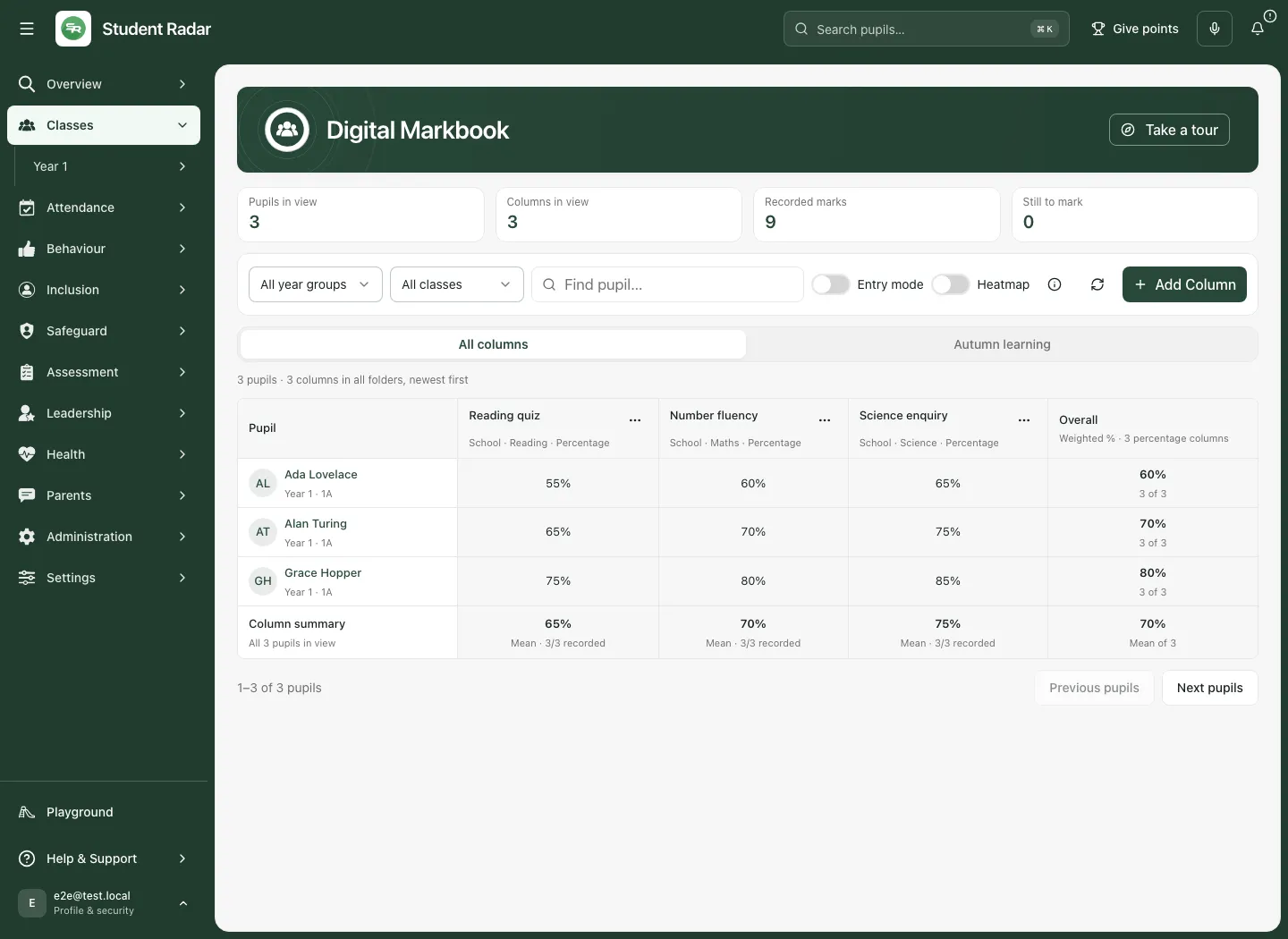
A class workspace can contain its own columns alongside relevant school columns. A column marked This class belongs to that class; School is shared. From reading or homework identifies a source-owned column. Where the view offers a wider school-column control, use it to find a shared assessment that does not yet hold marks for the class. Do not assume that a column missing from the current view has been deleted.
Read the grid and its coverage
Section titled “Read the grid and its coverage”Check the column name, subject and scale underneath the heading. A dash means no valid mark is recorded. Missing-work reasons are shown separately. The summary cards describe Pupils in view, Columns in view, Recorded marks and Still to mark for the current selected pupils and column page.
The markbook shows up to 40 pupils and 12 columns per page. Use Previous pupils and Next pupils, and Previous columns and Next columns, when available. A page is not the whole school’s dataset. Changing folder, pupil selection or column page changes the counts.
At the bottom, Column summary describes the selected pupils in each column. Numbers and percentages have a mean, Pass/Fail has a pass rate, and grades or levels use their relevant category summary. Read the recorded count beside the figure. A mean based on two marks is not equivalent to one based on a whole class.
Enter and save one mark
Section titled “Enter and save one mark”- Select the pupil’s mark cell, not their name. On desktop, the pupil’s name opens their profile; the mark cell opens the assessment editor.
- Check the assessment title, pupil name and grading scale in the dialog.
- Enter or select the Mark using the column’s scale.
- Add Assessment notes if useful. Keep them factual and relevant to this assessment.
- Select Save mark and wait for the dialog to close.
- Check the value in the grid. Reopen the same mark if you need to check the saved note.
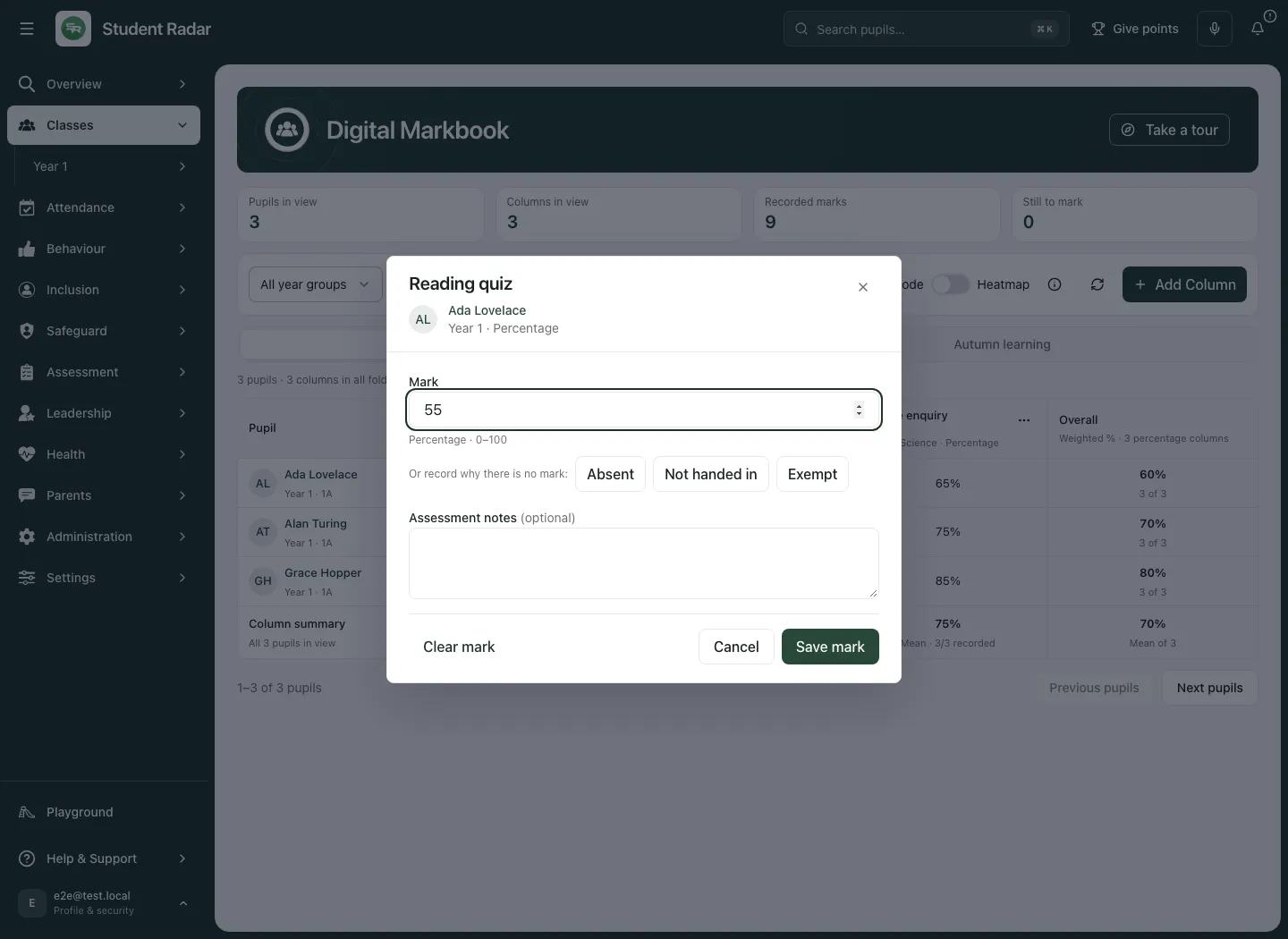
Each mark saves independently. A successful mark save is not a family message, task assignment or evidence that the pupil has improved. Agree the teaching response separately after reviewing the assessment.
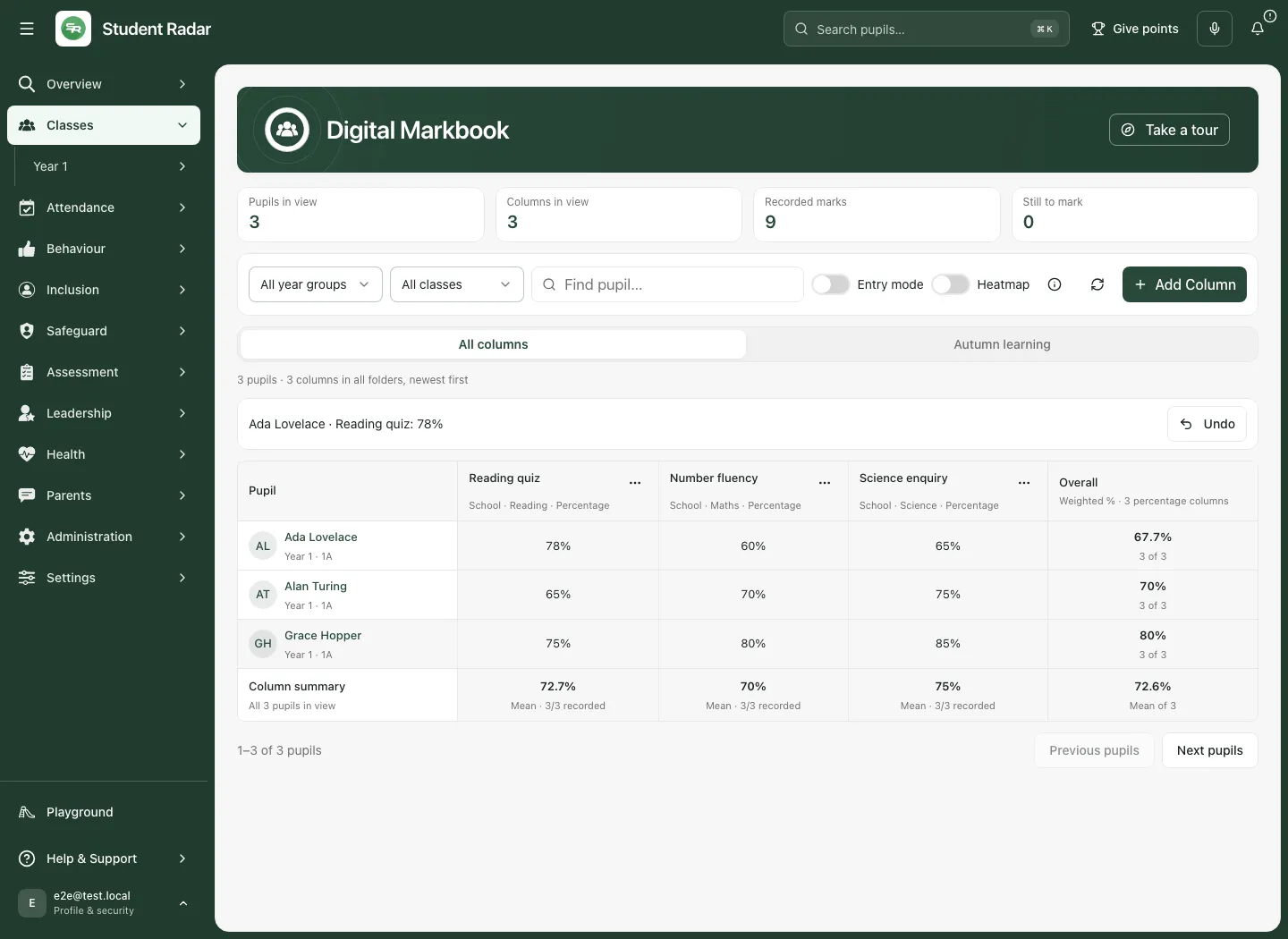
If you need to correct a mistake, reopen the mark and save the corrected value. Use the clear control where offered to remove an erroneous mark. Clearing is not entering zero, and saved notes/evidence can remain associated with the record. Check the resulting state before moving on.
Record why there is no mark
Section titled “Record why there is no mark”Where offered, choose Absent, Not handed in or Exempt. These are reasons, not grades; they are excluded from numeric averages and counted separately. Do not use a zero to represent absence or unfinished work unless zero is genuinely the assessment result under the agreed policy.
A note is saved with a mark. If you have typed a new note, the editor asks you to save a mark with it or undo the note before recording a missing reason or clearing. Read the message rather than assuming the note has been kept by a different action.
Use rapid Entry mode on desktop
Section titled “Use rapid Entry mode on desktop”- Turn on Entry mode.
- Select a mark cell, or type on a focused cell to start the mark.
- Enter a valid value for that column.
- Press Enter to save and move down; press Tab to save and move across.
- Press Escape to cancel the current draft. A cell left blank can be skipped; deleting an existing mark and confirming clears it.
- Check the saved status as you progress. If a save fails, the current change remains available for correction.
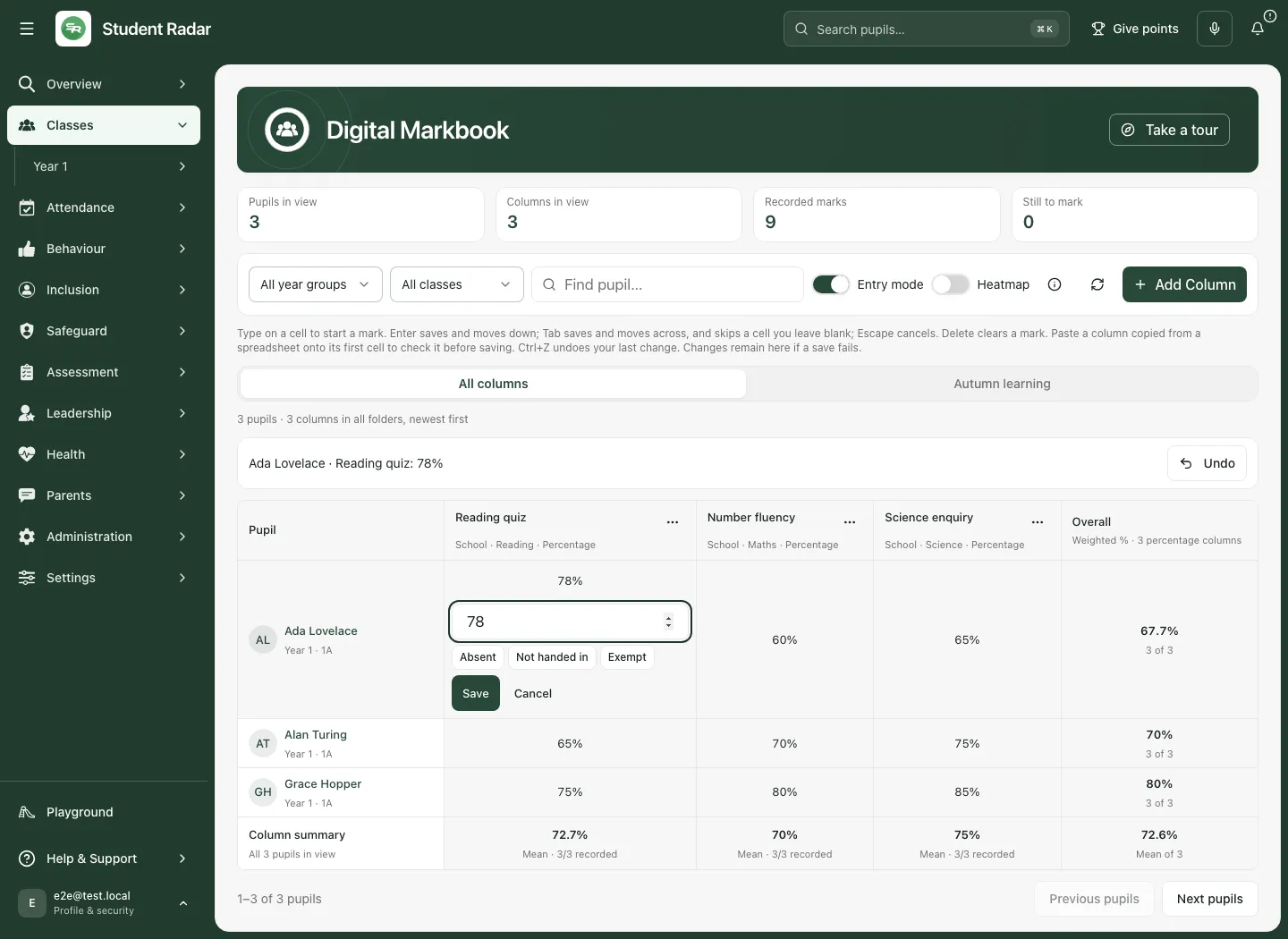
A reminder below the toolbar explains Entry mode. Delete clears a mark. Ctrl+Z and the Undo action can undo the last supported change in the current session. Check the result of an undo; a conflict with a later edit may need review.
Paste a column of marks
Section titled “Paste a column of marks”With Entry mode active, copy one column of marks from a spreadsheet and paste onto its first intended pupil cell. The preview lets you check the target pupils and values before saving. Confirm the alignment; row order in another spreadsheet is not proof of pupil identity. Review invalid/skipped values and any partial failures. Select Save 1 mark or Save [number] marks for the intended accepted rows, then check the outcome. Do not repeatedly paste over newer marks to dismiss a conflict.
Add a folder
Section titled “Add a folder”Folders organise assessments. Creating a folder can affect colleagues’ shared organisation, so use a clear agreed name.
- Select Add Column to open Manage markbook.
- Choose Add Folder where available.
- Enter Folder name, choose a Colour and optionally add a Description.
- Select Add folder.
- Check the new folder tab before creating assessments inside it.
Add an assessment column
Section titled “Add an assessment column”- Select Add Column.
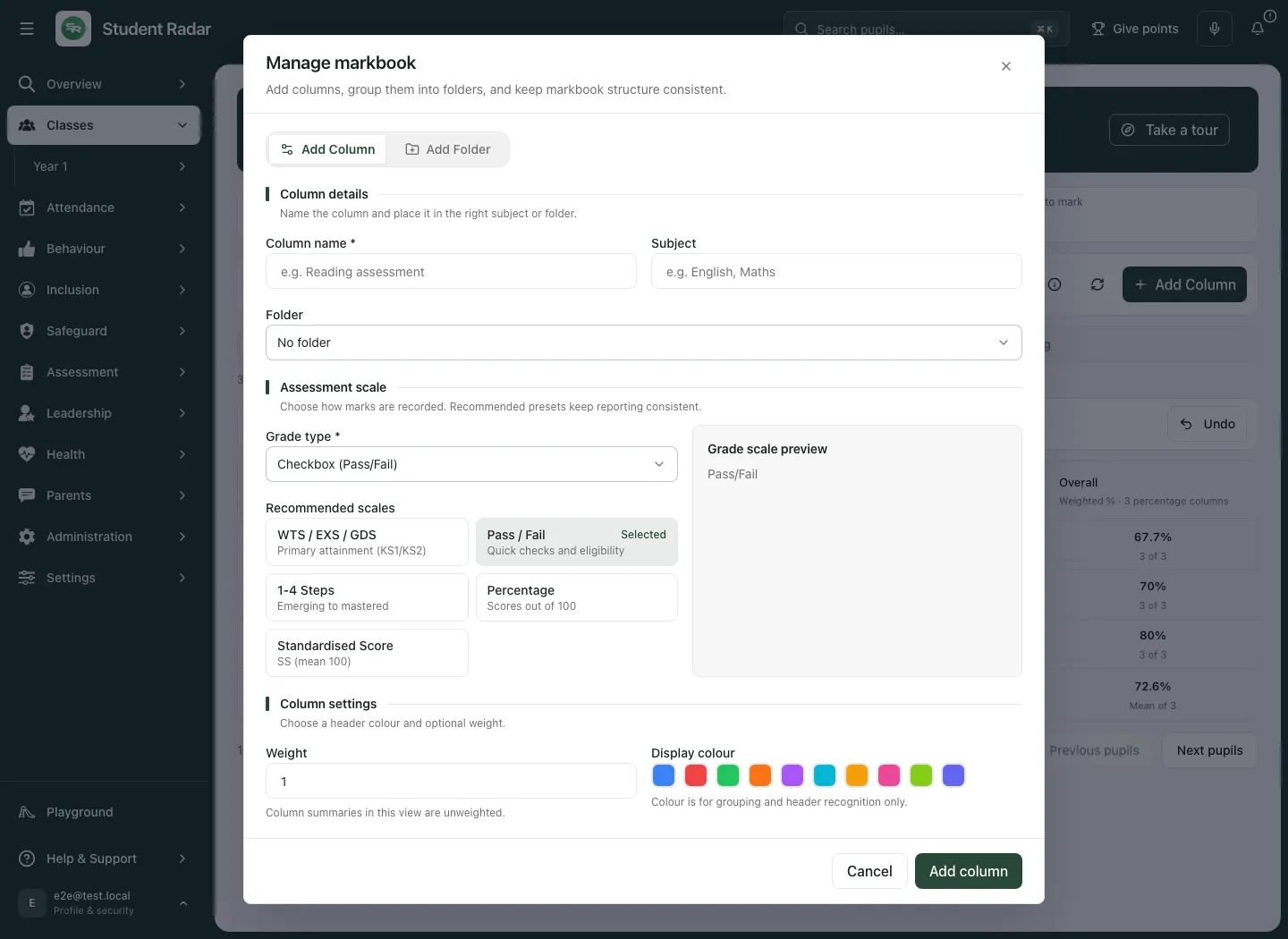
- On Add Column, enter Column name and Subject. Choose the intended Folder or leave it unfiled.
- Choose a recommended assessment scale or a Grade type.
- Read the Grade scale preview. Confirm the values you intend to record are supported.
- Check Weight and Display colour under the column settings. Weight matters to percentage Overall calculations; colour is a visual aid.
- Select Add column and check its scope and scale in the grid before entering marks.
| Scale | What staff record |
|---|---|
| Checkbox / Pass-Fail | Pass or Fail. |
| Numeric points | A numeric value within the configured range. |
| Percentage | A percentage in the column’s range. |
| Text grades | A value from the configured grade list. |
| Rubric | A named level in the rubric. |
| Icon | A choice from the configured icon scale. |
Recommended scales include WTS/EXS/GDS, Pass/Fail, 1–4 Steps, Percentage and Standardised Score. Custom scales need deliberate mapping for wider reporting. Do not treat those measures as directly interchangeable.
Rename, move, archive or restore a column
Section titled “Rename, move, archive or restore a column”Where you have management access, open Column options beside the heading and choose Rename, move or archive…. Check the dialog’s scope description: the column may belong to one class or be shared across the school.
- Edit Column name or Folder, then select Save.
- Select Archive column to hide it from the normal marks view while retaining marks.
- Open Archived and use Restore or rename…, then Restore column, to bring an archived column back.
Source-owned reading/homework columns keep their name and folder from that source; the dialog explains this and can still offer archiving. Change the authoritative source when the source’s description needs correcting. If a conflict says the column changed elsewhere, close and reopen it before making a decision.
Report a column to Assess
Section titled “Report a column to Assess”For a permitted manually managed column, Column options can offer Report to Assess….
- Review the column and its marks before starting.
- Open Report to Assess and check the displayed marked/blank counts.
- Set the Assessment point and Assessed on date. Use the actual assessment date; future dates are not appropriate.
- Read the explanation: the column is reported as its own measure, with source context, in Assessment Reports and the pupil profile.
- Select Report column when you intend that connection.
Continue entering marks in the markbook; the reporting connection carries supported changes to Assess with their source. It does not overwrite the pupil’s independent school Assess judgements or fill blank/excused cells with marks. An existing link offers Assess report… for its settings and Withdraw from Assess where permitted. Coordinate withdrawal with your assessment lead and check the result; do not confuse it with deleting the markbook’s original marks.
Interpret Heatmap and Overall carefully
Section titled “Interpret Heatmap and Overall carefully”Heatmap shades numeric marks according to their position within that column’s configured range. A darker cell indicates a larger number on that scale, not a diagnosis, a grade conversion or an impact judgement.
Overall is a weighted mean of percentage columns only in the selected folder and identifies how many columns contributed. It does not combine unlike raw scores, letter grades and rubric levels. Blank/invalid marks and missing reasons are not zeros. Coverage matters: compare the columns used for each pupil before drawing conclusions. If there are more than 60 percentage columns, Overall is withheld and the page asks you to choose a folder.
Use How markbook summaries work for the explanation in the app. A summary is a starting point for reviewing the underlying evidence, not a replacement for it.
Use the phone view
Section titled “Use the phone view”On a phone, the markbook uses a focused list for one assessment column. Use Previous column and Next column to select the assessment. Check its title and scale, then use the pupil’s mark control. Tapping a pupil’s name in this phone list opens that mark’s detailed editor.
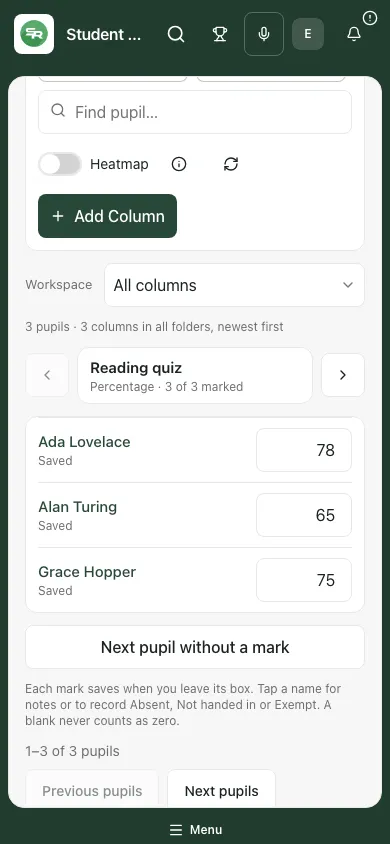
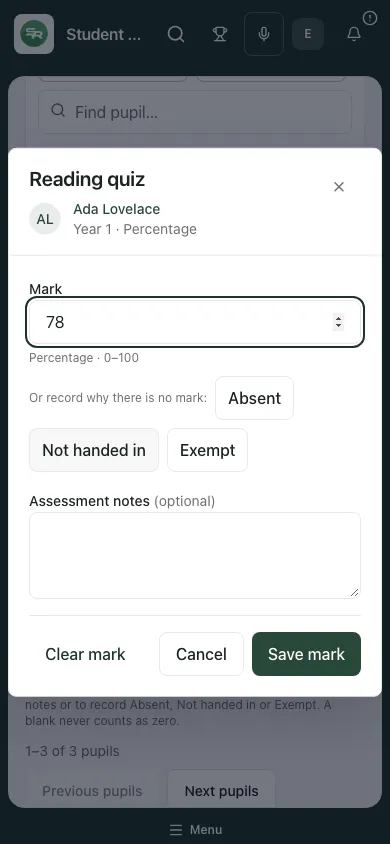
Desktop Entry mode is not the phone layout. Use the phone’s own mark controls and status messages; wait for Saved before moving away. Open the detail editor when notes or a missing reason need review.
Troubleshooting
Section titled “Troubleshooting”| What you see | What to do |
|---|---|
| Loading marks | Wait for the data to resolve; do not record values against an unconfirmed roster. |
| Unable to load, or marks unavailable | Use Refresh markbook or the retry control. Failure is not an empty valid markbook. |
| Read only | Ask for the exact pupil/assessment create or update access you need. |
| A column is missing | Check folder, column page, class context and Archived before asking for a new one. |
| Invalid mark | Read the scale, range and allowed values; correct the entry before saving. |
| Someone else changed this mark | Read the newer value, review your intended correction and retry against the latest record only if appropriate. |
| A note cannot be saved without a mark | Save a valid mark with the note, or undo that note before using a missing reason/clear action. |
| Some pasted marks failed | Review each failed row and saved outcome; do not assume the entire paste succeeded. |
| Overall is not shown | Choose a smaller folder and check that it contains percentage columns. |
Frequently asked questions
Section titled “Frequently asked questions”Are columns always school-wide? No. Current markbook supports class columns as well as shared school columns. Check the scope description.
Can columns be renamed or removed from view? Yes, where permitted: rename/move/archive controls are available. Archiving retains marks and supports restoring the column.
Do I save the whole markbook? No. Each mark or supported entry action saves independently. Check individual outcomes, particularly after a partial paste failure.
Does blank mean zero? No. Blank/invalid values and Absent/Not handed in/Exempt are not zero scores.
Does Overall include every assessment type? No. It uses supported percentage columns with their weights and shows coverage.
Does reporting to Assess turn a quiz into a teacher judgement? No. It remains its own source-labelled measure. Keep the context and scale when interpreting it.