Read and filter a safeguarding chronology
Written for: Authorised safeguarding staff.
Check loaded chronology sources, apply search and filters, inspect provenance and export only the matching loaded entries.
Use it to understand the sequence, inspect the original source and identify what needs further professional review.
The chronology is evidence for a human decision. It does not decide whether a child is safe, diagnose a need or prove that completed work made a difference. A filtered, partially loaded or unavailable source is not a complete school history.
All screenshots contain fictional school and case examples.
Before you start
Section titled “Before you start”You need permission to read the school chronology and the underlying records. Export has a separate permission. A link to a pupil or case does not grant access to restricted details. The information you see can differ from another authorised colleague’s view.
Check the school and use a private screen. Decide what you need to review: a particular pupil or case, an event type, an action status or a date window. Keep a note of the question you are trying to answer so a long sequence does not replace professional interpretation.
1. Open the chronology and check what is loaded
Section titled “1. Open the chronology and check what is loaded”- Open Safeguard → Case Records → Chronology to reach Safeguarding Chronology.
- Read any source, access or loading warning before interpreting the list.
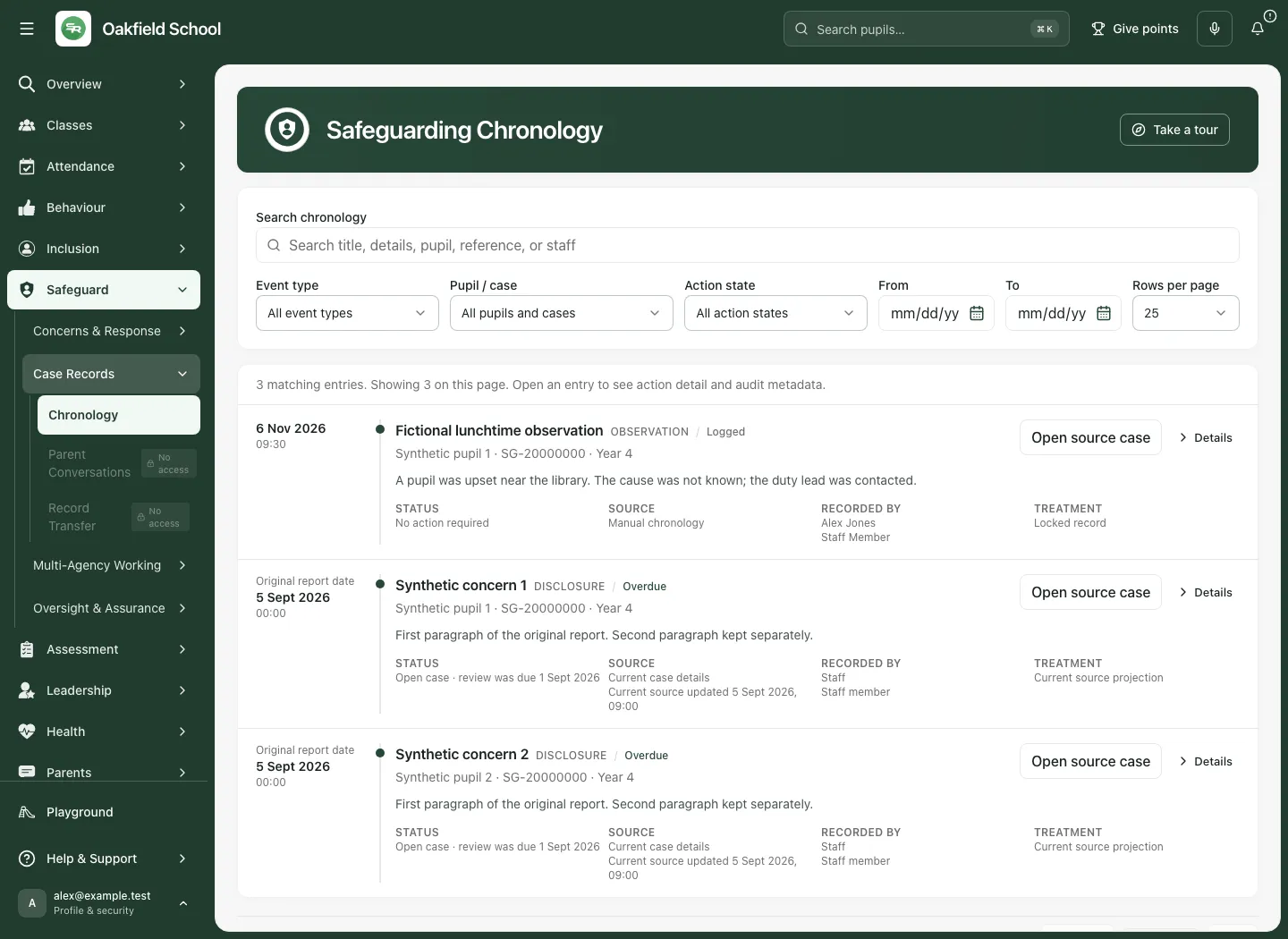
- Read the number of matching entries and the number shown on the current page. Entries are events and projections, not a count of distinct children or cases.
- If Older chronology entries are available appears, filters, quality checks and exports cover the entries loaded so far. Use Load older entries when your review needs an earlier period.
- If a source could not be read, preserve that limit. For example, Parent conversations could not be loaded, so they are missing from this chronology is not an empty parent-conversation history.
- Use Take a tour for an introduction to the page’s controls.
2. Search and filter deliberately
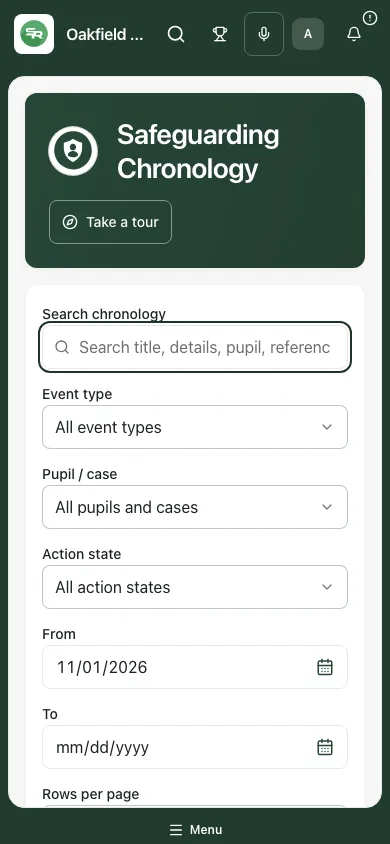
Section titled “2. Search and filter deliberately”- Enter a term in Search chronology. It searches title, details, pupil, reference or staff in the available loaded entries.
- Use Event type to select an offered type, or All event types to remove that restriction. The offered types reflect the loaded events.
- Use Pupil / case to choose the intended person and case reference. Use All pupils and cases to widen that selection.
- Choose Action state: All action states, Action required, Overdue, Not completed, Completed, Cancelled, Completion unconfirmed or No action required.
- Set From and To to the intended date window. Read them as school dates. If To is before From appears, correct the dates before using the result.
- Choose Rows per page: 25, 50 or 100. This changes presentation; it does not load every earlier source event.
- Read the matching count again and use Previous or Next to move between result pages.
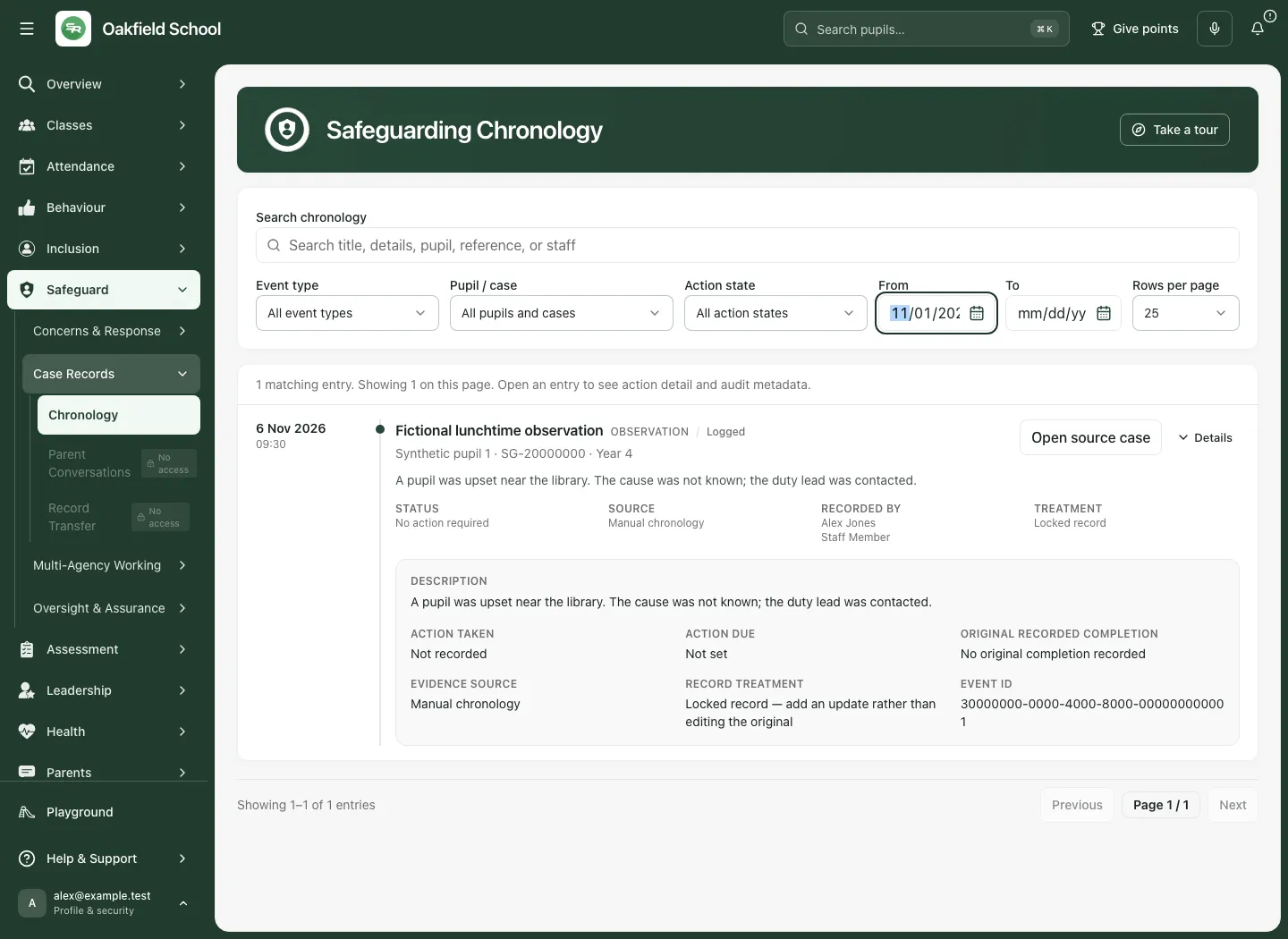
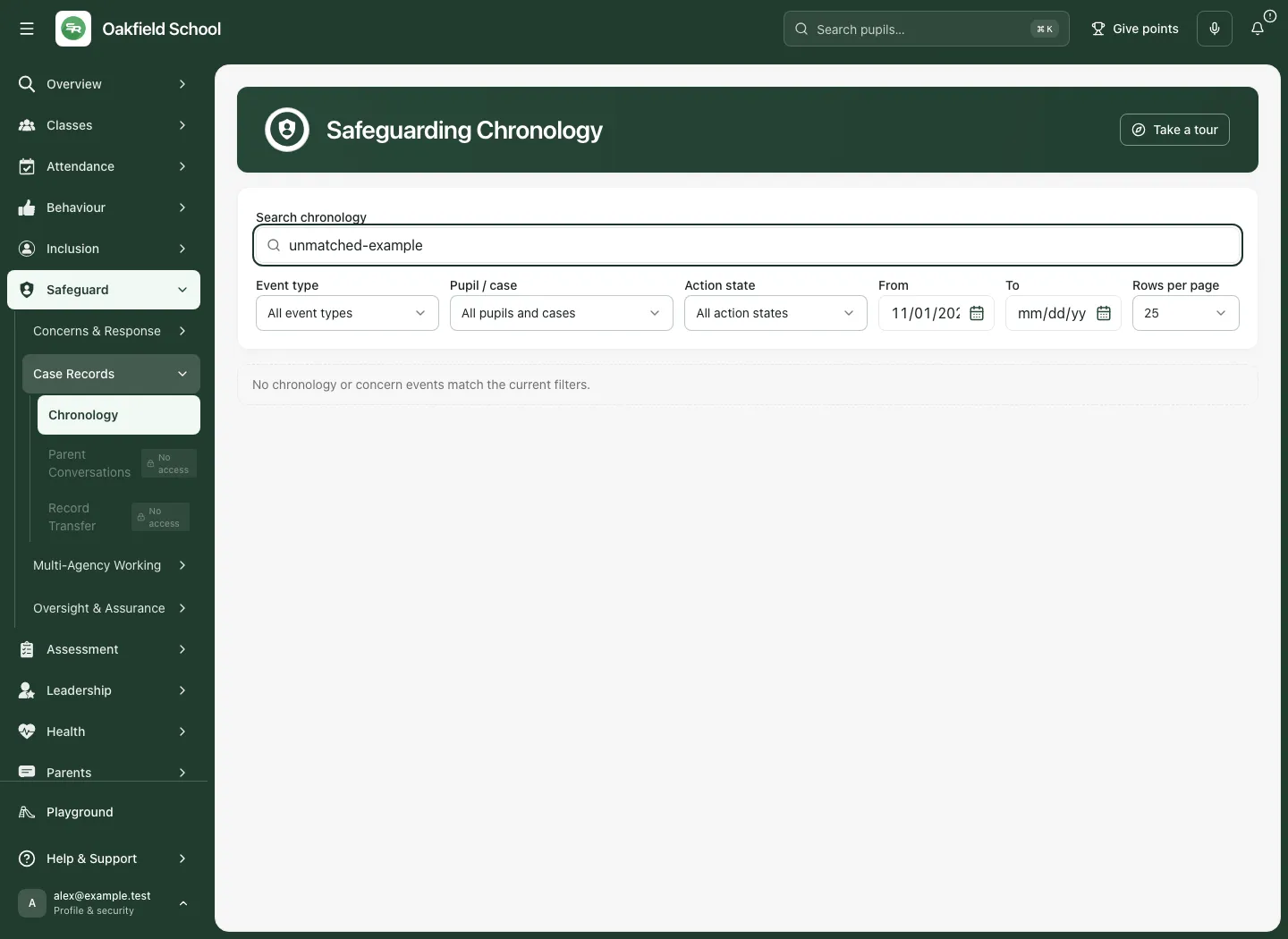
The filters combine. An empty result can mean the combination excludes the available events; it does not establish that nothing happened. Clear the search, widen the dates and return the selections to their All options when checking a missing entry.
3. Read an entry’s meaning and provenance
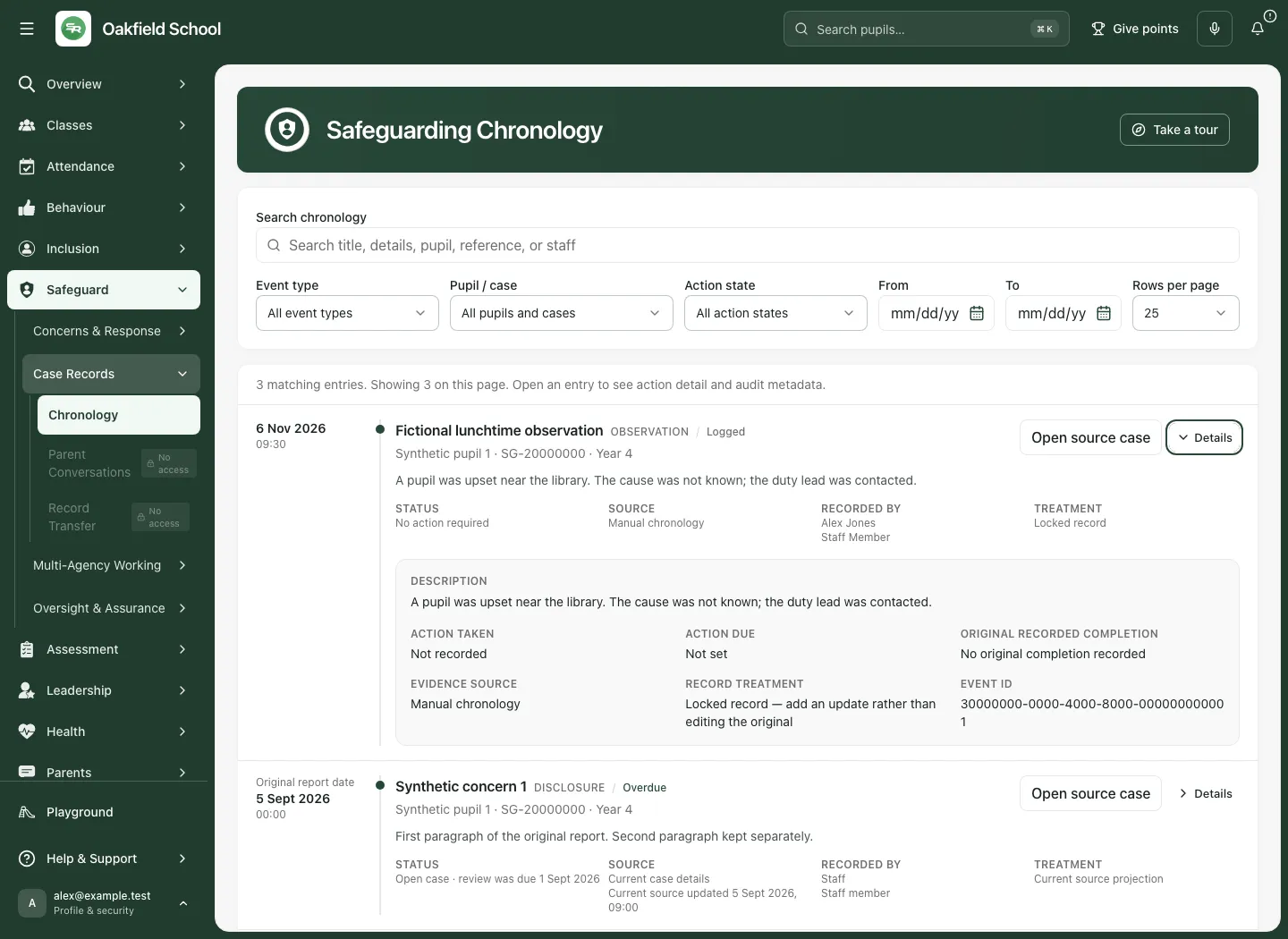
Section titled “3. Read an entry’s meaning and provenance”- Read the displayed event date and time, title and event type.
- Check the pupil, case reference and year group. Do not assume similar names refer to the same child.
- Read Status, Source, Recorded by and Treatment below the entry.
- Choose Details to expand it. The accessible control is Expand chronology entry; use it again to collapse the row.
- Read Description, Action taken, Action due, Original recorded completion, Evidence source, Record treatment and Event ID. Attachment labels, where present, identify recorded attachments; they do not by themselves show the file contents.
- Use Open source case for permitted case context and the appropriate next action. Where an entry offers a source conversation, follow that source rather than copying its history into another record.
Original history and current case details
Section titled “Original history and current case details”Manual chronology can be a locked record of what was entered at the time. Current case details is a current source projection, shown with its current source update time where available. It is not an extra historical event every time the case changes. Original report date identifies the date basis for a concern projection.
Do not silently treat a current review status as the status on the original report date. Read the Treatment and Current source updated information with the displayed date. The source case provides the professional context.
Missing and uncertain information
Section titled “Missing and uncertain information”Not recorded, Not set, an unavailable date or an unknown author is missing information. It does not mean no action was needed or no action happened. Read Record quality issue messages and resolve the original record through the appropriate authorised workflow.
4. Interpret action status without rewriting history
Section titled “4. Interpret action status without rewriting history”Original recorded completion is a historical field. The current action-work status can be Completed, Cancelled, Not completed or Completion unconfirmed. These answer different questions.
- Choose the relevant Action state to locate work needing review.
- Expand the entry and read its original action and due date alongside the current status.
- Open the source case to review or act on the work where you have permission.
- If current completion is unconfirmed, retain that uncertainty and check the authoritative work record. Do not infer completion from an old recorded date or from the absence of a current response.
Where the source case offers work controls:
- Use Take ownership for unowned work you are authorised to take, then check the recorded owner/state.
- For your owned action, choose Complete action only when that work was actually completed.
- Enter What was completed and what happens next? (at least three characters, up to 2,000) and choose Record completion.
- To reopen your completed work when more is needed, choose Reopen action, enter Why does this action need more work? and choose Record reopening.
- Read the confirmed result. A failure or a case/version conflict needs a fresh read before another attempt. These work decisions do not alter a locked original chronology entry or prove pupil impact.
The source-case controls described here depend on current authority and work ownership. The chronology page itself is a reading and source-navigation surface; it is not a free-edit spreadsheet of historic events.
5. Review record quality
Section titled “5. Review record quality”- If a record quality issue summary appears, read the counts and the issue types. An action-required entry without a due date and placeholder text are examples of issues the page can surface.
- Choose Show issues only to focus on those loaded entries.
- Expand each row to read its full issue list and original fields.
- Follow the appropriate source and record a factual update or correction through its authorised workflow. A locked entry calls for an update rather than an overwrite of history.
- Choose Show all matching to return to the wider filtered view.
- If older entries remain unloaded, remember that the quality summary covers the loaded material, not an exhaustive school audit.
6. Follow a pupil or queue link
Section titled “6. Follow a pupil or queue link”A link from a pupil or another safeguarding workspace can open the chronology already focused on that pupil. Read the focus notice and use Show all pupils only when you intend to widen the view and your authority permits it.
Some queue links cannot be faithfully reproduced by the chronology’s filters. Read the explicit queue notice rather than assuming the resulting chronology is the exact same queue. Check the source workspace for its current membership and next actions.
7. Export the matching loaded entries
Section titled “7. Export the matching loaded entries”Export is available only with the relevant permission and a usable loaded result. The school chronology currently offers an identifiable CSV export; do not assume the wider report export formats or anonymised modes are available here.
- Review the search, pupil/case, action state and date filters.
- Check loaded coverage and use Load older entries first if the intended evidence window needs them.
- Choose the actual available button: Export loaded matches when older entries remain available, Export matching for all matching loaded cases, or Export selected case for a selected case.
- In Export school chronology, read the matching loaded entry count. The result is permission-checked and recorded in the export audit log.
- Enter Reason for identifiable export, explaining the authorised purpose. Identifiable exports require a reason.
- Choose Export and wait for the actual result. A click is not a successful file.
- Review the resulting file’s scope and contents before storing or sharing it using the school’s approved secure process. Generating a file does not send it or grant the recipient permission.
Do not describe Export loaded matches as a full case or school export. A date filter and the number loaded must remain part of the evidence explanation. If export fails, check the error and current permission/source state; do not make a manual screenshot bundle to bypass a restriction.
8. Review on a phone
Section titled “8. Review on a phone”- Read the search and filter fields before the result list; they remain active on a smaller screen.
- Use Details to expand the entry you need.
- Check Source, Treatment and dates before moving to its source case.
- Keep the screen private and close the sensitive view before handing over the device.
Troubleshooting
Section titled “Troubleshooting”| Situation | What to check |
|---|---|
| No matching entries | Search, combined filters, selected pupil/case and dates; then loaded coverage. |
| Earlier history appears missing | Use Load older entries if offered. A loaded window is not exhaustive. |
| Parent conversations unavailable | They are missing from this result, not confirmed absent. Retry through the offered process or ask an authorised lead. |
| Original completion differs from current status | Read the current work/source separately from the historical field. Preserve Completion unconfirmed until verified. |
| A source case cannot be opened | Its access and source state are checked separately. A chronology link does not grant access. |
| A malformed or missing field is highlighted | Read the quality issue and follow the source’s correction/update process. Do not overwrite locked history. |
| Export button missing or disabled | Check export permission, loading/error state and whether matching entries exist. |
| Queue notice says the filter cannot be reproduced | Return to the source queue for its actual current membership; do not equate the chronology result with it. |
Frequently asked questions
Section titled “Frequently asked questions”Is each row a separate concern? No. It can be a chronology entry, source conversation or current concern projection. One case can contribute multiple rows.
Does the original report date mean the current stage was recorded then? No. A current source projection carries current case details and its source update information.
Can I edit a locked original entry? Use the source workflow to add an appropriate update. Preserve the original record and its provenance.
Does a completed action prove the support worked? No. Record and review evidence of the outcome separately.
Where do I manage the response? Authorised staff use the DSL Action Board. New reporters use Raise Concern. Parent Conversations and other companion guides are planned in this draft set.