Prepare Catholic self-evaluation evidence for CSI
Review the CSI judgement areas, linked evidence and previous improvement areas before preparing the school’s CSED. Prepare a Catholic Self-Evaluation Document (CSED) for the intended audience while keeping the school’s working judgement distinct from an inspector’s decision.
Open Leadership → Faith inspection → CSI / Section 48. The hub has Dashboard, Evidence, Self-evaluation, Records, Prayer & Liturgy and CSI history. Screenshots show a fictional mission, one limited pupil discussion and an incomplete RE-time record; no inspection grade is inferred from them.
1. Check mission, school type and cycle before entering evidence
Section titled “1. Check mission, school type and cycle before entering evidence”On Dashboard, review Mission status and School type. Eligible leaders use the offered mission setup/review action, complete Catholic life and mission, Mission and Gospel rooting, Mission values, Adopted, Last reviewed and Next review due, then Save full mission setup.
Check the saved version. A meaningful mission change creates a retained version; unchanged setup does not need another identical version. If part of a save failed, inspect the reloaded state before retrying so that the history is not mistaken for a single unqualified success.
Choose the actual Catholic foundation type. A legacy type shown as not recorded needs checking; do not choose a different type simply to make a warning disappear. A refused school-type save is not a retained change.
Use Add inspection dates or Update inspection dates, record the actual last inspection and next window, then Save dates. Last inspection cannot be future-dated and the next window must be in order. This records the school’s planning context, not a confirmed inspectorate appointment.
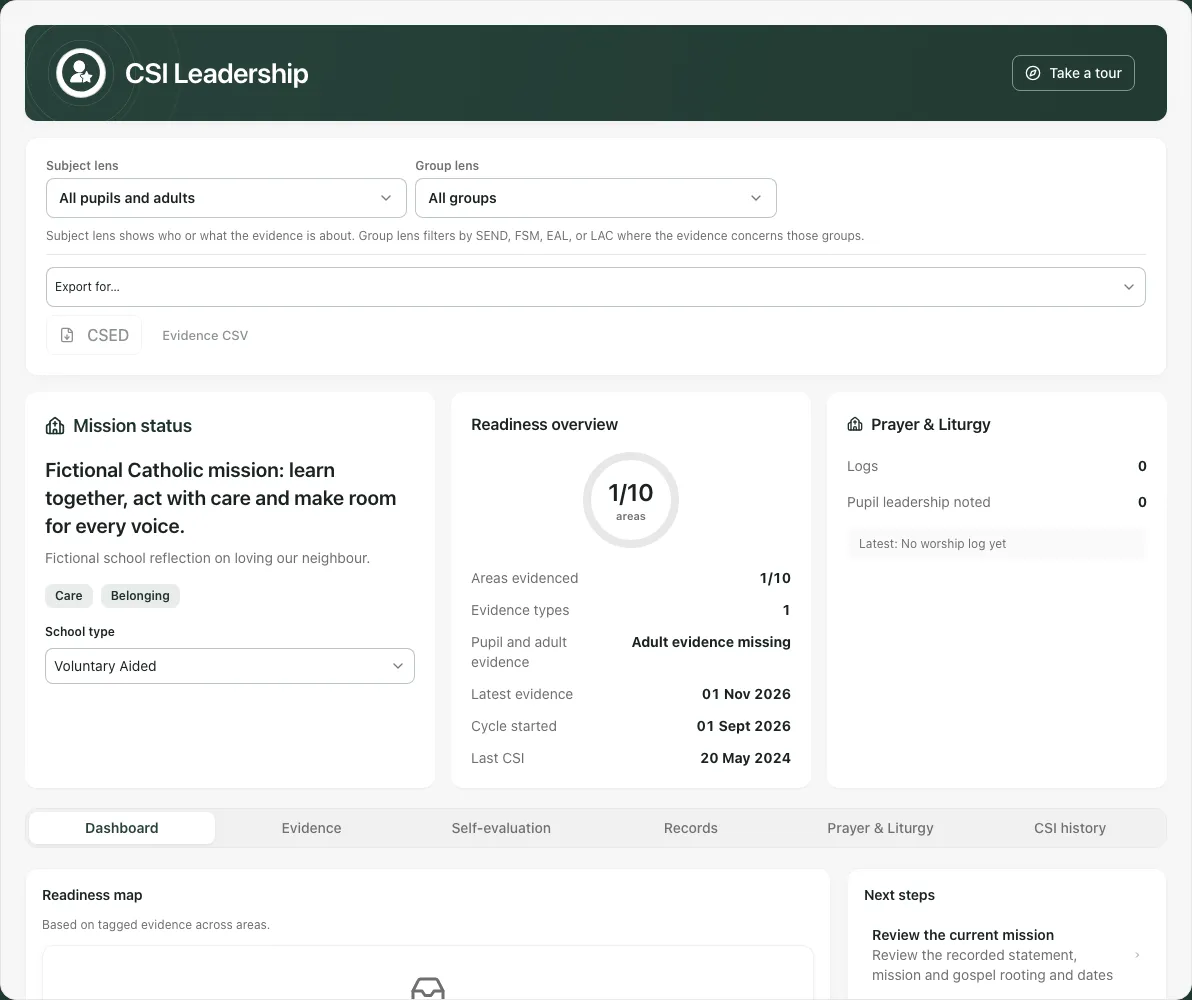
Current-cycle evidence and judgements should be read together. An older cycle’s narrative or working grade is not the current one merely because the school’s mission has the same name.
2. Keep evidence coverage, school judgement and working grade separate
Section titled “2. Keep evidence coverage, school judgement and working grade separate”The hub groups the three key areas—Catholic Life & Mission, Religious Education and Collective Worship/Prayer & Liturgy—through pupil outcomes, provision and leadership, alongside Overall Effectiveness. Counts show which configured areas have recorded evidence, not how many inspection standards the school has passed.
Where enabled, CSI evidence coverage and school judgement shows Evidence coverage, Coverage gaps for [area], School judgement for [area] and a separate Working grade for [area]. A school judgement such as Ready/Developing/Priority is not the same as an inspection-scale working grade. Not yet graded remains unknown rather than silently Good.
Eligible leaders choose a working grade only after reviewing the relevant evidence and professional judgement, then check the saved result/error. The Working grades summary derives an internal picture from the recorded sub-judgements and compliance/previous-AFI inputs. Missing required grades remain incomplete; the app’s weakest-area and limiting calculations are software working rules, not an external inspectorate judgement or advice about an actual school’s grade.
A coverage percentage, completed visit, positive survey total or saved task does not establish educational quality or an outcome. Use the evidence and diocesan/school process to decide what is justified.
3. Link real evidence to the correct judgement area
Section titled “3. Link real evidence to the correct judgement area”Open Evidence, select Judgement area and inspect Current evidence or Pre-mission. Subject lens identifies who/what evidence concerns; Group lens filters the recorded SEND, FSM, EAL and LAC markers. These lenses do not demonstrate complete coverage of every pupil/group.
Use the search, source-type and date-order controls; Reset evidence filters distinguishes no matching rows from no evidence. Tags from before full mission setup remain pre-mission until deliberately assigned through the offered mission-assignment workflow. Check their original date/context before doing so.
Expand the inline Evidence panel, enter What is this evidence?, choose Area and Flourishing subject, record relevant Mission values, optional group markers and a proportionate narrative note, then Add tag. A useful label identifies an actual source/sample and what it may support. A descriptive tag is not a file upload or proof that its claim is true.

Use Mark reviewed only after reviewing the particular record; the existing reviewer/date is retained. Source links retain their own access controls. Do not put confidential case details in labels or narrative intended for governors/advisers. Restricted metadata does not grant access to the underlying source.
4. Add measures or artefact files with their actual limits
Section titled “4. Add measures or artefact files with their actual limits”Where Impact measures is offered, inspect source, period, population/group, capture date and comparison before attaching a candidate. It retains a snapshot, rather than silently refreshing an old number when its source changes. Attach a later capture deliberately when a new comparison is needed.
For manual measures enter the actual labelled value/unit, period and any valid comparison. Missing is not zero, and change is not evidence that the mission caused it. A failed source read must remain unavailable, rather than a claim of no pupil need.
Use Artefacts → Choose artefact file, a meaningful Artefact label and Upload for a file. Check the saved item and open result. If completion is uncertain, keep the file and use Artefact request recovery to check/retry the original request or explicitly abandon it as offered. Avoid duplicate uploads while the first may already exist. A failed deletion remains unresolved.
5. Save the narrative and strengths/priorities separately
Section titled “5. Save the narrative and strengths/priorities separately”In Self-evaluation, select the intended Judgement area. Write Current narrative using the actual evidence, its sample, missing voices and what staff intend to review. Choose Save narrative, wait for confirmation and reopen the same area to check it.
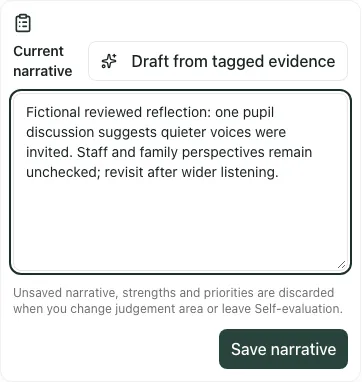
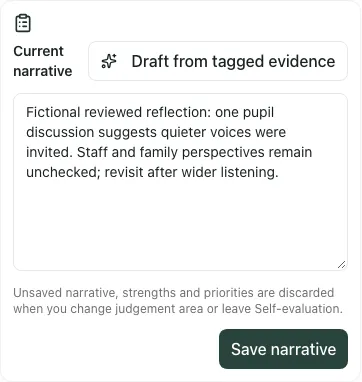
Under Strengths, priorities & impact, enter Strengths (one per line) and Development priorities (one per line), then Save strengths & priorities. That is a separate save. Unsaved narrative, strengths and priorities are discarded when changing judgement area or leaving Self-evaluation, so check both before moving on.
Optional Draft from tagged evidence and Draft with AI provide wording to review, not adopted judgements. Check every assertion against the selected evidence. A suggested impact summary is not a saved outcome, and saving priorities does not create assigned work automatically.
Gaps and actions can show extracted platform prompts, while some displayed saved-action fields have no complete writer in this hub. A prompt is not an authorised school action. Create deliberate owned work through the appropriate task workflow where required, then revisit it with new evidence.
6. Record RE-time inputs and diocesan directives accurately
Section titled “6. Record RE-time inputs and diocesan directives accurately”Open Records → Compliance. These Records panels are whole-school, rather than filtered by the selected judgement area.
For curriculum time, choose Add RE-time entry, enter Phase, optional Year group, RE minutes per cycle and Total curriculum minutes per cycle, then Save entry. Use comparable cycles and the actual phase/year label. Values cannot be negative, total must exceed zero and RE cannot exceed the total. Unknown minutes can remain missing; do not enter zero to obtain a result.
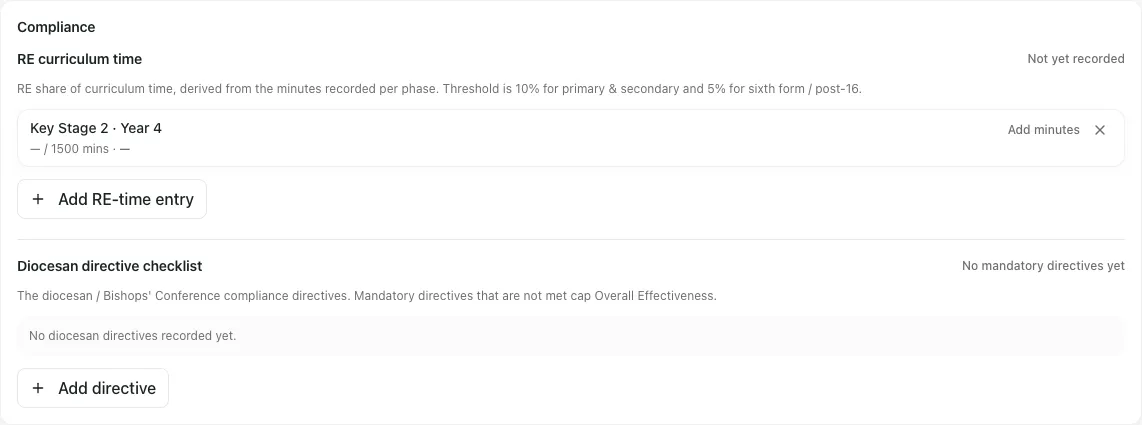
The app applies its phase-based percentage check and reports missing inputs. Read Met so far; [number] missing minutes as incomplete coverage, not a completed school-wide compliance finding. The software’s calculation does not prove actual curriculum delivery or replace the responsible RE/diocesan lead’s interpretation.
For a directive, choose Add directive, enter Directive description, decide Mandatory directive from the actual school/diocesan requirement, then Save directive. Check the new item and use Status for [description] to record Met, Not met or Not applicable after review. A default state is not evidence it was met. Mandatory failures can affect the app’s working Overall Effectiveness limit; they do not issue an external judgement.
Deletion requires the offered confirmation. Do not remove an awkward compliance input simply to improve a displayed working summary.
7. Review previous areas for improvement explicitly
Section titled “7. Review previous areas for improvement explicitly”Under Areas for improvement, choose Add area for improvement. Complete Area for improvement description, Source (Previous inspection or Self-identified) and Response status, then Save area.
For an existing item, use Response status for [description] to record the reviewed state: Fully addressed, Partially addressed, Not addressed or Not applicable. Keep the distinction between a previous-inspection requirement and a self-identified development point. Only change the response after checking actual evidence; status is not automatically derived from task completion.
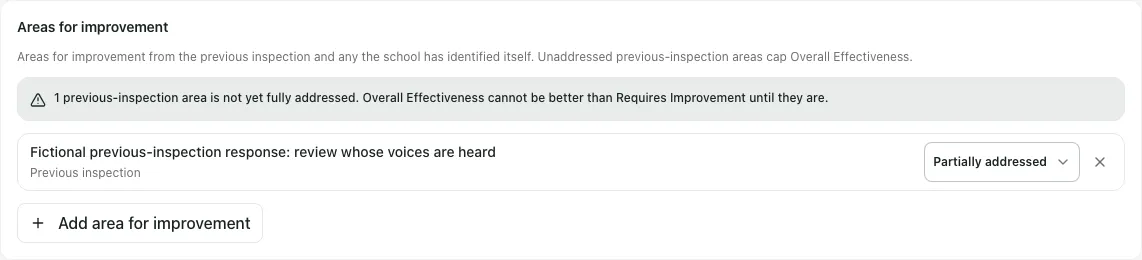
Read the app’s working limitation explanation alongside the inputs. A prior AFI remaining partly/unaddressed differs from one fully addressed, and an absent record is not proof no previous AFI existed. Keep the original report and reviewed response evidence available through the school’s agreed record process.
8. Capture CES parent/staff views without mixing populations
Section titled “8. Capture CES parent/staff views without mixing populations”In Records → CES parent and staff surveys, use the offered parent or staff template button to create the intended instrument. Inspect its title, audience, questions and state. New link creates a distributable survey link; it is a deliberate sharing step, not an automatic email. Check the exact audience and text before distributing through the school’s authorised route.
For paper/aggregate results, choose Instrument and CSI area. Respondent group follows the instrument, rather than a free choice. Enter whole-number Positive, Neutral and Negative counts with at least one answer, plus an optional anonymised Theme, then Save results. Wait for Results saved before entering another batch; controls lock during save and the instrument/area remain selected afterwards.
Check for an existing batch before resubmitting after an uncertain response. Results report separates parent/staff totals and key areas. Online responses, paper batches and answers recorded are different denominators; an answer rate is not a response rate for every family/staff member. A missing or partial read is not zero responses. See Record CES survey results for the focused sequence and link limitations.
9. Stage a Word CSED without overwriting the working record
Section titled “9. Stage a Word CSED without overwriting the working record”In Records → Word CSED import, use Import Word CSED with a supported .docx up to 20 MB. The panel stages text mapped to the nine sub-judgement headings, shows Evidence linked or No linked evidence, and identifies missing sections.
Read every mapped claim against the actual source. A text match to a linked label does not validate the claim. Copy AI draft payload copies the staged data; it does not apply it to your judgement areas, save a narrative or approve a grade. Review/adapt relevant text in the actual Self-evaluation area and save it deliberately. See Import a Word CSED for review.
10. Retain lived records and prayer/liturgy evidence
Section titled “10. Retain lived records and prayer/liturgy evidence”Where enabled, Spiritual development, Voice, Catholic Social Teaching & advocacy and Governor monitoring record actual observations/quotes/visits, not automatically inferred pupil beliefs or outcomes.
For spiritual moments, complete date/context/type, optional pupil/group and What happened, then Save moment. For voice, choose date/type/judgement area and record actual What was said with sample/prompt context, then Save voice. Advocacy/service capture retains the actual kind, pupil initiation, narrative and Advocacy outcome evidence, then Save advocacy evidence; it is filed against the relevant Catholic Life & Mission pupil-outcomes area.
For governor monitoring use Log a visit, record date/status/governor/area, focus/observations/strengths/questions, optional Agreed actions with owner/due date and Follow-up due, then Save visit. A planned visit needs Mark completed after it actually happens before it becomes completed evidence. A recorded action owner or completed action does not prove improved practice.
In Prayer & Liturgy, distinguish future plan, reviewed series and Log worship. Forward planning uses Plan worship → Add to plan; actual delivery uses Mark delivered separately from Save worship log. Record what pupils actually said/did and their leadership, rather than copying intended responses from a plan.
Optional Generate a series or Build from scratch uses Catholic prayer/liturgy structure and reference-only scripture handling. Review/edit each session and block before Publish [number]-week plan, set Date of the first week and check the schedule. Publishing is planning, not delivery; deleting a series can remove connected delivered schedule entries. Keep retained history where needed.
11. Export or share only the reviewed audience’s picture
Section titled “11. Export or share only the reviewed audience’s picture”Choose Export audience explicitly—Staff (full detail), Governors or Inspection, as offered—then CSED or Evidence CSV. Check the downloaded file’s current cycle, mission, narrative, recorded working grades, compliance/AFI limitations, dates and intended audience before sharing.
Data-loading/failure states block exports rather than creating a false empty/ungraded document. Restricted detail and small groups may be withheld; do not infer their values. Free-text narratives still need human checking for names, confidentiality and unsupported claims. Downloading is not external submission or an inspector’s judgement.
Records → Adviser access → Adviser link issues expiring access to the supported working view after the named adviser details/expiry and Issue link decision. Copy the issued link before Done; the token is not shown again. It is not an automatic email or access to pupil evidence files/source records. Check content/audience first and use the listed Revoke control where required. Views are limited; do not open a fresh link simply to test it. Comments/proformas remain working feedback rather than an issued inspection outcome.

12. Use the phone view and resolve incomplete records
Section titled “12. Use the phone view and resolve incomplete records”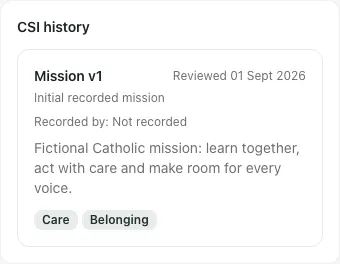
Use CSI sections on a phone and scroll to the selected content. Save before switching area/section. CSI history retains recorded mission versions; it is not a complete imported inspectorate history.
- No matching evidence: reset lenses/search/type and compare Current evidence with Pre-mission.
- No grade or incomplete summary: inspect the actual required sub-judgements and missing compliance inputs, rather than assuming Good.
- Failed record read: refresh as offered; the retained list may be incomplete/out of date, not empty.
- Unsupported import: save a valid
.docx, reduce it below the limit and use recognisable sub-judgement headings. - No optional panel/access: check school configuration and exact role/action with the administrator; being an RE teacher or named adviser does not itself grant the leadership workspace.
Common questions
Section titled “Common questions”What should I review before preparing a CSED?
Section titled “What should I review before preparing a CSED?”Review the CSI areas, linked evidence, RE-time and directive inputs, previous improvement areas and the relevant parent or staff views.
Can an incomplete RE-time record be treated as confirmed evidence?
Section titled “Can an incomplete RE-time record be treated as confirmed evidence?”No. Retain the missing information and check the source rather than infer an inspection grade or completed compliance input.