Prepare AP tuition bookings and review payment decisions
Define the tuition session type, create dated availability and check booking and payment readiness before reviewing places, cancellations or refunds. Use it to prepare what families can book, check who holds each place and deal deliberately with cancellations and refunds. It is separate from placement invoices in AP Billing.
Open Tuition from your provision’s navigation. Availability depends on whether your provision has Tuition enabled and your staff access. Reading bookings, changing sessions, refunding and connecting payment settings are separate permissions. Ask your access administrator if a control you need is missing.
1. Start with the bookings that need attention
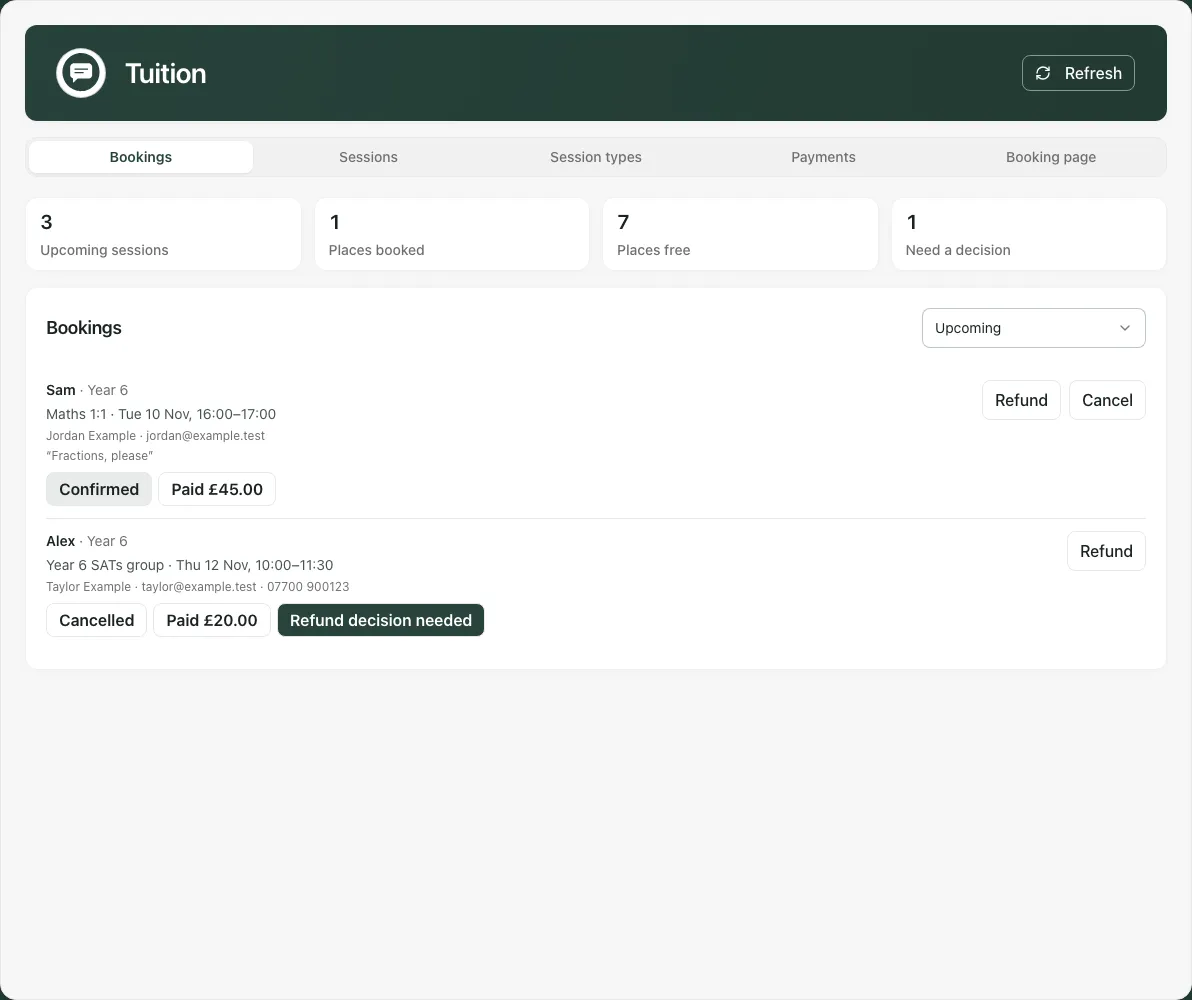
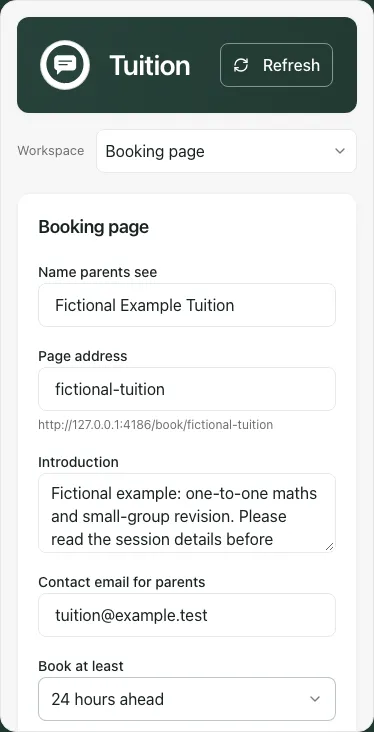
Section titled “1. Start with the bookings that need attention”The page opens on Bookings. Desktop sections are Bookings, Sessions, Session types, Payments and Booking page; on a phone use the section picker. Refresh reloads the current workspace.
The summary distinguishes upcoming sessions, places booked, places free and bookings needing a decision. A held place is temporarily occupied while payment is being attempted; it is not a confirmed booking. A cancelled booking can still have money paid against it.
Use the bookings list’s Upcoming, Need a decision or All recent filter. Upcoming includes cancelled bookings for future sessions. Released unpaid bookings normally drop out unless they also need a decision. Read the child’s first name/year group, session and time, booker contact details, note and both booking and payment badges before acting. Details removed means identifying details are no longer available; it does not mean no booking existed.
| What you see | How to interpret it |
|---|---|
| Waiting for payment | A place is held for a short time; payment has not confirmed it. |
| Confirmed | The payment confirmation has secured the place. Returning from checkout alone is insufficient. |
| Cancelled | The place has been released. Check the separate payment/refund information. |
| Not paid | Payment did not complete before release; these rows may remain when a decision is needed. |
| Paid £… / refunded £… | Recorded payment and refund totals, separate from whether the booking is active. |
| Refund in progress | A refund was requested and is awaiting the payment provider’s result. |
Need a decision can include a cancelled paid booking, a payment received after release, a dispute, a failed refund or an amount mismatch. It is a review queue, not an instruction to refund every row. Check the booking, your agreed policy and the payment record. After a partial refund, a decision badge may disappear while a refundable balance remains; inspect the amount rather than relying solely on the badge.
2. Define a session type
Section titled “2. Define a session type”A session type describes the offer; a session is one dated occurrence of it.
- Open Session types and select Add session type.
- Choose Kind: Private (1:1) or Group. This choice cannot be changed after saving.
- Enter the title and optional description. Make the title specific enough for a parent to distinguish it from another offer.
- Choose Length, enter Price (£) and, for a group, the number of Places. The supported price range is £1–£1,000; a group has 2–60 places and a private session has one.
- Choose Where, either In person or Online, and add the location where relevant. An online choice does not create a video meeting.
- Select Save, then check the saved type before adding dates.
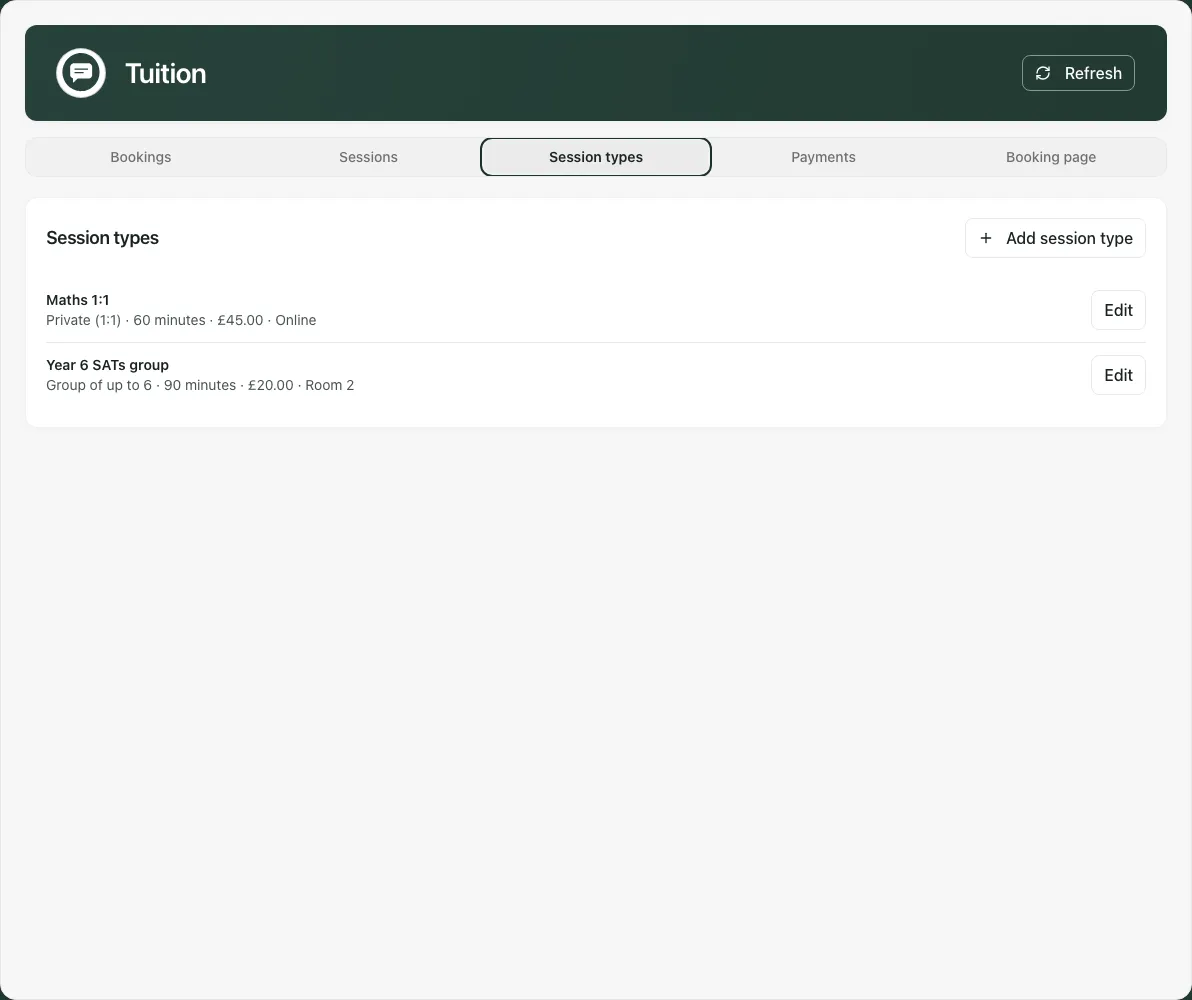
Use a type’s Edit control to change it. Title, description and location information can change how existing sessions are described. Changing the type’s price affects new bookings; it does not rewrite amounts already booked. Length and places apply to newly created sessions, not the dates already created. Check existing sessions separately after a change.
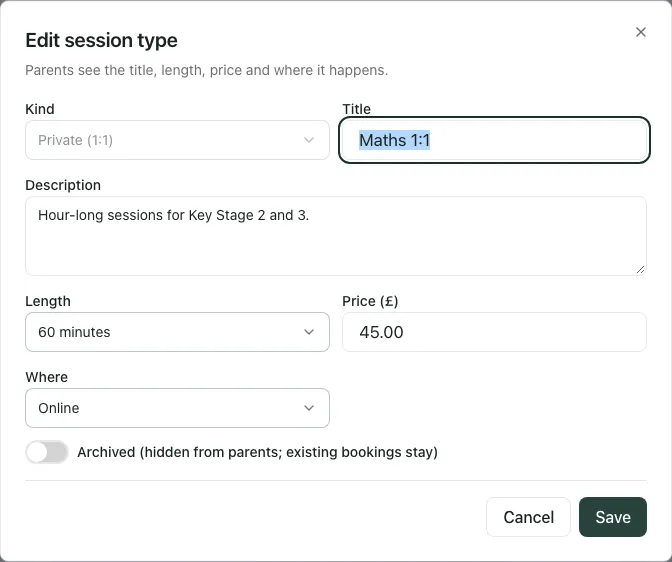
To archive a type, open Edit, switch on Archived (hidden from parents; existing bookings stay) and select Save. This removes it from new parent booking and new-session choices. It does not cancel its existing sessions or refund bookings. There is no delete-and-forget route for a type with history.
3. Add dates and start times
Section titled “3. Add dates and start times”- Open Sessions. In the date creation form choose Session type.
- Set First date, tick the relevant Days, and choose Repeat for weeks. The range starts at the first date; that particular day is included only if its weekday is selected.
- Set the first start time. Use Time to add other start times if needed, up to 12 in one request.
- Read the preview of dates and session count. Shorten the range if the form reports too many dates or sessions.
- Select Add sessions and check the created/skipped result and the actual upcoming list.
The form supports 1–26 weeks, at most 120 dates and 300 sessions in a request, from the provision’s current date up to 400 days ahead. It refuses an oversized date range rather than silently keeping only the first dates. Times use the provision’s time zone. Repeated identical start times do not create extra distinct slots.
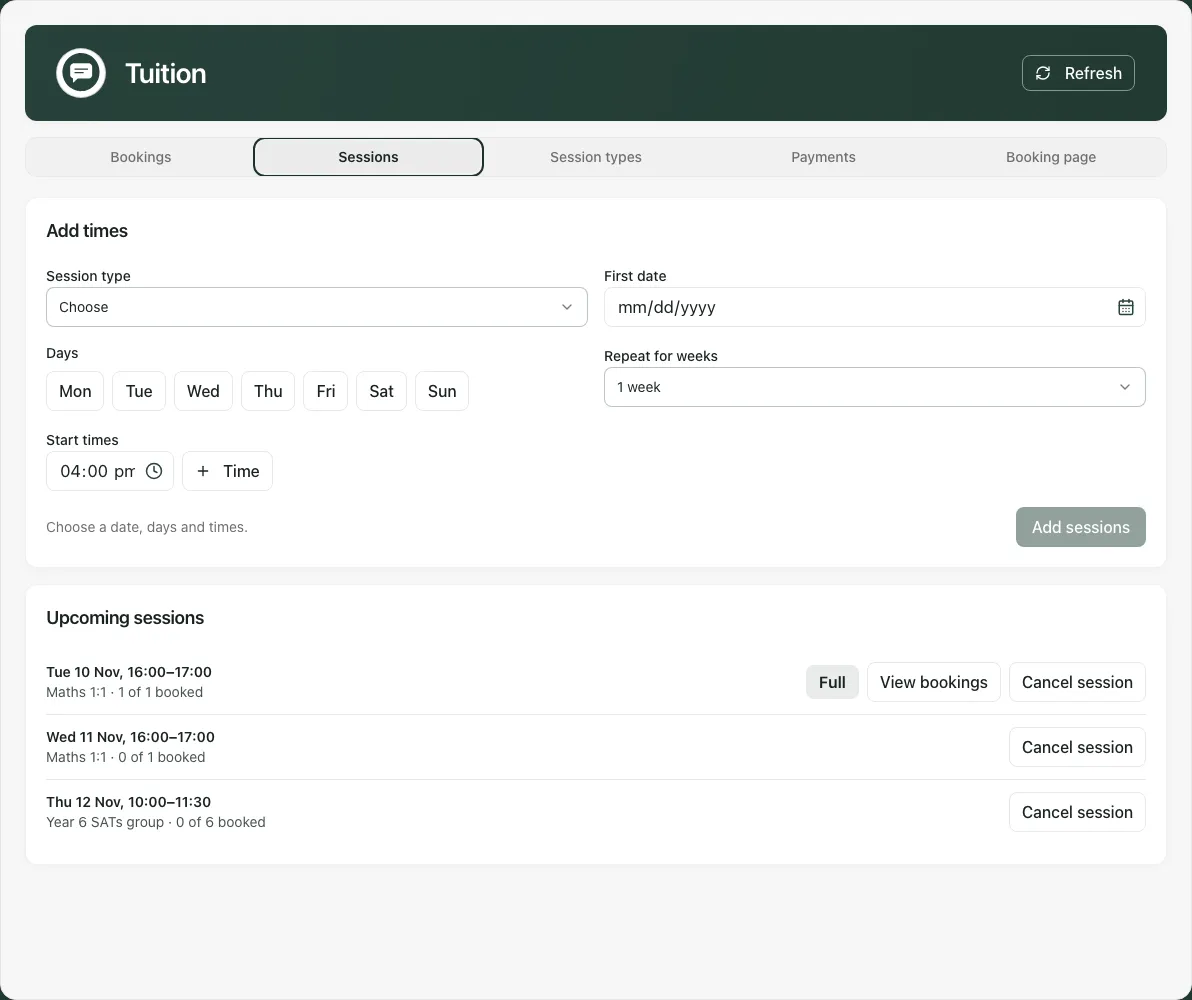
Each dated session shows its booked and held places. Use View bookings to open its bookings; Show all bookings removes that session filter. A link from a calendar entry can open the specific session for checking.
You cannot edit a created session’s date, time or capacity in place, or move a booking to another time. If a correction is needed, decide how to handle existing families first, cancel the incorrect session where appropriate, add the replacement and arrange any new booking/refund deliberately.
4. Prepare the parent booking page
Section titled “4. Prepare the parent booking page”Save a draft before publishing it. Publication makes the page available to families; it is a separate decision from editing its text.
- Open Booking page.
- Enter Name parents see and Page address. The address is 3–48 lower-case letters, digits or hyphens, starting and ending with a letter or digit.
manageis reserved. Changing an established address can break links already shared. - Write the Introduction and Contact email for parents. The contact email is where your organisation wants families to seek help; do not assume replying to an automated sender reaches it.
- Choose Book at least, Show sessions up to and Parents can cancel online until. These control notice, the visible booking horizon and parent self-cancellation, respectively.
- Add Cancellation and refund policy (shown before payment). State your organisation’s agreed policy. The text does not automatically issue refunds or decide a dispute.
- Leave Published (parents can open the page and book) off while preparing. Select Save booking page and check the saved content.
- When the authorised team has checked the offer, contact details, policy, availability and payment readiness, switch Published on and save to open the page.
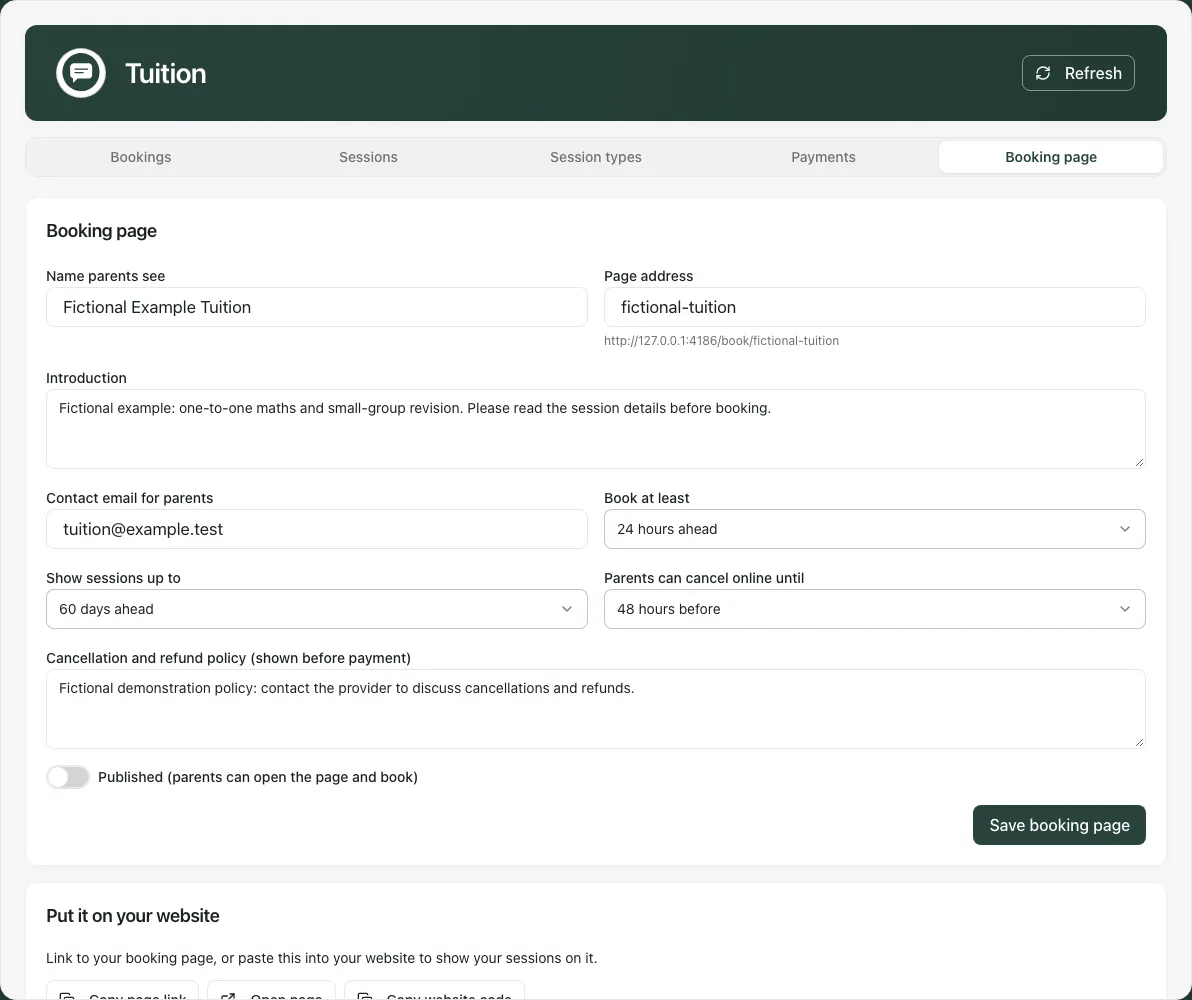
Copy page link gives the saved address, Open page opens it and Copy website code provides the session catalogue embed. The embedded catalogue opens the booking journey in a new tab; payment and booking details do not take place within the catalogue iframe. Check the actual parent view after publishing, particularly when changing the address or available times. Unpublishing stops new booking from that page; it does not invalidate existing booking-management links.
The name needs at least two characters. The form limits name to 120, introduction to 2,000 and policy to 4,000; some non-ASCII text can reach the server’s size limit sooner. If saving asks you to shorten text, reduce it and retry. Correct invalid contact email/address messages before saving.
5. Check payment readiness separately
Section titled “5. Check payment readiness separately”Open Payments to read the connected account’s status and the current environment. Stripe test mode means no real money moves in that mode. A connected test account does not establish readiness for live payments. A live-mode message explicitly says customer payments use real money.
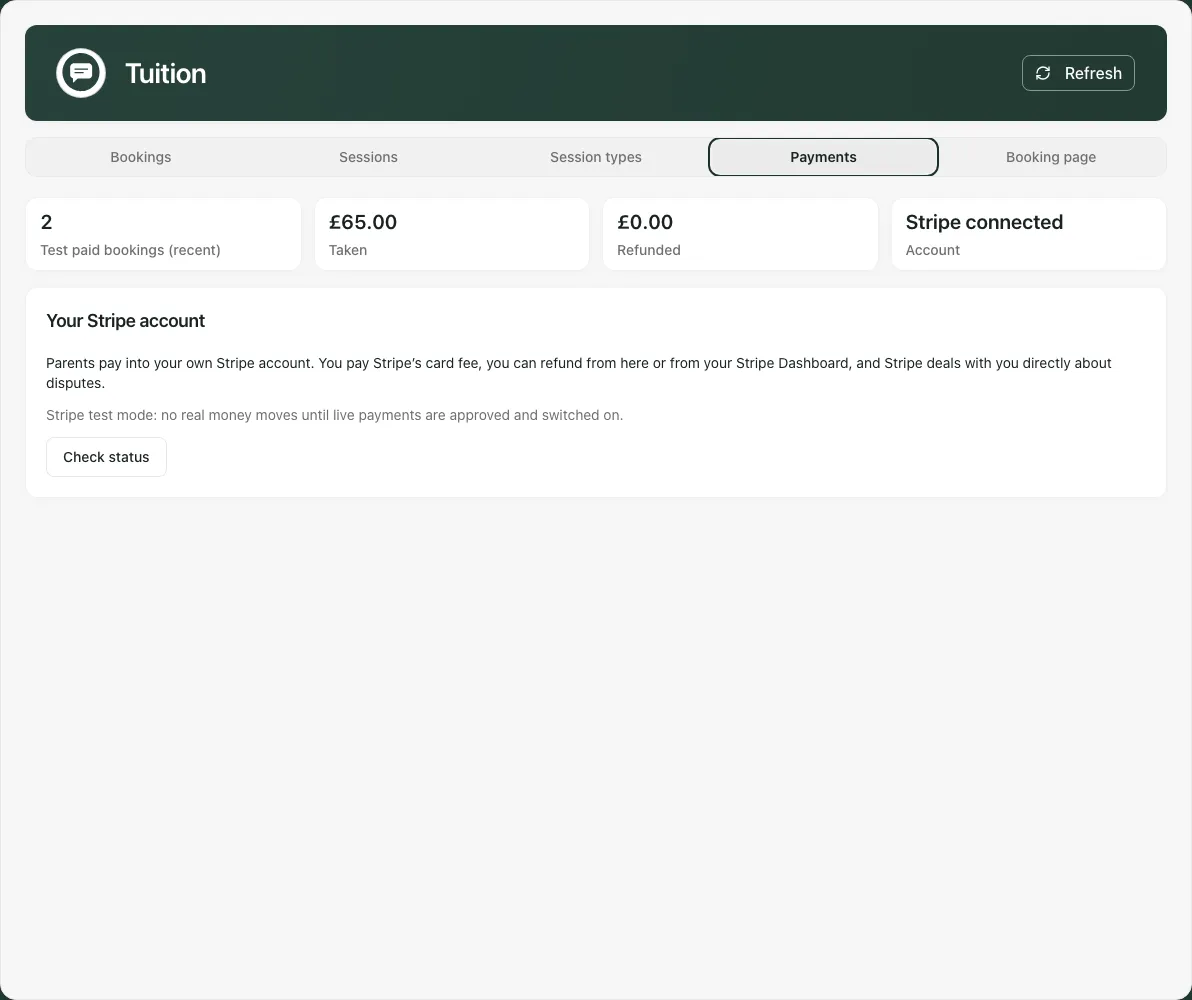
An authorised colleague can use Connect Stripe or Continue Stripe setup and complete the provider’s onboarding, then Check status. This can create or update the organisation’s payment-provider account, so use the organisation’s authorised representative and check the mode first. Save the booking page first if asked. Readiness can also require the saved parent contact email, an adequate policy and support approval for live operation. Staff cannot assume that publishing alone enables live collection.
The totals reflect the workspace’s payment environment and recorded transactions. They are not bank reconciliation or proof that a payout reached your bank. Use the payment provider’s records for settlement, disputes and unusual payment exceptions.
6. Understand the parent journey
Section titled “6. Understand the parent journey”Families choose a session type and available time, then provide their name, email, optional phone, the child’s first name/year group and an optional tutor note. Where a policy is supplied, they acknowledge it before Continue to payment · £…. A temporary place hold is created while they continue to the payment provider.
The payment provider’s confirmed result, rather than a browser return, confirms the booking. A delayed result may show Still confirming your payment. Check Bookings before promising a place. The confirmation email includes the booking details, a calendar attachment and View or cancel your booking. Staff do not have an email delivery dashboard here; a queued or retried email is not evidence of receipt.
A parent’s management link grants access to that booking without a staff sign-in. They should keep it private. Before your cut-off they can select Cancel booking and confirm Yes, cancel it; after the cut-off they need to contact your organisation. A parent retrying an interrupted checkout should use Return to payment on the same page where offered. Start again is a different journey; do not advise repeated fresh bookings while an earlier payment is uncertain.
A hold can expire or be released while payment is delayed. If a late payment cannot secure the place, the row needs a refund/alternative-time decision. It must not be treated as a confirmed place merely because money arrived. Do not request card details by email or record them in tutor notes.
7. Cancel a booking or an entire session
Section titled “7. Cancel a booking or an entire session”Cancelling releases a place; it does not return money. Refunding returns money; it does not release a place. Decide whether one or both actions are needed.
For one booking:
- Find the exact row in Bookings and select Cancel.
- Read Cancel this booking?, including the consequences for a paid or waiting booking.
- Optionally enter Reason (shared with the parent). Use appropriate factual wording because this is communication to a family.
- Select Cancel booking, or Keep booking to abandon the change.
- Check the resulting booking and payment status. A confirmed booking gets a cancellation notification; a waiting unpaid booking does not get that confirmation-style cancellation email.
Staff cancellation is not limited by the parent self-cancellation cut-off. A parent already paying may still pay after a staff cancellation; check any resulting late-payment exception rather than assuming money cannot arrive.
To cancel all bookings for a session, use its Cancel session control, read Cancel this session?, enter the shared reason and confirm Cancel session. Check the affected bookings and decide refunds separately. It cancels the dated session and updates its calendar state; it is not an archive-only change to the session type.
8. Make a reviewed refund decision
Section titled “8. Make a reviewed refund decision”If you have refund permission and a paid amount remains refundable, the booking offers Refund.
- Open Refund this booking and check the remaining refundable amount.
- Amount (£) starts at the full remainder. Enter a smaller amount only when a partial refund is the intended decision.
- Check the booking and amount again, then select Refund £…. Not now closes without requesting it.
- Read the outcome: Refund sent, Refund requested; Stripe will confirm it, or a refusal that says nothing was refunded.
- Return to the row and inspect the actual paid/refunded totals. Wait for an in-progress request to resolve before another attempt.
Refunds return to the original payment method through your organisation’s connected account. A successful provider result does not establish when the family’s bank will credit it. Do not issue the same refund both here and in the payment provider’s dashboard. A partial refund does not mean every remaining obligation is settled, even if a decision badge clears.
For Payment disputed, Refund failed after it was sent or Payment amount did not match, check the provider’s records and contact support with the booking/time and exact message. Some exception badges may remain after an external resolution; do not try to clear them with an unrelated cancellation or duplicate refund.
9. Recover safely when something is missing or uncertain
Section titled “9. Recover safely when something is missing or uncertain”| Problem | Next step |
|---|---|
| The page or an action is unavailable | Check that Tuition is enabled for this provision and that you have the particular read/manage/refund/payment permission. |
| A save says the record changed elsewhere | Refresh the saved record, compare it with your intended change and save only the reconciled decision. |
| A refresh fails temporarily | Read the stale/unavailable message. Retained content is not a fresh authority for a payment decision. |
| Access is refused or withdrawn | The workspace may remove records and discard forms. Ask an administrator; do not rely on the previous view. |
| A date range cannot be added | Check selected weekdays, school date, 120-date/300-session bounds and how far ahead it runs. Split a large plan deliberately. |
| A parent cannot choose a time | Check publication, payment readiness, type archive, notice/horizon, cancelled session and held/confirmed capacity. |
| A list says only part of the records were loaded | Treat it as partial coverage. Do not use its totals as a complete historical reconciliation. |
| A refund/payment result is uncertain | Check the existing booking and provider result before retrying. Do not assume an error means no money moved. |
Tuition does not provide manual staff-created parent bookings, a waiting list, discount packages, tutor availability scheduling or a general bookkeeping ledger. Use the supported controls for the actual booking lifecycle and your organisation’s separate processes for the rest.
Common questions
Section titled “Common questions”Why might Tuition controls be missing?
Section titled “Why might Tuition controls be missing?”Check that Tuition is enabled for the provision and that the account has the relevant session, refund or payment-settings permission.
Are tuition bookings part of AP placement invoices?
Section titled “Are tuition bookings part of AP placement invoices?”No. Tuition has its own parent booking and payment workflow, separate from placement invoices in AP Billing.