Track accreditations and report achievement
Written for: Alternative provision leaders and staff who plan and record pupils’ accreditations.
Accreditations holds a catalogue of the awards alternative provisions commonly offer, such as Functional Skills, the AQA Unit Award Scheme, ASDAN and the Duke of Edinburgh’s Award. You add the ones you deliver to your offer, record each pupil’s units and awards with their evidence, and report what’s been achieved by award and level.
Before you start
Section titled “Before you start”In the sidebar, open Progress and choose Accreditations. The page has two sections: Catalogue and Achievement.
Changing your offer and recording achievements needs permission to manage qualifications. If you don’t see Add to offer, Add provider entry or Record, you can look but not change anything. Ask your Provision Lead if you need to. Everyone sees only the pupils they have access to.
Find an award in the catalogue
Section titled “Find an award in the catalogue”Catalogue lists each award by its awarding body, with a line for each level, such as Entry 3, Level 1 or Bronze. The counts at the top show the Catalogue entries, how many are In your offer, Your own entries and the Awarding bodies.
To narrow the list, type in Search, or choose an Awarding body, a Level or, under Offer, In your offer or Not in your offer.
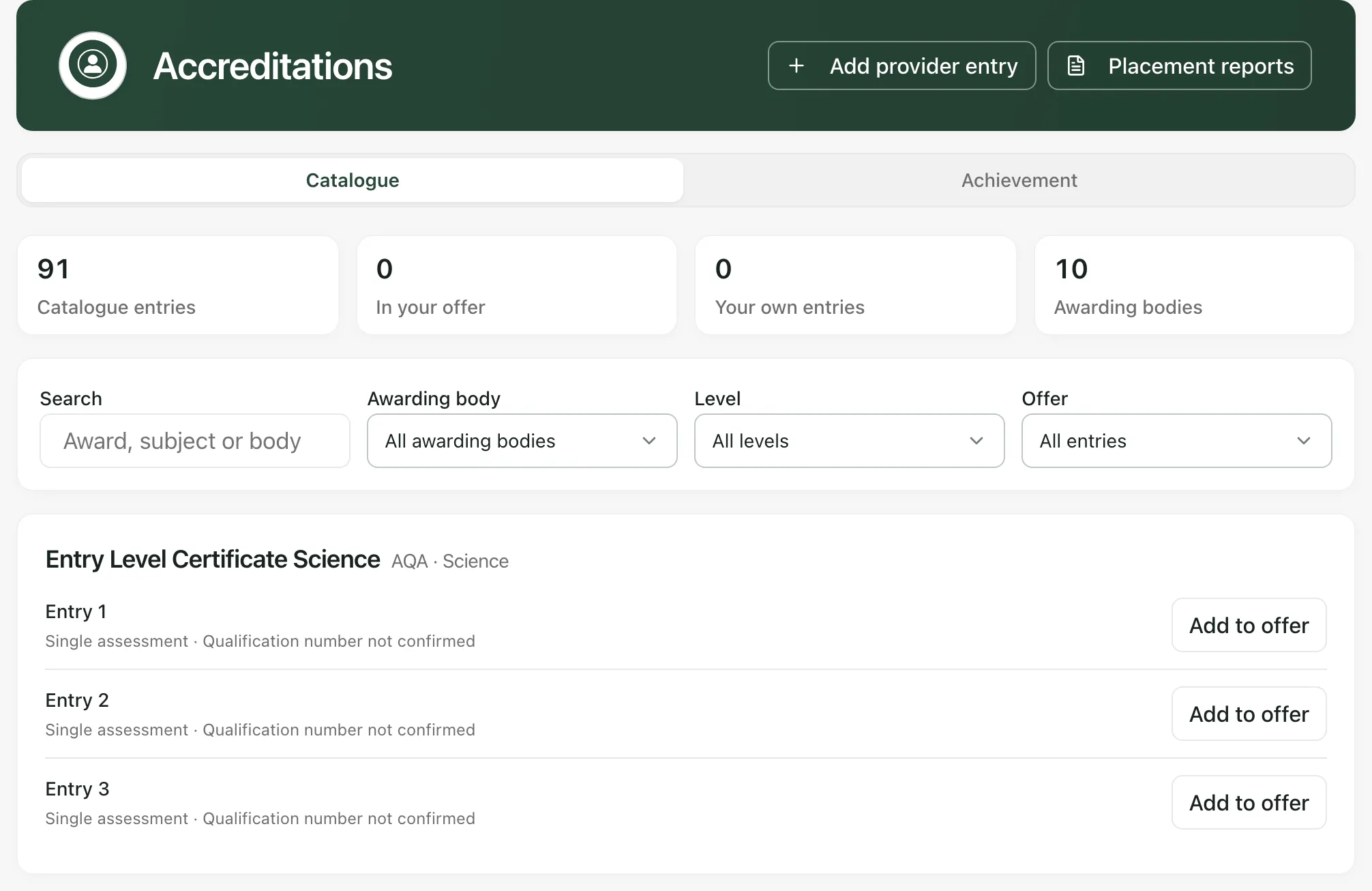
Each level says how it’s assessed: by single assessment, components, units or credits. The catalogue names the award and level only, so its qualification numbers and credit totals say not confirmed. Check them with the awarding body before you rely on them.
Some levels are marked:
- Your entry: an award your provision added.
- From your earlier record: an award your provision had recorded before the catalogue existed, kept in your words.
Add an award to your offer
Section titled “Add an award to your offer”- Find the level you deliver and click Add to offer.
- Set the date it’s Offered from.
- Click Add to offer.
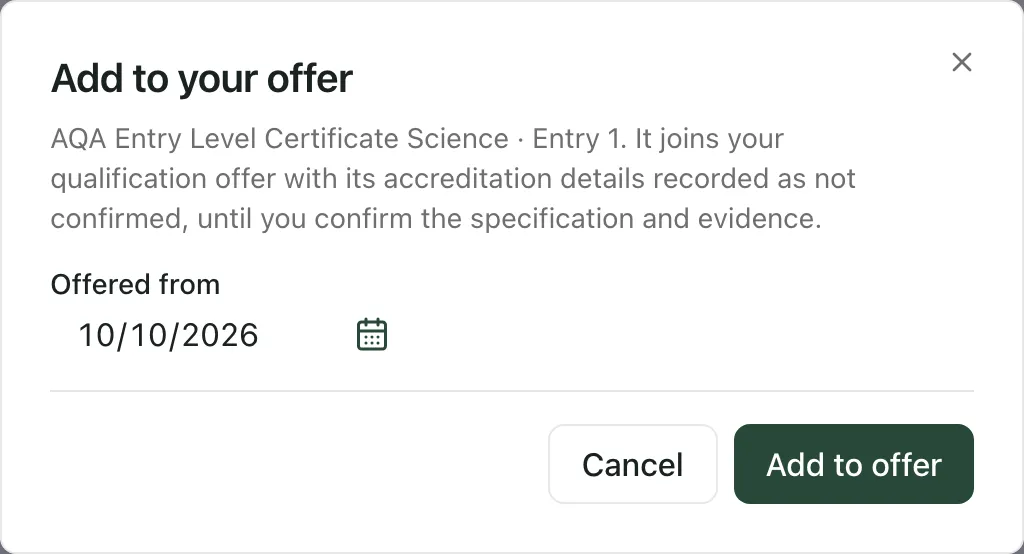
You’ll see Added to your offer, and the level is marked In your offer. Its accreditation details are recorded as not confirmed until you confirm the specification and evidence. You can now assign pupils to it from their placement.
Add an award that isn’t listed
Section titled “Add an award that isn’t listed”- Click Add provider entry at the top of the page.
- Choose the Awarding body, or New awarding body and enter its Name.
- Choose the Qualification or award, or New qualification or award. For a new one, enter its Title, and choose its Type, Offer category, Structure and whether Achievement is recorded For the whole award or For each unit (each unit is certificated).
- Choose the Level, and add a Size or tier (optional), such as Bronze.
- Leave Qualification number (optional) blank unless you’ve confirmed it with the awarding body. Add the Units needed or Credits needed if they apply.
- Under Units or components, add any units or components, one per line: just the title, or the code, title and credits separated by a vertical bar, such as 105642 | Bike safety | 2.
- Click Add entry.
You’ll see Catalogue entry added. Entries you add are visible only to your provision.
Add the units you deliver
Section titled “Add the units you deliver”For an award made up of units, such as the AQA Unit Award Scheme, add the units you deliver to its level:
- Click Add units beside the level.
- Under Units or components, add one unit per line, in the same way. You can add up to 50 at once.
- Click Add units.
Assign a pupil to an award
Section titled “Assign a pupil to an award”Pupils are assigned from their placement, not from the catalogue.
- Open the pupil’s profile and choose the Placement tab.
- Under Qualification assignments, click Add assignment.
- Choose the Qualification. Awards you’ve added to your offer are listed here.
- Choose the State: planned, studying, entered or ceased.
- Choose the Responsible staff member, and set when it Starts and when it’s Review due.
- Fill in the Rationale, Target and Expected evidence.
- Under Timetable source, Event reference and Event revision, link the calendar event the pupil studies it in. If you don’t have these details, ask your Student Radar administrator.
- Click Save assignment.
The named review is added to the responsible member of staff’s work and calendar.
Record units and awards
Section titled “Record units and awards”Record an achievement once the awarding body or assessor has confirmed it.
- On the pupil’s Placement tab, find the award under Accreditation progress. Each unit or component is listed, with a Whole award line for awards achieved as a whole.
- Click Record beside the unit, component or Whole award.
- Enter the date it was Achieved on. It can’t be in the future.
- For a credit-based award, enter the Credits awarded.
- Under Evidence, choose the certificate or other document from the Evidence Store. If you don’t have it yet, choose Evidence missing.
- Add a Note (optional).
- Click Record.
You’ll see Achievement recorded. The award shows how far the pupil has got, for example how many units are recorded out of how many are needed.
Recording every unit doesn’t record the award: record the Whole award separately when it’s confirmed. Some awards, such as unit awards, certificate each unit on its own, so they have no Whole award line.
The evidence list shows the current Evidence Store documents you can open. If the certificate isn’t there, upload it to the Evidence Store first, or record the evidence as missing and come back later.
Withdraw a record that’s wrong
Section titled “Withdraw a record that’s wrong”- Click Withdraw beside the achievement.
- Enter the Reason, at least 3 characters.
- Click Withdraw.
You’ll see Record withdrawn. The record stays in the history but no longer counts as achieved. To record it again, click Record.
Report achievement
Section titled “Report achievement”Click Achievement. It starts on this academic year, 1 September to 31 August. Change the From and To dates to report on another period of up to two years.
The counts at the top show Pupils entered, Pupils achieved, Units achieved and Achievements without evidence. Under Achievement by award and level, each award and level shows how many pupils are Planned, Entered and Achieved, the Units achieved, and how many achievements have No evidence.
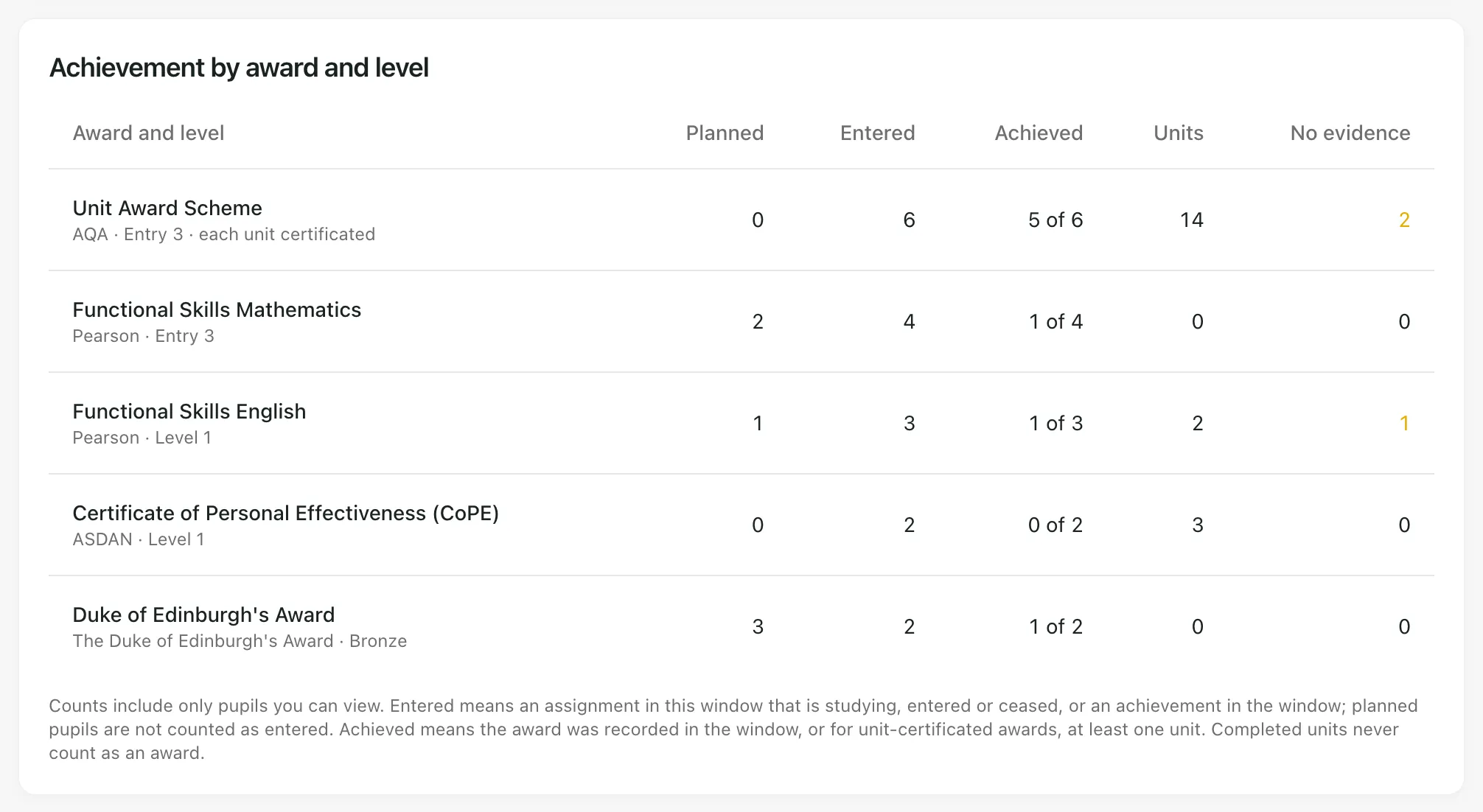
- Entered counts pupils studying, entered for or who have ceased the award in the period, or who achieved something in it. Planned pupils aren’t counted as entered.
- Achieved is shown out of the pupils entered, for example 3 of 7. It counts an award recorded in the period, or, for awards certificated unit by unit, at least one unit.
- Completed units never count as the award.
- The figures include only pupils you can view.
Use No evidence to find achievements whose certificates still need adding.
Accreditations in placement reports
Section titled “Accreditations in placement reports”When you open a report on Placement Reports, Accreditations in this period lists the units and awards recorded for the pupil in the report’s period, with whether evidence is on file. It shows the current record when you open the report. It isn’t part of the signed report, so it isn’t in the pack you share or download. See Prepare and sign off a review pack.
Click Placement reports at the top of Accreditations to go there.
- Evidence: linking a document doesn’t give anyone new access to it. If a linked document is replaced or you can no longer open it, the record says the evidence isn’t confirmed.
- Your own entries: you can’t yet change or remove a provider entry once it’s added, so check the details before you click Add entry.
- The AP menu: the sidebar described here appears when your setting profile is alternative provision and AP operations are active. It only shows the pages you can open.
If something doesn’t work
Section titled “If something doesn’t work”| What you see | What to do |
|---|---|
| “Your role cannot view the accreditation catalogue. Ask your provision lead for access.” | Ask your Provision Lead for access. |
| “No catalogue entries match these filters.” | Clear Search, or set the filters back to all entries. |
| “No catalogue qualifications are assigned to this placement. Add one to your offer from Accreditations, then assign it above.” | Add the award to your offer, then add a qualification assignment on the pupil’s Placement tab. |
| “That award already has this level in the catalogue.” | Use the existing level. Click Add units on it if you need more units. |
| “The provider catalogue limit has been reached.” | Your provision has added as many entries as it can. Contact Student Radar support. |
| “That evidence is not a current Document Control version you can open. Choose another or record it as missing.” | Choose another document, or Evidence missing. |
| “Evidence Store documents are unavailable. You can record the evidence as missing.” | Record it with Evidence missing, and add the evidence later. |
| “Each unit of this award is certificated on its own. Record the unit instead.” | Click Record beside the unit. |
| “Someone else updated this record. Refresh to see the latest before changing it.” | Refresh the page, check the record, then try again. |
| “This entry was retired from your offer. Restore it from the qualification ledger before adding it again.” | Contact Student Radar support to restore it. |
| “Choose an end date on or after the start date.” | Change To to a date on or after From. |
| “Choose a reporting window of up to two years.” | Shorten the period between From and To. |
| “There are too many pupils to report on at once.” | Report on a shorter period. |
| “No pupils you can view were entered for a catalogue award in this window.” | Check the dates, and that pupils have qualification assignments for catalogue awards. |