Plan Pupil Premium support and review the funded approach
Written for: Pupil Premium leads, senior leaders and permitted reviewers of strategy, spend and evidence.
Set up the programme and funded approaches, review delivery and outcomes separately, then check and export the strategy.
Before you start
Section titled “Before you start”Open Inclusion → Pupil Premium and check the school and Strategy year. A programme’s budget, public statement, delivery and impact evidence are different parts of the record. Recording an allocation or budgeted cost does not make a payment or confirm an invoice has been paid.
Permissions differ. Some readers can review strategy and school figures without changing them. Named pupils are limited to permitted roles and source access; governors and trust readers see no named pupils here. Report export and keeping a copy in programme documents also have separate rights. A link to a pupil, provision or PEP does not grant access.
The screenshots show fictional amounts, pupils and school figures. Use the school’s verified funding information and current applicable guidance when preparing a real strategy. A template/readiness check is not a legal compliance certificate or an automated funding decision.
Choose or create the programme
Section titled “Choose or create the programme”- Select the intended Strategy year. Check the selected programme when opening an old link; if its programme cannot be found, the app can explain that it has selected the latest available programme instead.
- If you have management rights and need a new year, choose New programme.
- In Create a programme, enter Academic year in the form
2026-2027and Pupil Premium allocation (£). Verify the amount against the school source; do not use an estimate as a confirmed allocation. - Select Create. Check the programme/year that opens. If the year already exists, choose it in Strategy year rather than making another programme.
- Use Strategy → Funding overview to record carry-forward and the available/pooled budget where appropriate. Missing carry-forward is different from a recorded zero.
Navigate the whole workflow
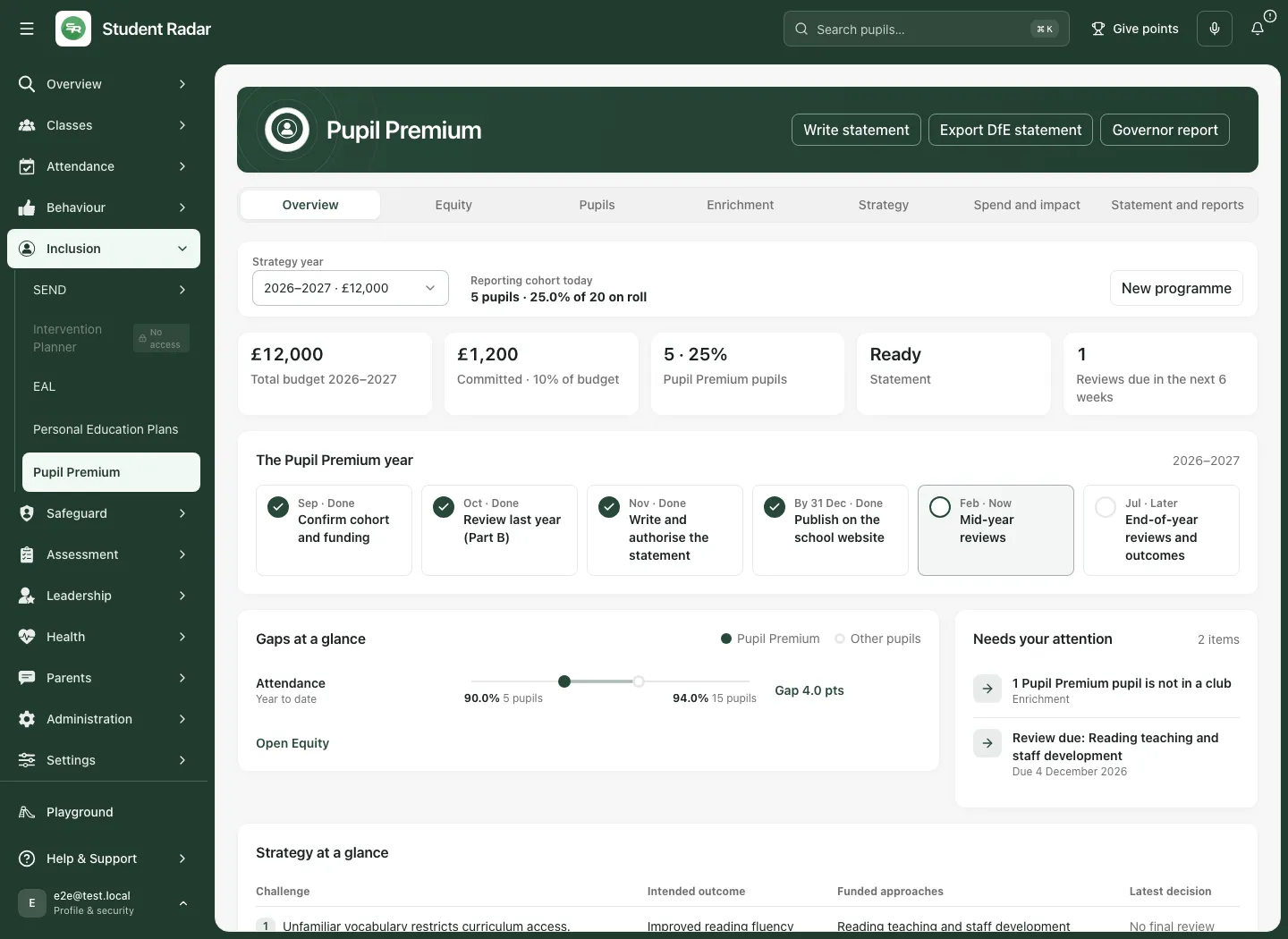
Section titled “Navigate the whole workflow”| Section | Main question |
|---|---|
| Overview | What needs attention across the strategy, support and review work? |
| Equity | What do the permitted school figures show, over which window and with what coverage? |
| Pupils | Which permitted named pupils need an authorised follow-up? |
| Enrichment | What is recorded about clubs/trips and participation gaps? |
| Strategy | What are the public challenges, intended outcomes, approaches and school context? |
| Spend and impact | What is funded, what was delivered and how was the outcome reviewed? |
| Statement and reports | Is the statement ready for human checking, authorisation and export? |
Overview prompts can take you to the relevant section, pupil filter or approach. A No proof attached or review prompt describes recorded evidence, not proof that no support occurred.
Read Equity with the period and denominator
Section titled “Read Equity with the period and denominator”- Select Equity and choose Year to date or Last year. Read the displayed academic year and exact from/to dates.
- Compare Pupil Premium with other pupils for the available measures. Percentages, incidents per pupil and attainment coverage are different measures; read the label, numerator/denominator and included pupils rather than comparing only a coloured gap.
- Interpret a percentage-point gap according to the measure: higher attendance can be better, while higher absence is not. A previous value may be unavailable; it is not automatically a confirmed zero or improvement.
- Inspect year groups or SEND/EAL overlaps only where source permissions and disclosure rules allow them. Withheld, Not applicable, unavailable and zero mean different things. Do not reconstruct a small hidden group by subtraction.
- If disadvantage access is not available for every pupil on roll, the page explains that the comparison cannot be shown. Ask the school administrator if access is appropriate; do not assemble an equivalent restricted cohort from other screens.
The fictional example shows an attendance comparison with explicit source coverage; the other measure families have not been populated as if confirmed.
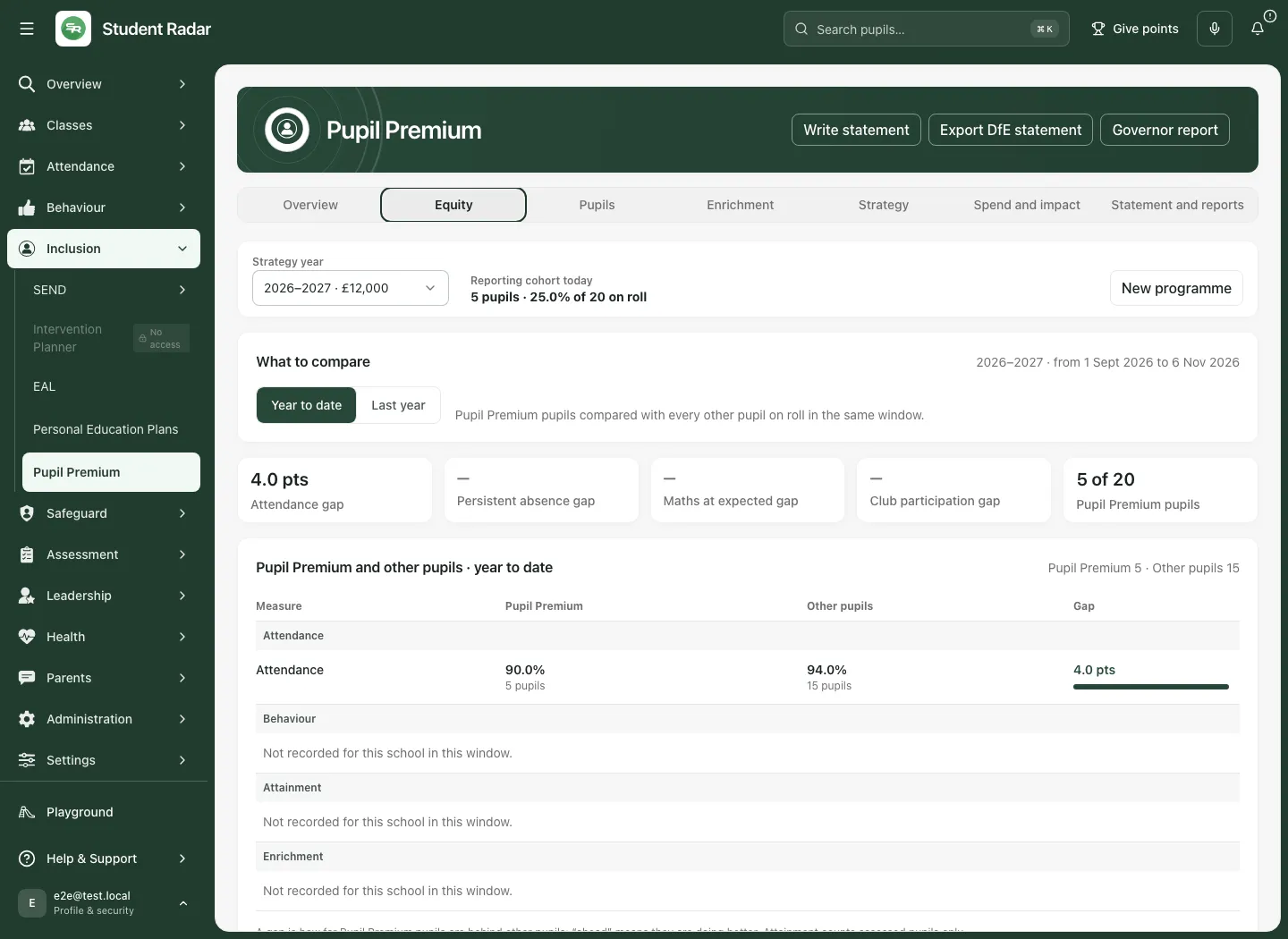
These comparisons support questions and professional review. They do not establish that a funded approach caused a gap or change, or that every pupil shares the group pattern.
Use Pupils for the permitted next action
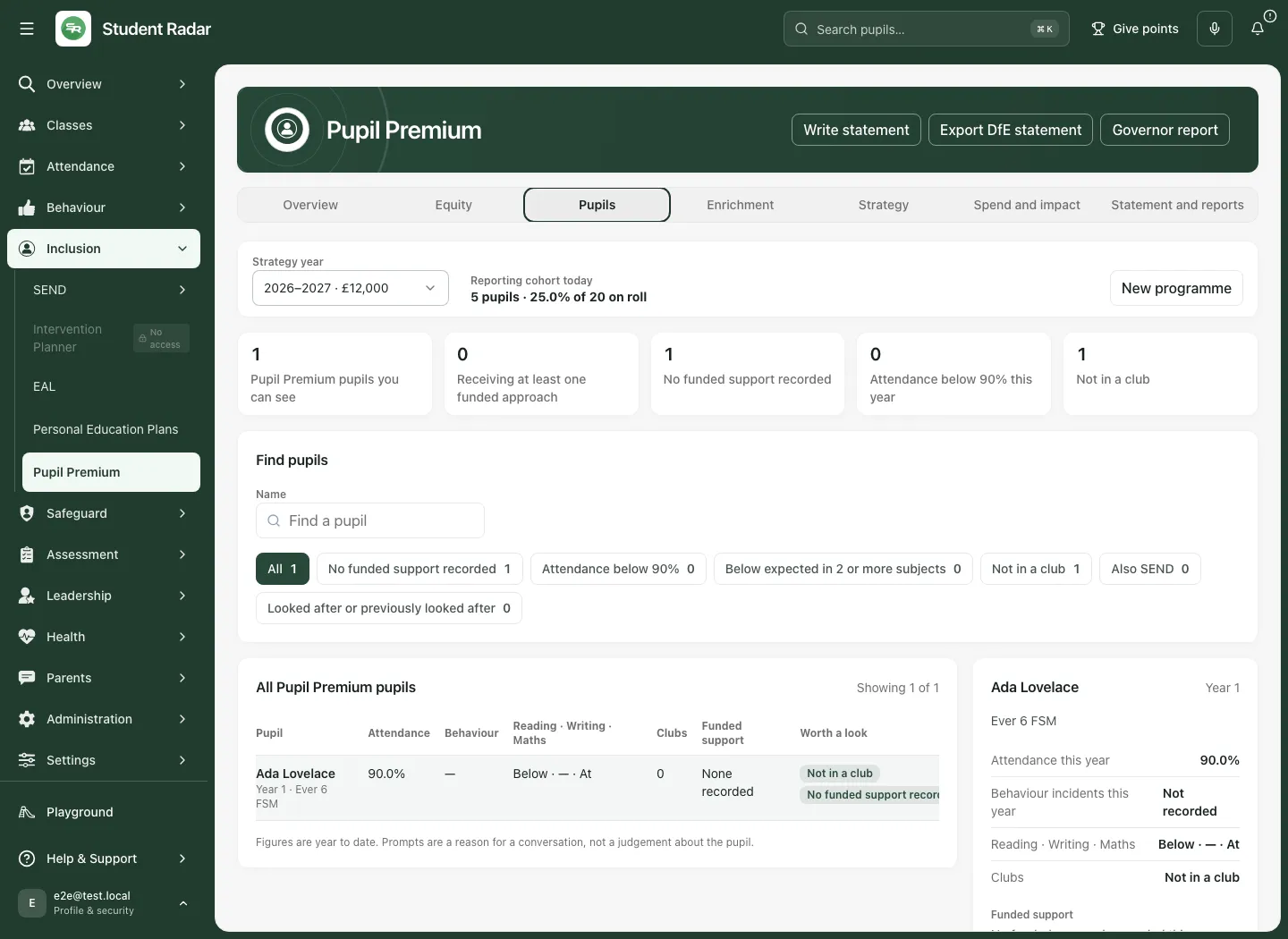
Section titled “Use Pupils for the permitted next action”- Open Pupils. Read Pupil Premium pupils you can see, rather than assuming it equals every eligible pupil on roll.
- Search by Name and use the offered filters, including no recorded funded support, attendance and enrichment prompts.
- Select a pupil and inspect the current context and linked funded approaches. A blank attainment/behaviour/SEND value is unknown or unavailable, not “no difficulty”. Named details remain restricted to the reader’s permission.
- Use the offered link to an existing funded approach or PEP where relevant. Linking a pupil to an approach records that relationship; it is not a fresh entitlement decision, evidence they attended, or proof the approach benefited them.
A pupil’s PEP and PP+ target funding remain separate from this school Pupil Premium programme. Use Personal Education Plans for that school’s plan/review workflow and check the appropriate responsible funding source.
Check enrichment access without assuming participation
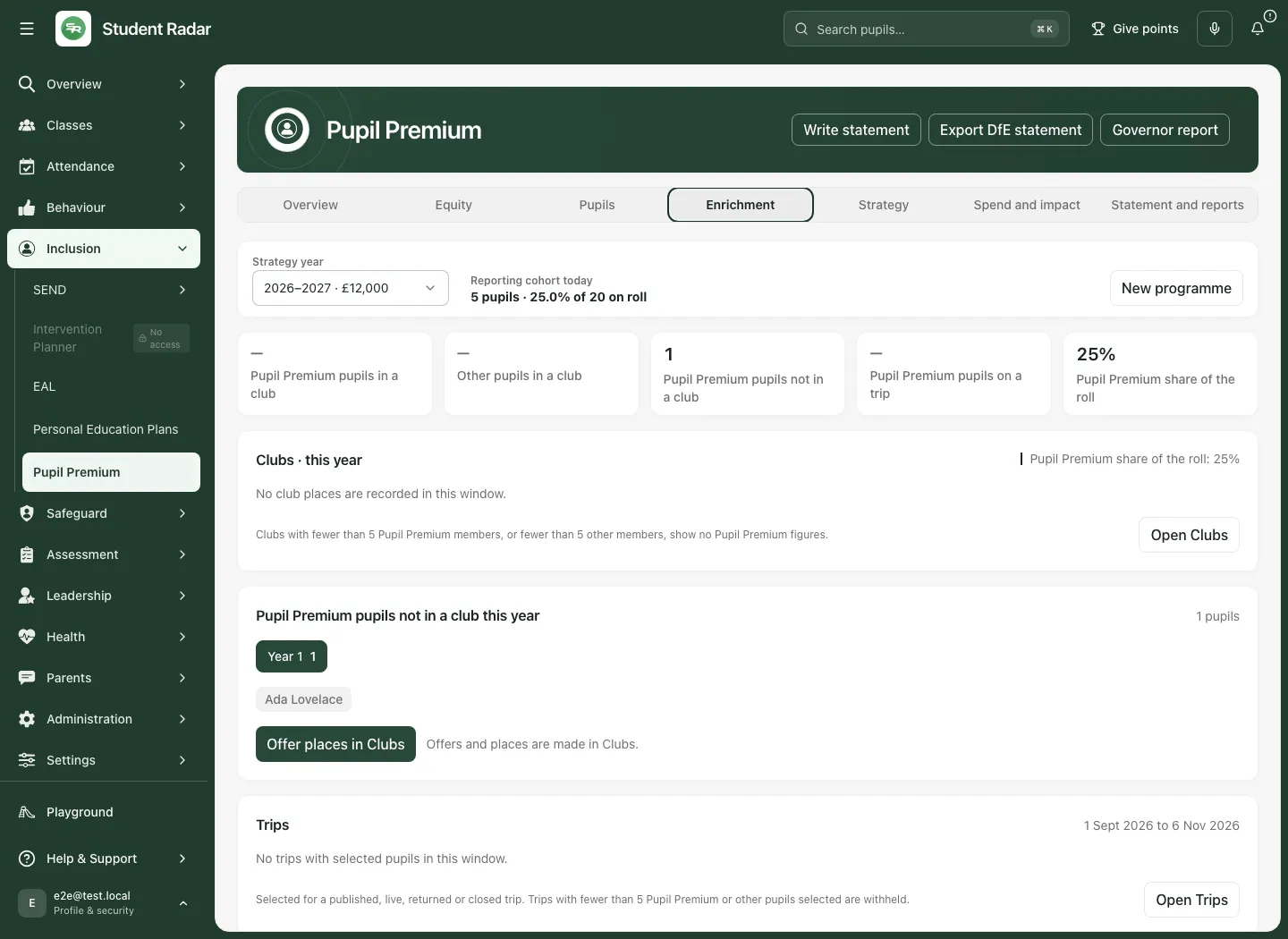
Section titled “Check enrichment access without assuming participation”Open Enrichment. Read the period, Pupil Premium share of the roll, and the source coverage of Clubs and Trips. Club charges are labelled Free, Charges families or Not recorded. A missing charging status is not “free”. Trip selection is not automatically evidence of attendance or participation.
Compare the recorded reach with the school context and inspect permitted pupils not in a club where offered. No recorded club membership is a prompt to check access and interests, rather than a judgement about a family’s choices. If a measure is not connected or unavailable, use its original permitted workflow instead of inventing coverage.
Build the public strategy deliberately
Section titled “Build the public strategy deliberately”Open Strategy. The outline includes School overview, Funding overview, Statement of intent, Challenges, Intended outcomes, Teaching, Targeted academic support, Wider strategies, Review of the previous year, Externally provided programmes, optional Service Pupil Premium and Further information.
- Select the outline section you need; it can open at an incomplete section rather than always starting at School overview.
- In School overview, verify school name, pupil counts, eligible counts, strategy years, publication/review dates and named leadership fields. Record the figures’ source and date. An eligible count cannot exceed the school roll.
- In Funding overview, verify allocation, carry-forward and available budget. Budgeted approach costs should reconcile with the chosen basis, including pence. A missing available basis must not be presented as a confirmed remaining balance.
- Write the Statement of intent from the school’s evidence and intended response, without identifiable pupil or family information.
- In Challenges and Intended outcomes, record the public challenge/barrier, intended outcome, success criteria, accountable owner and review date. School challenge ordering is retained in the statement.
- Under the three strategy strands, describe funded activity and the supporting evidence’s source, findings and relevance to this school. A research reference is not proof that this local implementation will work.
- Complete the previous year’s outcomes with actual evidence and limitations, and name relevant external programmes. Optional sections can remain absent where they do not apply.
- Use Save. Check Saved. and the refreshed record. The outline shares a draft across sections; moving within it is not the same as saving. Leaving the year/section/page with unsaved statement changes asks what to do.
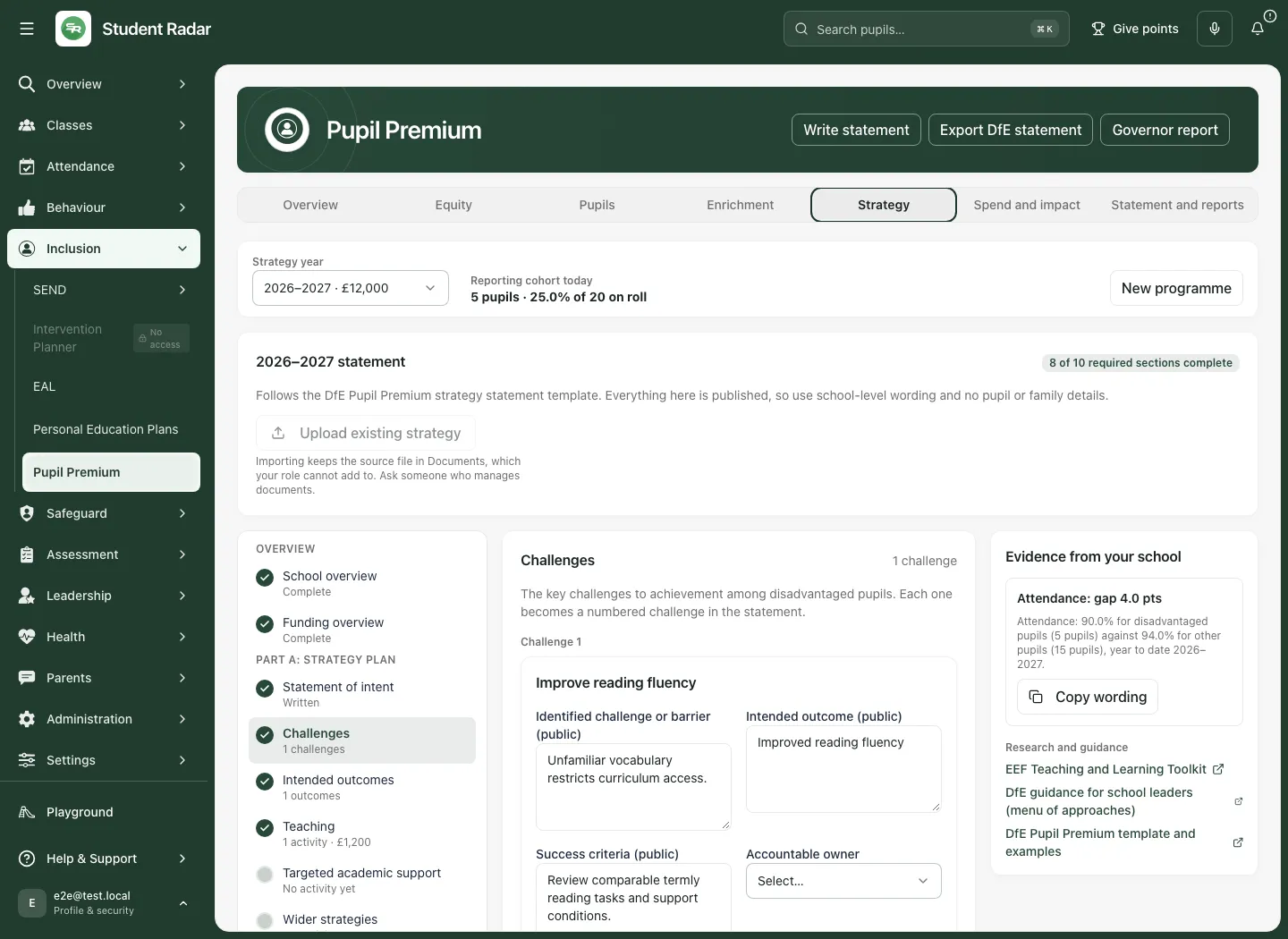
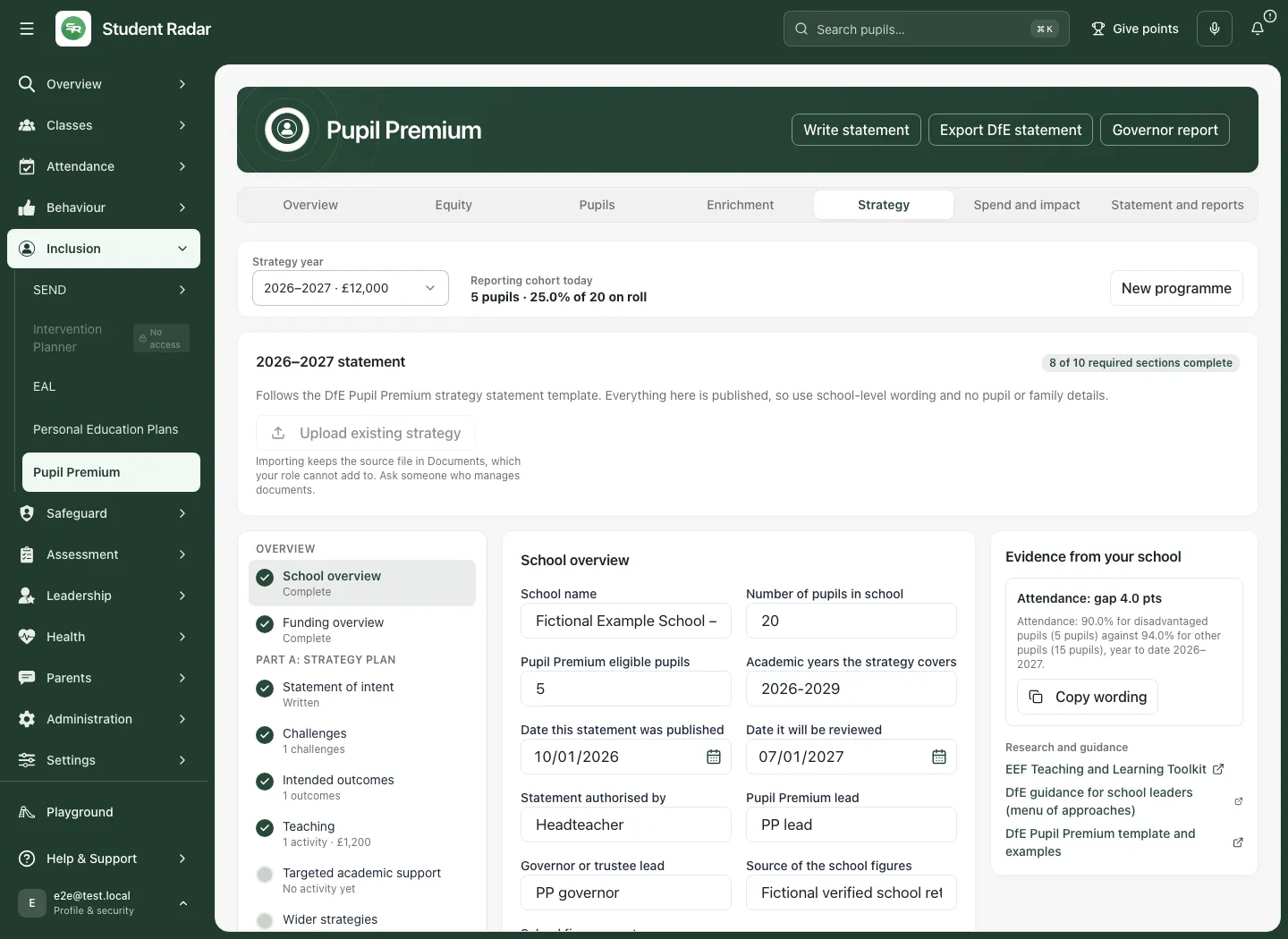
Do not enter pupil names, family details, sensitive case narrative or identifiable case studies into public strategy fields. A later name check is an aid, not complete anonymisation.
Import an existing strategy without treating last year’s values as current
Section titled “Import an existing strategy without treating last year’s values as current”Where permitted, select Upload existing strategy. It is unavailable for roles that cannot keep the source document and for closed/archived programmes. Save unsaved statement edits first.
- Choose the supported source file and let the app extract the draft. Read warnings about unsupported layouts, omitted/truncated content and source coverage.
- Compare the proposed text with the original. Review programme/funding selections, challenge/outcome links and activity strand/reach. A parsed paragraph is not an approved current strategy.
- Last year’s dates, pupil/eligible counts, figures date, carry-forward and budget are not pre-confirmed as current. Select them only after checking applicability. Check any prefilled allocation separately.
- Review exactly which non-empty strategy fields, draft aims and draft spend lines will be imported. Delivery, pupil links and final reviews are completed in the workspace afterwards; the import does not prove those happened.
- Confirm I have checked the selected content only after checking funding, challenge links and identifiable information. Select Import reviewed strategy.
- If the programme changed during review, reload the latest record and recheck the content/confirmation; do not keep retrying the stale import.
Add and manage a funded approach
Section titled “Add and manage a funded approach”- Open Spend and impact. Use Add aim if the intended challenge has no aim, then Add approach.
- In Add a funded approach, select the Aim, choose the Strategy strand and enter the title, rationale and budgeted cost. Verify the monetary amount; this is a planned spending record, not a payment.
- Select Add approach and check the approach that opens. If creation succeeds but the strand update fails, edit that existing approach; do not create a duplicate.
- Complete Activity for the public statement, Evidence supporting this approach — source, findings and relevance to this school, Who the approach supports, accountable owner and Approach review date. Save those fields explicitly.
- Use the delivery section to Find existing provision, choose the original provision, select the funded delivery dates and planned sessions if known, then Save provision link. This connects delivery evidence; it does not duplicate or rewrite the provision’s own timetable or sessions.
- In Pupils in this approach, record permitted targeted/received/case-study relationships as appropriate. A targeted pupil is not automatically a recorded recipient.
- In Proof and spending, attach the permitted proof/document and record supplier, period, finance reference and other actual spending details. A proof count or attachment is not a final impact judgement. Removing a document link is different from deleting the source document.
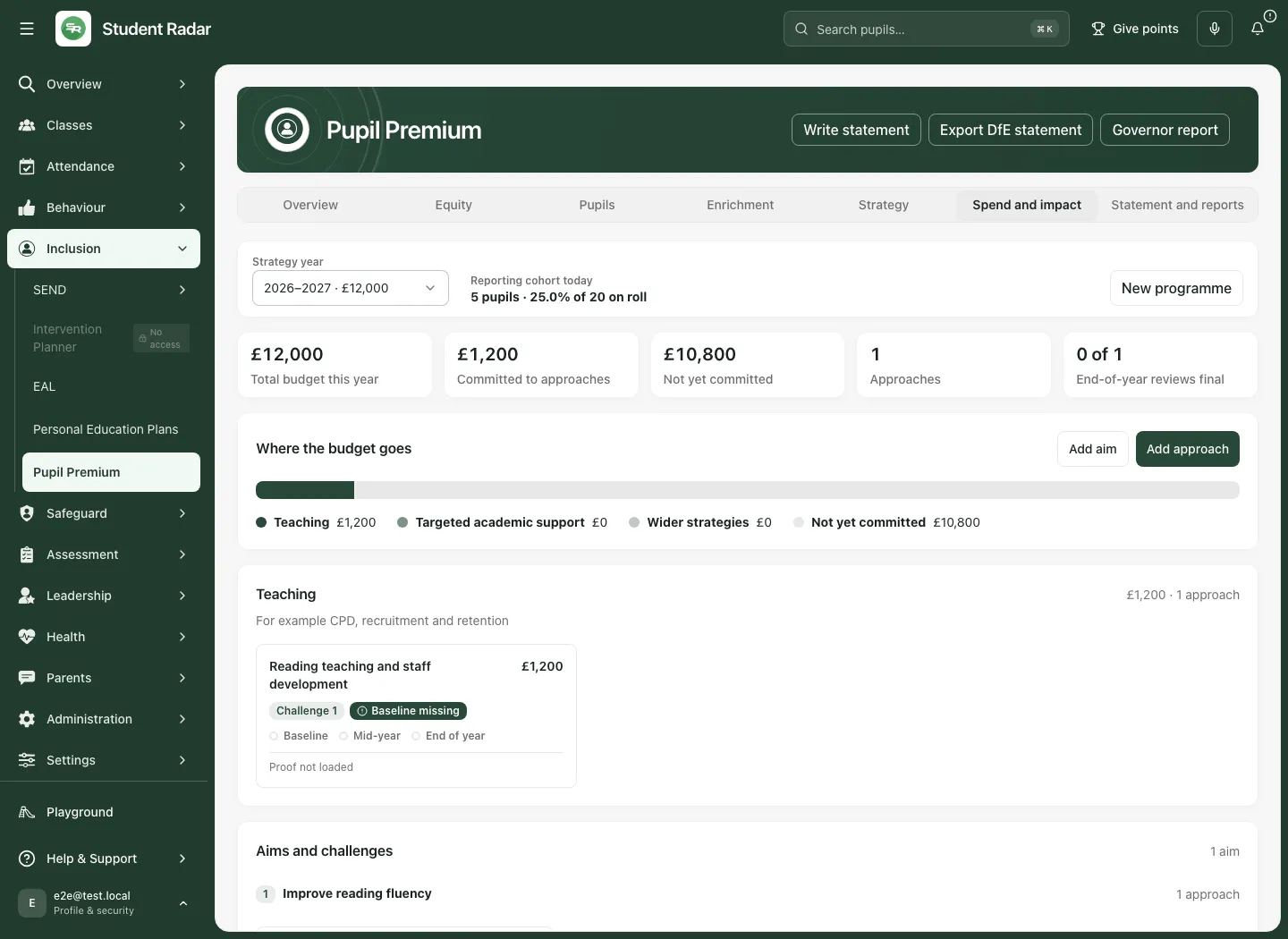
Budgeted costs are summed for non-cancelled approaches. The available basis can be a recorded pooled budget or allocation plus carry-forward. A recorded unused/remaining amount depends on that basis; it is not a bank balance. Cancelled lines are not an active funding commitment.
Review implementation and outcomes separately
Section titled “Review implementation and outcomes separately”Open the relevant approach. Under Reviews, select New check. In Create impact check, choose Type: Baseline, Mid, End or Ad-hoc, with the appropriate confidence and context.
- Set the Evidence period from/to.
- Record Implementation assessment and Delivery evidence, participation and gaps. A planned session is not delivered; delivered support may still be different from the intended approach.
- Record Observed outcomes, Outcome evidence and limitations and Confidence in the evidence. A final baseline is not a final impact assessment. A missing result should remain missing.
- Select Review decision, record What should change, why, and what happens next?, the review owner and next review date where required.
- Use Save review draft while work is incomplete. Use Save and finalise review only after checking the judgement; final reviews are read-only and a later judgement needs a new review.
- Add manual or available attendance measures where appropriate, retaining units, denominator, period, source and limitations. A baseline-to-latest delta is not a causal effect estimate.
- Close approach requires a final review. Check the record before selecting it: closure is a lifecycle decision, not confirmation that the intended outcome was achieved.
Check final-impact coverage across the live approaches rather than treating the number of completed tasks, green defaults, attached proof or expenditure as evidence of impact.
Check, authorise and export the statement
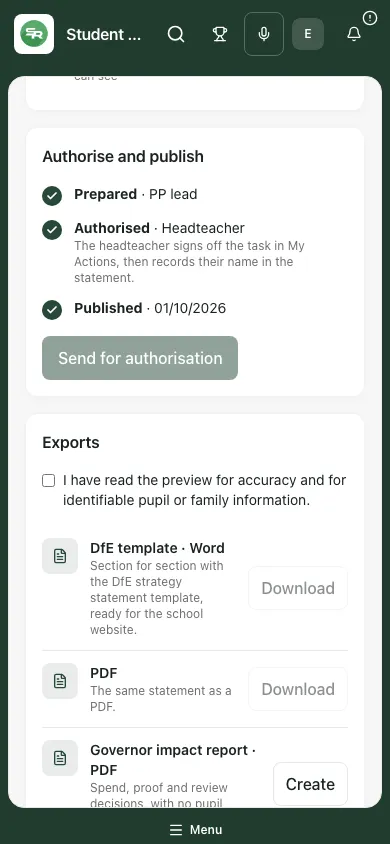
Section titled “Check, authorise and export the statement”Open Statement and reports. Read the statement preview, readiness checks and remaining fields. The No pupil names check can be Not checked if names are loading, unavailable or not permitted. Even a passed name match cannot detect every identifying detail in free text.
- Correct the underlying Strategy/Spend content, then return to the refreshed preview.
- Where appropriate, use Send for authorisation. It creates the app’s authorisation work; an open request prevents another send. Send again after a closed request is a deliberate new request for the current wording.
- Recorded authorisation and publication-date fields are separate from publishing a file on the school website. Confirm the school’s actual approval and publishing process; this workspace does not prove it happened externally.
- For statement exports, read the current preview for accuracy and identifiable pupil/family information, then tick that confirmation.
- Select Download beside DfE template · Word or PDF. The app re-reads the current statement; if it changed, review the refreshed preview again. Incomplete statements are labelled as drafts in their file name.
- A download occurs before the attempt to keep a copy in programme documents. Read the outcome: download success does not guarantee document retention. If your role cannot add documents, use the downloaded file through the school’s appropriate process.
- Use Create beside Governor impact report · PDF or Governor impact report · Word for the corresponding report. Check its spend, proof, final review outcomes/confidence, missing-impact appendix and small-group suppression. It does not contain named pupil rows, but still inspect free text before sharing.
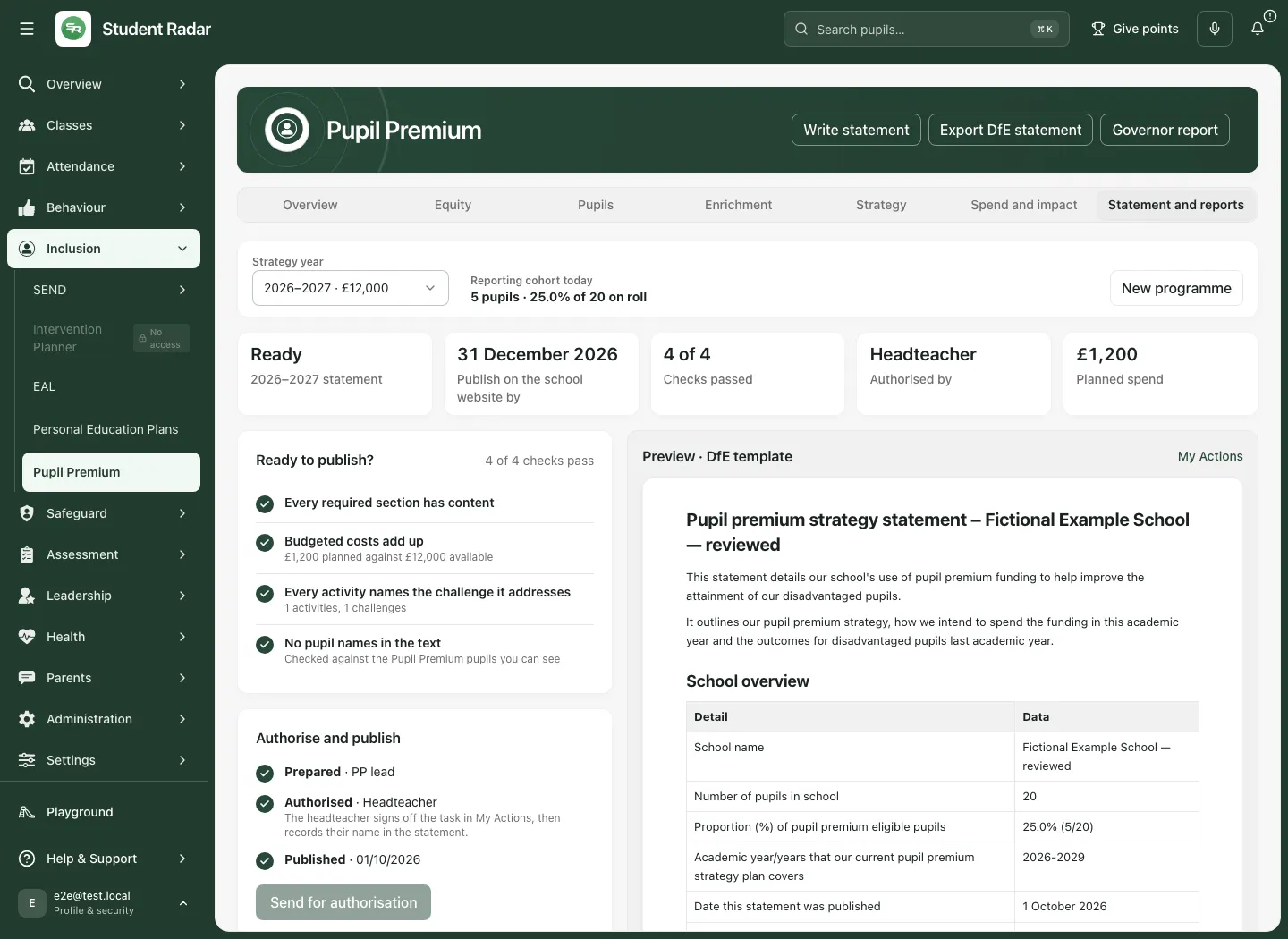
No export publishes to a school website or proves delivery to governors. The app’s template and timing prompts should be checked against current applicable guidance by the responsible school lead.
On a phone or when a save fails
Section titled “On a phone or when a save fails”Use the workspace selector and scroll through the relevant section. Check year and selected approach before editing. Save or deliberately discard changes when moving between programmes or sections.
If a record changed, reload and inspect the newest version before intentionally reapplying your wording. Failed role/source reads must not be interpreted as an empty cohort or zero spend. Deterministic refusals such as missing export permission or an archived aim with an active approach need the stated correction, not repeated retries. Keep successful file download, document retention, authorisation, publication and observed impact as separate outcomes.
Related: Use Personal Education Plans · Add and cost a provision · Use Intervention Planner.
Common questions
Section titled “Common questions”Can I carry imported strategy values into the new year unchanged?
Section titled “Can I carry imported strategy values into the new year unchanged?”Check each source year and current value. Last year’s information should not silently become this year’s programme.
Does exporting the strategy publish or send it?
Section titled “Does exporting the strategy publish or send it?”No. Check and authorise the intended document, then use the school’s separate publication or communication process.