Review school payments, requests and refunds
Open the payment item and issued request, match the provider transaction and review any instalment, assistance or refund decision separately. Payment status is financial information. It does not allocate a trip place, record consent, change a club membership or mark event attendance.
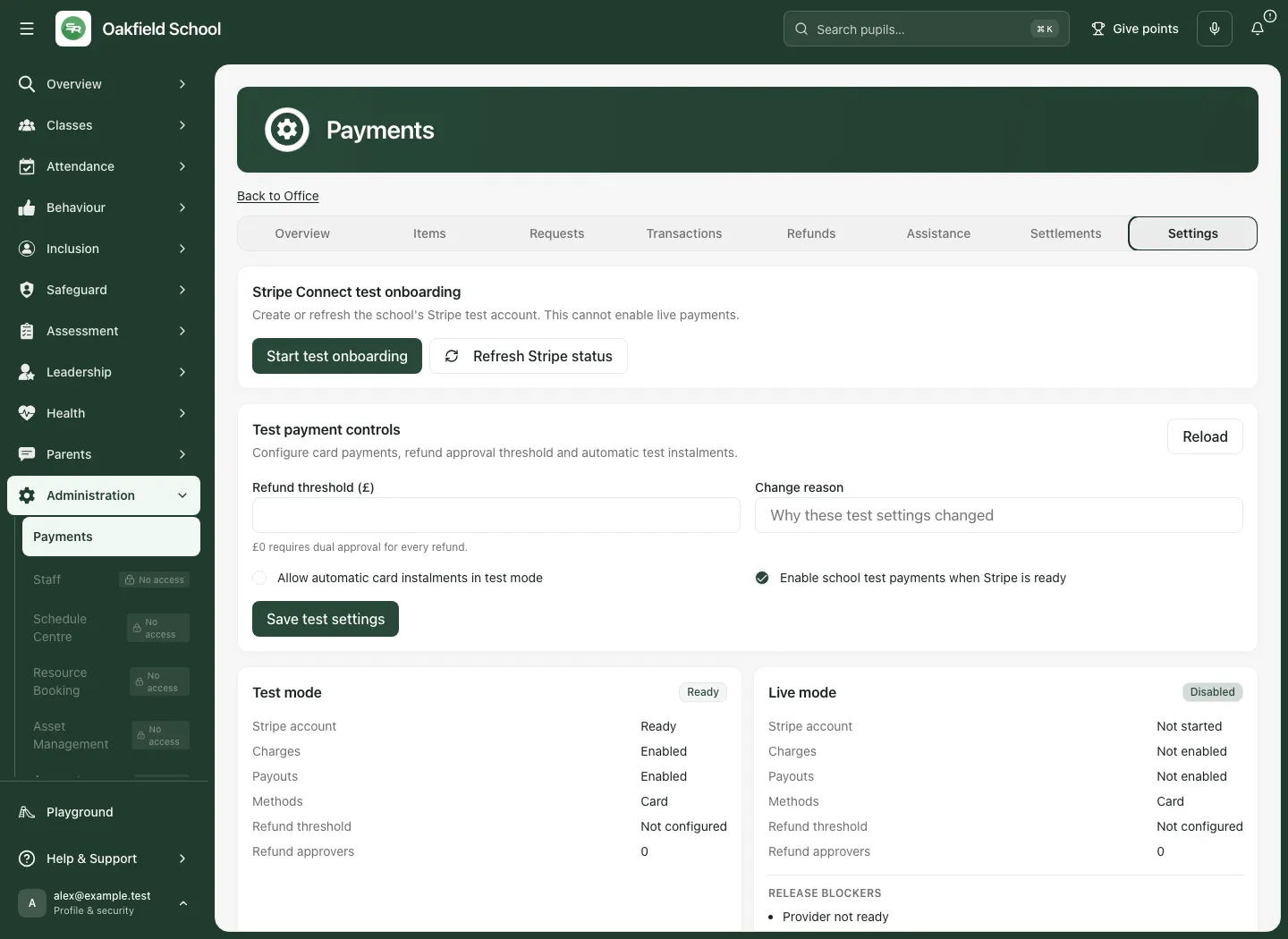
The fictional example shows a £125 residential item, a paid request and a matching successful transaction. The displayed provider setup is test mode; live mode is disabled. These examples are not a live payment or proof that a school can accept money.
1. Open the Payments workspace
Section titled “1. Open the Payments workspace”Open Payments from the school navigation. The dedicated workspace is also reached through the Office Payments link. The general Office overview is a different screen; Back to Office returns there when available.
You need the exact Payments view permission. Issuing requests, managing items, provider settings, assistance, refunds and reconciliation have additional controls. Seeing a table does not grant authority to change it. Check the school and current role before taking a finance action.
The tabs are Overview, Items, Requests, Transactions, Refunds, Assistance, Settlements and Settings. A link from a trip, club or event may focus its particular item. If the item is not available within your scoped workspace, the page says so rather than granting access from the link.
2. Read the figures at their actual level
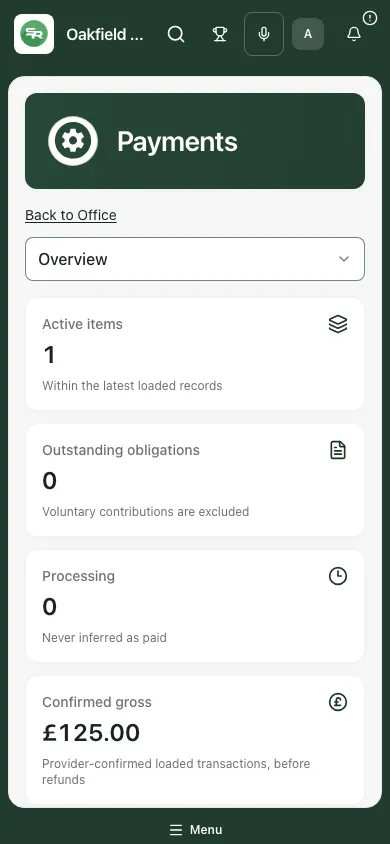
Section titled “2. Read the figures at their actual level”On Overview, read:
- Active items: active items within the latest loaded records.
- Outstanding obligations: issued/processing/partially-paid obligations; voluntary contributions are excluded.
- Processing: requests still processing, never inferred as paid.
- Confirmed gross: provider-confirmed loaded transactions before refunds. This is not the net payout into the school’s bank account.
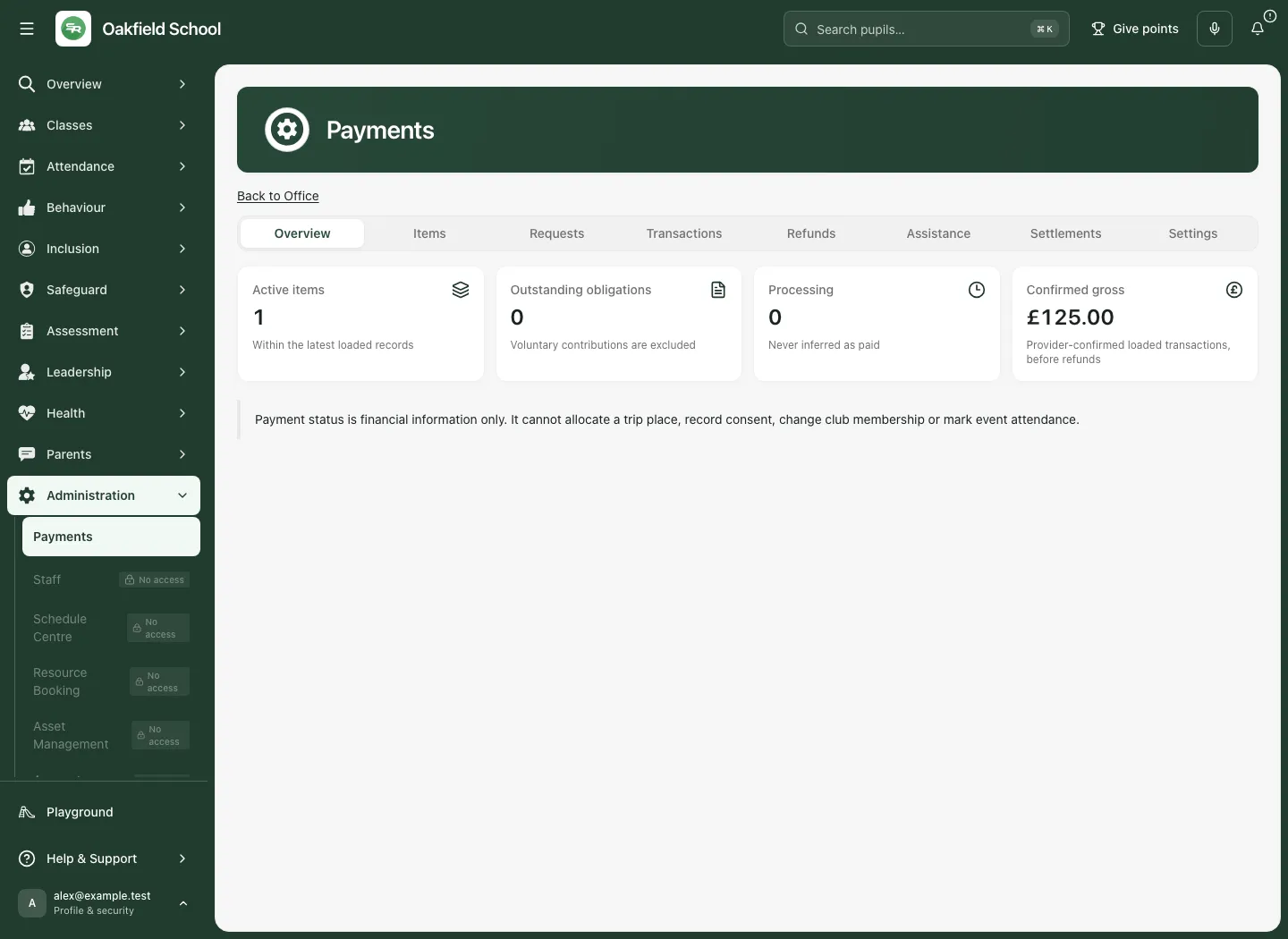
The workspace loads bounded lists. A + marks a minimum when more records exist, and the truncation note explains which lists have more. Do not present these figures as a complete all-time reconciliation. If background refresh fails, the existing figures can remain visible with a warning that they may be out of date.
3. Understand items, requests and transactions
Section titled “3. Understand items, requests and transactions”An item defines the payment purpose and classification. A request is the specific obligation/invitation issued to a permitted pupil or household. A transaction records provider payment activity. The same item can have many requests and transactions.
Open Items to review type, classification, suggested amount and state. Open Requests for the recipient, request amount, due date and current state. Open Transactions for confirmed provider evidence and refund amounts. Check identifiers and the recipient as well as a shared title; several children can have requests with the same title.
Issued, Processing, Partially paid, Paid, Waived, Cancelled, Expired, Partially refunded and Refunded describe different request outcomes. A processing return from checkout is not a paid receipt. Refund evidence must be read separately from the original gross payment.
4. Create a general fixed payment item
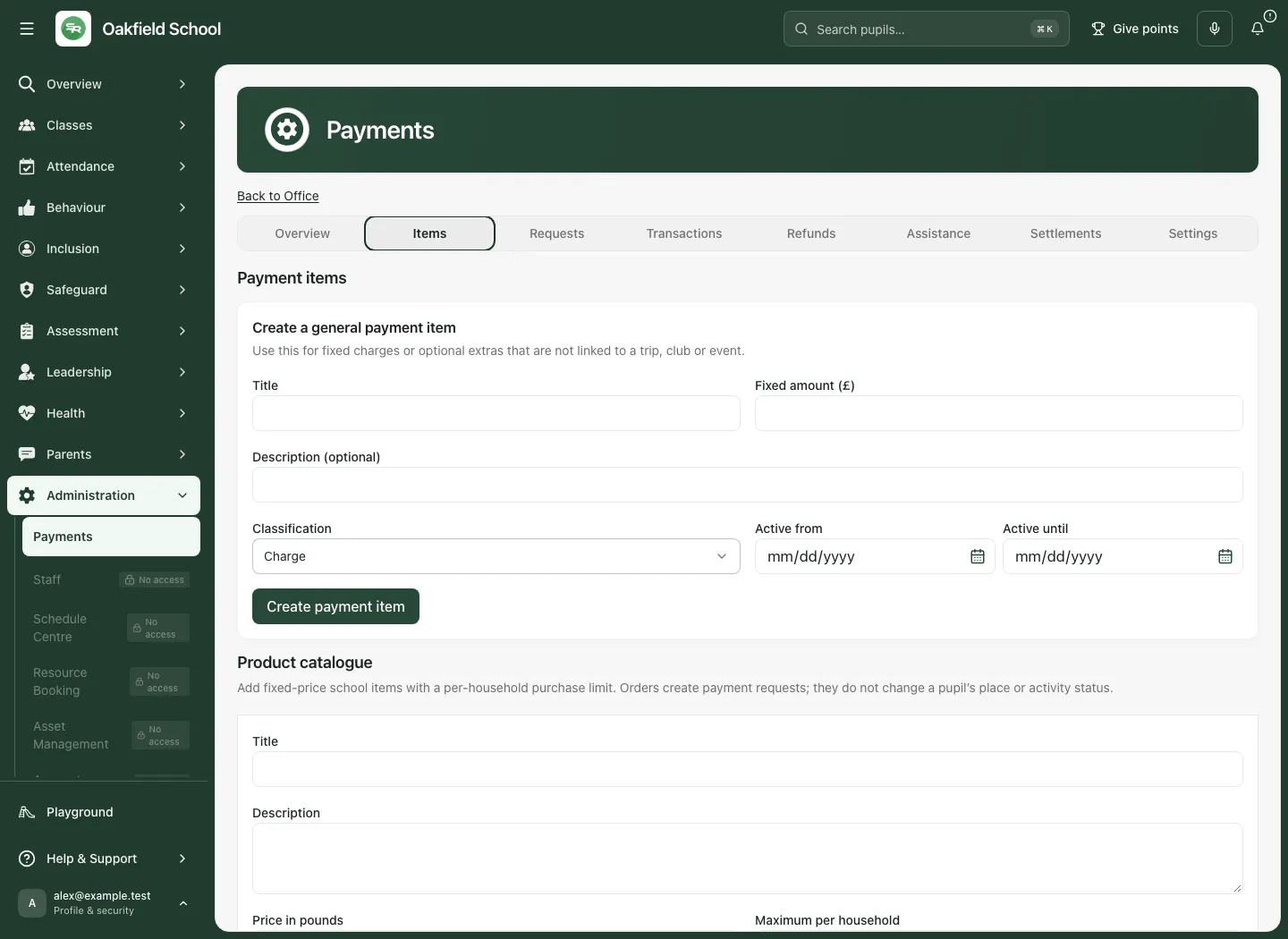
Section titled “4. Create a general fixed payment item”Use this for a charge or optional extra that does not belong to a trip, club or event. For contextual activities, begin with the owning application so the source relationship remains clear.
- Open Items → Create a general payment item.
- Enter Title, Fixed amount (£) and Description (optional).
- Choose Classification: the intended charge or optional extra. A fixed obligation is different from an invitation to contribute voluntarily.
- Set Active from and Active until where needed. Check the date range and amount carefully.
- Choose Create payment item and wait for the result.
- Review the new item in the table. Creating the item is not issuing a request to a family and does not take a payment.
5. School products and voluntary contributions
Section titled “5. School products and voluntary contributions”Add a school product
Section titled “Add a school product”- In Product catalogue, enter Title, Description, Price in pounds and Maximum per household.
- Set Available from (optional) and Available until (optional) if the sale has a window.
- Review Available to parents and choose Add product.
- Check the saved row. Use Edit [title] to change the permitted product settings and choose Save changes.
- Review actual orders and their resulting requests. Ordering does not itself establish provider-confirmed payment or grant an activity place.
Create a voluntary campaign
Section titled “Create a voluntary campaign”- In Voluntary-contribution campaigns, enter Campaign title and Description.
- Set Suggested amount in pounds and Maximum single contribution in pounds.
- Decide whether to Allow a custom amount and Show campaign to families.
- Choose Create campaign, or Save campaign for an existing campaign, then review the saved state.
- Follow the confirmed total and confirmed responses with the stated coverage. A family can choose £0; this is an invitation, not a debt.
Do not use voluntary contribution status to exclude a pupil or send payer-specific chasing. A suggested amount is not an amount owed. Keep charge classification accurate before issuing requests.
6. Issue requests to the intended pupils
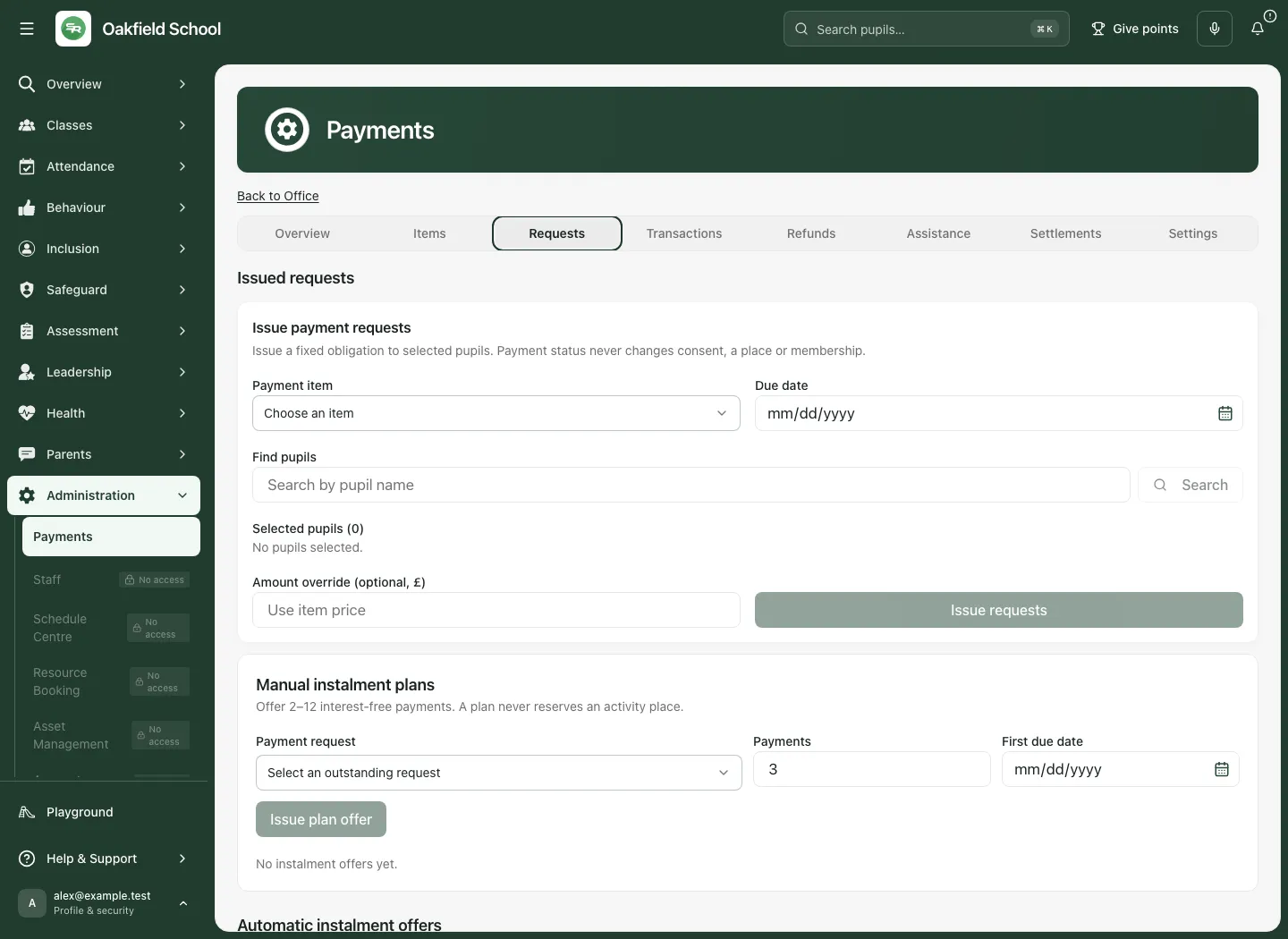
Section titled “6. Issue requests to the intended pupils”- Open Requests → Issue payment requests.
- Select the correct Payment item and Due date.
- In Find pupils, enter the search and choose Search. Select verified results rather than entering a name as if it were a pupil record.
- Review Selected pupils (N). Remove the wrong pupil using the named remove control.
- Enter Amount override (optional, £) only when the different amount is authorised and appropriate for this request.
- Check the item, pupil count, amount and due date, then choose Issue requests.
- Read the returned result and current request table. Issuing a request is not dispatch confirmation, payment settlement or consent.
If a request may already have been applied, follow the displayed recovery/status controls rather than starting a fresh duplicate. Recheck the current record before retrying an uncertain write.
7. Offer instalments without treating the offer as payment
Section titled “7. Offer instalments without treating the offer as payment”Parent-paid manual instalments
Section titled “Parent-paid manual instalments”- In Requests → Manual instalment plans, choose an eligible outstanding Payment request, checking the recipient and balance.
- Set Payments from 2–12 and First due date.
- Choose Issue plan offer and confirm the saved offer/result.
- The family accepts the offer from its Payments page. An issued offer is not an accepted plan and does not reserve an activity place.
- Review the actual instalment schedule and payment state. Missed or processing instalments are not silently paid.
Automatic card instalments
Section titled “Automatic card instalments”- In Automatic instalment offers, read whether automatic collection is enabled. The current supported route is card only; buy-now-pay-later and credit methods are blocked.
- Select Payment request, Number of payments and First due date.
- Review Also allow parent-paid manual instalments if that alternative should be available.
- Choose Issue plan offer. The family must separately choose and accept the offered mode and its schedule/consent.
- Review mandate and instalment outcomes. A failed authentication can require the family to return online; an offer or saved card setup is not a successful collection.
A replaced/cancelled plan, changed balance or revoked mandate needs the supported current-state process. Do not repeatedly issue a new plan because an earlier response is slow.
8. Family checkout, products and receipts
Section titled “8. Family checkout, products and receipts”Families use their own permitted Payments area, with linked requests, products, contributions, instalment offers and receipts. They should check the child/household, item, amount and current state before proceeding.
- Open the intended request or purchase/contribution option and read its classification and amount.
- Follow the supported provider checkout route. Check the actual provider page; a redirect or return to the school portal does not establish that payment succeeded.
- Return to the Payments area and review the current status. Do not pay again while a previous attempt is uncertain or processing.
- Open Receipts after the provider confirms payment. Receipts appear only after confirmation; a screenshot of checkout is not the school’s payment receipt.
- For an instalment offer, read the full schedule before accepting manual or automatic collection. Automatic collection requires the exact consent shown and can need further authentication.
- Use the assistance route when available if help is needed. A self-declaration is private finance information, not an inferred pupil characteristic.
Guest payment links, where enabled, remain controlled payment requests. They do not reveal general pupil information or establish a family relationship. Ask the school to check a missing/expired request rather than sharing another family’s payment link.
9. Follow provider transactions
Section titled “9. Follow provider transactions”Open Transactions and match the transaction to its request, recipient/context and amount. Read the provider’s actual state, paid time and refunded amount. Succeeded differs from pending, failed and refunded states.
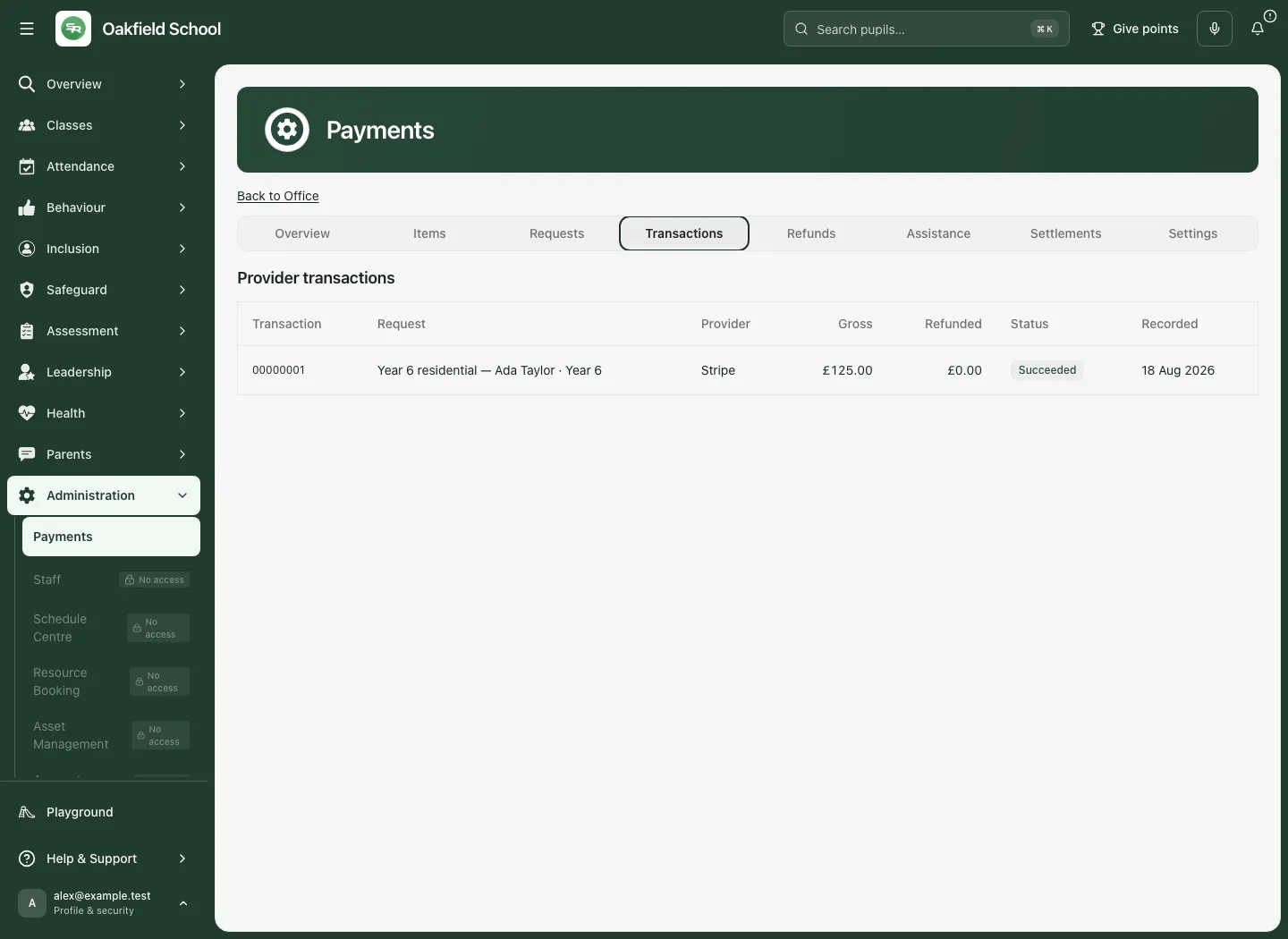
Do not use a guessed mark paid shortcut to reconcile provider activity. Use the supported external-receipt route for money actually received elsewhere, or the provider/reconciliation process for unresolved electronic payments. The ledger does not prove the bank’s net settlement merely because a card transaction succeeded.
10. Controlled refunds
Section titled “10. Controlled refunds”Refunds are restricted and can require a separate approver, a threshold decision and step-up authentication. Read the current approval threshold and restricted school balance before proceeding.
- Open Refunds. Select Transaction, checking the successful payment and amount remaining refundable.
- Enter Amount (£) and Reason.
- Choose Original payment method, or the explicitly supported Manual refund already arranged route only when that external arrangement is true and authorised.
- Enter the current six-digit Authenticator code when confirming, approving or sending a refund.
- Review the proposed refund and choose Confirm refund. Follow its actual next state; a proposal or approval does not itself mean the provider has returned money.
- Where independent approval is required, a different authorised approver reviews the item and uses Approve. Read Needs a different approver rather than trying the initiator’s account again.
- For a batch, choose Payment item and Propose batch, then review and approve through the separate batch process. Check every included payment and amount.
- Follow provider-confirmed/refused/pending outcomes and recovery controls. Do not make a second independent refund while the first attempt may have applied.
A manual refund record is evidence of an external arrangement; it does not move bank funds. Keep the reason, approver and provider outcome together for review.
11. Private payment assistance
Section titled “11. Private payment assistance”Open Assistance only with the appropriate restricted finance access. Cases are self-declared or finance-recorded; do not infer them from SEND, disadvantage or another pupil characteristic.
- Select the intended outstanding request and check the recipient, amount and issue date.
- Enter Private finance note with only the information needed for the decision.
- Choose Record assistance case and review the case state.
- An authorised decision-maker reviews the actual case and Remission amount for [request], then chooses Approve remission or Decline.
- Check the resulting assistance and request balances. A recorded case is not an approved remission, and a remission is not a provider refund.
Keep private reasons out of general activity descriptions and staff messages. The pupil’s participation must not be changed automatically by the financial state.
12. External providers and payments received elsewhere
Section titled “12. External providers and payments received elsewhere”Open Settlements. Register only an approved provider and exact HTTPS destination; a redirect is not a confirmed settlement.
Configure and link an external provider
Section titled “Configure and link an external provider”- A colleague with payment-settings access completes Provider key, Display name, Allowed hostname and HTTPS checkout base URL under Approved provider host.
- Choose Save provider and review the saved configuration.
- For a request link, choose Payment request for external link, External provider and Exact HTTPS payment URL.
- Choose Save external link. This connects the request to the approved destination; it does not mark the request paid.
Record money already received
Section titled “Record money already received”- In Record a payment received elsewhere, choose Payment request for offline settlement and Offline payment method.
- Enter Amount (£), External reference and Reason code. The reference is required for non-cash methods.
- Confirm the evidence against the school receipt/bank record, then choose Record received payment.
- Review the recorded settlement and changed request balance. Follow recovery if the action may already have applied.
This records a cash, bank or external-provider receipt. It does not initiate a bank transfer, create money or prove an unverified external provider return.
Reconciliation and exceptions
Section titled “Reconciliation and exceptions”The restricted operations area shows release-gate evidence, reconciliation runs, settlement exceptions and operational alerts. Read the run’s actual completion and freshness before relying on it. Resolve an exception only after checking its underlying transaction/settlement evidence and recording the required resolution. The Release gate is evidence only: this screen cannot enable general availability.
13. Provider setup and reminder controls
Section titled “13. Provider setup and reminder controls”In Settings, read Test mode and Live mode separately. The example shows ready test status and disabled live status.
- Use Start test onboarding or Continue/refresh through the supported Stripe Connect flow with the authorised account owner. This is an external setup step.
- Use Refresh Stripe status to read the current provider answer. Charges, payouts, enabled methods, refund threshold and approver count are separate checks.
- In Test payment controls, set Refund threshold (£), Change reason, Allow automatic card instalments in test mode and Enable school test payments when Stripe is ready as appropriate.
- Choose Save test settings and review the saved result. Completing test onboarding cannot enable live payments.
- Read live Release blockers. Live enablement remains behind server release gates and recorded provider/legal/accounting approval; do not interpret a ready test card as live readiness.
For reminders, an authorised owner reviews Enable automatic payment reminders, sets each reminder’s Channel and Hours from due date, uses Add reminder or Remove, reviews Maximum per payer in 24 hours and Maximum for the school in 24 hours, then chooses Save reminder policy. Negative/positive offsets place the reminder before/after the due date. A saved policy can still show that reminder sending is switched off in the school release settings. Review actual policy bounds and delivery outcomes; a saved reminder is not a message delivered. Voluntary campaigns must not become payer-specific debt chasing.
Troubleshooting
Section titled “Troubleshooting”Payments access required or Not authorized appears. Check the school and exact Payments permission. A general Office permission is not enough; ask the access owner for the narrow duty needed.
A linked item is missing. The item may be outside the current scoped workspace, inactive or unavailable. Return to the owning trip/club/event and check the current link with an authorised colleague.
The figures have a + or refresh warning. They are bounded loaded minimums or potentially stale. Use reconciliation/source evidence for a complete financial decision.
The parent returned from checkout but the request is processing. Wait for the provider’s actual outcome and use the displayed recovery/status route. Do not infer payment or start a duplicate attempt.
A receipt is absent. Receipts require provider confirmation. Check the exact request/transaction rather than treating a checkout screenshot as a receipt.
An instalment offer cannot be issued. Check request eligibility, current balance, number of payments, first due date and whether automatic collection is enabled. An existing/changed plan can require refresh and review.
A refund needs another approver or authenticator code. Complete the required independent review and current authentication. Do not bypass the step or share codes between staff.
An external settlement is uncertain. Check the exact request, reference and attempt status before retrying. A saved external link does not establish money received.
Test payments work but live is disabled. Read live release blockers. Test onboarding and settings do not change the live gate.
Questions schools often ask
Section titled “Questions schools often ask”Does Paid grant a place or consent? No. Specialist activity/consent workflows own those decisions.
Is Confirmed gross our bank balance? No. It is gross provider-confirmed activity within loaded transactions, before refunds; it is not a complete net settlement statement.
Is a voluntary contribution a debt? No. Families may choose £0, and non-payment must not affect participation or trigger payer-specific chasing.
Does issuing an instalment offer collect money? No. The family must accept the appropriate mode/schedule, and each payment still needs its actual outcome.
Does Record received payment send money? No. It records an evidenced receipt already received elsewhere.
Does a refund proposal mean money is back? No. Follow approval and provider/manual outcome separately.
Can the test settings turn on live payments? No. Live release has separate server gates and approvals.
Related guides: Trips, Clubs & Activities, Forms and Connect.