Keep a waiting list for accepted referrals
Written for: Alternative provision referral leaders and office staff.
When you’ve accepted a referral but don’t have a place for the young person yet, add it to your waiting list. The list keeps accepted referrals in the order you’ll offer places, and tells you when a place comes free on the days the next one needs.
The waiting list is for planning. It doesn’t place, decline or change a referral. You still confirm each placement from the referral.
Before you start
Section titled “Before you start”The page is for AP leaders and office staff who can read every referral. Leaders who can manage referrals can add, reorder, edit and remove entries. Office staff can see the list but not change it.
A referral can join the list once it reaches the placement agreement and has been accepted. Set your capacity first, so the page can tell you when a place is free. See Set your capacity and check free places.
Open the waiting list
Section titled “Open the waiting list”In the sidebar, open Referrals and choose Capacity & Waiting List, then click Waiting list.
You can also get there from the Referrals page. Above the referral steps, a link says how many referrals are waiting for a place. Click it to open the list. Referrals on the list show their place in the queue, for example Waiting #2, in the referral list.
Read the list
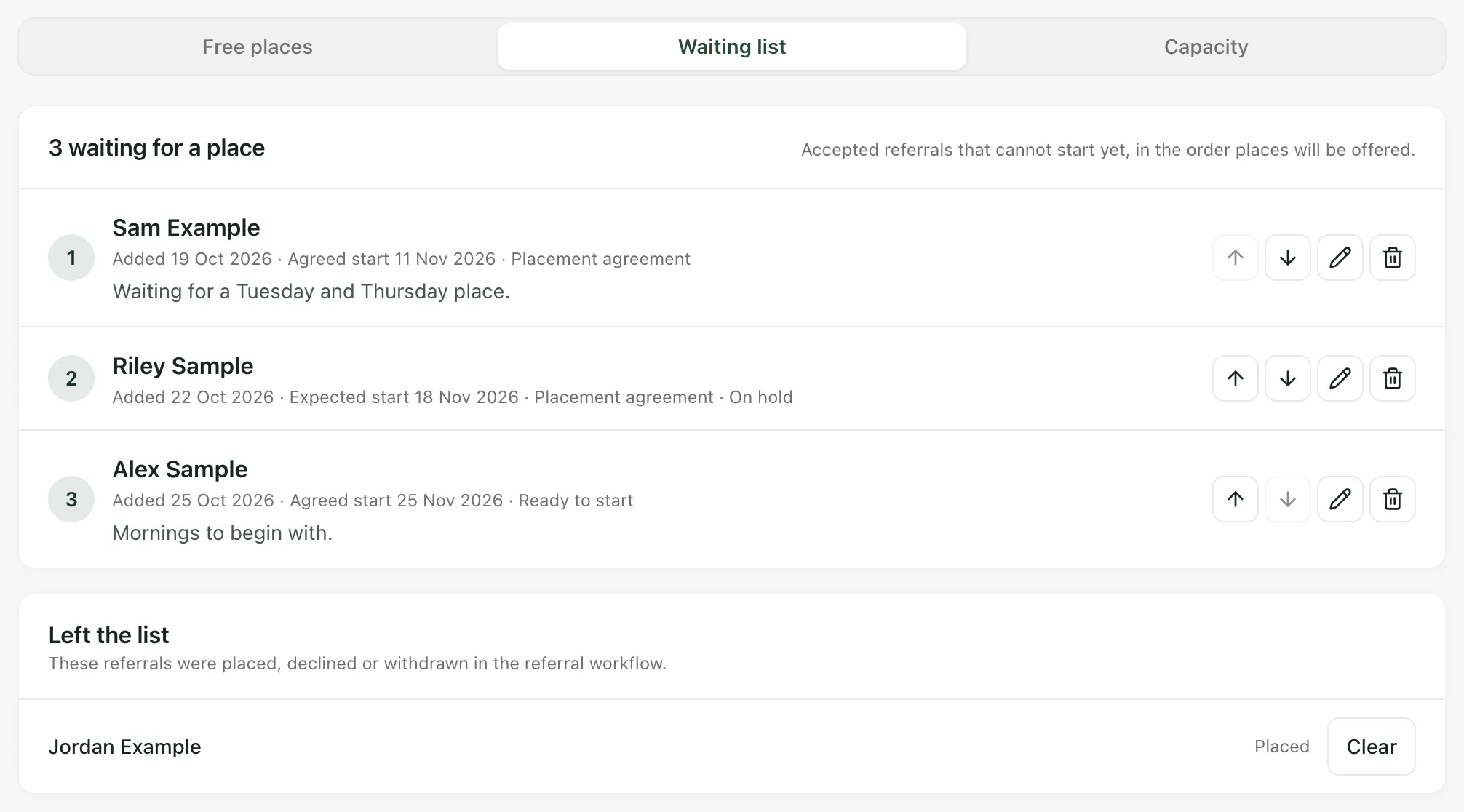
Section titled “Read the list”The list shows the referrals waiting for a place, in the order places will be offered. Each row shows:
- its place on the list
- the young person’s name. Click it to open the referral.
- when it was added
- the agreed start from the placement agreement, or the expected start you entered
- the referral’s current step, and whether it’s on hold
- any note
Add a referral
Section titled “Add a referral”- Click Add to waiting list.
- Choose the Referral. Only accepted referrals that have reached the placement agreement and aren’t already on the list are offered.
- Check the Expected start (optional). If the placement agreement has a start date, it’s filled in for you.
- Add a Note (optional), for example which days the young person is waiting for.
- Click Add to waiting list.
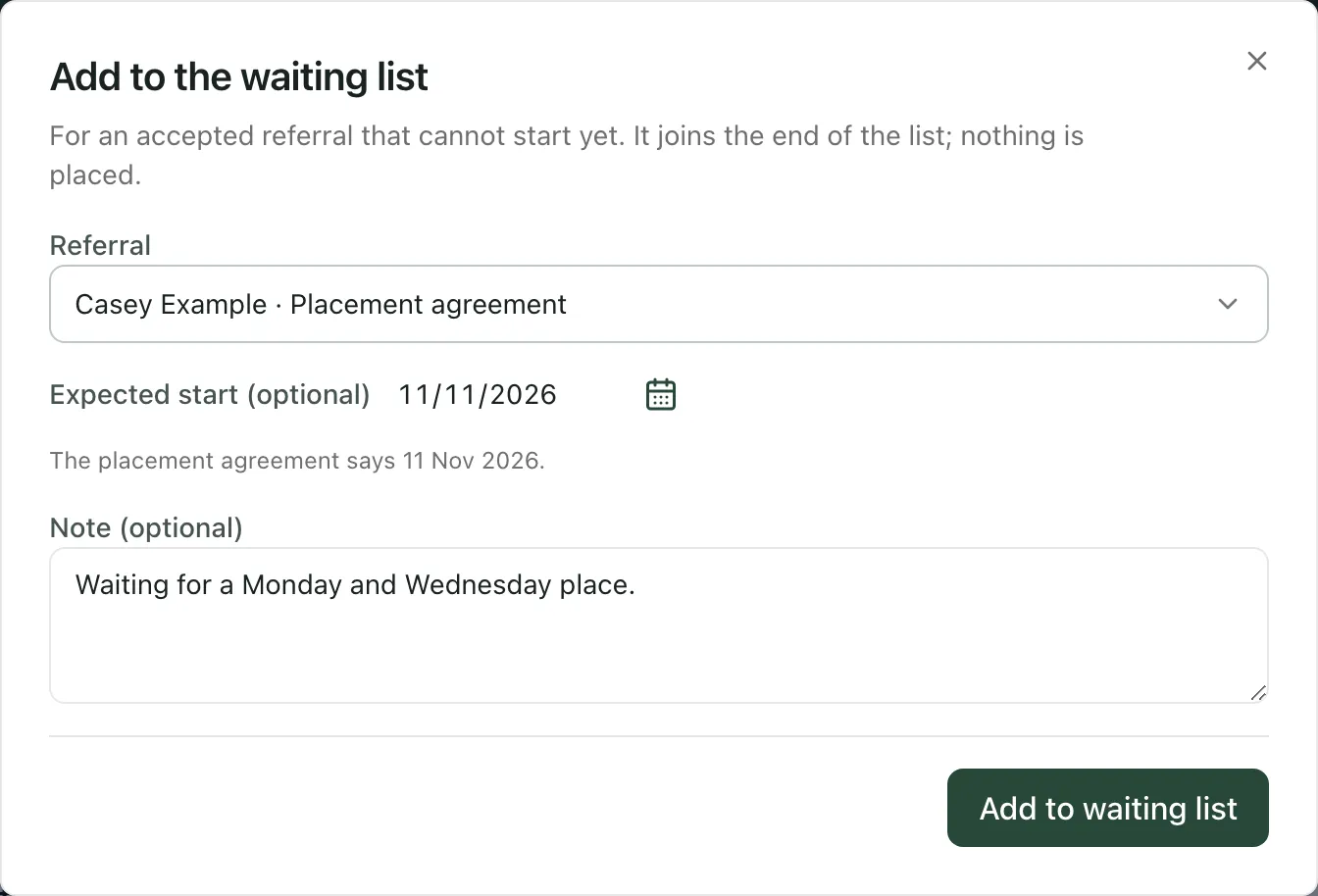
The referral joins the end of the list. Nothing is placed.
Change the order
Section titled “Change the order”Use the up and down arrows on a row to move a referral up or down the list one place at a time.
Edit an entry
Section titled “Edit an entry”- Click the pencil on the row.
- Change the Expected start or the Note.
- Click Save.
The referral keeps its place on the list.
Remove a referral
Section titled “Remove a referral”- Click the bin on the row.
- Choose a Reason: Start date agreed elsewhere, No longer needs a place, Commissioning school withdrew or Added by mistake.
- Click Remove.
The referral leaves the list. The referral itself isn’t changed. To add it again later, add it as a new entry at the end of the list.
When a place comes free
Section titled “When a place comes free”When a place is free on every day a waiting referral needs, a suggestion card appears on Free places. It names the first referral on the list that fits, its place on the list and the date the place is free from. If a referral has no agreed days yet, it needs a place free on every day.

The suggestion is a prompt for your decision. Nothing has been placed. Click Open referral, check the referral and its agreed start, and confirm the placement there if it’s right. See Move a referral through to placement.
When a referral is placed or closed
Section titled “When a referral is placed or closed”When a referral on the list is placed, declined or withdrawn in the referral workflow, it moves to Left the list on its own, marked Placed or Referral closed. Click Clear to take it off the page.
How the list affects free places
Section titled “How the list affects free places”While an accepted referral is on the waiting list, it isn’t counted as holding a place in Free places by day. Once you remove it, it’s counted from its agreed start date, like any other accepted referral that hasn’t been placed.
- Size: the list holds up to 200 referrals.
- One list: the waiting list covers the whole provision, whatever the site.
- Your provision’s words: labels use your provision’s Setting profile, so what you call your pupils and the schools that place them may differ.
- The AP menu: the sidebar described here appears when your setting profile is alternative provision and AP operations are active. It only shows the pages you can open.
If something doesn’t work
Section titled “If something doesn’t work”| What you see | What to do |
|---|---|
| “No referrals are waiting for a place.” | Nothing is on the list. Click Add to waiting list to add an accepted referral. |
| “No accepted referral is waiting to start. A referral can join the list once it reaches the placement agreement and is not already on it.” | Move the referral on to the placement agreement first. See Move a referral through to placement. |
| “Only an open referral that has reached the placement agreement can join the waiting list.” | The referral was placed, closed or moved back after you opened the dialog. Open the referral to check it. |
| “This referral is already on the waiting list.” | Find it on the list and edit it there. |
| “The waiting list changed. The latest order has been loaded.” | Someone else changed the list. Check the order that’s now shown and make your change again. |
| “This referral has already left the waiting list.” | It was placed, closed or removed. Check Left the list. |
| “This waiting list entry is no longer available.” | Someone else removed it. Refresh the page. |
| “The waiting list holds up to 200 referrals. Remove one before adding another.” | Remove a referral that no longer needs a place, then add the new one. |
| “You do not have permission to change capacity or the waiting list.” | Ask a leader who can manage referrals. |
| “You do not have access to the provision’s referrals, so capacity and the waiting list cannot be shown.” | The page needs access to every referral. Ask your Provision Lead if you need it. |
| “Counts and missing records cannot be confirmed.” | The list didn’t load. Click the retry button under the message. Until it loads, don’t assume a referral isn’t on it. |
| “The last loaded copy is shown and may be out of date.” | The page couldn’t refresh. Click the retry button next to the message. |
| “The change could not be confirmed. Retry to check it.” | Click the same button again without changing anything. It retries the same change, so it won’t be made twice. |
| “Too many changes in a minute. Wait a moment and retry.” | Wait a minute, then try again. |