Request school resources and check booking approval
Find the intended resource, request the actual date and interval and follow the booking decision before relying on it. A pending booking, an approved booking and a timetable room-use warning have different meanings. Check the actual resource and date before relying on an arrangement.
The fictional example uses the Reading room, an eight-place room requiring approval. The screenshots show preparation and existing read-only booking information; no real school booking is created.
1. Before you begin
Section titled “1. Before you begin”Open Resource Booking under Administration. Check the school, resource name/type and the week shown. General viewing and creating a booking do not grant permission to administer every resource or decide every request.
Only a verified administrator/headteacher can create or change resource definitions. A booking’s decision can be made by an eligible decision role or that resource’s approval manager, according to current server authority. A requester can have cancellation rights without approval rights. Treat the available action and its current result as authoritative; a shared link alone does not grant access.
Agree the intended activity, dates/times, expected people and practical arrangements. Resource Booking reserves resource time; it does not approve a trip, send meeting invitations or issue a physical asset loan.
2. Find a resource and inspect the week
Section titled “2. Find a resource and inspect the week”- Read the summary counts and displayed Monday-to-Sunday date range. Counts labelled this week refer to that selected week, not all future bookings.
- Use Search resources to find the intended name/type/location.
- Review Resource, Type, Location, Capacity, Approval, This Week and Status in the resource list.
- Use Previous week, Next week and This week to choose the right period. Check the actual dates after each change.
- Open the required resource to inspect its detail/calendar and bookings. Do not infer free time merely from a different resource being selected.
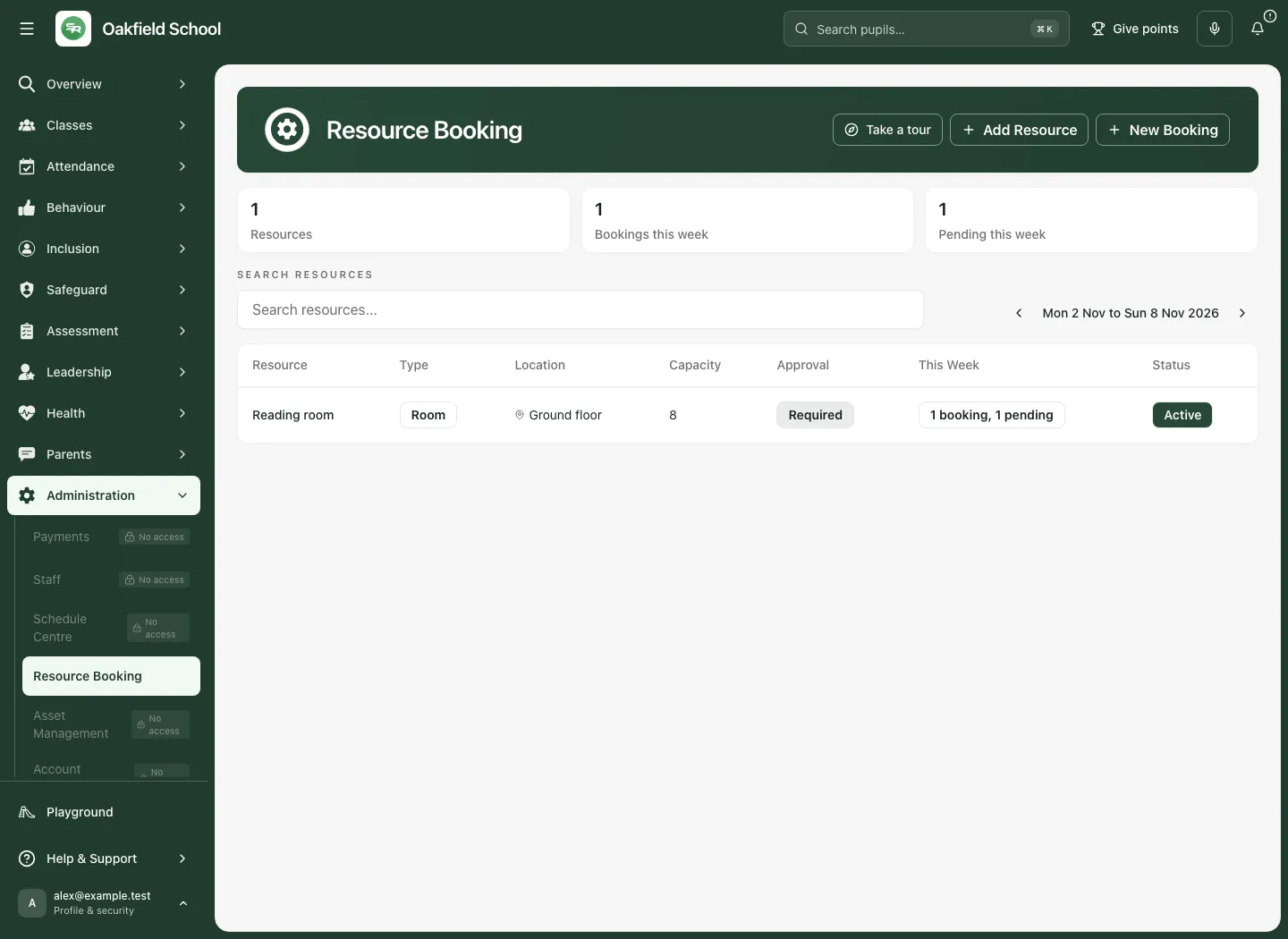
A busy week can reach the loaded row ceiling; read the warning that some bookings may be missing. Pending decisions have their own bounded queue. A limited view is not proof that no other booking exists.
3. Prepare and create a booking
Section titled “3. Prepare and create a booking”- Choose New Booking, or start from the intended resource/date in its calendar.
- Select Resource. Confirm the exact room/equipment/vehicle rather than relying on a similar name.
- Set Date, Start and End. Use the school’s current date/time context; end must be after start.
- Enter Purpose and useful Notes. Purpose can be up to 500 characters and notes up to 2,000; avoid unnecessary personal or restricted information.
- Review overlap and timetable warnings. Change the time/resource if needed.
- Choose Create booking and wait for the actual result.
- Read whether it was Sent for approval or Approved. A resource requiring approval can produce a pending request; do not treat form submission as permission to use the room.
- Reopen the resource and the booked week to check the saved date/time, purpose and state before handing it over.
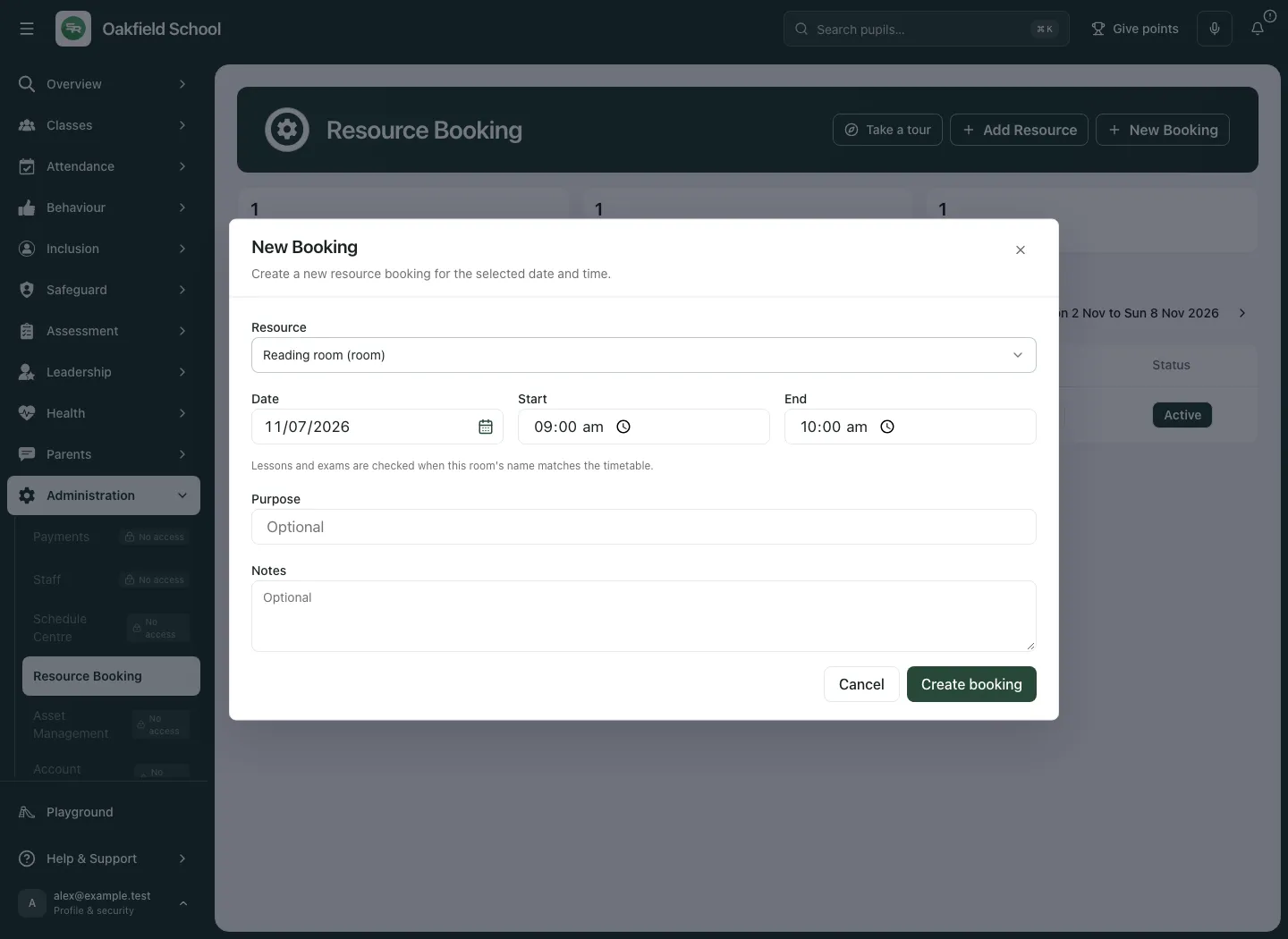
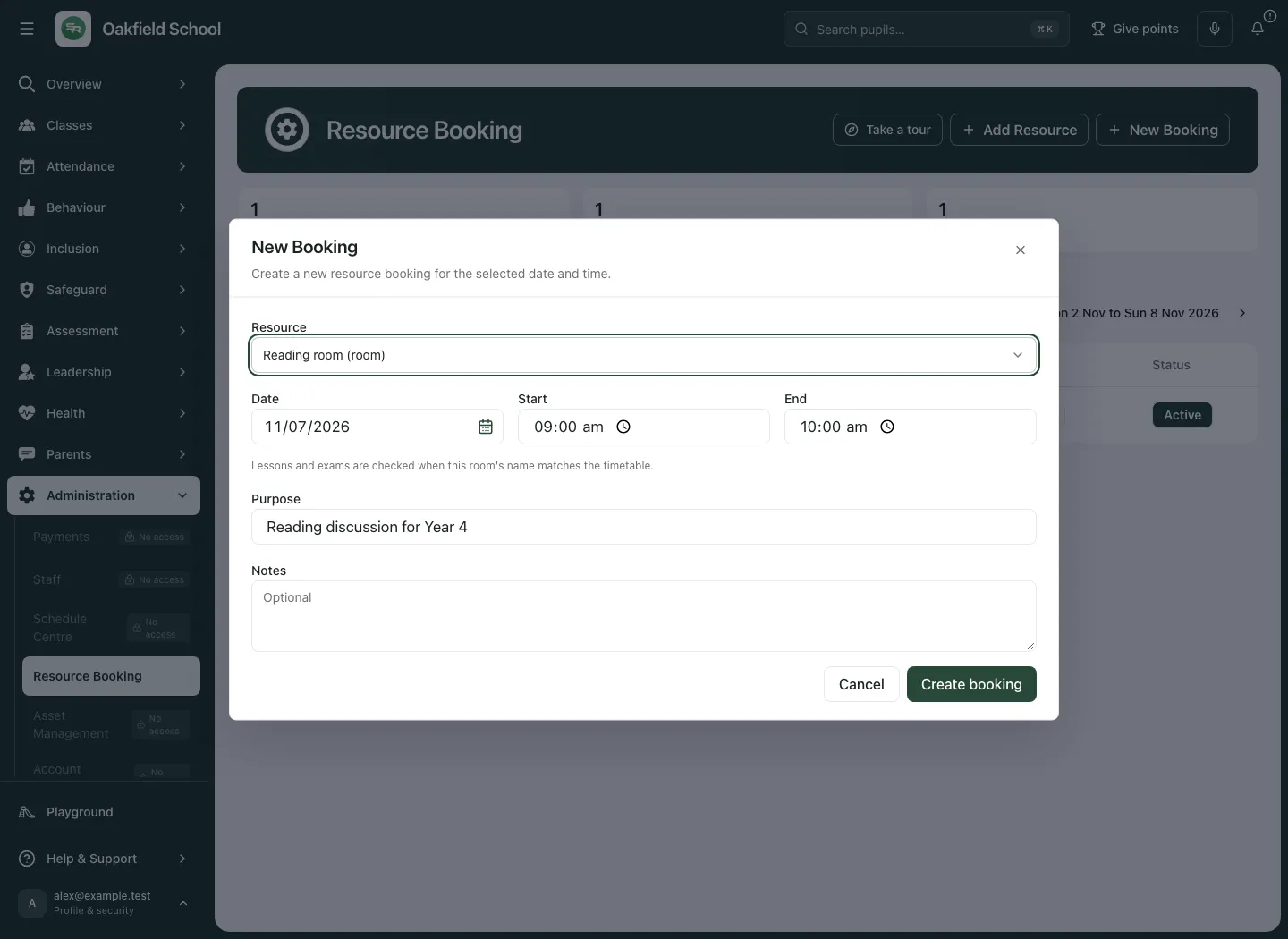
The form is not a recurring-booking wizard. Do not assume recurrence metadata on an existing record means this form will create a whole series. Make and check the actual supported booking occurrences.
Understand the two conflict checks
Section titled “Understand the two conflict checks”An active booking overlap is checked against other resource bookings. A conflicting request can be refused even if an earlier screen looked clear; another colleague may have booked meanwhile.
For rooms, the timetable check can also show lessons or exams using a matched room. Read The timetable shows this room in use at that time and the displayed interval. This is an advisory timetable warning: the form can allow book anyway when you know the room is free. It is not permission to disregard a lesson or exam. Confirm the real arrangement with the responsible colleague.
An unmatched room can be not checked rather than clear. Missing mapping is not evidence the room has no lesson/exam use. Vehicles/equipment and other resource types do not acquire a complete timetable availability guarantee from the room check.
4. Review pending decisions
Section titled “4. Review pending decisions”- Read the pending-decision queue, including the resource, date, time, requester and purpose.
- Use Open week to inspect the request in its actual week and check nearby bookings.
- Review the current resource approval arrangements and practical conflicts.
- Choose Approve only when authorised and the request should proceed. Wait for Booking approved and check the row’s current state.
- To refuse, choose Reject, enter Reason, then choose Reject booking. Keep waiting returns without rejecting.
- Check Booking rejected and the saved reason. A rejected request is terminal; create a new appropriate request rather than trying to revive it through a stale screen.
The decision command checks the exact version. Someone else has just changed this booking means reload and review the current request before another decision. It does not justify repeatedly approving the old row. A queue at its limit may have more requests; use the shown coverage message and narrow the review.
5. Cancel an arrangement that will not go ahead
Section titled “5. Cancel an arrangement that will not go ahead”- Open the intended pending/approved booking.
- Choose Cancel and read Cancel this booking?. Check the date/time/resource in the surrounding context.
- Use Keep booking to return unchanged, or Cancel booking to confirm.
- Wait for the result and review its cancelled state. A cancelled/rejected record is not an active reservation.
- Tell the relevant people through the school’s actual communication process when needed. A cancellation status alone does not prove everyone has been notified.
Do not cancel a colleague’s booking merely to make a desired time look free. Use the authorised request/decision process and agree the practical handover.
6. Add and maintain resource definitions
Section titled “6. Add and maintain resource definitions”- With the required authority, choose Add Resource.
- Enter Resource name and Type: room, equipment, vehicle or other.
- Set Location, Capacity and Description as appropriate. Capacity describes the resource; it is not a pupil enrolment limit in another workflow.
- Review Requires approval and Active resource.
- Choose Save resource and inspect the saved definition.
- For an existing resource, open its details and use the offered edit-resource control. Recheck the name/type and approval setting before Save resource.
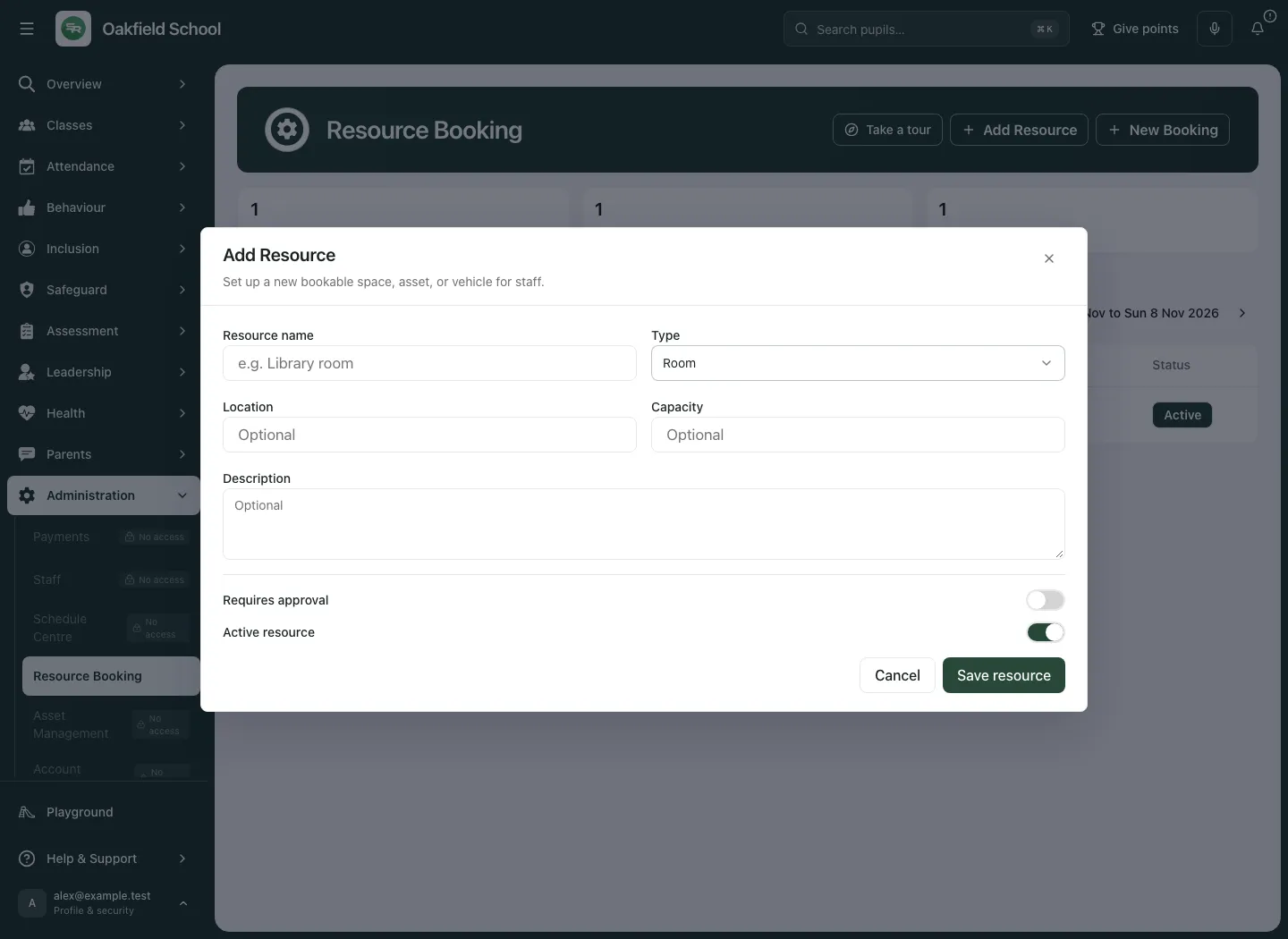
An inactive resource takes no new bookings. Existing bookings remain, so cancel any that can no longer go ahead through their own records. Deactivation does not silently clear the calendar.
Duplicate names of the same type can be refused. Check the existing inventory before creating a second resource with slightly different spelling. Resource-creation authority is rechecked; if the school/role changes while the form is open, reload the current context rather than continuing with an old grant.
7. Use the workspace on a phone
Section titled “7. Use the workspace on a phone”Use the resource list and week controls to keep the actual date and resource visible. Open details for the complete booking rather than relying on a truncated card. Scroll through the full form and its warnings before submitting or deciding.
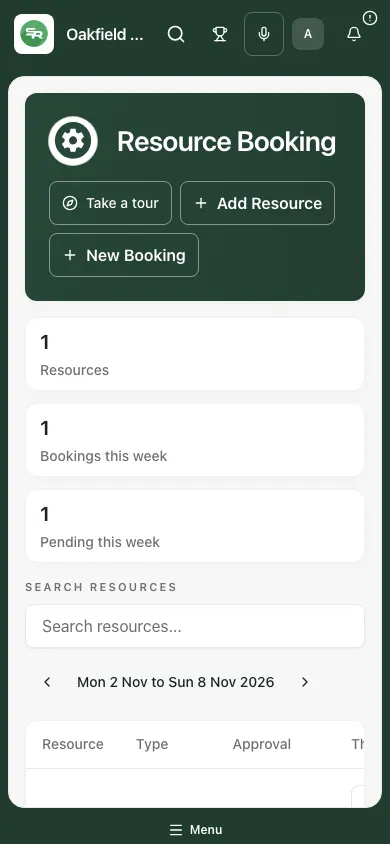
Take a tour walks through the current workspace. It does not create or approve a booking on your behalf.
Troubleshooting
Section titled “Troubleshooting”New Booking is disabled. Check whether an active resource exists and your current school context is available. Inactive resources do not accept new bookings.
Add Resource is disabled. Only the verified resource administration role can create definitions. A general view permission is insufficient.
An overlap is refused. Reopen the actual resource/week and choose a genuinely different slot. Another request may have been accepted since your earlier check.
The timetable warning seems wrong. Check the room mapping and actual lesson/exam interval with the source owner. An advisory warning and an unmatched room are different states.
Approval or rejection fails. Refresh the current booking/version and recheck your authority. Cancelled or rejected bookings cannot be decided again.
A week or pending queue looks incomplete. Read the loaded-row/queue limit and date scope. Search/open the exact resource and week; do not present an initial page as all bookings.
The resource was deactivated but bookings remain. This is deliberate. Existing arrangements need separate review/cancellation.
A save failed or its outcome is unclear. Keep the form values, read the error and check the current saved week before making a duplicate booking.
Questions schools often ask
Section titled “Questions schools often ask”Does Create booking always approve it? No. Read the resulting pending/approved state and the resource’s approval requirement.
Does a room timetable check guarantee no conflict? No. Read its matched/not-checked state and any lesson/exam warning; booking overlaps are a separate check.
Does deactivating remove existing bookings? No. It stops new bookings and preserves existing records for explicit review.
Does a resource booking issue the equipment to a person? No. Physical custody belongs in Asset Management.
Does cancelling tell everyone? Read the actual communication outcome; a status change alone does not establish notification.
Related guides: Schedule Centre, Asset Management and Connect.