Record AP physical interventions for independent review
Written for: AP colleagues with explicit physical-intervention record access and independent senior reviewers.
Record the factual intervention account, injuries, debriefs and contact already made, then obtain a separate senior review. Keep factual recording, notification, follow-up work and professional review distinct. This is a record workflow, not instruction or authorisation to use a physical technique.
Open the restricted log
Section titled “Open the restricted log”Open Pupils → Behaviour → Physical Intervention Log. This log has explicit view, record, review and training permissions; a general administrator role or access to Behaviour does not imply these rights. Every pupil and linked record also needs its own access. A read-only demo can show permitted evidence but cannot record or review it.
Check the provision and school date. Follow immediate safeguarding, welfare and emergency procedures when needed; do not wait for a form or review to respond. The examples are fictional record entries and do not establish that a technique, duration or response was appropriate.
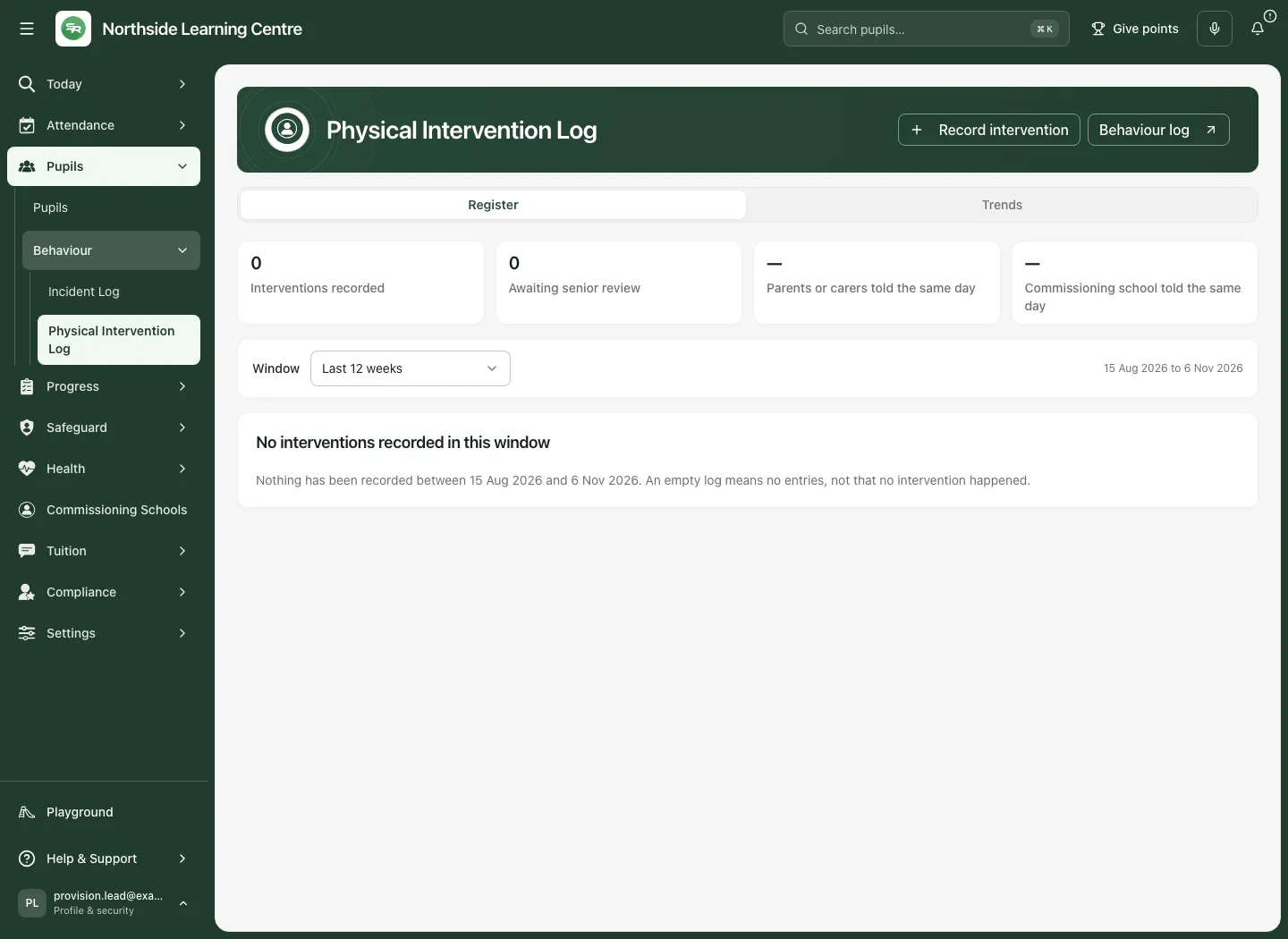
Read the register in its chosen window
Section titled “Read the register in its chosen window”Use Window: Last 4 weeks, Last 12 weeks, This academic year or Last 12 months. The default is Last 12 weeks; the academic-year boundary follows the school’s jurisdiction. Check the displayed dates before comparing figures.
| Figure | Denominator and limit |
|---|---|
| Interventions recorded | Included non-withdrawn recorded entries in the window, not every intervention that happened. |
| Awaiting senior review | Recorded entries not yet reviewed; outstanding follow-ups are separate facts. |
| Parents or carers told the same day | Recorded same-day parent contacts out of included entries. Unable to contact is not recorded as told. |
| Commissioning school told the same day | Same-day school contacts out of entries where a school notice applies, not every pupil on roll. |
An empty log means no entries recorded in the window, not proof no intervention occurred. A dash/unavailable result is not zero. A truncated list shows its latest-entry limit and total; shorten the window to see remaining entries rather than treat the visible list as complete. The register’s entry list is bounded to 500; summaries/trends describe their stated complete permitted scope.
Record the facts of a new intervention
Section titled “Record the facts of a new intervention”- Select Record intervention. The Record physical intervention form opens.
- Under When and where, choose the correct Pupil, Date, Time and Where it happened. The date/time cannot be in the future or more than two years old. A new record needs a current permitted pupil; an existing retained entry can have follow-ups added through its own authority.
- Under Staff, choose each Member of staff from the Single Central Record and their Role as involved or witness. At least one involved adult is required; record at most eight involved adults and eight named staff witnesses, without duplicates. The list is not proof of training or suitability.
- Where authorised, select the actual Training record for an involved adult. Read its lifecycle: planned, not completed, no evidence recorded, withdrawn, expired before the intervention or Completed after this date are not evidence of valid training at the time. Leave an unknown training link unconfirmed rather than invent one.
- Add staff with Staff involved or the witness action as appropriate, remove accidental rows and enter Other witnesses (optional) if needed. If nobody can be named, the form says the SCR is empty; establish the correct source record instead of typing an unrelated adult.
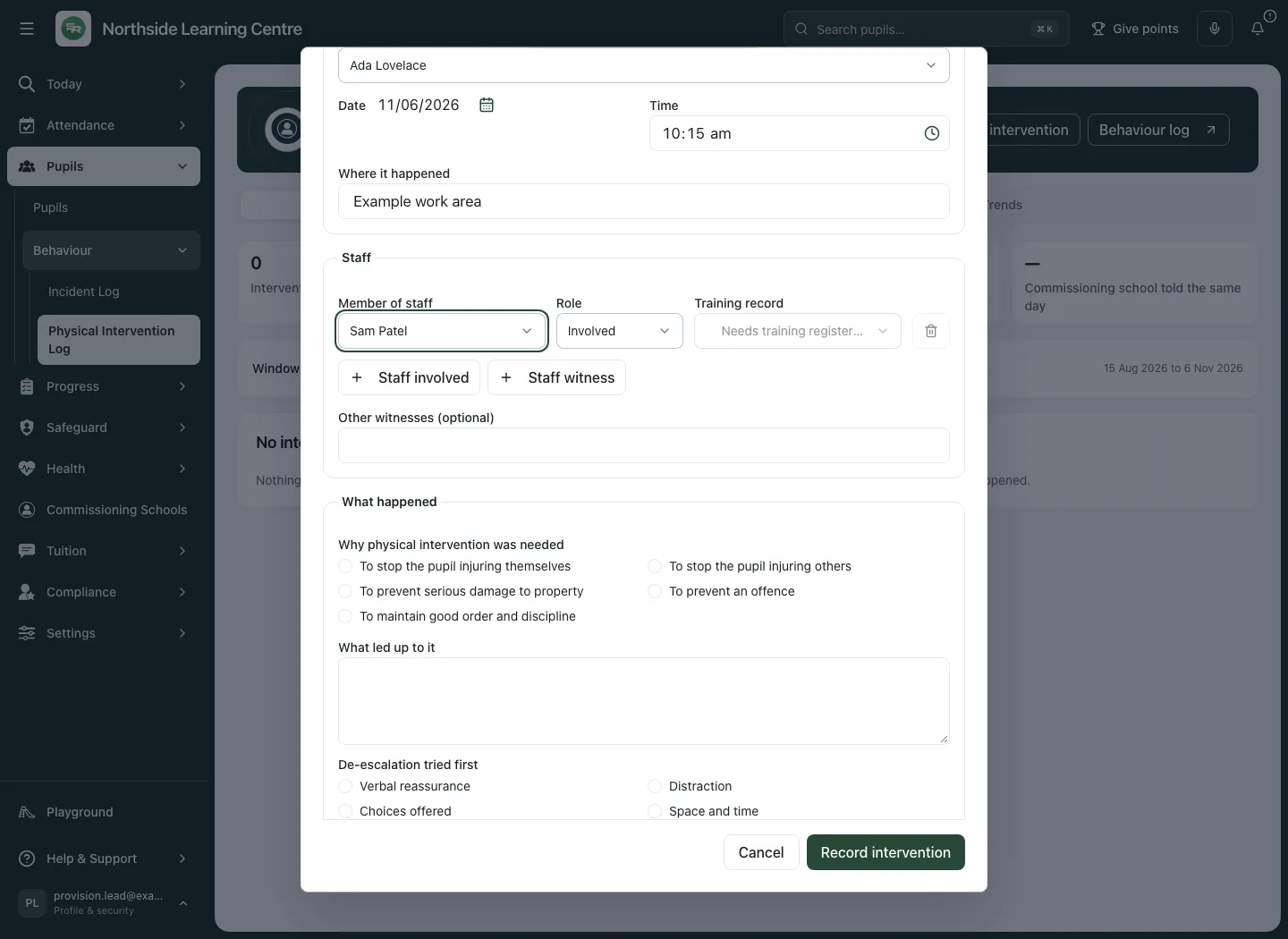
- Under What happened, tick the factual reason(s) under Why physical intervention was needed. The displayed categories record the account; selecting one does not establish legal justification.
- Describe What led up to it, up to 4,000 characters, separating observation from an attributed report. Choose De-escalation tried first and add De-escalation details. If Other is selected, explain it.
- Enter Hold or technique used as actually reported and How long it lasted (minutes). Use a whole number 0–240; 0 means under one minute, not an assertion it did not happen. This field is not a technique recommendation or permitted-duration threshold.
- Under Injuries, record Injury to the pupil and Injury to staff: No injury, Minor, no treatment, First aid given or Medical attention. A non-zero injury state needs the relevant description. Record the facts and take the separate appropriate care/safeguarding action; saving the field does not provide it.
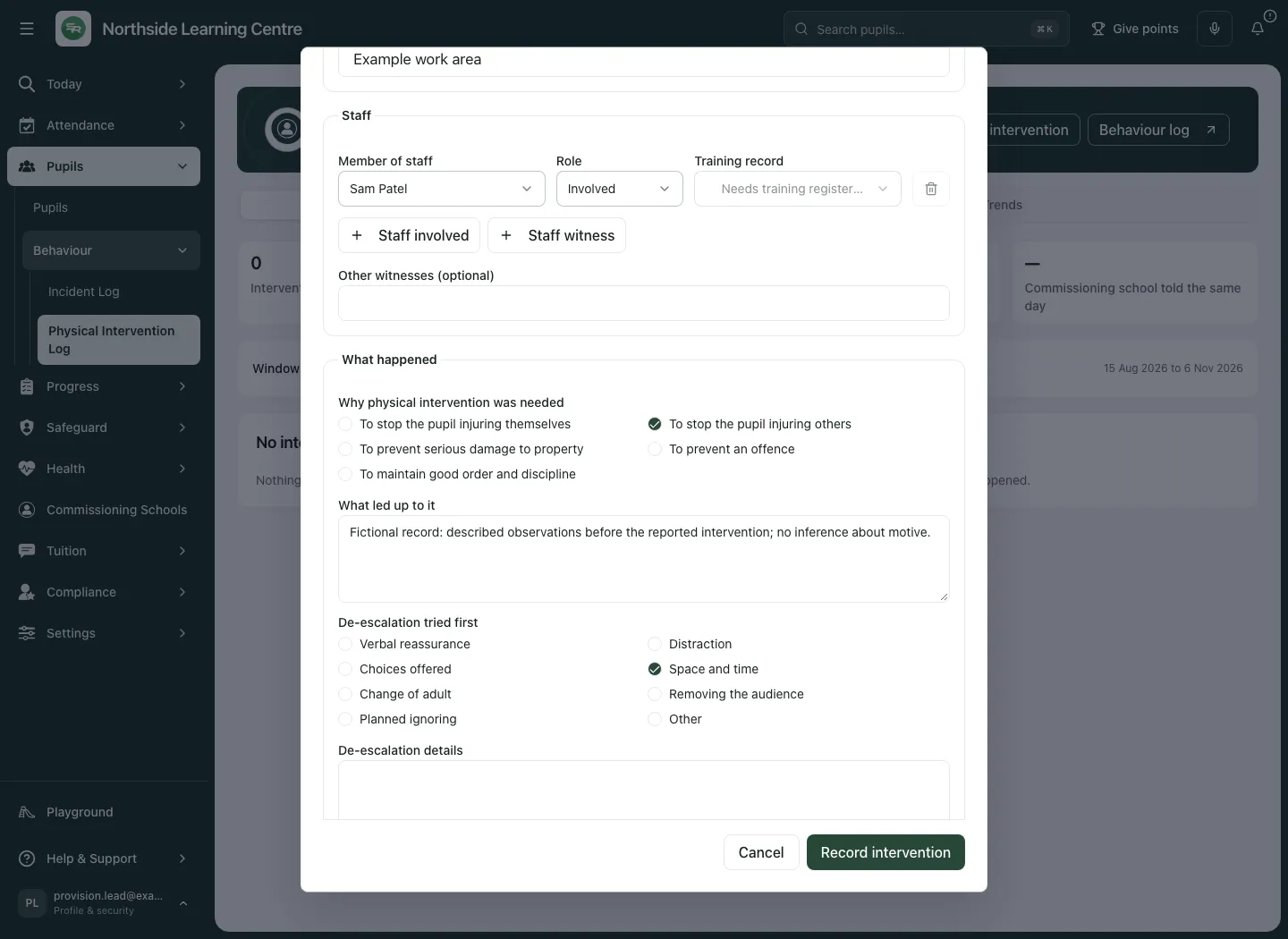
- Complete the debrief and notification facts below, leaving an unfinished item explicitly pending when it has not happened. Do not mark it done merely to make review available.
- Under Linked records, select the permitted Behaviour incident or Safeguarding concern where relevant. The offered options are for this pupil within 60 days either side of the incident. A chosen item outside refreshed picker dates is labelled; check it deliberately. A failed options read is not “no records exist”.
- Select Record intervention. Wait for the confirmed result and inspect the opened entry. Reopen after refresh if needed to verify the saved facts, revision and outstanding work.
Record debriefs and contact without claiming delivery
Section titled “Record debriefs and contact without claiming delivery”Under Debriefs:
- Debrief with the pupil can be Not yet held, Held, Pupil declined or Not appropriate. Held needs its date/time; declined/not appropriate needs Pupil debrief notes explaining the actual position.
- Debrief with staff can be Not yet held or Held, with the held date/time and Staff debrief notes as applicable.
Under Who was told, record actual contact separately for parents/carers and the commissioning school. The app does not contact either for you.
| Choice | What to record |
|---|---|
| Told | Date/time and How: Phone, In person, Email, Letter or Other. For the school, also record Who was told. |
| Could not be contacted | Parents/carers only; describe what was tried in Notes on telling parents or carers. It is not recorded as told. |
| No commissioning school | Explain why under Notes on telling the commissioning school; do not select it to avoid an outstanding contact. |
| Not yet told | Keep it pending until the actual contact and return to update the entry. |
Follow-up moments must not precede the intervention or lie in the future. Changing an unfinished intervention date can move proposed follow-up dates that have no time yet; check all actual dates rather than accept defaults. The app calculates same-day status from recorded civil dates, not from when you typed the form.
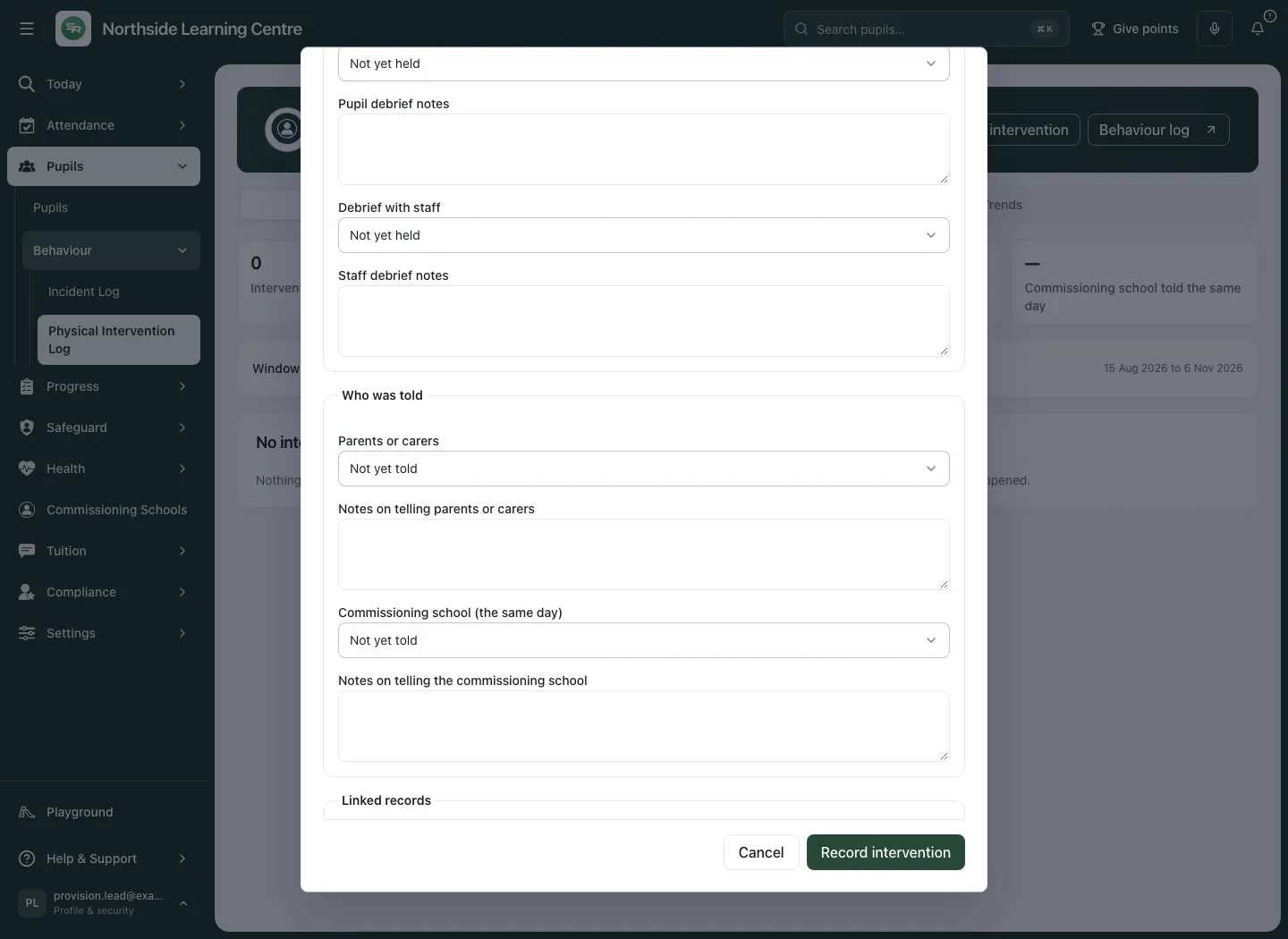
A recorded phone/email channel is a manual account, not provider delivery/read proof. The commissioning-school name is captured from the relevant placement; linking a behaviour event or concern does not satisfy its own reporting/response workflow.
Add the actual follow-ups or correct a recorded entry
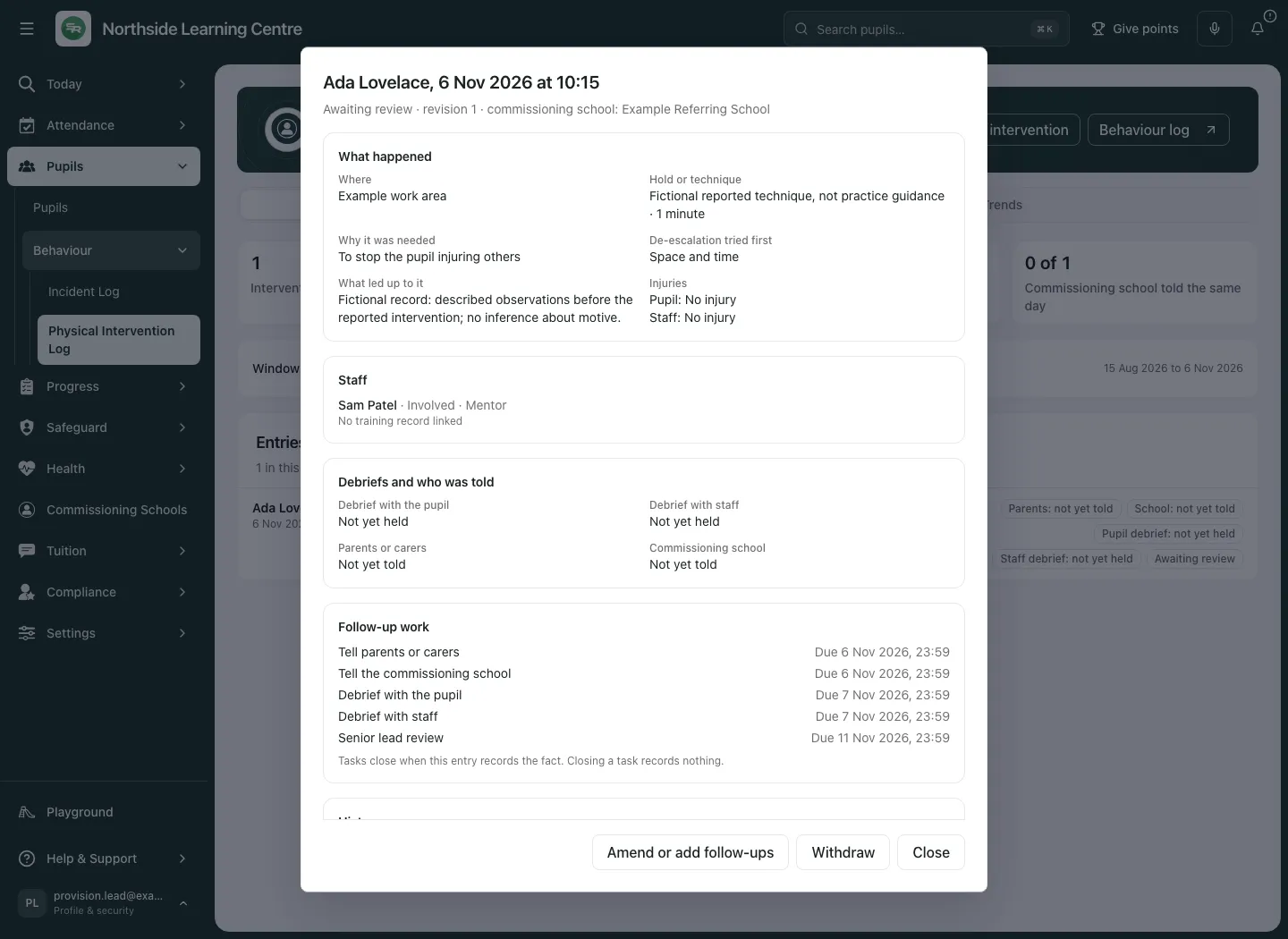
Section titled “Add the actual follow-ups or correct a recorded entry”- Open the entry and choose Amend or add follow-ups, where permitted.
- Check the current revision and facts. Update only what is established, such as a held debrief or a contact already made.
- Select Save changes and check the refreshed entry/history.
Every save retains earlier versions. A completed debrief/notification cannot simply revert to pending. The pupil identity cannot be changed on the entry; an erroneous pupil requires an authorised withdrawal and a separate correct record, not editing the identity field. Once Reviewed or Withdrawn, the entry is terminal in this workflow and cannot be amended.
Use the source-linked work in My Actions
Section titled “Use the source-linked work in My Actions”Unfinished debriefs/notifications create source-linked follow-ups for the recorder, while the independent senior review routes to its appropriate queue. A DSL’s own recorded entry routes review to the headteacher queue rather than asking that DSL to review their own account. Current permissions still determine who can read that work.
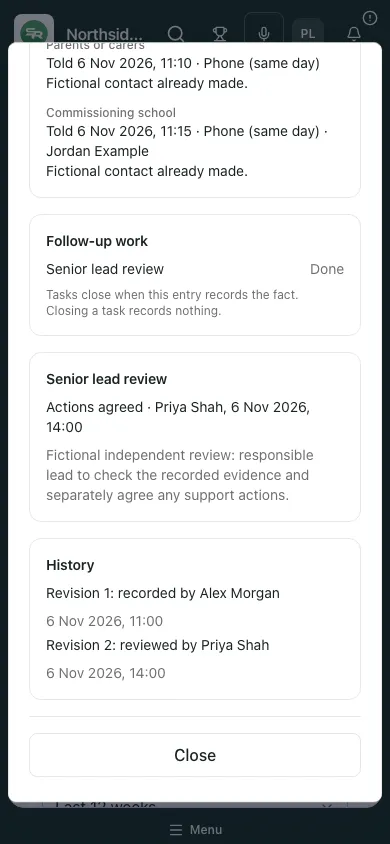
Notification work is due by the end of the intervention day; debrief work by the next day, and review within five days. These due prompts do not prove contact or review happened. Open the entry through Open the entry (access required) and record the actual source fact; these follow-ups cannot be ticked complete directly in My Actions.
Follow-up work shows its state/due time. Source amendments update open work’s source revision/due context without reopening completed work. Closing one source part is not proof the intervention was appropriate or agreed separate actions had an effect. Restricted intervention tasks are not sent through a general role-wide overdue escalation.
Review independently after the follow-up facts are recorded
Section titled “Review independently after the follow-up facts are recorded”A permitted senior reviewer must not be the recorder or someone involved in any retained revision of the intervention. Removing a name from a later version does not make that person independent. SCR/staff identity and name checks can require another reviewer; access to the role alone is not sufficient.
- Open the actual entry and read the facts, training context, linked evidence, both debriefs and both notification outcomes.
- Complete pending source facts first. Record both debriefs and both notifications before the senior lead review explains why Review is unavailable. A declined/not-appropriate debrief or unsuccessful contact needs its factual explanation, not an invented held/told state.
- If independent and permitted, select Review.
- Choose Outcome → No further action or Actions agreed. For actions agreed, enter Actions agreed; otherwise Notes (optional) can record the judgement. Review notes are limited to 2,000 characters.
- Select Record review and wait for the confirmed Reviewed state. Reopen after refresh and check the named reviewer, time, outcome and retained revision history.
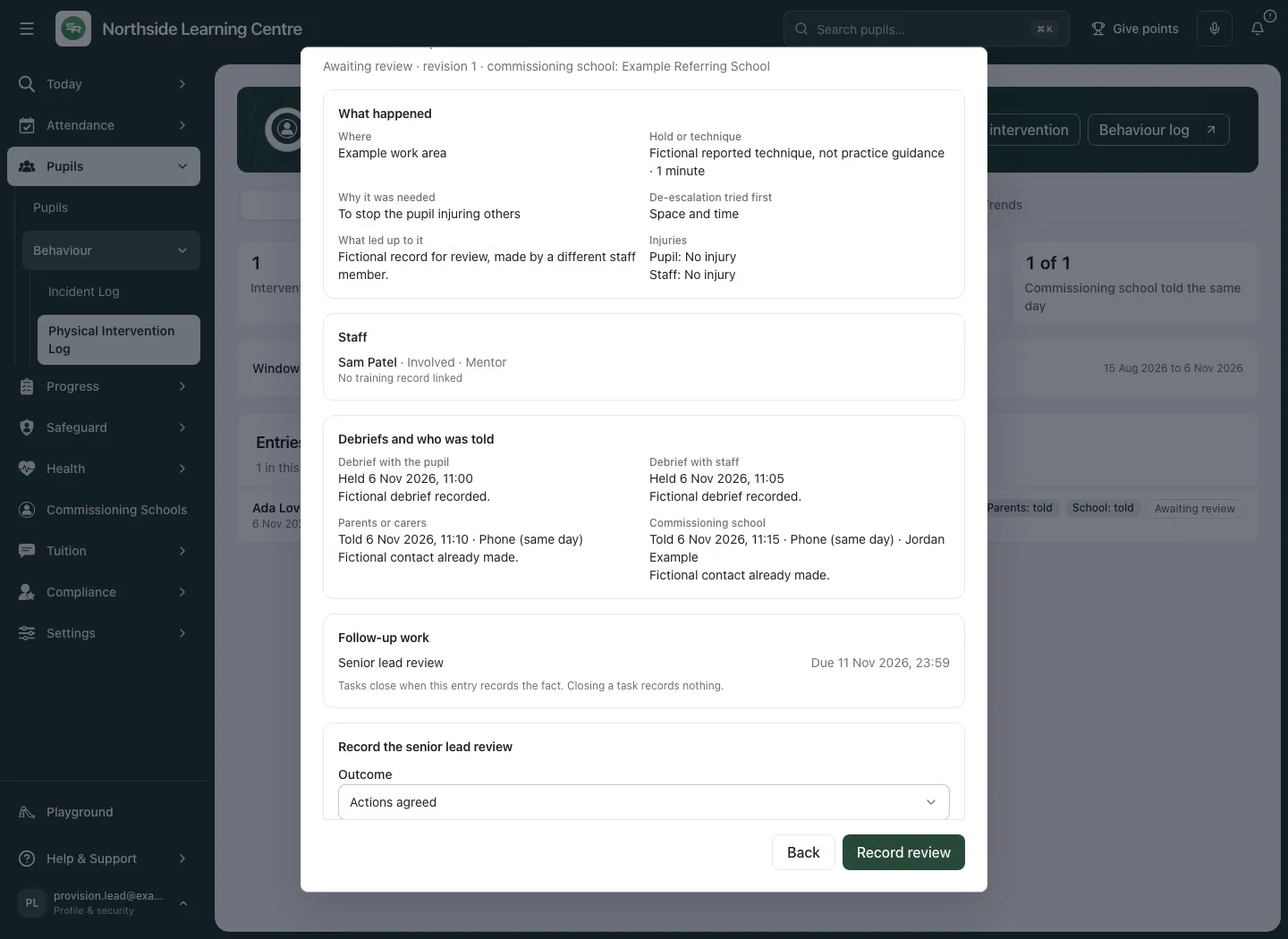
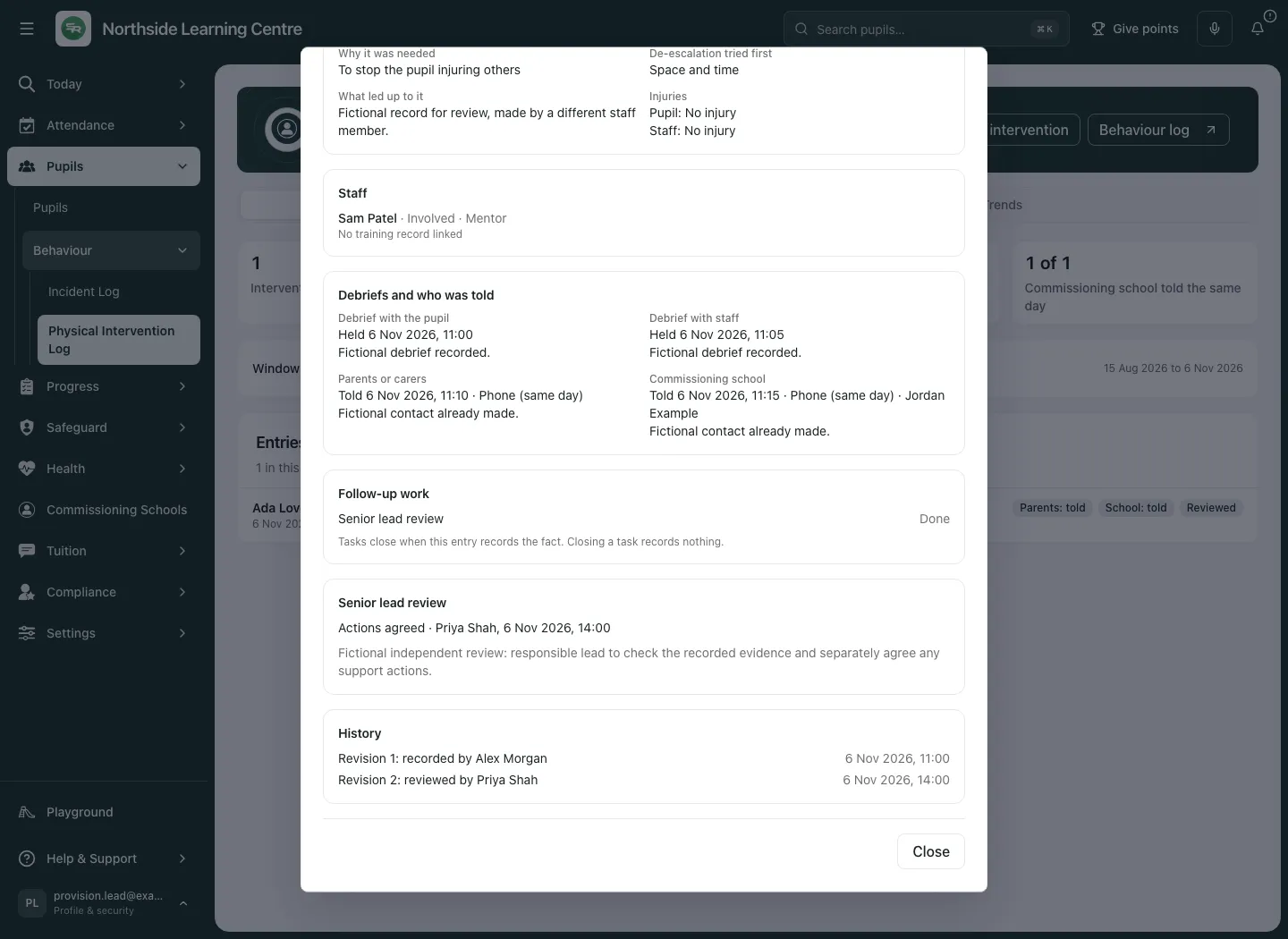
You recorded this entry or were involved, so another senior lead must review it is a restriction to respect, not a missing button. A review outcome records that professional decision; Actions agreed does not automatically create every separate support action or establish impact.
Withdraw a still-recorded entry entered in error
Section titled “Withdraw a still-recorded entry entered in error”Withdrawal needs the review capability and independence from involvement; staff involved cannot withdraw their own intervention record. It is only available while the entry is Awaiting review/recorded, not after review.
- Open the correct entry and select Withdraw if offered.
- In Why this entry was made in error, enter a clear reason of at least ten characters, up to 1,000.
- Select Withdraw entry, wait for confirmation and inspect the retained state/history.
The entry remains marked Withdrawn and is excluded from the counts. This is not deletion, a substitute for correcting the underlying safeguarding response or a way to hide a reviewed event.
Interpret Trends with its denominators
Section titled “Interpret Trends with its denominators”Select Trends and check the same Window. Read Entries by month, By pupil and By member of staff as recorded facts only.
- Pupils with an intervention compares pupils with entries with pupils placed in the window; cancelled-before-start placements are excluded. Entries outside a recorded placement are stated separately.
- Staff involved uses SCR adults in post for the window, with witnesses counted separately and people outside that denominator flagged. It is not every employee or a measure of staff quality.
- Minutes of intervention totals recorded whole minutes; under-one-minute entries recorded as zero need that context.
- Entries with a pupil injury uses included entries, not a clinical risk score. A zero in this window is not a safety judgement.
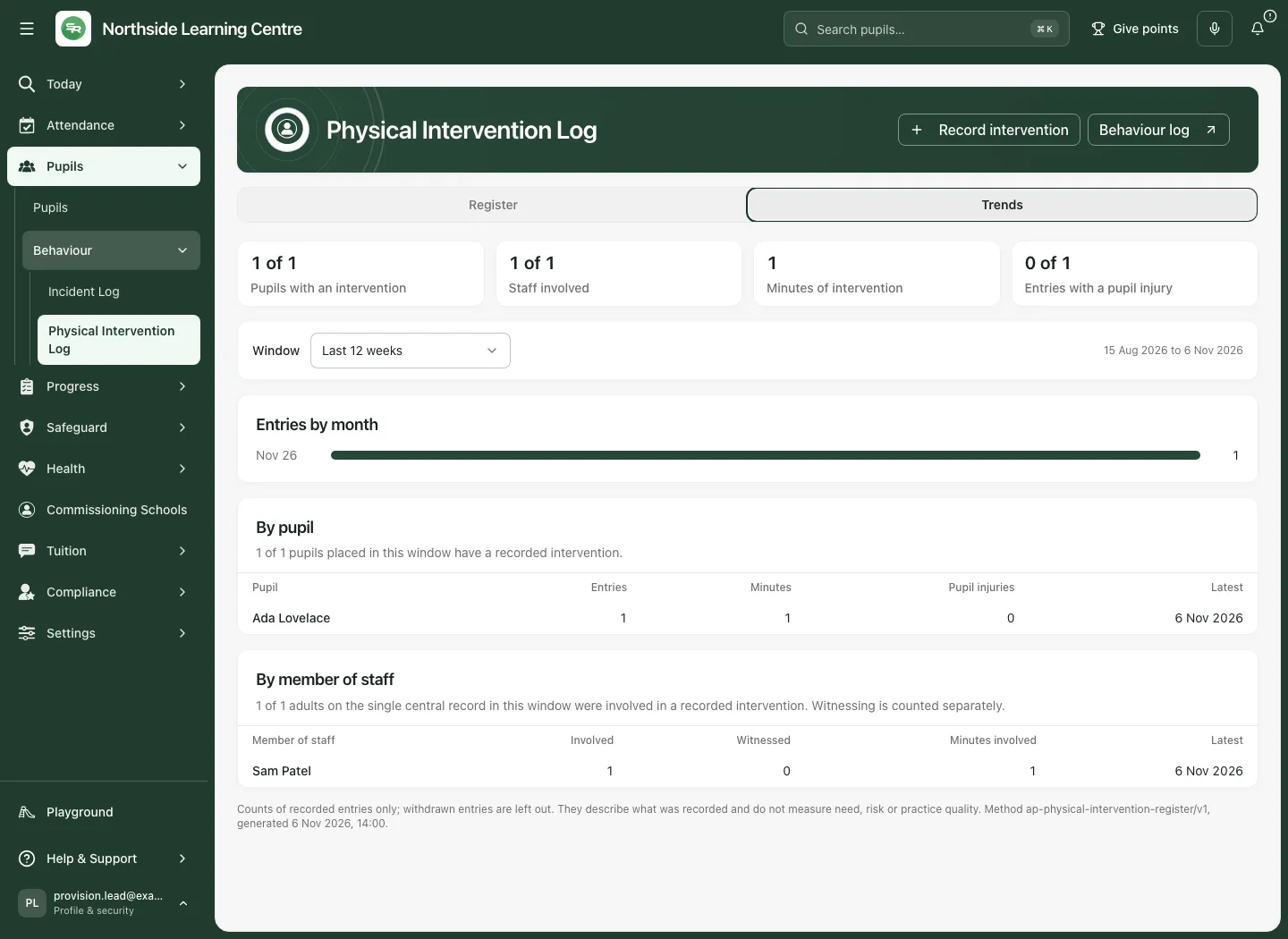
Withdrawn entries are excluded from these trends. Counts do not measure need, risk, the quality of practice or a causal outcome. Read source method/generation time and unavailable/truncated states before comparing periods.
Recover without overwriting a changed entry
Section titled “Recover without overwriting a changed entry”The amend, review and withdrawal forms keep the revision they opened on. If it changed, compare the latest facts and use Load the latest version or the offered Continue with this version decision after reading it. Keep/copy unsaved notes before replacing your draft. A background read does not silently move your draft onto a newer revision.
If another colleague reviewed/withdrew the entry, the decision form explains it can no longer be saved and preserves the unsaved note for checking; the terminal source state wins. A temporary detail/link read failure offers Try again, not empty evidence. A declined save is unconfirmed.
Closing changed entry/review/withdrawal text asks Discard this record?. Keep editing retains it; deliberate Discard changes closes it. Cancel/Back are disabled while saving, and a background refetch or day change should not remove a half-written form. Reopening a current record after a conflict reads the latest version rather than assuming a cached copy is authority.
Where permitted, linked behaviour opens its log, and Open the case opens the actual safeguarding case. Neither link grants target access or replaces that workflow’s decision. A malformed/stale entry link is not authority to read it.
Use the phone view
Section titled “Use the phone view”Open the same named entry and scroll to facts, follow-ups and review. Keep the pupil/date and state visible before choosing an action.
Common questions
Section titled “Common questions”What should I retain in the intervention account?
Section titled “What should I retain in the intervention account?”Record the factual event, people involved, injuries, debriefs and contact already made, keeping those records distinct from later review.
Who should complete the senior review?
Section titled “Who should complete the senior review?”Use the independent senior review route with the appropriate authority. The person’s factual account is not a substitute for that review.
Related: AP incident log, Single Central Record, Safeguarding concern, Support.