Manage AP pupil starts, leaving and genuine returns
Written for: AP staff reading permitted pupil records and colleagues authorised to manage the provision roll.
Find the permitted pupil record, add details in saved stages and use the existing identity for starts, leaving and genuine returns. A provision learner record is not school registration, an attendance agreement or consent to share information.
Open the right record view
Section titled “Open the right record view”Open Pupils → Pupils in the AP sidebar. Check the provision. The page’s labels follow its terminology; another setting may say learner or use a different group name.
Staff with full operational access see the permitted roll and its summaries. Assigned staff or administrative colleagues can see a bounded directory instead. Office access does not imply a full pupil profile or permission to complete the guided Add journey; the shorter directory does not offer that journey. Viewing a pupil is separate from managing their roll, contact details, placement, restricted evidence or reporting records.
If access cannot be confirmed, use Try again. A previously displayed name does not grant continuing access. A source refusal can remove a pupil from the list; a temporary detail failure can leave a named identity with an explicit unavailable/stale-detail warning. Do not treat retained older detail as newly verified. Restricted destinations still check access, including the full pupil profile.
The examples use fictional pupils and a new fictional record with optional information left unknown.
Read the roll and its gaps
Section titled “Read the roll and its gaps”| Area | What it tells you |
|---|---|
| On roll | Current verified eligible pupils, with the licence capacity where configured. Future and archived identities are not current roll places. |
| With a placement | Current pupils with a live/planned placement in the supported read. A missing agreement is not supplied automatically when a pupil is created. |
| Attendance | Marked booked-session attendance over the last four weeks, where permitted. No marks and unavailable attendance are different from zero attendance. |
| Roll composition | Visible placement/school and year-group context; a missing year or school is not inferred. |
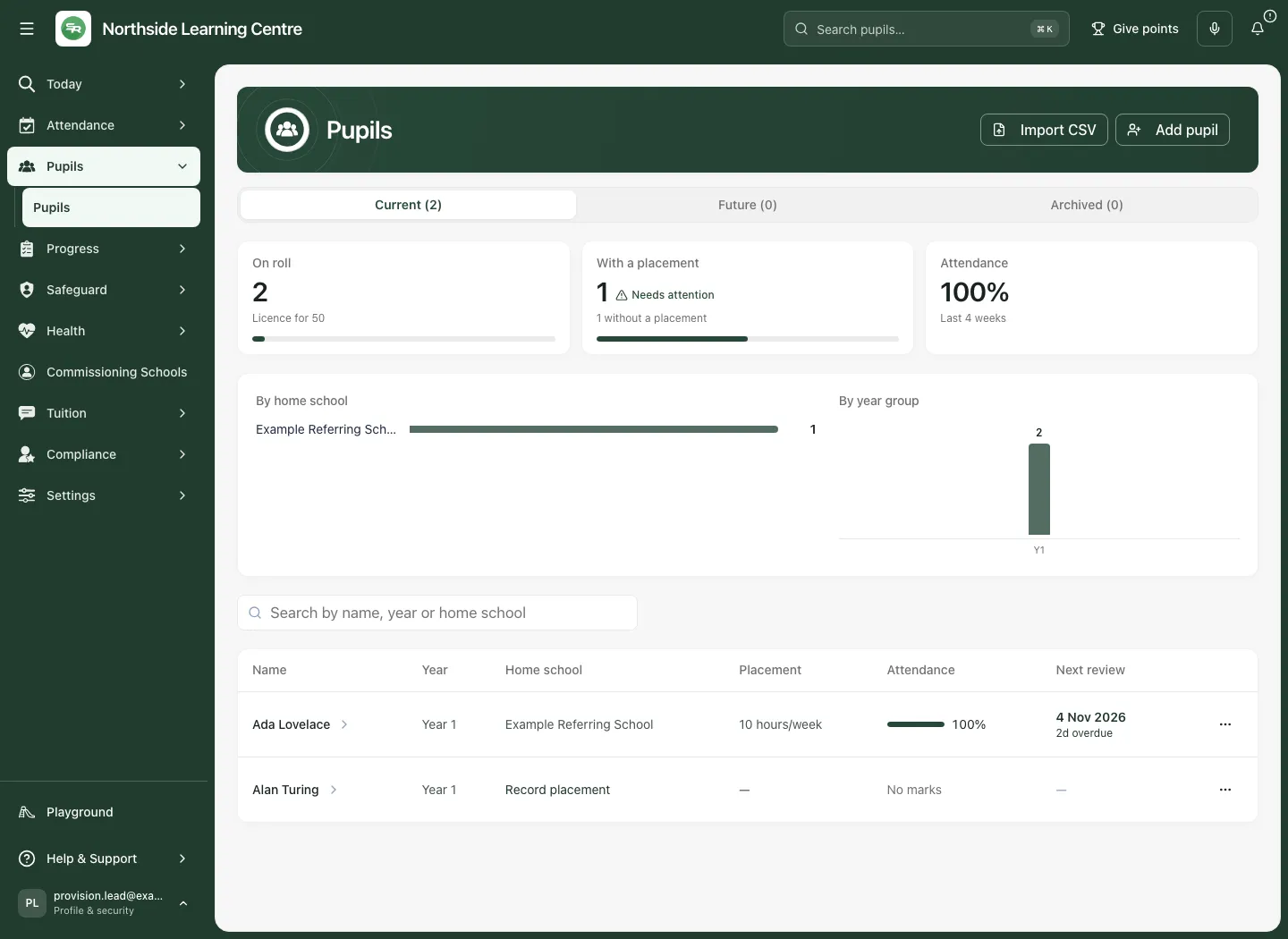
Choose Current, Future or Archived. On a phone, the section selector is labelled Records. Counts use the verified source; an unavailable count is not zero.
Search Current/Future by name, year or commissioning school as supported. Archived search is by name only on the server; it is not a search across every retained note or case. A paged retained directory can offer Next records and First page; read its page/coverage message instead of calling the first page the whole archive.
The placement summary stops presenting complete placement columns when its read reaches 500 rows. Future/archived classification also needs a complete verified directory and current identity details. If these cannot be reconciled, the screen explains the unavailable distinction; do not relabel an off-roll record as archived merely because its future detail did not load.
Open a record or its next permitted action
Section titled “Open a record or its next permitted action”Select the pupil’s name or Open record. The permitted profile supplies its own tabs and access checks; a missing record/profile is not proof that no restricted information exists.
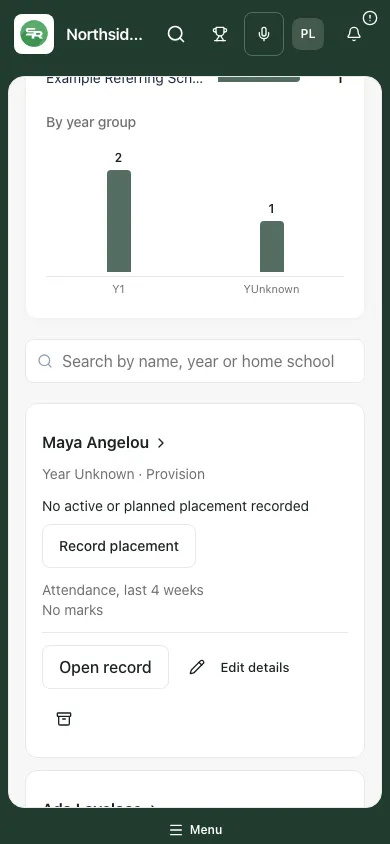
On desktop select ⋯ (More actions for [pupil]) for Edit details, Record placement, Evidence prompts or Leaving and return, where permitted. Phone cards show the offered actions directly, including Edit details and the labelled leaving/return icon.
Read placement dates and Review due separately from attendance. A review due today, an overdue review and no date set need different follow-up. No active or planned placement recorded is a gap in the agreement record, not an instruction that a pupil should attend unsupervised or that no historic placement exists.
Evidence prompts opens source-based suggestions where allowed. Read the supporting evidence, limits and review controls; a prompt is not a diagnosis, an automatic placement decision or an instruction already assigned. To review a prompt:
- Open Evidence prompts for the named pupil. Read Evidence window, Coverage, omitted-record counts and Current authorised evidence. Changed/unavailable source metadata blocks a reliable review until refreshed.
- Where permitted, use Refresh prompts to check at most 20 recent unresolved attendance records. Refresh does not change attendance, support, referrals, tasks or communications.
- Choose Your decision: Defer and review later, Accept as worth discussing or Reject this suggestion. Add a Reason of at least ten characters. Deferral also needs Review after.
- Select Record decision and read the resulting human decision. Acceptance means worth discussing, not a support plan already agreed. A failed save is explicitly not recorded. Closed/accepted/rejected or changed-source prompts do not offer the same review controls.
Add a pupil in four saved stages
Section titled “Add a pupil in four saved stages”Only eligible roll managers with the required pupil access see Add pupil and Import CSV. A stale link from Today cannot supply that authority.
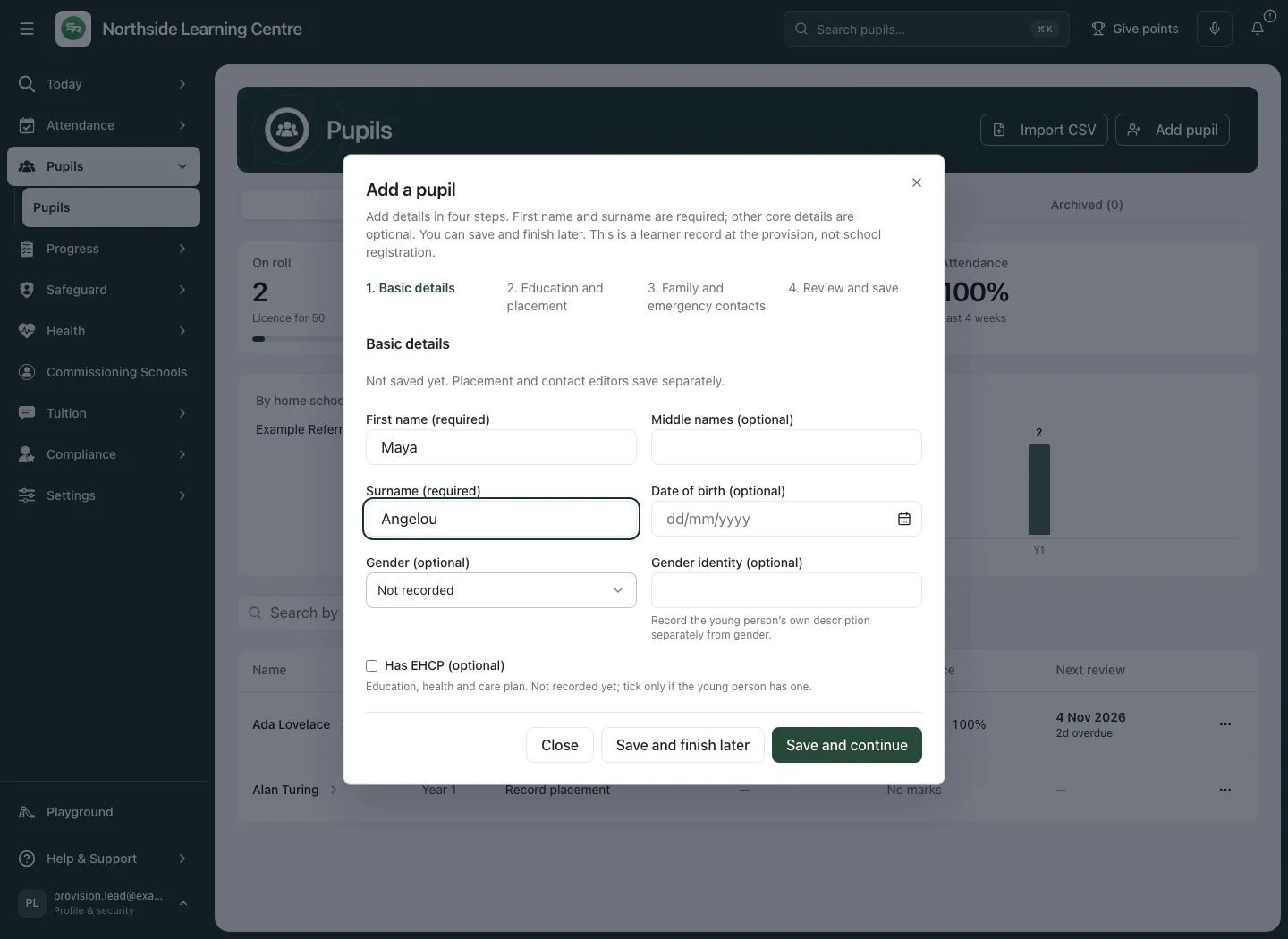
- Select Add pupil. Add a pupil opens at Basic details.
- Enter First name (required) and Surname (required). Optional fields include Middle names (optional), Date of birth (optional), Gender (optional) and Gender identity (optional). Preserve unknown information rather than invent it.
- Check Has EHCP (optional) only from verified information. A new unrecorded No is not a confirmed negative. Existing MIS/SEND-managed facts can be read-only; a linked referral’s EHCP status is a separate source fact, and a disagreement is shown rather than silently overwritten.
- Select Save and continue. This first save creates the pupil’s core identity. It is already a saved record even though later steps remain unfinished.
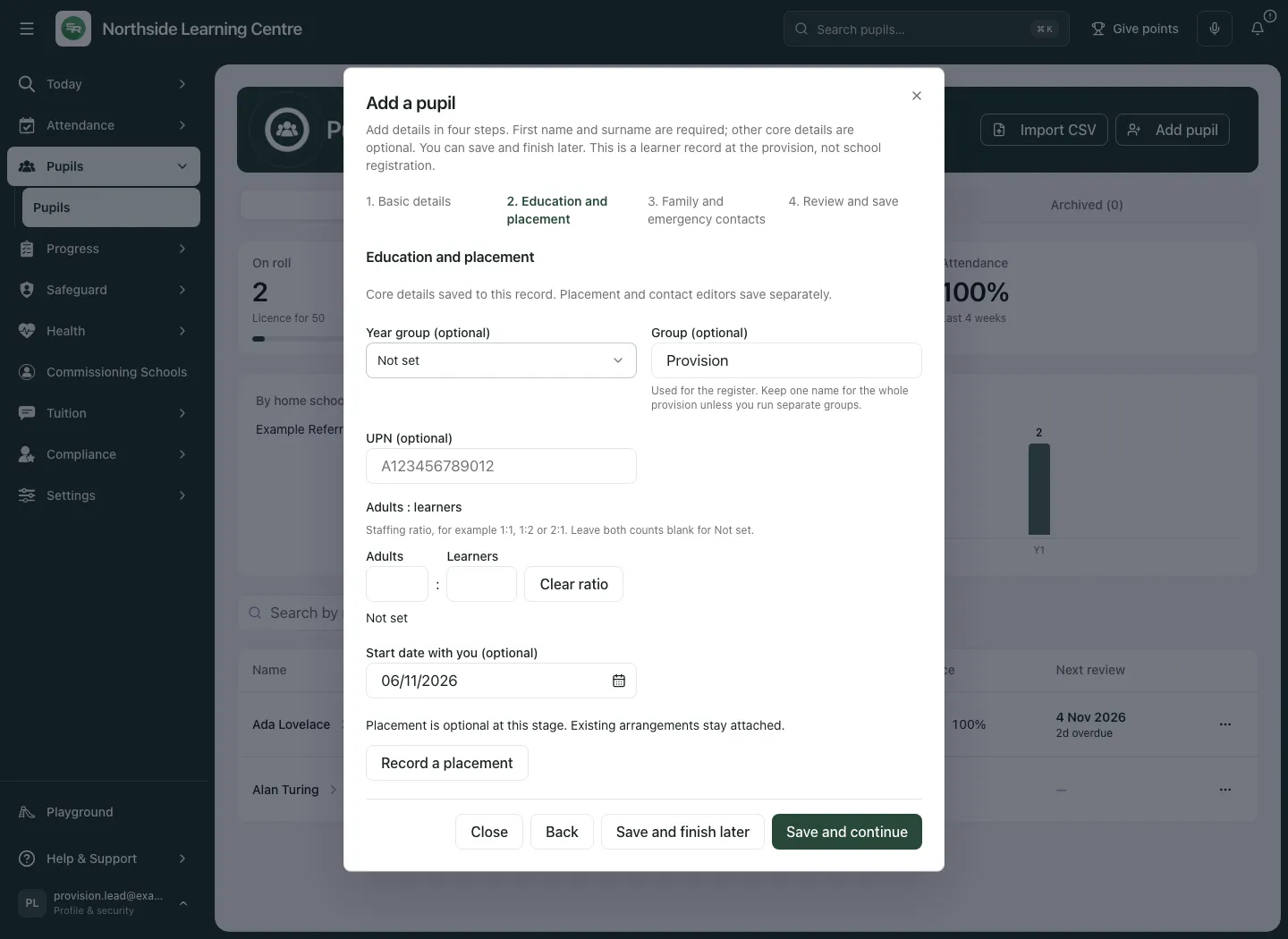
- On Education and placement, set the optional Year group, provision group, UPN and Start date with you as known. Check the proposed Provision group and current-day start rather than accepting a default without reviewing it. A valid UPN has a letter followed by 12 digits; leave it blank if genuinely unknown. Keep the correct existing unusual year rather than selecting an invented replacement.
- Under Adults : learners, enter the pupil’s required ratio using both fields, or leave both blank / use Clear ratio. This is a requirement consumed by rota warnings, not proof a session is suitably staffed or a legal staffing determination.
- Select Record a placement to enter the separate commissioning agreement now, or do it later. Saving the pupil alone does not create a placement or timetable. Select Save and continue.
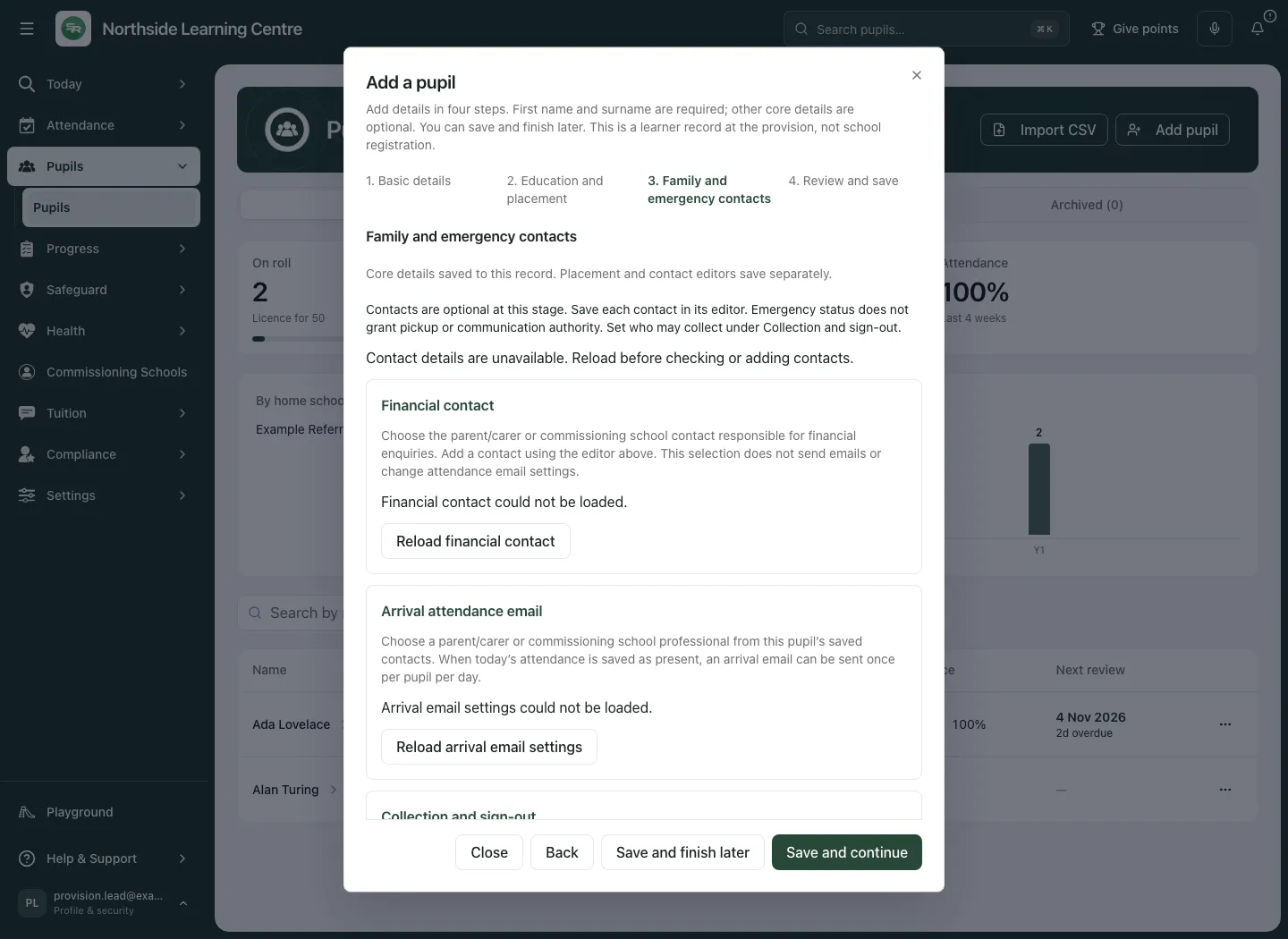
- On Family and emergency contacts, add the necessary verified contacts using each editor’s own save. Emergency status is not authority to collect, receive sensitive information or sign out a pupil.
- Check the separate financial-contact and arrival-email settings where permitted. Save their editors before continuing; unsaved settings can block progression or trigger a discard confirmation. Enabling a notification setting is not evidence that an email was delivered.
- Select Save and continue, inspect Review and save, then Save and finish. Wait for Record saved and find the pupil in the appropriate list.
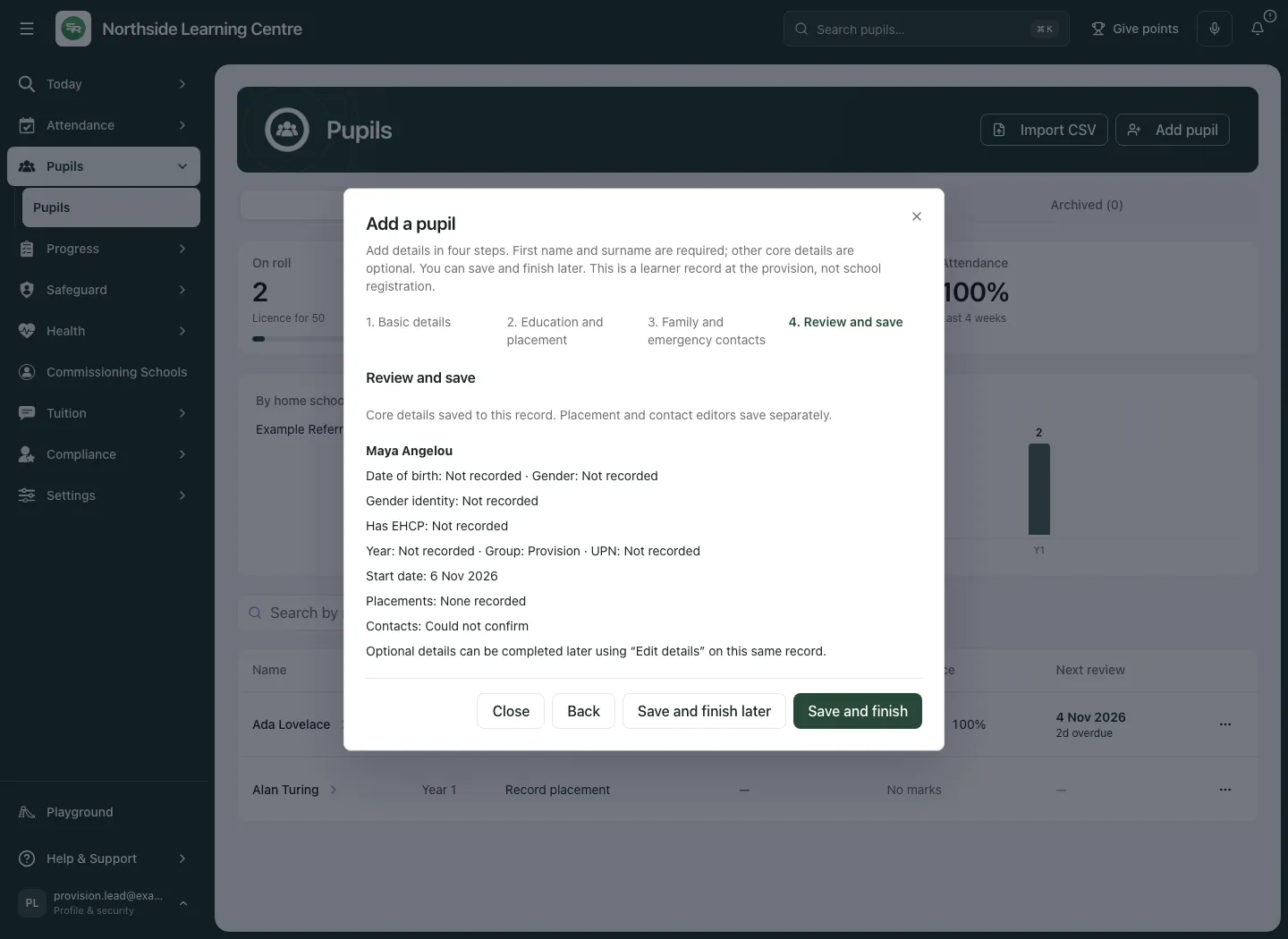
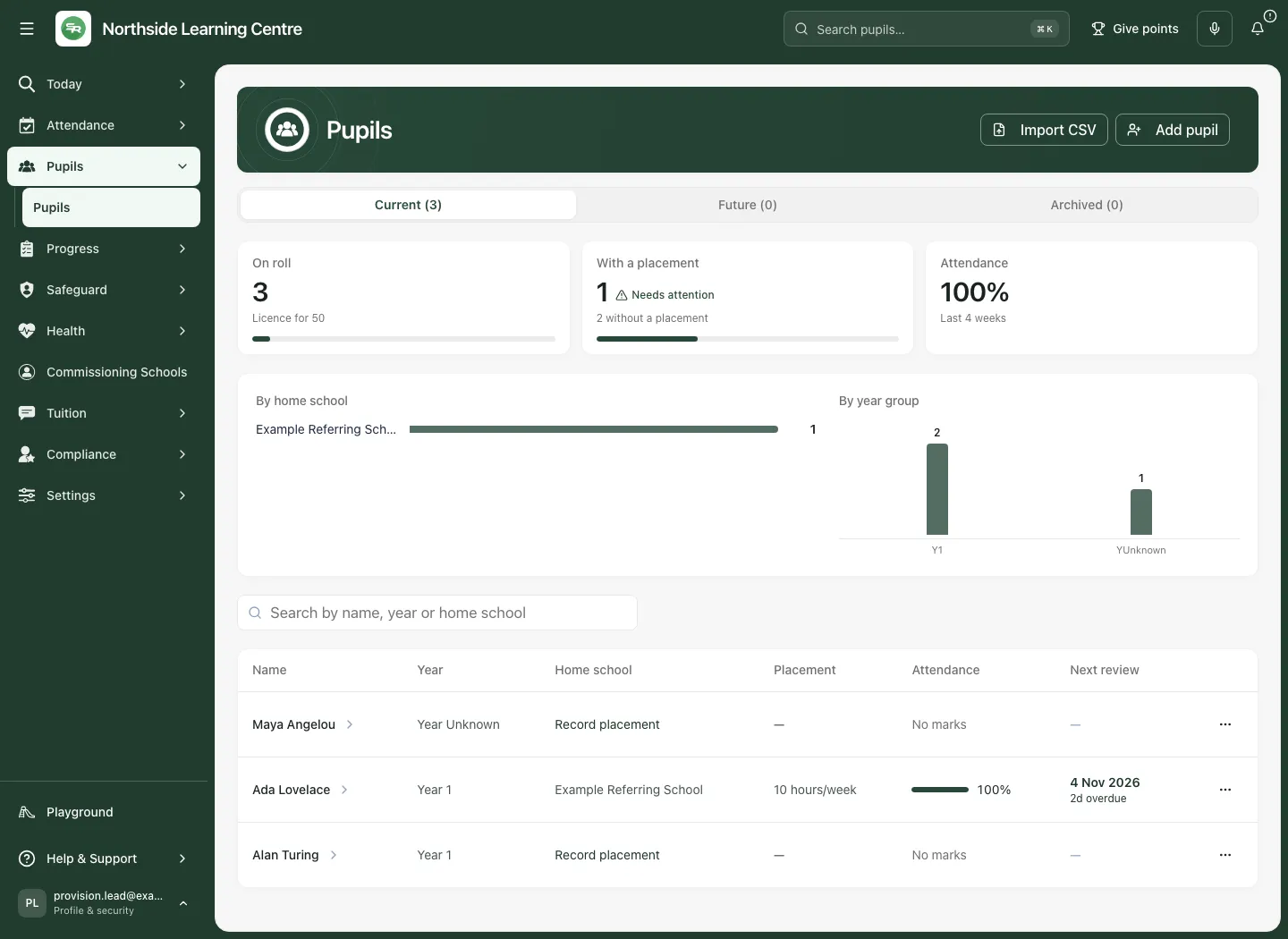
Save and finish later is available during the journey. Saved earlier stages remain; reopening Edit details continues the same identity. Closing unsaved text can ask whether to discard it. Do not start another record simply because contacts or placement details remain unfinished.
A future Start date with you places the record under Future until its eligible start, with the success message explaining where to reopen it. If the core save succeeded but list refresh failed, the app can say Record saved; list refresh unavailable. Refresh the list before creating another identity.
If the create response is uncertain, recover/retry the same request before changing its attempted details. A refused retry after a lost result does not prove the first save failed. A changed school context closes authority for the old journey: reopen in the intended provision rather than send old details into a new context.
Import a checked CSV batch
Section titled “Import a checked CSV batch”- Select Import CSV, then Download template. The file is pupil-import-template.csv.
- Supply forename and surname. Optional columns are date_of_birth, gender, year_group, upn, class_name and admission_date. Recognised aliases include first name, last name, DOB, year group and start date.
- Save a CSV, not an Excel workbook. Use ISO dates such as 2026-09-07 or day-first dates such as 07/09/2026. Check actual dates rather than rely on a spreadsheet display format.
- Keep the file at or below 512 KB, 200 pupil rows, 10 columns and 512 bytes per cell. Split larger files into reviewable batches. A header-only file has no pupils to import.
- Select Choose CSV file. The screen previews the first 12 rows, but the server checks the whole batch. Read how many will be added, skipped and need correction, including row-specific decisions; a 12-row preview is not the import limit.
- Correct every invalid row and choose the corrected file again, including the same filename if needed. Already-on-roll identities and duplicates can be skipped; inspect the identity decision instead of removing a UPN just to force creation.
- Select Commit import N pupil(s). The count is the number to add, excluding skipped rows, and no valid zero-create batch can be committed. Wait for the confirmed created/skipped result, then Done.
- Refresh the relevant Current/Future list and check the new identities before continuing their placements and contacts.
The batch is all-or-nothing at commit, with a repeatable receipt for the same intended batch. A local preview is not a saved pupil or proof that a later commit was accepted. If capacity, identity or access changed, read the refusal, correct the issue and recheck before proceeding.
Manage capacity without changing the historical facts
Section titled “Manage capacity without changing the historical facts”The licence limits concurrent eligible pupils on roll. Future and archived records do not consume a current place. A capacity refusal means the requested addition/return was not accepted; it is not permission to archive a pupil who has not genuinely left. Confirm actual leaving decisions or ask the provision lead to review capacity.
Record leaving, correct a mistake or record a genuine return
Section titled “Record leaving, correct a mistake or record a genuine return”Use the same retained identity; ending one placement and leaving the whole provision are different actions.
Record leaving the whole provision
Section titled “Record leaving the whole provision”- On the pupil’s Current row/card, open Leaving and return. Read Roll status, First admission, Final eligible day and Current episode starts.
- Choose Record leaving the whole provision under Decision.
- Set Final eligible day, no earlier than the current episode’s start and up to 365 days ahead. Choose Whole day, including PM or AM only under Final session; AM-only needs Agreed final AM finish time.
- Enter Decision and evidence checked, between 3 and 500 characters. Check the actual commissioning decision.
- Select Confirm leaving and wait for Decision saved. Leaving/correction also requires attendance-plan management because later expectations are affected.
- Review later plans, placements and access. The final day/AM remains eligible; later planned attendance is cancelled with history retained. A pupil leaving later stays eligible until the agreed finish, then moves off roll. The record is not deleted.
If attendance already exists after the proposed finish, review the recorded evidence first; do not change the leaving date merely to bypass the refusal. End only one commission through Placements when the pupil remains with the provision.
Correct a mistaken leaving decision
Section titled “Correct a mistaken leaving decision”Open the retained record from the appropriate list, choose Correct a mistaken leaving decision, record what was wrong in Decision and evidence checked, then Confirm mistake correction. This restores the applicable original learner/placement state; cancelled plans and expired/withdrawn access require fresh review. It is not the same as recording a new return.
Record a genuine return
Section titled “Record a genuine return”- Open the pupil under Archived with Open record. A genuine return is available only after the previous final eligible day; a matching name alone is insufficient.
- Choose Record a genuine return and set New placement start date, after the previous finish and no more than 365 days ahead.
- Use Find a school by name or URN, at least three characters, or enter the verified Commissioning school for the new placement if it is not listed. A typed name is not a linked directory school.
- Tick I have checked and confirmed the retained learner identity only after the check, enter Decision and evidence checked, then select Confirm return and new placement.
- Check the new placement, agreed attendance responsibility and plan before recording new attendance. A future return remains future until its start. Old live placements must be resolved and current capacity still applies.
If a decision result is uncertain, use Recover saved decision before starting another. On a revision conflict, use Reload current record, compare the latest evidence and decide again. No decision offered can be a valid timing/state restriction, not a missing button to work around.
Read retained evidence and history
Section titled “Read retained evidence and history”The retained record has Retained notes and original files, Placement history and Decisions and corrections. File download requires separate export access and remains scoped to the original evidence. The decision list shows its latest bounded history, rather than promising every past event in one screen. Retained evidence is not universal access to a pupil’s restricted case information. Select Close record when finished.
Use the pupil cards on a phone
Section titled “Use the pupil cards on a phone”Choose the relevant Records section, search and read the named card before selecting Open record or Edit details. Check missing placement, missing marks and review dates separately.
If something does not load or save
Section titled “If something does not load or save”| Situation | What to do |
|---|---|
| A temporary read fails | Retry the relevant source and read any stale/missing-detail notice. An identity may remain visible while full detail stays unavailable. |
| Access is refused or a pupil disappears on refresh | Check current provision and permission. Do not reuse an old profile link as authority. |
| Current roll cannot be reconciled | Retry the directory/details; a partial list must not become a confirmed roll total. |
| Add/Import or full profile absent in directory view | Ask a permitted colleague to perform the appropriate workflow. The administrative directory does not imply full pupil access. |
| Duplicate identity, invalid UPN, ratio/date or import row | Read the specific message, correct verified details and recheck. Do not create a second identity to bypass the conflict. |
| Save result uncertain | Preserve the exact attempted details and recover the same request; check the fresh source before another create. |
| Contacts unavailable | Reload before checking or changing contacts. Missing projection is not an empty contact list. |
| No future/archived distinction | Wait/retry the complete source; do not classify an unverified off-roll identity by assumption. |
| Leaving/return refused | Check eligibility date, existing marks, placement state, required permissions and capacity; compare the retained history first. |
Common questions
Section titled “Common questions”Should I create a second pupil for a genuine return?
Section titled “Should I create a second pupil for a genuine return?”No. Use the existing identity and genuine return process so retained history stays connected.
Does an AP learner record establish school registration?
Section titled “Does an AP learner record establish school registration?”No. A provision learner record is distinct from school registration, an attendance agreement and consent to share information.
Related: Placement agreements, Attendance tracking, Weekly rota, Find a pupil and read their profile, Support.