Report a missing pupil from the session register
Written for: Alternative provision staff.
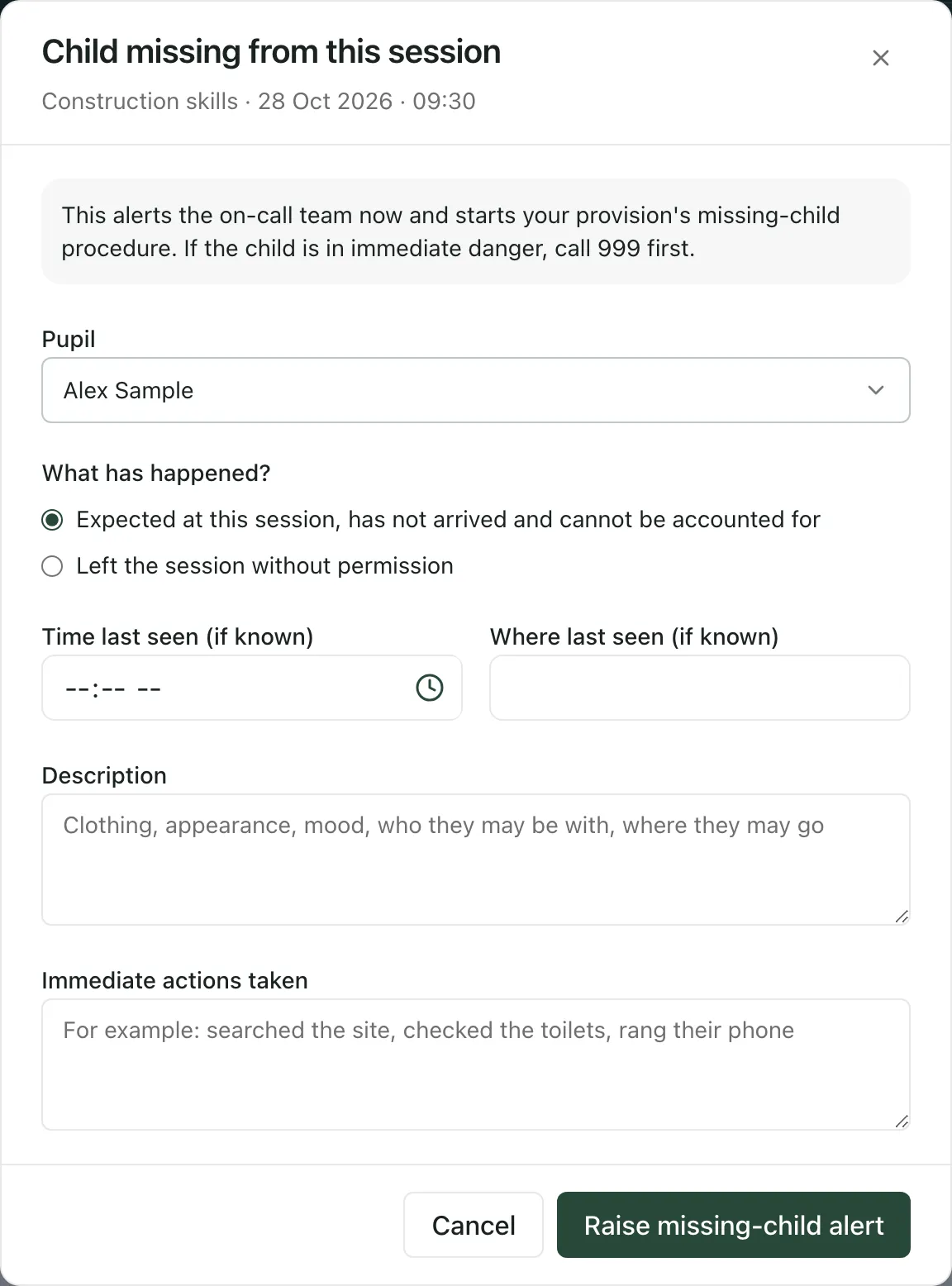
If a pupil booked into a session can’t be found, or has left without permission, raise a missing-child alert from the session’s register. It alerts the on-call team straight away and starts your provision’s missing-child procedure, with the session and what you already know filled in.
If the child is in immediate danger, call 999 first.
Unrecorded doesn’t mean missing
Section titled “Unrecorded doesn’t mean missing”A pupil left on Unrecorded in the register just hasn’t been recorded yet. The register doesn’t treat them as missing and doesn’t raise any alert. Use Child missing when you’ve looked for a pupil and can’t account for them.
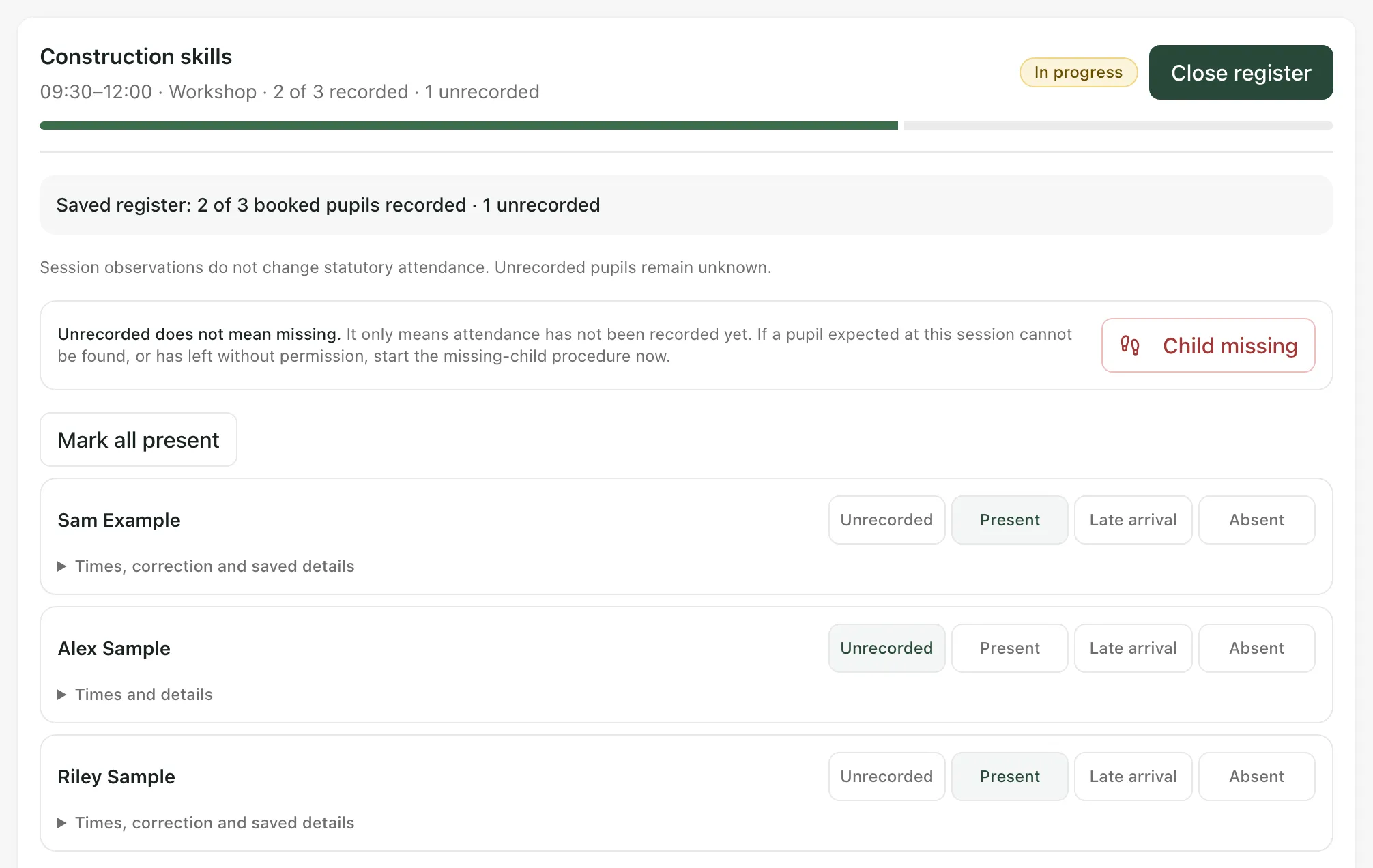
Raise a missing-child alert
Section titled “Raise a missing-child alert”- Open today’s register for the session. In the sidebar, open Attendance and choose Daily Register, then click Take register or Review register on the session. The session’s attendance window in the Weekly Rota shows the same register.
- At the top of the register, click Child missing.
- Choose the Pupil. If only one pupil is in the session, they’re already chosen.
- Under What has happened?, choose Expected at this session, has not arrived and cannot be accounted for or Left the session without permission.
- Enter the Time last seen (if known) and Where last seen (if known).
- Under Description, describe the pupil: clothing, appearance, mood, who they may be with and where they may go.
- Under Immediate actions taken, say what you’ve done so far, for example searched the site or rung their phone.
- Click Raise missing-child alert.
Only the pupil and what has happened are required. Don’t wait to fill in every box before you raise the alert.
After you raise it
Section titled “After you raise it”Missing-child alert raised shows what happened:
- The alert: the on-call team has been alerted. That doesn’t confirm that someone is responding. If delivery couldn’t be confirmed, the window says so: phone the on-call lead or DSL now.
- The procedure opened: click Open the missing-child procedure. Its named lead owns the response and records the search, contact with parents or carers, the commissioning school and the police, the return, and the return-home interview or debrief.
- Opening isn’t confirmed yet: click Check the procedure opening. Don’t raise a second alert, and phone the on-call lead or DSL now.
- The procedure couldn’t be opened: your provision has no approved procedure or named lead available. Follow your emergency procedure and phone your DSL now.
Acknowledging or resolving the alert doesn’t record that the child has come back. The return is recorded in the missing-child procedure.
- Today’s sessions only: Child missing is on the register for today’s sessions. It isn’t on cancelled sessions or other days.
- Who can raise it: anyone whose account can ask for in-school help. If yours can’t, the register tells you to phone the on-call lead or DSL instead.
- The same alert as In-School Support: this sends the same alert as Pupil missing or leaving, to the same people. See Ask for help in school.
- Without a signal: raising the alert needs a connection, even when you’re taking the register offline. If you can’t connect, phone the on-call lead or DSL.
- Your provision’s words: labels use your provision’s Setting profile. The defaults are pupil, group and commissioning school, so your labels may differ.
If something doesn’t work
Section titled “If something doesn’t work”| What you see | What to do |
|---|---|
| “Choose the pupil who is missing.” | Choose the pupil under Pupil, then raise the alert. |
| “Choose what has happened.” | Choose one of the options under What has happened?. |
| “Shorten the description or actions so the alert can be sent.” | Cut down the Description or Immediate actions taken, then raise the alert. You can add detail in the procedure afterwards. |
| “The alert could not be confirmed. Try again to check the same alert, and phone the on-call lead or DSL now.” | Phone now. Then click Check the same alert: Student Radar checks the alert you sent rather than sending another. |
| “An earlier missing-child alert from you is not confirmed. Check it before raising another, and phone the on-call lead or DSL now.” | Phone now. Then click Check the earlier alert. |
| “The earlier alert is still not confirmed. Do not raise a replacement; phone the on-call lead or DSL now.” | Phone the on-call lead or DSL. Don’t raise another alert. |
| “Your account cannot raise a missing-child alert. Phone the on-call lead or DSL now.” | Phone straight away. Afterwards, ask your Provision Lead whether your account should be able to raise alerts. |
| Child missing is greyed out | None of the session’s pupils are within your access. Ask a colleague who works with them, or use Pupil missing or leaving in In-School Support. |
| No Child missing button | The register isn’t for today, or the session is cancelled. Use Pupil missing or leaving in In-School Support. |