Review attendance statutory cohorts and case records
Written for: Attendance staff, pastoral leaders and school leaders with the relevant access.
Open the relevant attendance register, review evidence and record the authorised case decision with its next step.
Read the recorded evidence, make the authorised human decision, name the next step and review it. An alert, counted threshold or saved record does not itself make a referral, issue a notice or prove a statutory duty is met.
Before you begin
Section titled “Before you begin”Open Attendance → Statutory cohorts. The page title is Attendance — statutory cohorts. This is the England statutory workspace; availability follows the school’s jurisdiction and your access. Reading, creating, updating, approving, removing and exporting records are separate permissions. Follow your school policy and local authority arrangements alongside the recorded workflow; this guide explains the software, not legal eligibility for an individual case.
Find the right register
Section titled “Find the right register”- Choose Children missing education, Part-time timetables, Elective home education, Medical absence, Penalty consideration or Leavers and destinations.
- Read that section’s explanation, period and counts. Counts belong to the selected register/filter, not necessarily the whole school.
- Use pupil search, year group and the section’s status filter. Status choices change with the section.
- Use the page controls to review further results. Check the pupil and row before using its primary action or More actions for [pupil].
- The Attendance analytics link is offered where you also have access to that separate workspace. A link does not grant access to further records.
Review a continuous-absence alert
Section titled “Review a continuous-absence alert”- Select Children missing education. Choose Alert not reviewed, Absence alerts, Open, Reasonable enquiries, Referred to the LA, Monitoring or Resolved as appropriate.
- Read the pupil’s run, stage, owner and next step. The app’s absence alert reflects consecutive unauthorised or unexplained school-day absence, not authorised illness/hospital absence. It is an enquiry prompt, not a finding that the child is missing education.
- Check whether the row is a current case, a legacy monitoring status or a new absence run after an earlier resolution. An old resolution does not automatically close a new episode.
- Inspect the permitted pupil context and available history before deciding to open a case. Alerts never open one automatically.
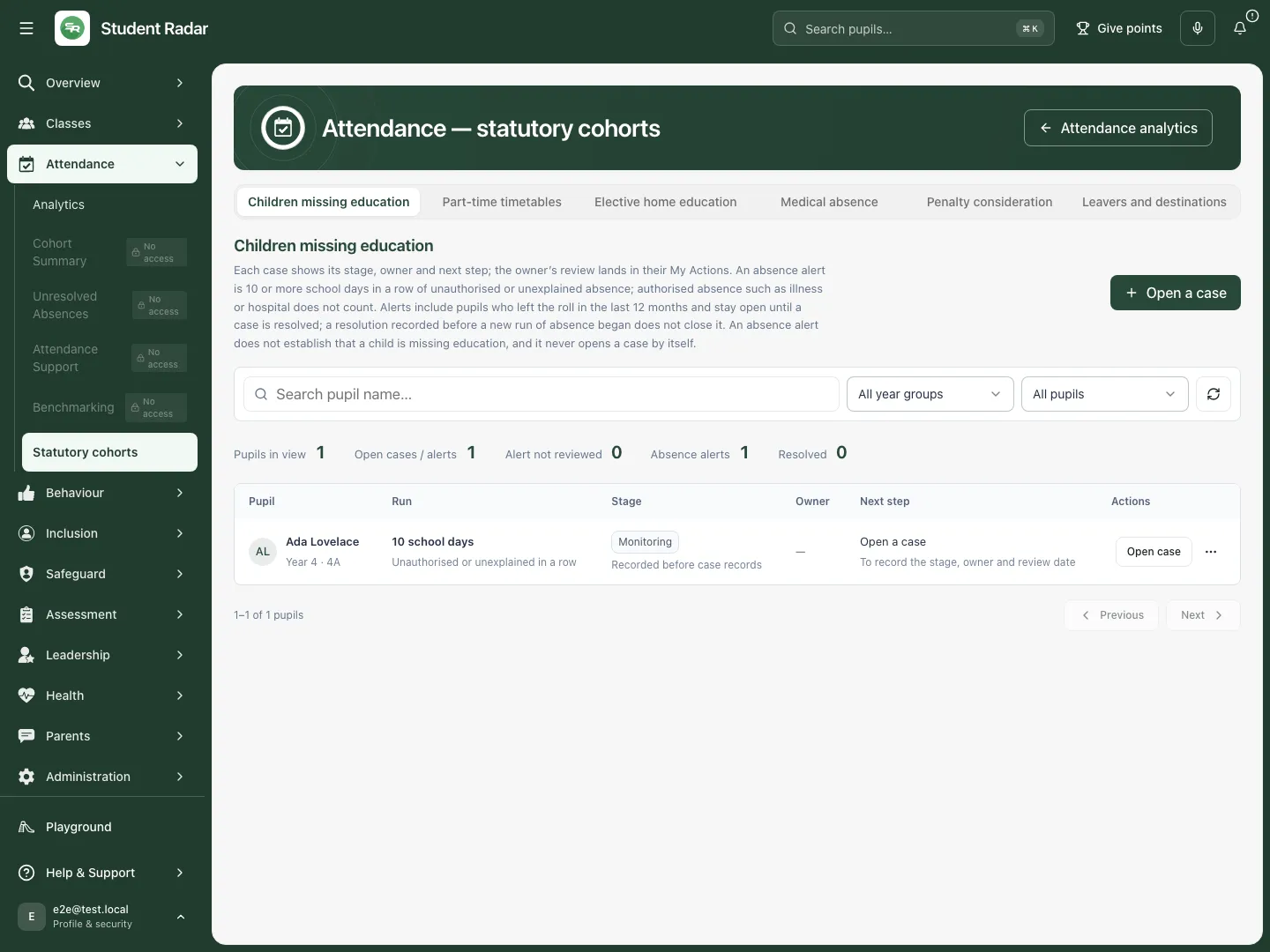
The fictional row shows a legacy monitoring status alongside an absence alert; staff must decide whether to open a current case. Fictional school example.
Open, update and resolve a CME case
Section titled “Open, update and resolve a CME case”- Choose Open case on the intended pupil, or Open a case above the list and choose the pupil.
- In Open a CME case, choose Stage, an eligible Owner, Next review and Next step. Record a clear practical next action; an unassigned case has no named staff owner.
- Select Open case and wait for the result. Check the refreshed row, then reopen Update case to verify the stage, owner and next step.
- Use Update case for the next authorised stage/owner/review change and select Save case. Moving to Referred to the LA records a stage; it does not send the referral.
- Under More actions for [pupil], use Case history to review the sequence. Use Record resolution only after confirming the outcome, choose the outcome and add the required reason when choosing Other, then select Resolve case.
- A resolution ends that case episode. A later absence episode needs a new considered response. An owner’s recorded review connects to My Actions, but completion alone does not resolve the case.
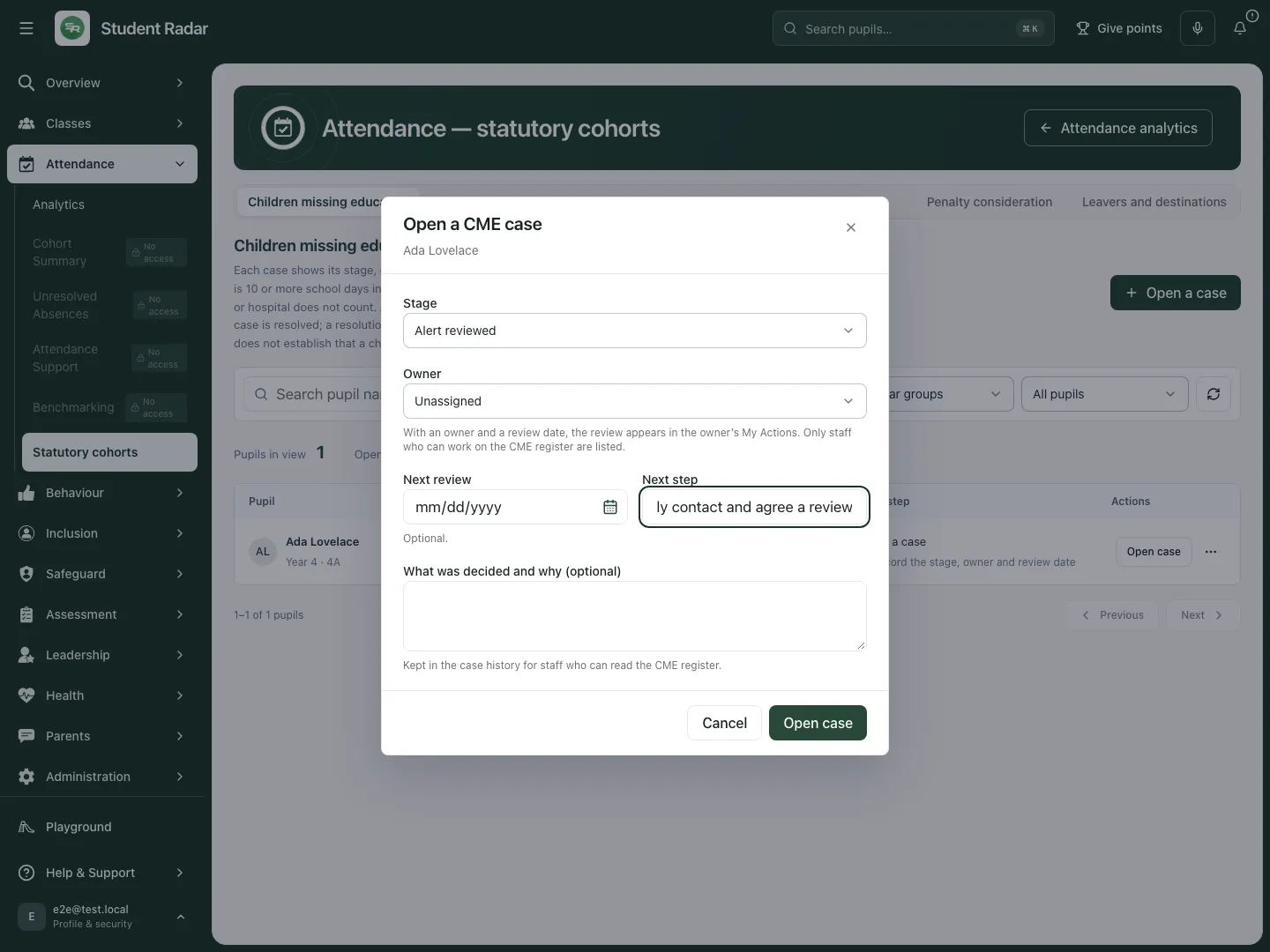
A next step is entered in the fictional CME case before the deliberate Open case decision. Fictional school example.
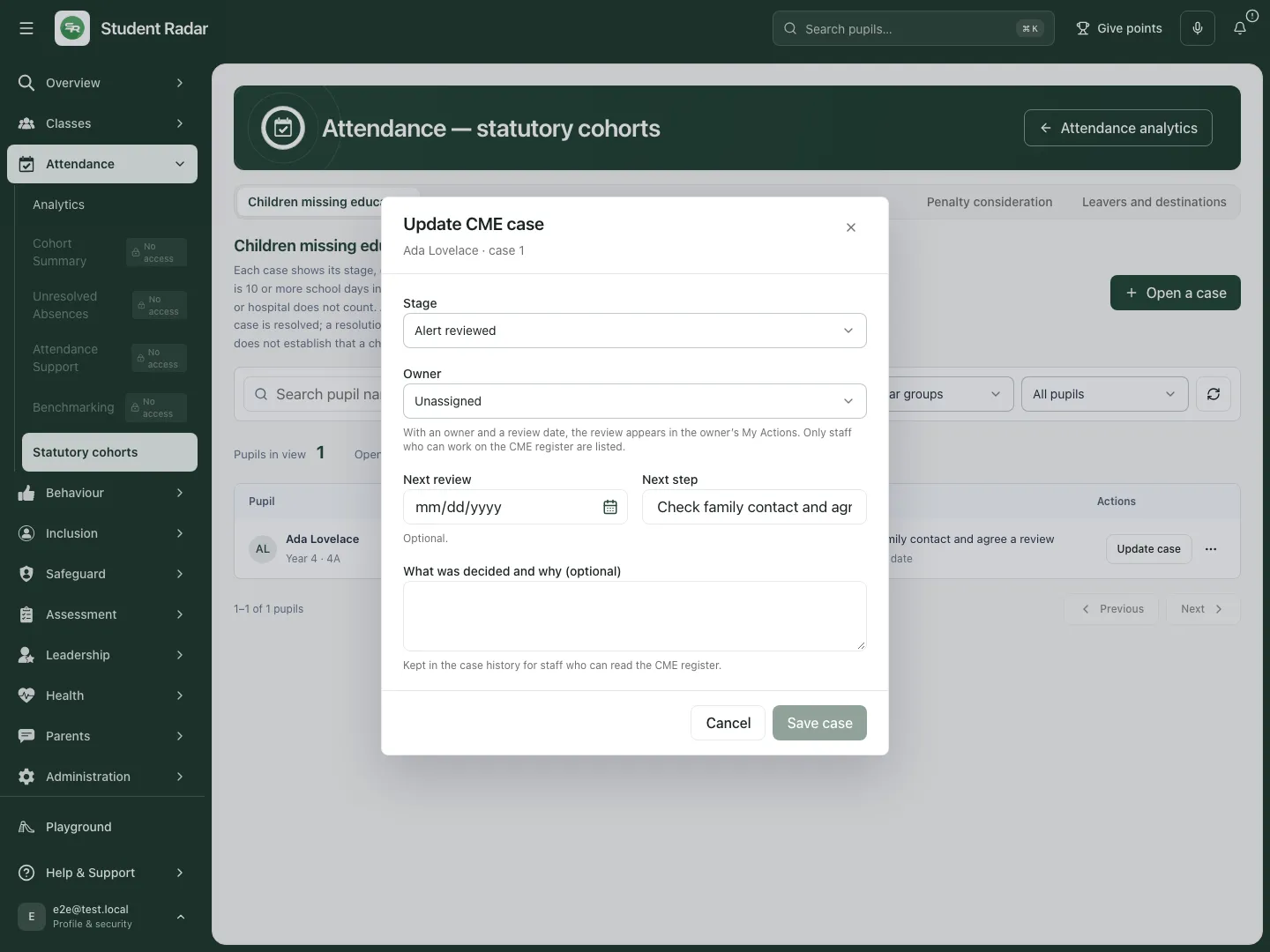
The fictional case reopens with its saved next step; no referral or real-school task delivery is demonstrated. Fictional school example.
Create and review a part-time timetable
Section titled “Create and review a part-time timetable”- Select Part-time timetables and Create timetable plan. Search for the pupil with at least two characters and choose Continue to plan.
- Enter Start date, Proposed end date and Review due date. In Weekly pattern, add each day/time slot, location and support using Add slot. Check the total weekly hours.
- Complete Reason for reduction, Support plan, Route back to full time and relevant Safeguarding notes. Choose Save draft while arrangements are being agreed.
- Reopen Manage plan. Use Request consent to mark consent as requested and create staff follow-up work to obtain parent agreement; this does not send the parent a message. If agreement has already been obtained, enter Manual parent agreement notes and choose Mark agreed when agreement has actually been obtained. Record who agreed, when and how.
- An authorised approver chooses the relevant role and Approve. Use Edit, review the complete plan and choose Activate plan when all required dates, weekly slots, reasons, support, return route, agreement and approval are in place.
- Use Weekly check-in to record dates, proposed pattern, support/return notes and pupil/parent feedback, then Save weekly check-in. A reduction in time needs the required agreement and approval before Apply; a recorded draft is not an activated change.
- Review before the due date. Use End plan and confirm when the arrangement should end. Remove → Remove draft is for an unwanted draft. An ended plan is not edited back into a new live arrangement; create a new plan when needed.
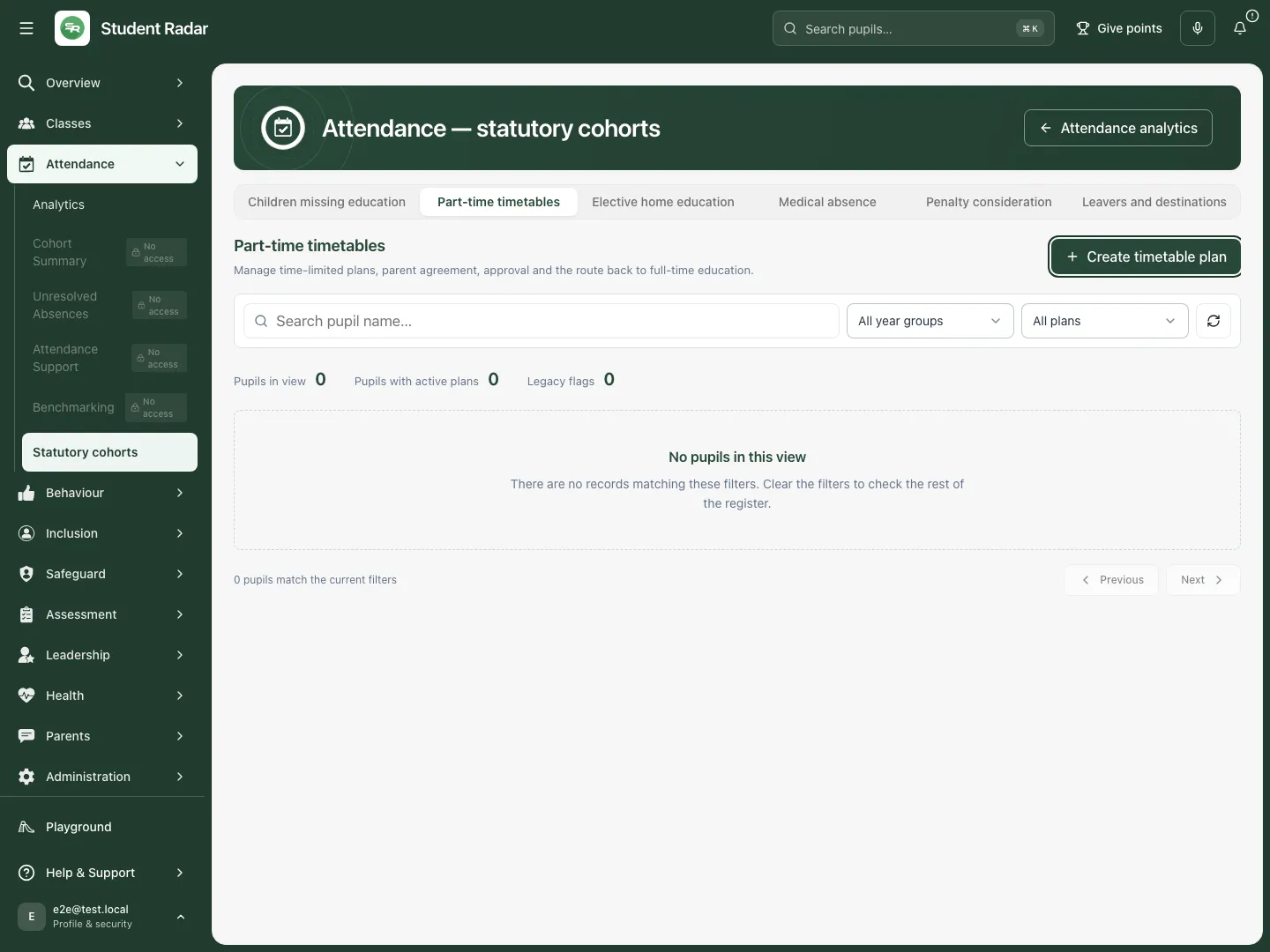
The part-time register has its own active/draft/review/ended filters. This fictional example has no matching plans. Fictional school example.
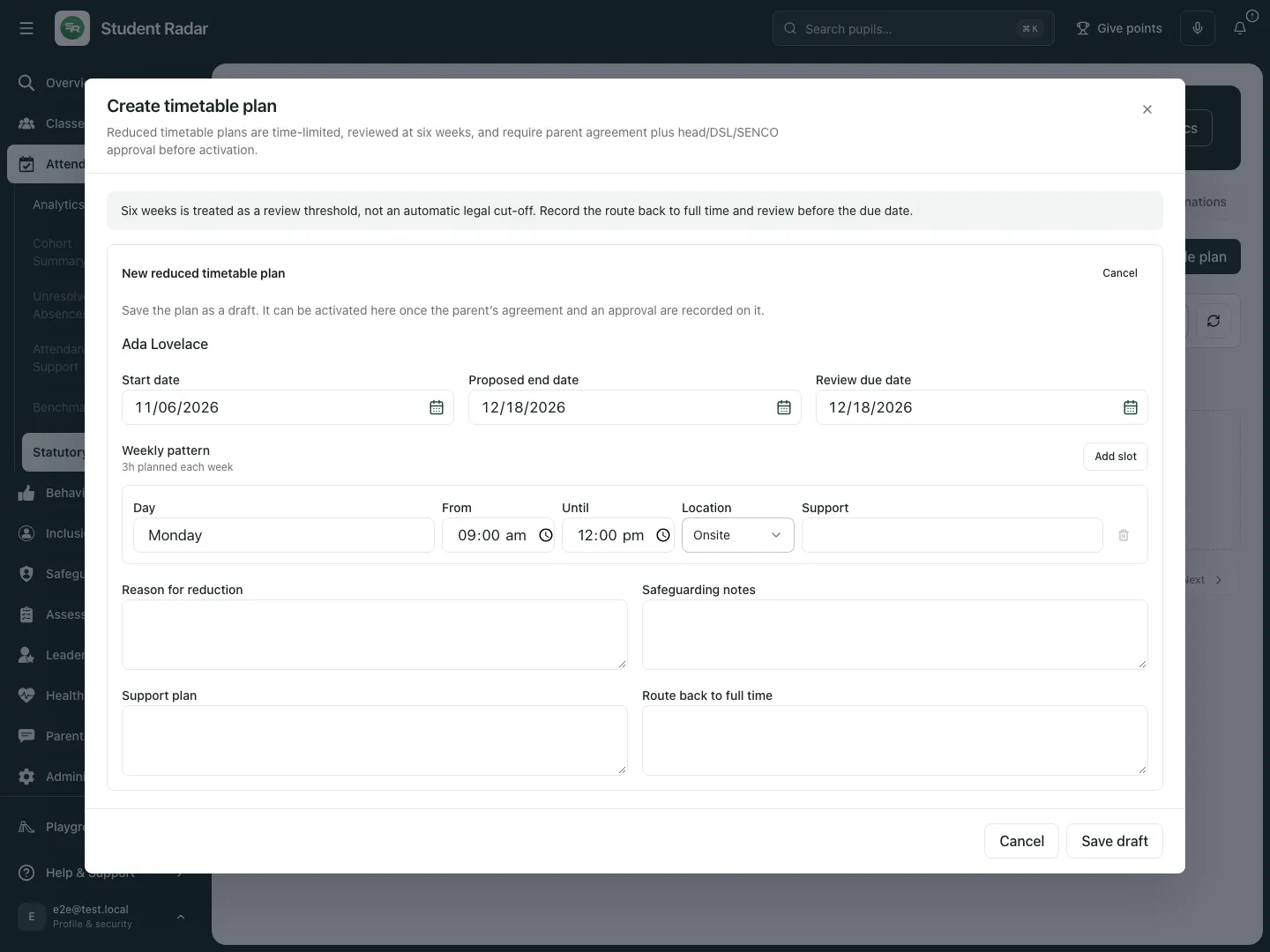
The real timetable form is open for Ada in this fictional example. Saving a draft, obtaining parent agreement, approval and activation are separate actions.
A legacy part-time flag is not a complete dated plan; use Create plan where offered. Review timing is a prompt to review the arrangement, not automatic legal approval or an automatic end.
Maintain the EHE register
Section titled “Maintain the EHE register”- Select Elective home education and check All pupils, On roll or Off roll.
- Select Add pupil to register, choose the intended pupil, enter relevant Context for this entry (optional) and select Save entry.
- Review the pupil’s school-roll status and leaving date separately from the EHE register entry. An EHE entry does not itself remove the pupil from the school roll.
- Reopen the available edit action to check the recorded context. Use Remove register entry only with the required permission and after reviewing its confirmation; it removes the register entry, not the pupil’s other records.
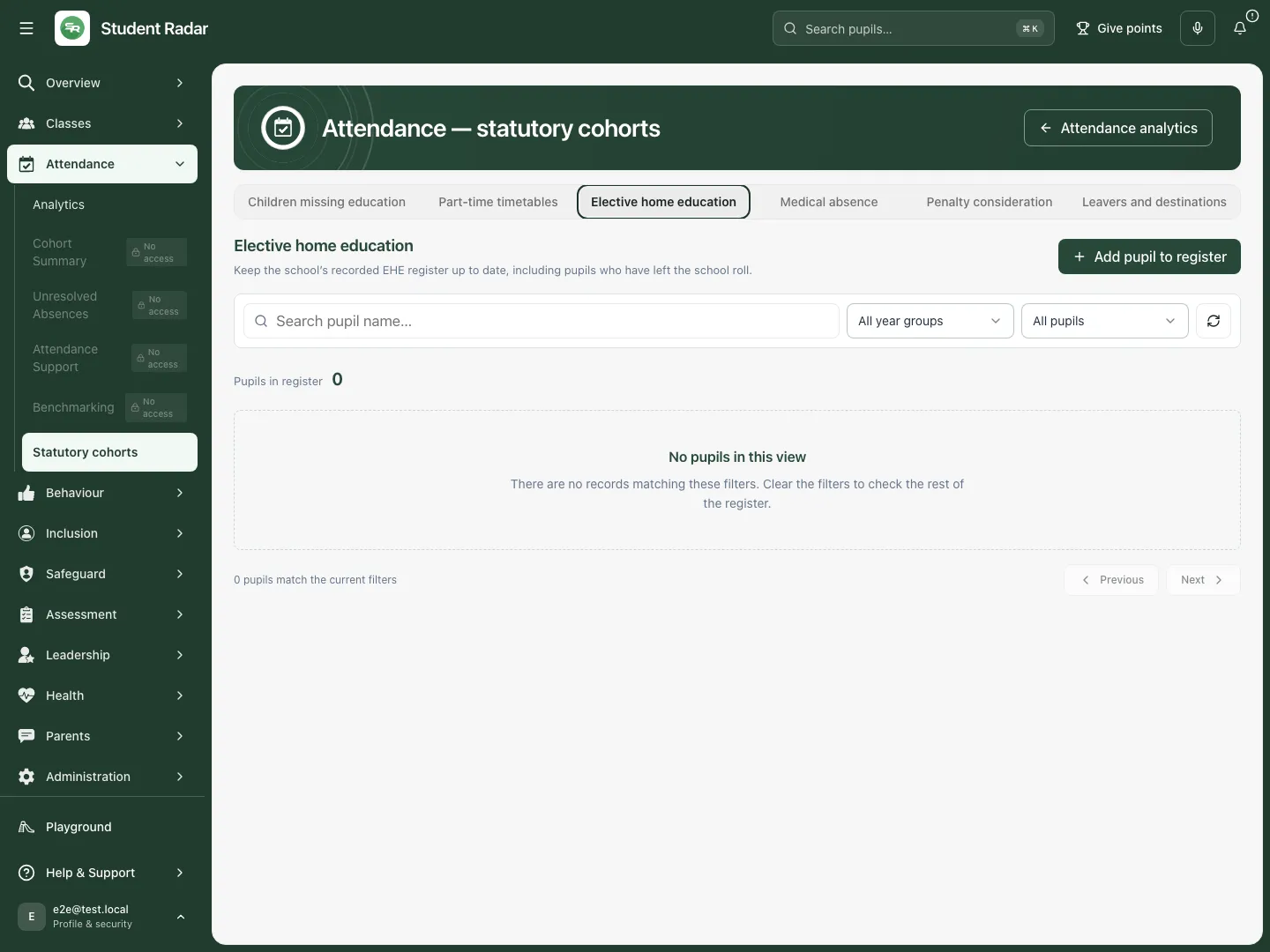
The EHE register distinguishes on-roll and off-roll pupils; this fictional filtered example is empty. Fictional school example.
Review medical absence
Section titled “Review medical absence”- Select Medical absence and the appropriate recorded-days or IHCP review filter.
- Read Recorded illness absence, Review status and Health support. Days are an indicator for review, not a decision about statutory eligibility. If health details are unavailable, do not assume there is no health plan or need.
- Open permitted pupil context and use the offered review-task action for the appropriate Section 19/IHCP follow-up when authorised.
- Check the confirmation and resulting task/source record. Creating a review task does not establish eligibility, deliver provision or discharge the duty.
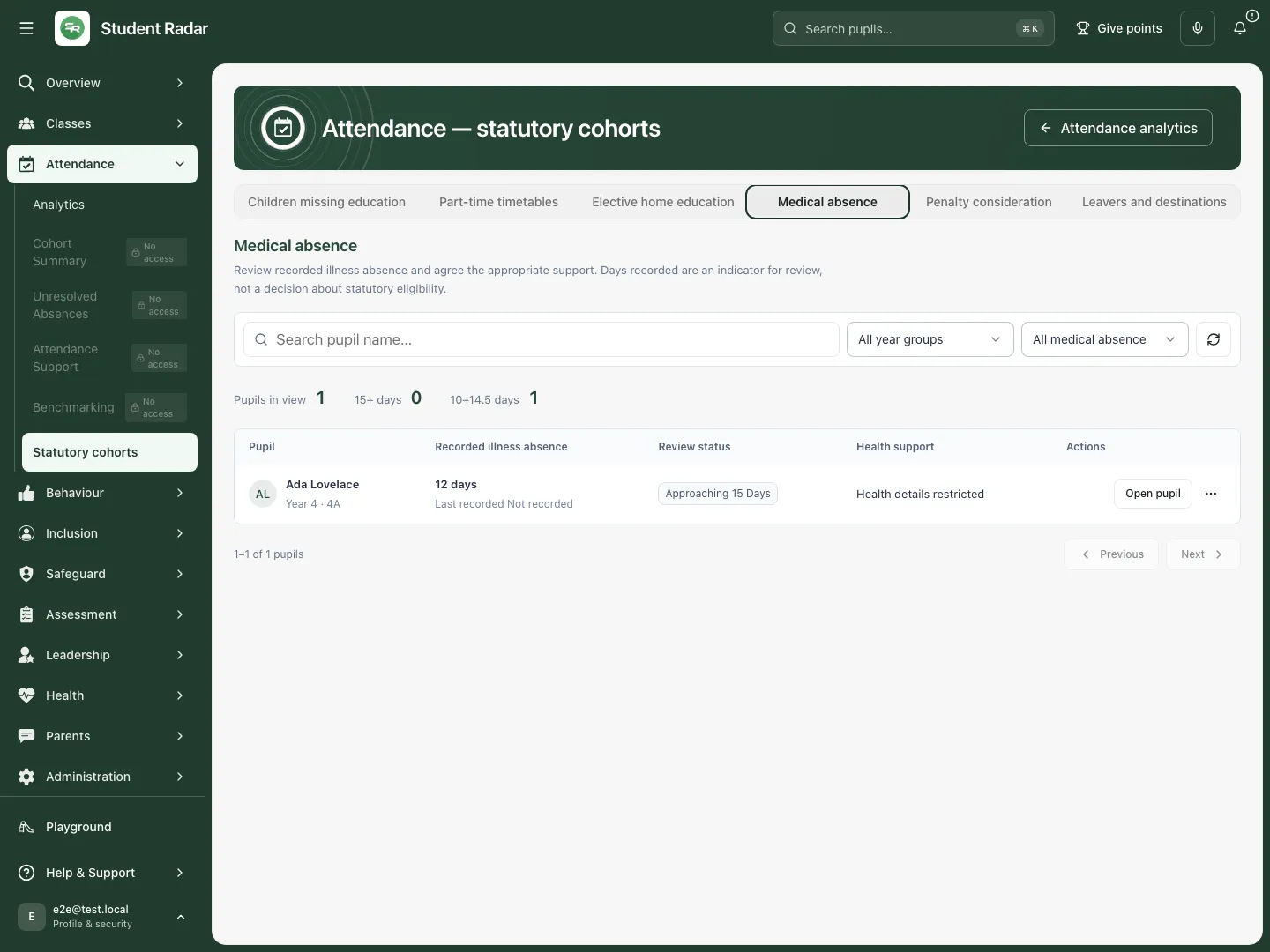
The fictional medical row has 12 recorded days and unavailable health detail; staff must review the context rather than infer a conclusion. Fictional school example.
Consider an attendance case or recorded notice
Section titled “Consider an attendance case or recorded notice”- Select Penalty consideration. Review Threshold for review, Approaching threshold or Open cases / notices.
- Check the recorded window, age eligibility and sessions. Confirmed G/O/U and provisional N are different evidence; a missing date of birth requires verification. A threshold never issues a notice automatically.
- Open the row’s review action. In Review attendance case, review the evidence, choose Case progress, add Review notes and save the case decision.
- Use the pastoral/support pathway where offered to consider the appropriate support and next action. A saved progress state does not make an external referral.
- Use Record an issued notice only to record a notice already issued through the authorised process. Check its details and save the record; the control does not issue or send a notice.
- If permitted, Export this page downloads the current page of matching pupils. Its confirmation states the page count and the full matching-register count. Do not describe that file as the full register.
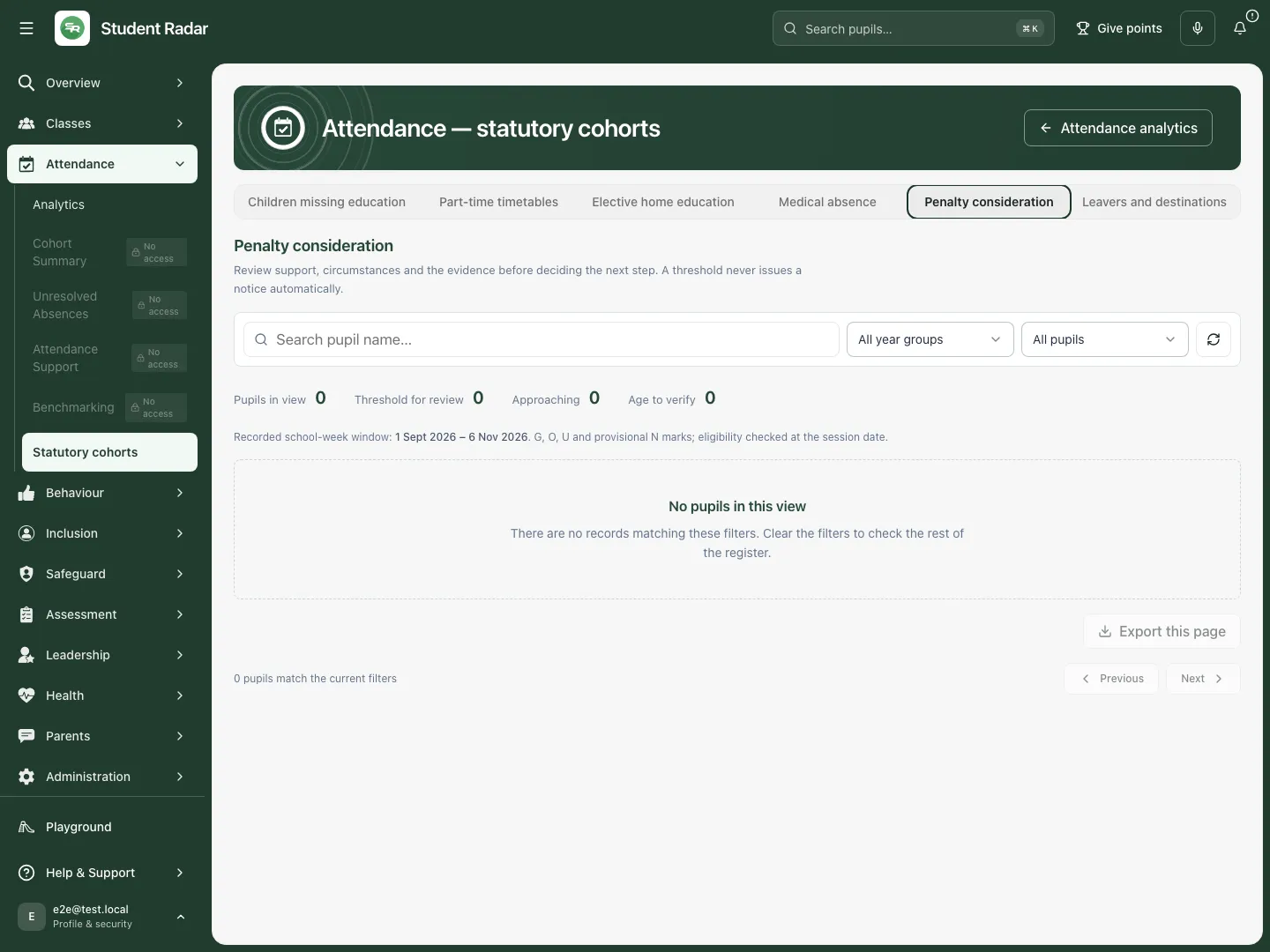
The fictional penalty view is empty. Its threshold/review controls do not automate an enforcement decision. Fictional school example.
Record and confirm a leaver’s destination
Section titled “Record and confirm a leaver’s destination”- Select Leavers and destinations. To finish focuses on recorded unresolved destination/LA-notification work; All shows the wider recorded set.
- Choose the row’s destination action or create a leaver record. Complete Where they went, school name/URN or the relevant detail, Deletion ground (Reg 9), Local authority notified on and Confirmation requested on as known.
- Save the record, then use the separate confirmation action only when evidence has been obtained. In Record confirmation, choose Confirmed by, Confirmed on and Evidence. Available confirmers depend on the destination type.
- If a confirmation is wrong, use Withdraw confirmation, record the Reason and review the outstanding work again.
- A notification date records what happened; it does not notify the LA. Recording a destination does not refer the pupil, open a CME case or add an EHE entry automatically. Use the separately offered authorised action after review.
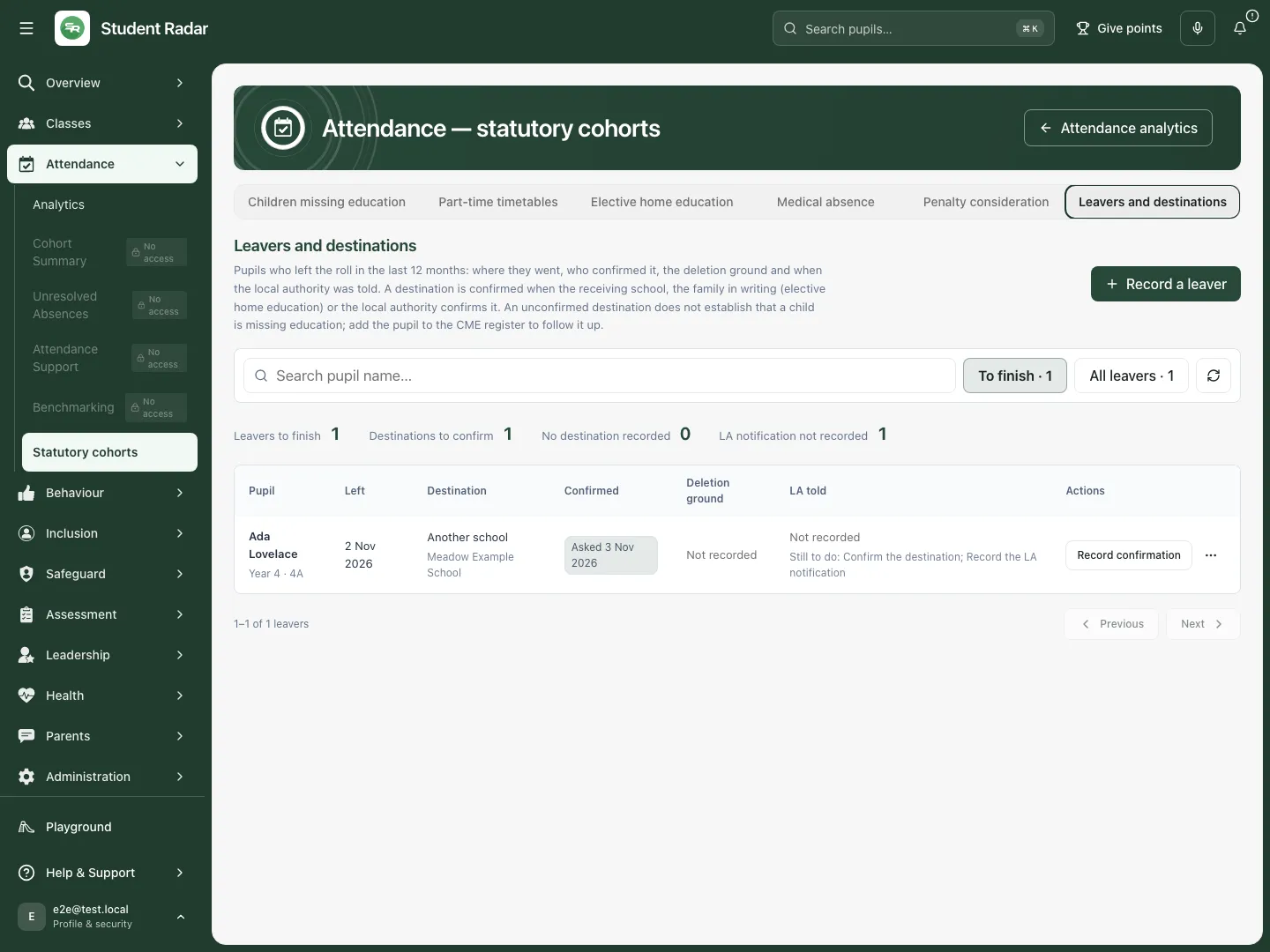
Leavers has its own outstanding-work filter and recorded confirmation/notification states. The fictional example shows Ada’s recorded destination with confirmation and LA-notification work still outstanding. Fictional school example.
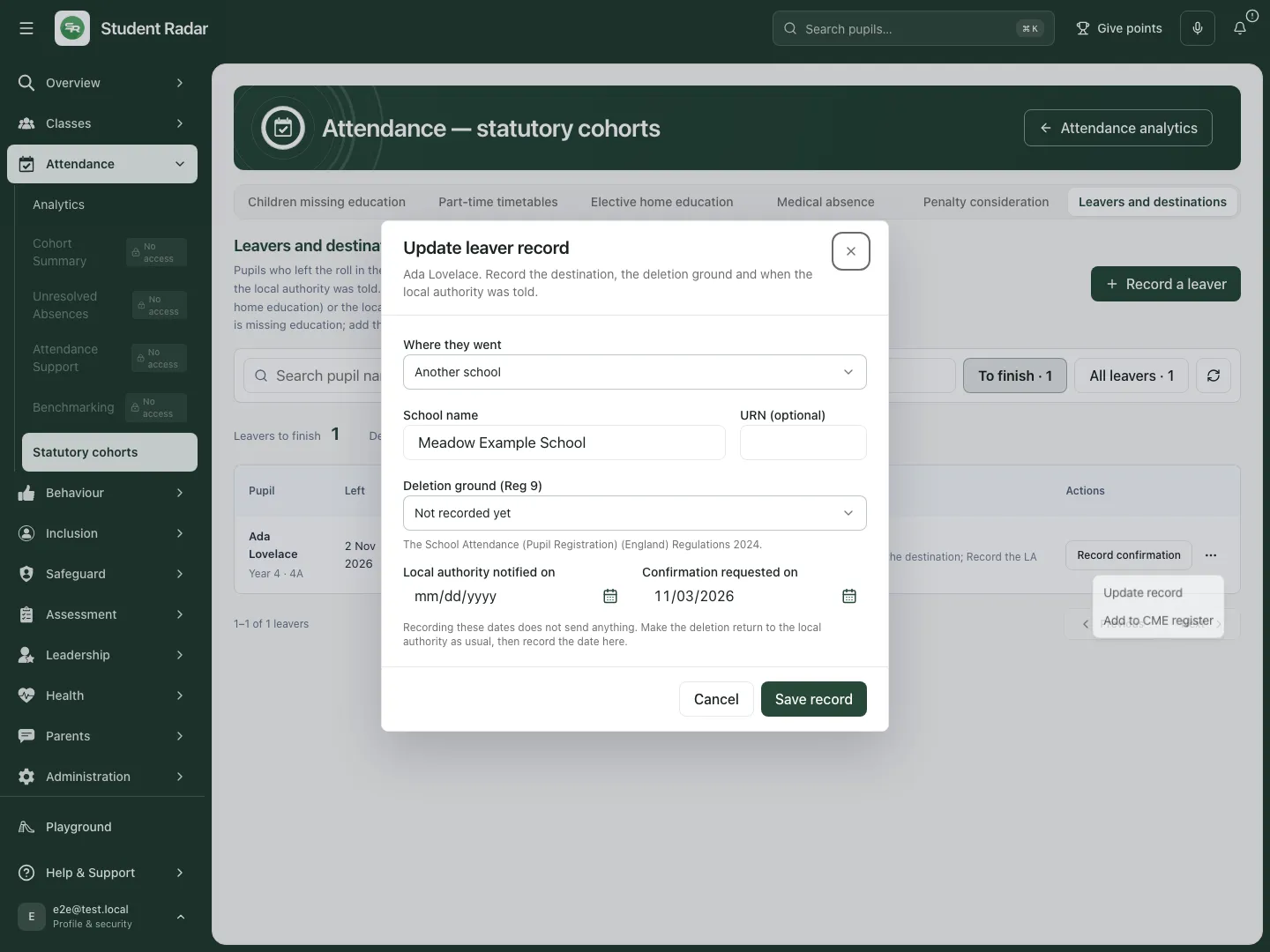
The fictional record names Meadow Example School; the notification and confirmation dates must reflect what actually happened.
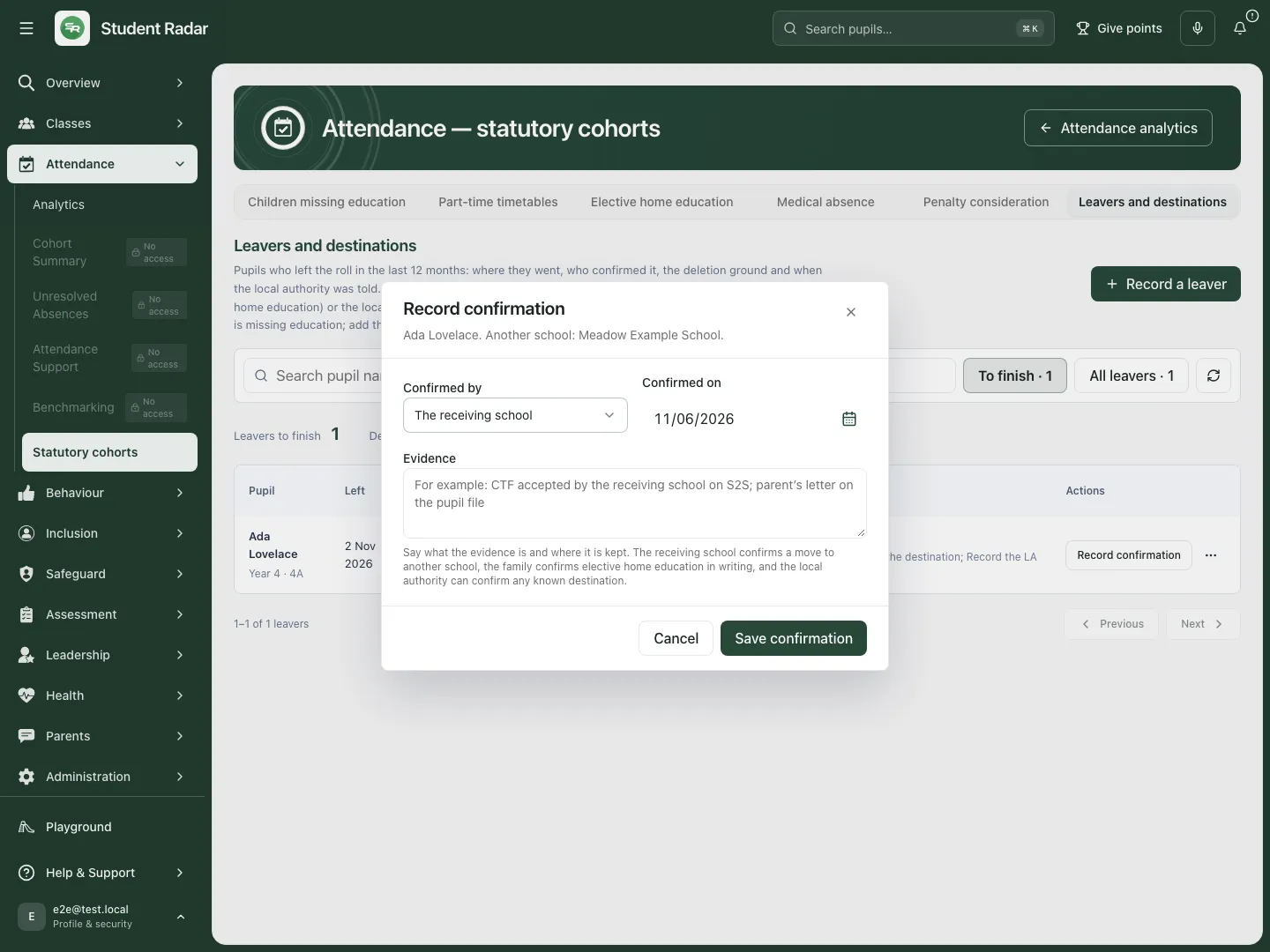
Recording this evidence is separate from sending a message, notifying the LA or removing a pupil from roll. Fictional school example.
Work on a phone
Section titled “Work on a phone”Choose the statutory section from the compact navigation, read the section’s explanation and filter state, and scroll each row/card before selecting an action. Date, identity and confirmation checks matter on every screen size.
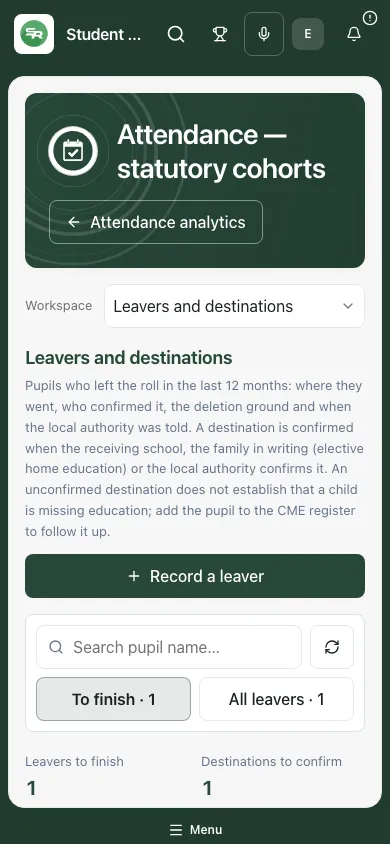
The fictional leavers view on a phone retains Ada’s destination and outstanding-work context. Fictional school example.
Troubleshooting and questions
Section titled “Troubleshooting and questions”Register unavailable. Use Try again. A failed read does not mean an empty register; do not rely on prior counts as current.
The record changed or already exists. Refresh and inspect the current entry before retrying. Do not overwrite a colleague’s newer decision.
A save is disabled. Check required dates/fields, selected pupil, exact create/update/approval access and any agreement prerequisites. A read-only view can intentionally omit a mutation control.
The owner list is incomplete or failed. Retry and verify the eligible owner. Do not silently assign a case to someone without the required access.
Do alerts or thresholds decide what action to take? No. They support an authorised human review with the underlying evidence, circumstances and policy.
Does recording referred/notified send something? No. These record the relevant state/date. Carry out the separate authorised communication/referral and verify its result.
Does this prove a legal duty has been met? No. Recorded workflow and counts support the school’s review; they are not a legal determination or proof of provision.
Related guides
Section titled “Related guides”Use Attendance Analytics, Use Attendance Support, Use Unresolved Absences.