Review safeguarding metrics and open the matching cases
Written for: Authorised safeguarding leads and school leaders.
Check metric freshness and coverage, inspect matching cases and interpret recorded-date trends before exporting a summary.
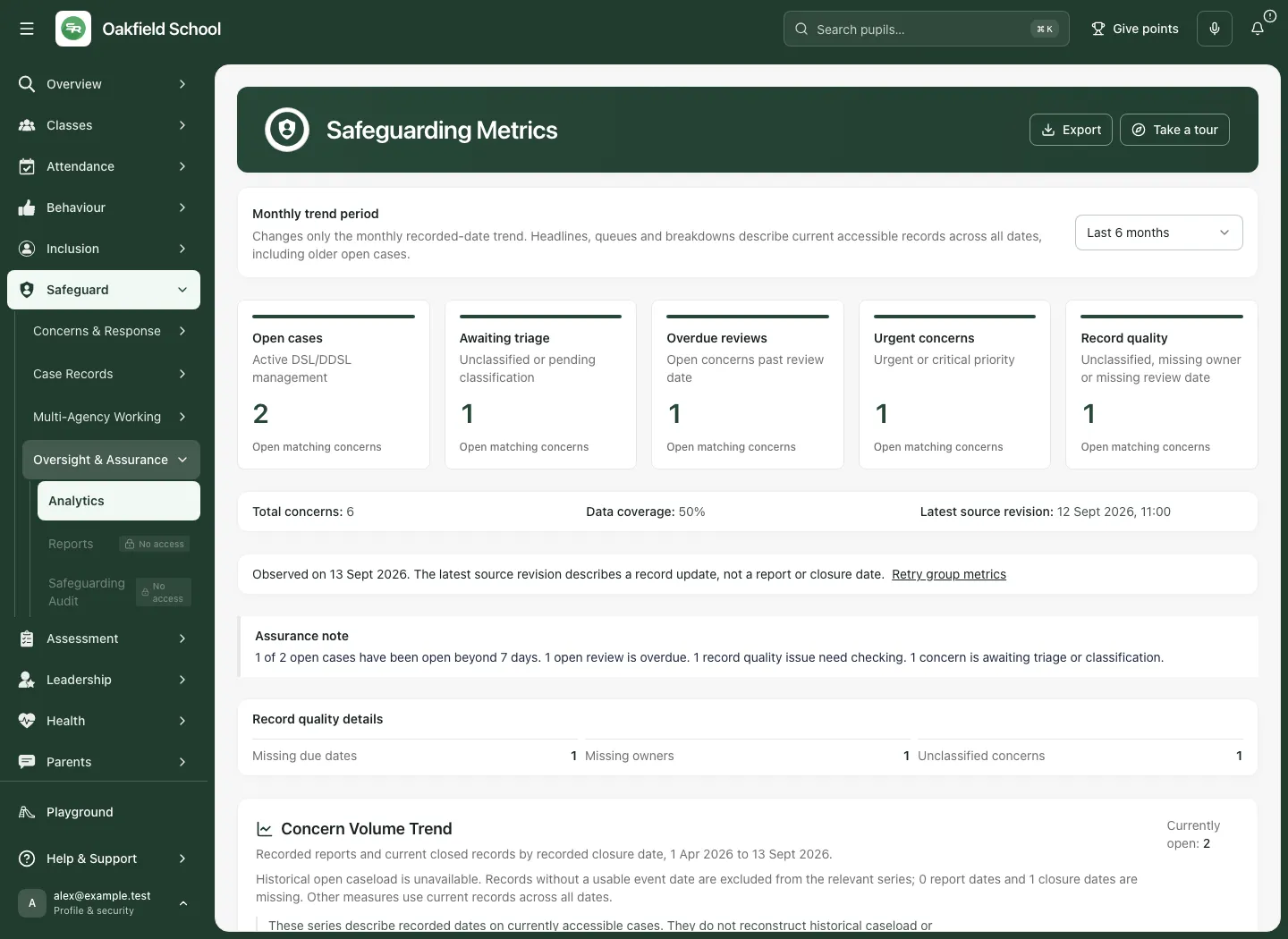
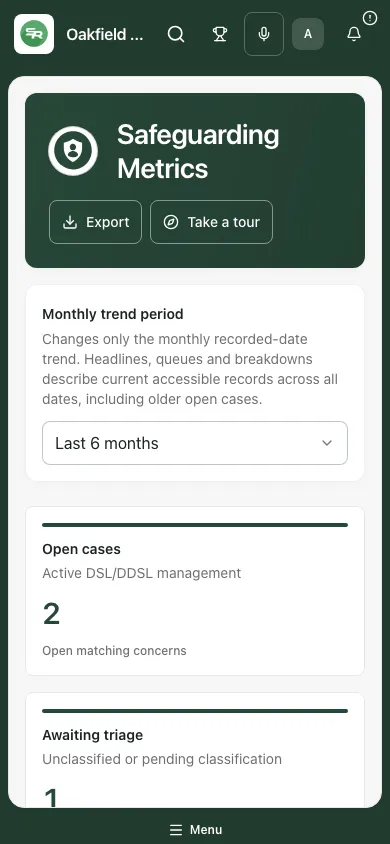
The page heading is Safeguarding Metrics.
The figures describe accessible records and their recorded dates. They do not establish that a child is safe, that risk has changed or that support worked. Use them to ask a better question and open the authoritative case for a professional decision. All examples are fictional.
Before you start
Section titled “Before you start”Check the school and your authority. Access to the summary, group figures, queue membership and an individual case is checked separately. A summary or queue link does not grant access to the underlying case.
Plan the question: current workload, a review backlog, recorded activity over time, record quality or group coverage. These use different date bases and denominators. Keep those differences in any report or discussion of the figures.
1. Check current figures and freshness
Section titled “1. Check current figures and freshness”- Open Safeguard → Oversight & Assurance → Analytics.
- Read the current cards: Open cases, Awaiting triage, Overdue reviews, Urgent concerns and Record quality.
- Read Total concerns, Data coverage, Latest source revision and Observed on alongside the cards.
- A latest source revision is a record update, not a report date, first-action date or closure date. Check the actual observation time before interpreting freshness.
- Read the Assurance note and Record quality details. These point to records needing human checking; they are not a diagnosis or a completed response.
- If Metrics unavailable appears, use Try again. Counts and coverage are unknown while that read is unavailable; do not substitute zero.
- Use Take a tour for a guided introduction.
2. Choose the monthly trend period without changing the question
Section titled “2. Choose the monthly trend period without changing the question”- Under Monthly trend period, choose Last 3 months, Last 6 months or Last 12 months.
- Read the explanation beside it: the choice changes only the monthly recorded-date trend.
- Keep the headline cards, queues and breakdowns separate. They describe current accessible records across all dates, including older open cases.
- After a period change, wait for the new result and read its observation and trend dates again before comparison.
A six-month trend is not a filter limiting the open-case card to cases reported in those six months. Do not label the current whole-record totals as though they all occurred in the selected trend window.
3. Open the cases matching a current metric
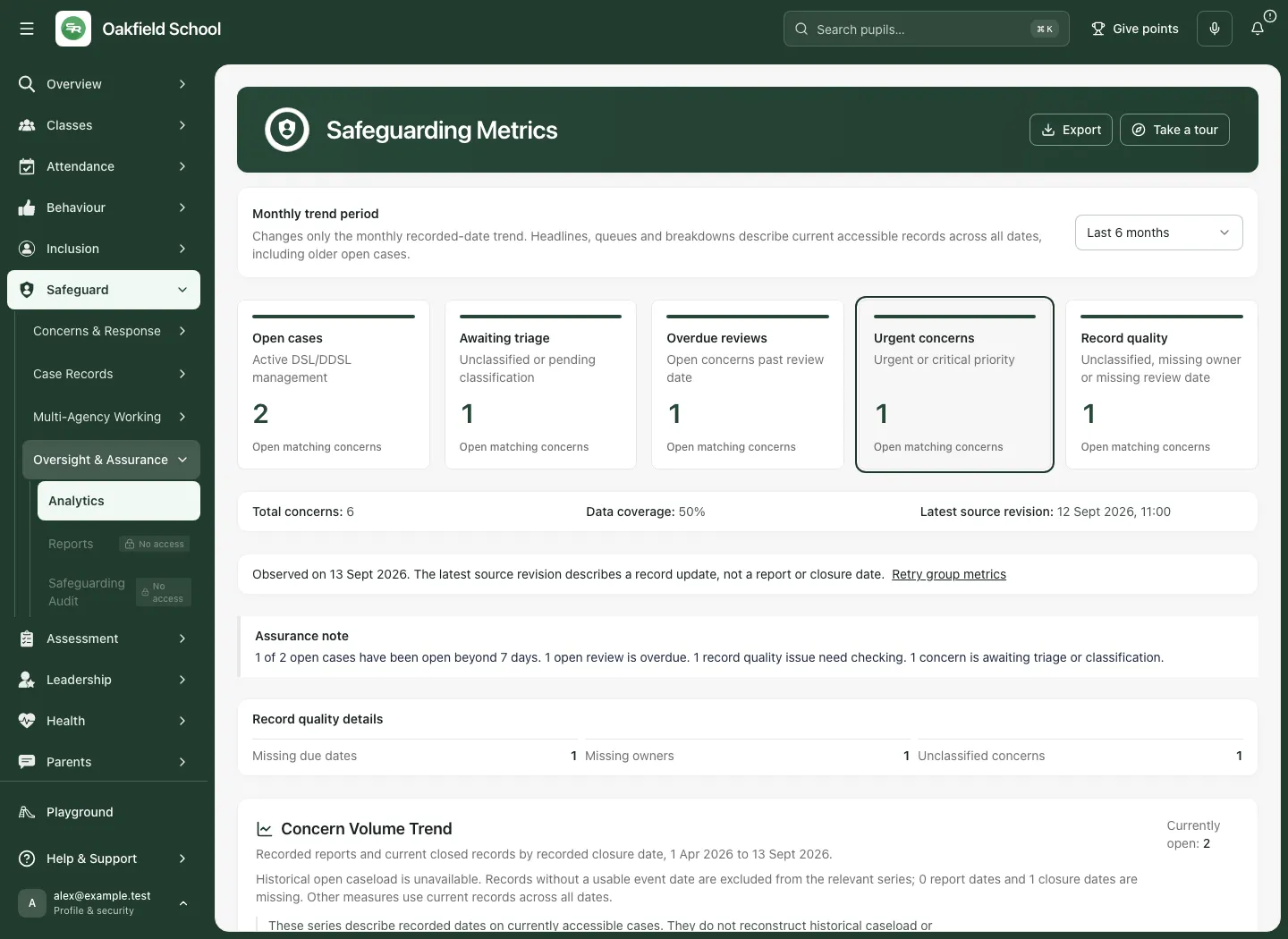
Section titled “3. Open the cases matching a current metric”- Choose the appropriate card or Open matching concerns control: open, awaiting triage, overdue review, urgent or record quality.
- Read the queue title and its description: current authorised concerns matching that metric.
- Inspect the returned person or subject, title, category, state, priority and report/review dates. A school or staff subject is not necessarily a pupil case.
- Read missing-owner, missing-review or awaiting-classification indicators as recorded conditions needing review.
- Use Previous page and Next page when available; a queue page contains up to 20 rows.
- Choose Open current source case only for the intended row. The case checks current access again and reads its current source.
- Read the source before acting; use the case workflow for decisions rather than treating a dashboard count as authority.
- Close the source reader and use Close queue when finished. The summary can refresh after a case changes, so a later count or membership can legitimately differ.
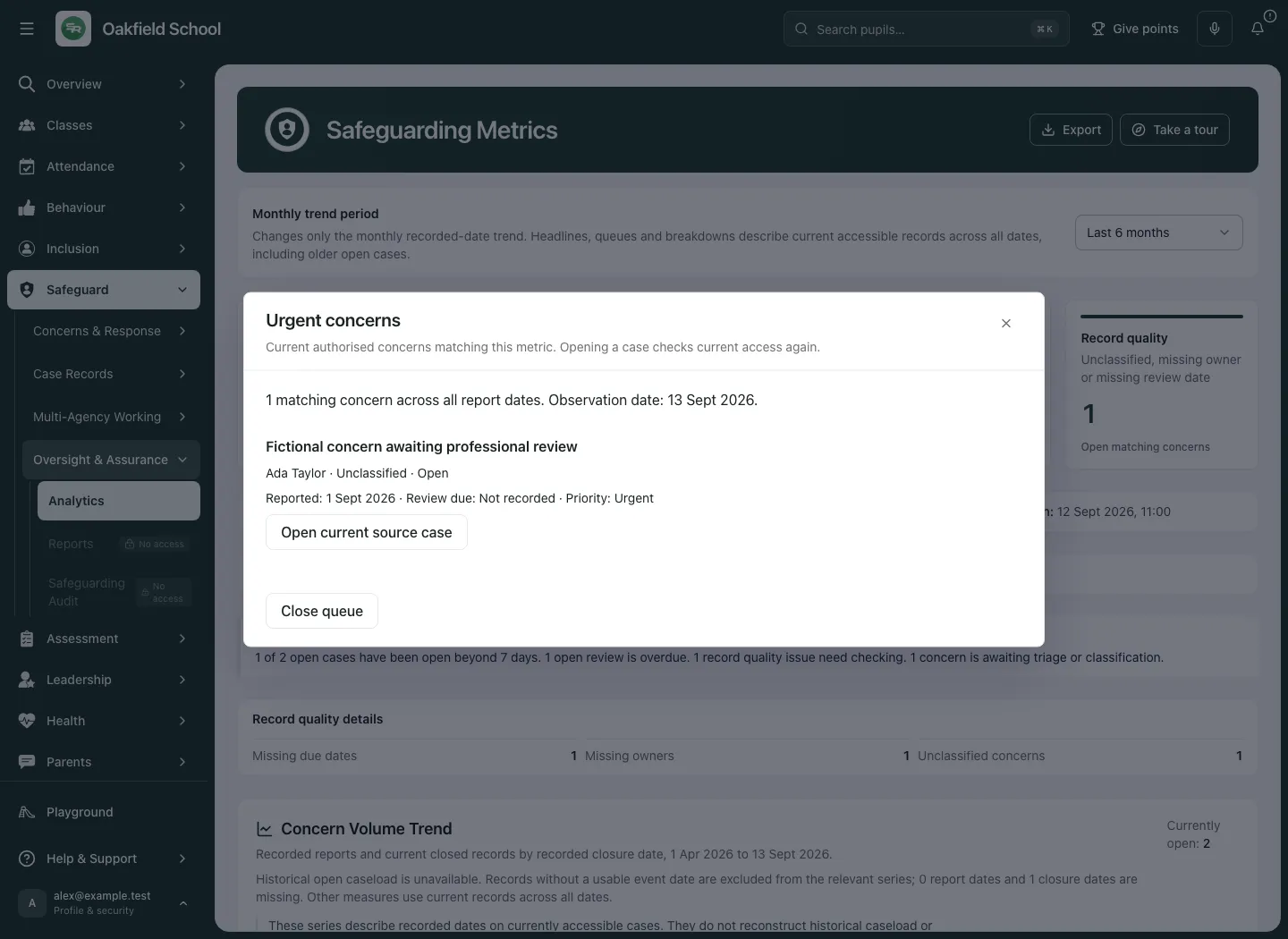
The queue is bound to the source revision behind its figure. If it reports that the source changed or membership cannot be confirmed, refresh the summary and open the current queue again. Do not combine a stale number with a newer set of case rows.
4. Use record quality as a review prompt
Section titled “4. Use record quality as a review prompt”- Read Record quality details and its available breakdown: missing due dates, missing owners, unclassified concerns, placeholder text or stale open cases where supplied.
- If a breakdown is unavailable, do not invent a zero or attribute the total to a guessed issue type.
- Open Record quality to inspect the permitted matching concerns.
- Follow Open current source case and make the appropriate authorised factual update or decision.
- Check the actual updated record and later summary result. Improving a field does not prove the underlying safeguarding response was adequate.
5. Read the recorded-date trend correctly
Section titled “5. Read the recorded-date trend correctly”Concern Volume Trend compares recorded new concerns, urgent/critical concerns and current closed records by their recorded closure date over the selected period.
- Read the trend’s start and end dates.
- Inspect the legend and the relevant month’s plotted values. Compare the same series and time basis.
- Read the missing-report-date and missing-closure-date note. Records lacking usable event dates are excluded from the relevant series.
- Keep Currently open separate from the monthly series. Historical open caseload is unavailable; the chart does not reconstruct how many cases were open in each past month.
- Use a rise or fall as a prompt to review recording practice, timing, source coverage and actual circumstances. Counts alone do not establish a change in risk or impact.
6. Read workload, priorities, categories and locations
Section titled “6. Read workload, priorities, categories and locations”Operational Timeliness describes the age of currently open concerns since their recorded report date. Read the average, median and oldest age with their denominator: the number of open cases with usable report dates out of current open cases.
Priority Distribution and Top Categories describe current accessible records across all dates. They are concern-record breakdowns, not necessarily distinct-pupil counts. A child can have more than one concern. An unclassified or missing field needs review; do not distribute it into another category by assumption.
Where Location hotspots or Caseload by owner is available, use it to review practical capacity and the original records. An owner’s count is not a performance judgement and a location count does not establish cause. Missing location or owner coverage must remain part of the interpretation.
7. Interpret vulnerable-group figures with their denominator
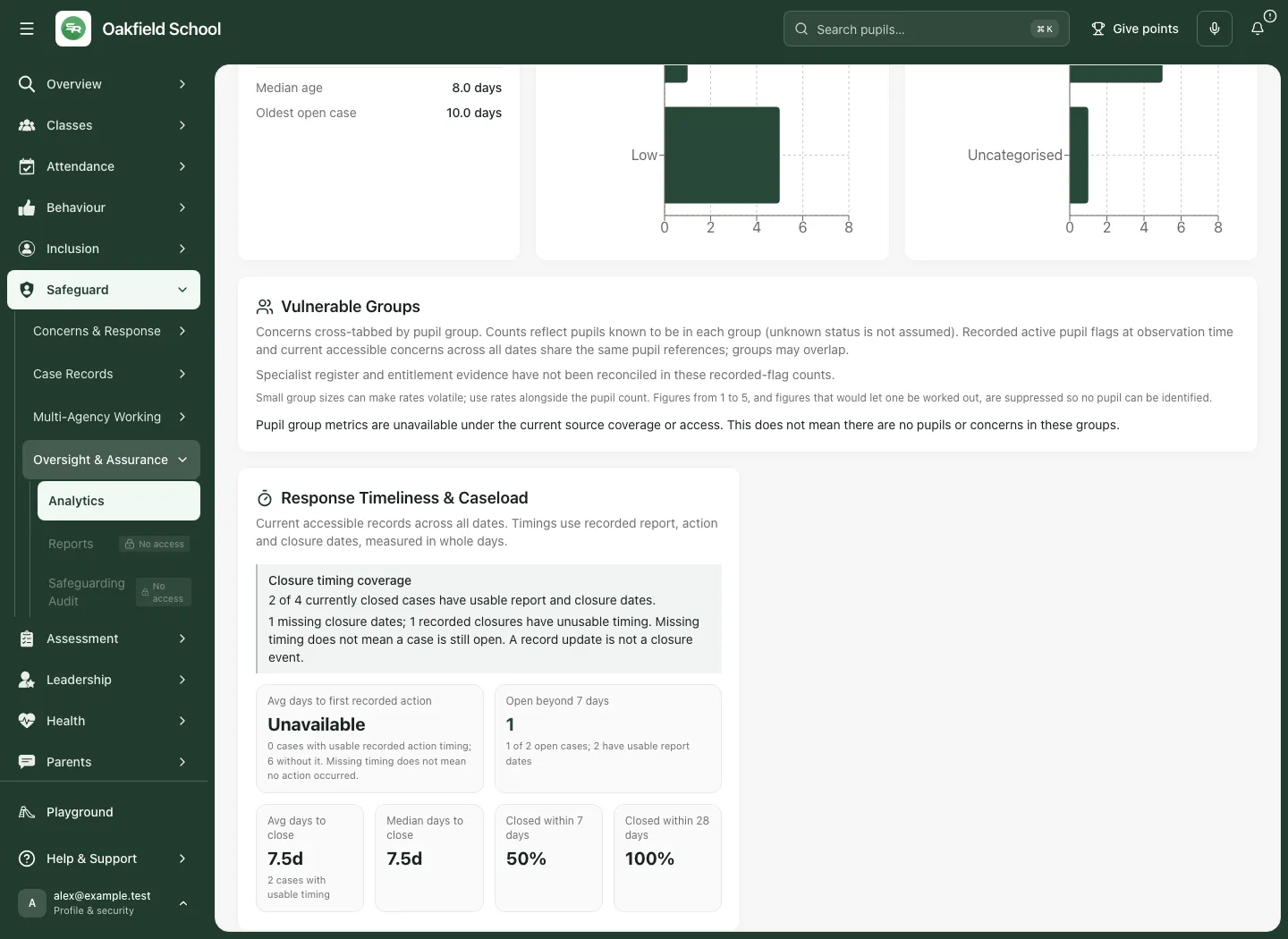
Section titled “7. Interpret vulnerable-group figures with their denominator”- Read Vulnerable Groups, its source description and current status before using any figure.
- The figures cross-tab current accessible concerns with recorded active pupil flags at observation time. Unknown group status is not assumed to be no, and groups can overlap.
- Read the pupil count and known/missing-status coverage alongside the concern count and percentage. A concern count is not the number of children.
- These recorded-flag counts do not reconcile specialist register or entitlement evidence automatically.
- Read suppression messages. Small figures from one to five, and figures that would allow one to be worked out, are withheld. Do not try to reconstruct suppressed numbers by subtraction or by combining screens.
- If group metrics are unavailable, read that as a source/access limitation, not no pupils or concerns in those groups.
- Use Retry group metrics when offered for an unavailable read. A partial access decision is not fixed by repeatedly retrying.
Use group figures to ask an appropriate professional question about recording and support, with privacy and uncertainty intact. They do not diagnose a child or establish why a group appears more frequently.
8. Read response and closure timing with missing dates visible
Section titled “8. Read response and closure timing with missing dates visible”- Find Response Timeliness & Caseload.
- Read Closure timing coverage first: cases with usable report/closure dates out of currently closed cases.
- Read the missing-closure and unusable-timing figures. Missing timing does not mean a case is still open, and a record update is not a closure event.
- For Avg days to first recorded action, read both usable timing and cases without it. Unavailable does not mean no action occurred.
- Read Open beyond 7 days with the usable-report-date denominator.
- Compare Avg days to close, Median days to close, Closed within 7 days and Closed within 28 days only with their timing coverage and method. The timings use whole days and current accessible records across all dates.
- Review outliers and missingness in the source case before reporting a conclusion. Faster closure does not by itself establish a better or safer response.
9. Export a metrics summary
Section titled “9. Export a metrics summary”- Review the current observation, trend period, coverage and unavailable/suppressed states.
- Choose Export; its accessible label is Export the safeguarding metrics summary.
- In Export metrics summary, read the scope: aggregate counts and trends only, with no pupil rows. The export is recorded in the audit log.
- Choose the offered Format, CSV or Excel (.xlsx), using the label shown.
- Choose Export and wait for Export ready and the actual downloaded file.
- Review its dates, denominator notes and coverage before sharing through the school’s approved process.
This summary is not a pupil case pack. Use the authorised case/chronology export workflow for that different evidence purpose. A successful download does not send it, identify its reader or establish an authorised interpretation.
10. Use analytics on a phone
Section titled “10. Use analytics on a phone”- Check the monthly trend period and current observation before reading the stacked cards.
- Open the intended metric queue and inspect the row’s identity before following the source case.
- Scroll to the chart, group and timing notes; their limits remain part of the figure on a smaller screen.
- Keep the device private and close any sensitive source case when finished.
Troubleshooting
Section titled “Troubleshooting”| Situation | What to do |
|---|---|
| Metrics unavailable | Use Try again; totals and coverage are unknown, not zero. |
| Group figures unavailable | Read the access/source limit and use Retry group metrics if offered. |
| Queue changed | Refresh the summary and open the newly bound queue rather than mixing revisions. |
| Cannot open source case | Current case access is separate; do not use a screenshot to bypass it. |
| Count differs from the trend | Check current all-date records versus selected recorded-date trend. |
| Timing seems implausible | Read usable-date coverage and inspect the original report/action/closure dates. |
| A small number is suppressed | Preserve suppression; do not reconstruct it from other figures. |
| Export unavailable | Wait for a usable summary and read the error/coverage state before retrying. |
Frequently asked questions
Section titled “Frequently asked questions”Does changing the period filter the current queues? No. It changes the monthly trend; current headlines and queues cover accessible records across all dates.
Can I infer past backlog from the monthly trend? No. Historical open caseload is unavailable.
Is unknown group status counted as no? No. Missing group information is retained in coverage.
Does no action timing mean staff did nothing? No. It means usable recorded timing is missing.
Does a lower concern count prove improvement? No. Review the source, recording practice, coverage and actual outcome evidence.
Where does the professional response happen? In the permitted source case and DSL Action Board. Chronology helps review the dated record. See Reports for report capture and review.