Prepare class family updates and check recipient coverage
Written for: Class teachers and authorised school staff.
Prepare a class update, check eligible app recipients and follow the message through approval, scheduling and delivery states.
The page uses the school’s Communications records and policy. A saved draft, a message waiting for approval, a scheduled message and a delivered message are different states.
The examples use fictional class 3 Willow, fictional messages and a sample reachability gap. No real family has been contacted. Check the class and recipient coverage before taking a live communication action.
Before you start
Section titled “Before you start”You need access to Families and a class audience your account is allowed to message. A teaching-class link does not extend that authority. The current class page does not cover every tutor group or EYFS room; follow the explanation and choose one of the classes actually listed for you.
Your school’s policy can let teachers send to their own classes or require approval. The primary action changes accordingly. Family account relationships and platform availability also affect sending. Ask the school office or Communications administrator to resolve a relationship problem rather than bypassing it with another recipient.
Prepare suitable whole-class content. Use the appropriate authorised route for an individual confidential concern, rather than placing sensitive pupil information in a message to every family.
Open the right class
Section titled “Open the right class”- Open Classes, choose the intended teaching/class context and select Families where offered.
- Check Families and the Class chooser.
- Choose one of the permitted listed classes if the menu context is not covered.
- Read the four summary figures and any access/platform notice.
- Choose Weekly update, Sent or Contacts for the task you are doing.
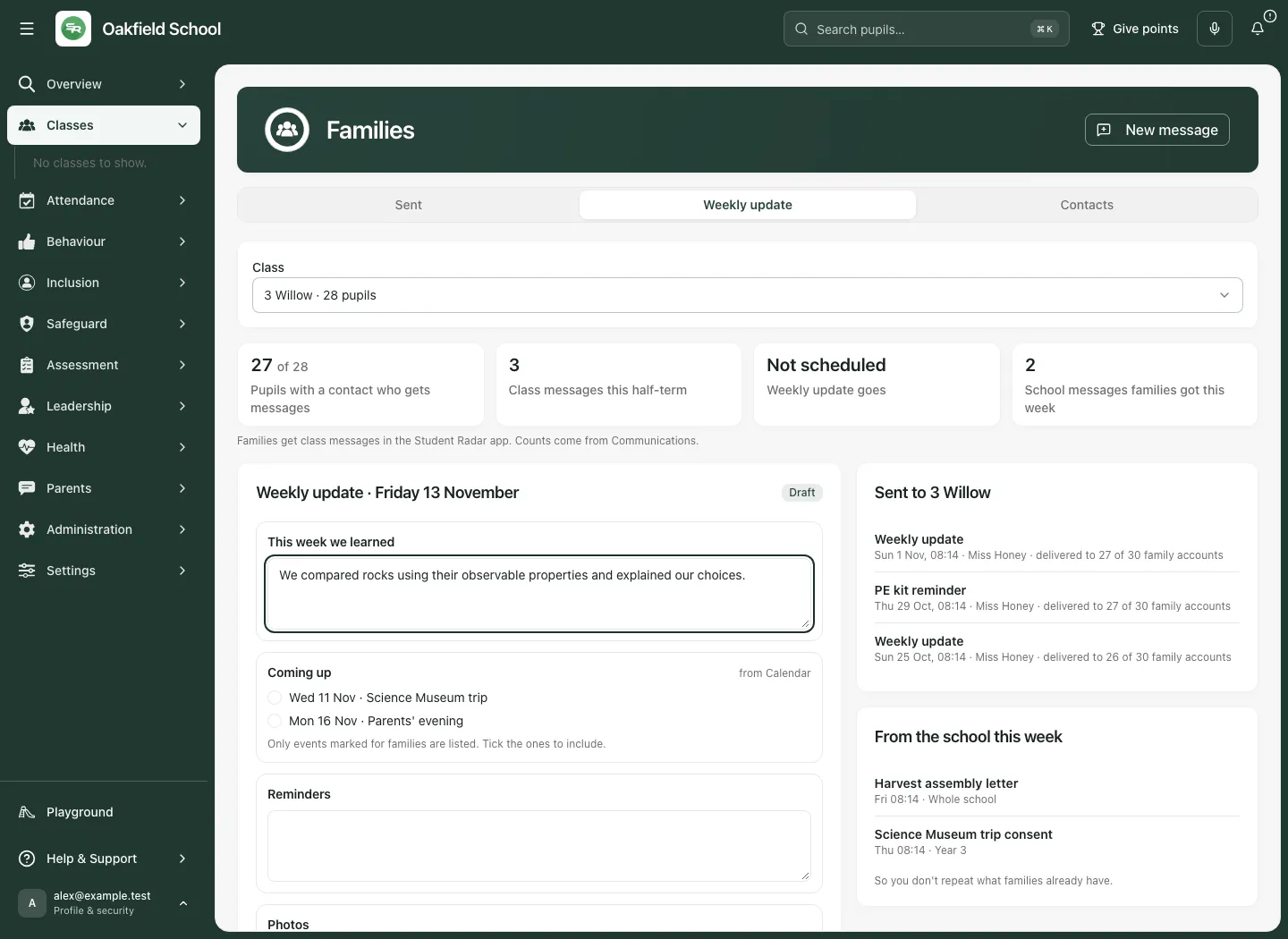
The class chooser is not a free-text recipient field. The server supplies the audiences you may use. If the list is truncated, the page says how many classes are shown; a missing class is not evidence that it has no families.
Understand the reachability figures
Section titled “Understand the reachability figures”Pupils with a contact who gets messages is a pupil coverage count: at least one eligible family account can receive an app message for that pupil. It is not the number of all contacts, guardians or devices.
Class messages this half-term uses the stated school window. If term dates are unavailable, it can be labelled Class messages in the last 6 weeks. Do not compare those as identical periods. Weekly update goes describes the scheduled state, while School messages families got this week helps you avoid repeating wider school communications.
The page says counts come from Communications. Unavailable reads remain unavailable, not zero. Coverage can be less than the pupil count, and more than one recipient can relate to a pupil. Check the actual delivery record after sending rather than interpreting reachability as proof of delivery.
Prepare a weekly update
Section titled “Prepare a weekly update”- Open Weekly update.
- In This week we learned, write a concise class-level account of the learning. Avoid naming individual children or inferring impact from an activity alone.
- Under Coming up, inspect the events drawn from Calendar for the next two weeks.
- Tick only the events you want to include. The offered list contains up to 20 family-shareable items; it is not every staff calendar item or an exhaustive view of the next two weeks. Open Calendar for the full permitted detail.
- Add practical Reminders.
- Check Send on and At, using the school time zone shown by the workflow.
- Select Preview as a family and inspect the complete content.
- Return and correct anything needed before scheduling or requesting approval.
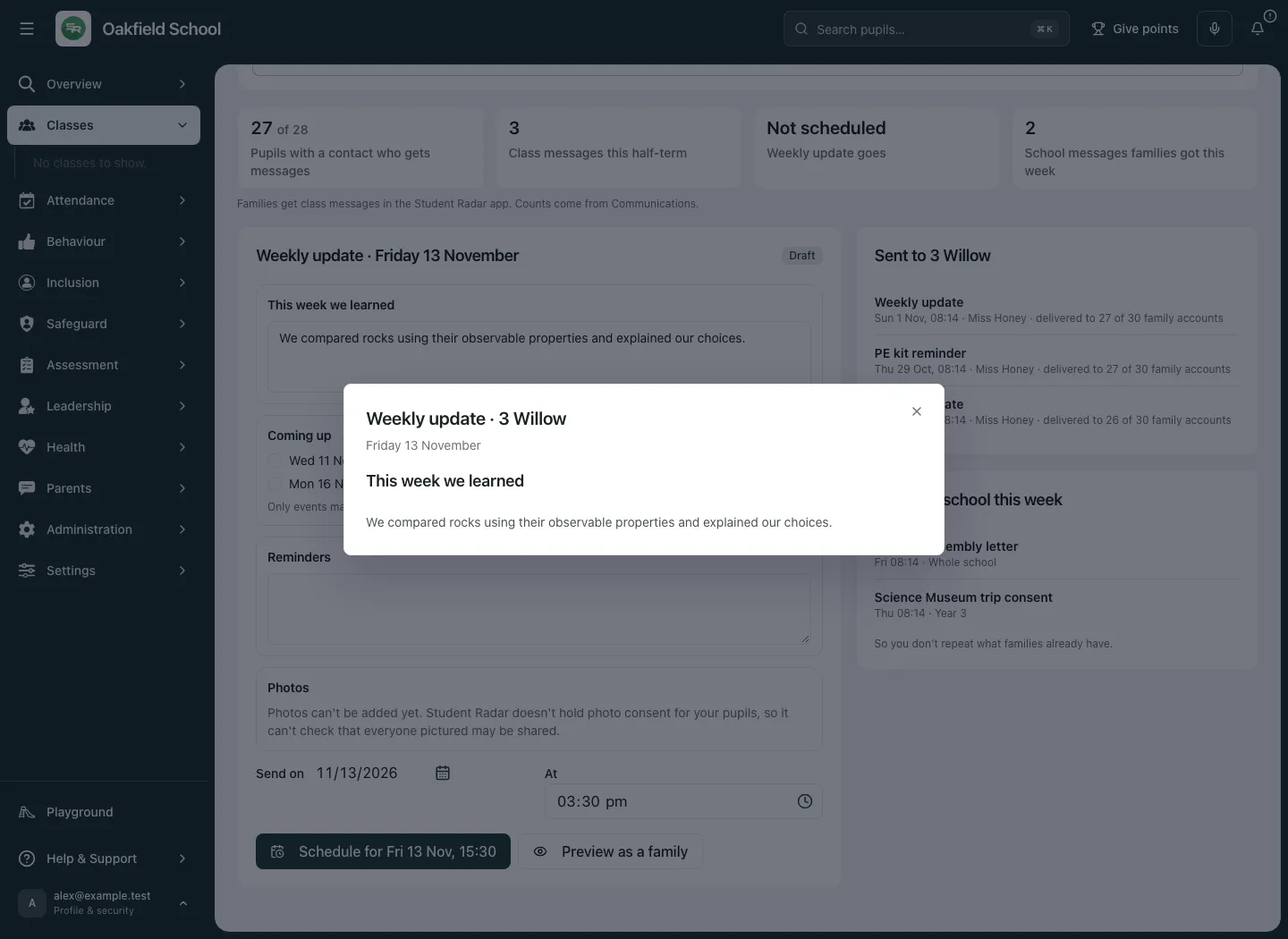
If Calendar is unavailable, the page says so. That is different from a successfully loaded list with no family-visible events. Do not tell colleagues there are no upcoming events based on an unavailable read.
Review scheduling before submitting
Section titled “Review scheduling before submitting”The primary button says Schedule for [chosen time] where policy permits, or Send for approval, for [chosen time] when review is required. Read it as an intended action and verify the outcome afterwards. An approval request is not a sent update.
Check whether a weekly update already occupies the selected school day. The page can identify an existing or waiting update and prevent another one for that day. Review the existing item and coordinate with colleagues rather than changing dates merely to create a duplicate. Use a valid future date/time within the allowed scheduling window.
If a family app account needs checking, scheduling is paused and Contacts explains the issue. Resolve the account relationship through the school office. The page does not automatically infer an alternative authorised recipient.
Photos are not currently supported here
Section titled “Photos are not currently supported here”The weekly update explicitly says photos cannot be added yet because it cannot verify photo consent for everyone pictured. Do not promise a working photo upload on this page or put a photo into another field to bypass the restriction.
Check Contacts before communicating
Section titled “Check Contacts before communicating”- Open Contacts.
- Compare the reachable-pupil count with the class pupil count.
- Read the list of pupils without a family app recipient where your access permits names to be shown.
- Read any remaining unnamed/unlisted count and the coverage explanation.
- Ask the school office to set up or check the appropriate family app account relationship.
- Review the displayed recipient-language information to plan clear communication and the school’s appropriate support.
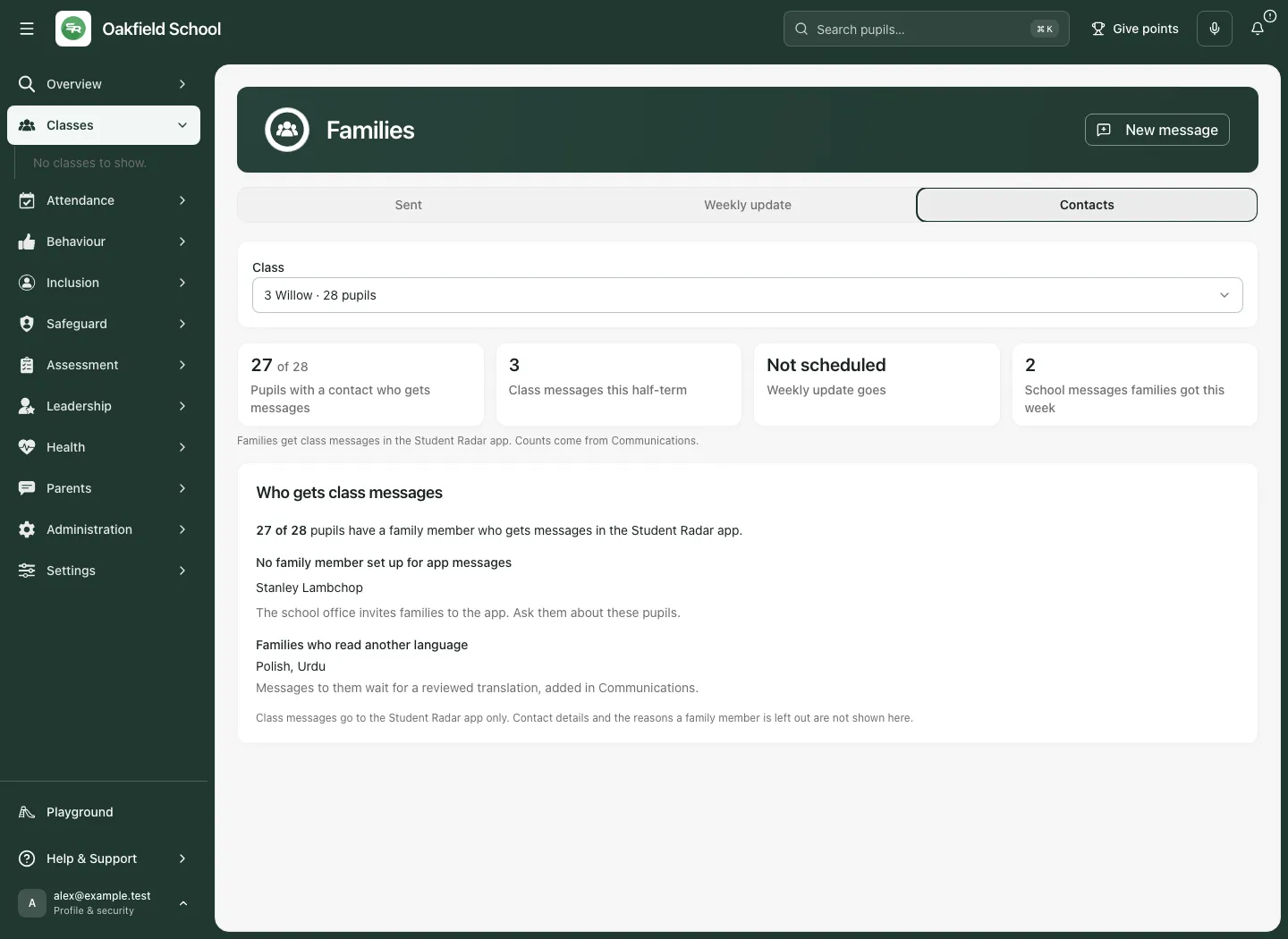
A named list can be limited by your access or display bounds. Do not assume the visible names exhaust the whole gap when the page says otherwise. A missing recipient is an access/setup issue to resolve, not proof the family is disengaged. Language information does not itself establish that a translated message was generated or delivered.
Write a class-family message
Section titled “Write a class-family message”- Select New message.
- In Message families, confirm Families of [class]. The recipient class is fixed by the class you are in.
- Read the coverage line, including any pupil without an app recipient or account-check warning.
- Confirm Send by: Student Radar app. Email and text from this class page are explicitly unavailable.
- Enter Subject and Message. Keep the content appropriate for every family in that class.
- Review the content and intended action.
- Choose Save draft to keep it without sending. Choose Send now or Send for approval only when you intend the live action and the recipient coverage/policy is correct.
- Read the returned state and inspect the history. Do not assume closing the sheet proves delivery.
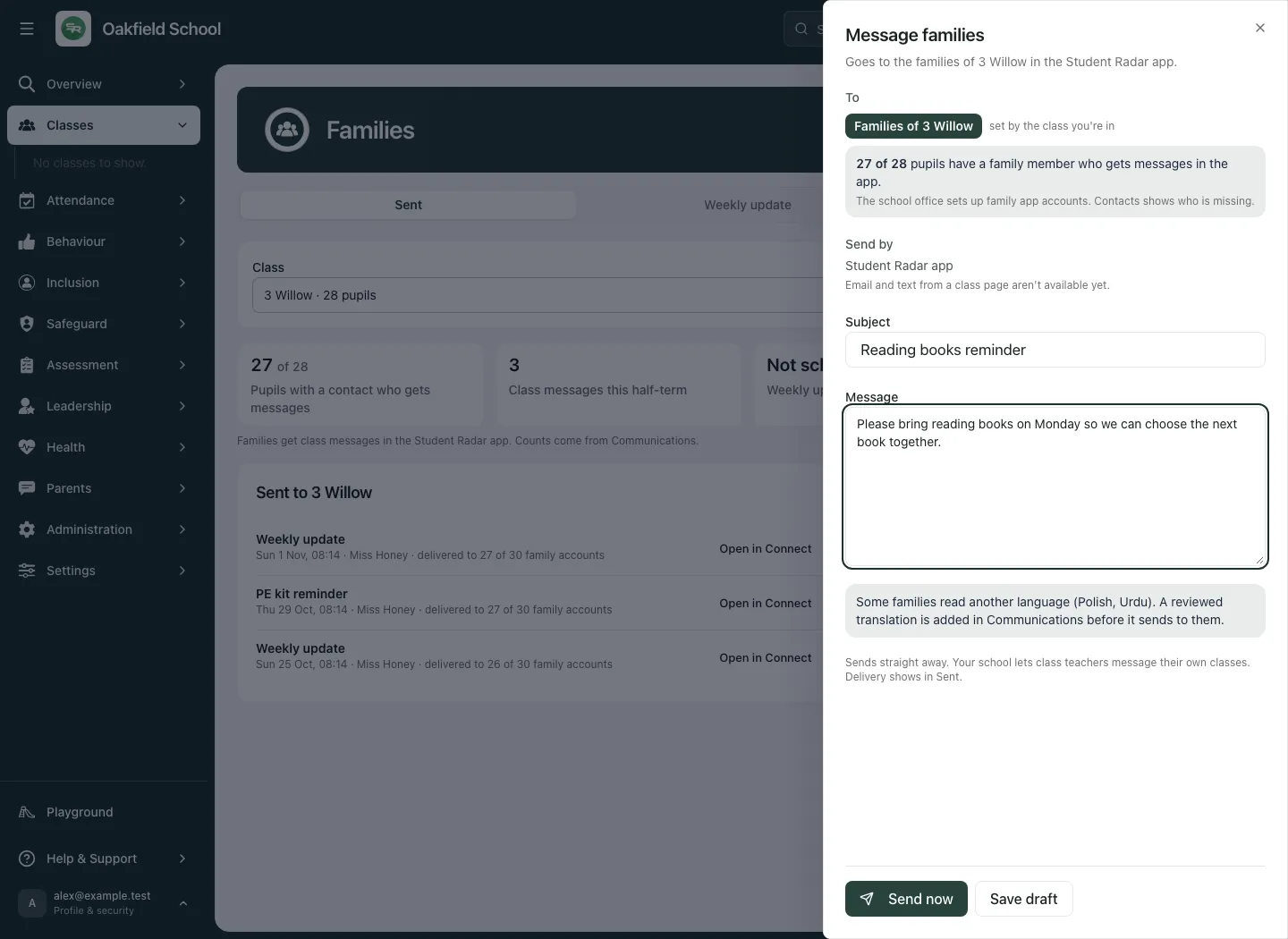
The class recipient label is deliberately locked. For a different audience, close this sheet, choose the correct class or use the school’s permitted Communications workflow. Do not rewrite the subject to compensate for being in the wrong class.
Save a draft and verify it
Section titled “Save a draft and verify it”- Complete the subject and message.
- Select Save draft.
- Wait for the sheet to close and the saved draft to appear in Sent history.
- Reopen the class page and inspect the draft state before a later send.
- Use Open in Connect where offered to work with its authoritative communication thread and supported editing/review controls.
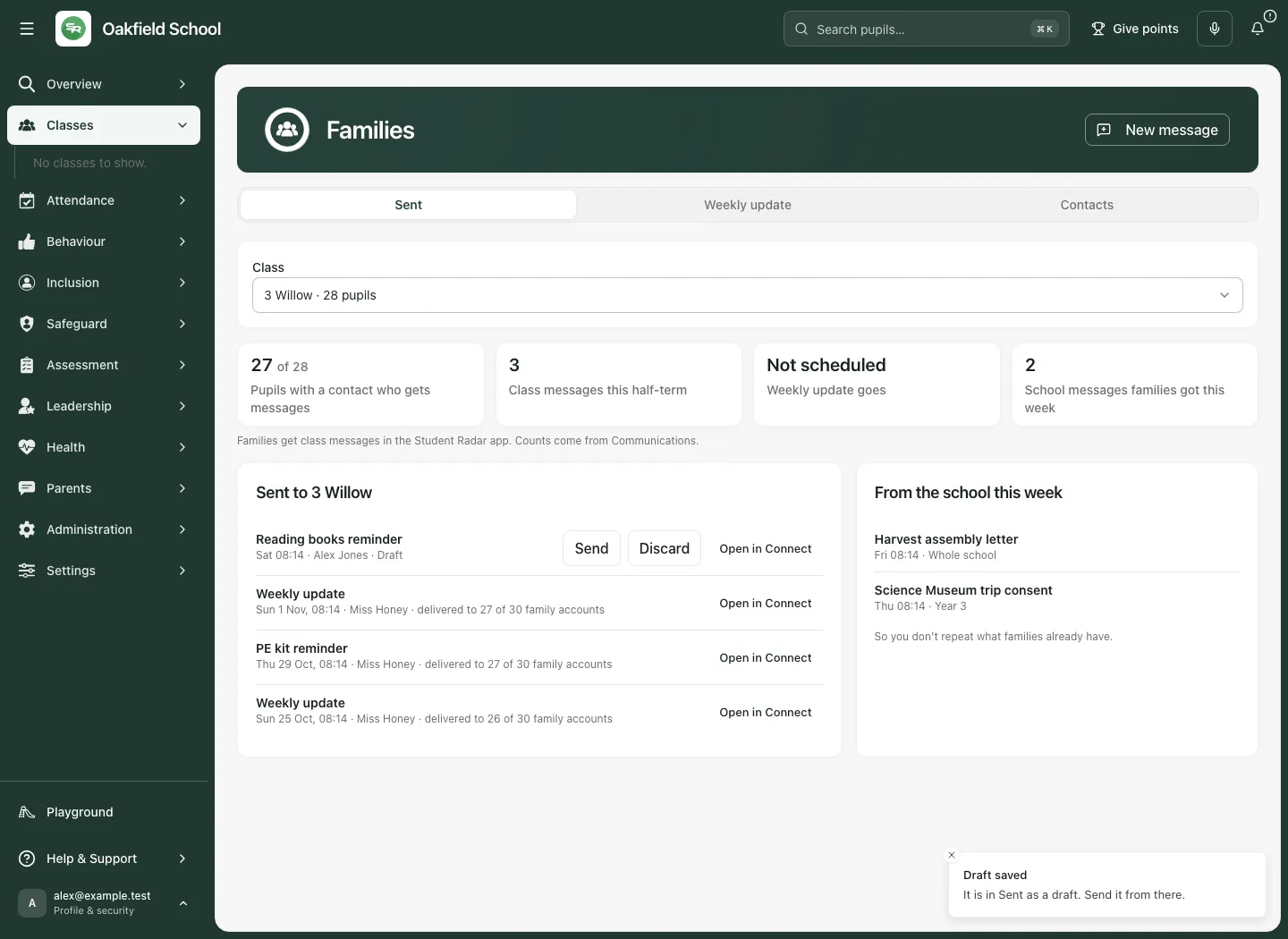
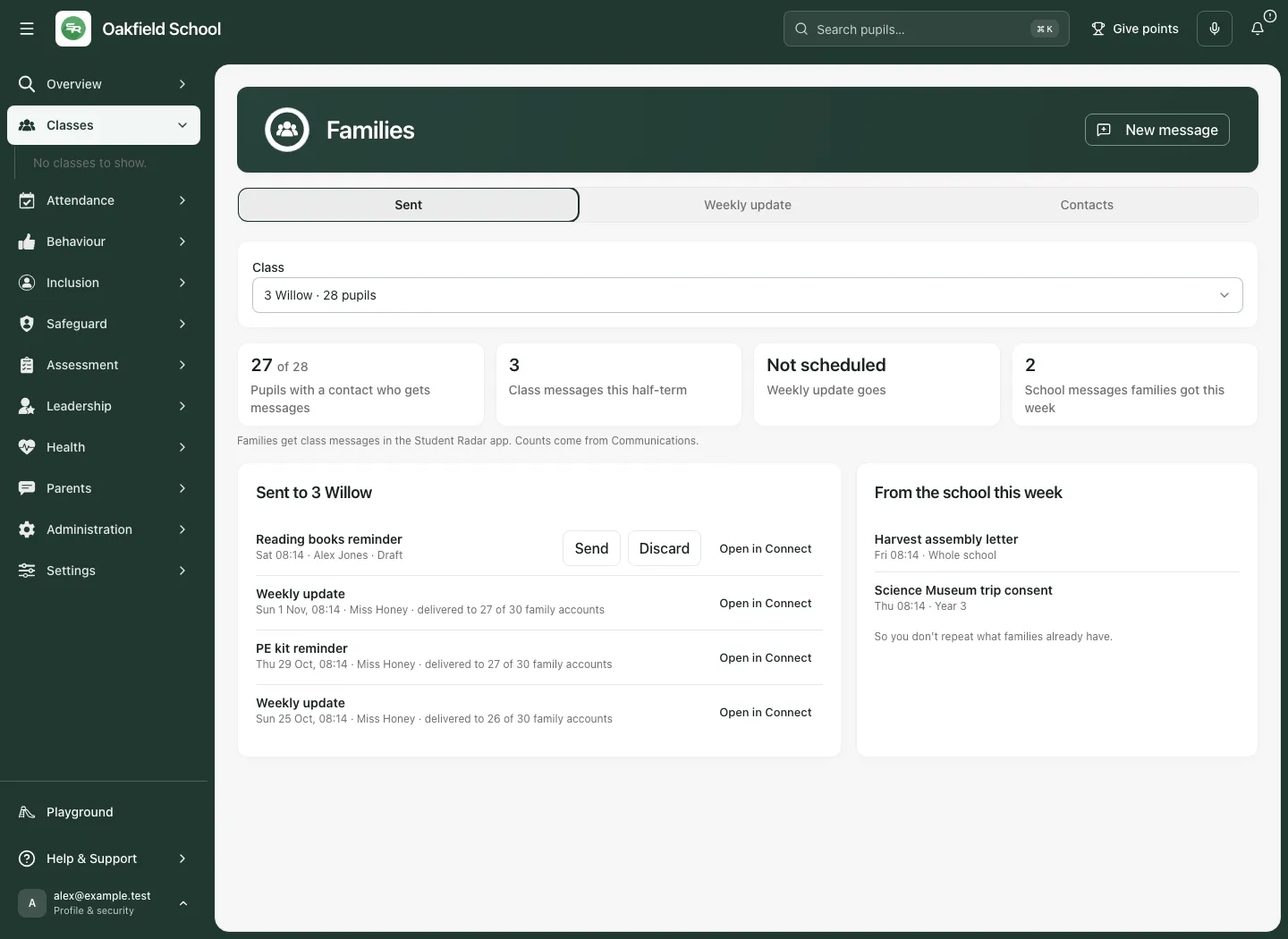
The section is named Sent, but its history can include drafts and waiting/scheduled work. Read the item’s status. A draft’s presence is not evidence that anything went to families. If a send fails after the draft was created, read the explicit “saved as a draft” outcome and check history before retrying. Retrying or double-clicking should not be treated as a reason to create a new duplicate message.
Read history and delivery honestly
Section titled “Read history and delivery honestly”Open Sent to review the message title, author/time, current status and delivery line. Where offered, Open in Connect takes you to the existing thread rather than a separate class-page conversation.
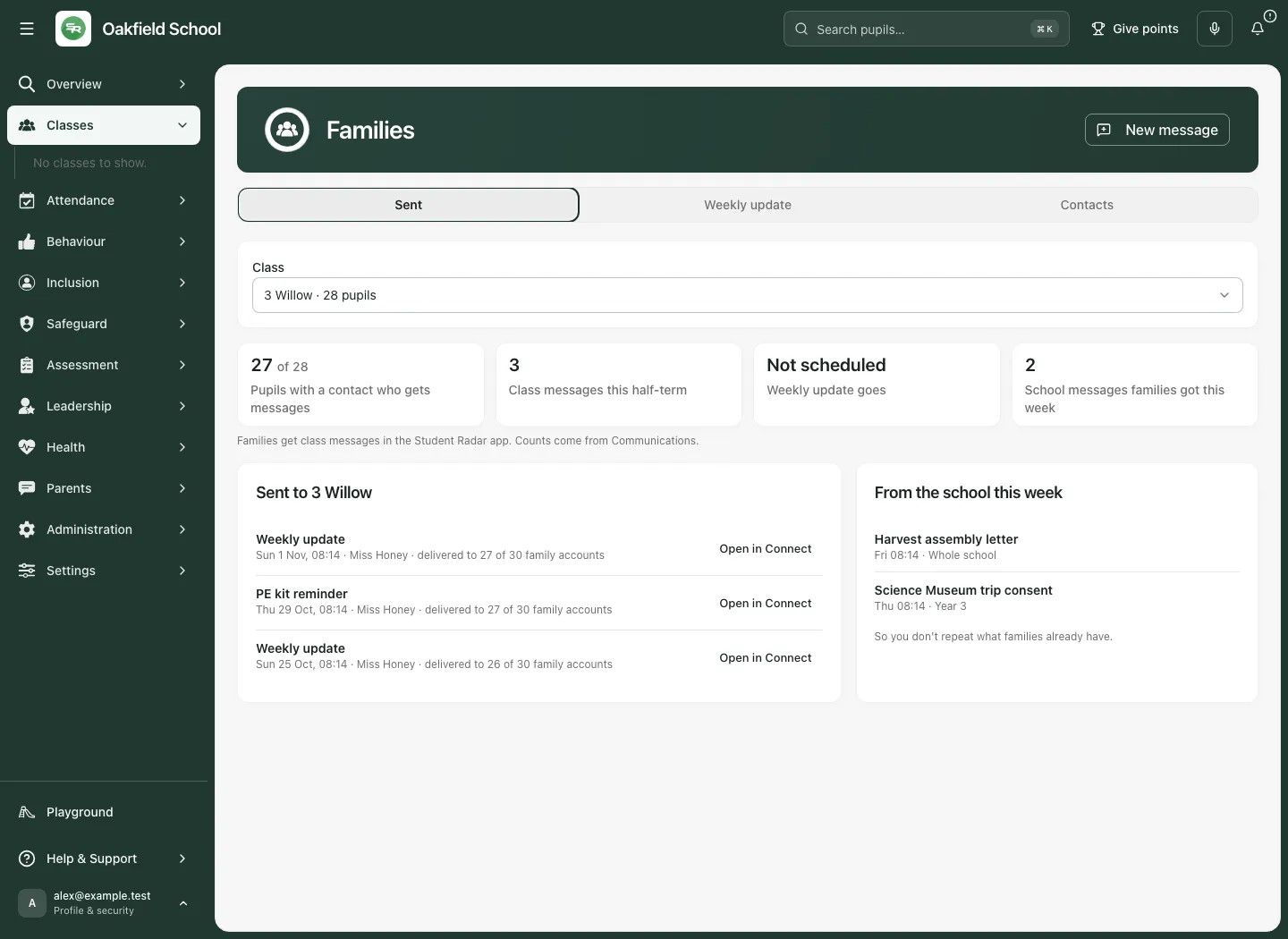
Distinguish Draft, waiting for approval, returned for changes, approved/ready to send, scheduled, sent, cancelled and delivery failures according to the label shown. Sent and delivered are not interchangeable. A recipient count is not a delivery count, and a delivered app message is not proof it was read or acted on.
Where your own item offers Send, check that it is genuinely waiting for that action before selecting it. Discard removes an intended draft through the supported lifecycle. Cancel stops eligible pending/scheduled work; verify the resulting state. A message already dispatched cannot be unsent simply by cancelling a later queue state. Read return reasons and edit through the authoritative communication workflow before resubmitting.
Avoid duplicating school messages
Section titled “Avoid duplicating school messages”From the school this week lists relevant whole-school or year-group communications that reached the class’s families. Read it before adding the same reminder or announcement. It is a source-backed summary, not authority to open every message or infer restricted pupil membership. Use the available source link/control when more detail is permitted.
Use Families on a phone
Section titled “Use Families on a phone”The section navigation can collapse into a chooser. Select Weekly update, Sent or Contacts, then work within that section. New message opens a narrow sheet with the same locked class audience and app-channel boundary. Scroll to the footer and check the actual action label before saving or sending.
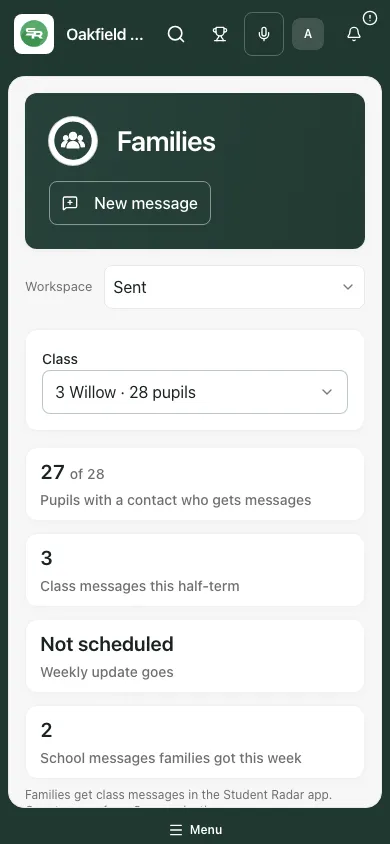
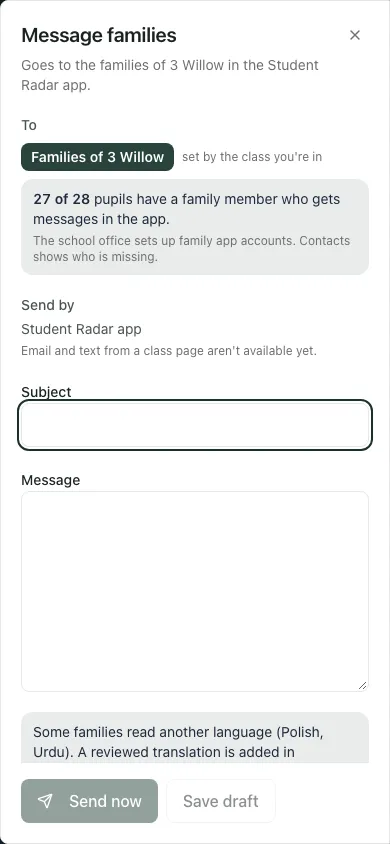
Keep the class and coverage in view when returning from another section. A typed weekly update can remain while you inspect Sent, but do not assume an unsaved draft is a shared saved message after reloading or switching school/account.
Troubleshooting
Section titled “Troubleshooting”| What you see | What to do |
|---|---|
| You can’t message this menu class’s families | Choose a class listed for you or ask an administrator to check the intended teaching relationship. |
| Tutor group/EYFS room not covered | Use a supported listed class or the permitted Communications route. |
| Family account needs checking | Ask the school office to resolve it. Sending/scheduling may pause; saving a draft can remain available. |
| Pupils missing an app contact | Check Contacts and the permitted named/unlisted coverage; arrange the school’s alternative communication deliberately. |
| Calendar unavailable | Retry/check Calendar; do not treat it as no events. |
| Weekly day already occupied | Review the existing waiting/scheduled update before changing or cancelling anything. |
| Send for approval | Submit only the intended content, then follow its approval state. It is not sent yet. |
| Save/send could not complete | Check whether a draft was created and inspect history before retrying. |
| Too many requests | Wait as instructed, then retry the existing intended request rather than creating duplicates. |
| No email/text option | Those channels are not available from this class page. Use an authorised supported route. |
| Photos cannot be added | Follow the stated feature boundary; do not bypass consent checks. |
Frequently asked questions
Section titled “Frequently asked questions”Can I change recipients in New message? The class audience is fixed. Choose the correct permitted class or a supported Communications workflow.
Does 27 of 28 mean 27 messages were delivered? No. It is pupil reachability coverage, not a delivery receipt.
Does Sent contain only sent messages? No. Read each item’s actual state; drafts and waiting work can also appear.
Can I add weekly photos? The current page explicitly withholds photos because it cannot verify the required consent.
Does a failed send mean no draft exists? Not always. Read the outcome and history: the draft may have been created while sending was refused.