Build and review a safeguarding report for its audience
Written for: Authorised safeguarding leads and school leaders.
Choose a report window and audience, inspect the captured version, record review and export with its disclosure scope intact.
The saved library preserves the report’s window, source and review state.
A report is a professional evidence aid. It does not establish pupil safety or impact, and accepting the full report does not approve its distribution. All examples are fictional; no real report was generated or sent.
Before you start
Section titled “Before you start”Check the school, intended audience and purpose. Opening reports, generating content, reviewing snapshots, exporting and managing schedules have their own current authority checks. A report title or a link does not grant access to the underlying safeguarding cases.
Decide what the recipient actually needs. Summary sections can still contain sensitive free text; “summary” is not a promise of anonymity. Pupil-level case-conference packs use the case/chronology source workflow, not a school-wide aggregate report disguised as a pupil pack.
1. Choose the window and starting point
Section titled “1. Choose the window and starting point”- Open Safeguard → Oversight & Assurance → Reports.
- Set Report window to Last 3 months, Last 6 months or Last 12 months.
- Choose Templates, Builder, Saved or Schedules.
- The report window travels with a new report proposal. It does not rewrite an already saved report’s original observation window.
- Read unavailable/access-denied messages before proceeding. A report or saved-list read that failed is not an empty library or a zero-activity school.
2. Choose a template with the right disclosure scope
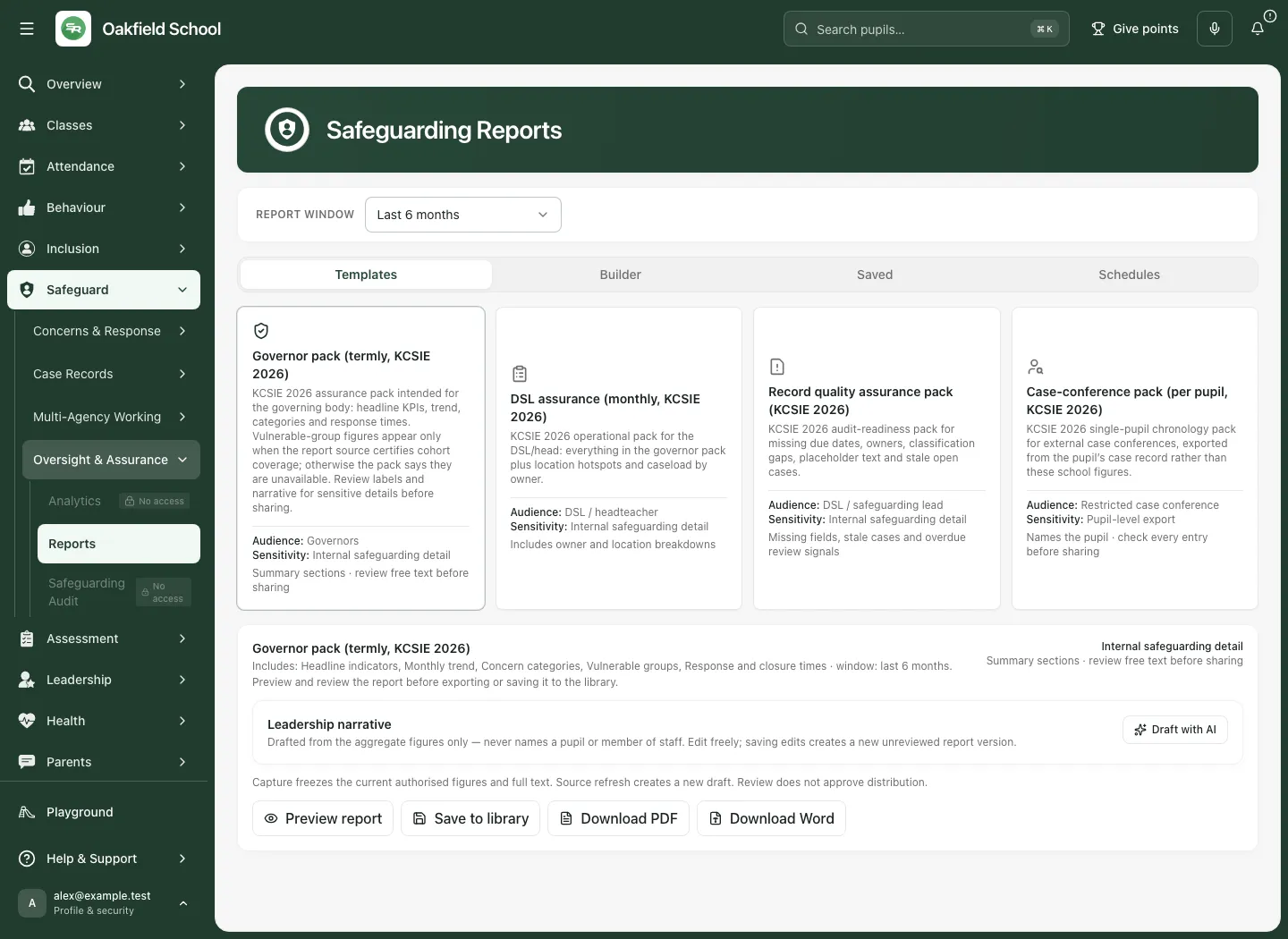
Section titled “2. Choose a template with the right disclosure scope”In Templates, read the audience, sensitivity, disclosure description and included sections before selecting the offered generation action.
- The Governor pack (termly, KCSIE 2026) uses summary sections for governors. Review all narrative before sharing.
- The DSL assurance (monthly, KCSIE 2026) is for DSL/headteacher assurance and can include owner and location breakdowns.
- Record quality assurance pack (KCSIE 2026) focuses on missing fields, stale cases and overdue-review signals; these require professional checking.
- The Case-conference pack (per pupil, KCSIE 2026) is a pupil-level export route. Follow its case/chronology link, choose the correct pupil and review each entry under the source export controls.
Do not describe a pupil pack as anonymised by default. Names and narrative can identify a child. Follow the exact export mode and reason prompts shown by the source workflow.
3. Build a report for a deliberate audience
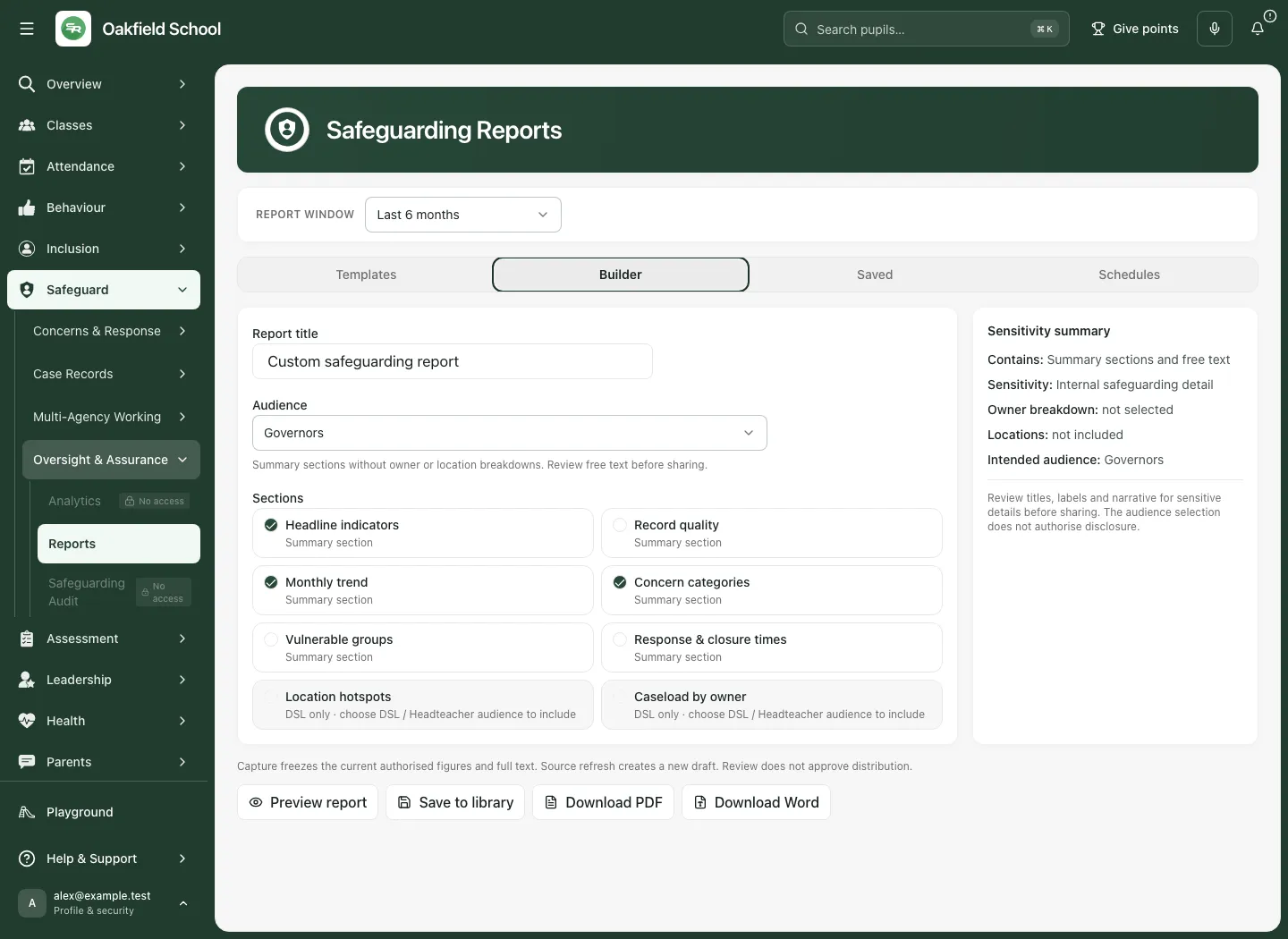
Section titled “3. Build a report for a deliberate audience”- Choose Builder.
- Enter Report title with a useful, appropriately private title.
- Choose Audience: Governors, SLT, DSL / Headteacher or External case conference.
- Read the audience explanation. Selecting an audience does not send or approve a report.
- Under Sections, select the required Headline indicators, Record quality, Monthly trend, Concern categories, Vulnerable groups and Response & closure times.
- Location hotspots and Caseload by owner are marked DSL only. They are available only for the appropriate audience; changing to another audience removes those selections.
- Read the disclosure summary, especially whether staff names and location detail are included and who the selected material is suitable for.
- Use the separate case-conference source route when you need a pupil-level pack. Choosing its audience label does not turn aggregate school figures into that pack.
4. Capture and inspect the report draft
Section titled “4. Capture and inspect the report draft”- Recheck title, audience, window and sections.
- Choose Preview report to capture the current authorised figures and full text into a server snapshot and inspect them.
- Read the observation window, source notes, denominators, coverage, missingness and unavailable/suppressed values in every selected section.
- Treat monthly recorded-date trends separately from current-record totals. Missing recorded dates limit timing comparisons; a record update is not a closure date.
- Choose Save to library when you intend to preserve that exact draft. Wait for Draft saved and inspect it in Saved.
- If a snapshot already exists, Refresh source as new draft captures a new draft. It does not silently replace the previously reviewed source version.
- If an operation is unconfirmed, use Recover original request as shown. Do not repeatedly capture a new report after an uncertain acknowledgement.
Capture freezes the figures and full text together. A later school-record update does not retrospectively change what the saved report said. Preserve that window and version in the professional review.
5. Use leadership narrative with human review
Section titled “5. Use leadership narrative with human review”- Read Leadership narrative and its draft explanation.
- Use Draft with AI only when an authorised draft is actually needed. This requests generation; it is not required simply to inspect the interface.
- Review the returned Draft narrative — review before export against the captured aggregate figures, source notes and the intended audience.
- Edit the full narrative as needed and use the offered block-removal control for material that should not remain.
- Redraft requests another draft. Do not mistake fluent text for verified interpretation, cause or impact.
- Saving edited text creates a new unreviewed report version. Read the DRAFT — unsaved narrative changes; prior review does not apply state when shown.
- Review the complete new report before accepting or exporting it.
Narrative generation is described from the supported workflow; it was not invoked for these examples. School staff remain responsible for factual accuracy, uncertainty, appropriate language and disclosure.
6. Find and open the exact saved report
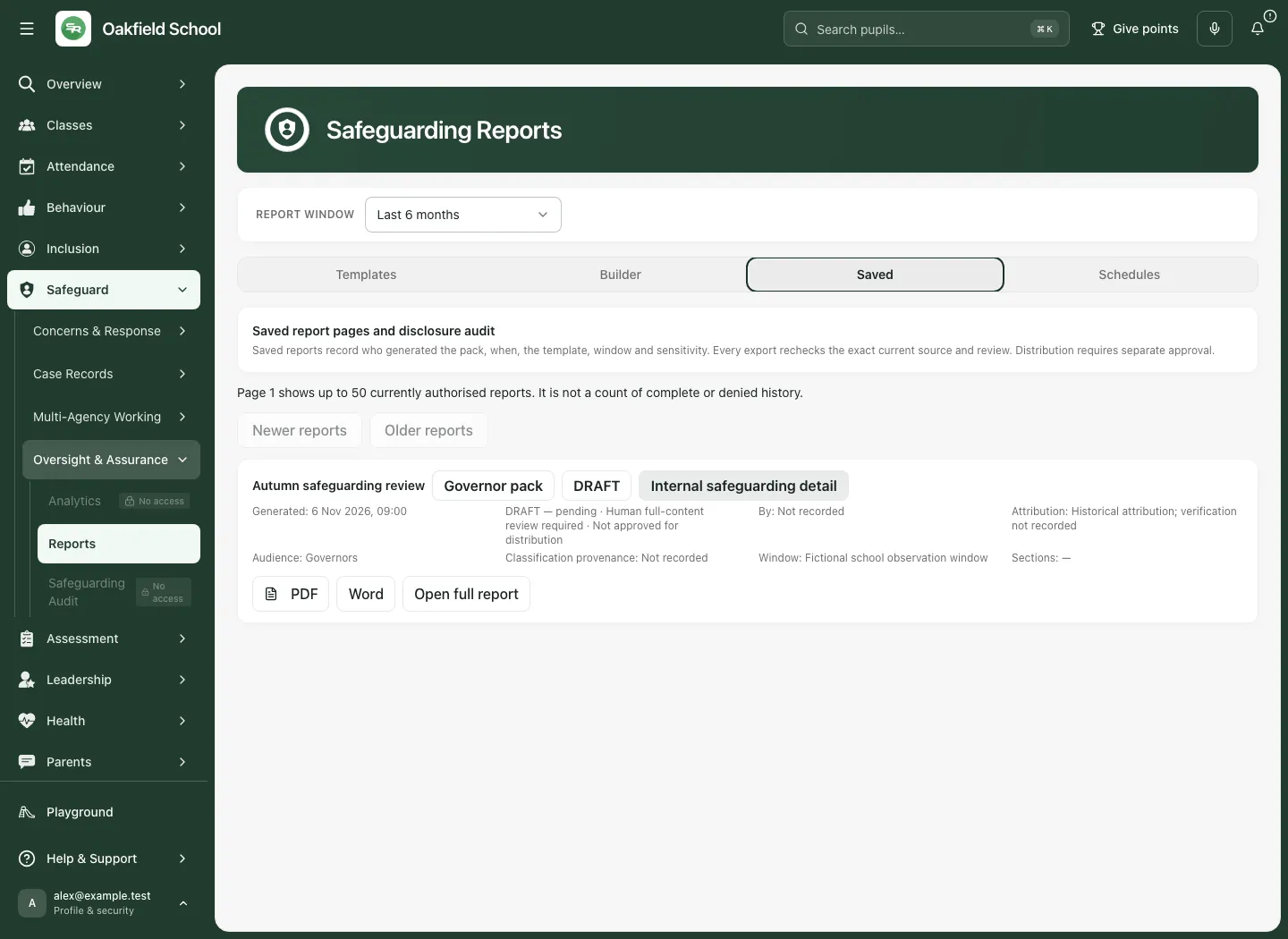
Section titled “6. Find and open the exact saved report”- Choose Saved.
- Read the title, template, saved/generated time, attribution, audience, sensitivity and review state on the card.
- Use the saved-list page controls for older or newer report pages. The displayed library page is not the entire history.
- Choose Open full report on the intended card.
- The current source is read again for that report/version. If it is refused or unavailable, follow the error; an old cached preview is not authority to keep reading or exporting it.
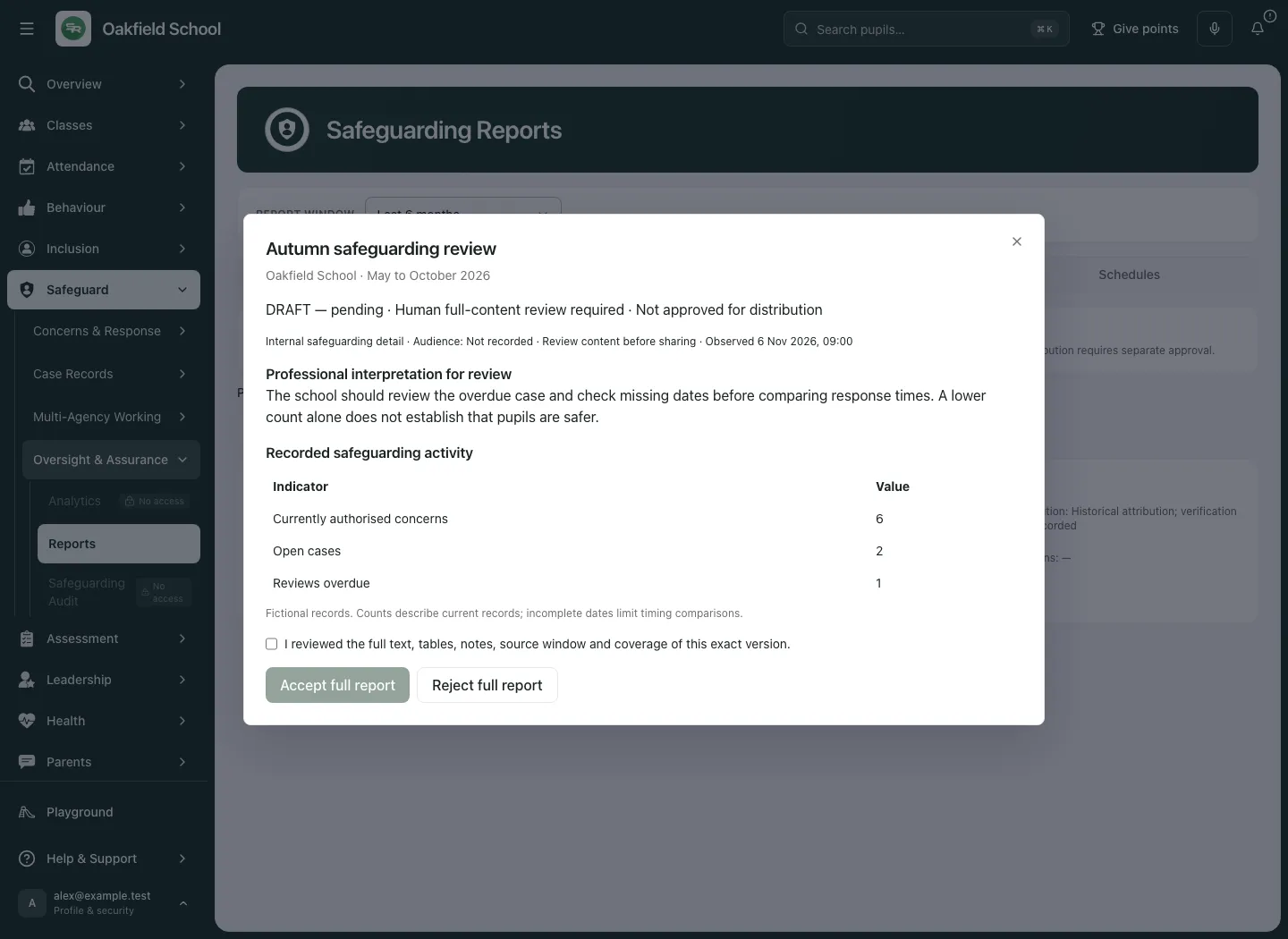
- Read the full narrative, tables and notes in the dialog rather than accepting from the card’s short summary.
7. Accept or reject the complete report version
Section titled “7. Accept or reject the complete report version”- Open the intended full report and check its window, source and exact version.
- Read all full text, tables, notes, coverage and limitations. Check names or identifying free text against the intended audience.
- To accept, tick I reviewed the full text, tables, notes, source window and coverage of this exact version.
- Choose Accept full report and wait for the recorded Human reviewed state.
- If the report should not be accepted, use Reject full report and read the resulting state.
- A source/version conflict or current access refusal means the review was not confirmed; reopen the appropriate current version and review it afresh.
- Edits or a source refresh create a new unreviewed version. A previous acceptance does not cover changed text or figures.
Acceptance records a human review of that exact report. It does not approve distribution, verify every underlying event or establish impact. Decide the actual recipient and sharing route separately.
8. Download PDF or Word with the current disclosure intact
Section titled “8. Download PDF or Word with the current disclosure intact”- Read the report’s audience, sensitivity and review state again.
- Use Download PDF or Download Word in the working report, or PDF / Word on its saved card.
- The export uses a current authorised source check and the report snapshot. Read any full-text/review/dirty-state message before proceeding.
- Wait for the actual file result; a preparation click or an unavailable source is not a successful download.
- Open and inspect the exported file, including the window, limitations, narrative and possible identifying information.
- Store or share through the school’s approved process with the authorised recipient. A file download does not email it or prove it was read.
Word is an editable artifact: any later edits need appropriate professional review and document handling. Do not use a downloaded version to work around a current access refusal.
9. Read existing report schedules and reconcile uncertain delivery
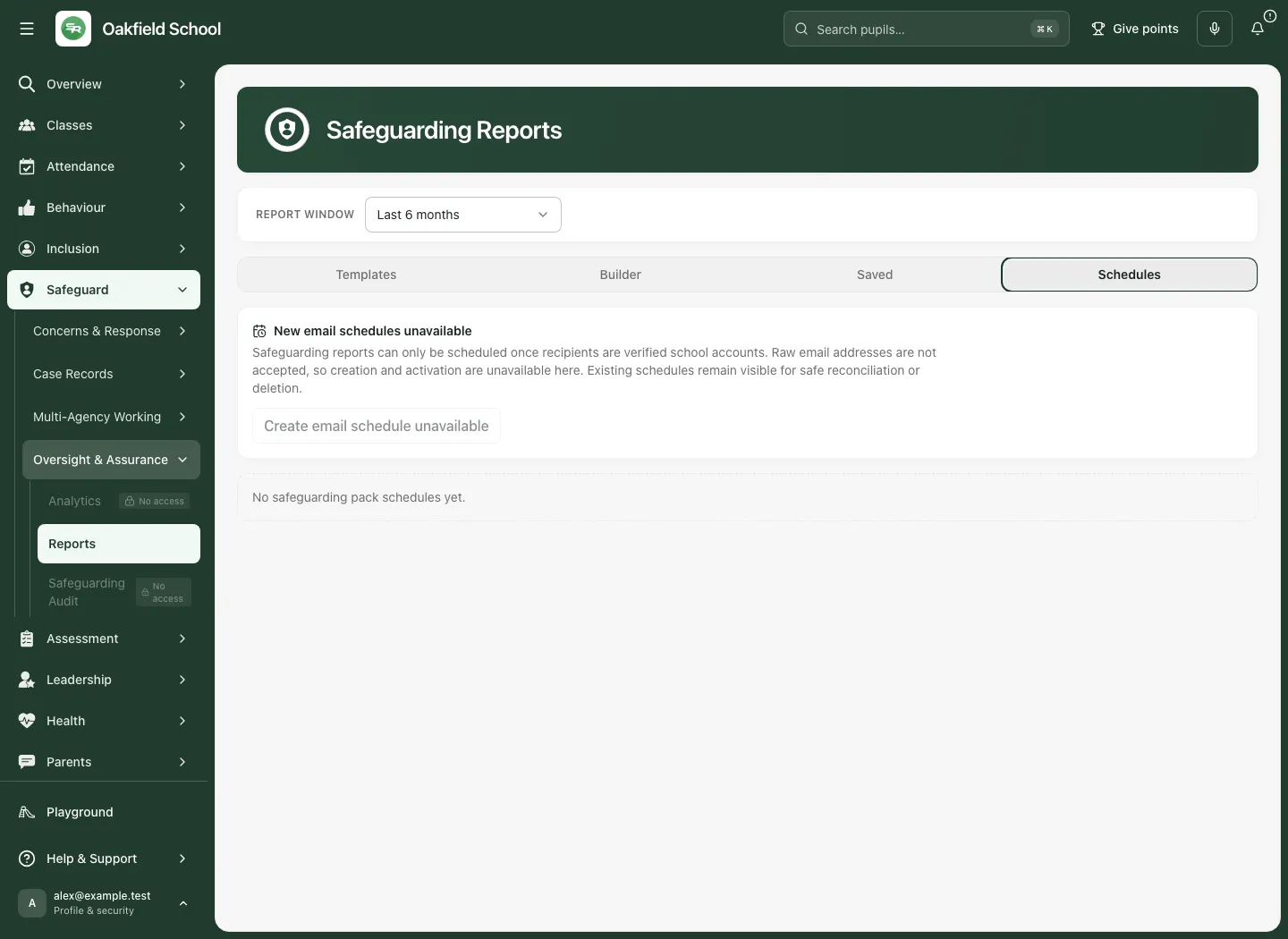
Section titled “9. Read existing report schedules and reconcile uncertain delivery”The current Schedules page states New email schedules unavailable and Create email schedule unavailable. Existing schedules remain visible for safe reconciliation or deletion. Do not follow an older how-to promising a new safeguarding email schedule from this page.
- Choose Schedules.
- Read each existing schedule’s template, run timing on the school clock and last state.
- Read warnings about inactive/unavailable templates, recipient routes or delivery trust. A last-run timestamp is not proof of delivery.
- If the list cannot load, use Retry schedules. An unavailable list is not no schedules.
- If No safeguarding pack schedules yet appears after a successful read, it describes that current permitted result.
Review a blocked run
Section titled “Review a blocked run”- On the intended blocked schedule, choose Review run.
- Read Review blocked safeguarding report run. The prior delivery could not be confirmed before safe replay protection expired, so automatic retry is stopped to avoid a duplicate report.
- Check the real delivery/provider outcome through the school’s authorised process.
- Enter Reason for skipping this run, 10–500 characters, describing the actual reviewed decision.
- Choose Skip blocked run, or Cancel if no decision should be recorded yet.
- Read the result. Skipping records an audit event and schedules the next normal run; it does not send a report.
Delete an existing schedule
Section titled “Delete an existing schedule”- Use the intended card’s Delete schedule control.
- Read Delete safeguarding report schedule? and check the schedule identity.
- Choose Delete schedule to proceed or the offered cancel control to retain it.
- Wait for Schedule removed and check the refreshed list. Deleting a schedule does not retract a report previously sent or downloaded.
10. Use Reports on a phone
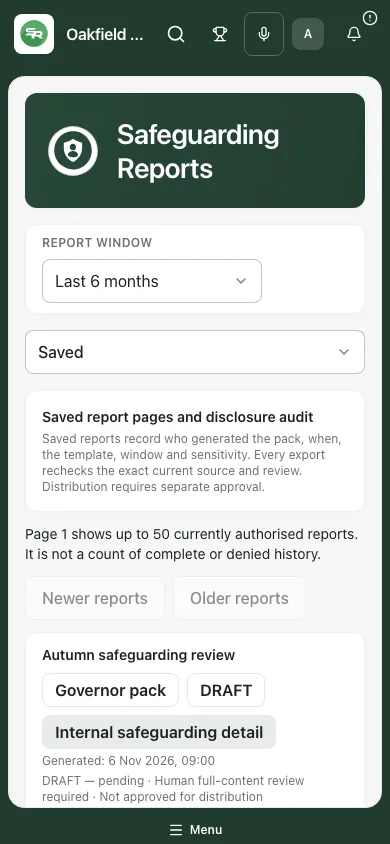
Section titled “10. Use Reports on a phone”- Choose the report window, then use the compact Sections selector for Templates, Builder, Saved or Schedules.
- Read audience and sensitivity before opening a saved report.
- Scroll through the full report and review all sections before any acceptance or export.
- Keep the screen private and close the report when finished.
Troubleshooting
Section titled “Troubleshooting”| Situation | What to do |
|---|---|
| Reports access refused | Ask the authorised access owner; a title or source link does not grant access. |
| Saved page unavailable | Retry the source read; do not treat it as an empty library. |
| Snapshot operation unconfirmed | Use Recover original request before starting a competing capture. |
| Draft narrative edited | Save and review the new version; prior acceptance does not apply. |
| Owner/location section removed | Check audience restrictions and choose the appropriate permitted report scope. |
| Cannot open/review/export a saved report | The current source/version or authority may have changed. Follow the error and fresh-read process. |
| Timing coverage incomplete | Keep missing/unusable dates visible; do not infer no action or no closure. |
| New schedules unavailable | Use the current supported existing-schedule reconciliation/deletion controls. |
| Blocked run | Review actual delivery before recording Skip blocked run; do not trigger a blind resend. |
Frequently asked questions
Section titled “Frequently asked questions”Does Preview only read current browser figures? It captures an authorised server snapshot of the figures and full text, giving the report a reviewable source/version.
Is a governor report automatically anonymous? No. Review free text and the actual disclosure scope before sharing.
Does Accept full report approve distribution? No. It records review of that exact version.
Can I generate a pupil case pack from school metrics? Use the dedicated case/chronology source workflow for that different scope.
Does saving or downloading send the report? No. Distribution is a separate authorised action.
Does Skip blocked run send it again? No. It records the reviewed skip and moves to the next normal run.
Where do I inspect the source? Use Chronology and DSL Action Board as permitted. See Analytics for current figures and their source limits.