Set homework and review returned class work
Written for: Staff who set and review class homework.
Set a homework task with resources and a deadline, review returned work and prepare reminders through Communications.
Where permitted, reviewed marks can also appear in Digital Markbook. Prepare reminders through the school’s Communications approval and delivery process rather than assuming a task assignment has notified every family.
The screenshots use fictional tasks and pupils. A pupil’s completion report is not evidence that the work is correct or has been reviewed by a teacher. Look at the actual work wherever your class hands it in before recording a mark.
Before you start
Section titled “Before you start”Check the school and teaching class. You need permission to assign or change assessments for the pupils affected by the task. Reading a task, assigning to a class, reviewing work and preparing communications can have different permissions. Ask the school’s administrator when the intended class or action is unavailable.
Agree what pupils should do, what to hand in and where they should hand it in. Have a realistic deadline and accessible resources ready. Check any links and files before assigning. Staff notes and pupil instructions are separate: put only the intended pupil-facing content in the instructions.
Open the class homework workspace
Section titled “Open the class homework workspace”- Open Classes in the sidebar.
- Choose Teaching classes, the subject and class, then Homework.
- Check the class name and the tasks displayed.
- If opened from a tutor group, choose the appropriate homework teaching class when requested. A tutor group is not automatically a homework assignment class.
- Use the Pupils, Tasks and To review sections for the question you are answering.
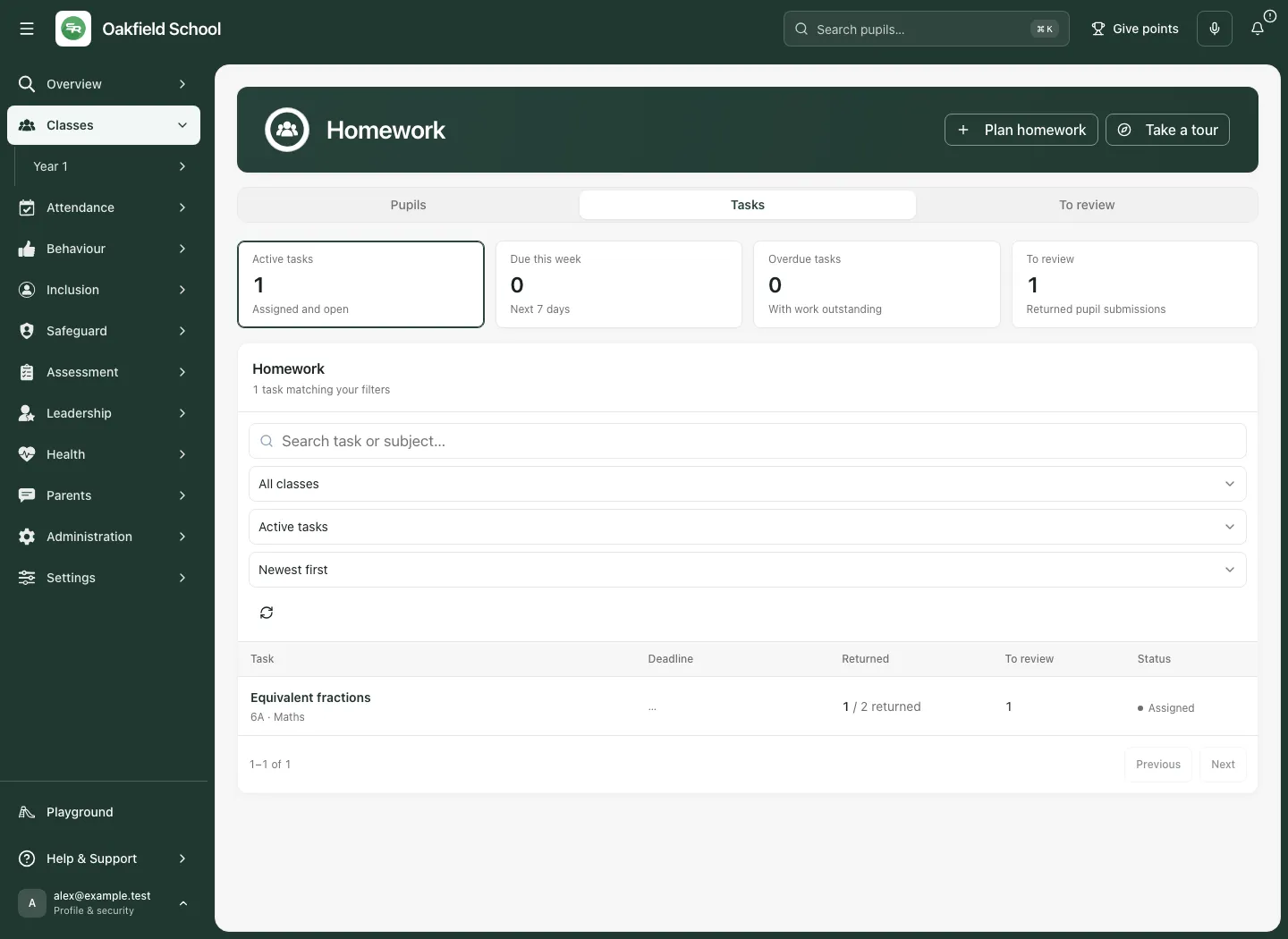
The figures for active, due, overdue and review work describe the available task set and filters. A task with no recipients or deadline is labelled accordingly; do not interpret missing recipients as a completed class or “No deadline” as overdue. Search by task or subject, choose a status and use the sort control to find the work you need. Use pagination where the list spans several pages.
Plan a new task
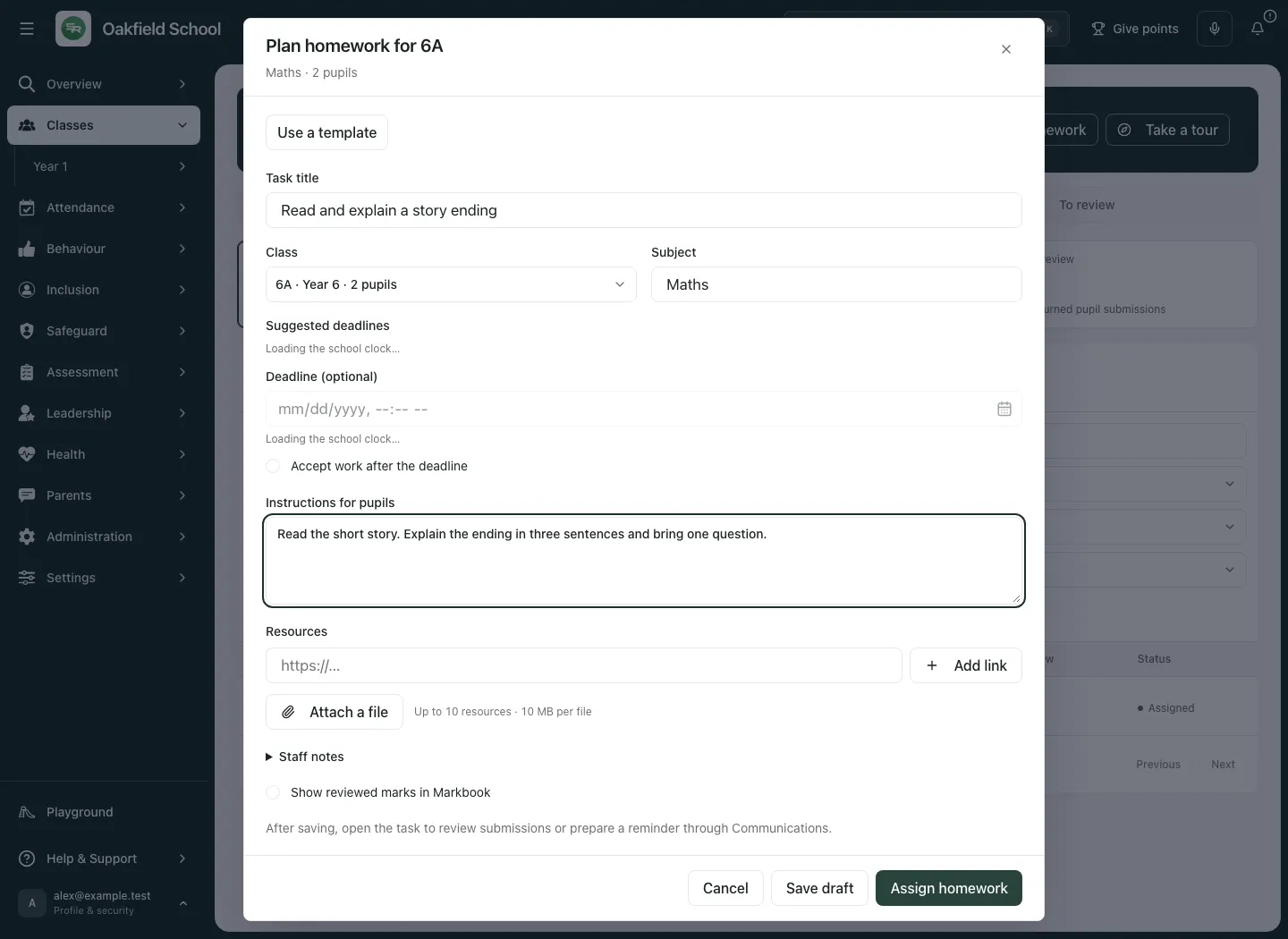
Section titled “Plan a new task”- Select Plan homework.
- Enter a specific Task title.
- Check Class and Subject. A class link can preselect the class; still check it before assigning.
- Write Instructions for pupils: the task, expected output, where it should be handed in and any preparation needed.
- Set the optional deadline when appropriate. Check the school time zone shown beside the deadline; do not assume your device’s local time is the school’s time.
- Choose whether to assign now or save a staff-only draft using the controls offered.
- Add the resources and submission options you need.
- Review the class, instructions, deadline and resources, then select Assign homework or Save draft as intended.
- Wait for the save result and inspect the opened task or task list. If the save fails, the attempt is not a confirmed assignment.
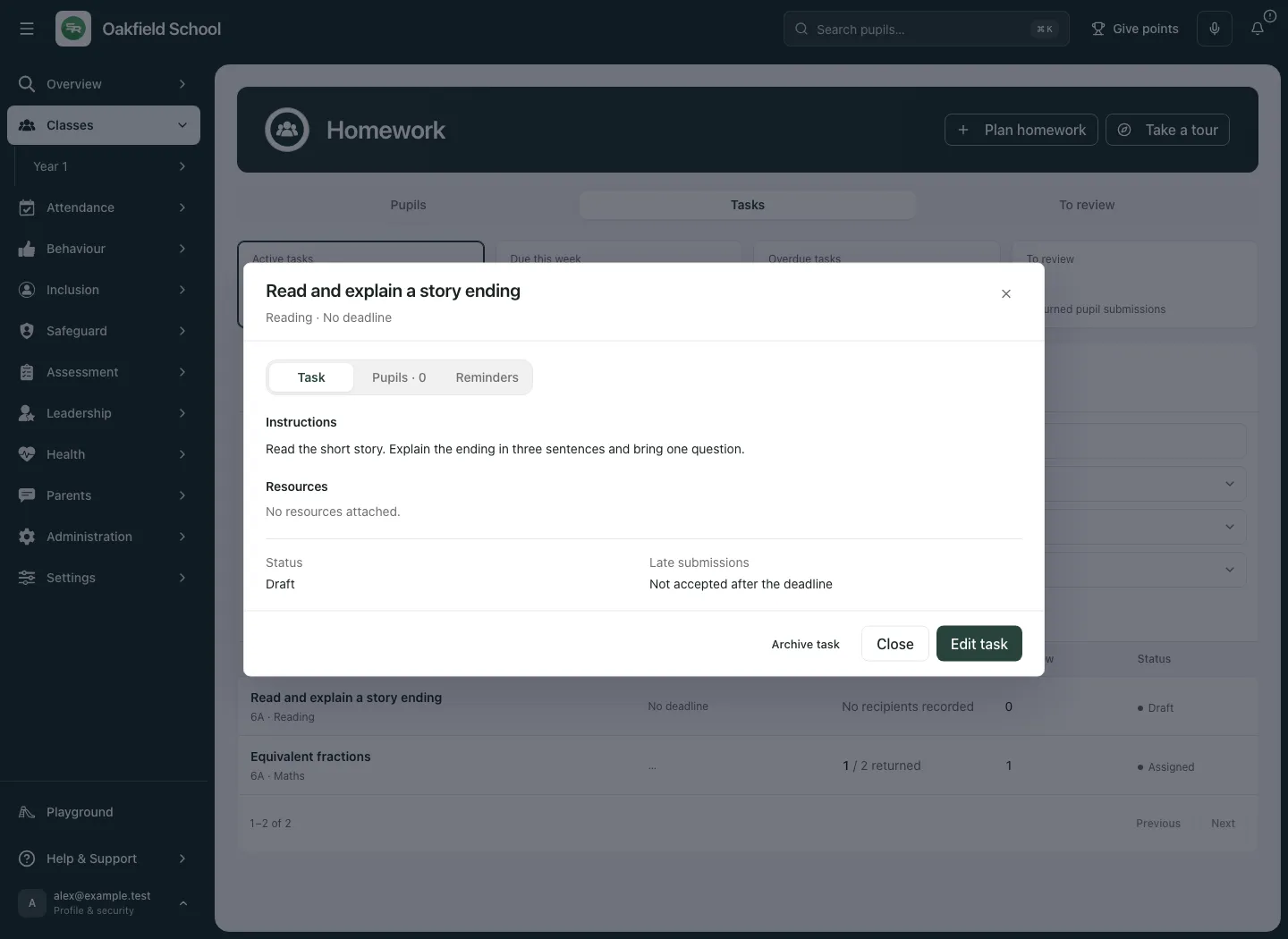
To check a draft later, return to the same task list and reopen its title. Confirm the instructions and draft state before assigning it.
A draft is for staff preparation. Once homework is assigned, it cannot simply be turned back into a draft. Changing visibility is not a substitute for withdrawing or correcting an assigned task through its supported lifecycle.
Use a template
Section titled “Use a template”Select Use a template, then choose from the available school templates. Read and adapt the title, subject, instructions and links before saving. A template is not automatically suitable for the current class. If template files are not copied, the form tells you to attach them again. If templates fail to load, you can still write the task yourself.
Add links and files
Section titled “Add links and files”For a website resource, paste a complete HTTPS address and select Add link. Check the destination and resource title. For a file, use Attach a file and review the filename. The form supports up to ten resources with the accepted file types and size limits shown in the control; do not assume a disallowed file has been attached.
Uploading a resource is not the final homework save. Wait for uploading to finish before assigning and check the saved resource list. If an older resource is unavailable, attach a working replacement or explicitly choose to remove the unavailable reference when saving. Do not silently drop material pupils still need.
Staff notes, late submissions and Markbook
Section titled “Staff notes, late submissions and Markbook”Open the staff notes/submission options section where offered. Staff notes are for colleagues; instructions are for pupils. Check Allow submissions after the deadline according to the task’s policy. A late deadline can block a pupil’s later completion report when late submissions are not allowed.
If your account offers Show reviewed marks in Markbook, choose it only when the assessment should have a corresponding column. Read the linked scale: the review’s mark must fit it. A linked column is a projection from the homework source, not an unrelated duplicate class assessment.
Read a task and its recipients
Section titled “Read a task and its recipients”- Select the task’s title in Tasks or the relevant grid entry.
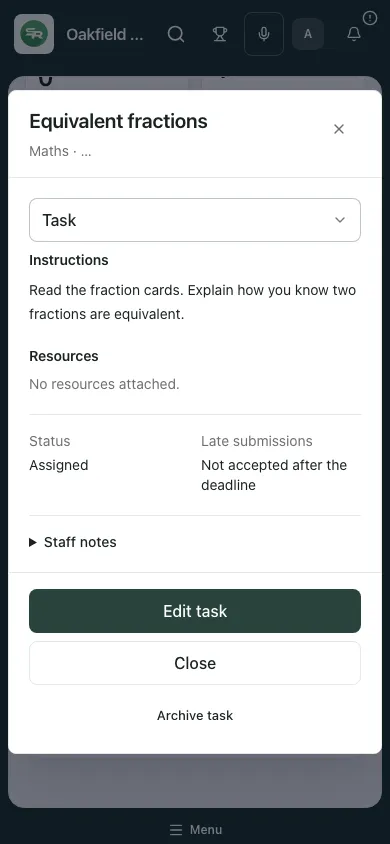
- On Task, read the original instructions, resources and deadline.
- Open Pupils to check each recipient’s current state.
- Distinguish not returned, acknowledged, submitted and marked states. Submitted work awaits professional review; it is not a grade.
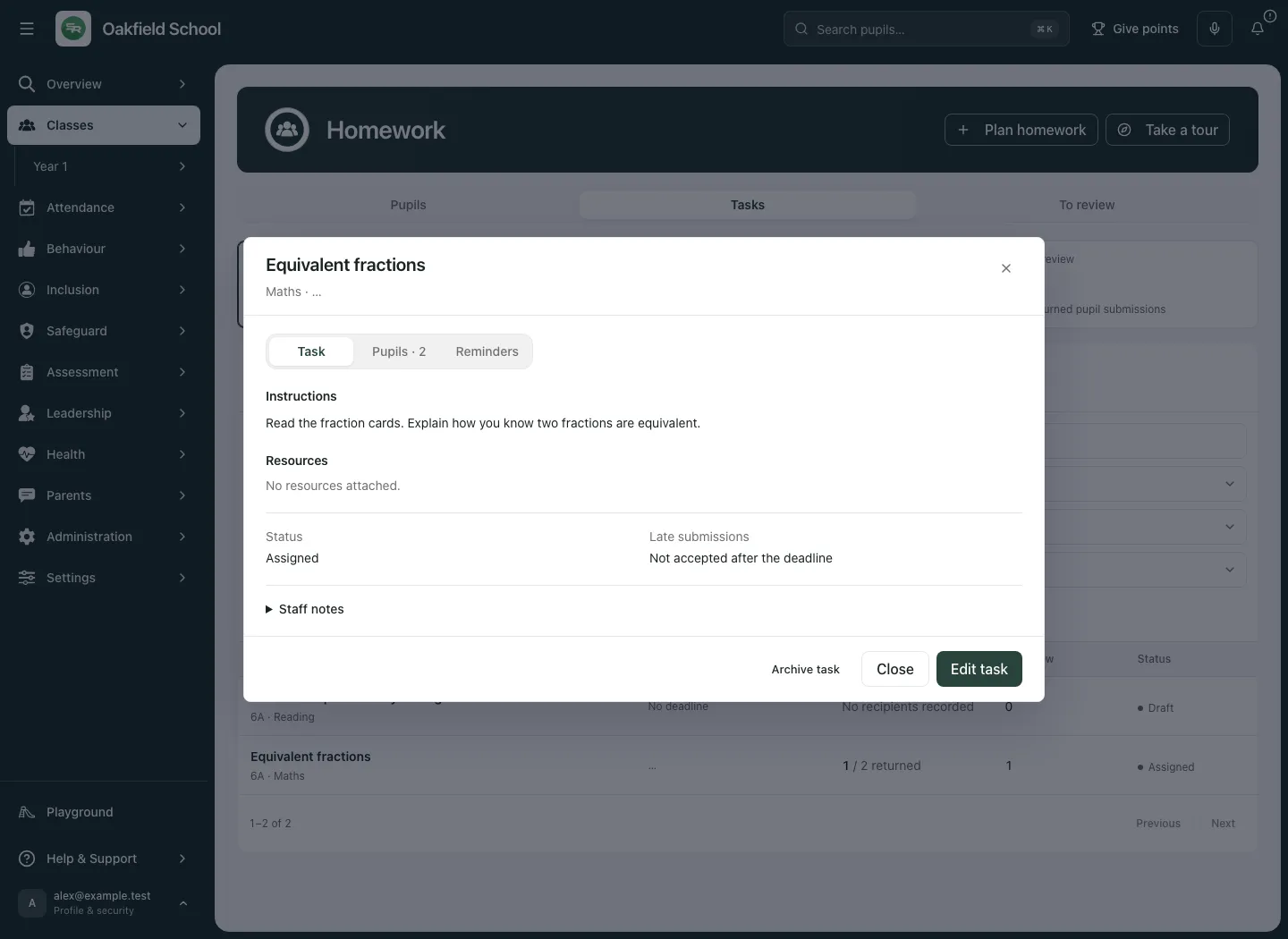
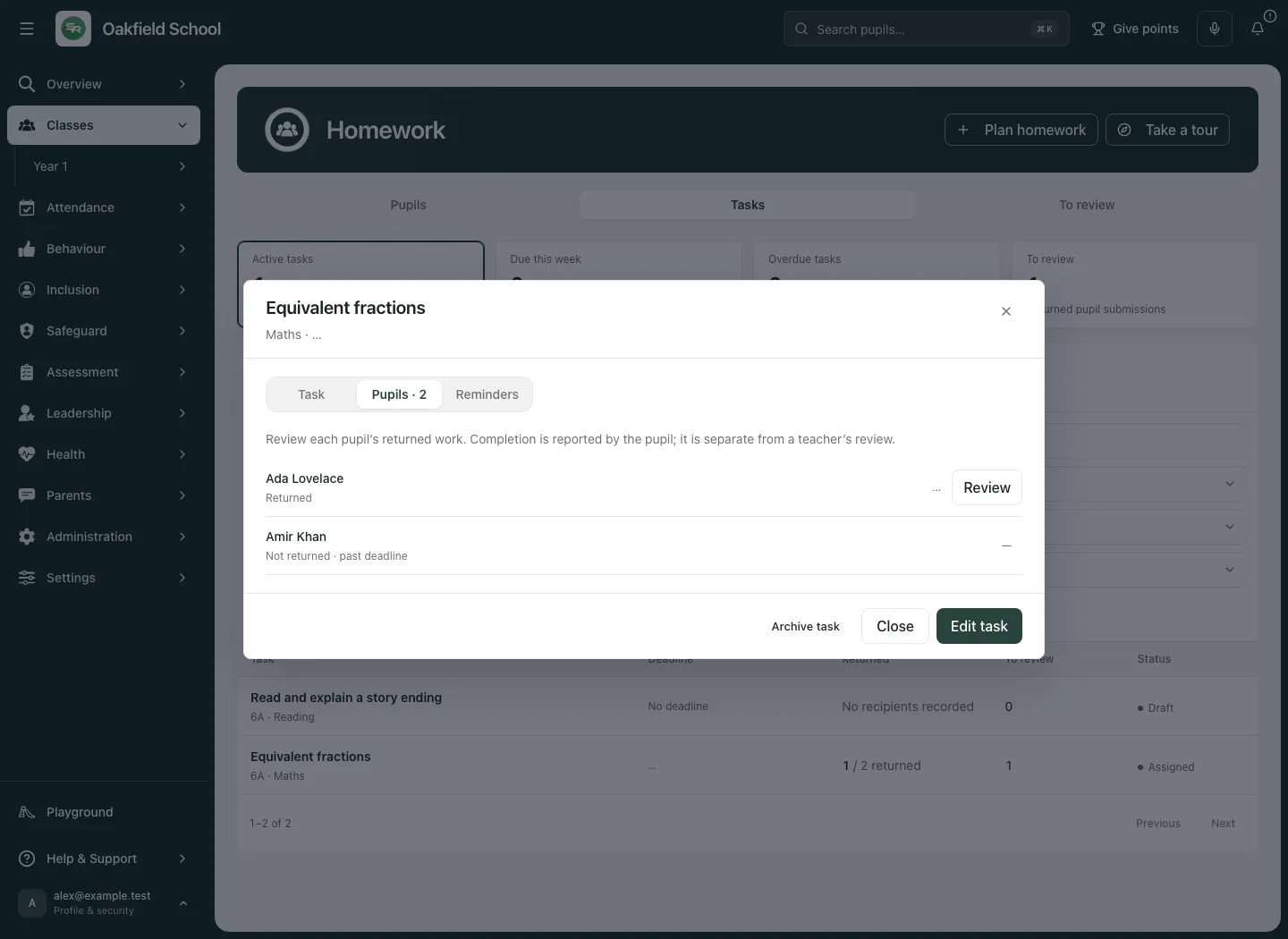
In Pupils view, use the task and pupil context to identify missing or returned work. Selection and follow-up should remain bounded to the intended class and task. Read warnings when a roster or task set is incomplete rather than treating it as an empty successful load.
Review returned work
Section titled “Review returned work”- Find the task under To review, or open it from Tasks.
- Select the task’s Pupils tab.
- Inspect the actual work in the agreed hand-in location.
- Select Review for the pupil whose returned work you are reviewing.
- Check the pupil’s name. Enter Mark and optional Feedback.
- If the task has a linked Markbook column, use that scale. Otherwise the review remains on the homework task.
- Select Save review and wait for the saved state. Return to the pupil list to check the mark.
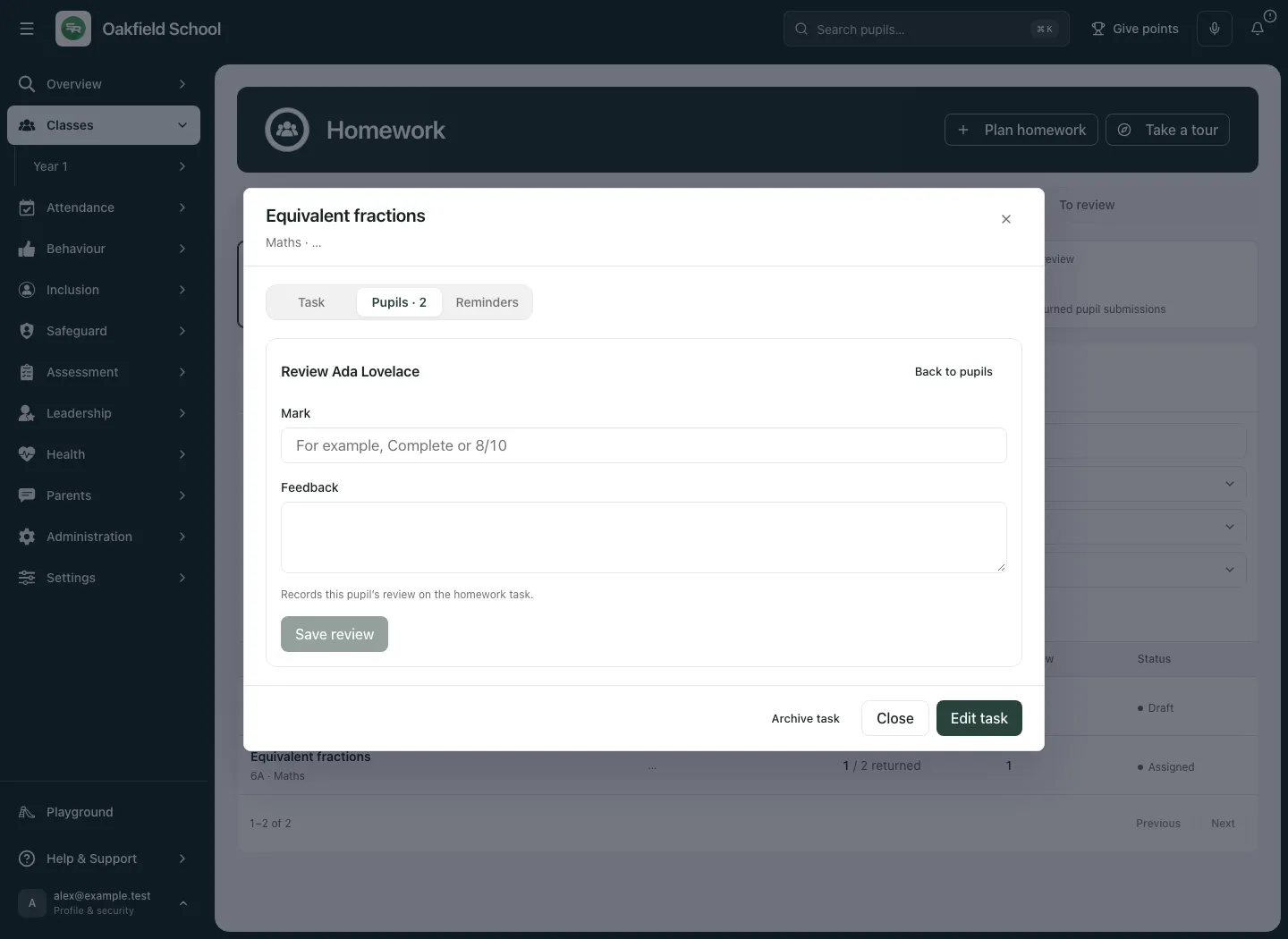
Use Back to pupils to leave the review without saving. If a newer pupil submission or colleague review is detected, load the current work and compare it before retrying. Do not overwrite a newer mark merely to clear a conflict. Archived tasks cannot be reviewed like active work; a draft has not been assigned to pupils.
The task’s marked state reflects the recorded review workflow. It is not proof of understanding, improvement or an intervention’s success. Review the content and wider evidence separately.
Prepare reminders through Communications
Section titled “Prepare reminders through Communications”The Reminders tab is an active preparation workflow, not a guarantee of delivery.
- Open the intended task and select Reminders.
- Choose individual pupils, or Select not returned (up to 20). Review the selection. A skipped pupil does not owe the task and should not be selected automatically.
- Set Audience to Parents / carers, Pupils or Parents / carers and pupils.
- If needed, set Send after approval in the school time zone. Leaving it blank requests the next permitted delivery time.
- Select Prepare reminders.
- Read the outcome and Recent reminder history. Use Open Communications to follow the required approval/delivery steps.
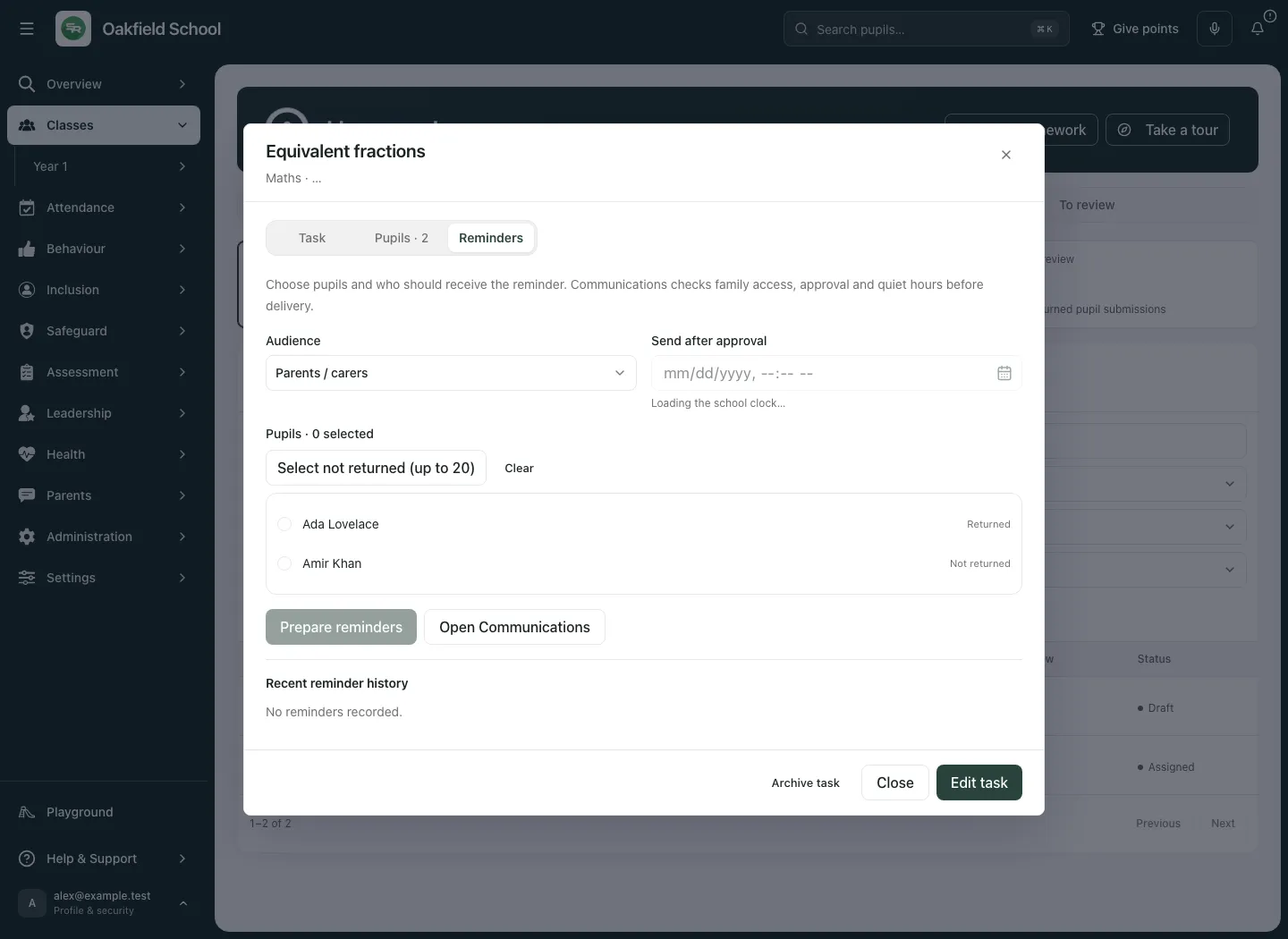
Communications checks family access, approval and quiet hours. Preparing is not the same as approving, queuing, sending or delivering. Read each reminder’s current state. Where an approved batch offers a queue action, use it only for the intended approved recipients and then verify the subsequent state. An unavailable authorised recipient is a refusal to resolve, not permission to use another family’s address.
Do not repeatedly prepare the same reminders because a network response was slow. Check history and the current batch state first. A failed attempt must not be described to colleagues as a delivered reminder.
Edit or archive a task
Section titled “Edit or archive a task”Open the task and select Edit task where permitted. Review the instructions, deadline, resources and recipients, then select Save changes. Once assigned, the task cannot return to a staff-only draft. Where archived, the task moves out of the active list; choose Archived to find it again.
Archive task affects the shared task lifecycle. Check with colleagues and confirm the intended task before using it. Edit/archive controls depend on authority for the affected pupils; their absence is not necessarily a loading problem.
Work on a phone
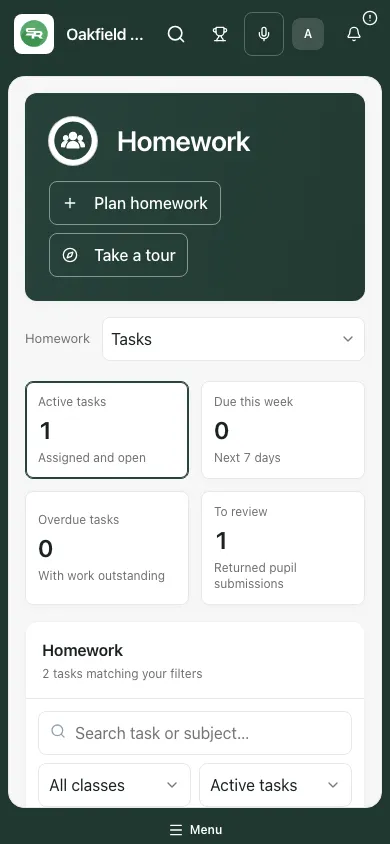
Section titled “Work on a phone”The Tasks list and task dialog adapt to phone width. Open the title to read instructions and resources, switch to Pupils for a review or Reminders for preparation, and check the footer action before leaving. Long forms scroll inside the dialog. Keep the task title and pupil identity in view before changing a mark or recipient selection.
Troubleshooting
Section titled “Troubleshooting”| What you see | What to do |
|---|---|
| No homework classes available | Ask an administrator to check teaching-class and assessment access. |
| Class choices could not be loaded | Use Retry classes; do not assign against a guessed class. |
| Enter a title and choose a class | Complete the title and confirm the actual class choice. |
| Invalid deadline or school clock unavailable | Check the date, time and school zone before saving. Clear the optional deadline if it genuinely has none. |
| Enter a complete HTTPS link | Use the full secure address and verify the destination. |
| Resource still uploading | Wait for completion and check the resource before assigning. |
| No homework matches these filters | Clear search or choose another section/status. This is different from a load error. |
| Save review unavailable | Enter a valid mark and check task/pupil state and permissions. |
| Submission changed | Load the current work, inspect the latest state and review again deliberately. |
| No authorised recipient account | Ask for the appropriate family/account relationship check. Do not bypass it with another address. |
| Reminder history unavailable | Retry history before preparing duplicate work. |
| School could not be verified | Sign in again as instructed. Do not continue with a stale school context. |
Frequently asked questions
Section titled “Frequently asked questions”Does Submitted mean a teacher has reviewed the work? No. It reports the pupil’s completion state. Inspect the work before saving a review.
Does assigning send an immediate family message? Do not assume so. Follow the actual communication preparation, approval and delivery status.
Can I use a tutor group as the recipient class? Homework uses the teaching classes available to your account. A tutor-group link may ask you to choose one.
Can reviewed marks appear in Markbook? Yes, when a permitted task is configured with that connection and its scale is respected.
Can I rely on the totals to prove pupil progress? No. They describe workflow states and coverage, not learning impact.