Maintain a multi-agency plan and its follow-up
Written for: Authorised safeguarding staff and plan reviewers.
Create the plan, link agencies and professionals, record contact and decisions, and review actions or a partner snapshot.
Use it to preserve why a plan exists, who is involved, what has been agreed and when it will be reviewed.
The plan supports authorised human decisions. A status change, completed task or partner link does not establish that support worked or that a child is safe. All screenshots are fictional examples.
Before you start
Section titled “Before you start”Check the current school, pupil and plan. Reading, changing, creating and exporting a plan are separate permissions, checked again for the particular pupil and action. Creating plans and issuing partner links require separately granted capabilities; a role name or visible navigation item alone is not sufficient.
Use a private screen. Check the original record and actual information-sharing basis with the authorised school lead. A directory entry, recorded basis or partner email does not itself establish permission to disclose information or verify the person using a link.
1. Find the intended plan
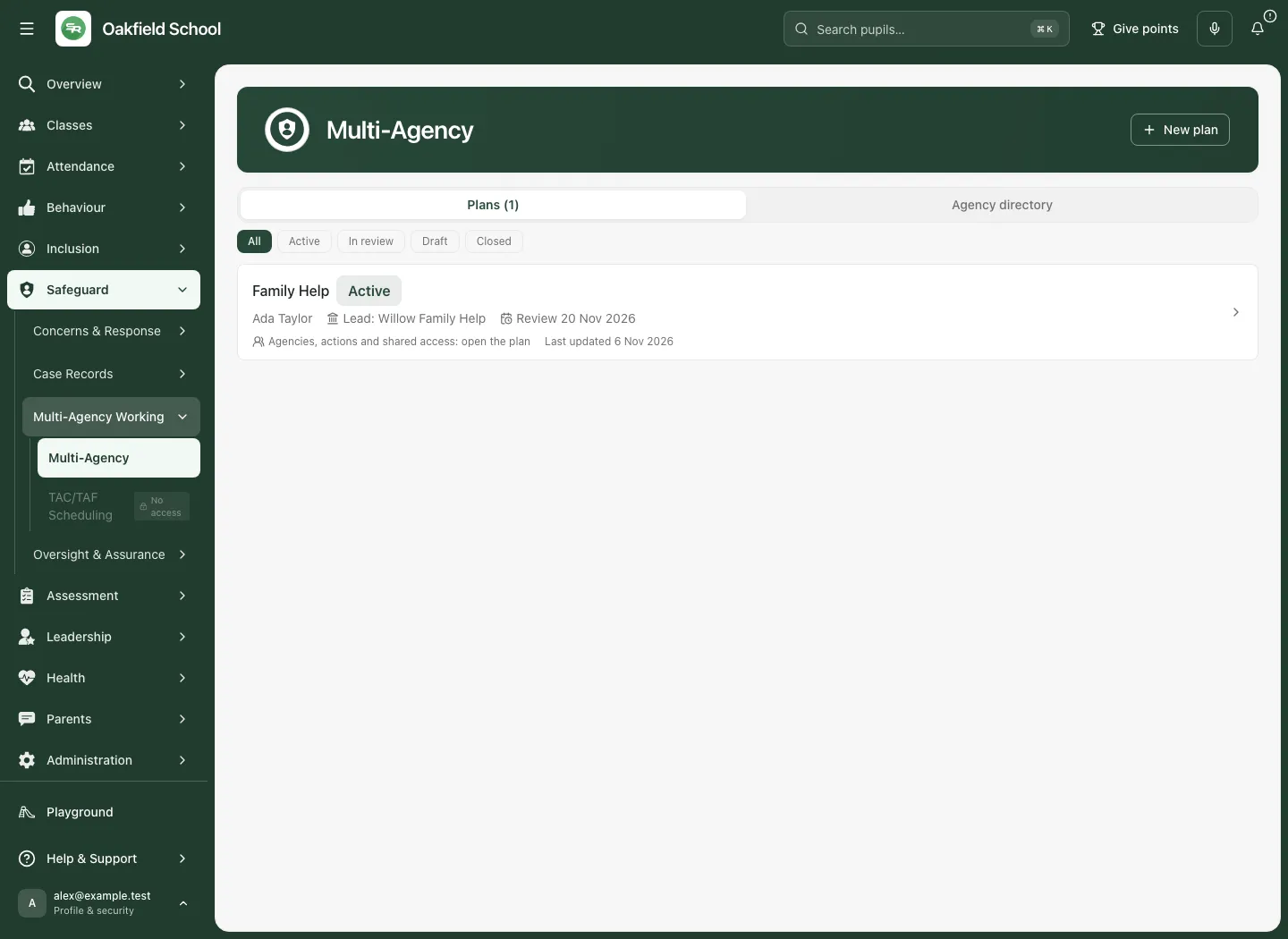
Section titled “1. Find the intended plan”- Open Safeguard → Multi-Agency Working → Multi-Agency.
- Choose Plans and select All, Active, In review, Draft or Closed.
- Read the pupil name, plan type, lead, next review and last update on the card.
- Read coverage and unavailable-state messages. The list is a bounded set of currently visible records, not an unrestricted whole-school count. A partial list is not exhaustive.
- Open the plan card, whose accessible name is Open plan for [pupil].
- Check the current plan context and its version before taking a decision. If a source is unavailable, retry the offered read rather than acting on a guessed empty record.
2. Create a plan for a clear purpose
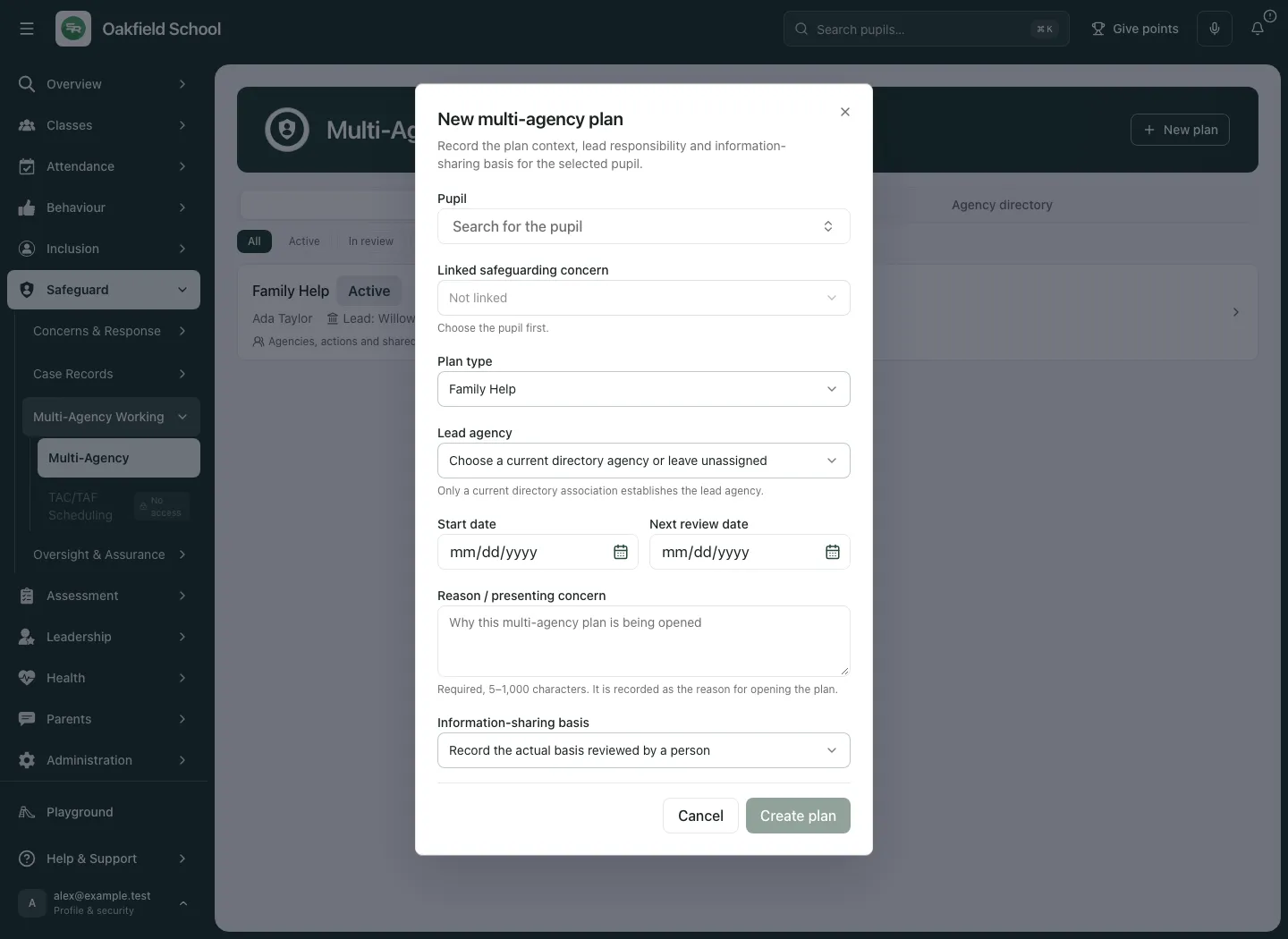
Section titled “2. Create a plan for a clear purpose”- Choose New plan where your current authority permits creation.
- Select Pupil, or check the fixed pupil when opened in a pupil context.
- Use Linked safeguarding concern to select an appropriate permitted concern, or leave the explicit no-linked-concern choice when that is the intended scope. Review the source rather than linking by a similar title.
- Choose Plan type. The supported types include Family Help, Child in Need, Child Protection, TAC, TAF, Core Group, Strategy and Other, using the labels offered in the selector.
- Choose Lead agency or Unassigned deliberately. A directory choice does not confirm a named professional has accepted responsibility.
- Set Start date and Next review date where appropriate.
- Complete Reason / presenting concern, 5–1,000 characters, with the actual reason the plan is being opened.
- Choose Information-sharing basis from the offered reviewed-basis options: Consent recorded, Safeguarding / multi-agency working, Consent not required due to safeguarding concern or Information shared under statutory duty. Record the actual authorised decision; the selector does not make a legal assessment for you.
- Check the pupil, concern, lead, dates, reason and basis together, then choose Create plan.
- Wait for a confirmed result and reopen the resulting plan. A rejected or unconfirmed request is not a created plan; use the recovery guidance for the original decision before trying a changed one.
3. Read the plan and record a reasoned decision
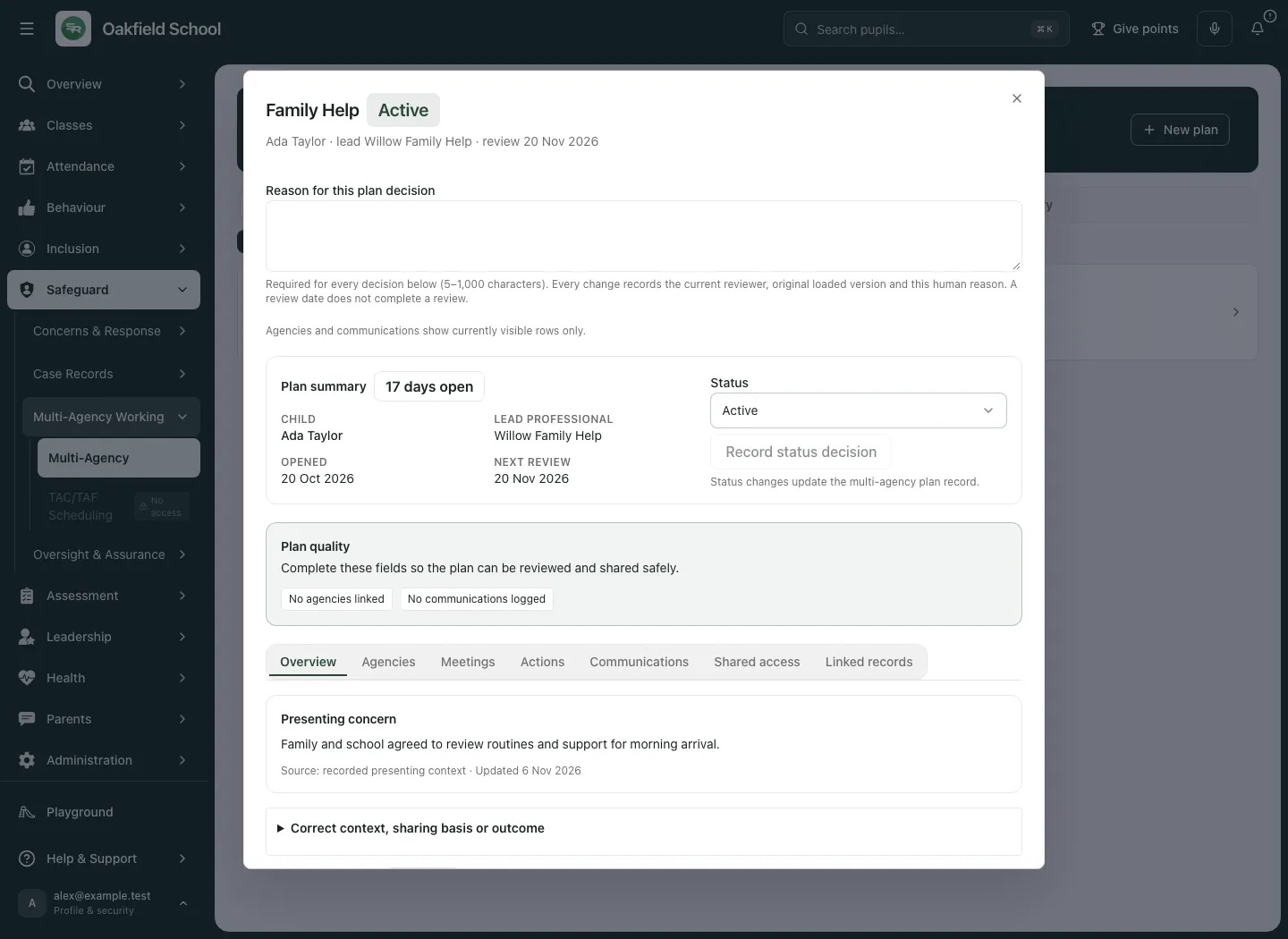
Section titled “3. Read the plan and record a reasoned decision”The plan’s tabs are Overview, Agencies, Meetings, Actions, Communications, Shared access and Linked records. Start with its identity, current source and Plan quality prompts.
- Read the current status, lead professional, opened date and next review.
- Enter Reason for this plan decision, at least five meaningful characters, before a plan decision that requires it.
- If changing Status, choose the intended Draft, Active, In review or Closed state.
- Choose Record status decision and wait for the confirmed result. The status updates this plan record; it does not close a linked safeguarding case or prove an intervention outcome.
- If the source changed after opening, use the offered current-source review. Reread the fresh record and deliberately re-enter any decision rather than applying an old draft to a new version.
Correct plan context, basis or recorded outcome
Section titled “Correct plan context, basis or recorded outcome”- In Overview, open Correct context, sharing basis or outcome, then review Reviewed presenting context, Actual recorded sharing basis and Human recorded outcome.
- Make the factual correction and enter Reason for this plan decision.
- Choose Record plan correction.
- Inspect the returned current plan and decision history. A human-recorded outcome is what staff recorded, not an automatically established impact measure.
Correct the lead
Section titled “Correct the lead”- Review the current lead and the available agency relationship.
- Choose the intended lead in the lead selector, or its explicit unassigned choice.
- Enter the human decision reason and choose Record lead correction.
- Confirm the resulting lead and arrange the real handover separately.
Correct plan dates
Section titled “Correct plan dates”- Read the recorded start and next review dates in the date panel.
- Enter Start date, Next review date and Reason for correction as required by the offered correction form.
- Choose Save date correction and wait for its recorded receipt.
- Check the confirmed dates. A date correction is not a review meeting, review outcome or Calendar booking.
- If an earlier correction is unconfirmed, recover that original decision before attempting another correction.
4. Maintain a useful agency directory
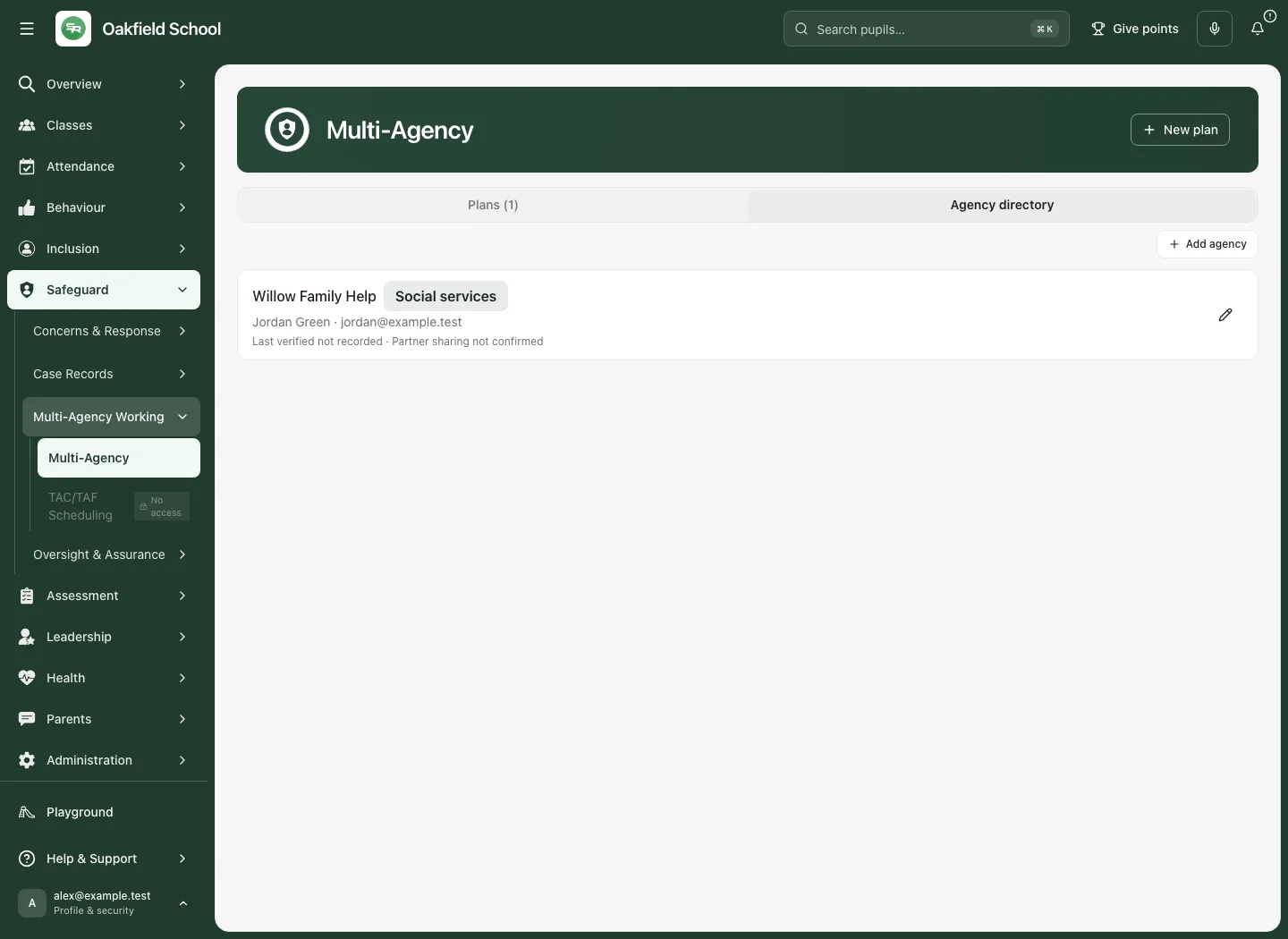
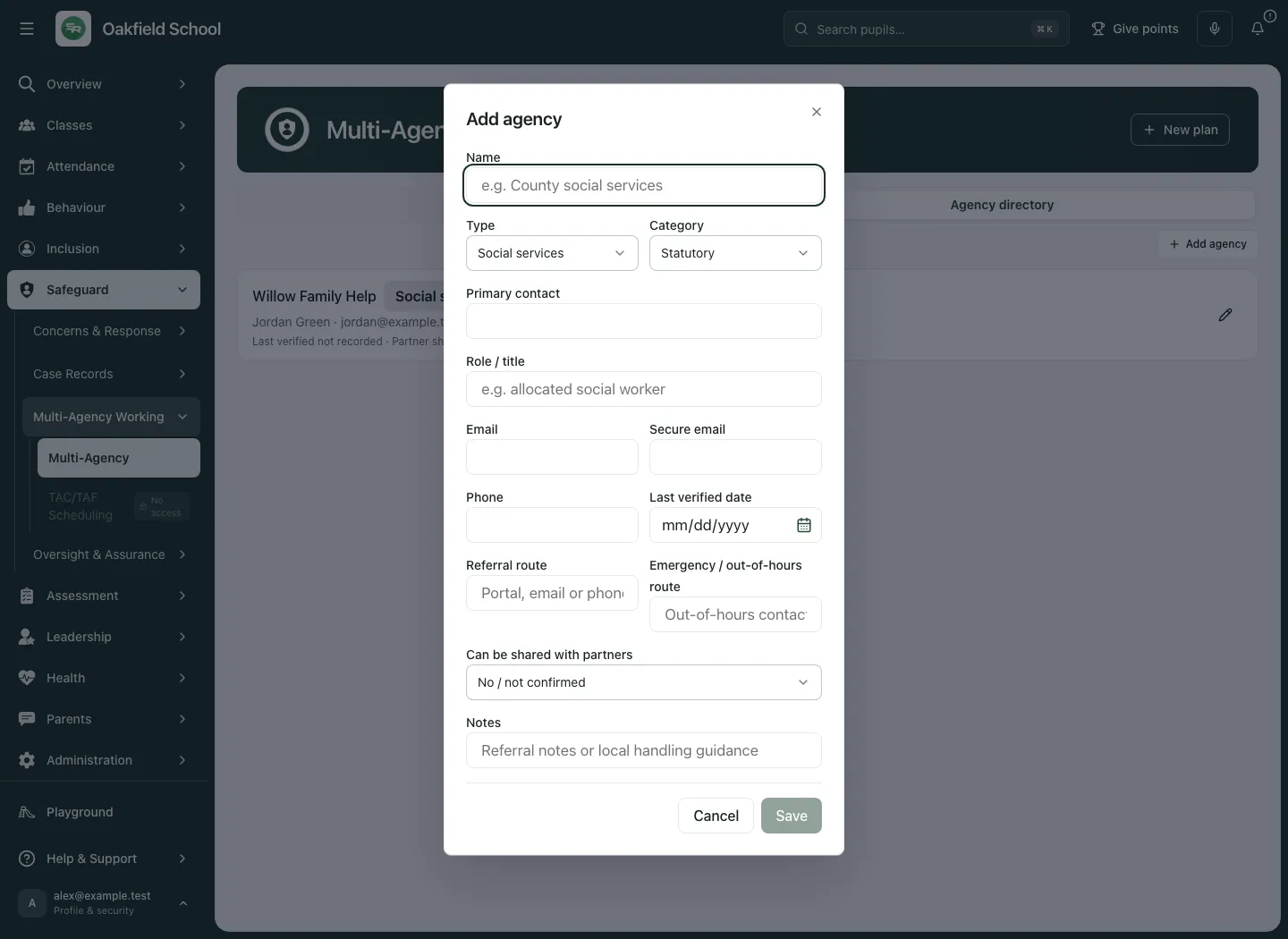
Section titled “4. Maintain a useful agency directory”- Choose Agency directory and inspect the named organisation, type, contact route and relationship status.
- Choose Add agency for a new organisation or the offered edit control for an existing one.
- Complete Name, Type and Category. Types include social services, police, health, education, voluntary, legal, housing and other; category describes statutory, voluntary or private.
- Record Primary contact, Role / title, Email, Secure email, Phone and Last verified date from an actually checked source.
- Complete Referral route and Emergency / out-of-hours route with practical school-approved instructions.
- Review Can be shared with partners and Notes. A yes setting is a directory decision, not proof of the recipient’s identity or a general permission to share a child’s record.
- Choose Save and check the returned directory entry.
For a relationship-status change, open the existing agency, choose Status under Relationship status, enter Reason for status change (at least five characters) and choose Record status decision. The available decision states are Active, Restricted and Inactive; a historical Pending state is not a new decision option. Read the result and related plan warnings before relying on the agency relationship.
5. Link agencies and named professionals to a plan
Section titled “5. Link agencies and named professionals to a plan”- Open Agencies on the correct plan.
- Review existing links, relationship warnings and the human decision reason.
- Under Add agency, choose the organisation, then Role: core group, contributing or consulted.
- Enter Named professional to identify the person or role actually involved.
- Enter the reason for the plan decision and use the offered Add control. Check the resulting link.
- Use the specific removal control only after confirming the intended organisation and recording the reason. Removing a plan link is distinct from deleting the school agency or revoking every access grant.
Lead changes use the separate lead correction controls. A named professional recorded here is not automatically assigned a task, invited to a meeting or granted a partner link.
6. Create and review linked actions
Section titled “6. Create and review linked actions”- Open Actions and read the currently visible work, ownership, due date and recorded state. Missing or unavailable work is not proof there is no work.
- In the new-action section, enter Reason for the action decision.
- Enter New action title (at least three characters, up to 300) and Original professional action and uncertainty (at least five characters, up to 4,000).
- Set Action due date and time using the school clock. Correct a clock-change validation error rather than guessing an instant.
- Choose Responsibility: Explicitly unassigned or My current verified staff account.
- Choose Create linked action and wait for its confirmed record. It remains practical work, not evidence that support has succeeded.
- For an existing action decision, select the offered action control, review the loaded action/version and enter Reason for the action decision.
- For reassignment, choose Human reassignment. For completion or reopening, complete Human outcome or reopen reason when asked (at least five characters).
- Choose Record action decision. Completion may be blocked until the native prerequisites are settled; do not bypass the source workflow.
- If the action changed, cancel the stale draft and review its current record. An unconfirmed decision must be recovered before another decision on that work.
7. Record professional contact and meeting outcomes
Section titled “7. Record professional contact and meeting outcomes”- Open Communications and read existing entries, their direction and source. A recorded contact is not a sent message.
- Choose the offered direction and Channel, then the Agency / person involved.
- Enter Summary, Outcome / decision, Linked action and Attachment / evidence as relevant. Use genuine references; entering a reference does not upload or verify a file.
- Enter the reason for the plan decision and choose Log entry.
- Check the recorded result and keep reported facts distinct from your professional interpretation.
Use Meetings to read the permitted TAC/TAF meeting context and follow its scheduling route where appropriate. Log meeting outcome records an outcome against the plan; it does not book a meeting or send invitations. See the TAC/TAF Scheduling guide.
8. Review a finite partner snapshot before sharing
Section titled “8. Review a finite partner snapshot before sharing”Shared access is a deliberate, separately authorised workflow. The partner email is a recorded recipient label, not identity verification. Do not describe a bearer link as a named person’s authenticated access.
- Read the existing grant trail, expiry, revocations and any unavailable state. No currently visible grant rows does not establish historical absence.
- If authorised to issue a link, enter Partner email, Expires in days (whole number 1–30) and Human sharing or revocation reason (at least five characters).
- Under Finite sections to review, select only the needed sections; the plan section stays included.
- Choose Review selected facts.
- Read the frozen facts, capture time and source revision. Review the actual finite snapshot; a source change before issuance requires a fresh review.
- Choose Issue reviewed link only after confirming the content, recipient label, expiry and purpose.
- Copy the One-time partner link using Copy link and share only through the approved secure route. Link issuance does not send the message for you.
- For an existing grant that must end, enter the human revocation reason and use Revoke grant for [recipient].
- If an original grant receipt is confirmed but its token is unavailable, revoke that original grant before reviewing a replacement. Do not repeatedly issue links after an uncertain result.
Partner-reported material marked unverified remains unverified. A link, download or partner acknowledgement does not establish identity, professional accuracy or pupil impact. Review source records and actual human outcomes separately.
9. Follow linked records and preserve decision history
Section titled “9. Follow linked records and preserve decision history”Use Linked records to follow the permitted safeguarding source and related work. Every target checks its own access. A current link cannot grant a colleague access they do not otherwise have.
Use Show recorded plan decisions to read recorded decision history for the reason, reviewer, original version and confirmed result. Preserve unavailable, stale and unconfirmed states. If a read fails after a source change, do not keep using an old sensitive snapshot as though it is current.
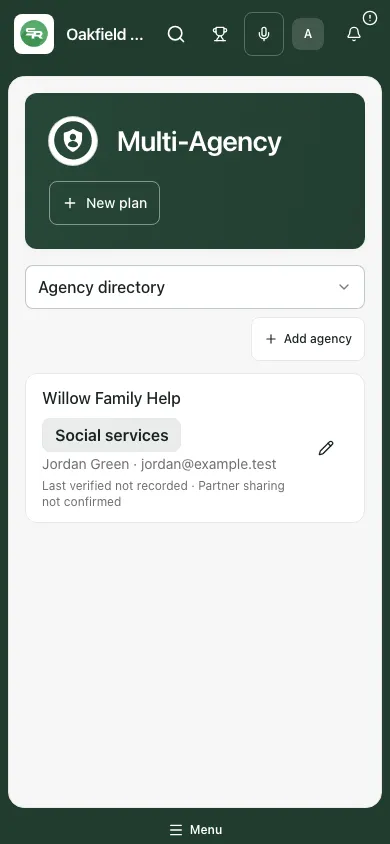
10. Work on a phone
Section titled “10. Work on a phone”- Read the selected plan and current status before using tabs or controls.
- Scroll the drawer or directory form to review all required fields.
- Keep the human reason and confirmed result part of the workflow on the smaller screen.
- Finish or cancel the draft and keep the device private.
Troubleshooting
Section titled “Troubleshooting”| Situation | Next step |
|---|---|
| Plans or directory unavailable | Retry the offered read. Do not replace unknown records with an assumed zero. |
| Create or partner-link controls unavailable | Creation/export are separate capabilities; ask the authorised access owner. |
| Plan quality prompts | Review the missing lead, presenting context, sharing basis or review date and record an authorised correction. |
| Plan changed after loading | Review the current source and re-evaluate the decision before submitting. |
| Original command unconfirmed | Recover the original intent/receipt before sending a changed decision. |
| Agency restricted or inactive | Review the relationship and existing access before further contact or sharing. |
| Action cannot complete | Check native prerequisites, ownership and current version. |
| Partner snapshot changed | Review a fresh finite snapshot before issuing a link. |
| Link token unavailable | Follow the original grant recovery/revocation guidance before a replacement. |
Frequently asked questions
Section titled “Frequently asked questions”Does Active mean the plan is effective? No. It is a workflow state. Record and review evidence of the actual outcome.
Does closing a plan close its safeguarding case? No. The case has its own authorised decisions.
Does a directory email authenticate the recipient? No. It is a contact reference and must be checked through the school’s process.
Does logging a communication send it? No. This records professional contact and its outcome.
Can the review date create a meeting? No. Use the scheduling workflow for a meeting and its separate invitations.
Where can authorised staff review the safeguarding source? Use the DSL Action Board and Chronology as permitted. Parent Conversations records family conversations separately.