Review the SEND caseload and record the next action
Written for: SENCos, SEND team members and authorised school staff.
Choose a caseload question, read the pupil’s support story and record a reasoned decision with an owner and dated action.
It connects the support promised to a pupil, what was delivered, recorded context, an authorised decision and a dated next action. Start with the question you need to resolve; a highlighted case is a prompt for enquiry, not a diagnosis or an automatic decision.
Before you begin
Section titled “Before you begin”Open SEND → SEND Hub. You need the relevant school and SEND access. Pupil lists, concern triage, provision records, review commands, templates and linked specialist pages have their own permissions. A missing button or restricted context is not evidence that a pupil has no need. The current SEND Hub route brings together Caseload, Concerns, Reviews, Follow-ups, Intervention Library and Templates. The connected caseload experience is the current enabled presentation; exact pupil/source access is still checked for each read/action.
Choose a caseload question
Section titled “Choose a caseload question”- Open Caseload. Read On the SEND caseload, Cases needing attention, Pupils due a review, Cases with provision gaps and Review date not recorded.
- Read the coverage beside review figures. A pupil whose review source could not be checked is excluded from both due-review and missing-review counts; unavailable is not zero. Monitoring pupils are counted separately from the SEND caseload where that split is available.
- Use Search SEND pupils to find a name, need area or queue reason. Use Year group, the cohort selector and Assigned to me for a specific question.
- Check the Listed or Filtered pupils count and page controls. A page is a bounded part of the permitted caseload. Clear filters returns to the wider list.
- Read each pupil’s status, next step, next-review source/date, provision and named owner. Record review and other next-action labels depend on the recorded case, rather than offering every possible action on every row.
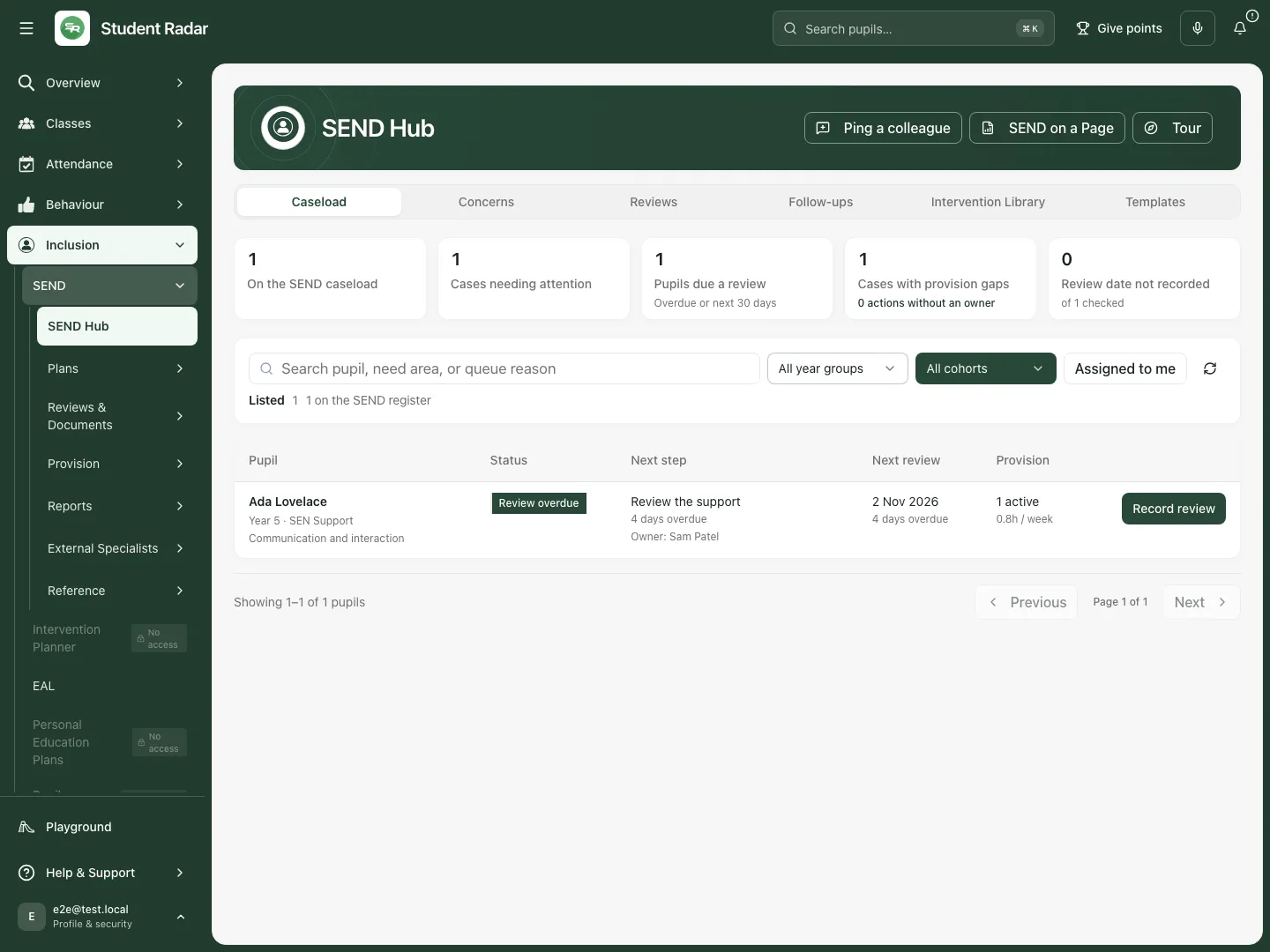
The fictional caseload shows one SEND pupil, one case needing attention and a recorded provision review date. Read the coverage and count with the selected filters.
Open the support story before deciding
Section titled “Open the support story before deciding”- Select the pupil or their next-action control, such as Record review. Confirm the pupil identity at the top of the connected story.
- Open Support promised: plan and target. Read what the current plan intended, its target and available evidence. A plan being present does not mean the target was achieved.
- Open Support received: intervention delivery. Check scheduled versus recorded delivery, missed/partial sessions, dose and missing updates. Delivery is evidence in its own right; do not infer it from attendance.
- Read Attendance and late-arrival pattern. Compare its recorded periods, possible sessions and coverage; missing marks remain unknown. A coinciding change is not proof that support caused it.
- Read Earlier classroom observations and voice. Check who contributed, when and what remains uncertain. Restricted or unavailable wider context must not be reconstructed from another count.
- Use available source links to inspect the permitted plan, provision or pupil record. Return to the story to make the next decision; links do not grant extra access.
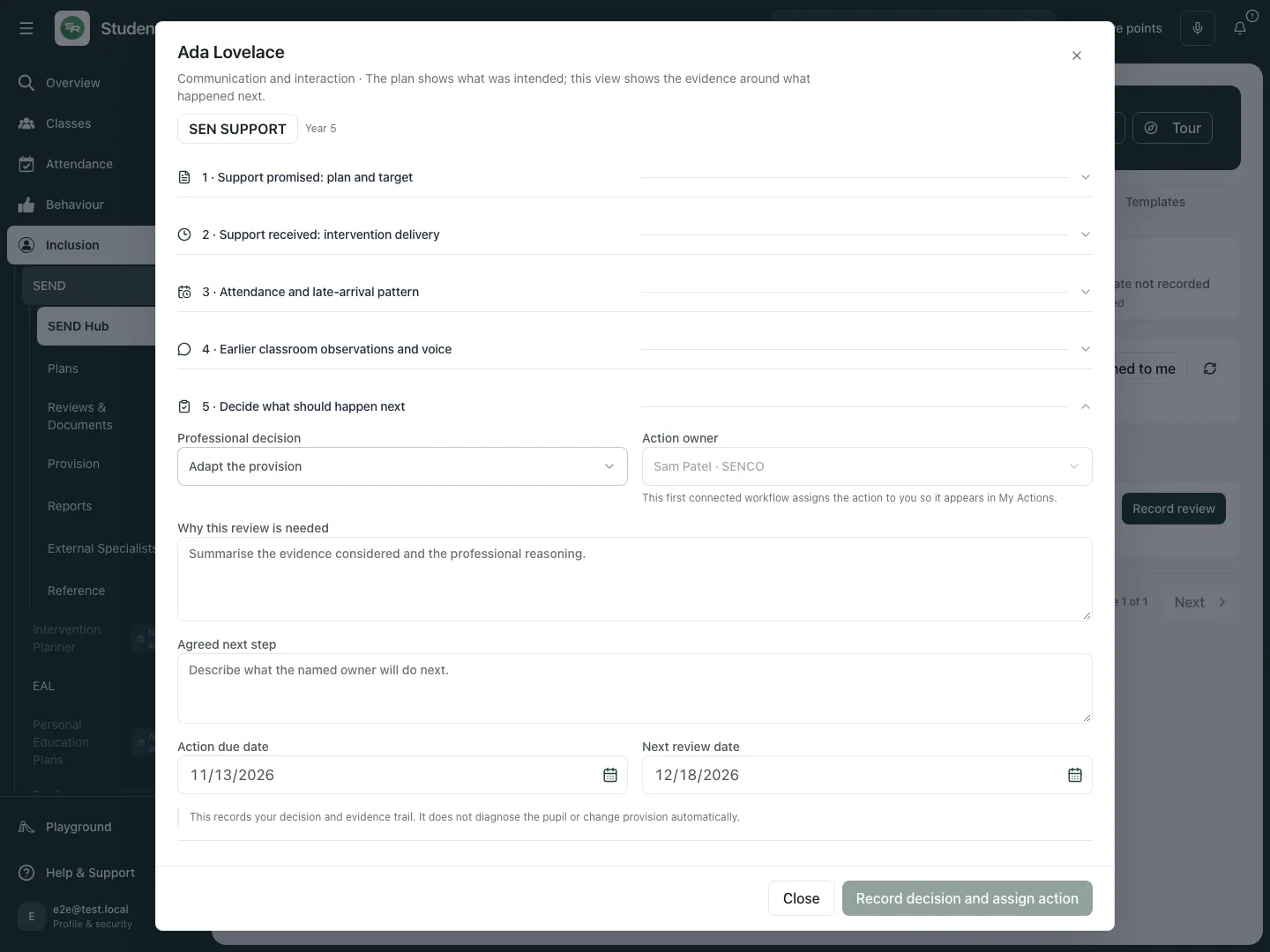
The connected review keeps the support, delivery, context and professional-decision sections in one real application dialog. Fictional school example.
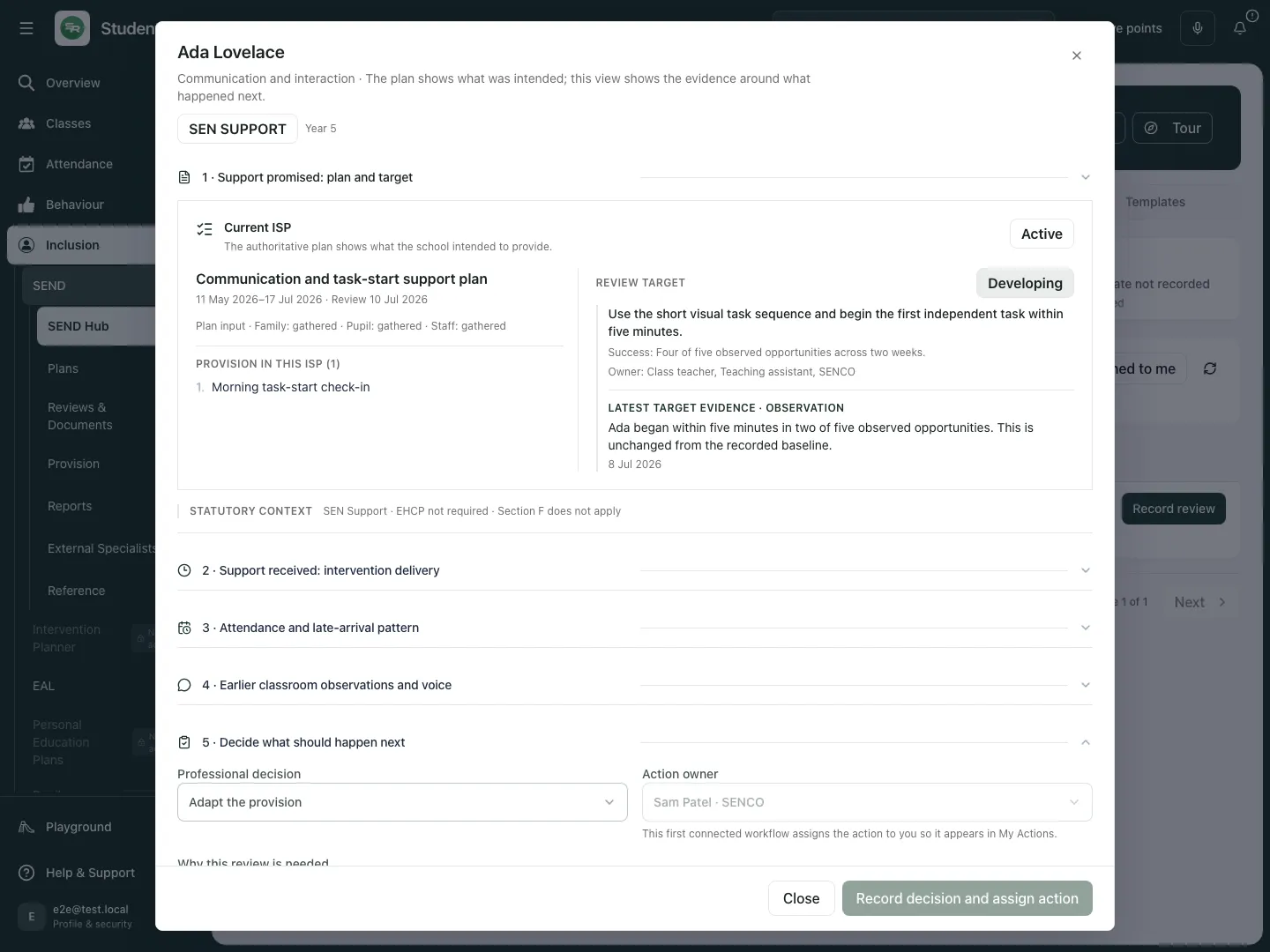
Read the fictional current plan and target before deciding whether provision should change.
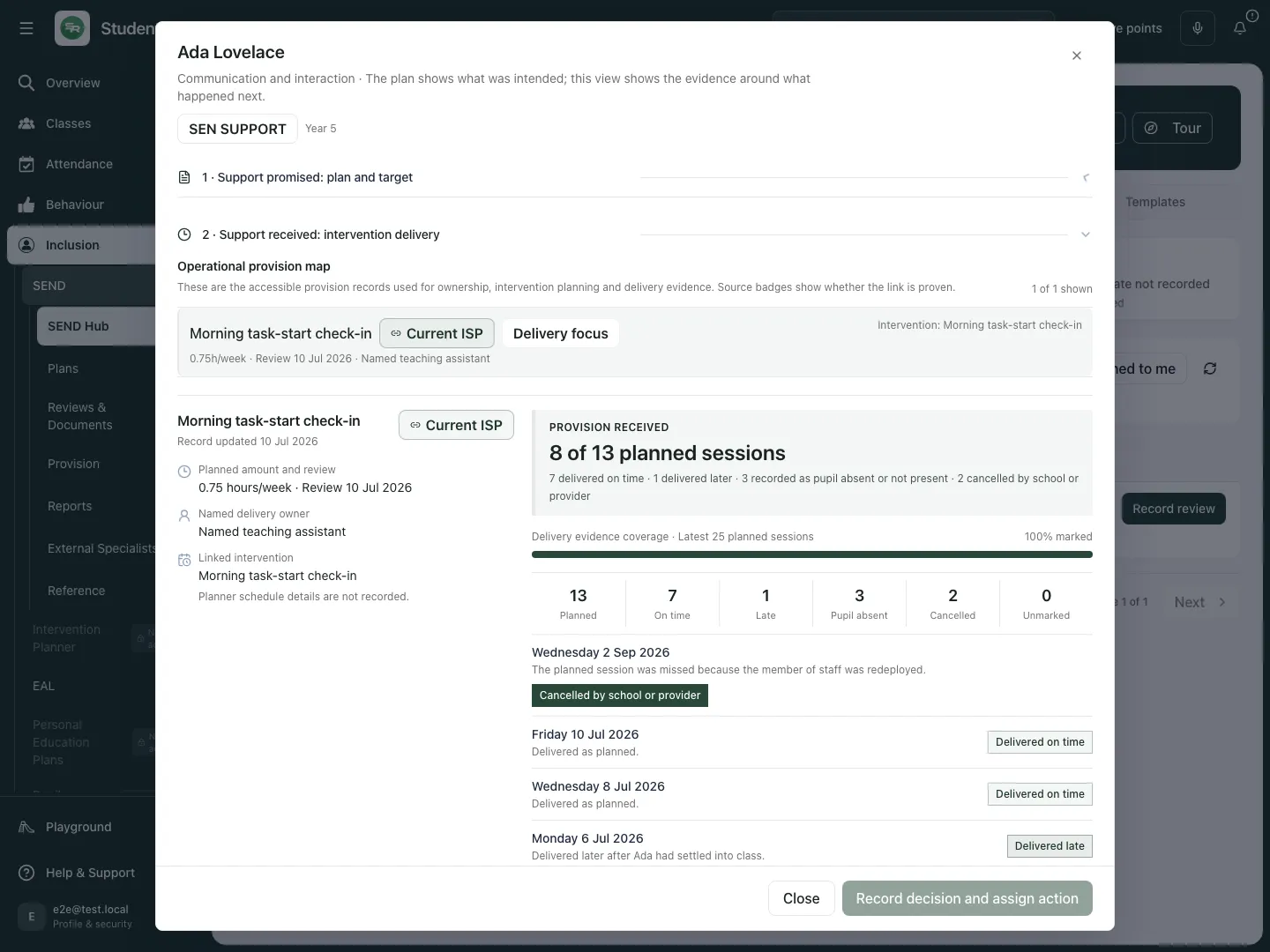
The fictional delivery record retains dose, outcomes and missingness separately from the plan and attendance.
Record a decision and its owned action
Section titled “Record a decision and its owned action”- Open Decide what should happen next after reviewing the evidence.
- Choose Professional decision: Continue as agreed, Adapt the provision, Stop this provision or Escalate for further review.
- Complete Why this review is needed with the evidence and reasoning, and Agreed next step with the practical response. Record uncertainty; do not turn a suggestion into a fact.
- Check Action owner. This action is assigned to you through your linked staff record, so it can appear in My Actions. If no staff record is linked, ask an administrator to resolve that prerequisite.
- Choose Action due date and Next review date. The due date must not be before today on the school clock; the next review must be after today and on/after the action due date.
- Select Record decision and assign action. Wait for the result, then read the Latest decision and Ownership and review section. This records a human decision and evidence trail; it does not automatically alter specialist provision or diagnose the pupil.
- Close and reopen the case to check the recorded decision. If the result is unconfirmed, retry the same submitted decision rather than starting another action. The page keeps the submitted details for that check.
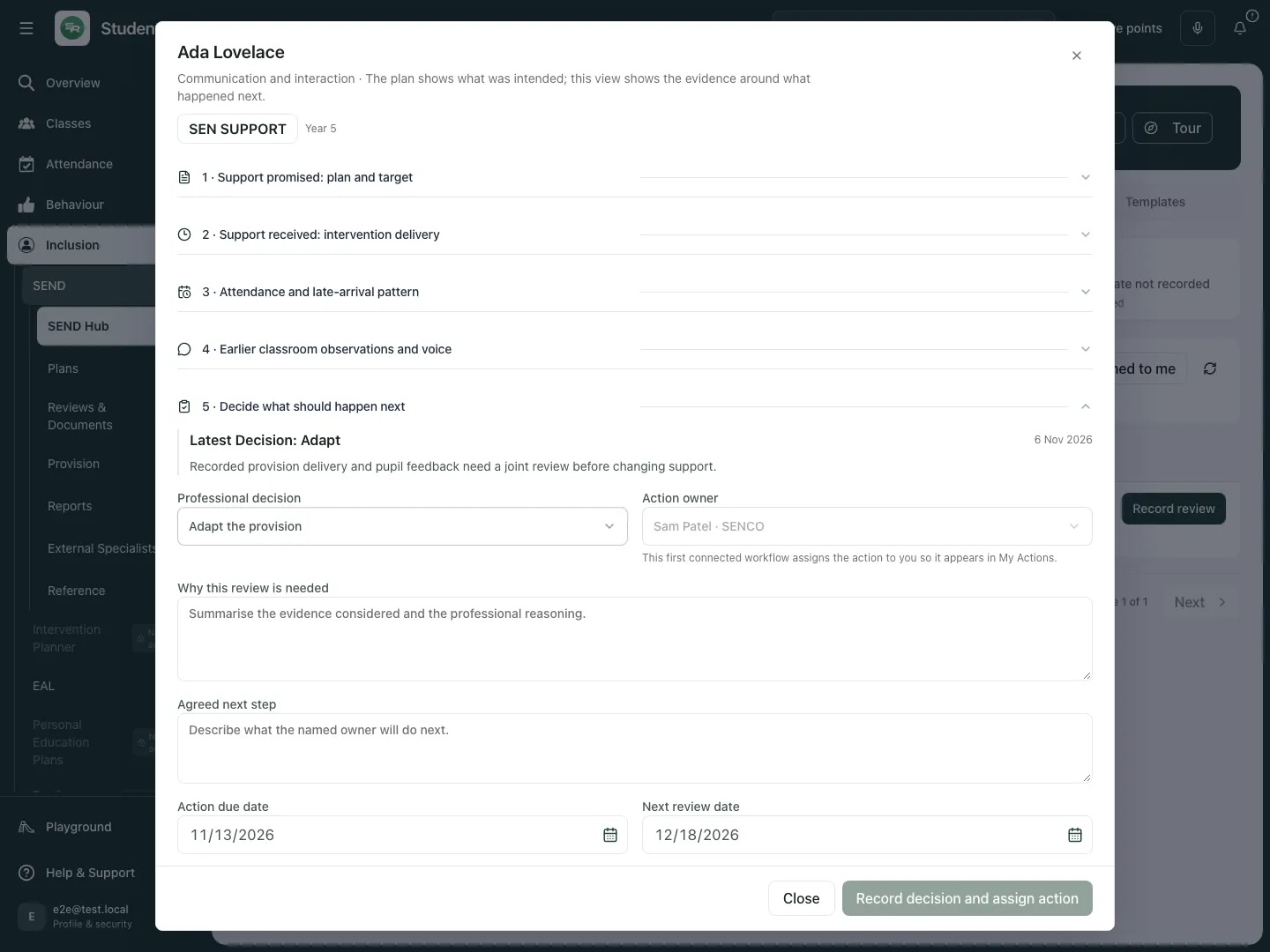
The fictional professional decision is recorded after reviewing the evidence; the next action remains explicit.
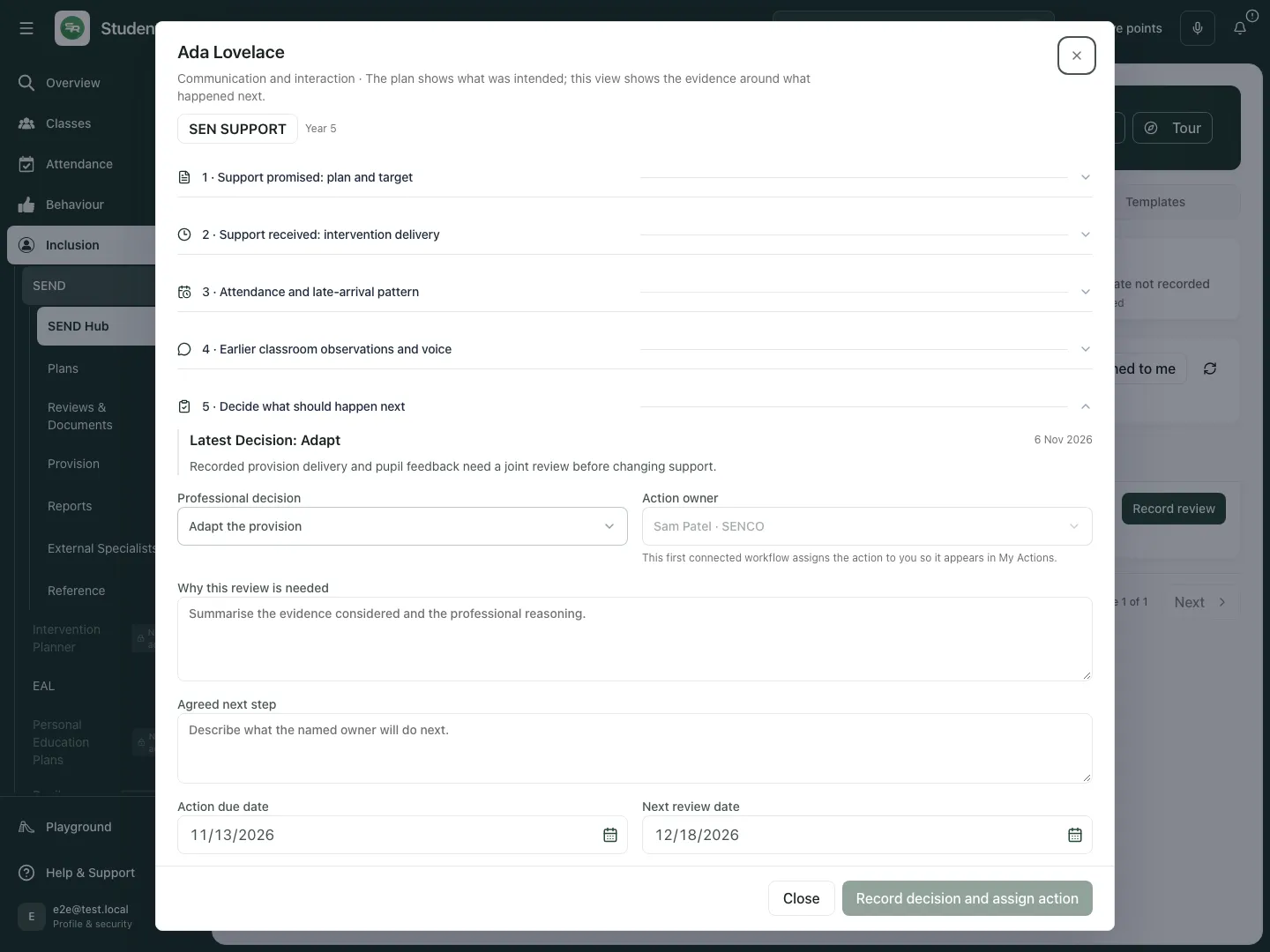
Reopening the fictional case shows the recorded Adapt decision. This example does not demonstrate production persistence or real staff-task delivery.
Review concerns raised by colleagues
Section titled “Review concerns raised by colleagues”- Select Concerns. Read Pupils with new notes, Being watched, the count of pupils chosen for a support plan, and staff-note coverage together. Some metrics may be suppressed; do not reconstruct them from pupil rows.
- Review the pupil’s recorded notes, who wrote them, when, what was tried and its observed effect. A grouped signal describes notes within its stated window/method; it is not a diagnosis.
- Choose the appropriate human response: Watch for a few weeks, Ask staff for more, Start a support plan or Reply and close.
- For watch, choose For how long? and add any useful note. For a question, complete Your question. For reply/close, complete Your reply. Read which open notes the response applies to before confirming the offered action.
- Start a support plan → Open the planner opens Intervention Planner with the pupil/focus prepared; create and review the actual plan there. “Chosen for a support plan” records the decision, not proof a plan was created or delivered.
- If the page says you are not on the SEND team, ask the headteacher to check team membership and the required access. Do not use another route to bypass the missing triage permission.
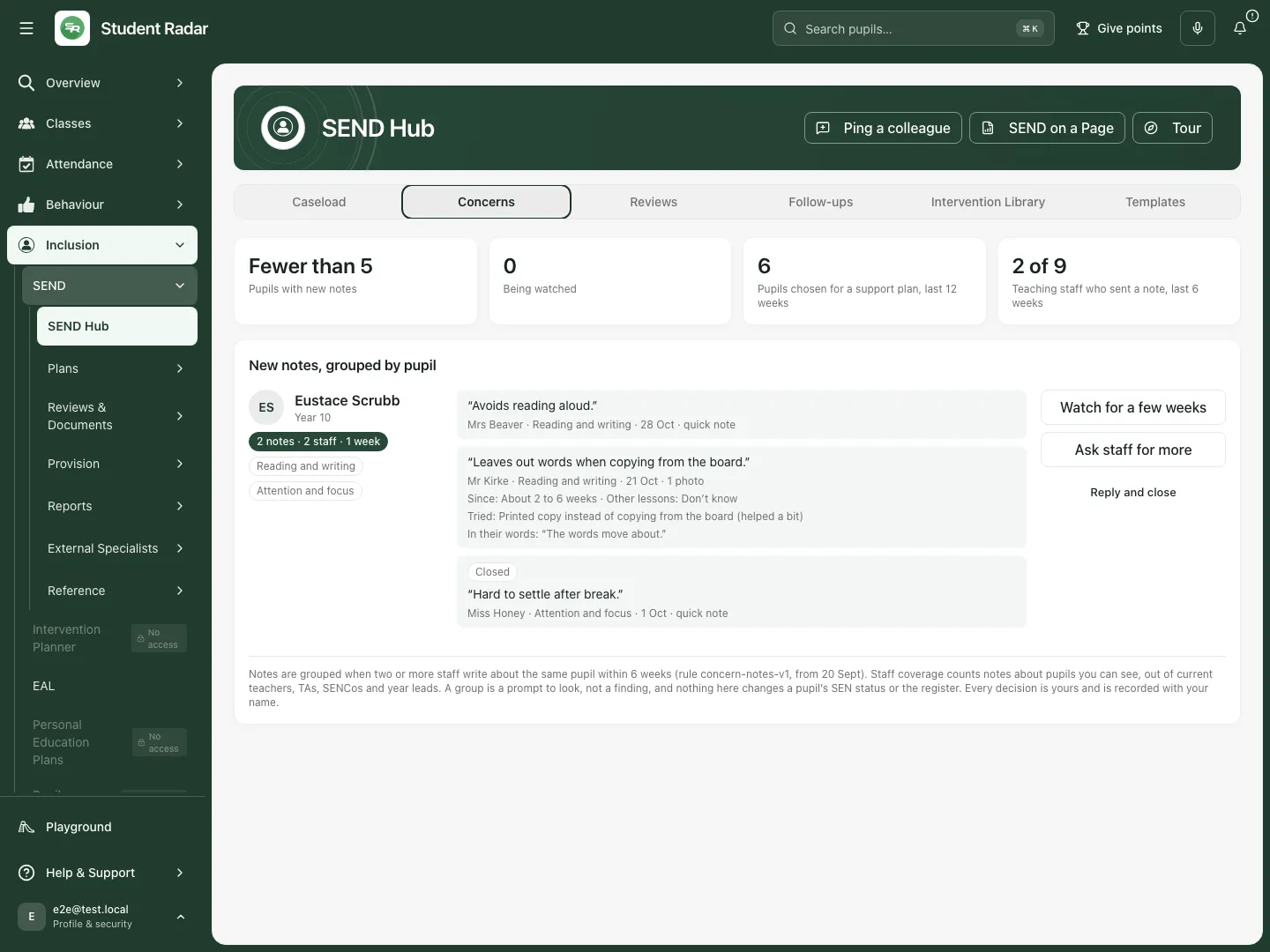
Concerns groups fictional staff notes with method, coverage and human response controls; a signal is a reason to investigate.
Work through Reviews
Section titled “Work through Reviews”- Select Reviews. Read the school-week strip and the groups for overdue, this week, this month, later, no date and unchecked sources.
- Filter by review source and Search reviews by pupil. A statutory review, ISP review, internal review, cycle and provision review have different source records.
- Open the pupil’s support story for the relevant evidence, or use Open annual review where offered to work in that statutory workflow.
- For permitted ISP rows, select the intended pupil checkboxes. The bulk control sets ISP review dates for at most 100 pupils; statutory annual-review dates are moved in Annual Review.
- Enter New ISP review date, check the number selected, and choose Set for [number] pupil/pupils. The control changes each selected ISP’s review date and end date. Check the returned updated/skipped outcome; a skipped or failed row must not be reported as updated.
- Use Clear selection when finished. If a source is unchecked/unavailable, retry it rather than treating the absence of a date as a confirmed missing review.
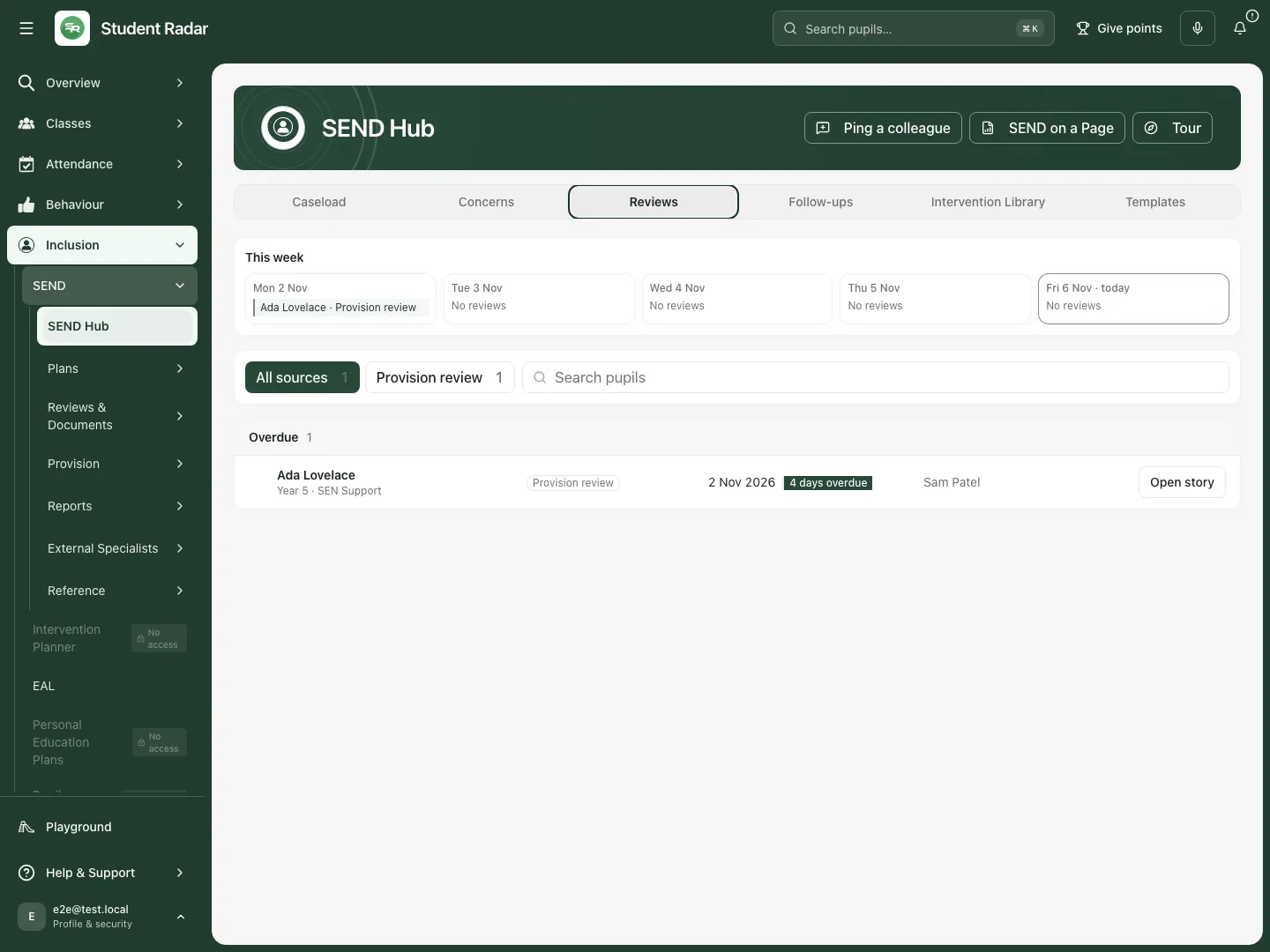
Reviews keeps source-specific dates and missing/unchecked states apart. Fictional school example.
Follow up with colleagues
Section titled “Follow up with colleagues”- Select Follow-ups to review the permitted SEND-related follow-up work.
- Use Ping a colleague to prepare an appropriate request, check the recipient, pupil context and message before any separate send action.
- Use All Pings in My Pings where offered to inspect what you sent and its recorded state. A draft or queued request is not confirmation of delivery.
- Review the response in the linked work/source record. Completing follow-up work does not establish an improved pupil outcome.
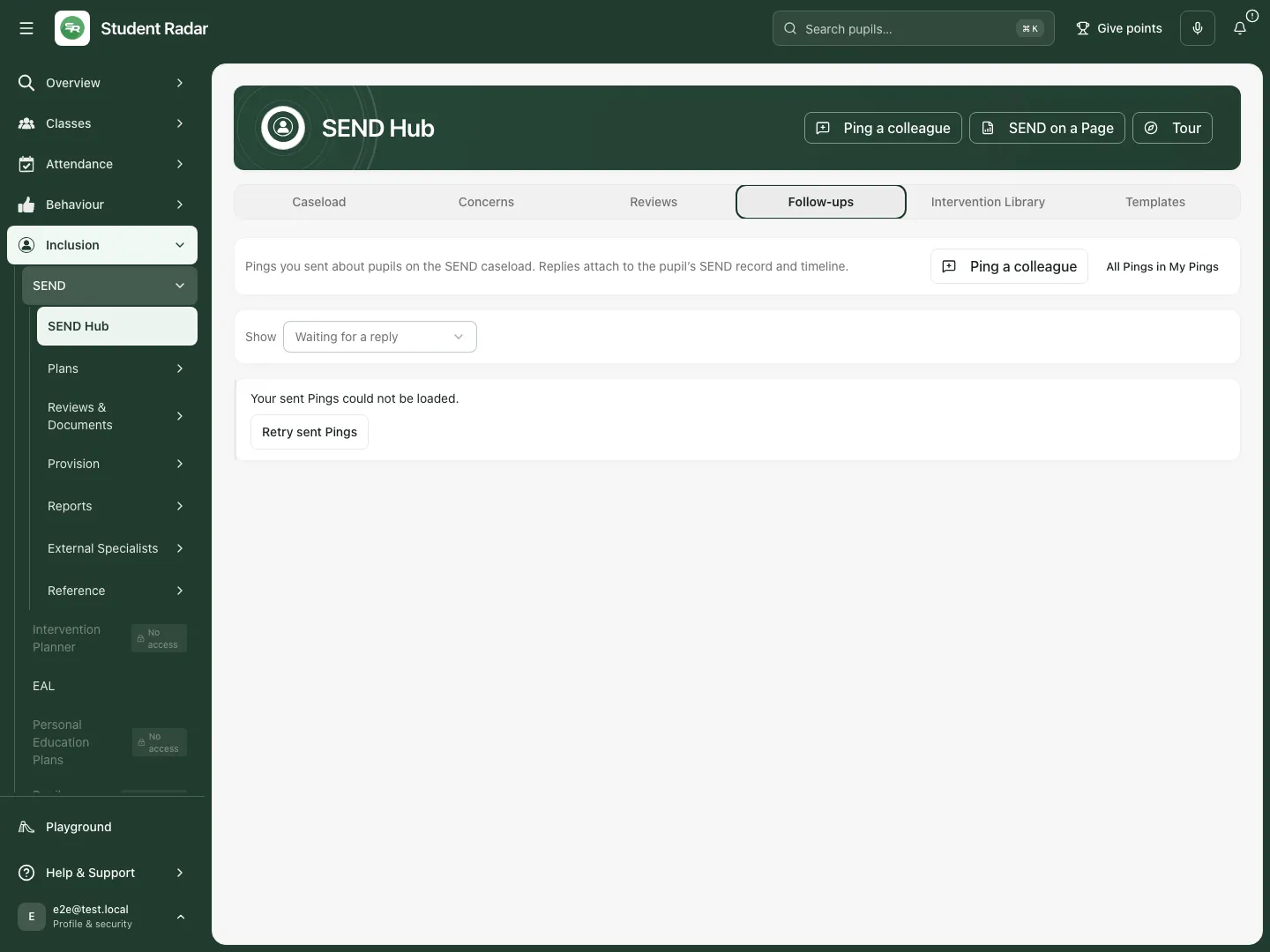
Follow-ups connects SEND review to colleague requests. The fictional walkthrough does not send a message.
Find an intervention and manage presentation templates
Section titled “Find an intervention and manage presentation templates”Intervention Library opens the intervention reference workspace inside the Hub. Search or filter the available library, read the evidence and practical delivery requirements, and use its permitted planning action when the intervention suits the pupil. A library item is an idea/reference, not evidence of that pupil’s actual provision.
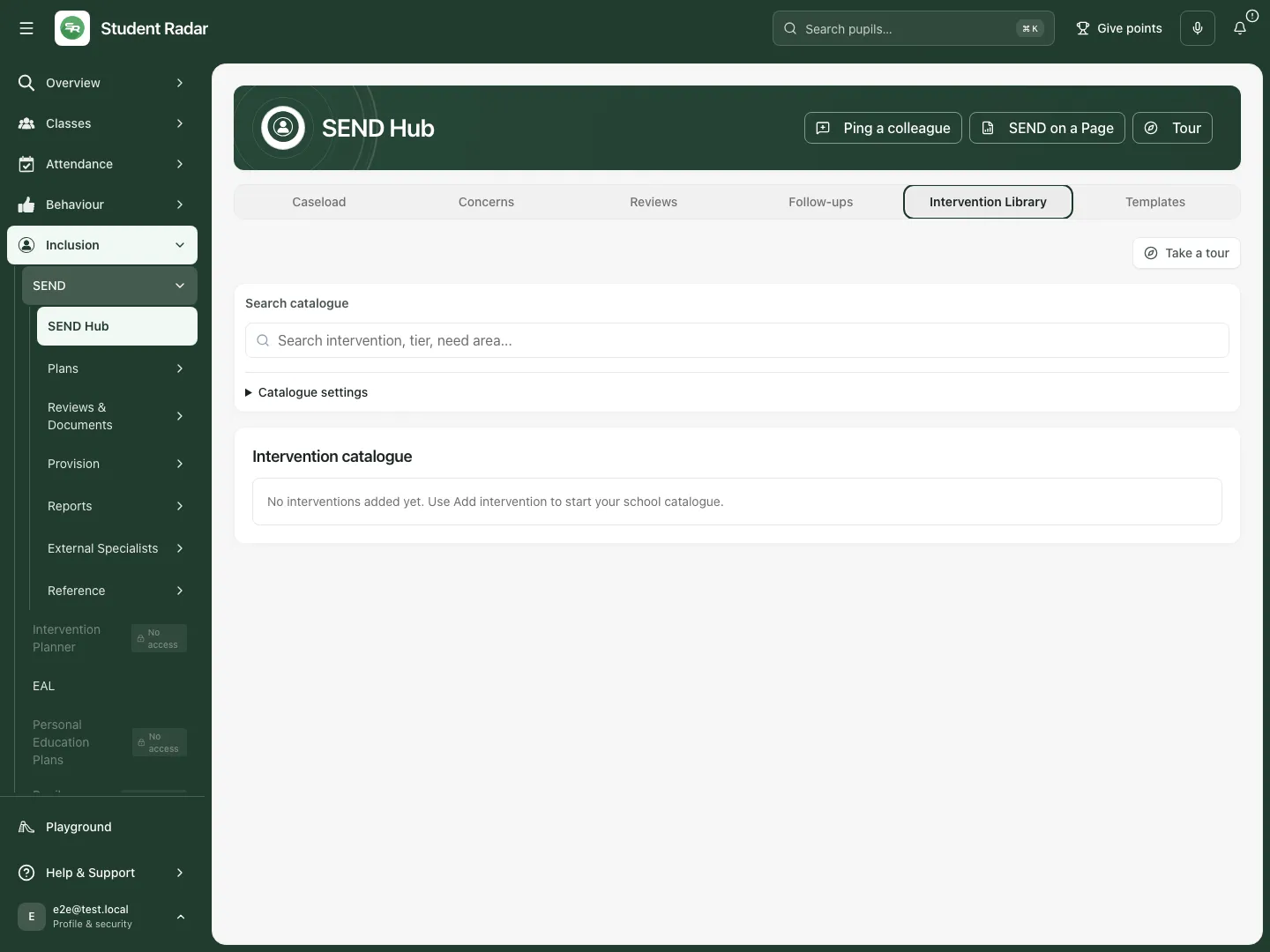
The embedded intervention library supports a considered choice; opening it does not assign or deliver support.
In Templates, a template shapes presentation and visible sections; it does not replace the pupil’s recorded facts.
- Choose Support plans or Pupil passports.
- If you have management access, select New template, or choose Use as starting point beside a suitable national template.
- Complete Name and Description. For support-plan templates, review the authoring sections, target/criteria counts and other offered presentation choices. For passport templates, review which sections are shown, their labels and ordering. Keep essential information visible.
- Choose the offered default option only if this should become the school’s default presentation, then select Create template. For an existing template, use Edit template [name] and Save changes.
- Use Preview to inspect the result. Set default changes the school default; Archive template [name] asks for confirmation. Check the intended template and effects before confirming.
- Applying a presentation template is separate from reviewing/saving an individual pupil document. Moving between Hub tabs retains an already opened inline template editor, but save deliberately before leaving the page/school.
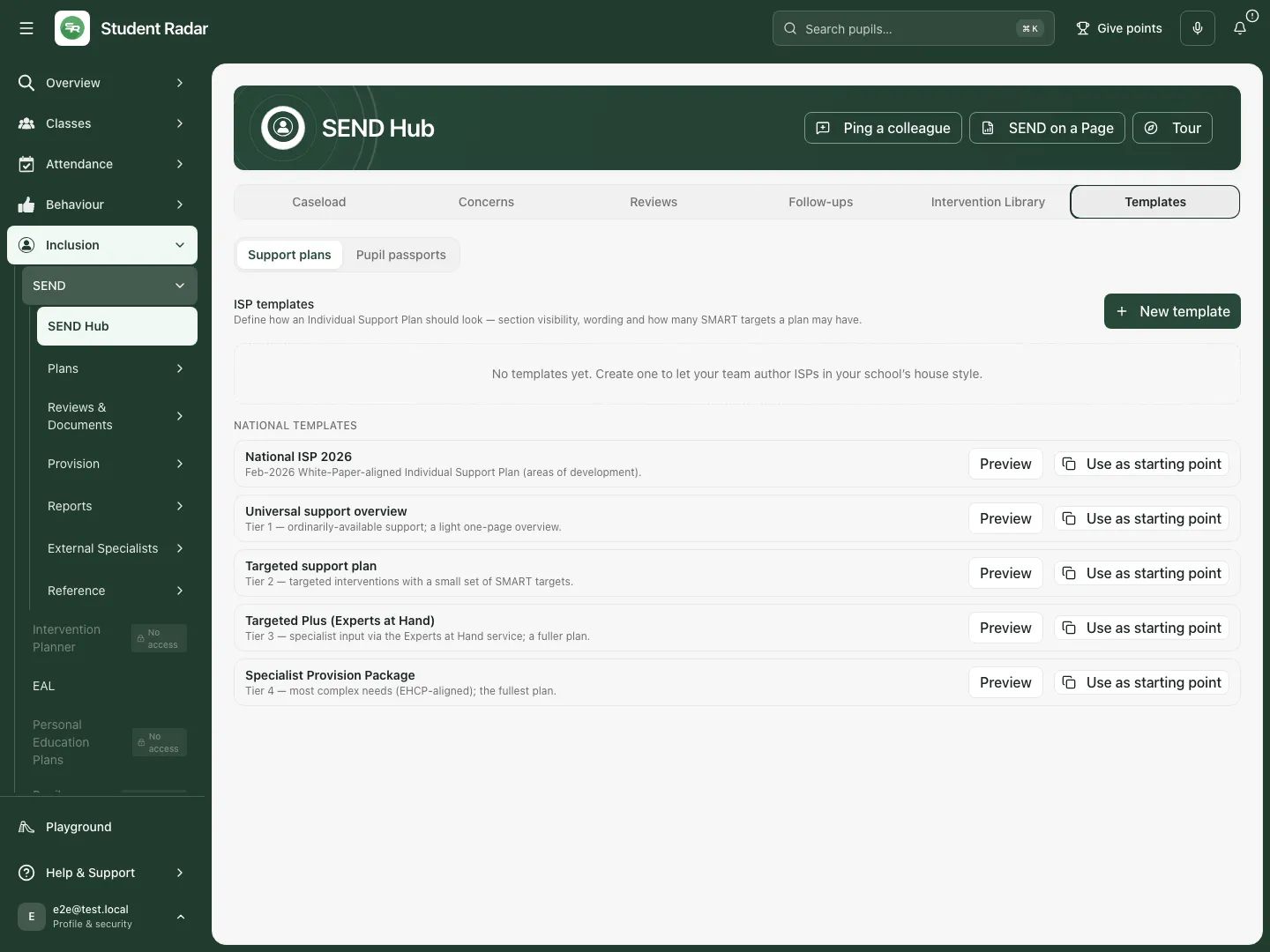
Templates has separate Support plans and Pupil passports types. Source facts and individual plan decisions remain separate from presentation choices.
Work on a phone
Section titled “Work on a phone”Use the compact Hub-section selector, then check the pupil count and filters before opening a story. Read the entire decision form and both dates before saving. Tables and story sections may need deliberate scrolling; the same permissions and evidence limits apply.
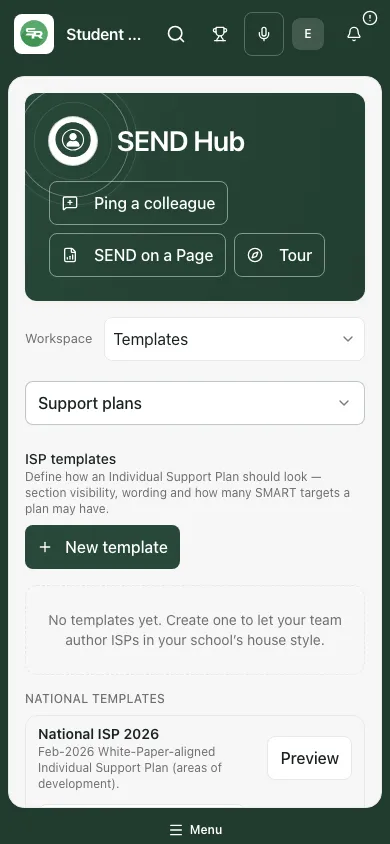
The fictional caseload on a phone retains pupil context and its next-action route.
Troubleshooting and questions
Section titled “Troubleshooting and questions”School scope unavailable. Refresh and confirm the intended school. Do not continue with records from an earlier school context.
A figure or review source is unavailable. Use the offered retry/reload and read the coverage. A failed read is not a real zero, and a sorting date is not necessarily the actual review date.
No pupils match these filters. Clear filters, check the stage/year and permitted caseload before assuming the register is empty.
A decision has not been confirmed. Submit again to check the same decision/action before starting a new review. If another review holds the provision’s cycle, refresh and inspect it rather than issuing a duplicate action.
Can a decision change provision or make a referral automatically? No. The decision, owned action and next review are recorded here. Complete the separate authorised specialist workflow for changes/referrals.
Can I read safeguarding information through the Hub? Only the permitted context is returned. Missing or restricted information does not mean no record exists.
Related guides
Section titled “Related guides”Use SEND Register, Create, review and share a pupil passport, Read an EHCP and review outcomes and provision, Prepare and complete an EHCP annual review, Add, cost and review a school provision.