Review inspection evidence and own inspection-day requests
Read the school review and cited evidence, then plan purposeful pupil samples and assign inspection-day requests. It helps leaders check and coordinate their own records; it does not predict an inspection result or grade the school.
Open Leadership → Strategy & assurance → Inspection Readiness. The page banner says Inspection Hub. Screenshots use fictional examples.
1. Read the school review before calling it ready
Section titled “1. Read the school review before calling it ready”Overview starts with School review. It shows applicable evaluation areas with a recorded judgement, distinct cited evidence records, areas with evidence to check and active priorities. Use Refresh to reread the current context.
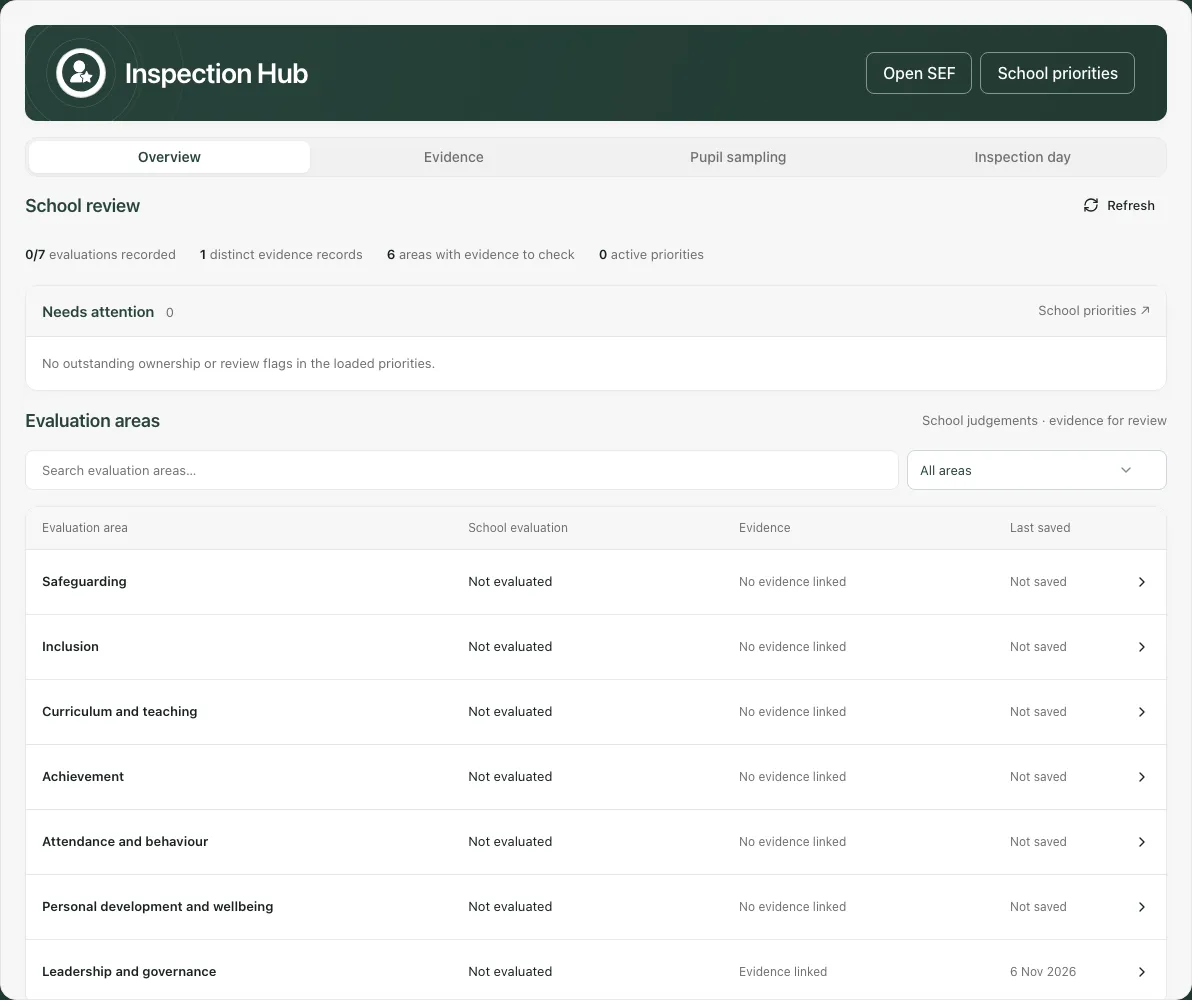
The example has a saved Leadership and governance summary and one citation, but no recorded area judgement. A citation count is not evidence quality, and an empty Needs attention queue for zero loaded priorities does not establish inspection readiness.
Needs attention highlights loaded priorities with problems such as no owner, no review date, an overdue review or At Risk/Off Track status. Show all expands the queue where offered. Open a named priority to review its actual plan and next action. If School Priorities could not load, use Retry priorities rather than treating the list as no priorities.
Top links such as Open SEF, School priorities and Headteacher’s report appear when those workspaces are available to you. Each destination checks access again.
2. Work through the evaluation areas
Section titled “2. Work through the evaluation areas”Use Search evaluation areas and Filter evaluation areas to choose All areas, Evidence to check or With improvement priorities. Expand the intended area to inspect its Evaluation summary, Evidence narrative and Improvement work, including linked priorities and review dates.
Use Review this area in the SEF to amend the original evaluation or View evidence to inspect its citations. The hub presents that evaluation context; it is not a second independent grading form.
“Evidence to check” can mean no linked record, only narrative, or a retained reference that is unavailable. Check which condition applies before deciding what to add. An area with a linked record is not automatically complete or a secure judgement.
The confirmed framework/edition and phase scope determine the displayed areas. Priorities associated with another edition or an area outside this selection need checking in School Priorities; they are not necessarily represented by this area list. Do not infer that no such improvement work exists.
3. Inspect the cited evidence index
Section titled “3. Inspect the cited evidence index”Open Evidence. Evidence index lists the records cited by the evaluation; it is not a search of every school file. Search Search cited evidence or choose Evidence evaluation area to narrow the index. Page through results where controls are offered.
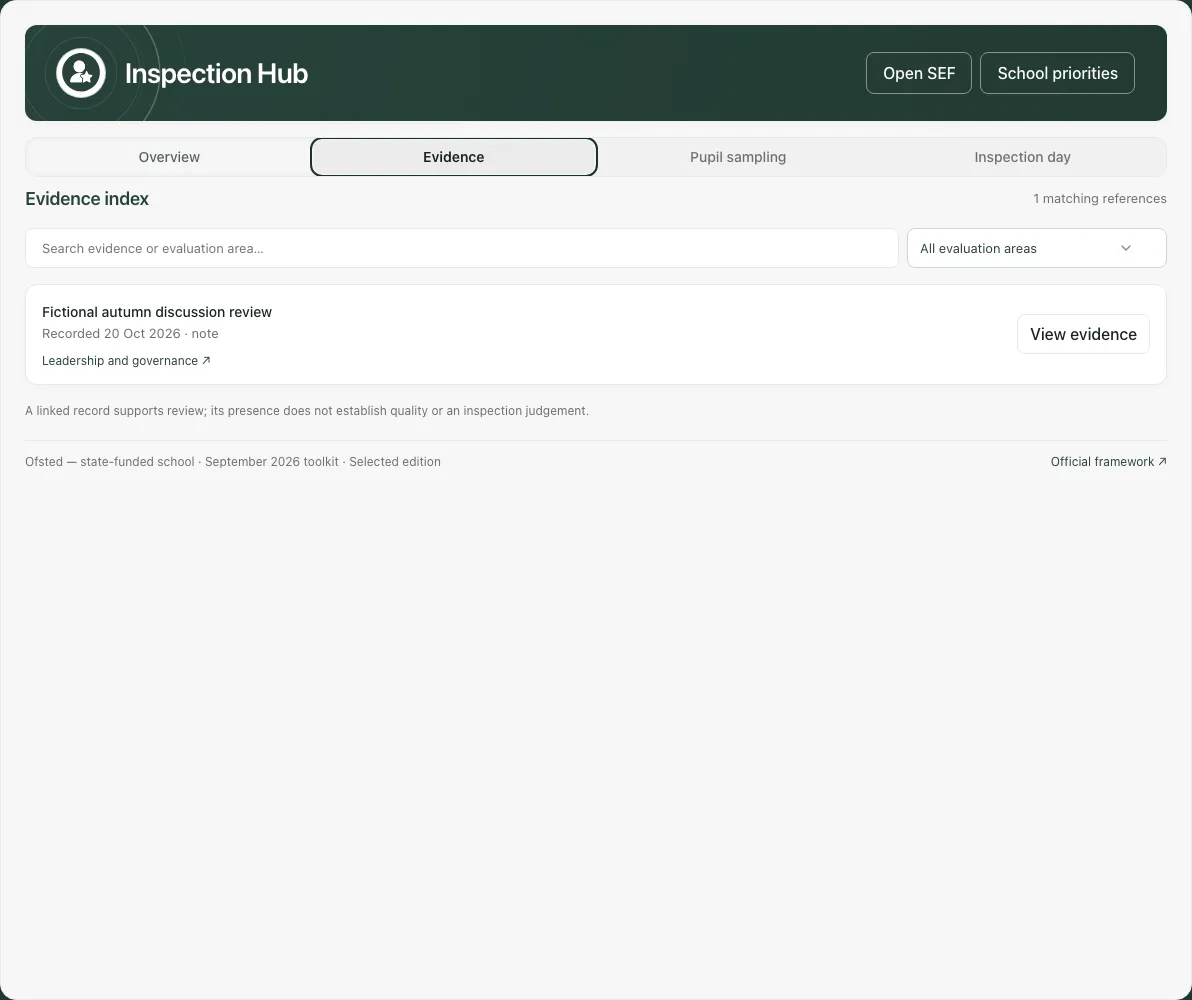
Select View evidence to read a record’s details, dates, type and linked areas. Use Open source ↗ for a permitted source workspace or external reference, or Download file for an available file. A source workspace outside your access is explained rather than opened as if the citation grants permission.
Retained unavailable references remain visible as unavailable where permitted. A download can fail if the file’s location or current access cannot be verified; that does not make the source file successfully bundled or shared. Return to the original source or ask the responsible leader to check it.
To add or remove evaluation citations, open the area in Self-Evaluation, select the evidence deliberately and save the area. Refresh the hub afterwards. Linking a record does not set a judgement or prove its findings are representative.
4. Plan purposeful pupil sampling
Section titled “4. Plan purposeful pupil sampling”Pupil sampling records focused reviews of pupils’ everyday experience. It is work with an owner and due time, not a copy of the whole pupil record.
- Select Add pupil review.
- Open Pupil, type at least two characters in Search pupils and choose the intended child, checking the year/class detail.
- Enter Enquiry / review focus and Why this sample?. Explain what the review will test without copying sensitive case detail into this shared coordination record.
- Open Owner, search Search owners and choose the correct member of staff. Check distinguishing details for people with the same name; verify an unclear identity before choosing it.
- Set Due / review date on the displayed school clock, then Create work.
- Check the saved pupil, owner, time and To do status in the list.
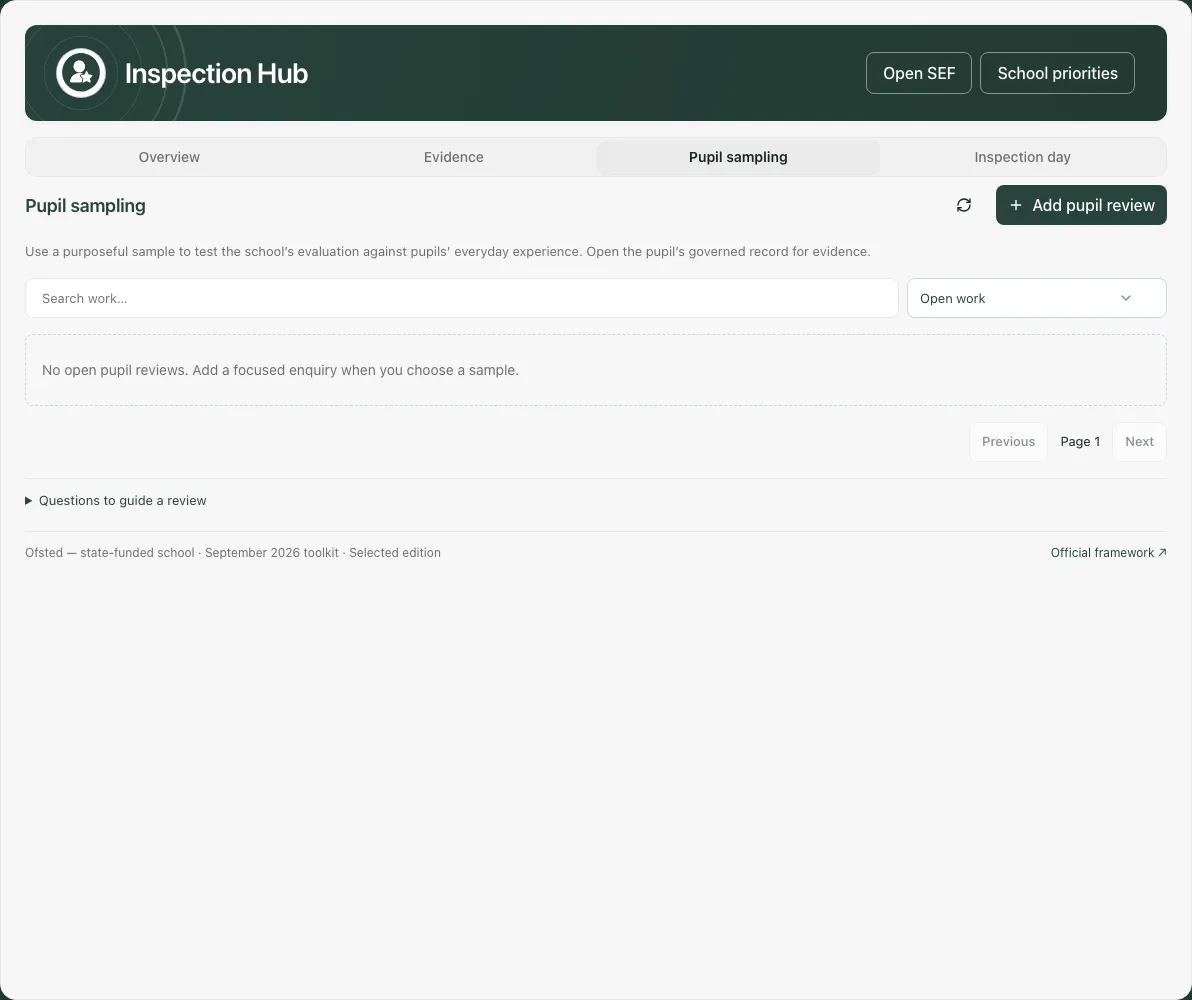
Use Questions to guide a review for prompts about what the child knows, support actually received and the next question leaders should check. An individual sample can inform enquiry but is not automatically representative of all pupils.
From an opened sample, Open pupil profile opens the shared pupil modal where offered. Specialist SEND, safeguarding and other records remain in their own authorised workspaces. A linked child does not grant access to everything about them. A sample can disappear from your list if the pupil is no longer available to you; do not infer its deletion elsewhere.
5. Log and own inspection-day requests
Section titled “5. Log and own inspection-day requests”Inspection day is the operational request list. It includes A short inspection-day checklist, not an automatically generated export pack.
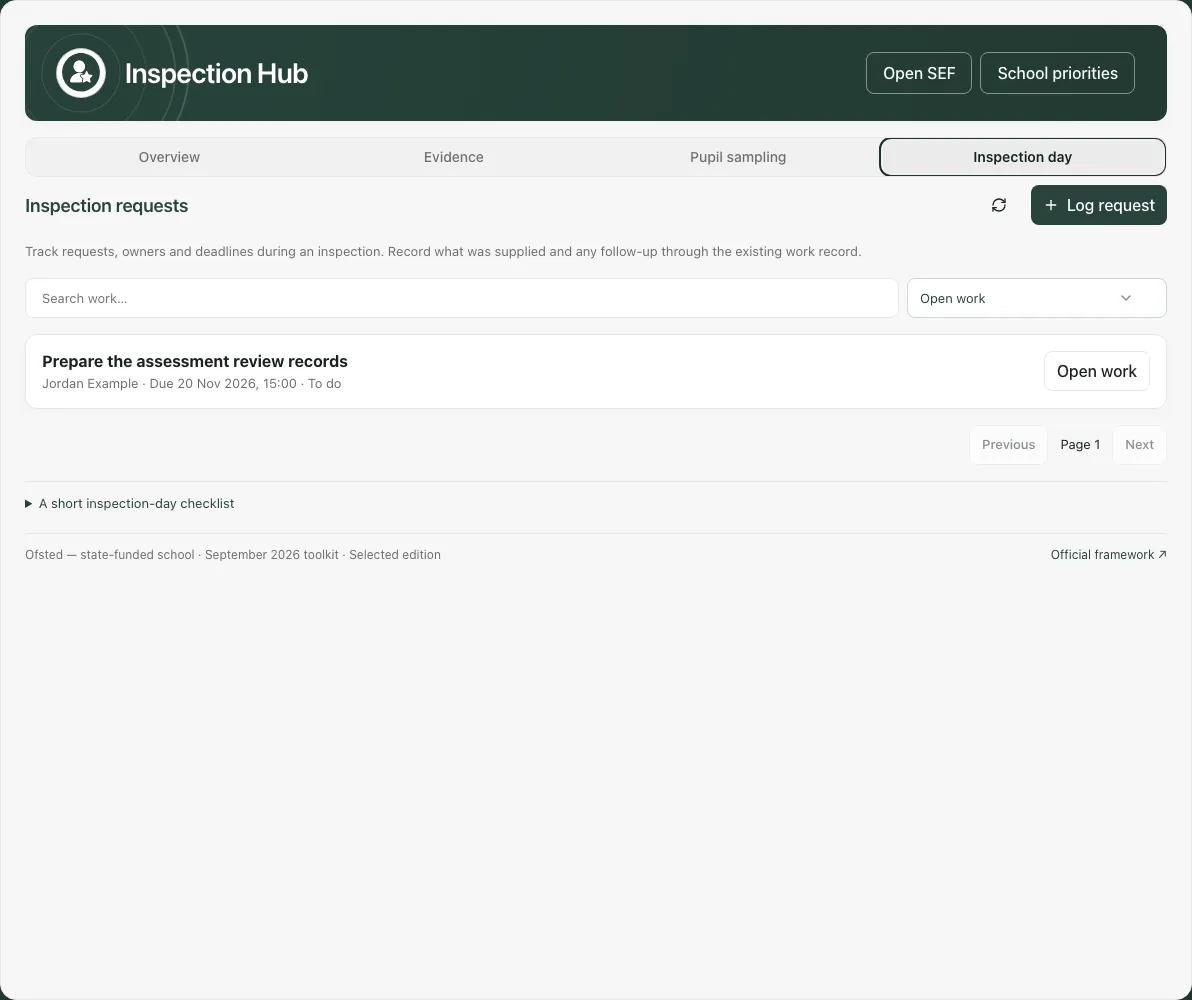
To add work, select Log request, complete Request, Context and source records, Owner and Due / review date, then Create work. State what is needed and point to original records. Avoid copying named safeguarding matters into the request; keep them in the authorised safeguarding workspace.
The checklist prompts staff to agree the inspection contact/coordinator, use current timetable/roll/source records, handle safeguarding appropriately, agree representative conversations and record what was supplied. It does not tick itself off or certify compliance.
Use the request owner and deadline to agree who will act. Logging work is not a message to inspectors, an upload to an external system or proof that the information was supplied.
6. Update work and record what happened
Section titled “6. Update work and record what happened”Both work lists offer Search work…, Work status, page controls and refresh. Open the intended item with Open work, then check its title, person/pupil and due time.
Update the request/focus, context, owner or due date where editable. Change Status among To do, In progress, Blocked, Completed and Cancelled, and record Review update / outcome. Select Save changes, wait for confirmation and reopen to check the stored update.
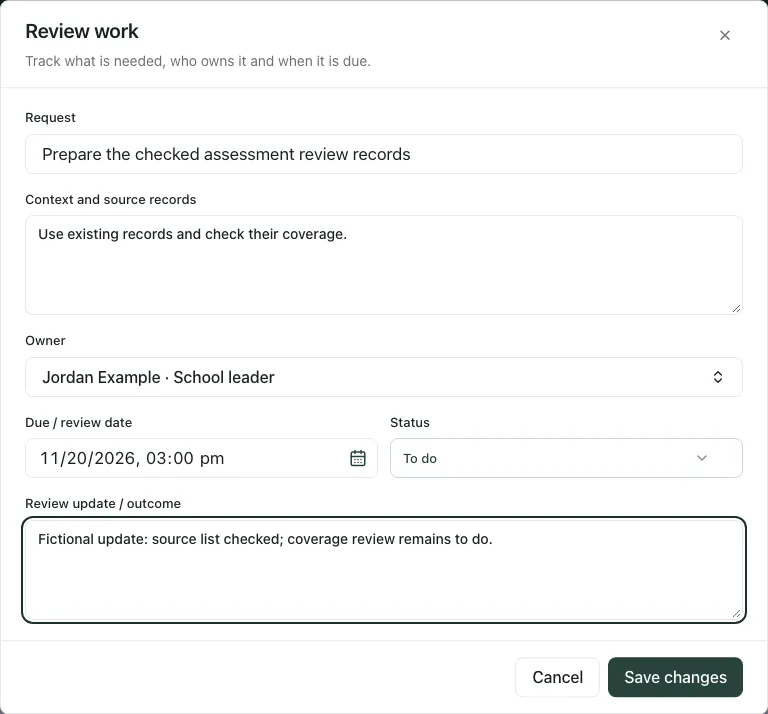
Completed and Cancelled require an outcome or reason. Say what was supplied or learned and what should happen next. Completing coordination work does not prove an evaluation was correct or a pupil’s outcome improved. Closed work retains its outcome and is read-only here.
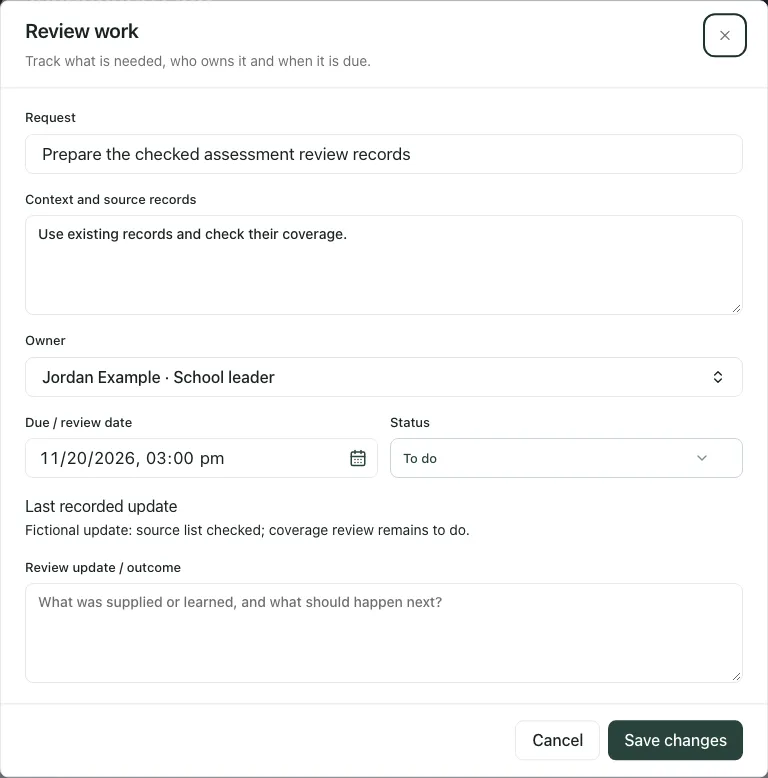
Due / review date uses school time, not your device’s local time. A clock-change gap or overlap needs correcting; read the form’s explanation. Check the year as well as the day/time when planning work.
7. Preserve drafts and respect a changed access answer
Section titled “7. Preserve drafts and respect a changed access answer”The editor keeps the version it opened. If another person updated the record, close it, refresh and reopen before applying your changes; a background reread should not silently authorise overwriting theirs.
Cancel or closing with edits asks Discard unsaved changes?. Keep editing if the work is still needed, or deliberately Discard changes. A temporary network/rate-limit failure can retain the draft with a warning that access could not be rechecked; retry the relevant read before treating it as confirmed.
A definite permission, sign-in or school-context refusal closes cached work and its edit/pupil controls. The page explains if unsaved input was not retained. Sign in or reload the correct school, then reopen from the server; do not assume a previously visible editor still authorises a save.
Read-only users can inspect available work but are not invited to create it. If the page says its access does not include the school’s self-evaluation, that is an access boundary, not missing evidence or a retryable empty school review.
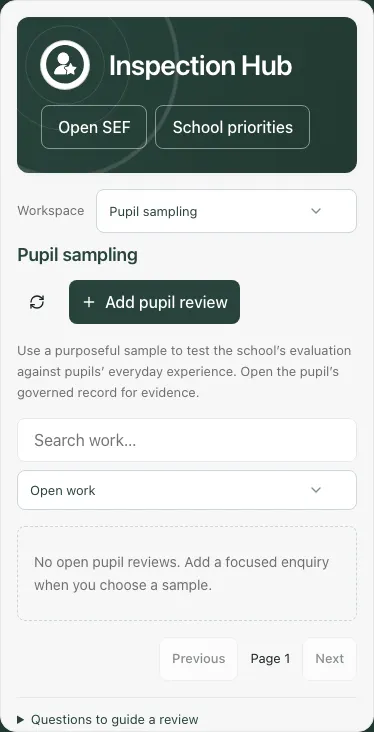
On a phone use the section selector for Overview, Evidence, Pupil sampling and Inspection day. The work editor scrolls within its dialog; check the intended item and saved result before moving on.
Troubleshooting
Section titled “Troubleshooting”- Inspection context unavailable: use Retry context for a failed read. A specific access refusal needs the appropriate school/account, not repeated retries.
- Evidence access limited: the evaluation’s sensitive narrative/citations are not available to your role; this does not mean they are missing.
- No areas or evidence match: clear the search/filter and check current framework scope before adding records.
- Cannot create work: a title, available owner and due time are required; pupil sampling also requires a chosen accessible pupil.
- Owner or pupil unavailable: choose a current permitted person. A selection refusal is different from loss of access to the whole workspace.
- Cannot close as Completed/Cancelled: add an accurate outcome or reason and save.
- No export-pack control: Inspection day is a work list/checklist. Use the relevant original evidence or Self-Evaluation export workflow for an agreed document; no external inspection submission is implied.
For the shorter preparation sequence see Get ready for inspection; for request handling see Log inspector requests on the day.
Common questions
Section titled “Common questions”Where do I find the evidence cited in the review?
Section titled “Where do I find the evidence cited in the review?”Open the cited evidence index and inspect the permitted source records rather than infer readiness from a headline.
How do I follow an inspection-day request through?
Section titled “How do I follow an inspection-day request through?”Log the request with an owner and due time, update its work and record the actual response or outcome.