Prepare and follow up a class in This lesson
Written for: Teachers and support staff with This lesson and relevant class access.
Check today’s lesson, expected pupils and support information, then open class tools and record useful follow-up.
Use it to get ready, open the right class tool and leave the next lesson with a clear starting point.
Screenshots show fictional classes and pupils. The page only includes the sources and actions you are permitted to use. Teachers and allocated support staff can see different layouts. A summary is not a replacement for taking the register, reading an individual plan or following the school’s safeguarding procedure.
Before you start
Section titled “Before you start”- Check the school, date, class, period and room. A link from Staff Home, Calendar or a class menu can select a particular lesson or class.
- Your account needs access to This lesson and the timetable information read through Staff Home. Your school must have a timetable and a link between your account and staff record.
- Class tools and sensitive pupil information have their own access requirements. An unavailable source is not a count of zero.
- Save any lesson draft you intend to keep before switching lessons. Briefs, handbacks and notes belong to the lesson you were viewing.
1. Open and check the lesson
Section titled “1. Open and check the lesson”Open This lesson through the available class navigation or a lesson link from Staff Home or Calendar. Check the Lesson selector near the top. It names the time and class, for example “10:55–11:55 · 10X2 Science”. The detail beneath it includes period, subject and room where available.
Use the previous/next lesson buttons to choose another timetabled lesson today, or choose one from Lesson. The page keeps your selected lesson rather than automatically moving you into another class as time passes. Read Now, Next or Finished with the displayed time; these describe the timetable, not whether you have completed the work.
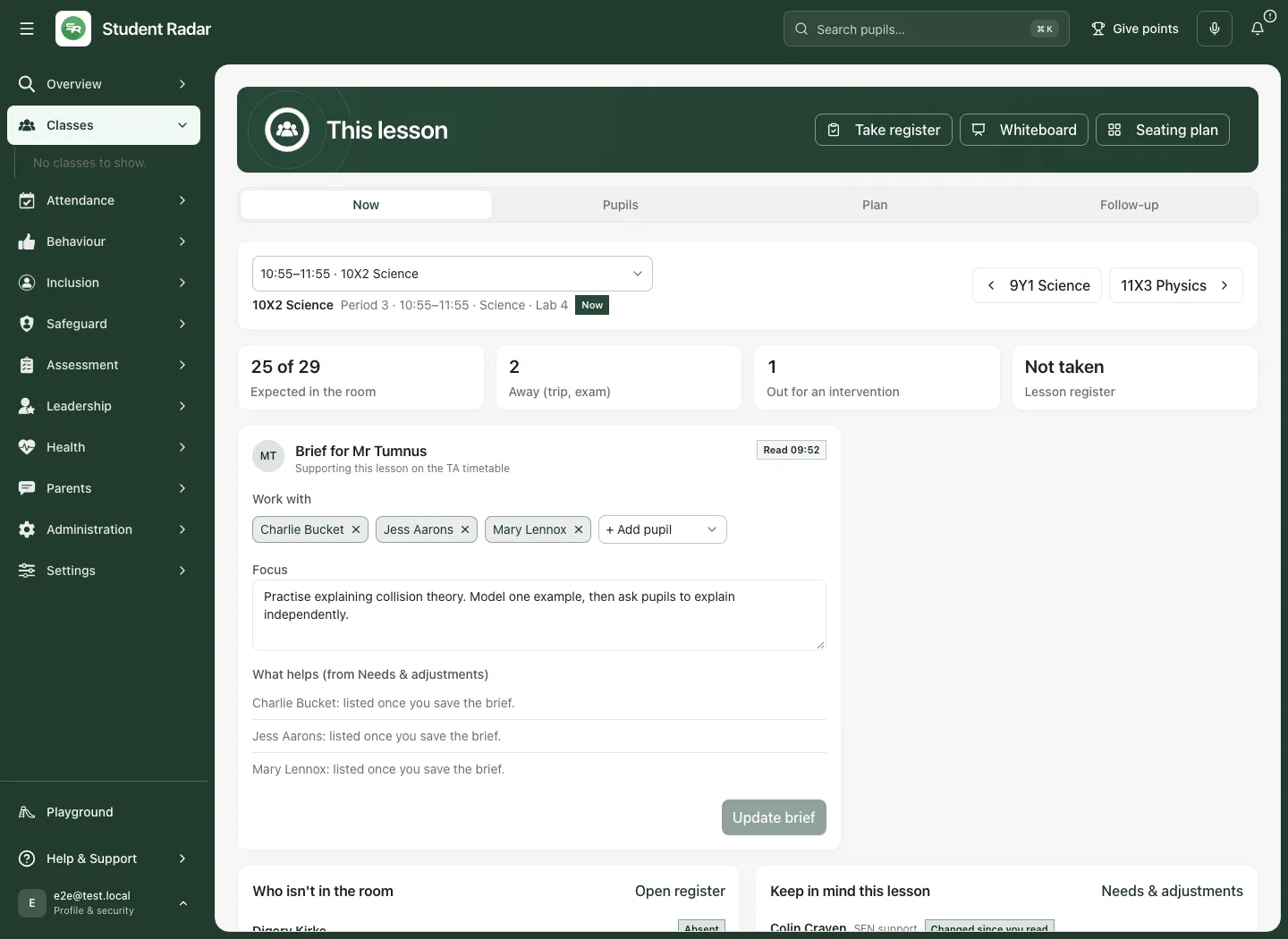
The page has four sections:
| Section | Use it for |
|---|---|
| Now | Check the immediate picture: support brief, who is away and what to keep in mind. |
| Pupils | Read the fuller pupil lists and available needs/adjustments context. |
| Plan | Read a linked plan and the note from last lesson; leave your note for next time. |
| Follow-up | Record optional observations and open the permitted tools for work after the lesson. |
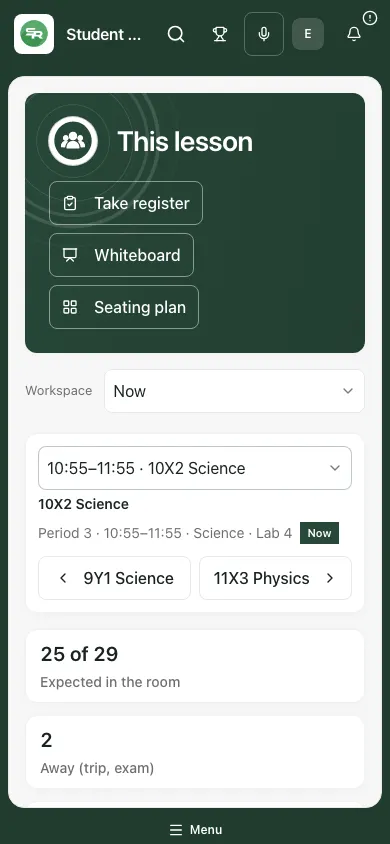
On a phone, choose the section through Workspace. Scroll within the page to reach the pupil lists and notes beneath the headline cards.
2. Check who is expected without treating it as the register
Section titled “2. Check who is expected without treating it as the register”Read the headline figures with the coverage explanation:
- Expected in the room uses the available roster and recorded reasons for being away. Check its denominator and any partial-coverage message before treating it as a whole-class view.
- Away (trip, exam) identifies relevant recorded time away; read the return time or all-day label.
- Out for an intervention identifies an overlapping intervention session. A pupil may return during the lesson.
- Lesson register reports the available period-register state, such as Not taken, rather than marking anyone present automatically.
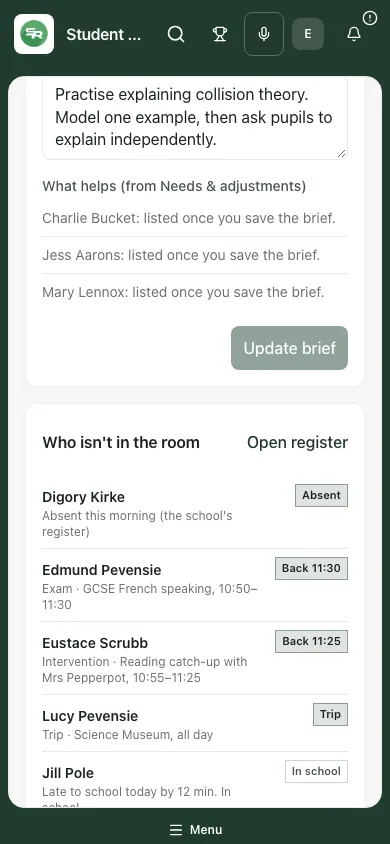
In Who isn’t in the room, read each reason. “Absent this morning” is information from the school session register; it is different from an exam or a timed intervention. “Late to school today” does not necessarily mean the pupil is still away from the lesson. Check the wording and time rather than treating every listed pupil as currently absent.
- Read the list and the expected return times.
- Check any message about partial or unavailable sources.
- Use Open register in the list, or Take register in the page banner, where offered.
- Confirm the class and register period in that tool, then take the register using the school’s normal process.
- Return to This lesson and refresh/reopen as appropriate if you need to see updated information. Opening the register or reading this page does not itself submit attendance marks.
If only ten pupils’ source records were checked in a class of 29, the other 19 have not been confirmed present by this page. Do not interpret a partial read as “everyone expected” or a definitive absence list.
3. Review pupils and practical adjustments
Section titled “3. Review pupils and practical adjustments”Choose Pupils for the fuller lists. All pupils in this class opens the class pupil view where permitted. Select an available pupil name to open their profile; check identity and the specific evidence before making a decision.
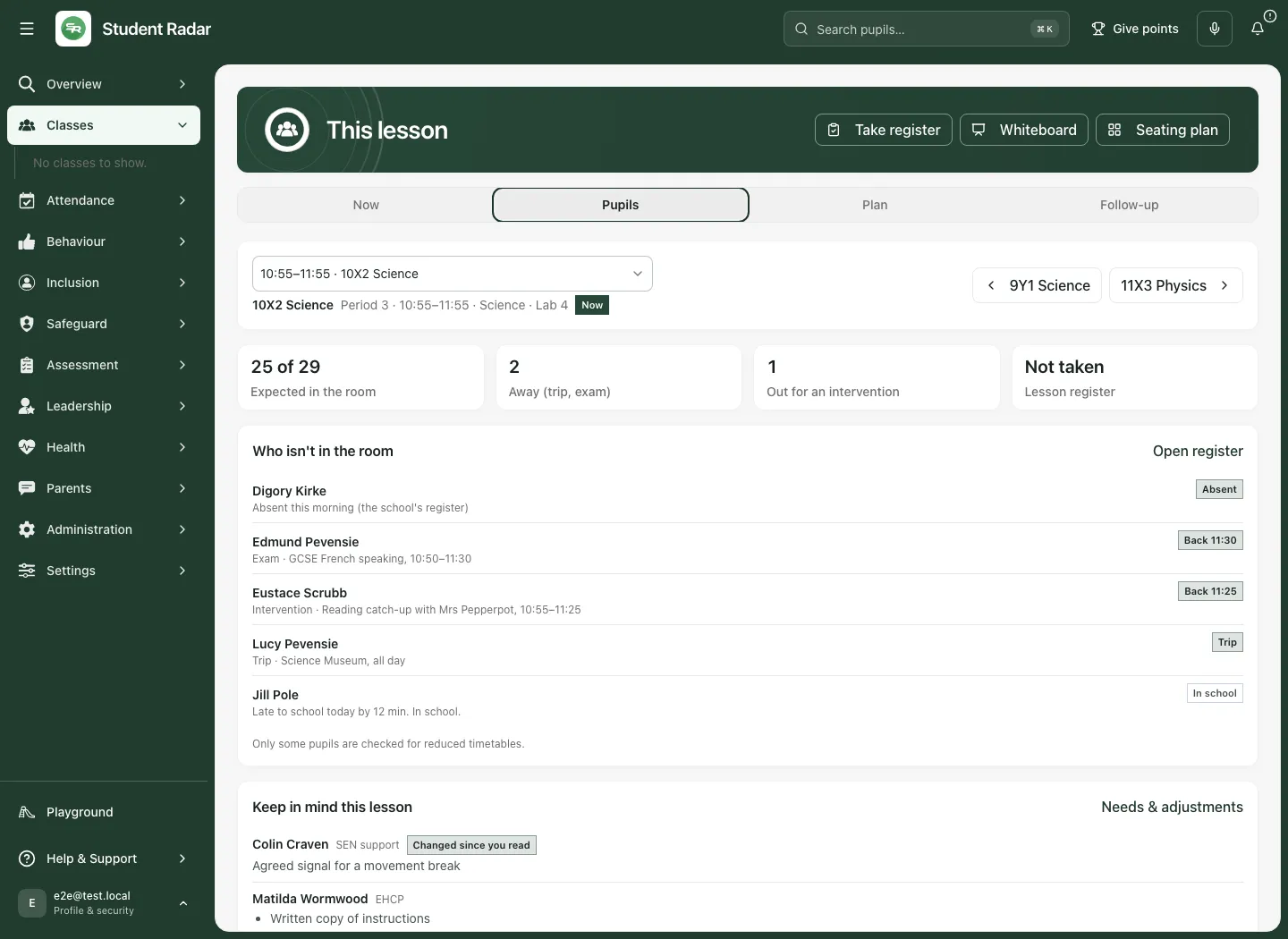
In Keep in mind this lesson, read the practical instructions from the available plans and notices. A “Changed since you read” marker prompts you to check the updated adjustment. Use Needs & adjustments to read the permitted class context, including source and coverage, rather than assuming a short reminder contains the whole plan.
The list can omit pupils away for the whole lesson and can be shortened in Now. Read any “more in Pupils” or source-coverage message. Not every school source or every pupil’s plan is necessarily available to your account. An absent health or safeguarding notice is not proof that no sensitive information exists.
4. Use the support brief, where offered
Section titled “4. Use the support brief, where offered”The Now section can show the teacher’s brief for allocated support staff. The teacher’s version allows the relevant pupils and lesson focus to be reviewed; support staff can read the agreed brief and provide a handback. Allocation and permission determine the view.
For a teacher preparing a brief:
- Check the named support colleague and lesson.
- Under Work with, review the selected pupils. Use Add pupil for another permitted pupil, or remove a pupil who should not be included.
- Enter a clear Focus: what to practise, what help to use and what observation would be useful.
- Read the available “what helps” information, then choose the offered save/update brief control.
- Check the saved state and any revision/read information before assuming a colleague has the latest version.
A read marker is different from evidence that the planned support happened. If another window changed the brief, read the warning and latest version before choosing whether to replace it. Do not keep typing over a pending save without checking which draft has been confirmed.
For support staff, read the teacher’s brief before the lesson and use the offered handback controls afterwards. Record observations about the pupils you actually supported. Confirm the result for each submitted note; unsent or failed notes are not saved evidence. A handback is different from the teacher’s private Note for next lesson.
5. Read the plan and leave a useful note
Section titled “5. Read the plan and leave a useful note”Choose Plan. A plan can be found from the class, date and period, or explicitly linked to the lesson. Check its title, objective and stages before using it. Open in Lesson Planner opens the original plan where permitted. Change plan lets you choose a different permitted plan; selecting an appropriate link is separate from rewriting the plan itself.
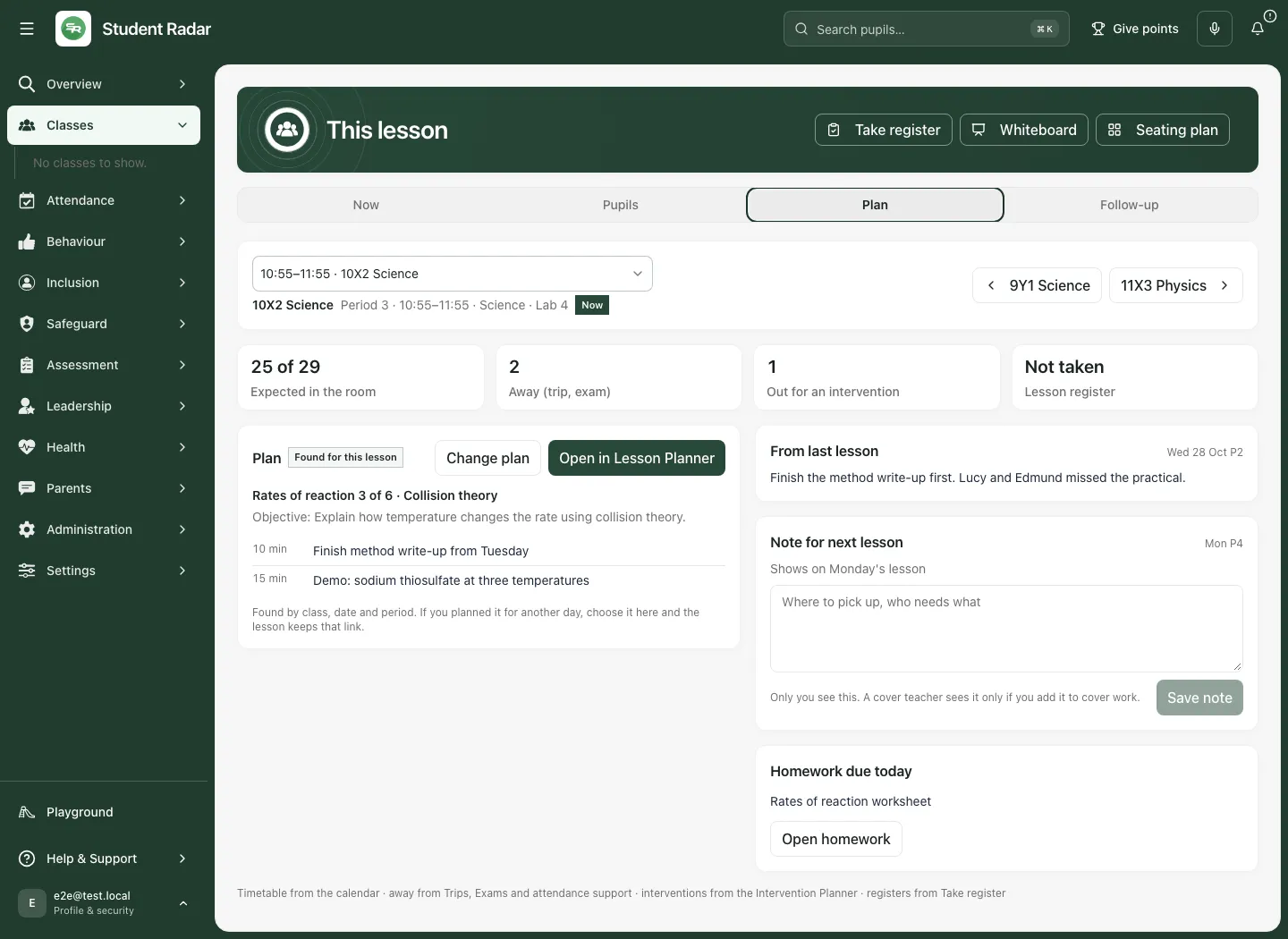
Read From last lesson, when present, with its date and class. It may be an older saved note from your previous lesson with this class and subject. It is not a live report from every other teacher.
Save your note for next lesson
Section titled “Save your note for next lesson”- Under Note for next lesson, check the next timetabled lesson named beneath the heading.
- Write a short, practical reminder under Where to pick up, who needs what. For example: “Start by checking the method write-up. Use one worked example before independent practice.”
- Select Save note.
- Wait for Saved and check the text. A draft left in the box is not saved simply because you changed sections.
- To revise it, edit the text and save again. To remove an existing note, clear the text and choose Clear note where offered. Check the confirmation.
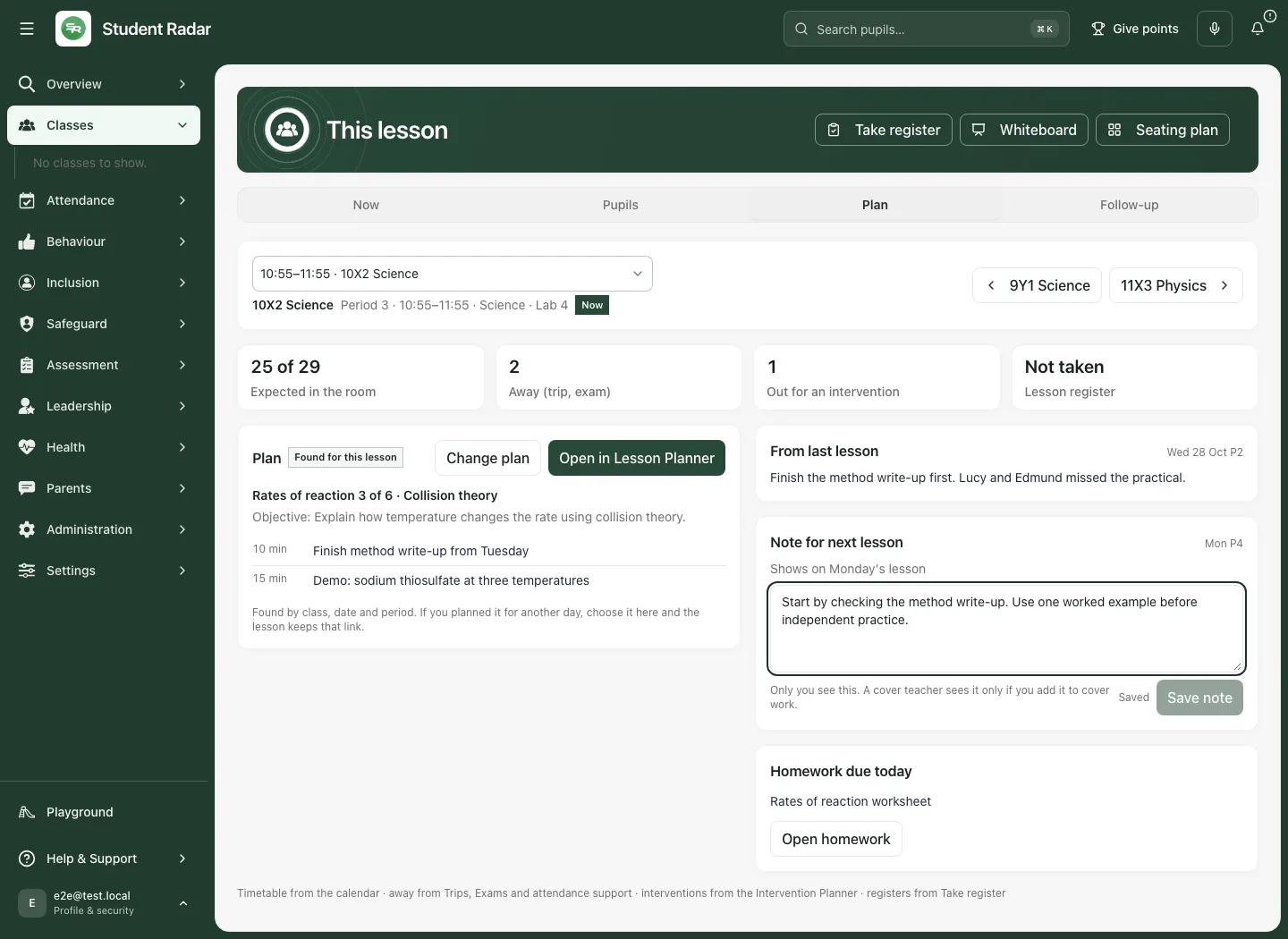
The note is your own reminder. A cover teacher sees it only if you explicitly add it to cover work through the supported process. Cover lessons can use a different workflow; read the message rather than assuming a teacher’s private note will automatically be sent to a replacement colleague.
If a save reports that the note changed in another window, review the latest text and your draft before saving again to replace it. Keep any unsaved wording you still need. A lesson with no class or time, a cover lesson or an unsupported source may not offer this note workflow.
Under Homework due today, read the title and due date, then choose Open homework where available. Setting or changing homework happens in that tool; the summary does not create an assignment.
6. Record what happened and keep the next step clear
Section titled “6. Record what happened and keep the next step clear”Choose Follow-up. How did support go? provides optional observations about the displayed strategies. Where available:
- Review the pupil and strategy line.
- Choose Helped, Didn’t help or Not today according to what you actually observed. Leave a line blank if you cannot make a supported observation.
- Add a proportionate note when the control is offered, identifying the relevant context rather than making a diagnosis.
- Select Save (or Save N notes, such as Save 2 notes, when notes are selected) and read the result. Check any individual failure or changed-plan message before treating the whole batch as saved.
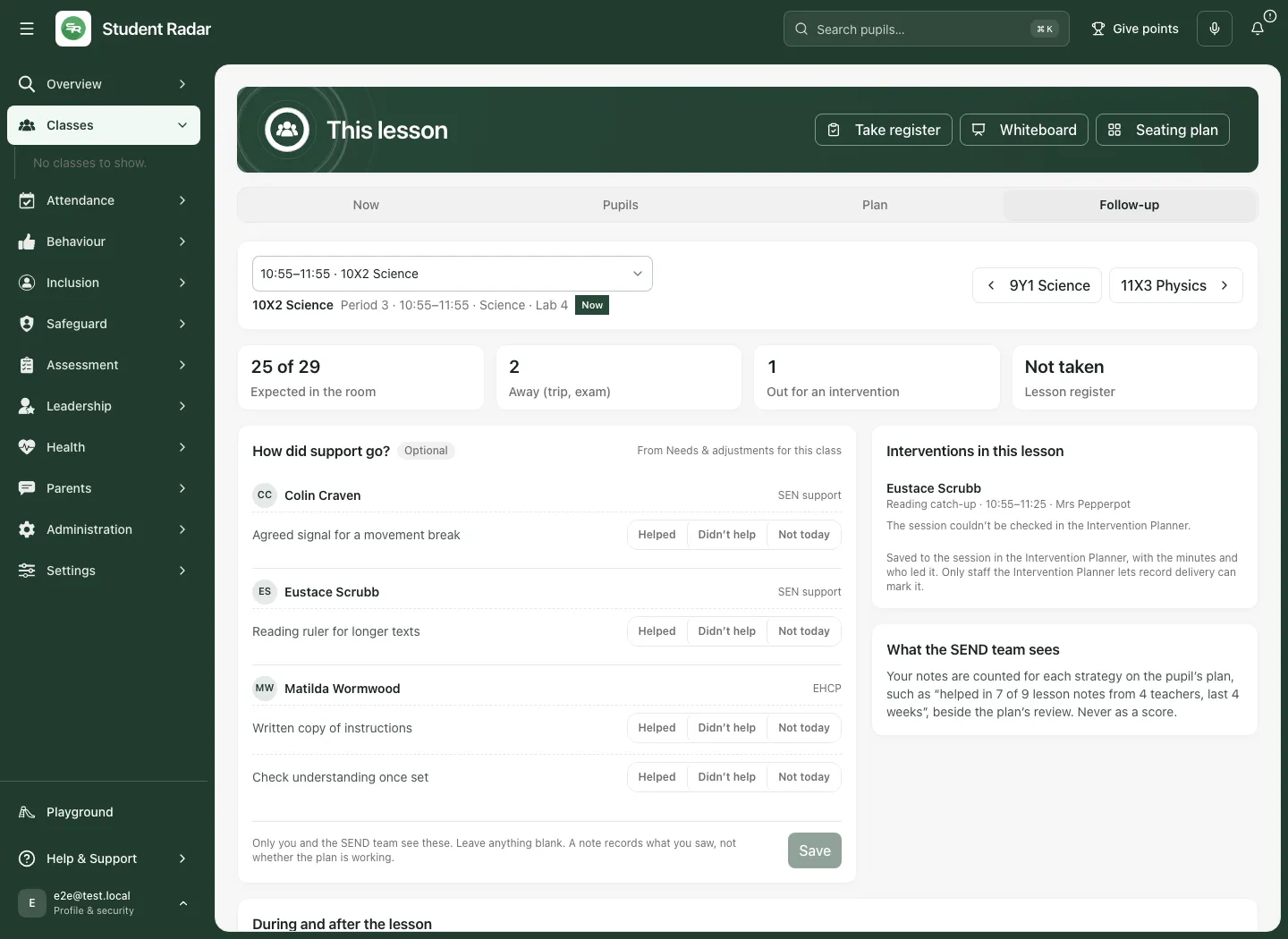
These are observations for review, not a score proving the plan works. The school should consider the observation period, number of notes, contributors, missing responses and wider evidence before deciding what to change.
Interventions in this lesson refers back to the Intervention Planner. Recording delivery requires permission in that workflow and the correct session, time and lead. If the session cannot be checked, do not mark delivery based only on its appearance in a timetable. A scheduled session is not a delivered session.
Under During and after the lesson, use Award points, Markbook or Set homework where available. Check the destination’s class and required details before saving. Each tool remains responsible for its own records. For a further action or concern, agree the appropriate owner and review point using the school’s process; do not infer an improved pupil outcome from completion alone.
Troubleshooting
Section titled “Troubleshooting”| What you see | What to do |
|---|---|
| No lessons on your timetable today | Check school/date and the timetable. Open Calendar where offered; this is different from a failed timetable read. |
| Account not linked to a staff record | Ask the school data manager to check the staff-account link. |
| Timetable not set up | Ask the authorised timetable/data owner to check configuration. |
| “That lesson isn’t one of yours today” | Use Show my current lesson or Open the class where offered; a stale link does not grant access. |
| This lesson access refused | Ask the permissions lead to check both This lesson and Staff Home, plus the relevant class duties. |
| Read failed or refresh failed | Use Try again. A retained result can be older than the failed refresh; check its source time. |
| Expected count has partial coverage | Read the denominator and source limitations; take the register in the normal tool. |
| A pupil/plan source is unavailable | Follow the available source route or seek an authorised review. Do not read unavailable as None. |
| A note or brief save conflicts | Review the latest revision and preserve the unsaved text before deciding to replace it. |
| A class tool is absent | Check permission and class selection; the page does not grant extra access to the destination. |
For support, provide school, lesson time/class, page, action taken and error wording through the approved route. Avoid unnecessary pupil-identifying screenshots.
Common questions
Section titled “Common questions”Should I use the expected pupil list as the register?
Section titled “Should I use the expected pupil list as the register?”No. Check the lesson context, then use the formal register to record attendance.
Where should I check a summary of pupil adjustments?
Section titled “Where should I check a summary of pupil adjustments?”Use the practical information to identify what needs attention, then read the relevant individual plan before relying on the guidance.