Set up your sites and filter the day by site
Written for: Alternative provision staff who run sessions at more than one address.
If your provision runs sessions at more than one address, record each address as a site. Each session can then say which site it runs at, and staff at one site can see just that site’s day: its sessions on the rota, its registers and its attendance.
Sessions keep their typed location as well. A site adds to it; it never replaces it.
Before you start
Section titled “Before you start”Sites are set up from the Weekly Rota by staff who manage the rota. If you don’t see Sites on the rota, ask your Provision Lead.
Until your provision has a site, nothing changes: the site filters and site pickers stay hidden. If you run everything from one address, you don’t need to set up sites.
Add a site
Section titled “Add a site”- In the sidebar, open Today and choose Weekly Rota.
- Click Sites, in the controls above the rota. Sites opens, listing your sites.
- Click Add site.
- Enter the Site name. Use the name staff already type as the location, for example Mill Lane. Each active site needs its own name.
- Fill in the address: Address line 1, Address line 2, Town or city and Postcode.
- Add the Site contact, Contact phone and Contact email if it helps. Anyone who can open the rota can see these.
- Choose a Site lead if the site has one, or leave it as No site lead.
- Tick Registered site if this address is registered for your provision, for example with the DfE or Ofsted, and enter the Registration reference.
- Add any Notes for staff.
- Click Add site.
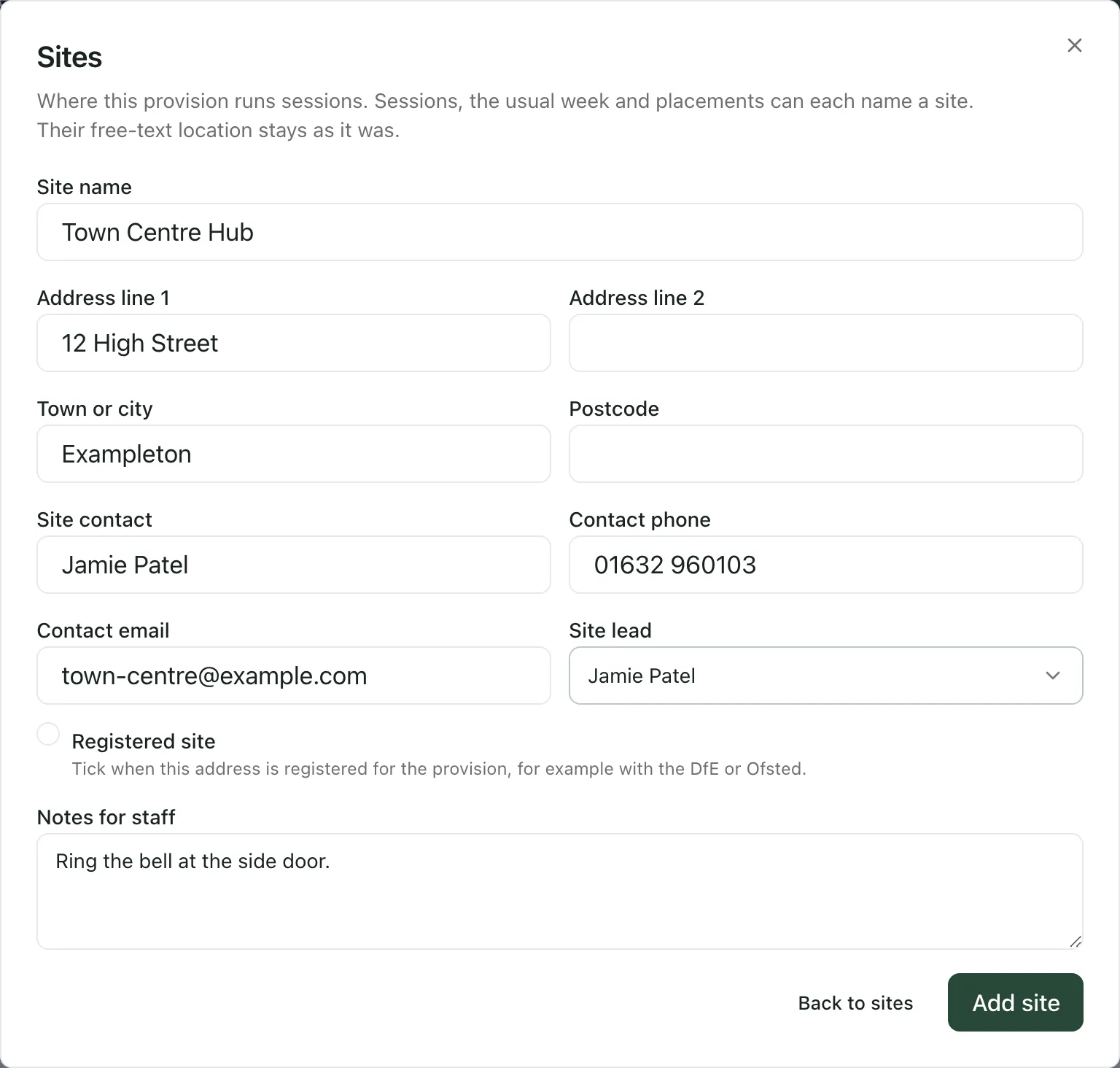
You’ll see Site added. Sessions and usual-week templates whose location already matches the site’s name now show the site. The message says how many. Matching ignores capital letters and extra spaces, and cancelled sessions keep the location they were recorded with.
To change a site, click Edit beside it, make your changes and click Save site. If you rename it, sessions whose location matches the new name take the site too.
Map the locations staff have typed
Section titled “Map the locations staff have typed”Locations typed before you added sites, or that don’t match a site’s name exactly, stay as they were. Free-text locations, at the bottom of Sites, lists them with how many sessions and usual-week templates use each one.
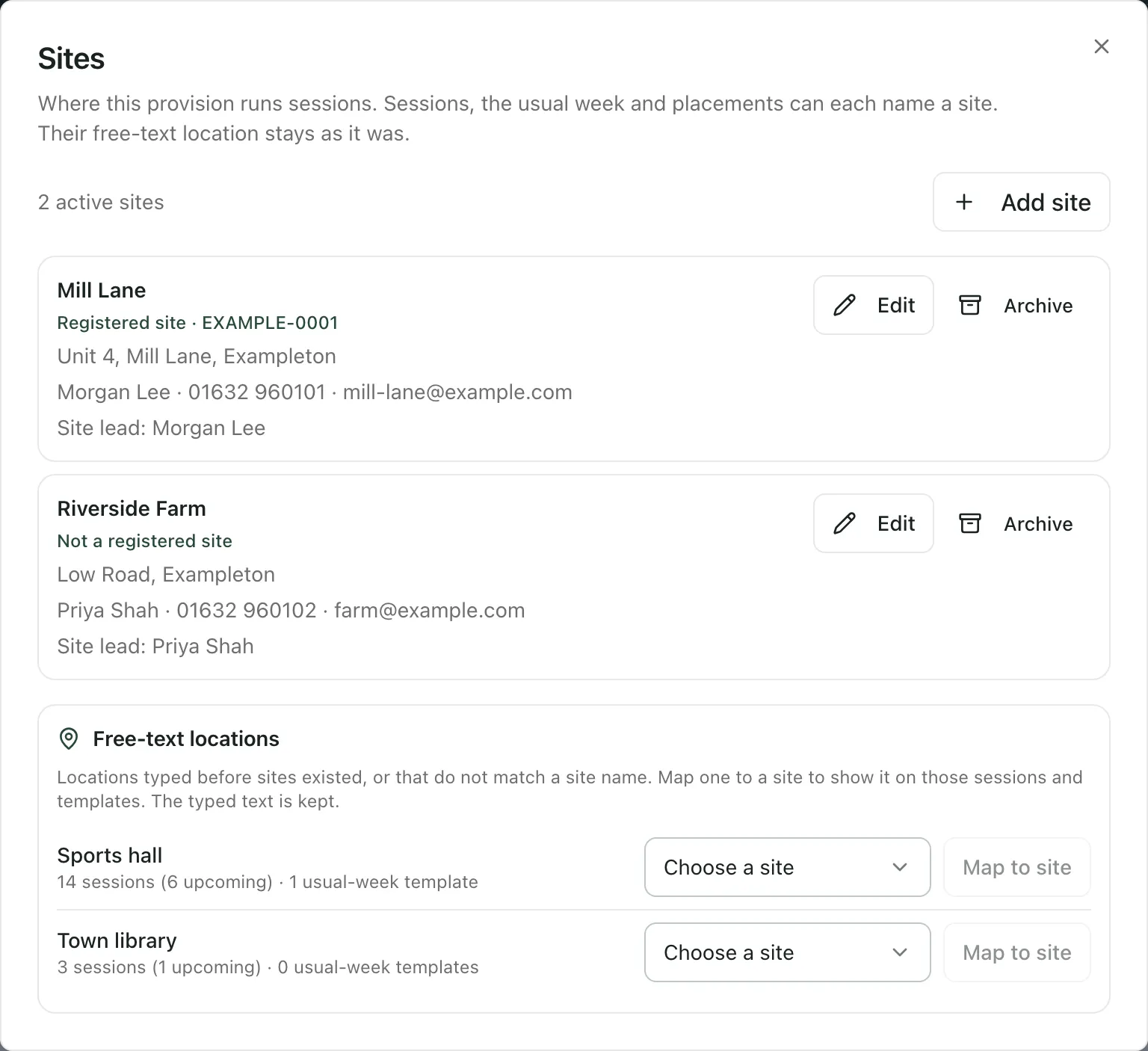
- Beside a location, choose its site. If a site’s name already matches, it’s chosen for you.
- Click Map to site.
You’ll see Location mapped, with how many sessions and templates now show the site. The typed text is kept. A location only fills in sessions and templates that don’t name a site yet, so it never changes a site someone chose.
When every typed location shows a site, the list says “Every typed location shows a site.”
Say where each session runs
Section titled “Say where each session runs”Once your provision has a site, the forms on the rota ask for a Site and a Room or area instead of a Location:
- A session: click Edit session, choose the Site and click Save session. When you type in Room or area, a site’s name chooses that site for you, until you choose a site yourself.
- The usual week: each template has a Site too. When you lay down a week, each session takes its template’s site. See Build your usual week and lay down the rota.
- A placement’s agreed timetable: open the pupil’s profile and choose the Placement tab. Under the agreed timetable, choose the Agreed timetable site and click Save site. When staff are assigned to the pupil’s planned sessions on the rota, those sessions take this site.
Choose No site recorded if a session doesn’t run at one of your sites.
See one site’s day
Section titled “See one site’s day”The Site filter appears on Today, the Weekly Rota, the Daily Register and Attendance Tracking. Choose:
- All sites to see everything.
- A site to see only the sessions that run there.
- No site recorded to find sessions that don’t name a site yet.
The site you choose carries across those four pages while your browser tab stays open, so staff at one site only need to choose it once.
With a site chosen:
- Today counts the marks for that site’s sessions today.
- Weekly Rota lists and counts that site’s sessions. Staff double bookings are still checked across every site, so a clash with another site isn’t hidden.
- Daily Register lists that site’s registers, and its figures add up those sessions.
- Attendance Tracking counts the booked sessions at that site. The totals for each pupil still cover every site, and the page says so.
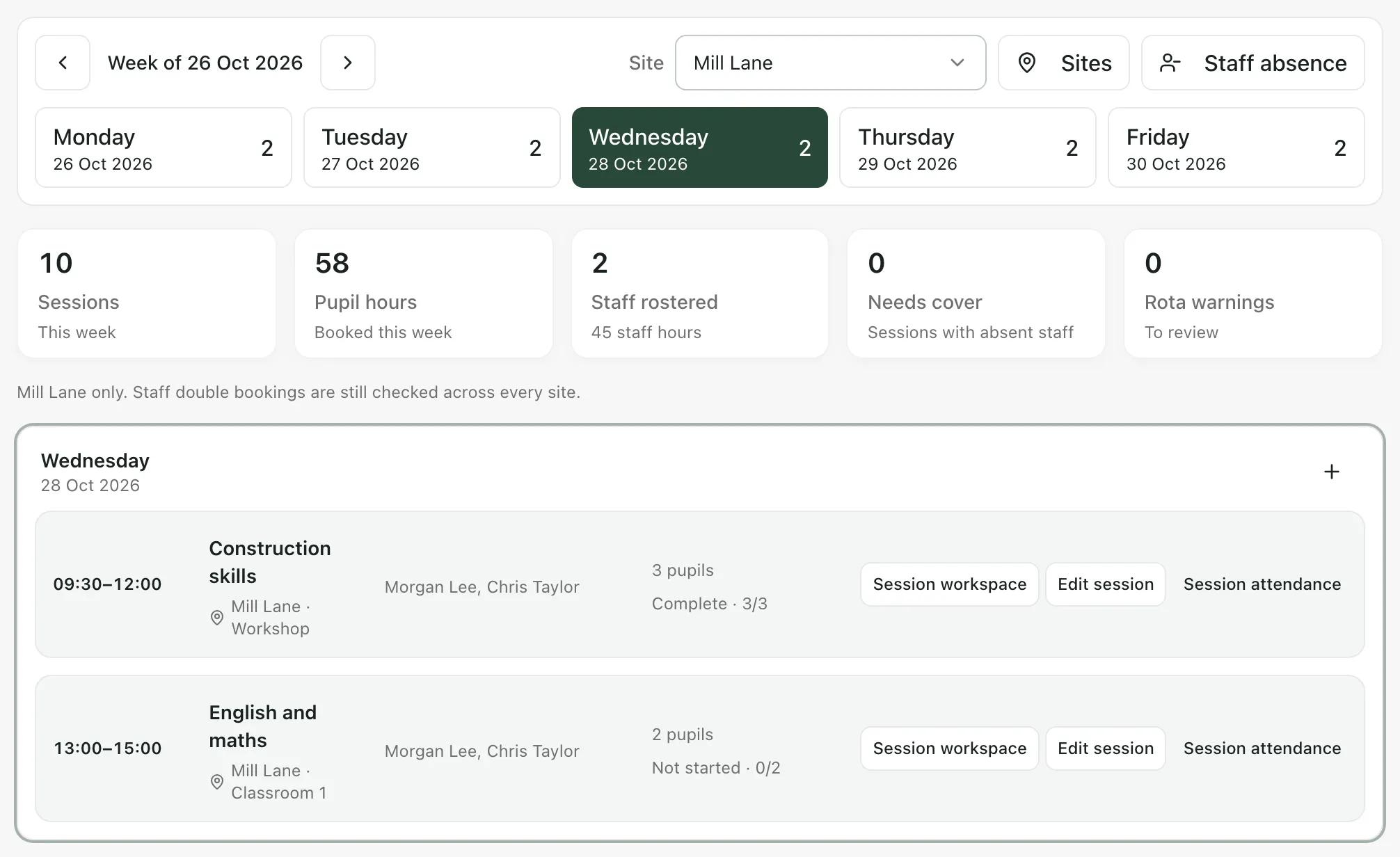
When every site is shown, session cards and Today’s timeline name each session’s site.
Archive a site you no longer use
Section titled “Archive a site you no longer use”You can’t delete a site, so its history stays complete. Archive it instead:
- Click Sites on the rota.
- Click Archive beside the site.
You’ll see Site archived. The site stays on the sessions that already name it, and you can still choose it in the filters, where it’s marked (archived). It can’t be chosen for new sessions.
To use it again, click Restore. You’ll need to restore a site before you can edit it.
- Who can do what: staff who manage the rota add, change, archive and map sites, and choose each session’s site. Changing a placement’s agreed timetable site also needs access to that pupil. Everyone who can open the rota can see site names, addresses and contacts.
- Some staff see a simpler rota: staff whose access to the rota is limited see it without sites, so they don’t get the site filter.
- Limits: a provision can have up to 200 sites.
- Rota PDF: Download PDF on the rota doesn’t show sites yet.
- The AP menu: the sidebar described here appears when your setting profile is alternative provision and AP operations are active. It only shows the pages you can open.
If something doesn’t work
Section titled “If something doesn’t work”| What you see | What to do |
|---|---|
| Sites isn’t on the rota | Only staff who manage the rota can set up sites. Ask your Provision Lead. |
| There’s no Site filter | Your provision hasn’t added a site yet, or your view of the rota doesn’t include sites. |
| “Another active site already has this name.” | Choose a different name, or edit the existing site instead. |
| “Enter a valid postcode.” | Check the postcode. |
| “Enter a contact phone number using digits, spaces, + and brackets.” | Remove any other characters from Contact phone. |
| “Enter a valid contact email address.” | Check Contact email. |
| “Choose a current member of staff as the site lead.” | The person chosen has left. Choose someone else, or No site lead. |
| “This site changed after you opened it. Reopen it and try again.” | Someone else changed the site. Click Back to sites, open it again and make your change. |
| “Restore this site before editing it.” | Click Restore beside the site first. |
| “That site is archived or no longer available. Choose another.” | Choose an active site, or ask a rota manager to restore it. |
| “A provision can hold up to 200 sites.” | Archive sites you no longer use. Archived sites still count, so ask support if you need more. |
| “Too many site changes in the last hour. Wait before trying again.” | Wait a while, then try again. |
| Session updated without its site or Session added without its site | The session was saved, but its site wasn’t. Read the reason, then click Edit session and choose again. |
| “Sites could not be loaded.” | Click Retry sites. |
| “Session sites could not be loaded, so figures for this site are unavailable.” | On Attendance Tracking, click Retry session sites, or choose All sites. |