Plan monitoring activities and follow through findings
Plan a focused activity or monitoring cycle, record observations and agree findings with an owner and review date. Monitoring & QA keeps activities, longer monitoring cycles and general school review work connected while separating evidence from interpretation and action completion from impact.
Open Leadership → Teaching & pupils → Monitoring & QA. Screenshots use fictional examples.
1. Choose the right workspace and register
Section titled “1. Choose the right workspace and register”The page has Monitoring workspace, General tasks & evidence and School context. In Monitoring workspace, choose Activities, Monitoring areas, School priorities or Template library.
Activities is your monitoring register. Use Search activities, Filter subject, Filter priority, Filter activity type and the status filter to find the right record. Check any loaded-record limit; the displayed register is not an assurance that every possible school activity has been recorded.
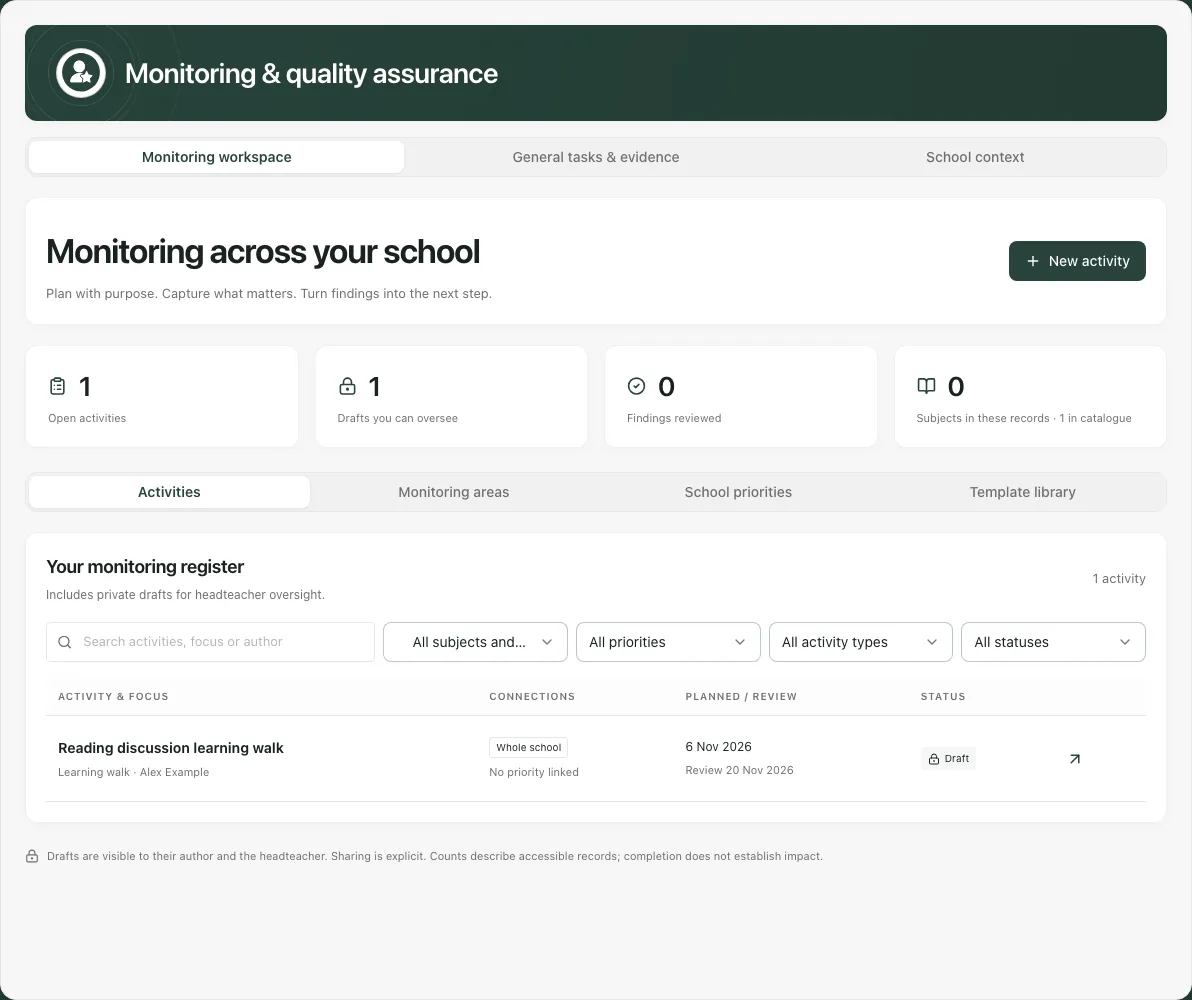
Private drafts are available to their author and the headteacher for oversight. Other readers see their own drafts and activities explicitly shared with them, subject to current access. “No activity visible” does not mean no monitoring has ever taken place.
2. Plan an activity around an answerable question
Section titled “2. Plan an activity around an answerable question”Select New activity or a suitable starter in Template library. Available activity types include learning walk, lesson observation, work scrutiny, pupil voice, planning review, assessment review and staff discussion.
In Plan, enter Activity title, choose Activity type and Recording approach (Guided prompts and notes or Quick notes), and write What do you want to understand?. Choose subjects/monitoring areas, a Whole-school focus where appropriate, and linked School priorities.
Set Activity date, Review date, Classes or year groups and Sampling plan. Explain how the sample will answer the enquiry and which perspectives it misses. Review must be on or after the activity date; a sample count cannot exceed the comparable eligible group.
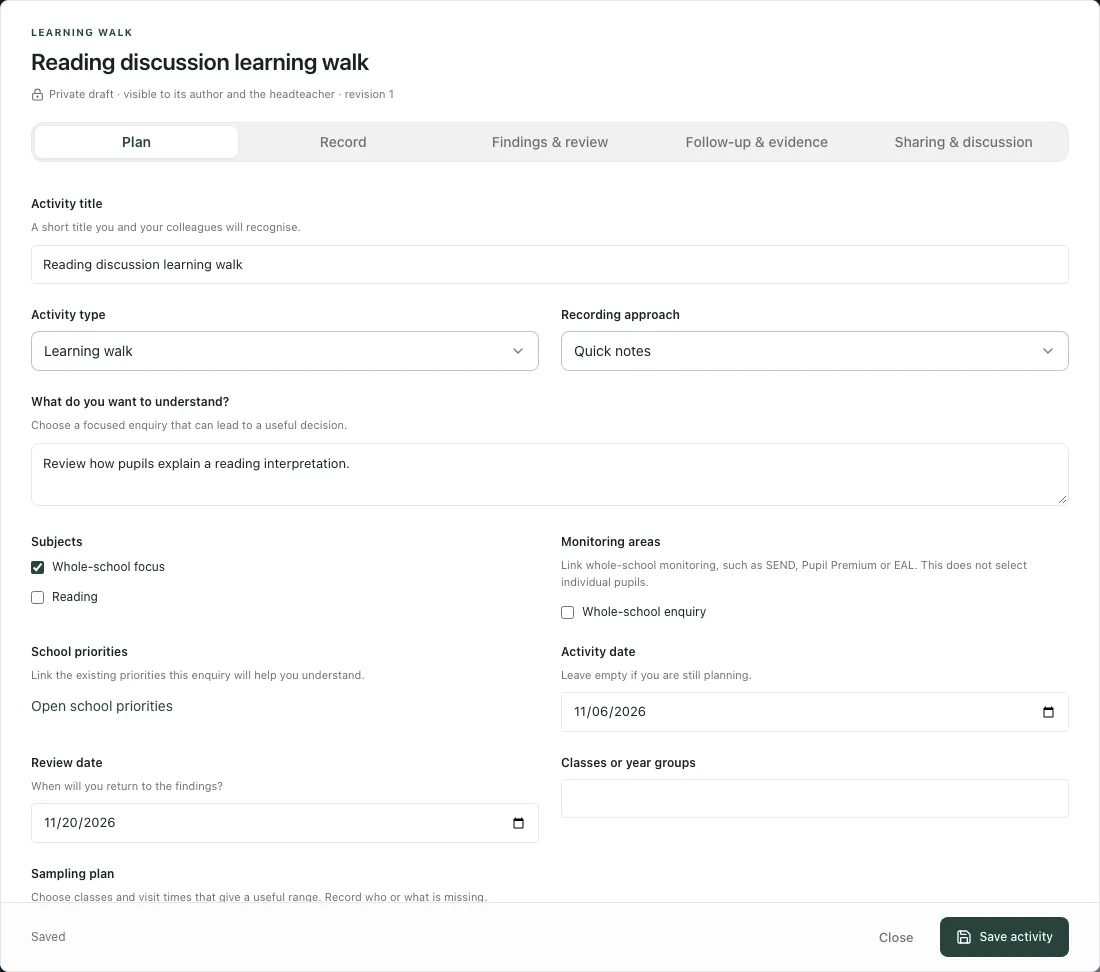
Save activity retains a private draft. Save before sharing, attaching files or connecting follow-up work. Changing the type can change unsaved template prompts; recorded answers are retained rather than silently discarded. Switching to quick notes is refused when it would lose existing responses: remove individual questions only after retaining needed wording.
3. Record what was seen, with its limits
Section titled “3. Record what was seen, with its limits”Open Record. Answer the guided prompts or use New prompt → Add prompt to add a question. Keep a prompt’s wording and response distinct. Additional notes and evidence should describe concrete observations and their context, with source titles/dates where needed.
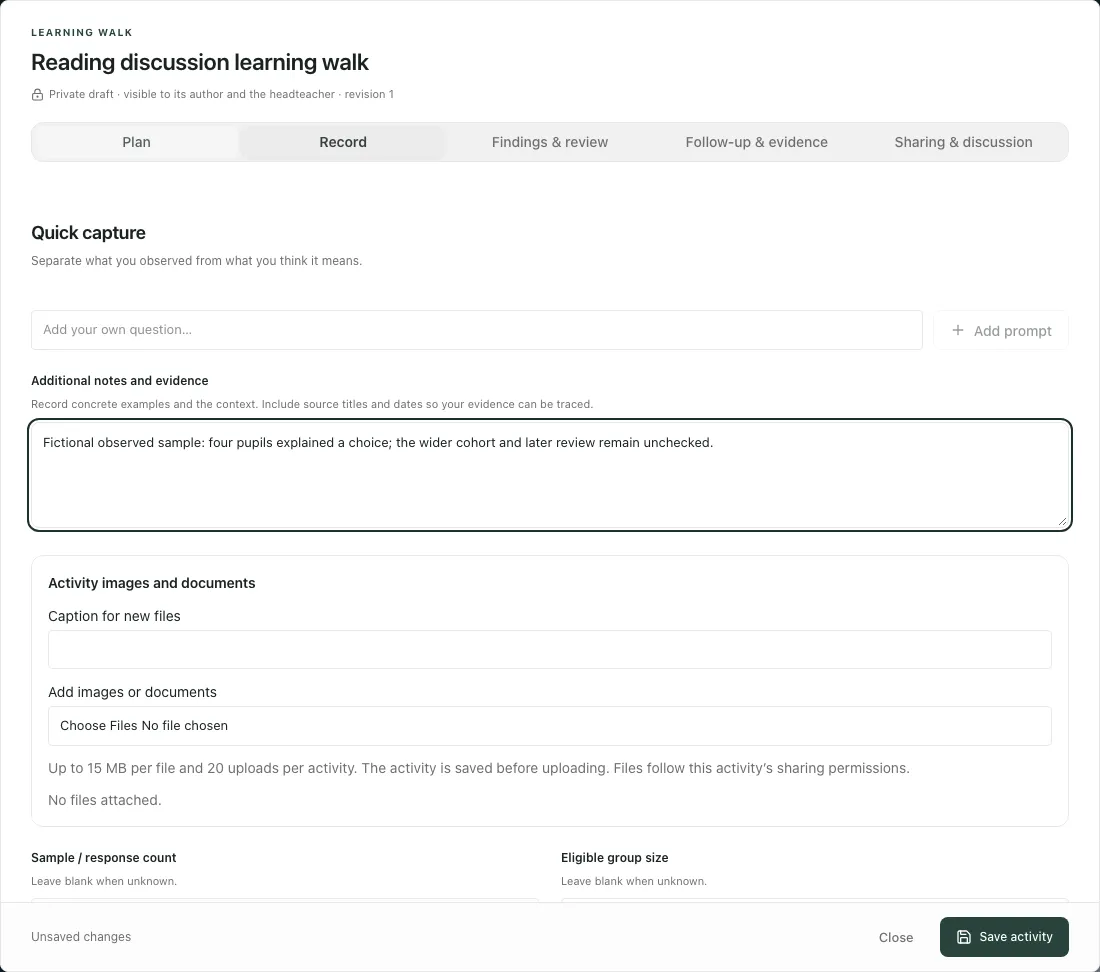
Record Sample / response count, Eligible group size and the offered limitations/missing-voice fields. Leave unknown counts blank rather than entering zero. Use the same unit for sample and eligible group; four books from twenty pupils is not automatically a representative view of every subject or teaching group.
Select Save activity, wait for Saved, then close/reopen to check the recorded text and revision. Saving evidence does not mark findings reviewed or change a school judgement.
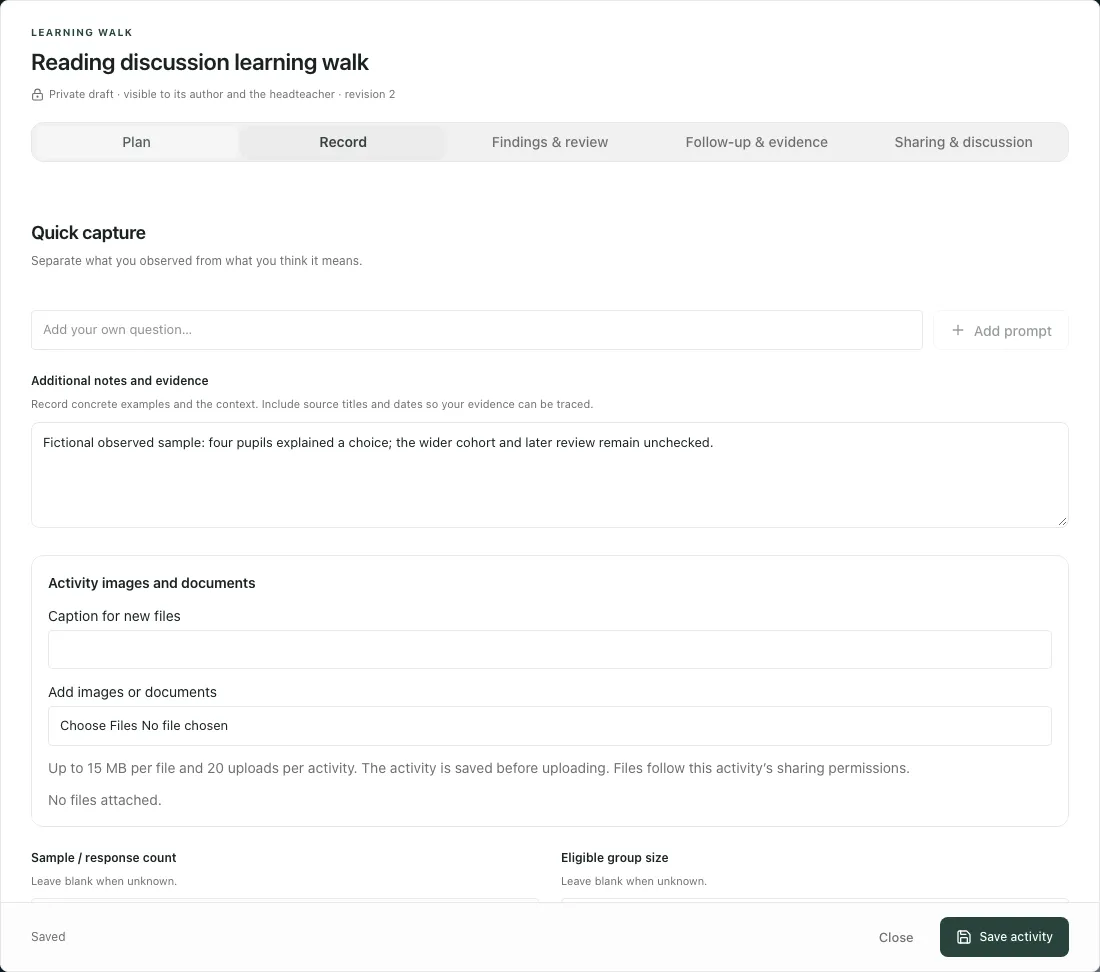
The fictional note records four pupils explaining a choice and explicitly leaves the wider cohort and later review unchecked. It should not be used as a whole-school outcome claim.
4. Attach relevant files without creating another evidence story
Section titled “4. Attach relevant files without creating another evidence story”Activity and prompt sections offer Caption for new files and Add images or documents. Choose relevant supported files and review the resulting attachments. The activity is saved before upload. The limit is 15 MB per file and 20 uploads per activity; each file follows this activity’s sharing permissions.
Check caption, target prompt/finding and completed upload state before using a file as evidence. An incomplete upload is not a retained usable attachment; follow its remove/retry message. Closed/cancelled activities have read-only attachments. Attaching a file does not validate its contents, remove privacy obligations or prove the activity’s findings.
5. Review findings and record the later outcome
Section titled “5. Review findings and record the later outcome”In Findings & review, record Strengths, Areas for development and Agreed next steps, checking differing evidence and what remains uncertain. Optional school-defined rating fields are Rating scale or criterion and Selected rating. A rating is staff judgement on the school’s chosen descriptors, not a score calculated from activity counts.
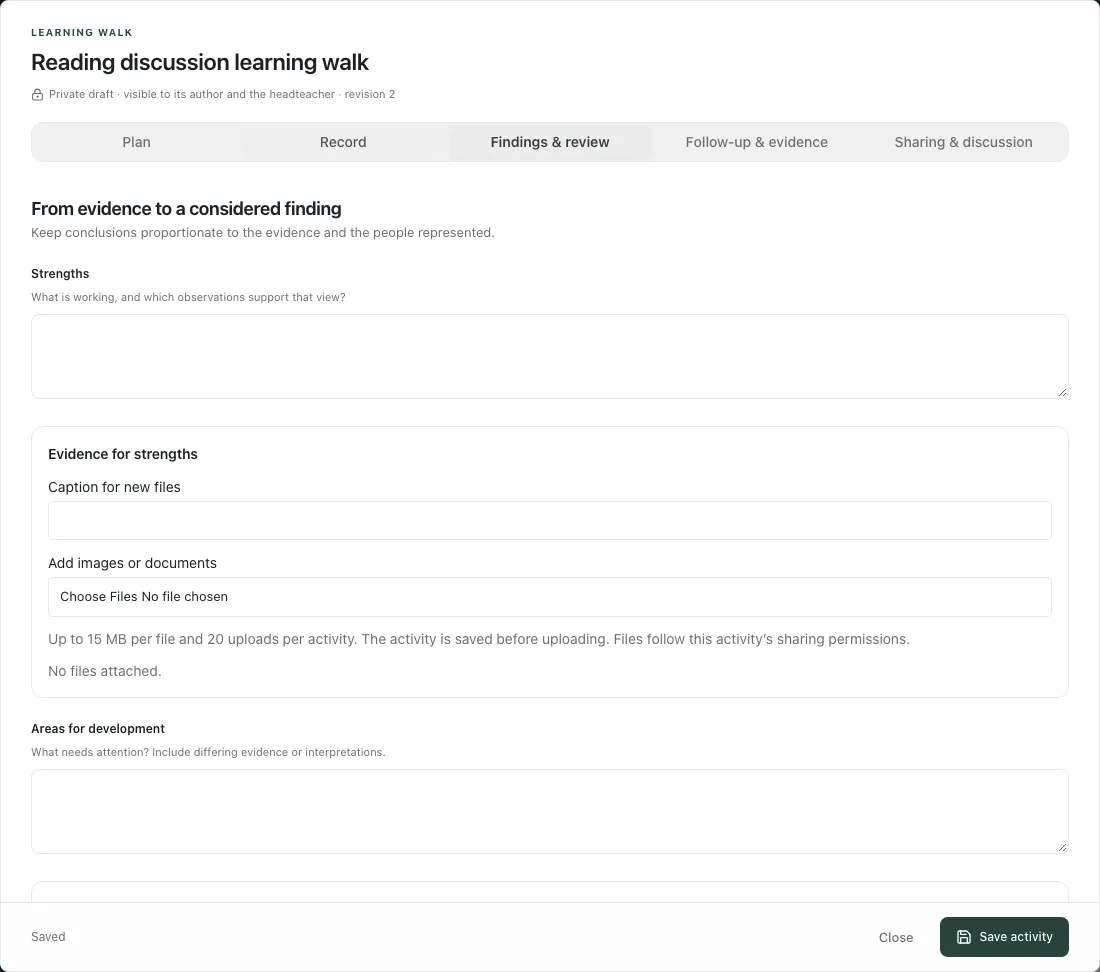
Save evidence and findings first, then Mark findings reviewed. The action confirms review of this revision. Editing a reviewed activity returns it to a draft/shared state so changed findings are not presented as already reviewed.
Record the later review account in Later review: what happened? before Close reviewed activity. Closing requires reviewed findings and what happened at the later review; it records completion of the review, not proof of improvement. Cancel activity retains the record with its cancelled state rather than claiming a completed enquiry.
6. Give findings somewhere to go
Section titled “6. Give findings somewhere to go”Use Follow-up & evidence only after saving the activity:
- For Action title, choose Assign to, set Action due date and Create assigned action. Check the created work in My Actions and its link back to the activity. The title/date are visible in the task workspace; check the wording before creating it. A task assignment does not establish receipt, completion or impact.
- Under Schedule a review in Calendar, enter Review event title, Review event date, Start time and End time, then Schedule review. Times use the school clock. This creates a personal Calendar event; add colleagues in Calendar through its own controls.
- For pupil voice, the offered Forms draft flow requires relevant questions, response identity choice and the school’s privacy/lawful-basis/retention references. Create Forms draft creates a draft, not a published survey or sent invitation. Named responses remain in Forms; maximum-anonymity work should record themes without names or individual completion tracking.
- Under Contribute a reviewed finding to the SEF, choose SEF area, write Summary to share with SEF readers and select Approve SEF contribution. Only the reviewed summary is added; it becomes visible to authorised SEF readers and does not change the SEF judgement automatically.
Connected records retain their own access and lifecycle. A link or saved source revision is not authority to edit another workspace. Check what the receipt actually created before repeating a connection.
7. Share deliberately and discuss the record
Section titled “7. Share deliberately and discuss the record”Sharing & discussion offers named colleagues and view/comment/edit access where the author can share. Select SLT and Select subject leaders prepare choices; inspect the actual people and permission level before Save sharing. Selecting a group shortcut is not itself a saved share.
Use Add comment to record a relevant discussion contribution. Comments are not the same as changing the evidence/findings or creating an owned action. A view-only colleague should not be given write forms; where editing is unavailable, ask the author or appropriate leader rather than duplicating the activity.
Check evidence content and attachments before extending the audience. Avoid pupil names and sensitive case detail in general observation text or anonymous pupil-voice themes.
8. Reuse a template without reusing conclusions
Section titled “8. Reuse a template without reusing conclusions”Template library provides starter questions, sample guidance and source references. Inspect them and adapt to the enquiry; a research source or starter prompt is not a prescribed inspection checklist or automatically effective method.
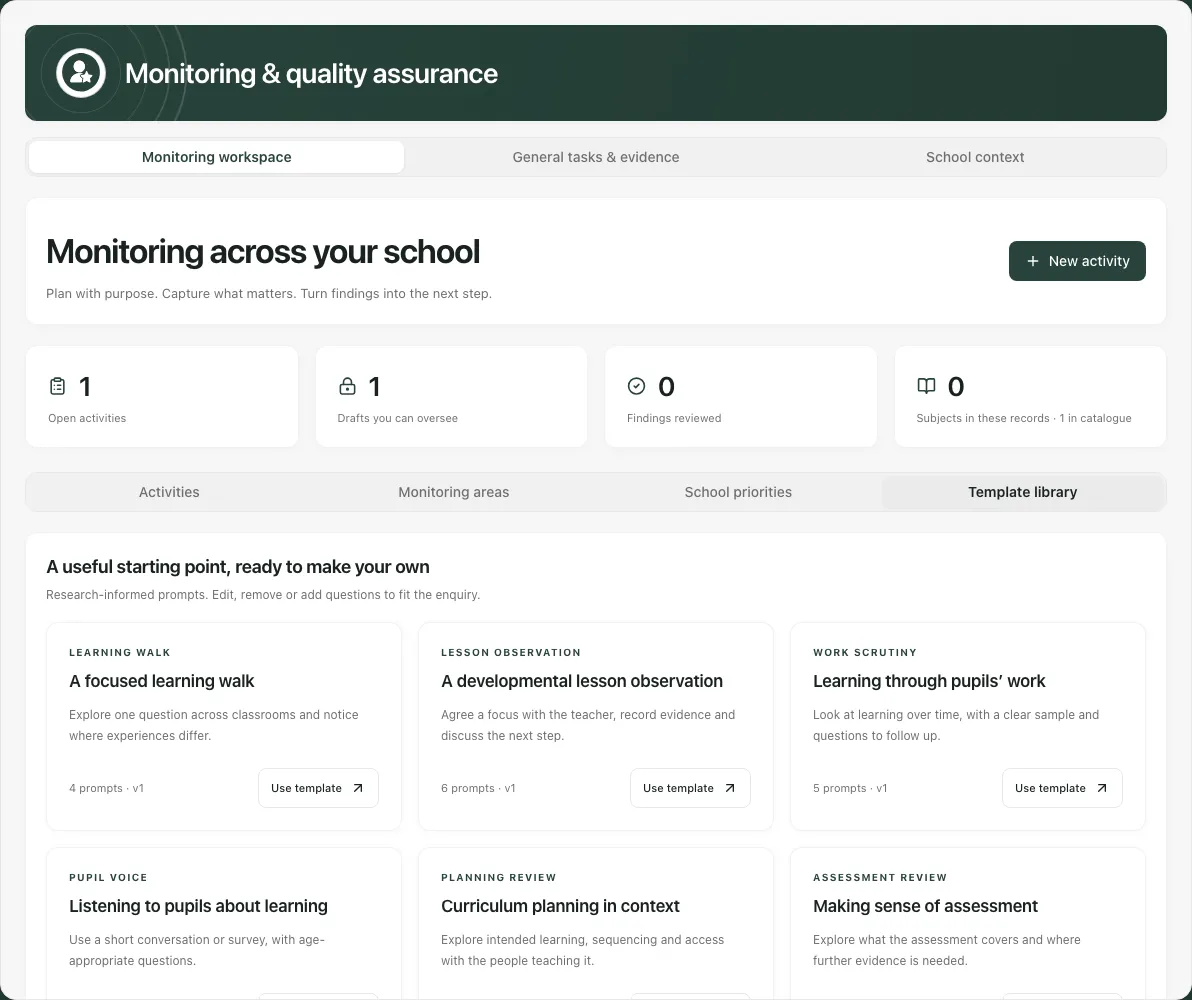
Where offered in the activity, give the structure a template name and Save school template. A useful template retains questions for later evidence collection; it does not establish that the new activity already happened. Keep the purpose and sample context specific when reusing it.
Eligible staff can configure monitoring subjects and areas. Hide an unused area rather than removing its history; existing activity links must remain interpretable. A changed catalogue or revision can require reloading before saving settings.
9. Use monitoring areas for a longer cycle
Section titled “9. Use monitoring areas for a longer cycle”Monitoring areas organises subject/whole-school areas and their monitoring cycles. Open the intended area, check existing cycles and use New cycle where allowed. A cycle is a longer plan with evidence, reviewed findings, steps and sign-off; it is not the same record as a single activity.
Enter Enquiry question, Year groups, Activity date, Review date, evidence methods and Sample plan, then Create monitoring cycle. Check/adapt method prompts. Optional Plan with AI supports a reviewed plan from selected context; it must not invent missing source evidence or decide a subject rating.
Inside a cycle use Activities, Plan, Evidence, Findings & actions and Review where offered. An activity shared into the cycle can be cited as evidence for a finding. Save observations with method, date, sample/eligible population, notes and limitations. Select evidence before writing Reviewed findings and response, check the human-review confirmation and Save reviewed findings.
Use Add follow-up, enter Follow-up title, Agreed action and intended outcome and Follow-up due date, then save the offered task. At Review, complete the next permitted step with Record step complete, write Review and sign-off note, obtain the authorised Record my sign-off decisions and Close reviewed cycle only after its gates are satisfied. Closing records completion of the review, not proof of improved outcomes.
A view-only shared cycle does not permit observation/finding/follow-up writes. A source change or definite refusal can leave the form editable for correction; an uncertain save retains the exact submitted input for recovery. Do not create another note/cycle just because the first response was unclear. For detailed cycle steps see Run a monitoring cycle.
10. Use general work and school context appropriately
Section titled “10. Use general work and school context appropriately”General tasks & evidence supplies the wider Overview, Tasks, Documents and offered pack-selection tools for this monitoring area. Use the actual task owner/due/status and original document version, review and read/sign controls where allowed. A document link, read receipt and completed task answer different questions; none automatically proves the monitored practice changed.
An offered Create evidence pack can be unavailable. Read the message and retain the selection; do not claim a ZIP exists or contains every document without a completed file and manifest check. Keep source documents in document control rather than uploading duplicate copies just to make a pack appear complete.
School context links to available cohort, attendance, assessment and behaviour views. Check their period, denominator, source coverage and missingness before selecting an enquiry. The page’s context links are not a new whole-child record and do not grant access.
Troubleshooting
Section titled “Troubleshooting”- Monitoring unavailable for your account: a role refusal needs the correct access; a pointless retry will not grant it.
- Save refused: read the actionable reason. Correct retired subjects, unavailable priorities, sample/date errors or missing review evidence before retrying.
- Result uncertain: keep the exact submitted record and use its recovery rather than changing/recreating work that may already exist.
- Activity changed elsewhere: close and reopen to load the latest saved revision, retaining useful text deliberately before leaving.
- Cannot close: save evidence/findings, review the revision and record the later outcome; cycle steps/sign-off are additional checks for a cycle.
- No measure of impact: record further evidence at review. Completing monitoring, creating CPD or ticking a task does not supply an outcome measurement.
Common questions
Section titled “Common questions”What should I record as an observation?
Section titled “What should I record as an observation?”Record what was actually seen, with its limits. Keep observation evidence separate from the findings and agreed interpretation.
How should I review an agreed action later?
Section titled “How should I review an agreed action later?”Return to its owner, review time and source evidence, then record what happened. Completing the action alone does not demonstrate impact.