Choose assessment reports and save a repeatable view
Choose a report for your question, review its scope and readiness, then save the filters you want to revisit. A prepared pack can combine available reports, while preserving the reasons any section is withheld.
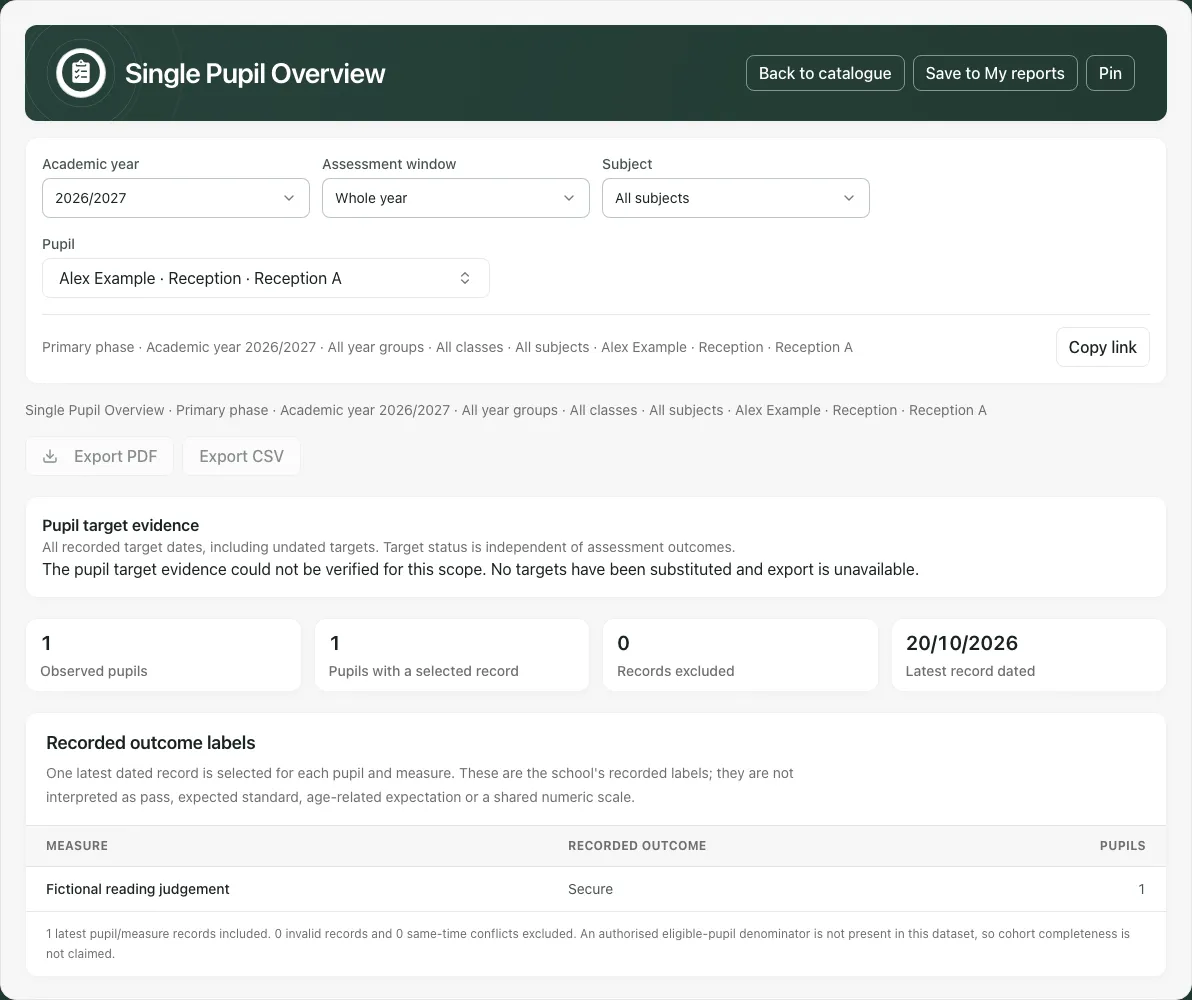
Screenshots use a fictional pupil and reading result. The example report deliberately shows that target evidence could not be verified while the recorded outcome remains visible. A saved view preserves filters, not a frozen copy or additional access.
Before choosing a report
Section titled “Before choosing a report”Open Assessment → Reports → Reports Catalogue. Reports depend on the school’s jurisdiction, phase, approved definitions, source data and your current access. The page waits while it checks which statutory reports apply. A report not offered at the school is different from a report with no data.
A secondary-school notice can point to Assessment & Outcomes for the appropriate broad analysis. Use the offered accessible link; a page named in plain text is not necessarily available to your account.
1. Choose the task or section
Section titled “1. Choose the task or section”Start at Start here for pinned/ready reports, prepared packs and My reports. Use the section rail for Leadership & governors, Classes & meetings, Pupils, Statutory or Setup. On a phone, use the Section picker.
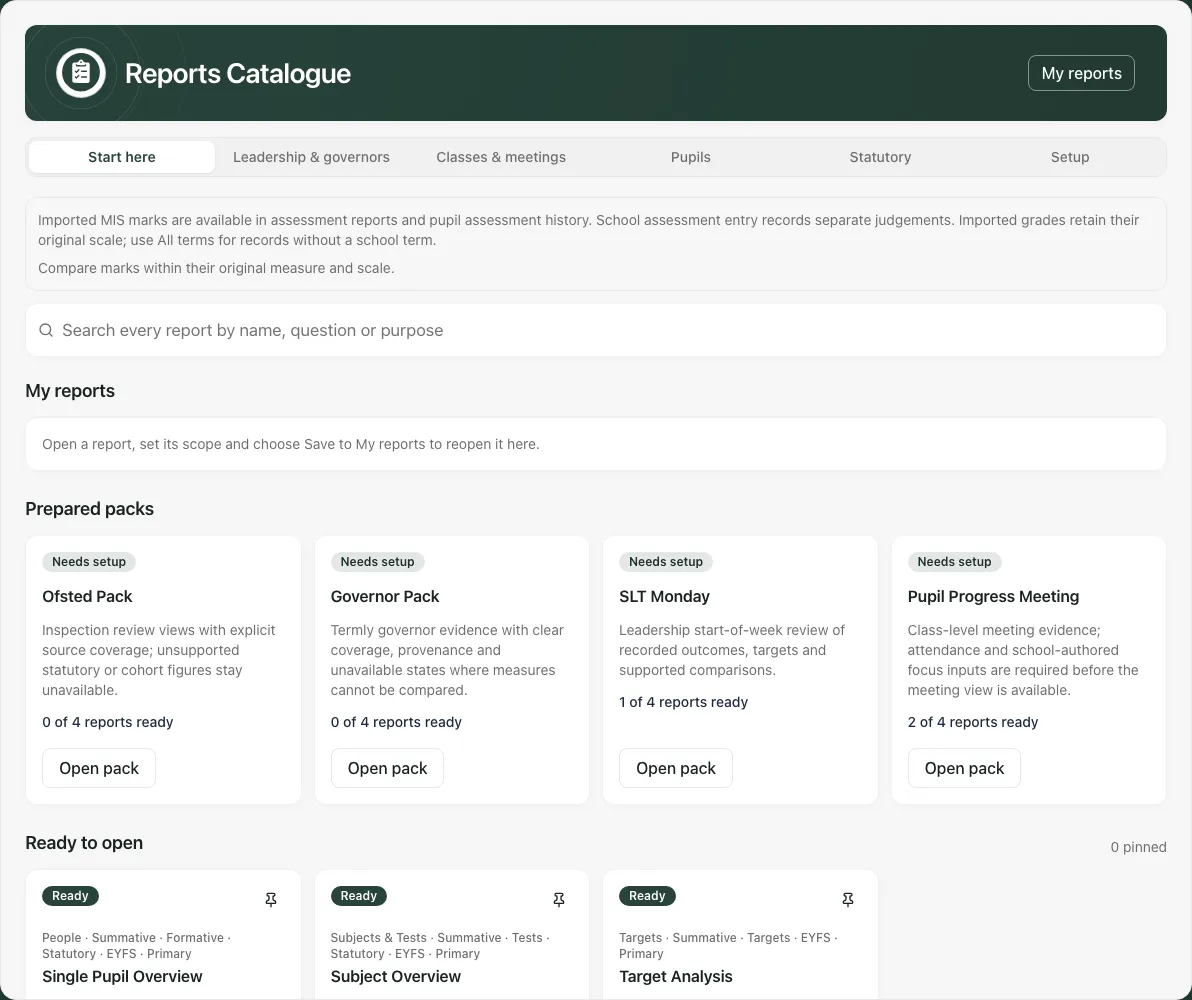
Use Search every report by name, question or purpose (accessible name Search reports) to find the intended question. A section/type filter can narrow the list; read any message showing that search results span sections. A report card’s title and purpose are more useful than choosing an output format first.
Cards describe Best for, what they show when supported, supported filters and outputs. Read readiness before opening:
| State | What it means |
|---|---|
| Ready | The checked prerequisites allow that report to open; inspect its actual coverage inside. |
| Needs setup | The school has not approved definitions the report needs; read the named next step. |
| No data | The checked source/year returned no usable records. |
| Checking | Prerequisite reads have not settled yet. |
| Not checked | Readiness could not be checked; the report can still show its own specific state. |
An EYFS readiness count can include draft or final profiles. It is not a count of completed formal outcomes. A small readiness read does not certify a complete historical roster or a final report.
2. Open the report and inspect its own scope
Section titled “2. Open the report and inspect its own scope”Choose Open on the intended card. The report shows the controls its template supports, such as Academic year, Assessment window, subject and permitted year/class scope. Single Pupil Overview also has Pupil.
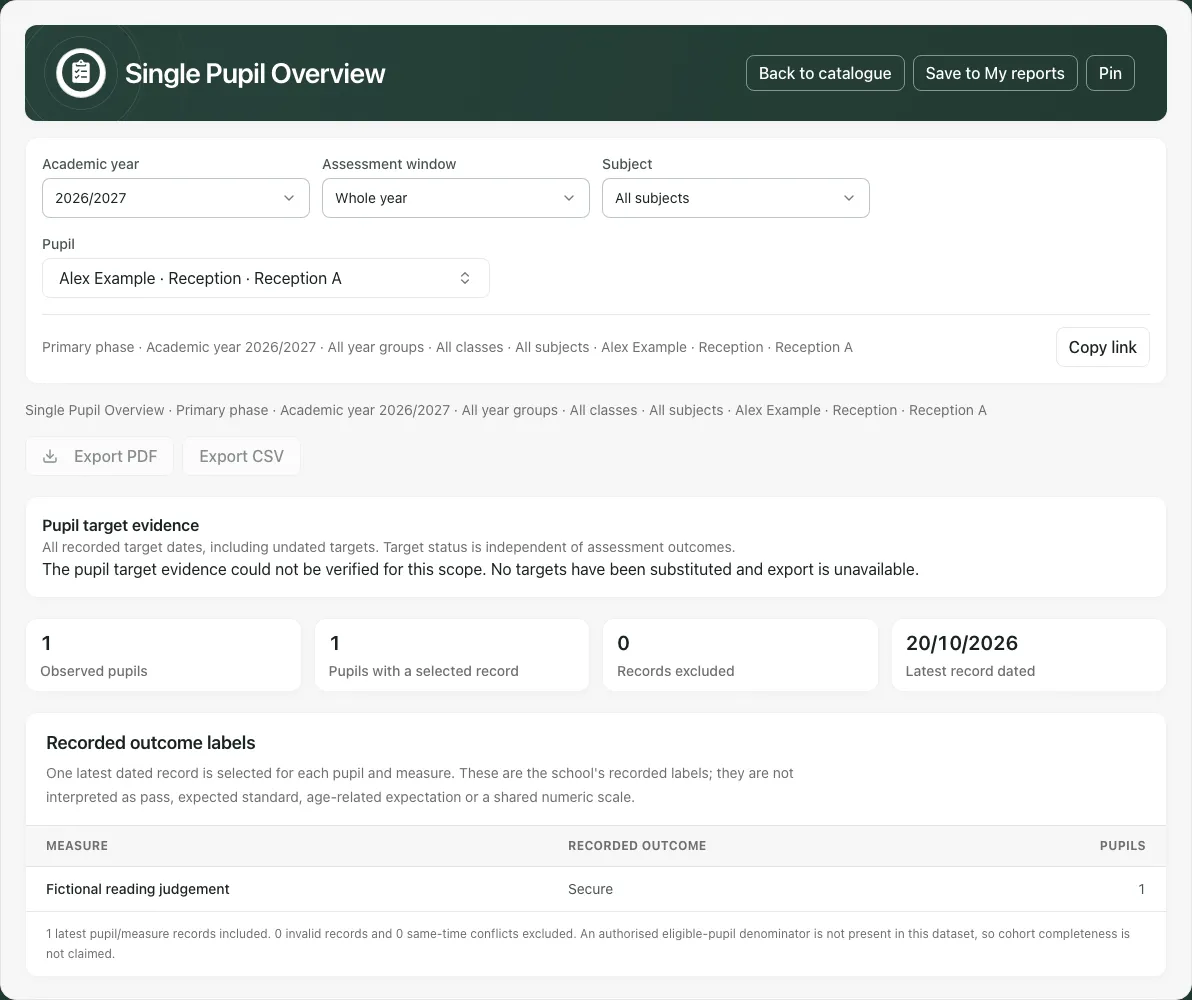
Set the actual year, period and pupil/cohort before interpreting results. Read the full scope line after every change. Filters from another report are applied only if the new template supports them; do not assume a named term or cohort is still active when its control is not offered.
If a saved year/class filter is no longer available, the page explains it rather than silently requesting unfiltered pupils. Resolve or clear the actual filter. A failed authorised-pupil list is Not checked or an access/error state, not proof there are no pupils.
Back to catalogue returns to choosing reports. Copy link copies the scoped route, not a public report. The recipient must still sign in and have current access to every source/target.
3. Read recorded outcomes separately from approved comparisons
Section titled “3. Read recorded outcomes separately from approved comparisons”Some reports show original recorded labels and dates without interpreting them as expected standard or a shared numeric scale. Other reports need school-approved measures/scales, phase definitions, thresholds, comparison windows, roster evidence or disclosure policy.
Do not assume the word Secure, a numeric mark and an official test standard have the same meaning. A label with no approved mapping stays a label. Missing data, conflicting same-time results, invalid values and unsupported comparisons must remain visible or withheld rather than being converted to zero.
Read pupil coverage and the excluded-record count. A returned-pupil denominator is not the school roll. In a statutory report, Score not recorded is different from a recorded zero score. In a target report, achievement is an authorised recorded target decision, not a value derived automatically from an assessment outcome.
4. Check Single Pupil Overview and its target boundary
Section titled “4. Check Single Pupil Overview and its target boundary”Select the verified Pupil and inspect the recorded assessment evidence. Use View pupil report where offered to open the appropriate pupil report without changing the source result.
The separate Pupil target evidence section covers recorded target dates, including undated targets. If it could not be verified, the report says that no targets were substituted and export is unavailable. Treat that as unknown target coverage, not proof the pupil has none.
With a named assessment term/window that does not apply to target dates, the screen can explain that targets are left out. Choose Whole year to include the target view when appropriate. An export of a supported narrower outcome view must retain its explicit target-omission note; it is not a full pupil target history.
5. Save the exact view to My reports
Section titled “5. Save the exact view to My reports”- Open the intended report and set its year, period, subject and pupil/cohort controls.
- Read the scope line, including academic year. A saved view must not drift to a later year merely because the school year changes.
- Choose Save to My reports.
- Enter a useful Name (up to 120 characters), for example “Year 4 reading review — Autumn 2026/27”. Do not put unnecessary sensitive details in the name.
- Choose Save and wait for confirmation.
- Return Back to catalogue, select My reports, then Open the saved item. Check the restored filters and source/readiness state.
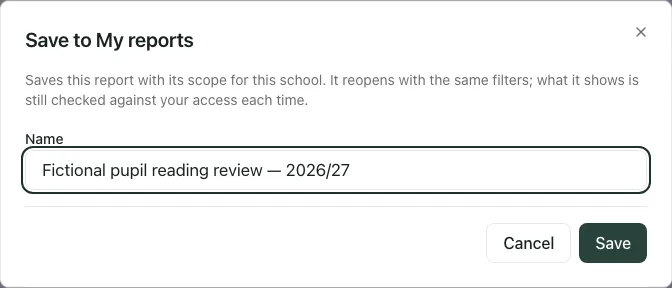
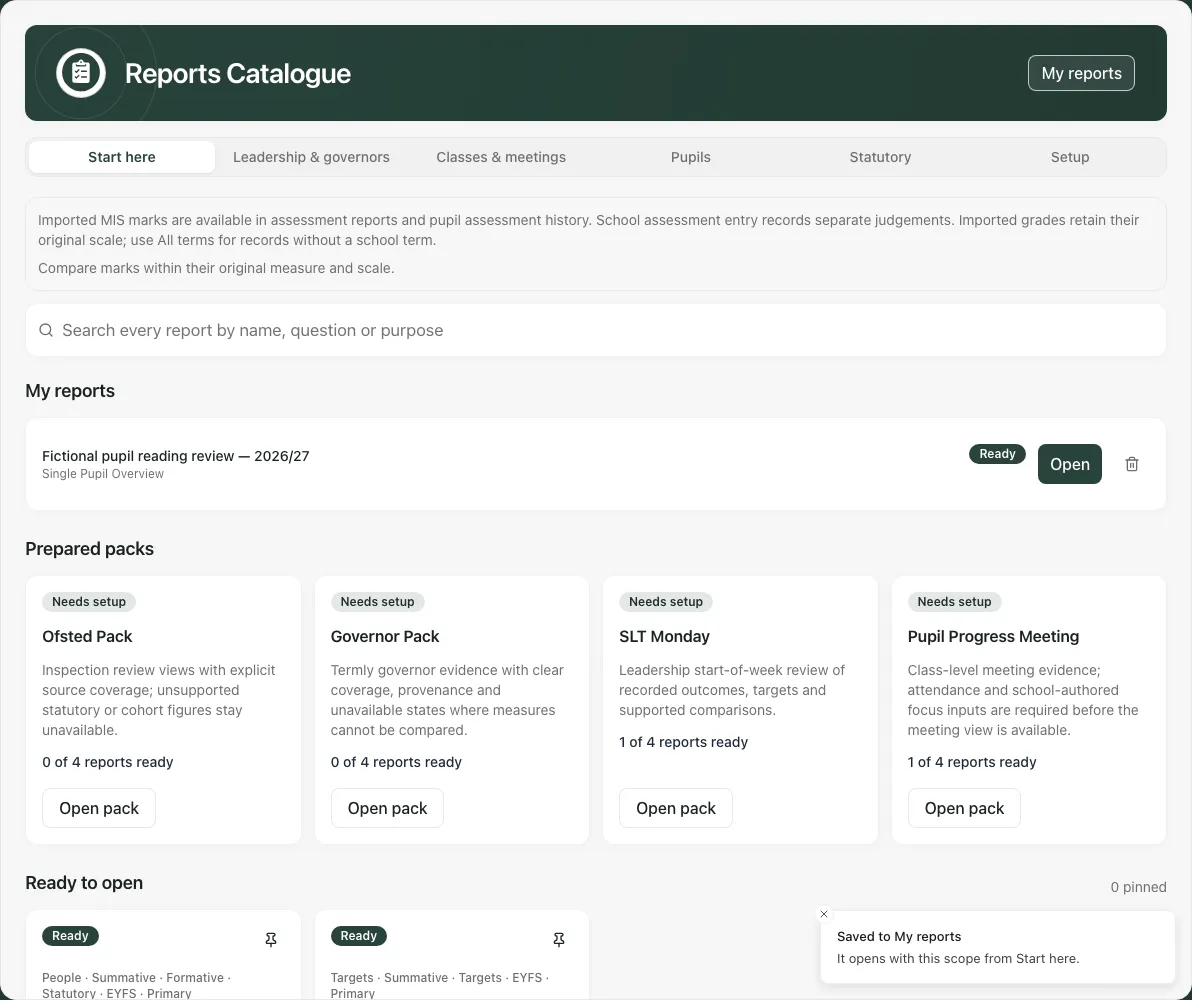
The saved item contains a query, not an exported PDF or immutable snapshot. Results can change as new records arrive and current access is checked each time. A report later Not offered at this school cannot be opened, but its saved preference can be removed.
Use the bin icon (Remove [name] from My reports) on the saved entry only when you intend to delete that shortcut. It does not delete the underlying pupil assessment.
6. Pin frequent reports separately
Section titled “6. Pin frequent reports separately”Use Pin on the card/report to add the template to your pinned starting points; Pinned indicates it is already selected. Pinning is different from saving the scoped query to My reports. Verify the year/filters when opening a pinned template; do not assume it restores the same scope as a named saved report.
A pin/save loading failure needs the offered retry. Do not repeatedly create another preference just because a previous response was uncertain; reopen My reports or the pin list to inspect the actual result.
7. Build a prepared pack with honest omissions
Section titled “7. Build a prepared pack with honest omissions”Where offered, choose Open pack for a prepared bundle such as a governor/leadership or pupil-progress meeting pack. Check the pack scope: packs apply the supported phase, academic year and year/class fields, not every filter from a report previously opened.
Wait for the included reports to settle. A section marked Withheld has a stated reason such as missing setup, source data or a failed read. It is not always No data yet. Read which reports will be included and which will be listed as withheld on the contents page.
Choose Create pack PDF only after reviewing that scope and inclusion list. A pack with omitted sections is not proof those aspects are satisfactory or absent. Use the specific source/setup next steps before relying on it as a complete briefing.
8. Export a stable report deliberately
Section titled “8. Export a stable report deliberately”Use Export PDF or Export CSV where the report is complete and authorised for that output. Verify its title, scope line, pupils, source dates, coverage and any omitted target section first. A configured report’s CSV includes its title/scope; preserve them when moving the data into another document.
Wait for the actual download. If you change scope or leave while a PDF is building or the export request is pending, the download can be cancelled and the page asks you to create it again. Do not use an old in-progress result as though it represented the new filters.
The audit request can be recorded before a late cancellation, so “file not downloaded” is different from “no export request was logged”. Read the actual outcome. A refused export is not successful proof of delivery or recipient access.
A downloaded file is a dated snapshot. It does not update when the pupil’s source record changes. Use the school’s handling arrangements for named pupil evidence and verify the recipient/audience separately; the catalogue does not make every report a public share.
9. Use Setup to approve meanings and prerequisites
Section titled “9. Use Setup to approve meanings and prerequisites”Authorised staff open Setup, read the completion steps and choose Assessment report settings to edit definitions. A failed settings read offers Retry rather than a reliable missing-settings conclusion.
The steps include Measures and scales, Phase year groups, Assessment windows, Expected thresholds, Disclosure policy, and Meeting focus and attendance dates. Each lists which reports it unlocks. A report that needs two compatible measures, explicit thresholds or a historical roster must not be opened by inventing a convenient mapping.
In the settings editor, review the actual assessment sources and approved recorded-outcome mappings, scale/test edition, phase membership and current/baseline windows. Check attendance date pairs only for their intended complete windows. Trim and verify original labels so they match the recorded source meaning.
Choose Approve new definition version only after the authorised school review. Approval creates a retained definition; it does not change recorded assessments or prove every historical comparison is valid. For an offered target binding, inspect Approved target measure and use Approve target comparison only for a genuine compatible link, not every numeric target.
Reopen the intended report after approval and inspect its actual coverage and remaining prerequisites. Changing a mapping can affect interpretation; do not claim like-for-like progress merely because a report now opens.
10. Keep scheduling and authored pupil reports in their own workflows
Section titled “10. Keep scheduling and authored pupil reports in their own workflows”A saved catalogue query is not a recurring report schedule and does not publish a pupil report. Use Report Automation for recurring generation/delivery and Report Writer for authored pupil-report drafts/approval. Follow those workflows’ audience and human review steps rather than treating a pin or a catalogue PDF as approval to send.
Phone use and troubleshooting
Section titled “Phone use and troubleshooting”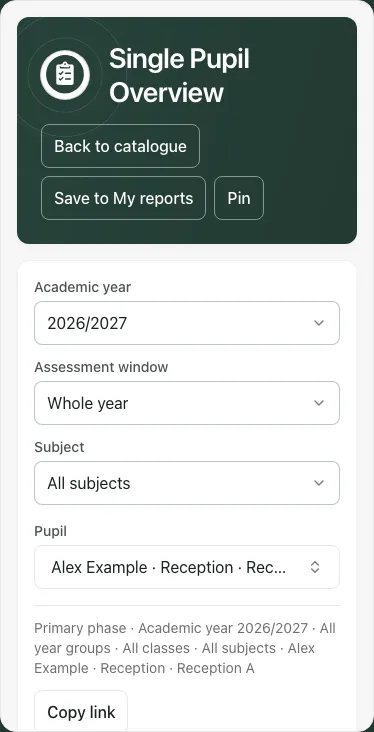
Scroll the scope controls and wide tables before interpreting a clipped source. Use Section to return to the catalogue area you need.
| Situation | Next step |
|---|---|
| Checking which reports apply | Wait for the school jurisdiction/readiness check. |
| Not offered at this school | Use an available report; remove an obsolete saved shortcut if needed. |
| Needs setup | Read the named step and ask authorised settings staff. |
| Not checked | Open the report’s specific state or retry the failed readiness read. |
| Saved pupil filter unavailable | Resolve/clear that actual filter; do not assume unfiltered data was loaded. |
| Target evidence cannot be verified | Keep the limitation; do not substitute assessment outcomes or assume zero targets. |
| Pack section withheld | Read its reason and inclusion list before creating the pack. |
| Export cancelled after navigation | Recheck the current scope and create it again; a log entry may remain. |
| Saved report reopens differently | Check school availability, stored year/scope and current access before recreating it. |
Common questions
Section titled “Common questions”What does My reports save?
Section titled “What does My reports save?”A named view saves the report filters for later review. It does not freeze the evidence or grant additional access.
What should I do with a withheld pack section?
Section titled “What should I do with a withheld pack section?”Read the stated reason and review the missing evidence or prerequisite. Do not present a prepared pack as complete when a section is withheld.