Coordinate on-call alerts and staff cover
Written for: Authorised on-call responders, safeguarding leads and school administrators.
Read active alerts, acknowledge a request, record a useful handover and maintain the intended weekly cover assignment.
Use it to see what needs a response, acknowledge the request you are taking and record the handover when that alert is resolved.
An acknowledgement records a response commitment. It does not establish that someone arrived, that the underlying incident is closed or that a child is safe. Follow the school’s direct urgent-contact and emergency arrangements whenever needed.
All screenshots are fictional examples. No real alert, message, incident or cover change is represented.
Before you start
Section titled “Before you start”Check your school and role. Opening the workspace, responding to alerts, managing cover and changing dispatch settings are distinct permissions. A colleague may be able to read the roster without seeing assignment controls. Settings appears only when the current account is authorised to change the school’s on-call settings.
Agree the operational arrangements outside the screen too: who is on duty, how a responder is contacted, what happens during absence and how urgent failures are escalated. A roster entry alone does not prove availability or successful notification.
1. Read the active alert queue
Section titled “1. Read the active alert queue”- Open Safeguard → Concerns & Response → On-Call & Alerts.
- Choose Alerts in the On-call workspace controls.
- Read the number awaiting response and being handled. These are different states.
- Read each card’s priority, request, location, raised time, reporter and permitted pupil detail. Urgent requests are prioritised in the queue; still check the actual request and local circumstances.
- Use Search alerts to search the request, location or responder. Use Alert status to select the relevant state.
- Use Previous and Next when the queue spans pages. A visible page is not the whole queue.
- Use Refresh, then read the Checked time and school-time label. A queue that cannot be read is unavailable, not empty.
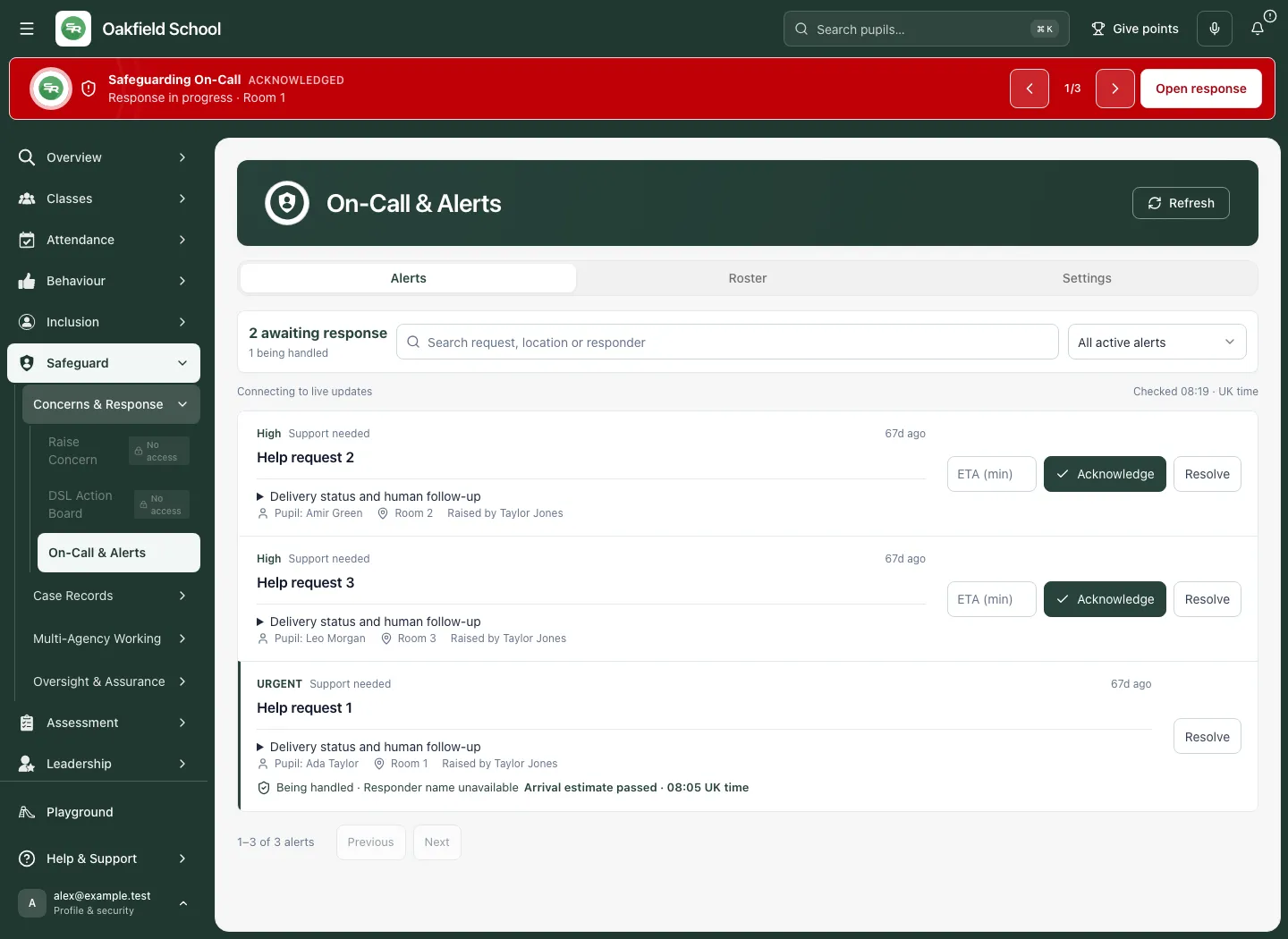
A global on-call banner can offer Open response or Open Safeguarding On-Call response. Follow it to this workspace, then inspect the current request rather than acting solely from an old banner.
2. Acknowledge the request you will take
Section titled “2. Acknowledge the request you will take”- Confirm the request, location and priority. Check whether it is still open or already Being handled.
- If useful, enter ETA in minutes. The field accepts a whole number from 0 to 240; leave it blank if you cannot give an estimate.
- Choose Acknowledge on that card.
- Wait for the recorded result. The card should identify the responder and, where present, the expected arrival time.
- Follow through with the actual response. Arrival estimate passed indicates that the recorded estimate is overdue; it does not confirm arrival.
Another responder may act at the same time. If the screen says Response not recorded, reread the current card and coordinate with the person now handling it. Do not treat a click or an optimistic assumption as a saved response.
3. Resolve an alert with a useful handover
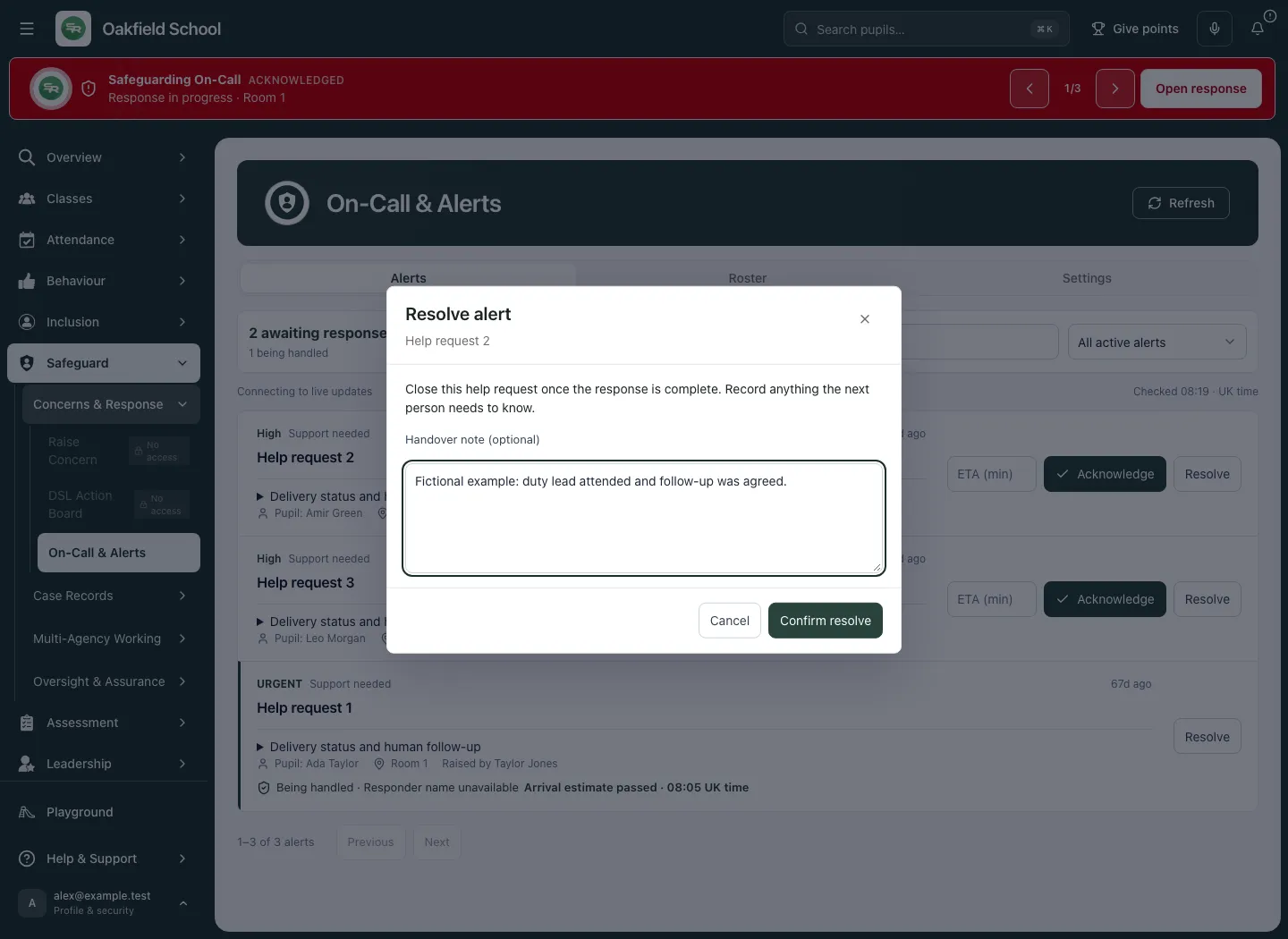
Section titled “3. Resolve an alert with a useful handover”- Choose Resolve on the correct request.
- Read Resolve alert and check the request identity again.
- Enter Handover note (optional) if a concise factual note will help the next member of staff. Record what actually happened and the agreed next step. Keep detailed case information in its proper source record.
- Choose Confirm resolve.
- Wait for the result. Resolved requests leave the active queue; resolving the alert does not prove the underlying work or incident is complete.
- If the result fails or is uncertain, read the error. The dialog preserves the note so you can review the current state before retrying. Cancel with an unsaved note asks whether to discard it.
Missing-child requests
Section titled “Missing-child requests”Where offered, use Open missing-child incident for the actual search, return, handover and closure record. Resolving the on-call alert does not record the child’s return. If incident access is unavailable, follow the named lead or cover arrangement; do not infer that the incident is closed.
4. Read the repeating weekly roster
Section titled “4. Read the repeating weekly roster”- Choose Roster.
- Read Weekly cover, the displayed time range and school-time basis.
- On a desktop, use the day columns and hourly rows to check the relevant period. These are repeating weekly assignments, not dated Calendar events.
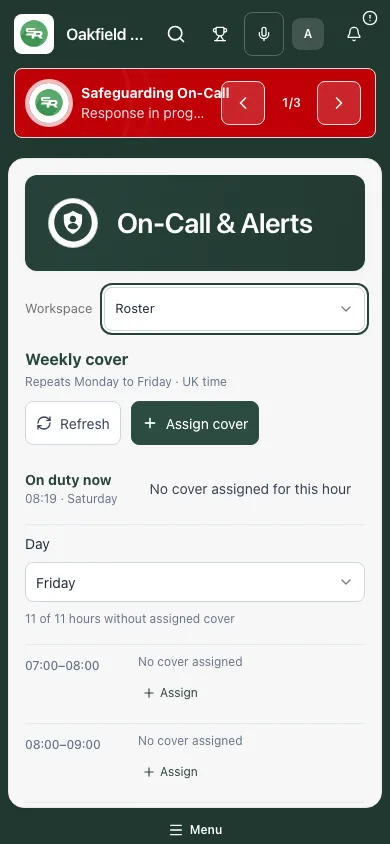
- On a phone, select Day and read that day’s time slots.
- Check gaps and multiple assignments against your school’s actual staffing arrangements. A blank slot does not describe informal cover, leave or a last-minute handover.
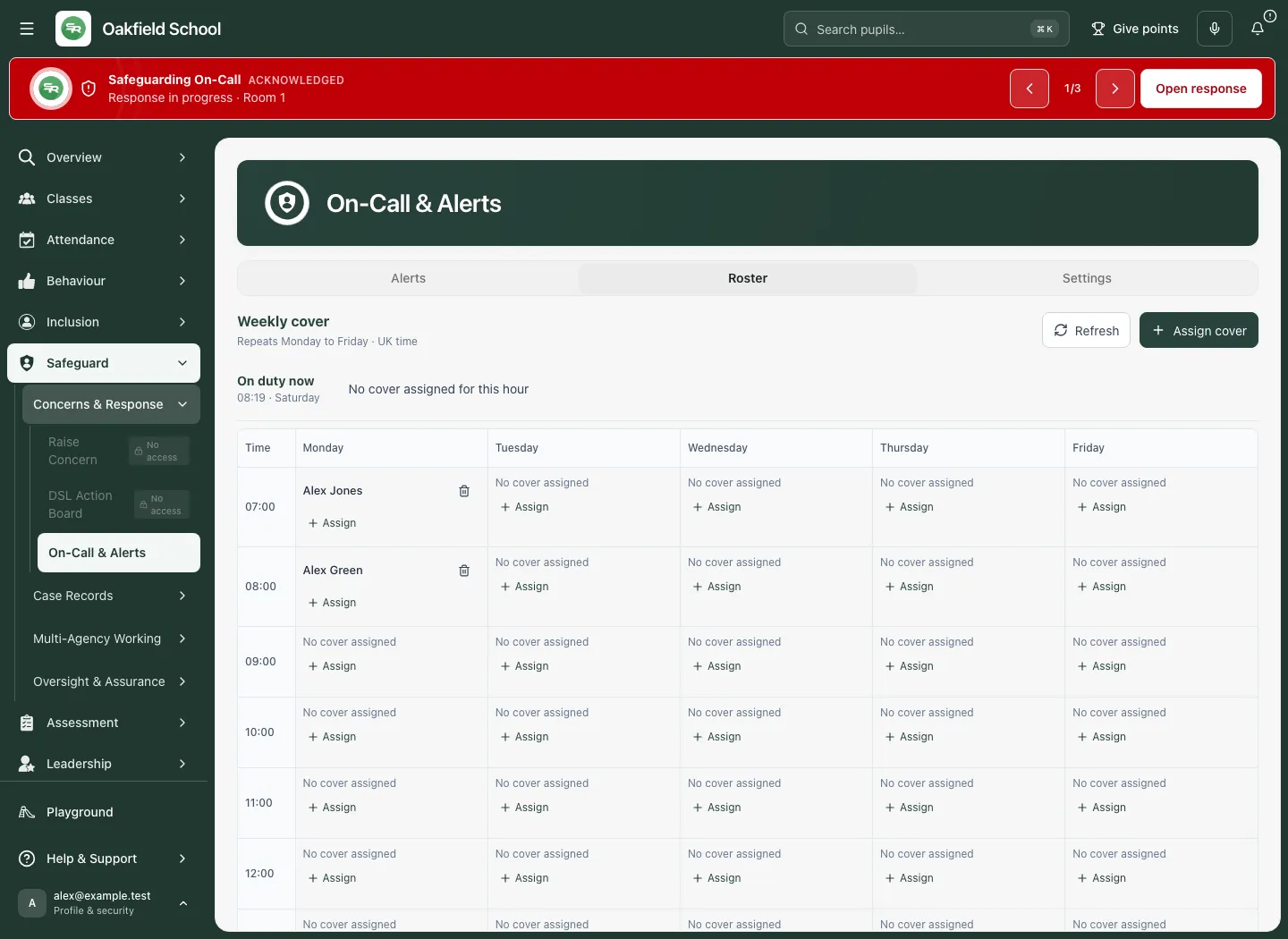
The roster may also show period-based cover where the school’s period arrangement is available. Read the row labels and cover basis shown rather than treating a named lesson period as a clock hour.
5. Assign cover
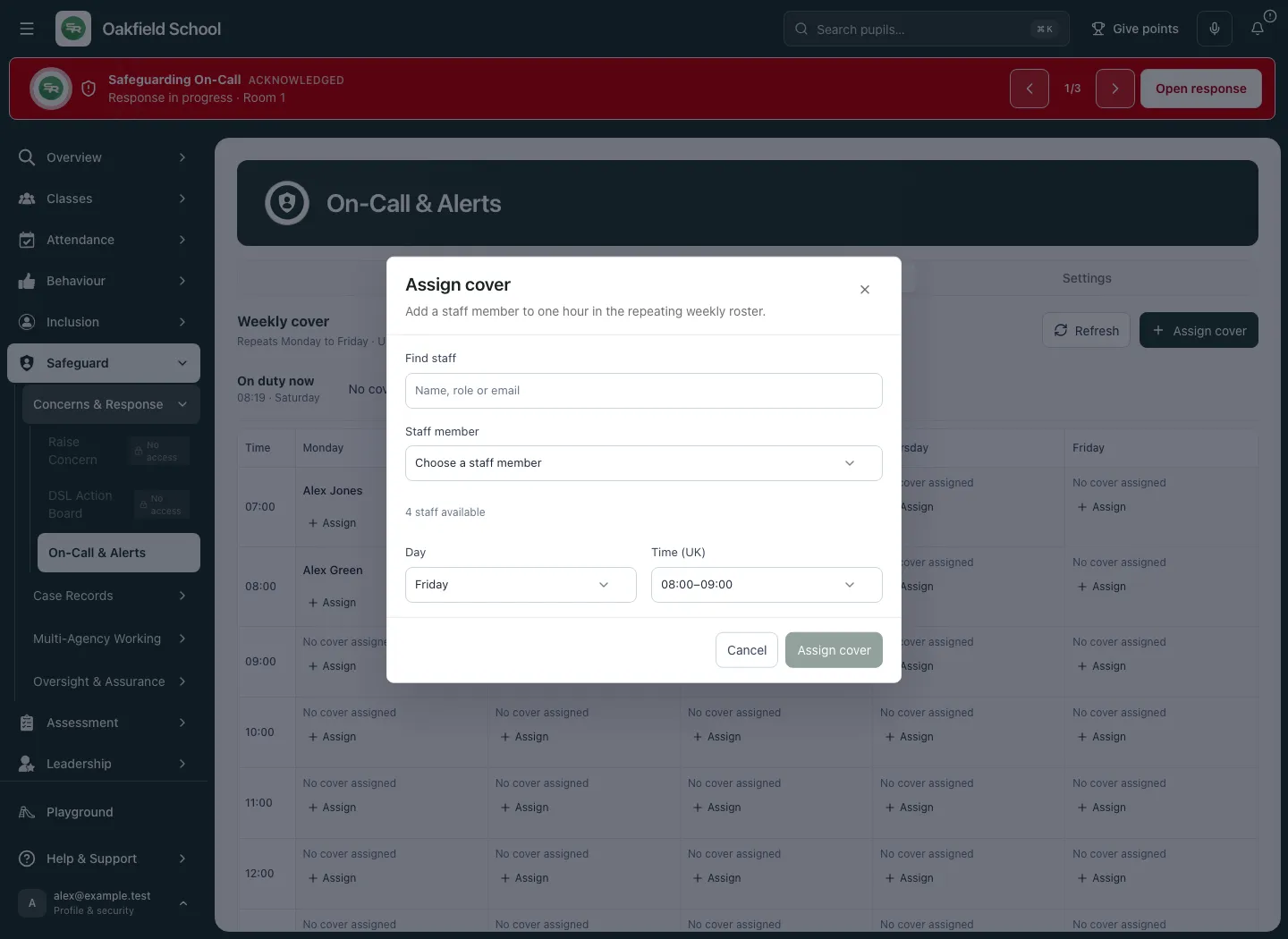
Section titled “5. Assign cover”- In Roster, choose Assign cover, or an available slot’s Assign cover control. The chosen cell can prefill its day and time.
- In Assign cover, use Find staff to narrow the directory, then choose Staff member. Refine your search if the match list is capped.
- Check Day and Time (UK), or the school’s displayed time equivalent. The hourly assignment covers the indicated one-hour slot.
- If the screen warns that no account or email is recorded, confirm a real contact route before relying on that cover. Selecting a directory name does not establish deliverability.
- Choose Assign cover in the dialog.
- Wait for the confirmed result, then check the roster. A duplicate assignment message means the person is already assigned to that hour.
- If saving fails, review the retained selection and error. Do not assume the roster changed.
6. Remove the intended assignment
Section titled “6. Remove the intended assignment”- Find the correct person, day and hour in Roster.
- Use that assignment’s Remove control; its accessible label includes the person’s name, day and time.
- Read Remove cover assignment and verify the details.
- Choose Remove assignment to proceed, or Keep assignment to cancel.
- Wait for the refreshed roster. This removes the selected assignment; the person’s other assignments stay in place.
- Make a real handover or replacement arrangement where necessary. Removing a row is not a staffing handover.
7. Review dispatch settings before changing them
Section titled “7. Review dispatch settings before changing them”Choose Settings if it is available. The school settings check is separate from permission to manage the roster. If the check is refused or unavailable, ask the appropriate administrator, head teacher, DSL or deputy DSL to resolve it rather than sharing credentials.
Set the escalation interval
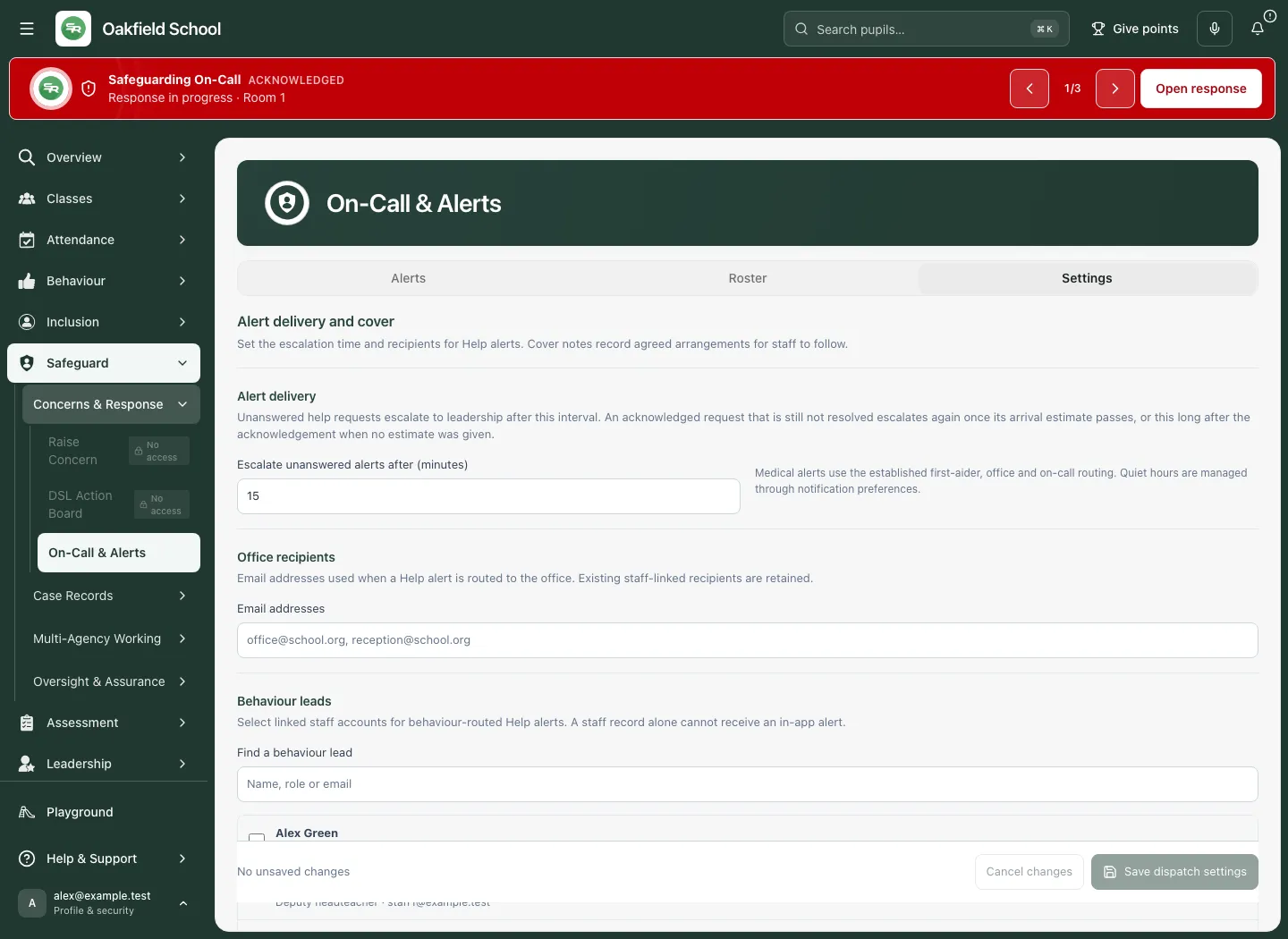
Section titled “Set the escalation interval”- Read Alert delivery.
- Enter Escalate unanswered alerts after (minutes) as a whole number from 1 to 240.
- Consider both unanswered requests and acknowledged-but-unresolved requests. The latter can escalate after their arrival estimate passes, or after the interval following acknowledgement when no estimate was supplied.
- Confirm the people and operational arrangements receiving the escalation before saving.
The setting describes routing behaviour; it does not prove any particular message was delivered or read. Medical requests use the established first-aider, office and on-call routing. Quiet hours are managed through notification preferences.
Check office recipients
Section titled “Check office recipients”- Under Office recipients, review Email addresses.
- Enter the intended addresses in the accepted separated format and correct any validation errors.
- Existing staff-linked recipients are retained; do not assume editing the address text removes every linked recipient.
- Check the school’s office process and cover arrangements before relying on the recipient list.
Review behaviour leads
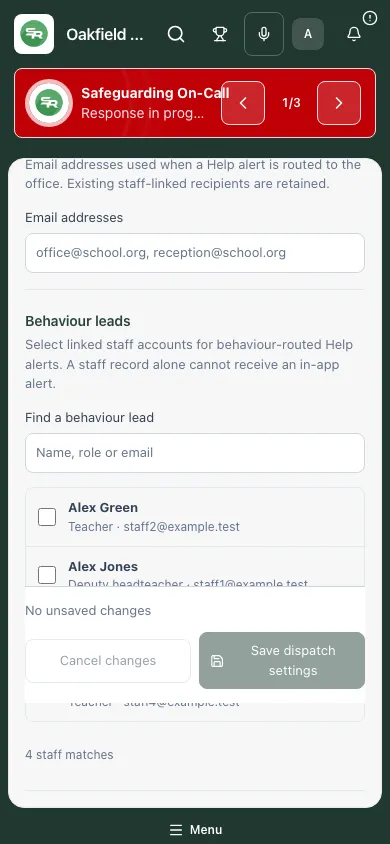
Section titled “Review behaviour leads”- Use Find a behaviour lead to narrow the available staff.
- Select the intended lead using the named Behaviour lead: checkbox.
- Read any account-link or delivery warning. A saved staff reference can need confirmation of its linked account before delivery is enabled.
- Review saved recipients missing from the current directory. They are retained for deliberate review; use the specifically labelled removal control only after confirming the intended change.
Record DSL cover assurance
Section titled “Record DSL cover assurance”Complete the six fields with practical school arrangements:
- Receives new concerns: who receives new reports during cover or absence.
- Monitors the channel: who checks the channel and when.
- Acts and escalates: who takes decisions and escalates urgent situations.
- Confidential channel: the approved private route.
- Handover and absence trigger: how cover begins and information is handed over.
- Review cadence: when the arrangements are checked.
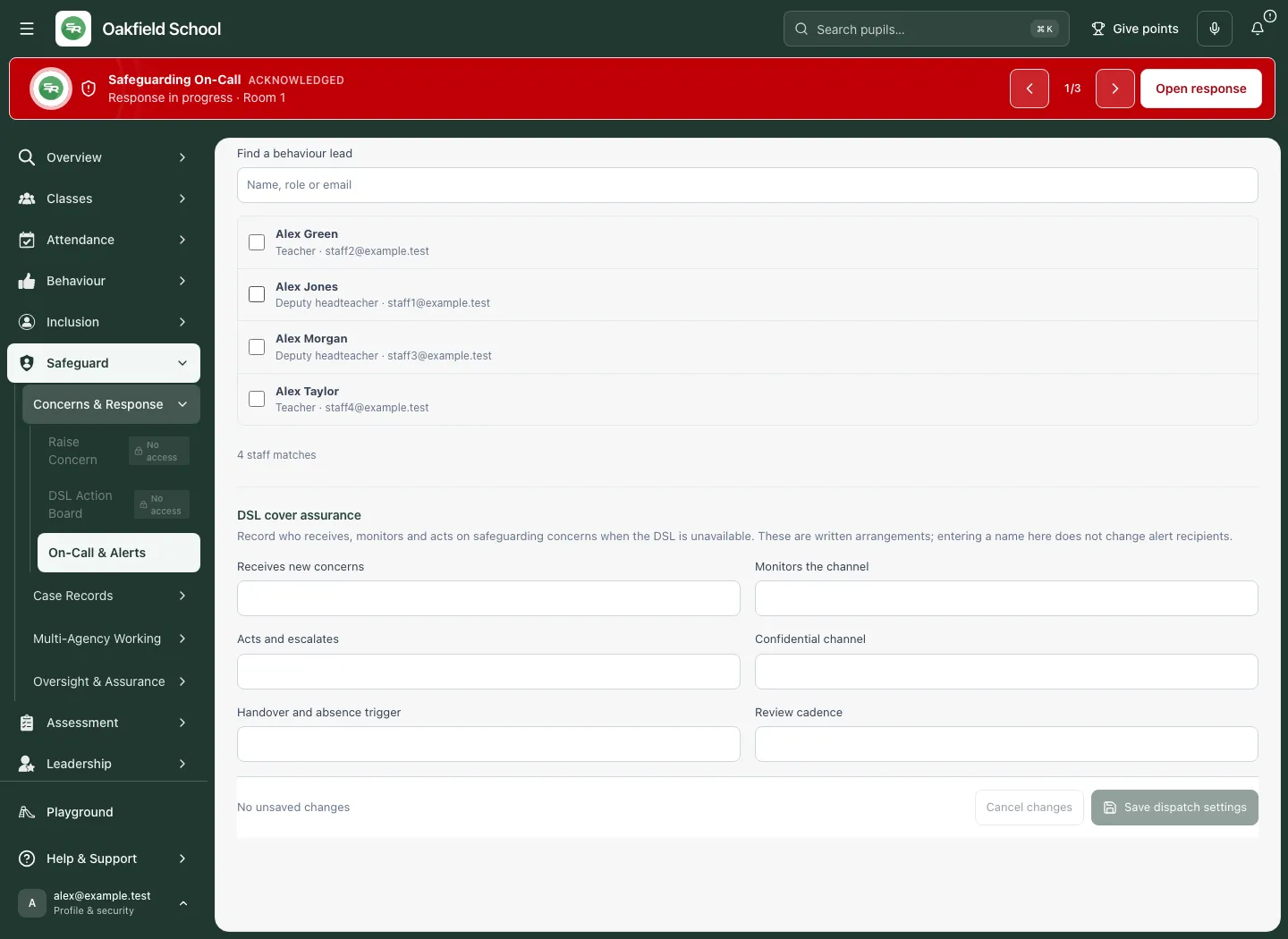
These written arrangements do not themselves create staffing assignments, grant case access or send communications.
Save deliberately
Section titled “Save deliberately”- Check the escalation interval, recipients, account warnings and cover assurance together.
- Choose Save dispatch settings.
- Wait for the saved result. If it fails, retain and review the draft and error.
- Use Cancel changes to restore the saved settings when you do not intend to keep the draft.
- Moving away with changes can ask Discard your unsaved on-call settings? Choose carefully; a navigation attempt does not save them.
8. Use the workspace on a phone
Section titled “8. Use the workspace on a phone”- Use On-call workspace to choose Alerts, Roster or the available Settings.
- Read the selected alert’s identity before responding.
- In Roster, choose Day; inspect the named assignments and gaps for that day.
- Keep the screen private and finish or cancel drafts before handing the device to someone else.
Troubleshooting
Section titled “Troubleshooting”| Situation | Next step |
|---|---|
| Queue unavailable | Use Retry or Refresh as offered. Follow the school’s direct contact arrangements; do not read this as no open alerts. |
| Response not recorded | Refresh and inspect the current responder/state. Another member of staff may have acted first. |
| Arrival estimate passed | Coordinate the actual response and follow the escalation process. Acknowledgement is not arrival. |
| Assignment controls absent | Your current access may be read-only. Ask the authorised roster manager. |
| Settings absent | Settings has a separate current school-authority check. Ask an authorised settings owner. |
| Staff or recipient unavailable | Preserve the uncertainty and resolve directory/account links. Do not guess an address. |
| Could not add/remove cover | Check the retained selection and current roster before retrying. |
| Settings cannot be loaded | Do not replace unknown saved settings with guessed defaults. Retry or ask the settings owner. |
| Resolution draft failed | The note remains in the dialog. Check the current alert before retrying the original intention. |
Frequently asked questions
Section titled “Frequently asked questions”Does resolving an alert close a safeguarding case? No. The alert’s response state and the case’s professional decisions are separate.
Does the roster prove that cover will receive a notification? No. Check the person’s actual contact route, account and school arrangements.
Is this a dated Calendar rota? The hourly view is repeating weekly cover. Read any period-based view according to its own labels.
Can the dispatch settings create a safeguarding team member or grant access? No. Recipient and cover settings do not establish permission to read a case.
Where do I record the concern itself? Use Raise Concern. Authorised leads use the DSL Action Board for the case response. Other companion safeguarding guides are planned in this draft set.