Review pupil welfare sources and record follow-up
Written for: Pastoral staff, SENCOs and authorised school leaders.
Check the pupil’s permitted welfare sources, open the relevant record and add the note or owned next action you intend. It helps staff find the source and decide what should happen next. A summary, manual flag or RAG colour is not a diagnosis or an automatic decision about a pupil.
You need access to Pupil Welfare and Heat Map, plus the relevant pupil/source/action permissions. A link to another area does not grant access. Some source facts or manual columns can be unavailable even when the pupil row is visible.
The examples use fictional Ada Lovelace, Alan Turing and Grace Hopper. They illustrate source coverage and a saved manual review note; no real pupil data or external communication is involved.
Find the pupil and set the observation period
Section titled “Find the pupil and set the observation period”- Open Pupil Welfare. Check the school and the accessible-pupil count before using the table as a school-wide picture.
- Enter a pupil, form or year in Pupil, form or year, then choose Search. The search is applied to the permitted roster, not a hidden set of pupils outside your access.
- Choose Attendance and behaviour period: Last 30 days or Last 90 days. Check the returned date window and refreshed results before comparing values.
- Select the relevant column heading to change the server-side order; selecting it again reverses direction. Reset order returns to pupil order. Search, sorting and period changes reset the page position.
- Use Previous and Next to move through the permitted results. The table displays up to 50 pupils per page; the matching count is not merely the visible row count.
- Choose Refresh to reload the roster and the source/manual-column information for those pupils. A failed read or an unavailable value must not be interpreted as no concerns.
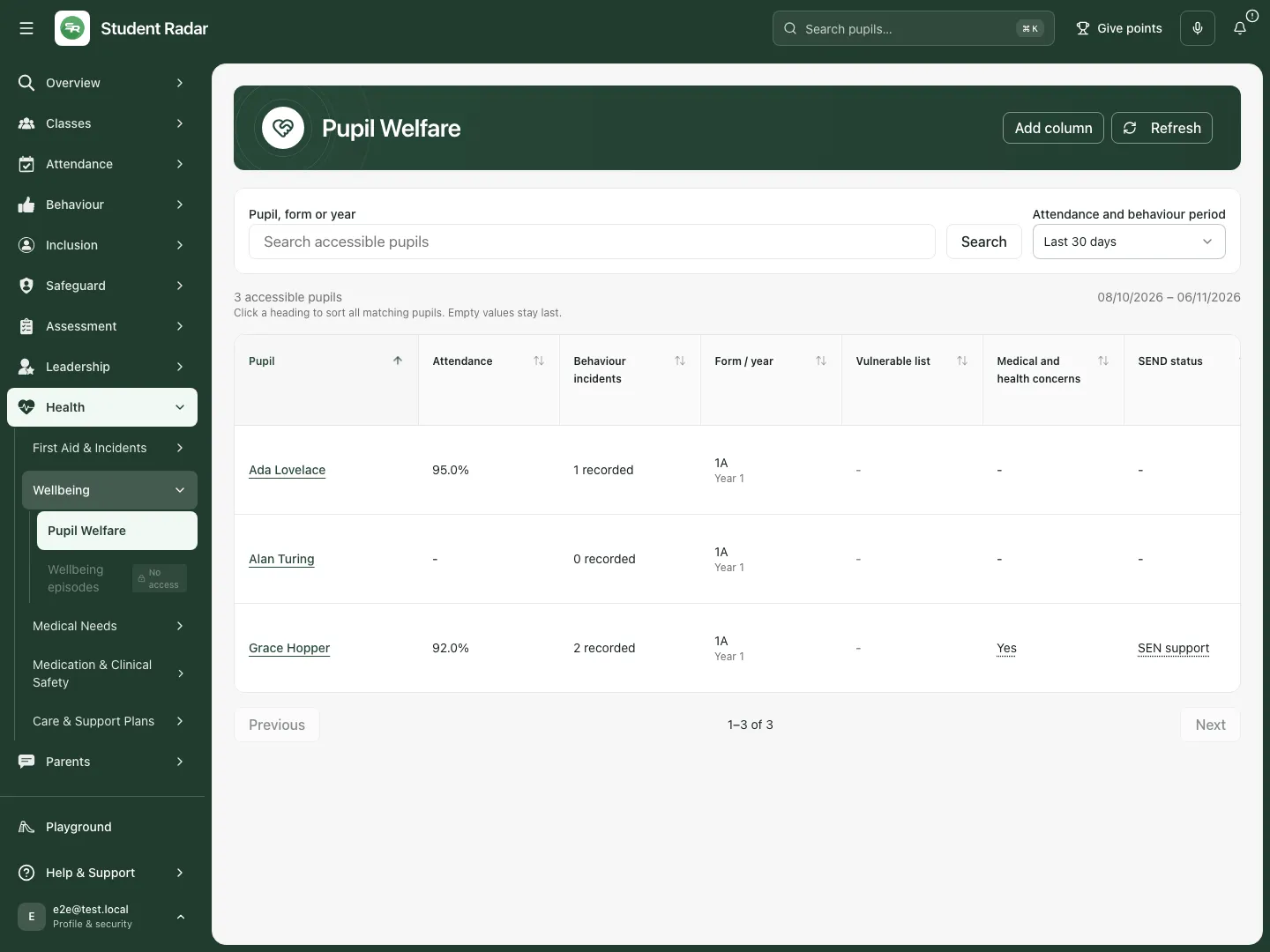 The fictional table places attendance and behaviour beside each pupil. Alan’s unavailable attendance remains a dash rather than becoming zero attendance.
Read the sources without inferring missing facts
Section titled “Read the sources without inferring missing facts”- Read Attendance and Behaviour incidents with the selected period. The displayed percentage or count is a recorded summary; do not infer an absence count, denominator, cause or pupil impact that the view does not supply.
- Check Form / year to confirm the pupil identity and context.
- Use Vulnerable list, Medical and health concerns and SEND as recorded-source context. Click/tap a dotted-underlined value to read its available detail.
- For SEND detail, distinguish an ISP target from an EHCP outcome and return to the source plan before changing it. The row’s recorded SEND state and a MIS status fallback are different provenance.
- Review EAL/language and other recorded facts as the actual entries supplied; do not infer them from a pupil’s name or background.
- Treat Safeguarding only at the level your access permits. A presence indicator does not expose case detail or make a safeguarding judgement, and an unavailable value is not “no concern”.
- A dash can represent no displayed recorded value, false/not selected, missing information or a source that is not available in that cell’s context. Use source detail and warnings to understand it; do not turn every dash into a definite No.
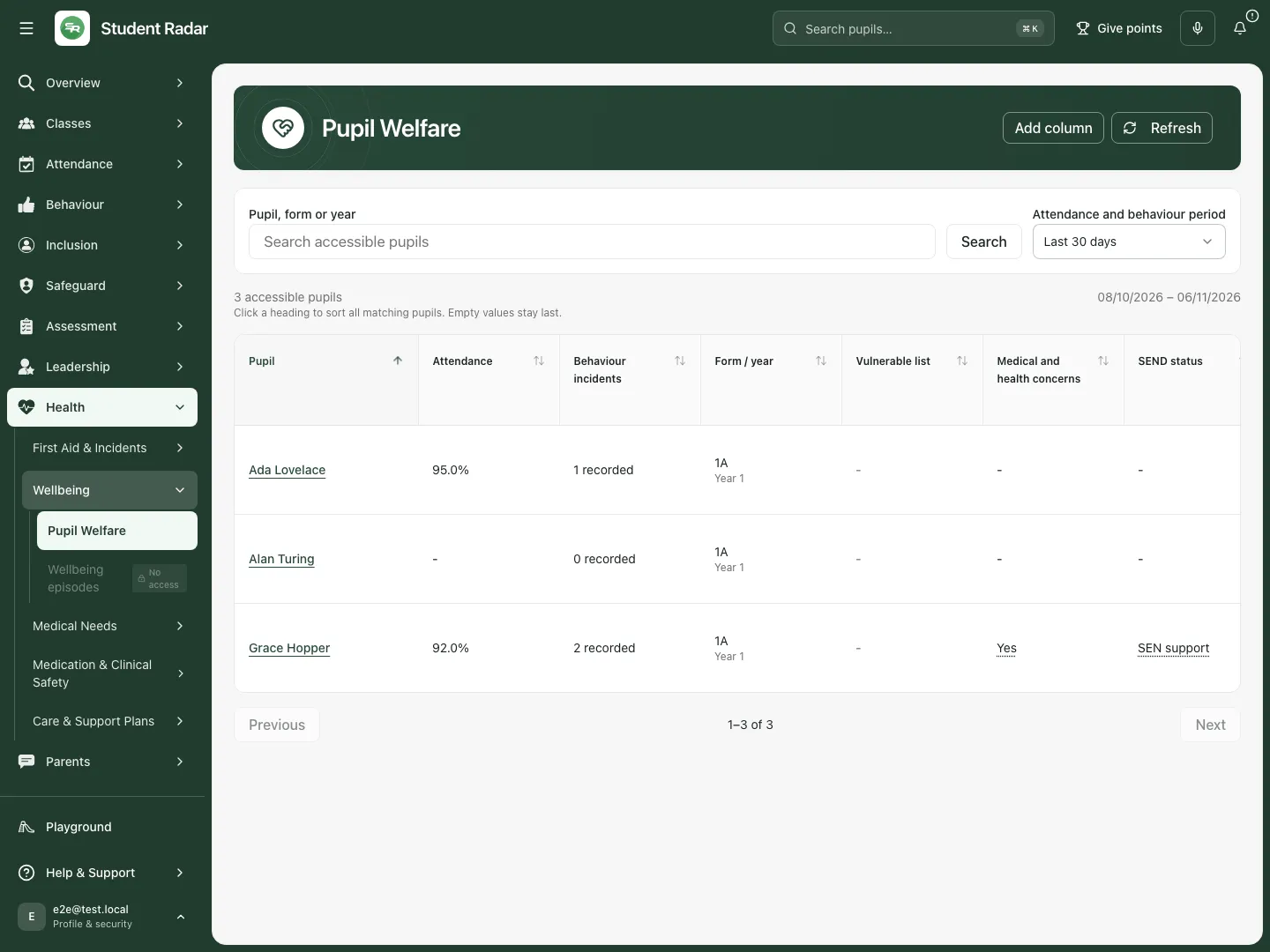 Grace’s fictional dotted-underlined health value opens its recorded detail. It directs staff to the current plan rather than supplying treatment advice or a diagnosis.
Open the pupil record and the specialist source
Section titled “Open the pupil record and the specialist source”- Choose the pupil’s name to open the permitted pupil record.
- Use that record’s available tabs and source links to review the relevant context. The summary page does not replace the authoritative attendance, SEND, health, behaviour or safeguarding record.
- Use the row’s View notes, View action summary or Open episodes for the relevant record type rather than treating a manual flag as its source.
- Close the source record and return to the table. Recheck the selected period and any refreshed values before acting on a different pupil.
If a source cannot be loaded, retry the relevant source instead of declaring it empty. The table can retain permitted pupil identity while another source is unavailable.
Add a pupil note
Section titled “Add a pupil note”- Choose Add note on the intended pupil’s row and check Add note for [pupil].
- Choose Category, review the Sensitive setting and enter the actual Note. Keep observation, reported information and professional interpretation distinguishable.
- Choose Add note only after checking the pupil and intended visibility. This creates the pupil’s note through the shared note workflow; it is not a manual-column value.
- Review any wording-review or save result before leaving. Use View notes to inspect the saved note in the pupil record.
- Cancel leaves the form without adding a note. A note save is not an external communication or proof that someone has read it.
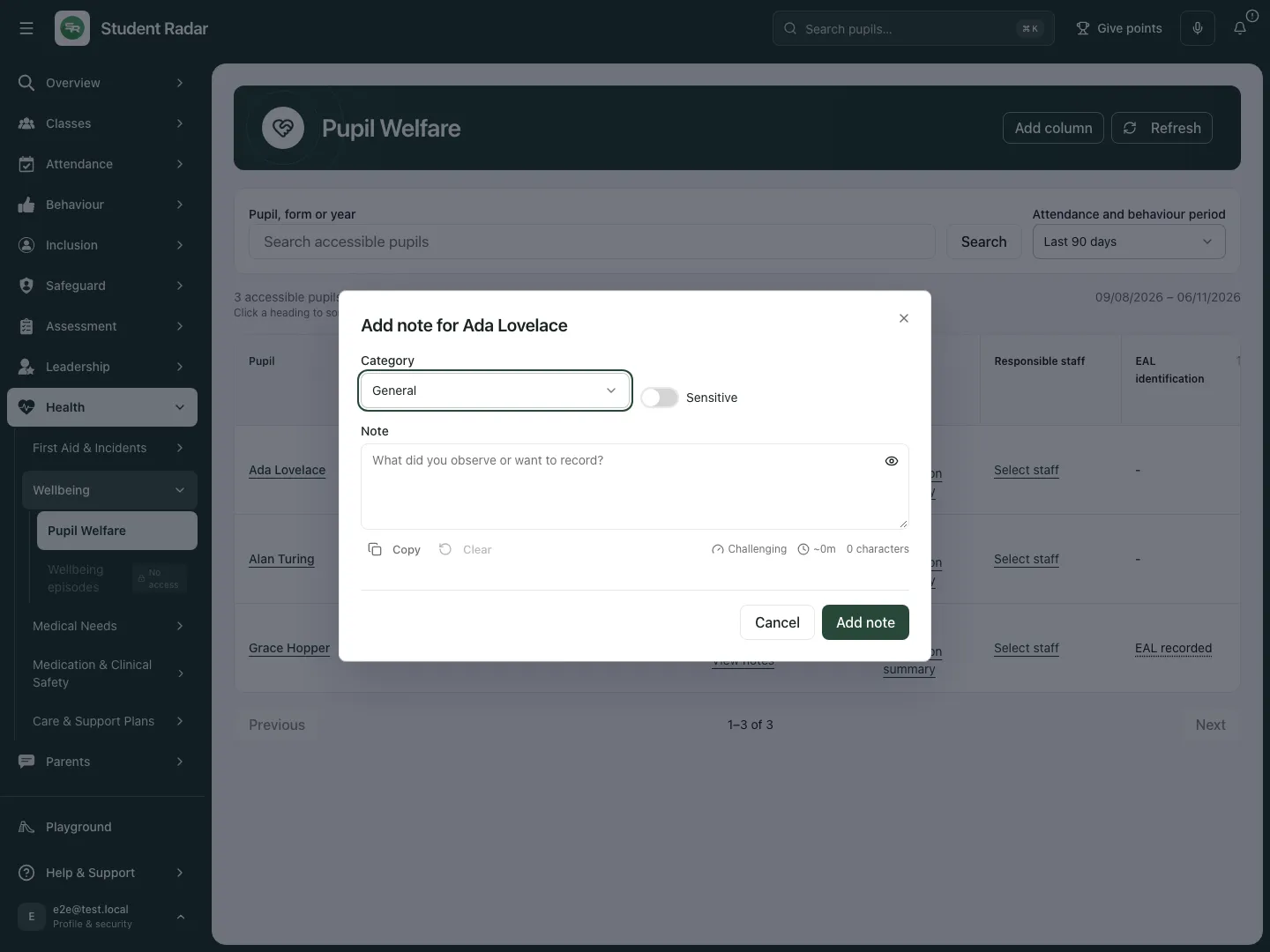 The fictional walkthrough opens the shared note form for Ada and cancels. Category and Sensitive are explicit choices; no pupil note is added.
Record an owned action
Section titled “Record an owned action”- Choose Add action on the pupil’s row.
- Enter Action and Details. Use Responsible staff to select an appropriate permitted colleague, or the explicit external-owner option and Name when the work belongs to a named external person.
- Set Due date to the agreed date, then choose Save action. Check the saved owner and date; a typed external name does not grant an account or send a message.
- Open View action summary to review the pupil’s current actions and states: To do, In progress, Blocked, Done or Cancelled.
- Choose Edit action / owner to update the actual work record, then Save action. Reopen after a stale-version refusal before editing again; do not overwrite a colleague’s newer state.
- Select staff opens the staff-assignment workflow for the pupil’s actions. Choose the existing action or New action in Assign staff to, use Find staff and select the intended colleague. Complete or check the action fields, then choose Save action; selecting a colleague alone has not saved the assignment. Staff selection is a decision about owned work, not proof that the work is done.
An account not linked to a staff record can be refused when saving actions. Resolve the account/staff relationship rather than recording a false owner. Completing work is not by itself evidence that the pupil’s outcome improved.
Review wellbeing episodes separately
Section titled “Review wellbeing episodes separately”- Choose Open episodes on the intended pupil’s row.
- In Welfare episodes, read the permitted episode records, their dates and outcomes. An unavailable episode source is not an empty history.
- Use the episode panel’s permitted recording/review controls for actual support, then return to the table.
- Do not use a manual wellbeing concern, action status or RAG cell as though it were an episode record.
Add a manual welfare column
Section titled “Add a manual welfare column”- Choose Add column to open Add welfare column.
- Enter Column name and choose Linked area from the areas your account can manage: Attendance, Health, Behaviour, SEND, Vulnerability, Safeguarding or Assessment as available.
- Choose Value type: Tick, Note, Number or RAG.
- Choose Create column. Check the new heading and its Manual label before entering values. Cancel leaves the form without creating it.
- The linked area controls access; it does not connect a data feed, create a specialist record or automatically populate the column. Name the column so colleagues understand the school’s agreed meaning.
- Area and type are fixed after creation. Create a new column if its meaning changes. An area can hold up to 12 columns; remove an obsolete one deliberately or choose the correct other area if the limit is reached.
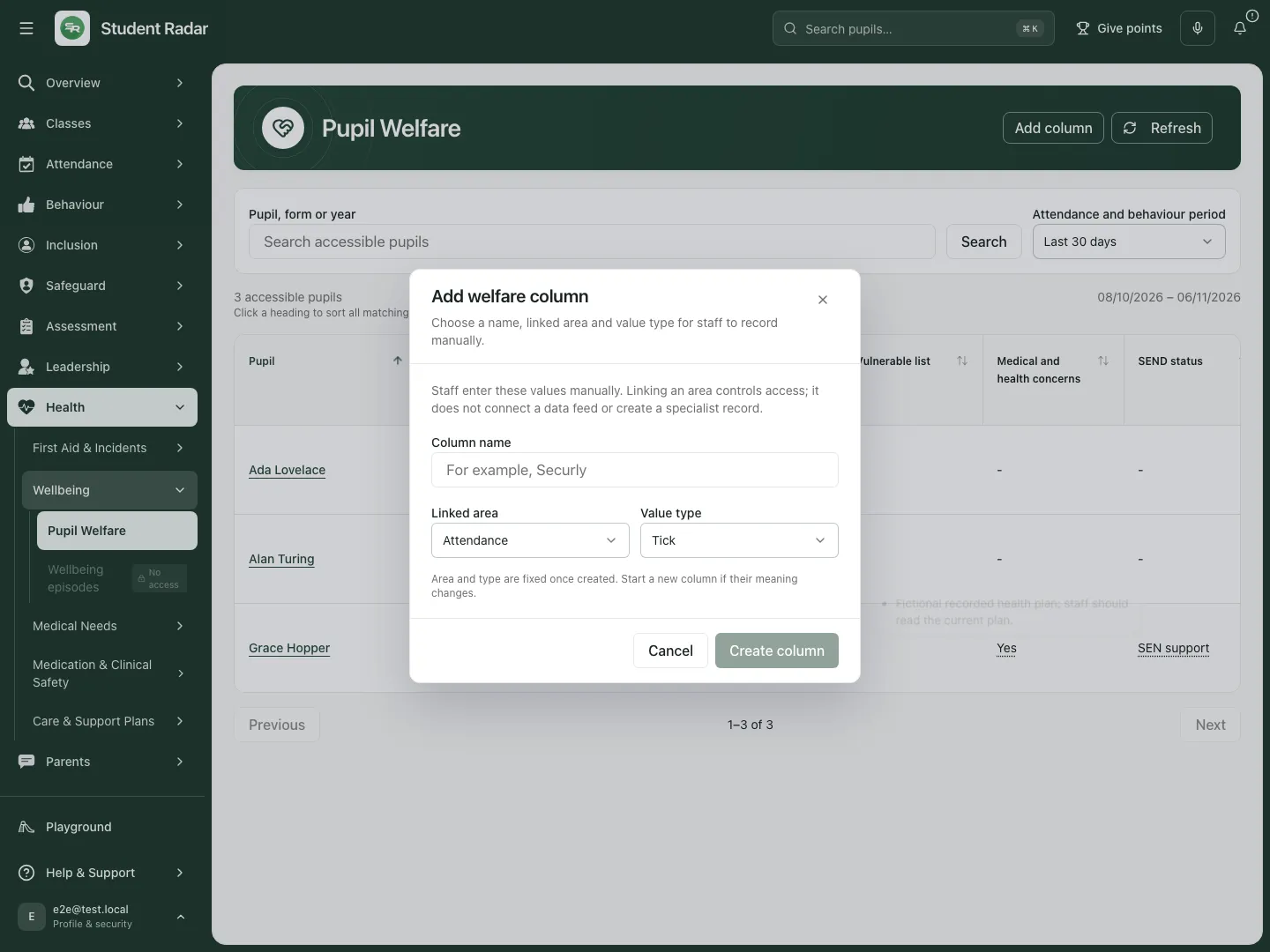 The real form explains that a linked area governs access rather than feeding the value from another system. The fictional walkthrough cancels without creating another column.
Understand the school’s standard manual fields
Section titled “Understand the school’s standard manual fields”Where your school has configured them, standard fields can include Medical concern, Health centre visit concern, Behaviour concern, Attendance concern and Other wellbeing concern; provider/support notes can include EAL support, Monitoring, Formal pastoral provider and Informal pastoral provider. RAG rating records the school’s chosen manual colour. These are staff-entered fields, separate from attendance percentages, recorded health needs and other source facts. Availability depends on configuration and your linked-area access. Agree the meaning of each field locally before entering or interpreting it; no field diagnoses a condition or automatically creates a referral.
Enter, save, clear or cancel a manual value
Section titled “Enter, save, clear or cancel a manual value”- Select the intended manual cell for the pupil. Check the column name, pupil and value type before editing.
- For Note, enter the manual text and choose Save. Notes allow up to 2,000 characters; blank/space-only text is not a saved substantive note.
- For Number, enter the agreed numeric value and Save. Do not invent a scale or denominator that the school has not defined.
- For a custom Tick or RAG cell, choose the offered value and Save. RAG is a staff-entered judgement, not an automatically calculated risk score or diagnosis.
- Clear saves a null/unrecorded value; it is different from selecting No, a number zero or Green. Cancel abandons the current edit without changing the saved value.
- Some built-in standard Tick columns have a direct checkbox: changing that checkbox saves its value immediately, and Clear removes the recorded value. They do not have the same open-editor step as a custom Tick cell.
- Reopen or refresh the table and inspect the saved value. If an error keeps the draft open, preserve it and reconcile the current saved revision before retrying. A refreshed table must not silently turn your unsaved text into a saved value.
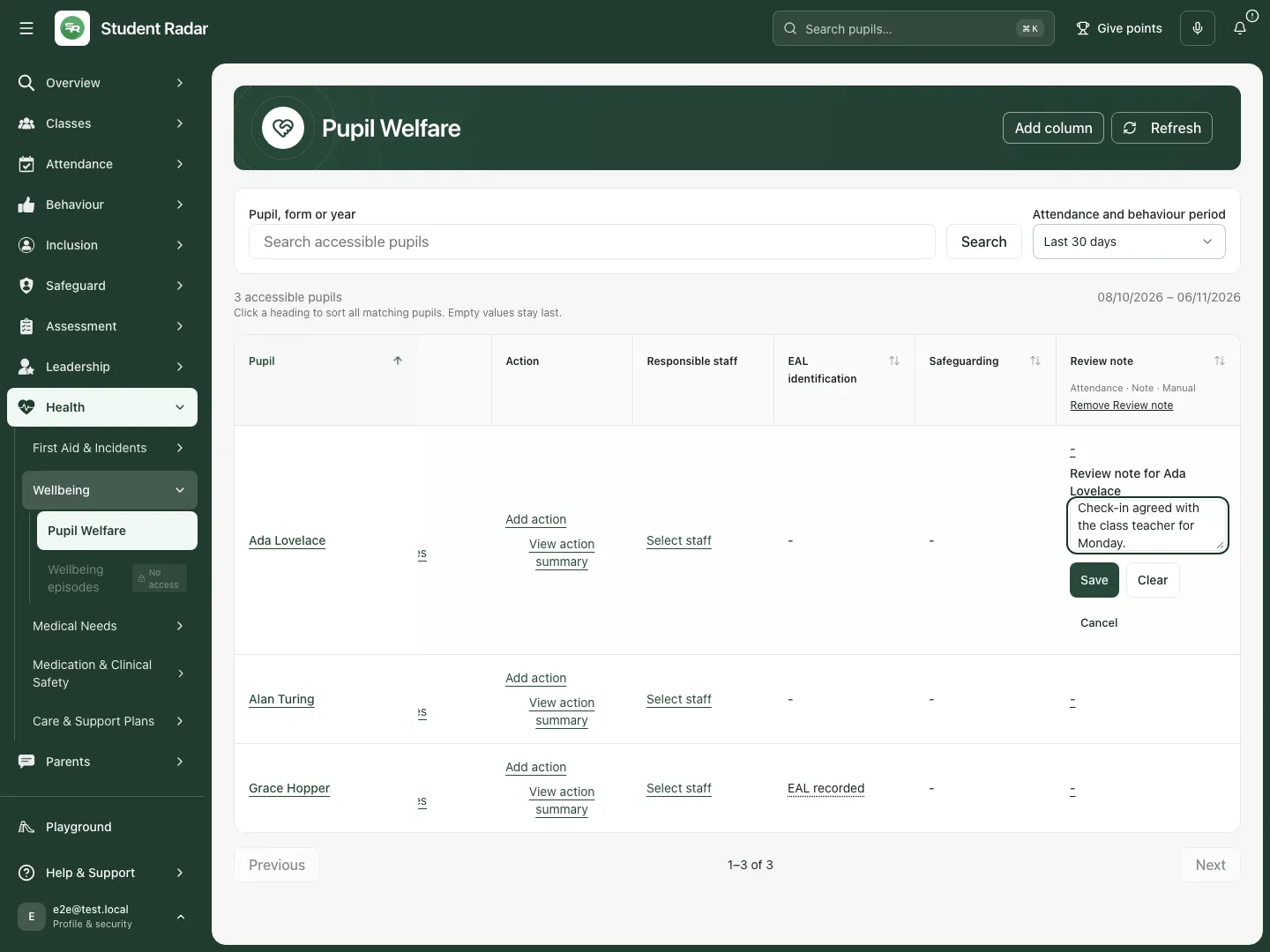 The fictional Review note is explicitly manual. Save, Clear and Cancel have distinct effects; the note does not create a task or update attendance.
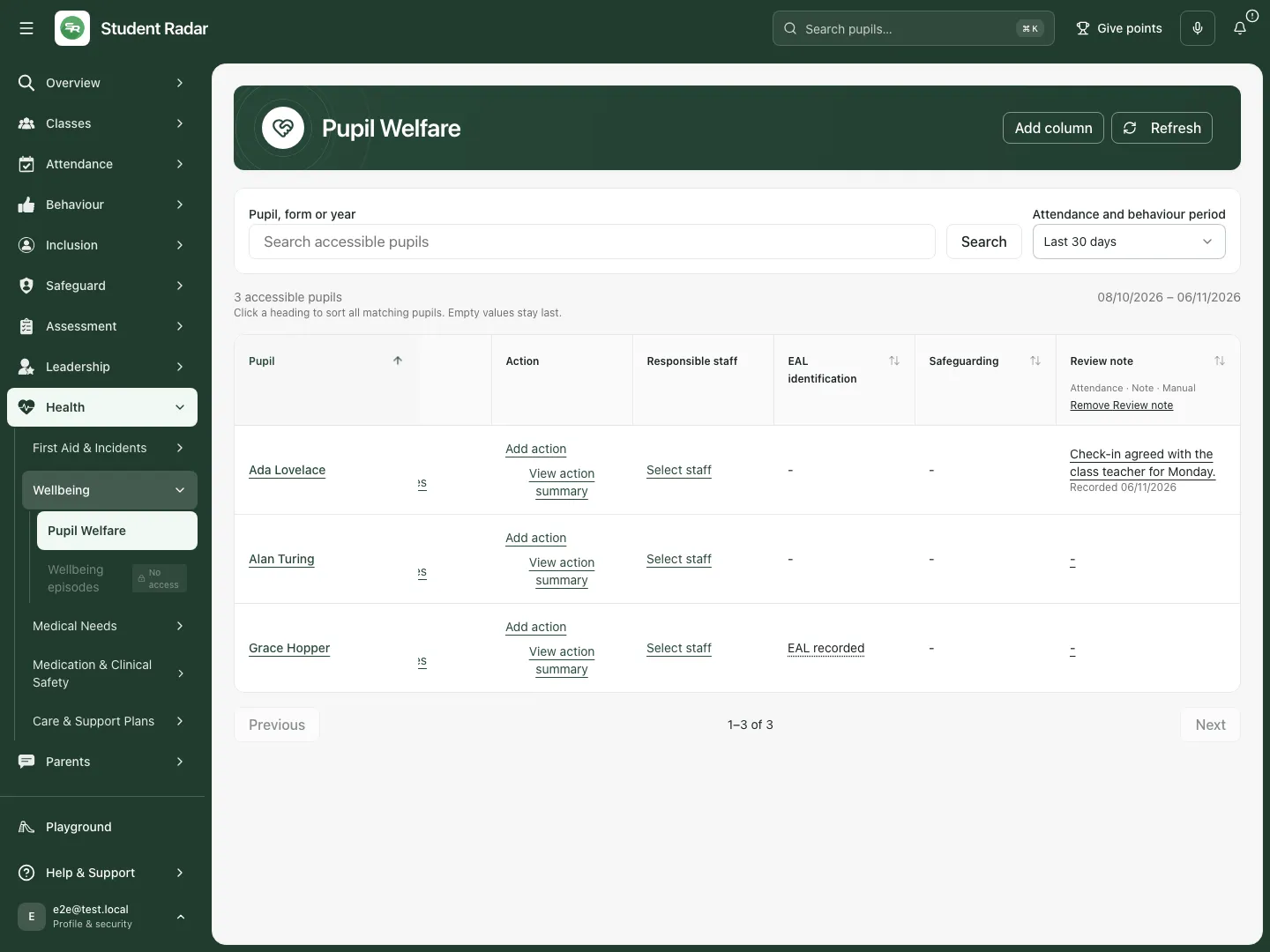 The reopened fictional row retains Ada’s agreed class-teacher check-in note. It remains a manual review entry, separate from pupil notes and actions.
Remove a manual column deliberately
Section titled “Remove a manual column deliberately”- Open the custom heading’s removal control, Remove [column name].
- Read Remove this column and all its current values?.
- Choose Confirm removal only when the column and current values should be removed. Keep or cancel it when the information is still needed.
- Check the resulting headings. Removing a manual column does not delete the pupil’s specialist source record, notes or actions.
Change the period and compare carefully
Section titled “Change the period and compare carefully”- Choose Last 90 days when the longer window is appropriate and let the roster/metrics reload.
- Confirm the returned dates before comparing the recorded percentage/count with an earlier view. Preserve unavailable values and source differences.
- Keep the manual Review note separate: changing the attendance/behaviour window does not recalculate staff-entered text or turn it into evidence of progress.
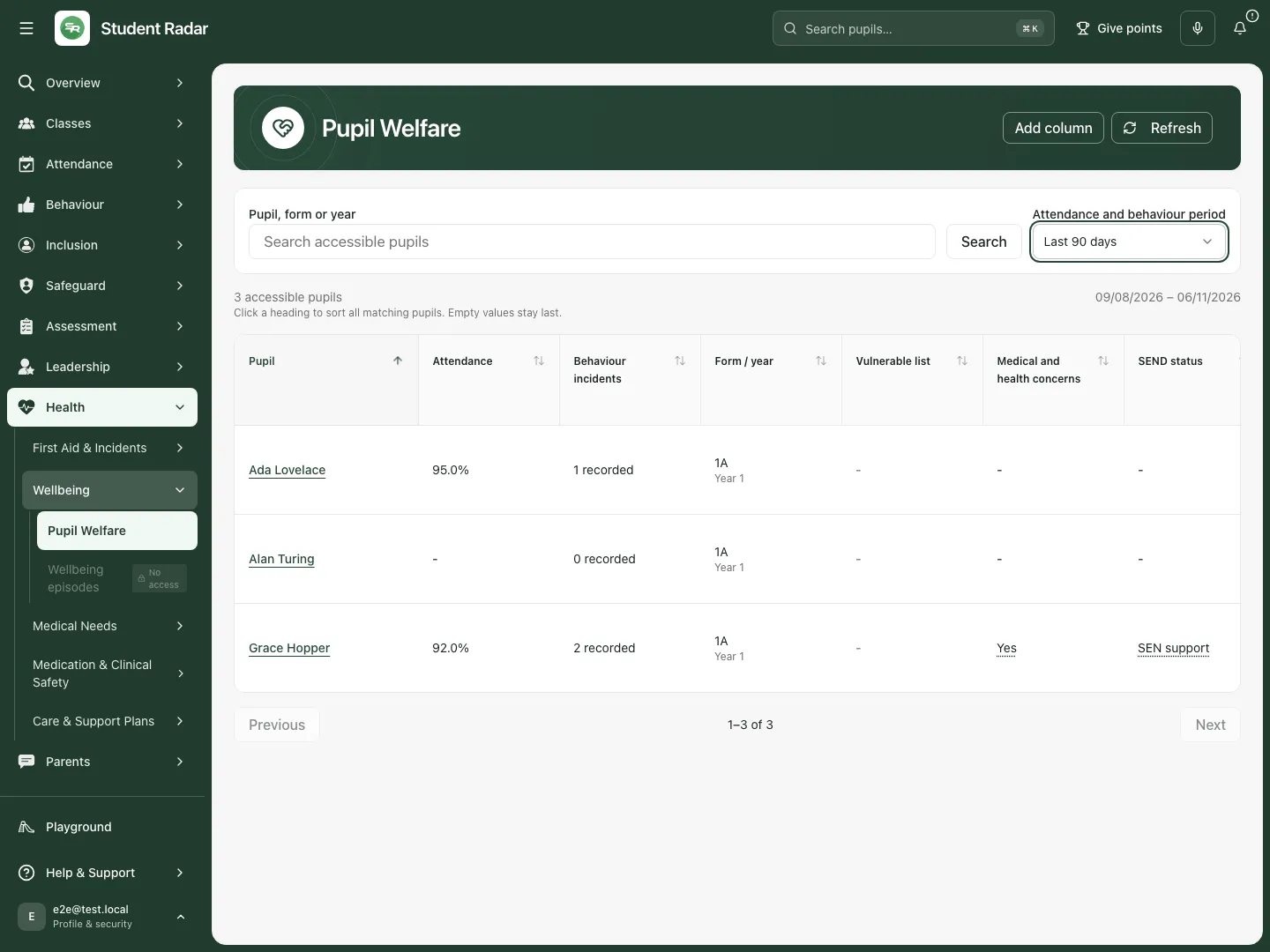 The fictional longer-window view retains the chosen period and the manual note. No causal or pupil-progress claim is inferred from the example values.
Phone use
Section titled “Phone use”Use the same search, period and paging controls. Scroll the table horizontally to reach the relevant source/manual column, then check the pupil row before opening or saving a cell. A narrower screen does not change a manual entry’s meaning or permission.
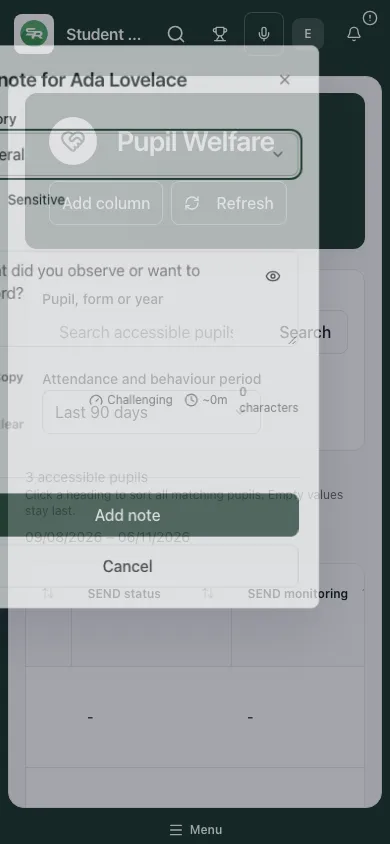 The fictional phone view preserves the search/period controls and scrollable pupil table.
Problems and questions
Section titled “Problems and questions”The page says Heat Map access is required. Pupil Welfare requires both page and Heat Map access. Ask the school’s authorised access manager to review the intended role; do not use another account.
A value is Not available or a dash. Check its source, period and permissions. Do not assume no concern, no support or zero events from unavailable data.
A source fact seems wrong. Open the relevant specialist record. Changing a manual column does not correct its source data.
A custom value will not save. Check type, required text/range and the returned error. Preserve the draft; refresh/reopen a changed revision before saving again.
A linked area is missing in Add column. The available areas depend on your action permissions. A column’s area is not a way to bypass access to a specialist source.
Does selecting Red trigger a referral or diagnose risk? No. It is a manual value with the school’s agreed meaning. Record an authorised action explicitly when work is needed.
Did my manual note create an action? No. Use Add action and record owner/date separately. A manual review cell, pupil note and owned action have different purposes.
Related: SEND Register, EHCPs, Pupil Passports, First Aid.