Manage AP placements and review named school sharing
Written for: Alternative provision operational leaders and authorised placement staff.
Open the intended placement, check its terms and agreed pattern and choose the specific attendance, sharing or finish decision you need. Manage brings together the separate attendance-plan, responsibility, communication/access and placement-finish decisions. Recording support hours is not recording attendance, and ending one commission is different from leaving the whole provision.
Screenshots show fictional Ada Lovelace’s active placement and Alan Turing’s planned future placement at Fictional Meadow School. The example changes Ada’s reason for placement, saves it and reopens it. Pause, responsibility, sharing and finish forms are inspected without confirming those consequential decisions.
Before you start
Section titled “Before you start”Select the intended provision. Placement reading, roster editing, attendance planning, ending a placement, named sharing and publication/notifications have separate capabilities. Office or scoped AP accounts may see an administrative directory rather than this full operational view. A page link or a named task does not grant access to the young person’s other records.
Have the intended pupil identity, commissioning school, confirmed registration arrangement and agreed terms available. A learner record or attendance at the provision does not itself establish school registration. Where the place follows a referral, complete the authorised referral agreement/readiness workflow rather than creating a second duplicate placement.
A. Find the placement and interpret the overview
Section titled “A. Find the placement and interpret the overview”- Open Placements. Review Open placements, Reviews needing attention and Ended, together with the commissioning-school grouping.
- Use Open placements, Reviews due, Upcoming or Ended. Reviews due includes overdue reviews and those due within the next 14 days; missing review dates are not silently treated as completed reviews.
- Use Search placements for the young person, commissioning school or URN. Confirm the school and intended placement before editing a pupil with more than one commission.
- Read the support-hours summary. It states how many placements have hours not recorded; the total covers only known hours. Do not convert the missing values to zero or call this actual attendance.
- Open the young person’s name for their permitted pupil record, or use that placement’s Manage control for its own decisions.
- Treat a failed or incomplete placement/directory read as unavailable. The page walks the permitted placement list rather than assuming the newest page is every placement; a read it cannot finish is not a complete register.
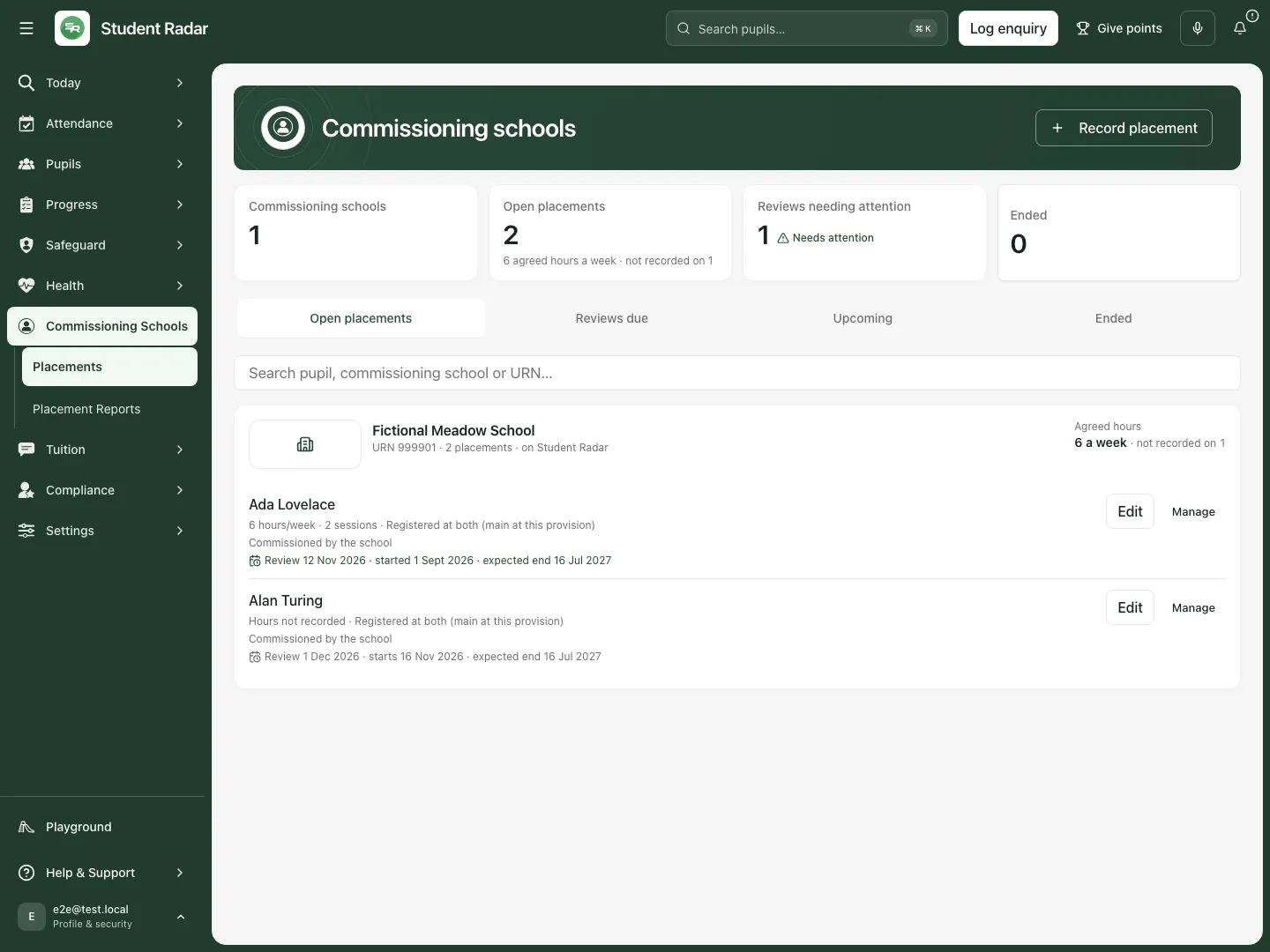
Fictional example: Ada has six agreed support hours, while Alan’s planned placement keeps hours explicitly not recorded.
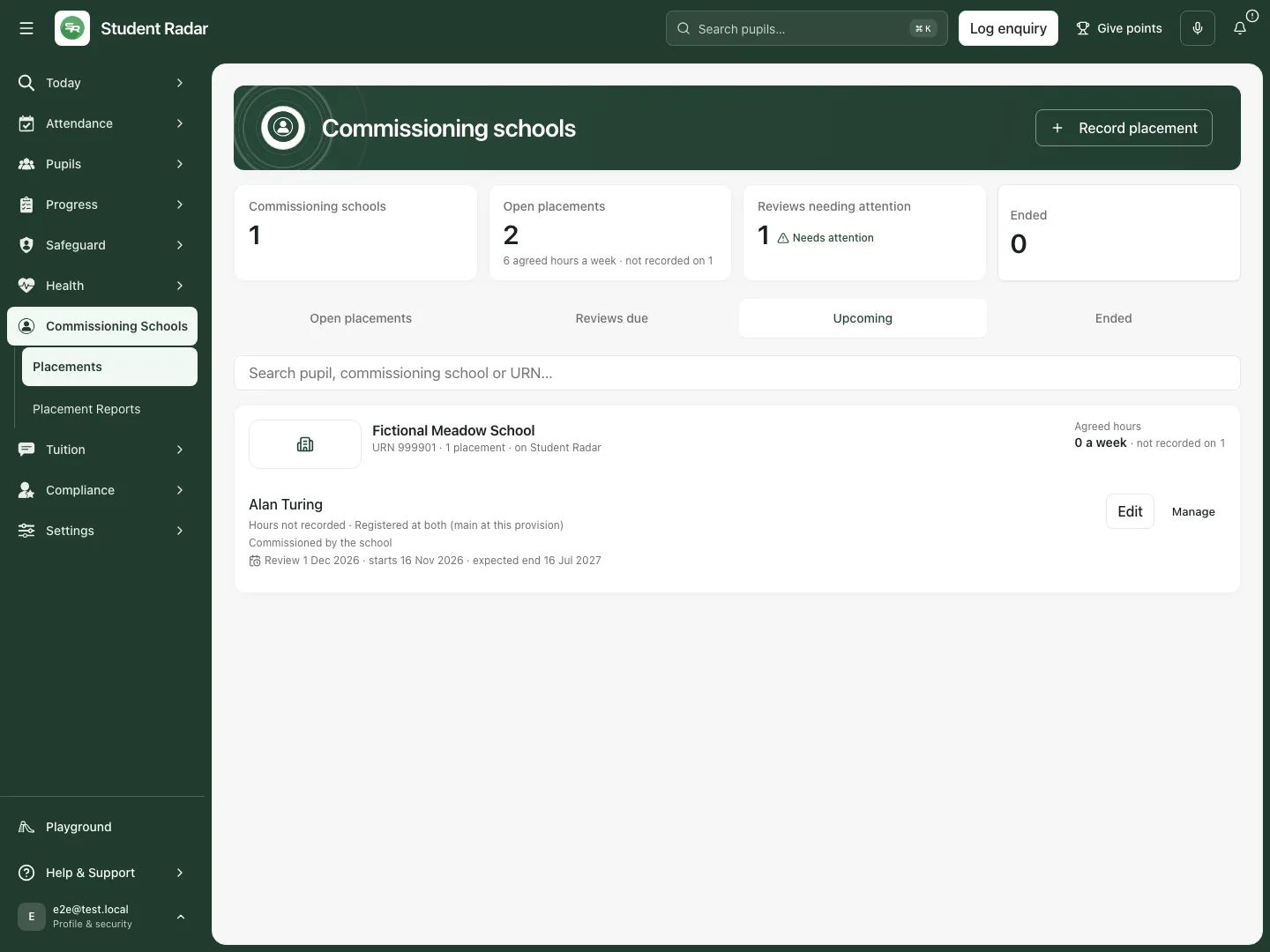
Fictional example: Alan’s future start appears in Upcoming; it is not evidence that he has already attended.
The page uses the provision’s school date for reviews and whether a placement remains open. An ended/final-day record can have different available actions from an ordinary open record; do not use a stale tab to end it again.
B. Record a placement with the intended identity and terms
Section titled “B. Record a placement with the intended identity and terms”- Select Record placement. The form is titled Record a placement. If no pupil is on roll, add/check the young person first through the authorised pupil workflow.
- Select Pupil (required), or the equivalent Young person label used by your provision. Check the exact identity rather than relying only on a similar name.
- Select/enter Commissioning school (required) and URN (optional). Use the school lookup when possible so the name and school identity stay connected.
- Set Commissioned by (optional) and Learner school registration (optional). Registration choices distinguish this provision only, commissioning school only, registered at both with either main school, and Registration not yet confirmed.
- Enter Agreed hours of support per week only when known. This is support at this provision, not actual attended time or the young person’s total education. Hours do not decide their school registration.
- Use Add agreed session (up to 14 sessions) and choose each Session … day, start and end. Remove an unwanted row with Remove session …. Check the displayed session total against the agreed hours. Agreed sessions appear automatically on the weekly rota between the placement start/end dates; assign staff from the rota and record actual attendance separately.
- Set Arrangement (optional), Status (required) (Planned or Active), Start (required), Expected end (optional) and Next review (optional). The new form offers a review date six weeks ahead; check that it matches the actual intended review rather than accepting a default without thought.
- Choose Key worker from the current staff list and enter Reason for placement (optional) as appropriate.
- Review validation and any agreed-hours budget warning. If an authorised exception is genuinely required, enter Hours override reason (5–2,000 characters); without override authority, resolve the terms/arrangement rather than working around the control.
- Select Record placement, wait for Placement recorded, then reopen the record to check its identity, school, terms and dates.
The form’s full-time/review indicators support a human review of the provision’s arrangements. Do not treat a number of support hours, a selected arrangement or a registration label as certification of the provider’s legal registration status.
C. Edit, save and reopen placement details
Section titled “C. Edit, save and reopen placement details”- Select the intended row’s Edit control, or Manage → Edit placement.
- Check the form title Edit placement and the selected young person/school.
- Change only the intended details. Review session totals and any scheduled-provision budget warning if changing hours or dates; a reason change does not itself change attendance observations.
- Select Save changes and wait for Placement updated and the dialog to close.
- Reload the list, reopen Edit placement and check the exact detail changed. Use Cancel to leave without another save.
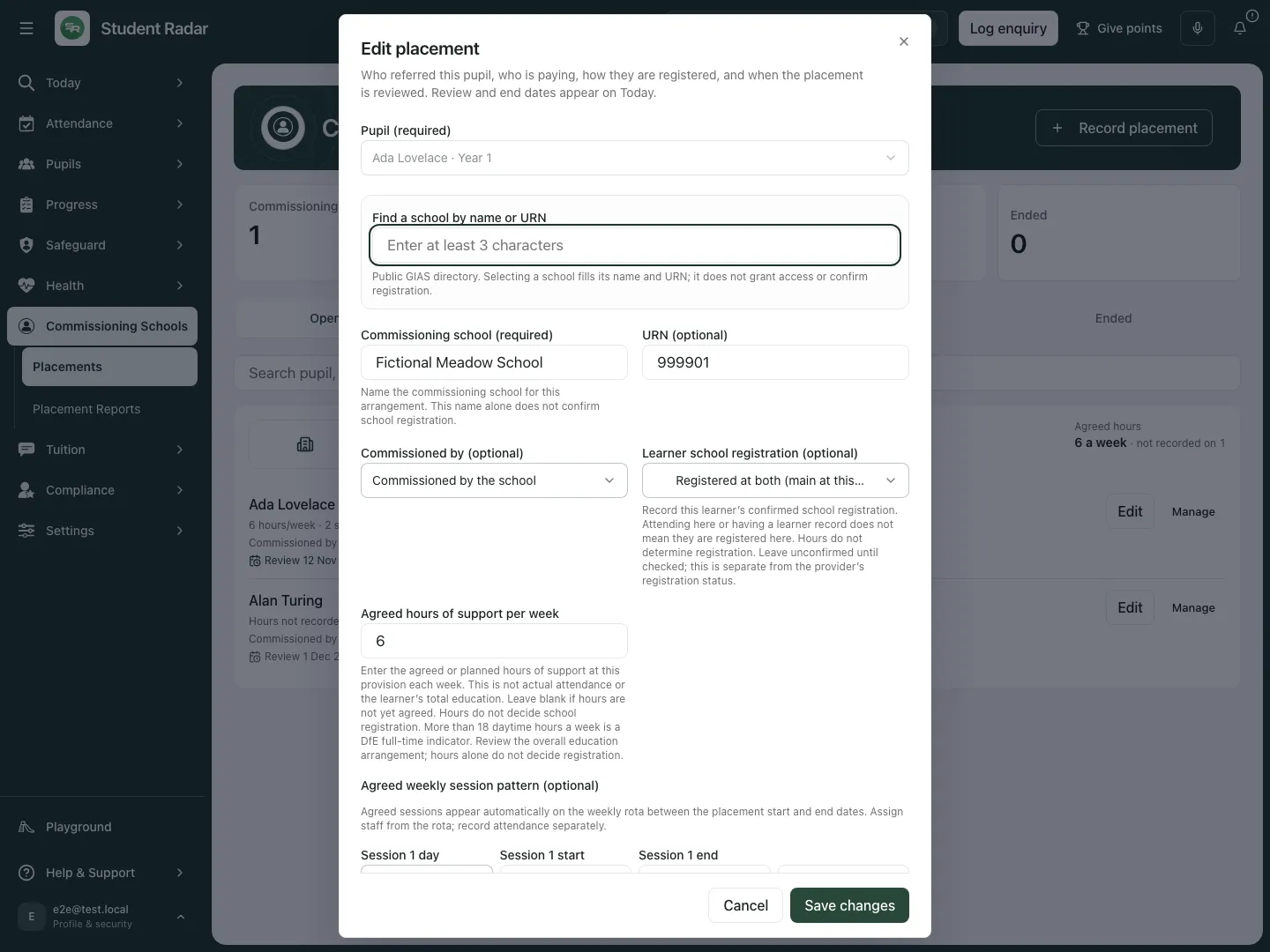
Fictional example: the placement retains its school, six support hours, two agreed sessions, review and key worker.
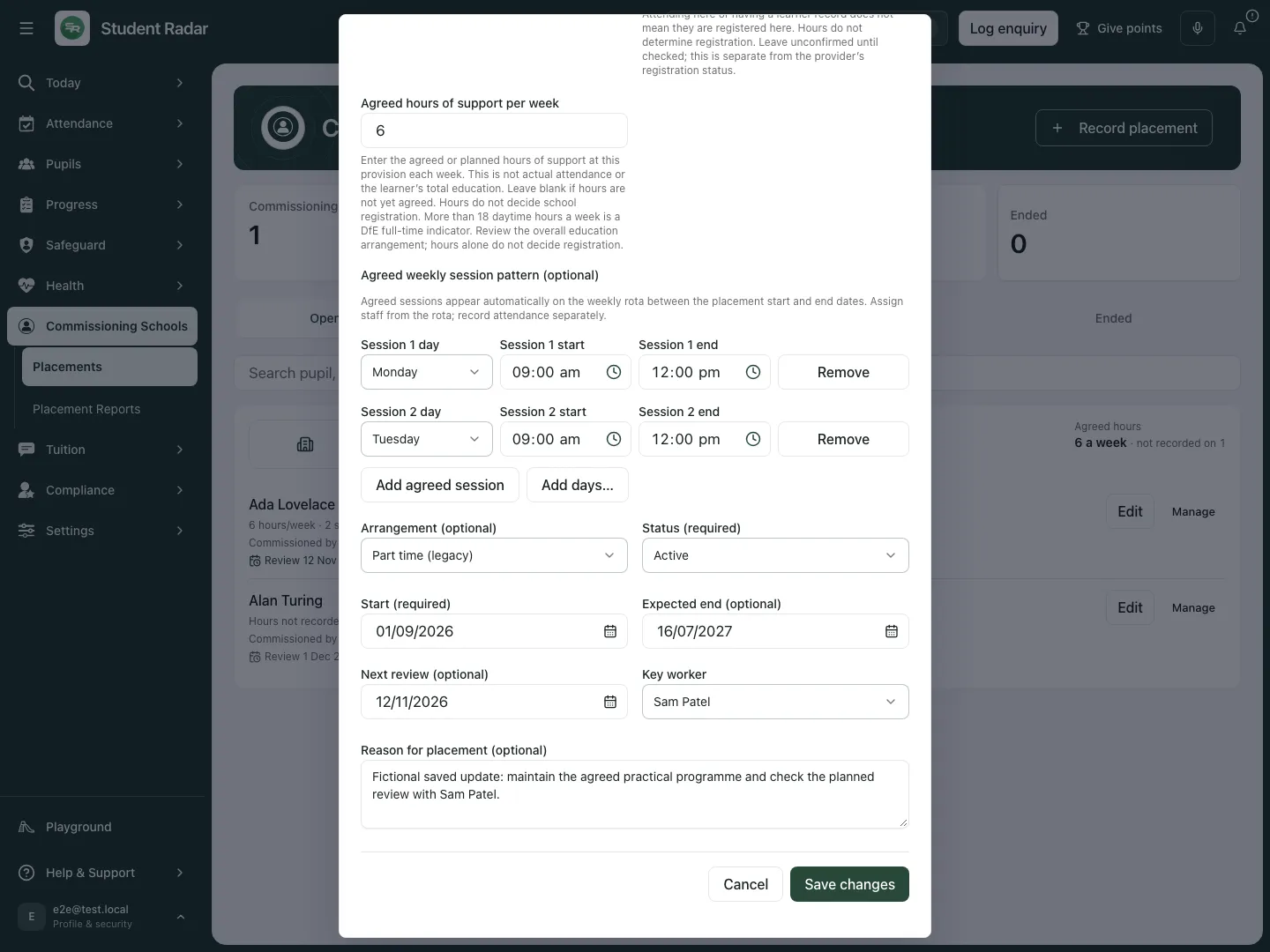
The reopened fictional placement retains the saved reason about the practical programme and planned review with Sam Patel.
If the save outcome is uncertain, details are locked and Retry same save checks the same request. Do not create another placement to resolve uncertainty. If a newer version exists, load/check the current record before deciding what remains to change. A refresh failure after a saved write does not prove the write failed.
D. Choose the right management action
Section titled “D. Choose the right management action”- Select Manage for the intended young person and commissioning school.
- Read the placement hours, registration and commissioner in Manage placement: [name].
- Choose Attendance plan and pause, Attendance responsibility, Communication and access, Edit placement or End placement, according to the decision actually needed and the controls your account has.
- For an ended placement, the management surface can instead offer Correct a recorded attendance plan. It does not allow an already finished placement to be edited or ended again as though it were an ordinary open record.
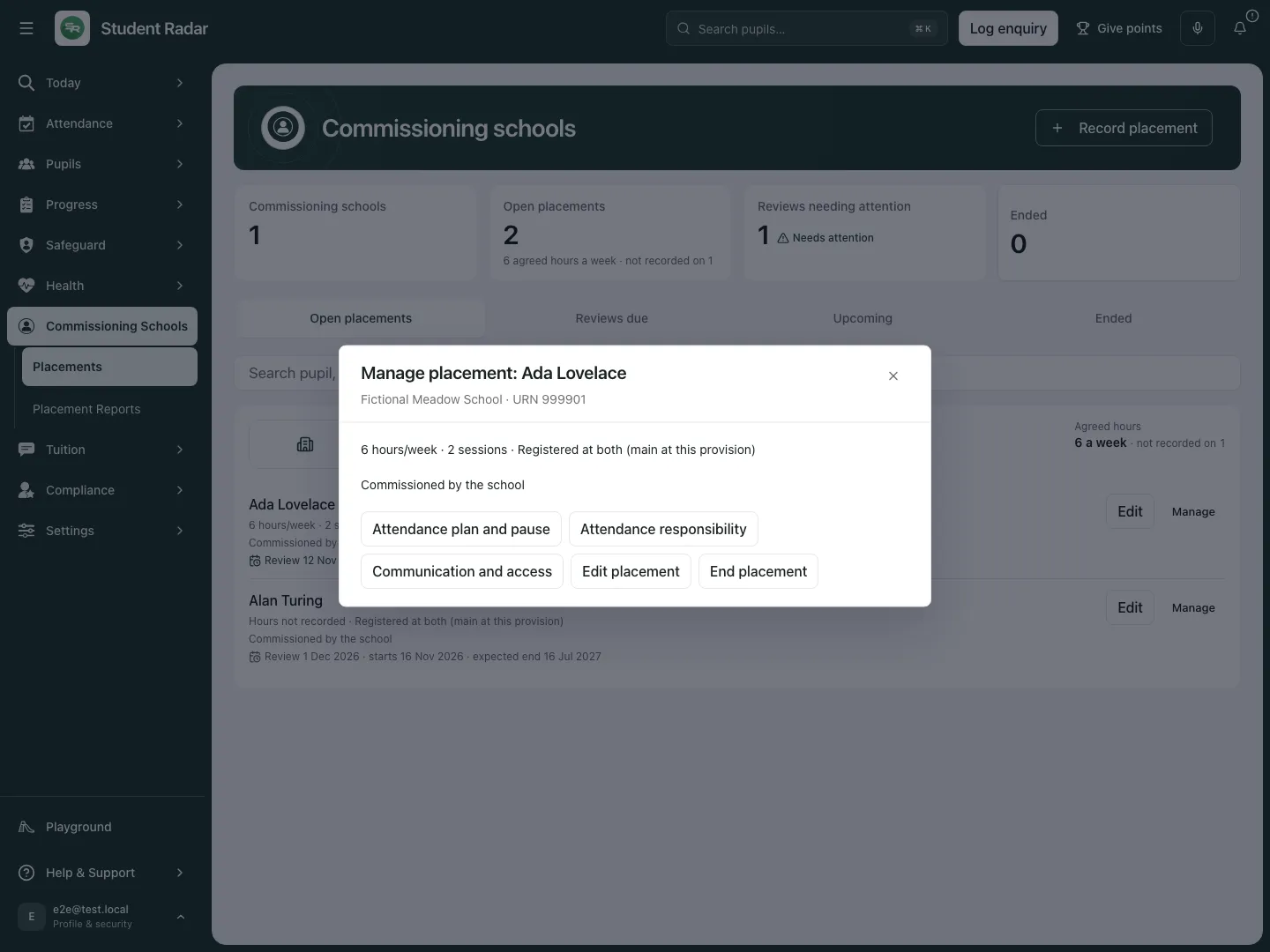
Fictional example: each button opens a distinct arrangement or lifecycle decision; Manage alone changes nothing.
E. Pause this placement and give the review an owner
Section titled “E. Pause this placement and give the review an owner”- Choose Attendance plan and pause. In Placement attendance and lifecycle, set Action to Pause and arrange a review.
- Enter Pause starts, Pause ends and Review date within the permitted dates. The pause cannot start before the placement itself; the review date must fall within the pause.
- Select Review owner from the authorised current staff list. If that list cannot load, reload before assigning the review.
- Enter Decision and evidence checked, using 3–500 characters. State the actual agreed decision and evidence considered.
- Select Confirm pause and owned review only when the pause is intended.
- Inspect the saved pause/history and use Open owned reviews in My Actions when offered. A pause retains the earlier agreement, observations and absence history rather than changing past non-attendance to attendance.
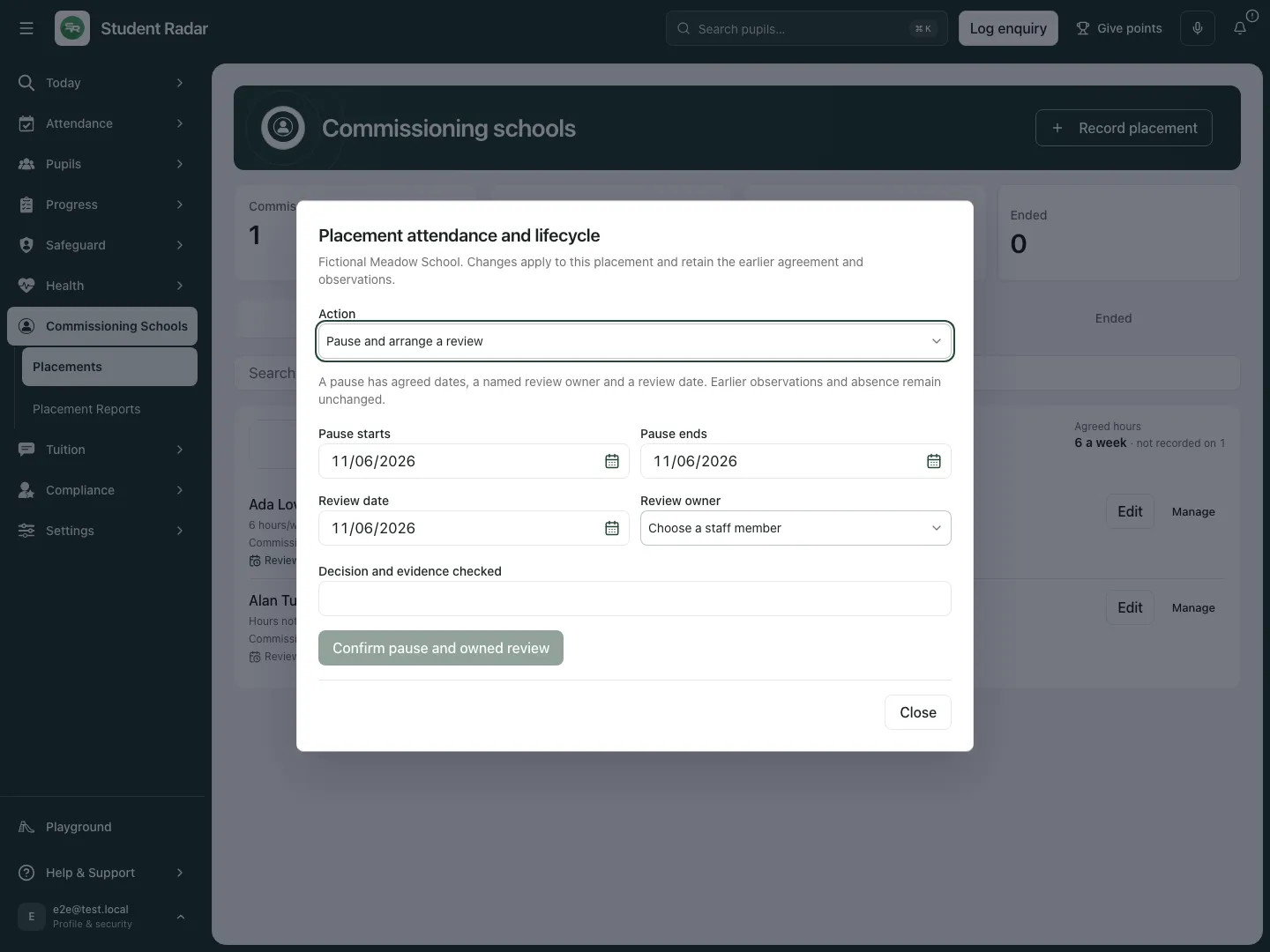
Fictional example: the pause form asks for bounded dates, a named review owner and the human decision. It has not been confirmed.
To resume an existing pause, review its recorded dates and actual decision, enter Resume agreed attendance from, provide the decision/evidence reason and select Confirm resume. Recheck the resulting plan; resumption does not rewrite earlier observations or establish that the young person attended.
F. Correct an incorrectly recorded attendance plan
Section titled “F. Correct an incorrectly recorded attendance plan”- Open Attendance plan and pause or the ended placement’s Correct a recorded attendance plan.
- Choose Action → Correct a recorded attendance plan.
- Enter Date of the plan to correct and select the exact Agreed occurrence. If no occurrence is available, check the date/source rather than inventing a replacement observation.
- Set Correct agreement, Agreed minutes, Agreed start (blank if unknown) and Agreed finish (blank if unknown) as required for the correction.
- Enter Decision and evidence checked explaining the mistake and actual agreement, then Save explicit plan correction.
- Review the observations and statutory source against the corrected plan afterwards. Earlier revisions and observations remain; a plan correction does not silently replace the attendance evidence or decide a statutory code for you.
This control corrects an agreed plan recorded incorrectly. It is not a way to remove an absence or retrospectively make an unagreed attendance pattern look agreed.
G. Record who is responsible for statutory attendance
Section titled “G. Record who is responsible for statutory attendance”- Choose Manage → Attendance responsibility.
- Read Who records statutory attendance? and select Agreement not yet confirmed, This provision or The commissioning school, according to the verified arrangement.
- Enter Agreement reference or reason for change (at least three characters), then select Confirm responsibility.
- Check the recorded responsibility/revision after confirmation. If its outcome is uncertain, Retry confirmation checks the same submitted decision.
- Continue recording provision presence through its register. Choosing the commissioning school does not write into that school’s register, and earlier attendance retains the arrangement used when it was recorded.
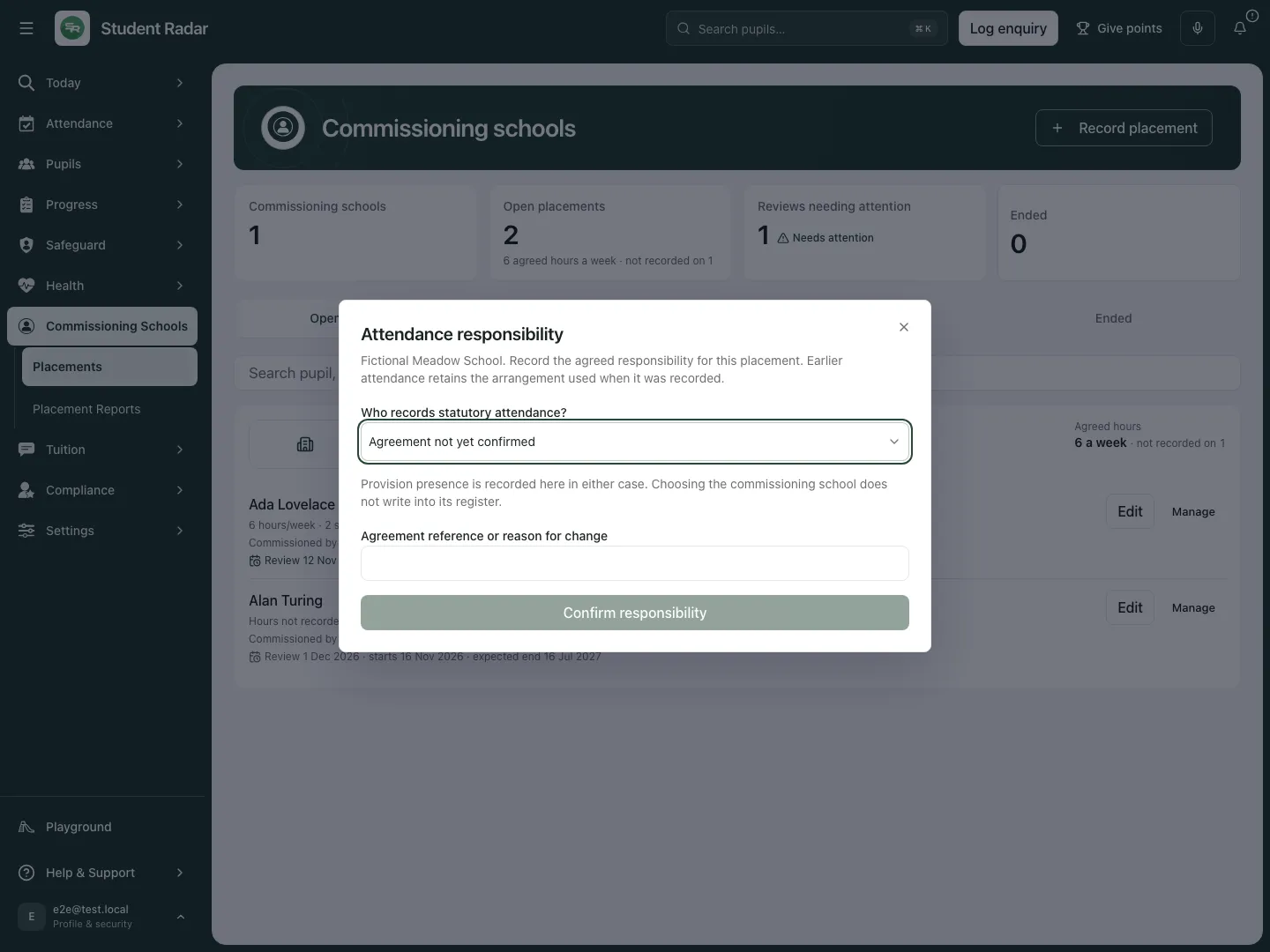
Fictional example: responsibility remains Agreement not yet confirmed. Opening the dialog does not confirm a statutory arrangement.
H. Inspect and grant named school sharing deliberately
Section titled “H. Inspect and grant named school sharing deliberately”- Choose Manage → Communication and access. Check the named young person and commissioning school in the dialog heading.
- Read the standing Consent to share with the commissioning school answer. Missing/refused/withdrawn/overdue answers require the appropriate human check; the displayed answer informs the sharing decision and is not itself the access grant. Office accounts may be directed to a lead/teacher to check it.
- Inspect any existing named relationship, its state, scope, expiry and publications before creating another.
- If authorised, select Invite school member. Enter School sign-in email, Purpose of sharing, Agreed DSA or legal-basis reference and Sharing ends.
- Under Information the school may receive, choose attendance, published reviews and timetable windows separately. Placement dates/type are included; do not assume every option is necessary.
- Check the named recipient/learner match and the displayed agreement confirmation, then select Create invitation. The recipient independently accepts through their own authorised account/placement; creating an invitation is not acceptance or successful access.
- For a renewal, inspect the new authority/expiry and use Renew sharing → Send renewal. Renewal also requires independent acceptance, rather than silently extending the old arrangement.
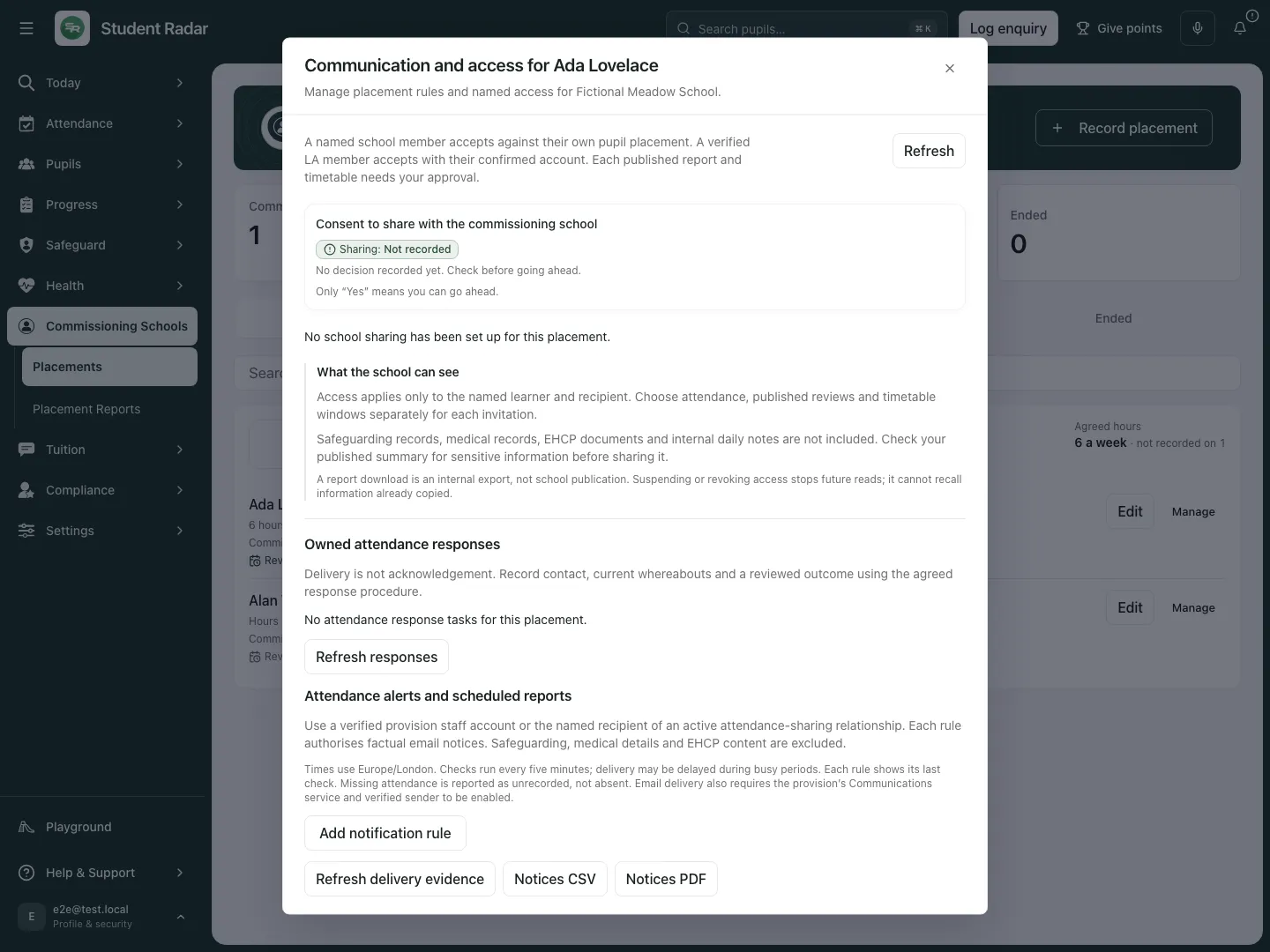
Fictional example: no school sharing is configured, consent is not recorded, and the page explains the separate attendance/review/timetable sharing boundaries.
For supported invitations to a verified school contact or local-authority member, use the corresponding invitation route in this workspace. Check its recipient address, verified school/authority, role/membership verification reference, agreed purpose, selected scopes and authority expiry. Confirm the exact person’s authority before its explicit invitation action; an organisation name or possession of a link is not a substitute for the recipient’s acceptance/access checks.
What these sharing windows include
Section titled “What these sharing windows include”The attendance, published-review and timetable windows apply to the named learner and recipient. This surface explicitly excludes safeguarding records, medical records, EHCP documents and internal daily notes from those windows. Check the published summary itself for sensitive information before sharing it: a summary can disclose something inappropriate even when a restricted source document is not included.
Separate per-record sharing can publish an individually approved ordinary note/resource through its own authority and source/version checks. It is not automatic whole-child access: sensitive/voided notes and safeguarding/medical/SEN categories are excluded from that record-sharing source, and statutory documents retain their specialist transfer boundaries. Do not rename or copy restricted material into an ordinary note/resource to work around those boundaries. Do not describe this as an assurance that every possible commissioner communication is free of sensitive content.
I. Publish an exact review summary or timetable
Section titled “I. Publish an exact review summary or timetable”- On the intended active relationship, select Publish review summary or Publish timetable.
- For a review, choose Signed report revision, then enter Title for the school and Summary for the school. Only a signed pack prepared for this one placement is eligible; a pack spanning several placements cannot be published through this control.
- For a timetable, choose the intended weekday/time windows. Review only the windows needed by that recipient, not a default assumption that every session must be shared.
- Set Publication available until, within the relationship’s current authority/expiry.
- Review School publication preview, check Approve this exact school publication preview, then select Publish for school.
- Inspect the resulting publication/version and expiry. A report download is an internal export, not a school publication; signing or exporting a report does not itself perform this publication.
- Use the publication’s withdrawal action when access to that publication should stop. Check the resulting state; a newer report does not silently make the old one the new approved publication.
J. Suspend, revoke or close access
Section titled “J. Suspend, revoke or close access”- Find the exact relationship and select its permitted Suspend sharing, Revoke access or close action.
- Read the consequences. Suspension stops access; the page directs you to revoke that relationship before issuing a replacement invitation where required.
- Enter Reason (8–500 characters) and use the matching Confirm … action.
- Refresh and inspect the resulting relationship/publication state. Expiry and the placement’s lifecycle also affect future access.
- Do not claim that suspension or revocation recalls information already copied or downloaded. Any follow-up on material already disclosed is a separate human process.
K. Configure attendance alerts and scheduled reports with owned response
Section titled “K. Configure attendance alerts and scheduled reports with owned response”- In Attendance alerts and scheduled reports, choose Add notification rule, or Edit an existing rule.
- Enter Verified recipient email and choose Trigger or report: Confirmed absence, Late arrival, Attendance not recorded, Daily attendance report, Weekly attendance report or Term attendance report.
- Set the relevant Minutes after planned start, Report time, weekday and Term from/Term to. Times use Europe/London. These rules use recorded evidence: Attendance not recorded is not a missing-child alert; use the session register’s Child missing process for an actual missing child.
- Enter Agreed purpose and Commissioning agreement reference, then Effective from, Effective until and Review by.
- Select Response owner and Escalation deputy, and set Response due after (minutes) and Escalate if unacknowledged after (minutes). These are owned follow-up arrangements, not proof an alert was acknowledged.
- Review the policy/recipient preview and the explicit choice Include the learner’s name in email, as explicitly agreed. Check Approve automatic attendance notices, then Save and enable only when the rule and resulting external communication are authorised.
- Check the resulting rule and last-check/delivery evidence. Disable rule stops an edited rule when appropriate; Cancel leaves the unsubmitted editor.
- Use Refresh delivery evidence, Notices CSV or Notices PDF for the recorded delivery evidence. Read its actual period/state. A provider-accepted/queued/sent record is not proof of reading, acknowledgement, contact or a resolved attendance response.
- In Owned attendance responses, record actual contact, current whereabouts and the reviewed outcome through the agreed response process. Do not mark an outcome established merely because delivery succeeded.
Rules are checked periodically and delivery can be delayed; email also depends on the provision’s Communications service and verified sender. Factual notice payloads exclude safeguarding, medical and EHCP content, but staff must still review the purpose/disclosure and the source record. The fictional example does not enable a rule, send a notice or contact anybody.
L. End one placement without removing the young person from the provision
Section titled “L. End one placement without removing the young person from the provision”- Choose the intended row’s Manage → End placement.
- In Placement attendance and lifecycle, check Action → End only this placement.
- Enter Final eligible day. The final day stays eligible; later planned sessions for this placement are cancelled with their history retained.
- Enter Decision and evidence checked (3–500 characters), then select Confirm placement finish only when that particular commission should finish.
- Inspect the saved result, ended/final-day record and later plan. School access stops after the final day; other placements and the learner’s on-roll status continue unless separately changed through their owning workflow.
- If the final day is before the recorded placement start, read the cancelled before it started explanation. Do not present it as a placement that ran and then ended.
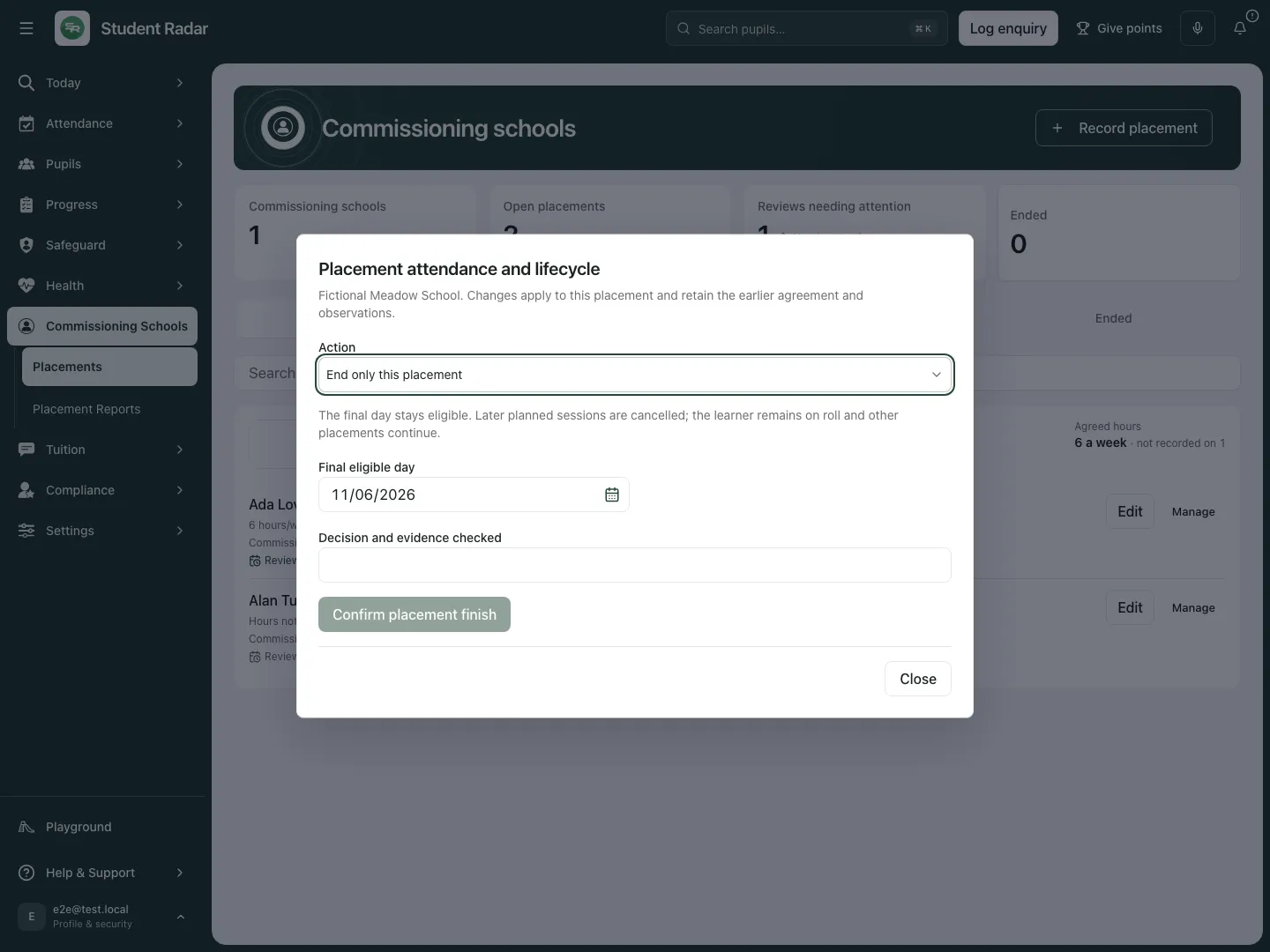
Fictional example: the finish form makes the final eligible day and decision explicit. It is closed without ending Ada’s placement.
Leaving the whole provision is a different pupil lifecycle decision. That workflow offers Record leaving the whole provision, Correct a mistaken leaving decision and Record a genuine return. It checks the retained identity, final day/session and the effect across placements. A genuine return creates a new placement/attendance arrangement; correcting a mistaken leaving decision is not the same as recording a return. Use that owning pupil workflow rather than ending one placement to simulate leaving every commission.
M. Recover an uncertain lifecycle decision
Section titled “M. Recover an uncertain lifecycle decision”- If a pause, finish or plan-correction response is unconfirmed, use Recover the same decision. Do not submit a different lifecycle decision to discover whether the first happened.
- If recovery is refused and Reload and check the record appears, inspect the actual current record before another action.
- After Decision saved with its source history, read the specific effect and inspect the affected plan/access/owned review. Saved work is not evidence of improved attendance or completed contact.
- Keep original observations and prior revisions available when reviewing a correction. Do not substitute task completion for the attendance evidence.
Troubleshooting and questions
Section titled “Troubleshooting and questions”A placement link is unavailable. The placement may have ended, been removed or be outside your current authority. Recheck the selected provision and permitted list; the link itself grants no access.
Why does total support hours say “not recorded”? The total covers recorded hours only. It is not a complete total until the missing agreements are checked, and it is never a measure of actual attendance.
Why can I read but not edit, end or share? These are separate capabilities, with additional state and object checks. Ask the authorised lead rather than trying another account.
Does selecting the commissioning school write its register? No. Attendance responsibility records the agreement; presence and the relevant statutory source remain separate.
Does pausing erase earlier absence? No. It retains earlier observations and absence; a later plan change must not manufacture an earlier attendance outcome.
Does sharing a report export automatically publish it? No. The named relationship and exact publication preview/approval are separate steps.
Can I recall downloaded information by revoking access? Revocation stops future reads; copied information cannot be recalled through that control.
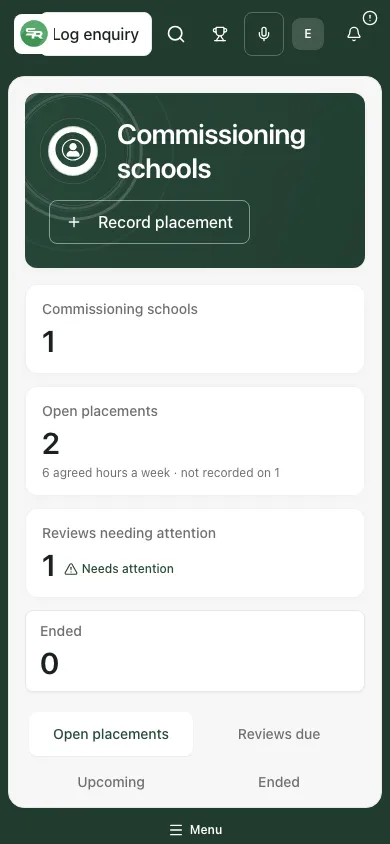
Fictional example: the placement grouping and distinct support-hours/review information remain available at phone width.
Related guides
Section titled “Related guides”Manage AP referrals, set capacity and the waiting list, use AP Progress Drivers, review careers and destinations and manage your tasks in My Actions.