Use the EYFS Room Dashboard for the day’s care
Written for: Authorised Nursery and Reception staff.
Check the EYFS room board, mark children in or out, open care information and review the day’s changes.
The room board is a working record for the children you can see. It complements the attendance register; marking a child in the room does not take or correct the formal register.
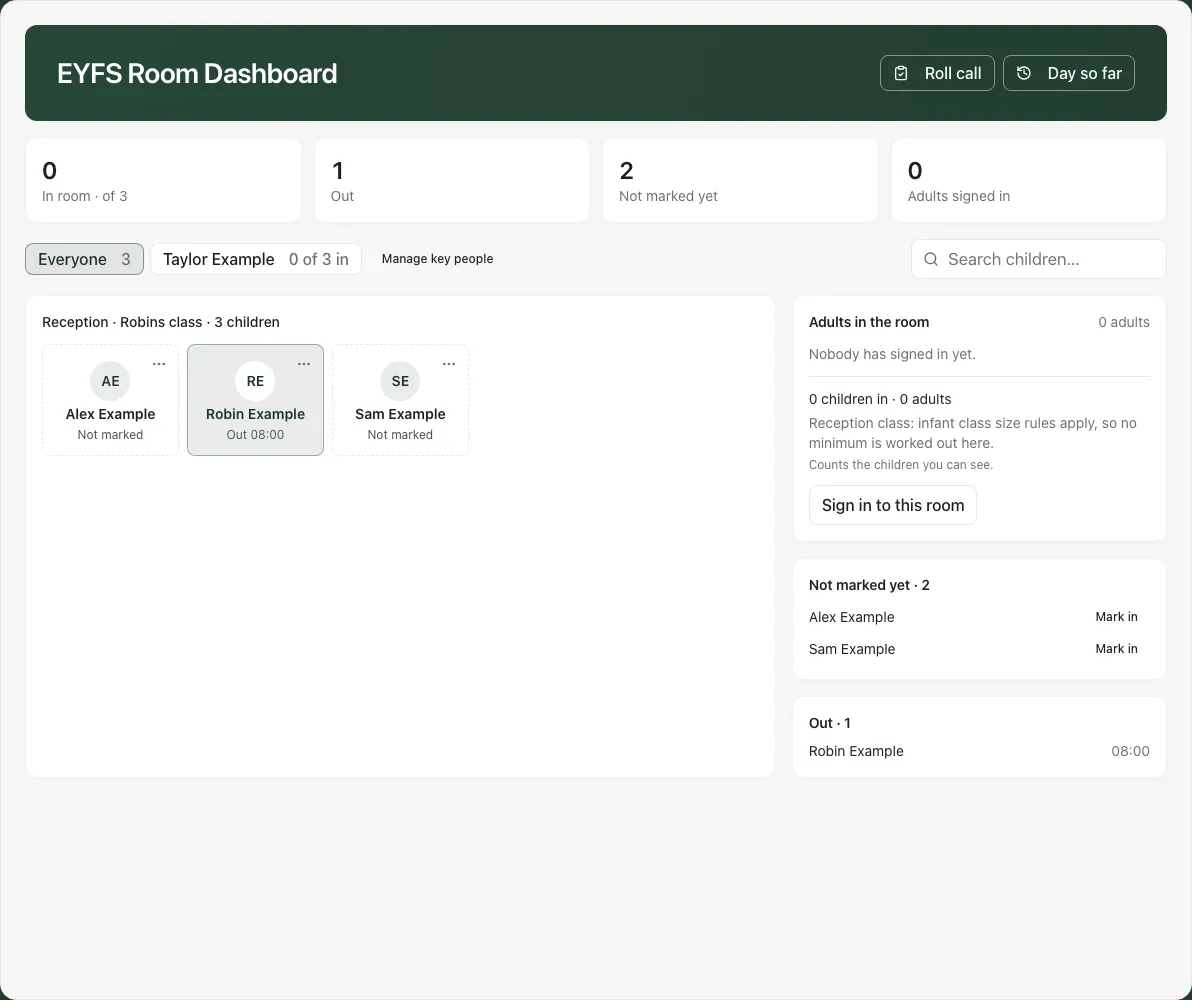
Screenshots use fictional Reception children Alex Example, Robin Example and Sam Example.
Before you start
Section titled “Before you start”- Open Classes, choose the Nursery or Reception group, then Room Dashboard where your account offers it. The page heading is EYFS Room Dashboard.
- Check the school and the class or group name. Opening the room from its class gives adult sign-in the intended room context. If you open a broader view, it can show All early years children and ask you to open a class before signing adults in.
- Check that today’s marks have loaded. Unavailable or a failed read does not mean a child is out, absent or accounted for.
- Keep a shared room screen appropriate for its audience. The board keeps sensitive health and support details inside the child’s sheet, subject to your access.
1. Read the room before changing a mark
Section titled “1. Read the room before changing a mark”The summary shows In room · of X, Out, Not marked yet, and either Adults signed in or key-person information. The denominator is the children in the room view whom you can see; it is not proof of a complete school roll.
| State | Meaning in this view |
|---|---|
| In | Someone recorded the child as in the room today. Read the recorded time. |
| Out | Someone recorded the child as out today. It is not an attendance absence code. |
| Not marked | No in/out room mark has been recorded for this child today. Do not read it as out. |
| Unavailable | Today’s marks could not be read. Use your established register and room checks. |
Use Search children… to find a name. The Everyone and key-person buttons narrow the visible children. Read the count on the chosen key group. A key person’s name is an assignment, not evidence that the adult has signed into this room.
2. Mark a child in or out
Section titled “2. Mark a child in or out”On a tablet or desktop, the large child tile is the quick mark control. Read its current state and the action before tapping. On a phone, use the explicit Mark in or Mark out button beside the child.
- Confirm the child’s name.
- Select Mark in when the child arrives, or Mark out when they leave the room.
- Wait for saving to finish. Check that the displayed state and time changed.
- If the tap was a mistake, use Undo while it is available, then check the resulting state.
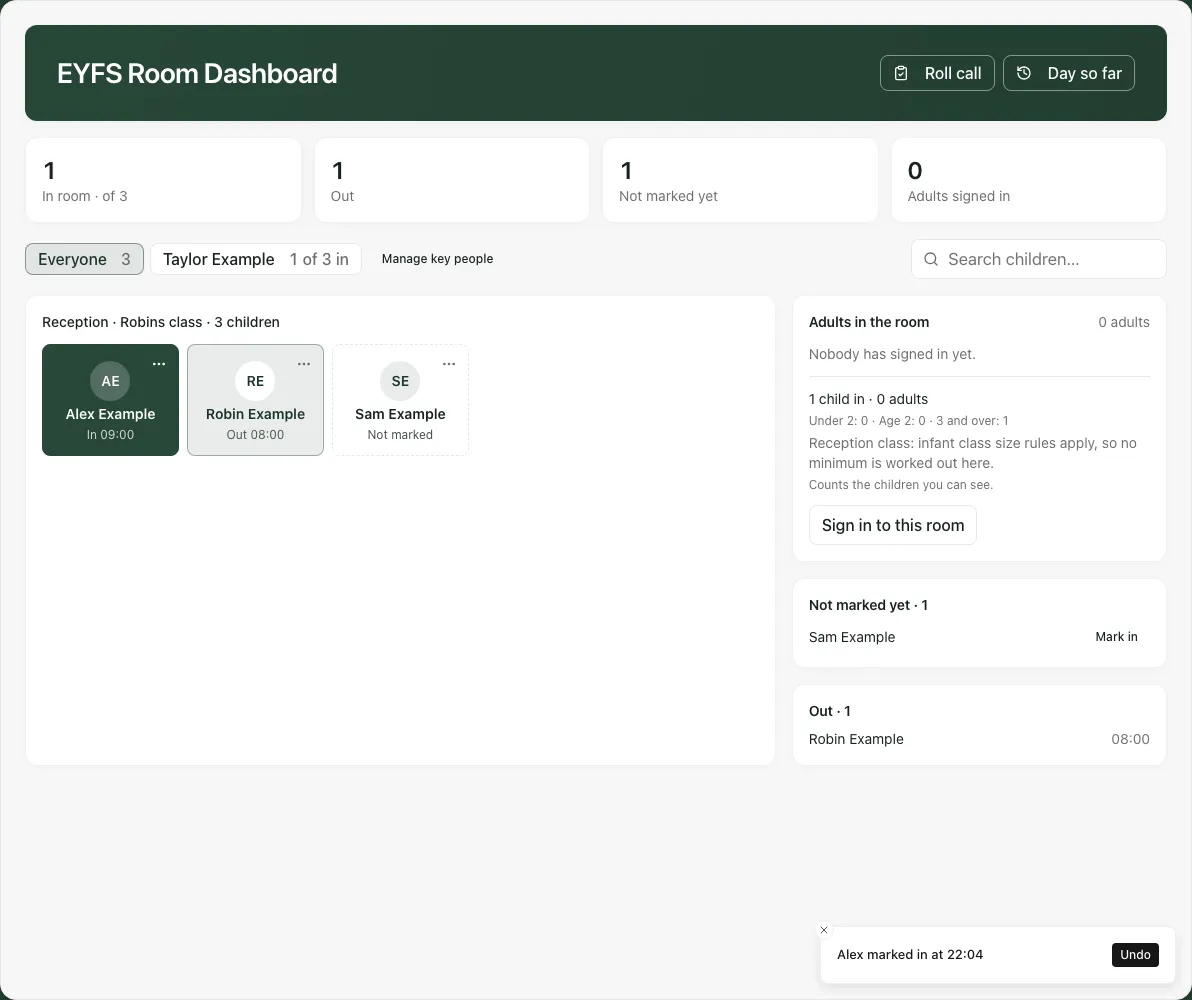
Undo only applies to the eligible latest change. If the child’s mark has changed since your tap, the app can refuse to undo it; check the current mark rather than reversing a colleague’s later update.
Another adult may be working on a second device. Recheck the current room state before making a correction. If the school day changes while you are marking, the app reloads today’s room: review the date and mark the child again only if needed.
3. Open the child sheet
Section titled “3. Open the child sheet”On a tablet or desktop, select ⋯ on the child’s tile (labelled Open [name] for assistive technology), rather than the quick mark tile, to see their details. On a phone, use the child’s name or Open control. The sheet shows the name, room state/time, key-person context and the tools your account can use.
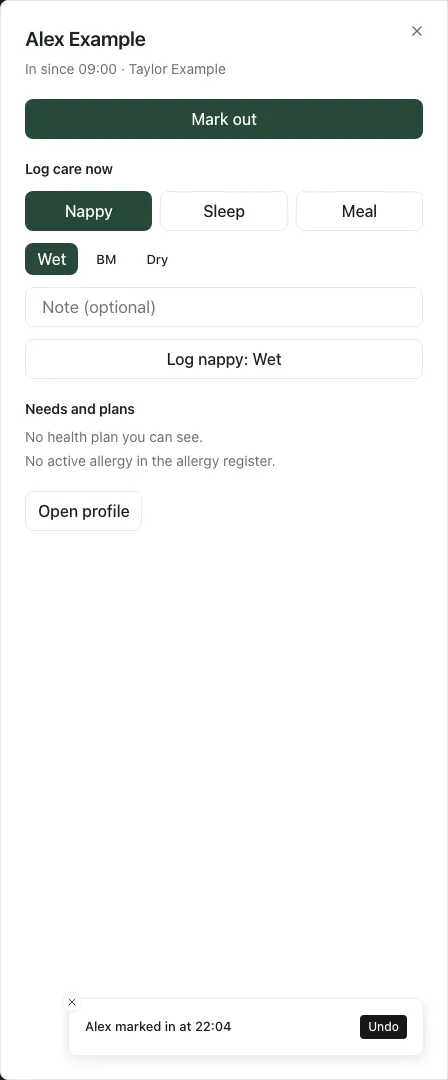
The sheet can include:
- The next Mark in or Mark out action.
- Log care now, where you can use the Care & Daily Diary tools.
- Needs and plans, including available health-plan and allergy information.
- Links such as Open profile, class needs or Record first aid where your account offers them.
Read unavailable health information as unknown. No health plan you can see describes your current view; it is not an assurance that the child has no medical needs. Open the appropriate source and follow your school’s existing care arrangements when you need the full record.
4. Record care against the right child
Section titled “4. Record care against the right child”Where Log care now is available:
- Confirm the child’s name at the top of the sheet.
- Choose Nappy, Sleep or Meal.
- Select what happened. For example, Nappy offers Wet, BM and Dry; Sleep offers Asleep, Woke and Settling; Meal offers the available intake choices.
- Add a short Care note if needed. Record what you observed or did.
- Read the complete button, such as Log sleep: Asleep, then select it.
- Wait for the entry to save. Check the updated care or sleep state before logging again.
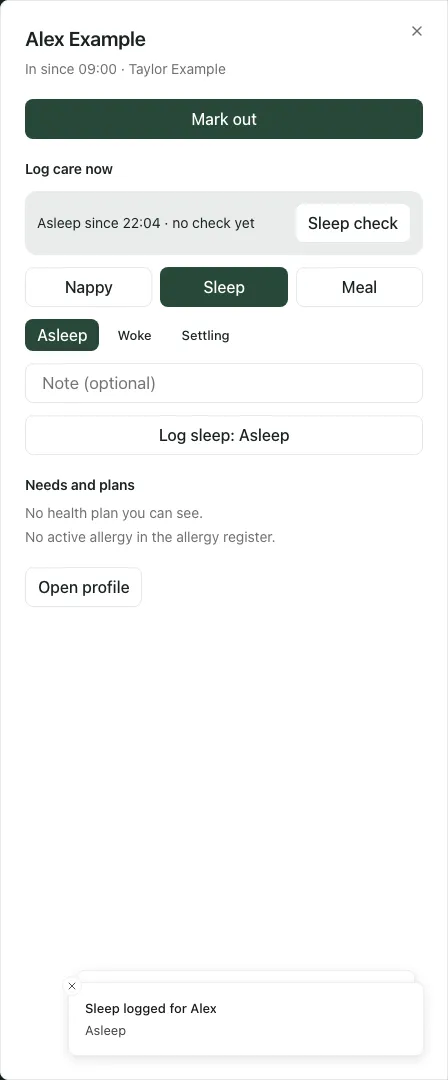
The care entry uses the child and current time. If you need to review the fuller diary, open Care & Daily Diary. Switching children resets the child-specific draft so a note is not intentionally carried to another child; still check the name on every save.
For a sleeping child, the sheet can show Sleep check or Check due. Open the form, record the observations actually made and confirm. The due cue is an app reminder, not a substitute for supervision or your school’s care policy. A failed or incomplete diary read must not be treated as evidence that no child is asleep or no check is due.
If saving fails, read the message and inspect whether the entry appeared before repeating it. A blocked or unavailable linked page needs an access check, not a workaround through a different child’s record.
5. Use Roll call carefully
Section titled “5. Use Roll call carefully”Select Roll call at the top. It groups the current room marks into children in the room, out and not marked. Check the date, room and any warning before using it.
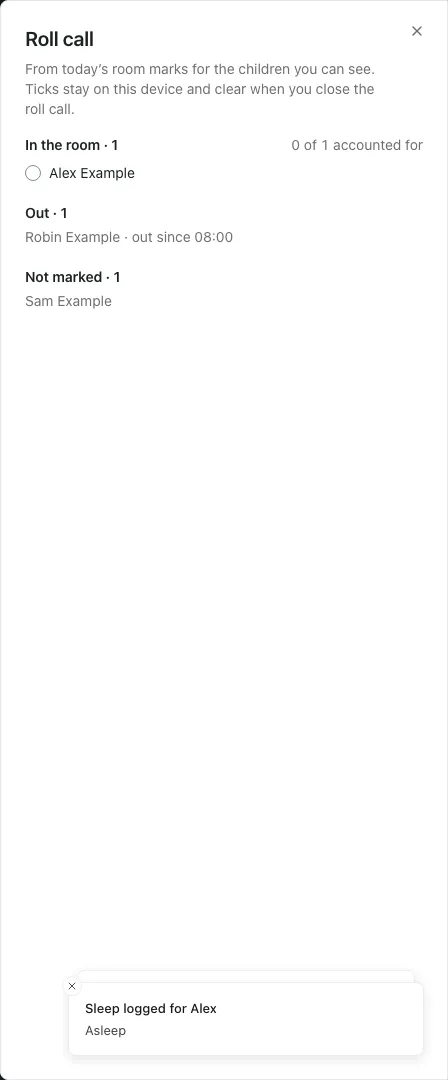
Tick each child you have physically accounted for. Watch X of Y accounted for rather than assuming every child marked in has been seen. These ticks stay on this device and clear when you close the roll call. They also reset when the room/day or the child’s relevant in-room mark changes.
The sheet is not a saved emergency attendance register. Not marked children still need checking through your established process. If room marks are unavailable or a refresh failed, follow the warning and check against the class register. Use any available evacuation-plan link for the class, alongside your school’s actual emergency procedures.
6. Check Day so far
Section titled “6. Check Day so far”Select Day so far to see today’s room-mark changes and, where the room is named, adult sign-ins and sign-outs. The newest entries appear first, with time and recorded actor where available.
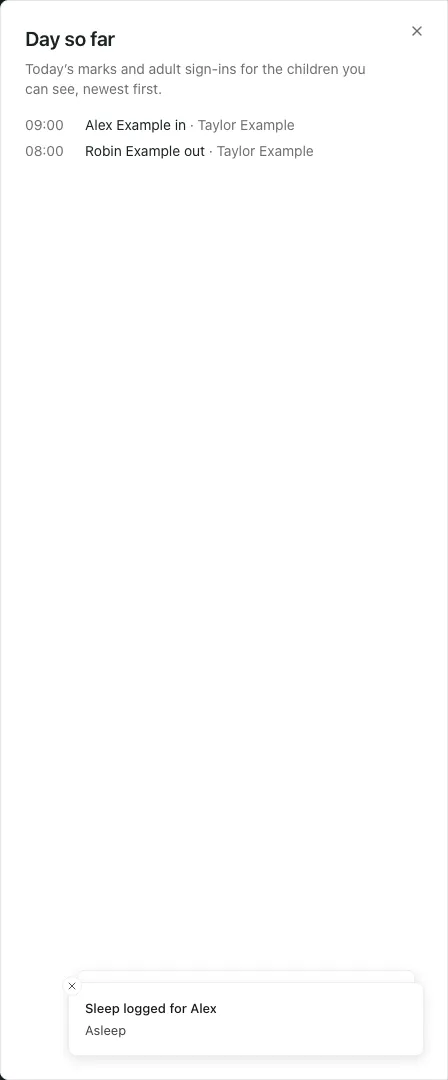
Use this when a mark looks unexpected or you need to check who recorded a change. It is a room activity timeline, not the full care diary, statutory register or safeguarding history. If the timeline could not be loaded, use Try again; an empty failed read does not establish that nothing happened.
7. Sign adults into the correct room
Section titled “7. Sign adults into the correct room”The Adults in the room card is tied to the room opened from the class menu.
- Select Sign in to this room.
- Read the confirmation and qualification statement. Only select the qualified-lead option when it accurately applies to you under the school’s arrangements.
- Select Sign in and check that your name appears.
- When you leave, use Sign out. Signing another adult out asks for confirmation; confirm with them before changing the room record.
Read children in · adults together with the explanation below it. Depending on the school country, class type or missing dates of birth, the app may not calculate a minimum. Reception can explicitly say that no minimum is worked out here. A displayed count covers only the children you can see and adults recorded as signed in; it does not establish that staffing arrangements are compliant or appropriate.
Staff should apply the school’s current staffing and supervision arrangements and resolve missing sign-ins, qualifications or pupil data with the responsible leader. Do not enter an inaccurate qualification or mark children out to make a count look sufficient.
8. Use the phone view
Section titled “8. Use the phone view”The phone view shows a compact list with explicit mark controls. Scroll to the child’s row, confirm the name, then use Mark in/Mark out or Open. The same room and key-group filters still matter.
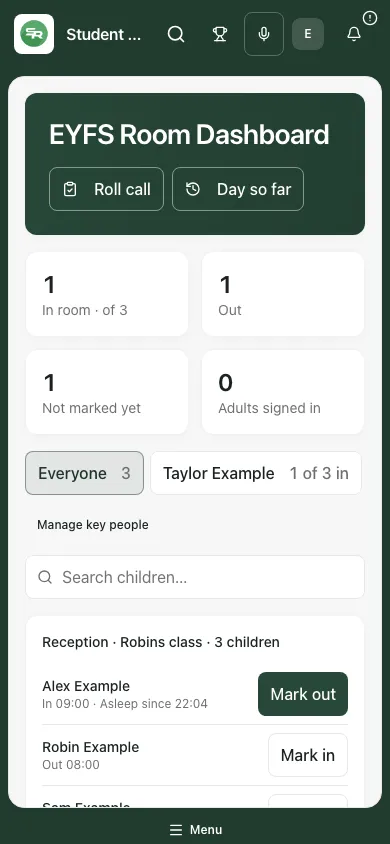
If something does not look right
Section titled “If something does not look right”| What you see | What to do |
|---|---|
| No Nursery or Reception children | Check class and filters. For a connected school, ask an administrator to check the MIS year groups; for a manually maintained school, check the pupil list and year-group setup. |
| Initial room marks unavailable | Do not infer in or out. Use the class register and established room checks, then retry. |
| Marks could not be refreshed | The last-read marks may still be shown with a time warning. Recheck children and the register before relying on them. |
| Not undone: mark has changed since | Read the current mark and check with colleagues; the old Undo no longer applies. |
| Key-person assignments unavailable | Treat coverage as unknown. Open the key-person page where offered and contact the responsible colleague. |
| Adults/staffing unavailable or refused | Check that the intended class room contains children you can access. Do not sign into a different room to bypass the refusal. |
| Register and room differ | Check which children are present in the register but unmarked in the room, or marked in the room but absent in the register. Investigate before using Mark them in. |
| Care or health information failed | Open the source diary or plan if available; unknown is not no need. |
| A new school day started | Review the reloaded room date and current marks before repeating a tap. |
Common questions
Section titled “Common questions”Does a room in/out mark correct the formal attendance register?
Section titled “Does a room in/out mark correct the formal attendance register?”No. The room board is a working room record. Take or correct the attendance register through its own workflow.
Where can I start when a child needs a care entry?
Section titled “Where can I start when a child needs a care entry?”Open the intended child’s sheet and record the care against that child. Check Day so far to review the room’s recorded changes.