Plan an off-site trip or activity
Written for: Alternative provision staff who organise trips and off-site activities.
In an alternative provision, use Trips to plan an off-site trip or activity: the plan, the pupils and staff going, approval, consent and the risk assessment. Trips works as it does in a school, so this article covers what’s different for a provision and links to the full steps.
Open Trips
Section titled “Open Trips”In the sidebar, open Today and choose Trips.
Trips is switched on for every provision with active AP operations, together with safety checks and field mode. Finance and Advanced visit stay off. If Trips isn’t in your menu, your role can’t plan trips, or Trips has been switched off for your provision. Ask a provision leader.
Create the proposal
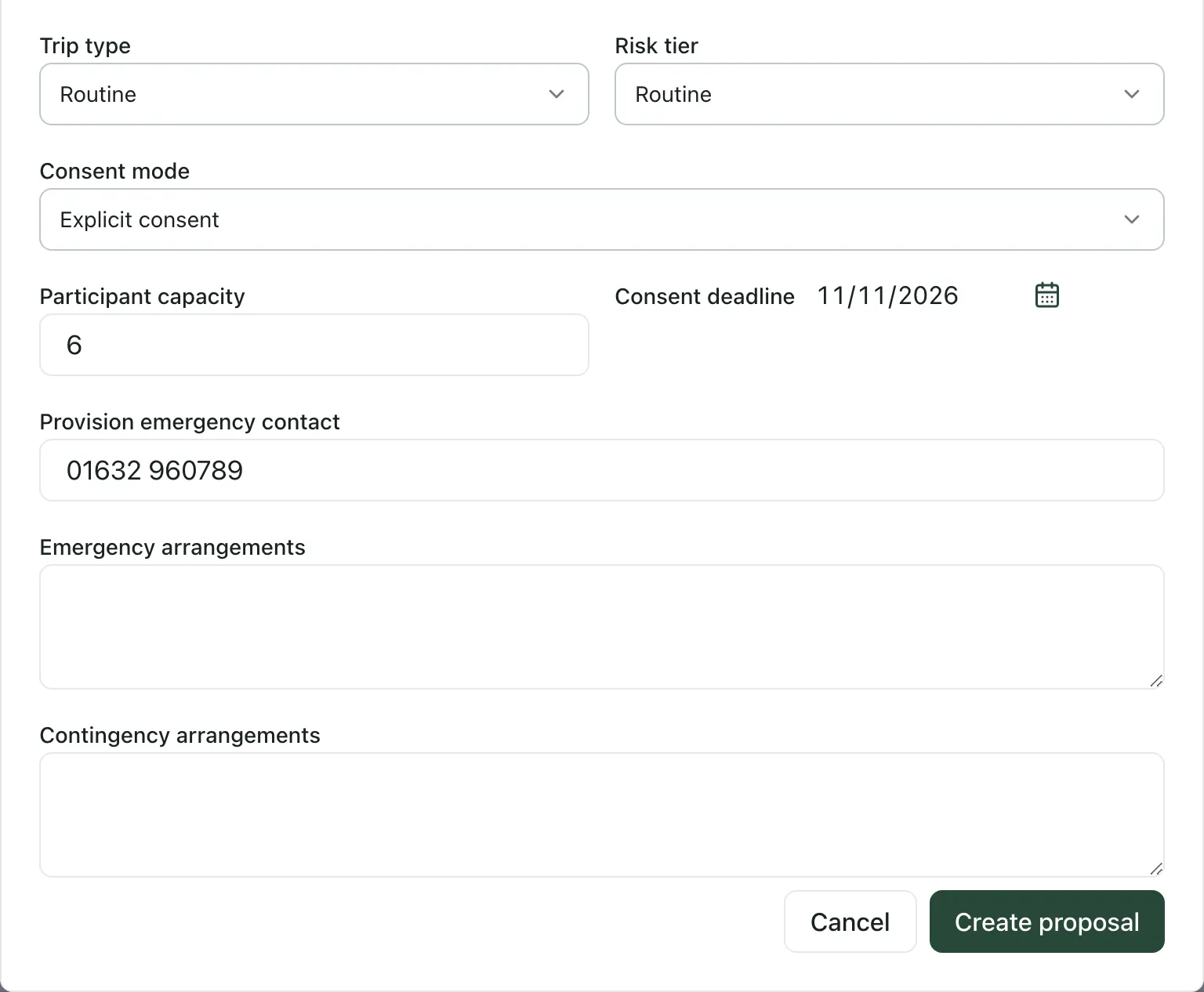
Section titled “Create the proposal”Click New proposal and fill it in as described in Plan a school trip and submit it for approval. Two things are different:
- No year-group or class scope: there are no year groups or classes to choose. You add the pupils by name once the trip is created.
- Provision emergency contact: enter your provision’s emergency number, not a school’s.
Then complete the plan and submit it for approval in the same way.
Add the pupils
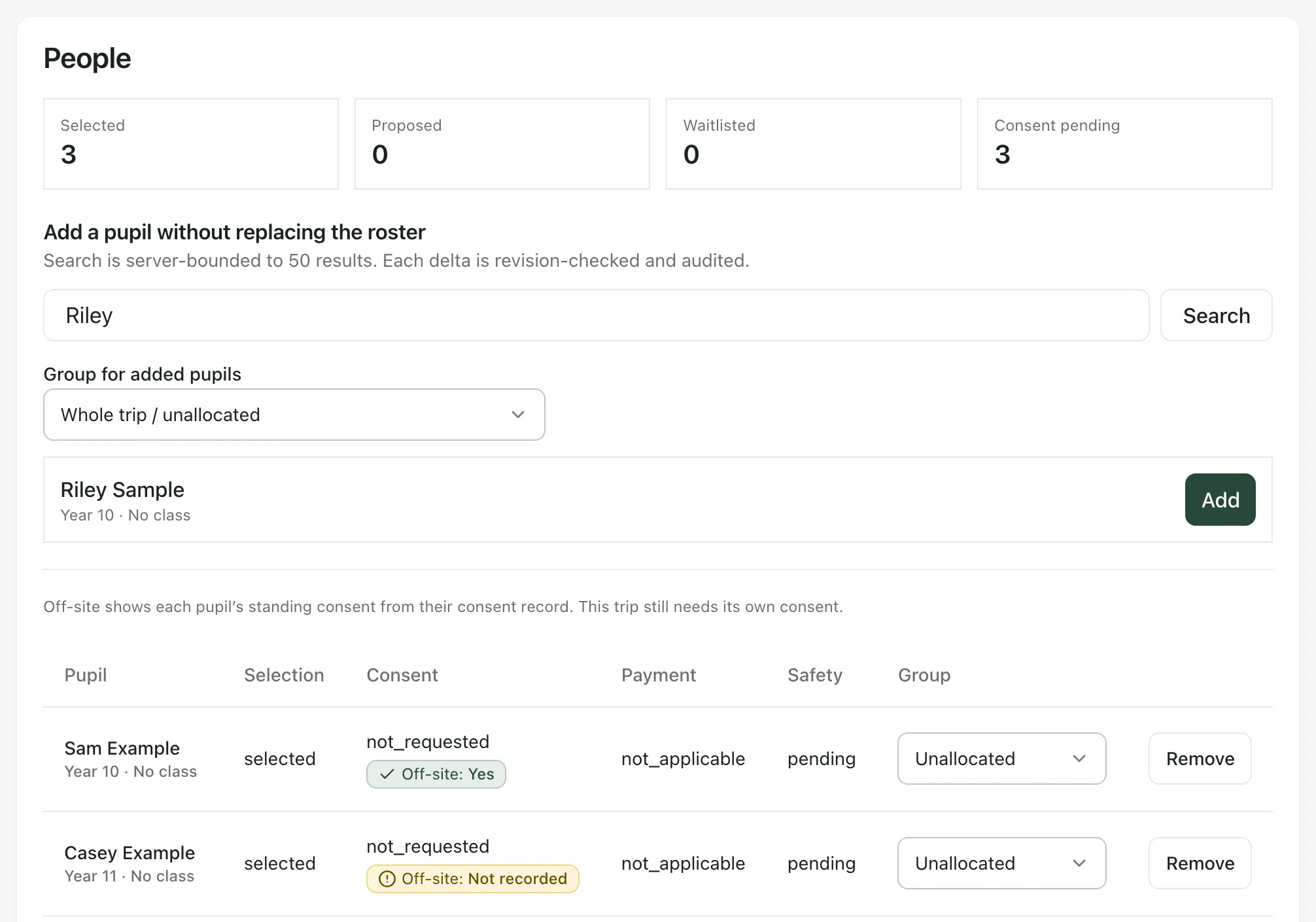
Section titled “Add the pupils”Click People, then search for each pupil under Add a pupil without replacing the roster and click Add. Pupils who have left your provision aren’t offered.
Link a site or activity risk assessment
Section titled “Link a site or activity risk assessment”If the trip goes to a site you use often, or is a regular activity, you may already have an approved assessment for it on Risk Assessments, under Sites and activities. Link it instead of writing the assessment again:
- Click Plan & logistics and scroll down to Add structured risk assessment.
- Choose Approved reusable assessment as the Assessment approach.
- Search under Search approved school assessments, then choose the site or activity assessment under Approved reusable assessment.
The trip still needs its own named owner and review. For a one-off trip, write a Trip-specific assessment instead. See Collect trip consent and complete the risk assessment. To write a site or activity assessment, see Write and sign off a risk assessment.
Collect consent
Section titled “Collect consent”Each trip needs its own consent. Click Consent & comms and issue the consent request to the pupils going, as described in Collect trip consent and complete the risk assessment.
Families who don’t use the parent app won’t see the request. When a parent or carer gives or refuses consent on paper or by phone, record it under Record paper or telephone consent. Guardian lists the pupil’s family contacts with parental responsibility, so check the pupil’s contacts are up to date first.
The pupil’s standing off-site consent
Section titled “The pupil’s standing off-site consent”On People and Consent & comms, each pupil’s standing Off-site answer from their consent record appears beside the trip’s consent status, for example Yes or Not recorded. It’s a reminder of what the family has agreed for routine off-site activities. It doesn’t count as consent for this trip, even when the trip uses Standing consent. See Record and check a pupil’s consent.
- Who can do this: planning trips, approving them and writing risk assessments each depend on your Trips permissions. If you don’t see New proposal, ask a provision leader.
- Your provision’s words: your Setting profile may use other words for pupils, so some labels may differ.
If something doesn’t work
Section titled “If something doesn’t work”| What you see | What to do |
|---|---|
| “Trip planning is not enabled for this school. Contact your school administrator to discuss availability.” | Trips has been switched off for your provision. Ask a provision leader to contact Student Radar. |
| “Your account cannot open trip planning. Contact your school administrator to review access.” | Ask a provision leader to check your access. |
| “No approved school assessment matches this search.” | Check the site or activity assessment has been approved, or try a different search. |
| “Standing off-site consent is unavailable right now. Check each pupil’s consent record.” | Open Consent Records to check each pupil, then reload the trip. |
| “Off-site: not available to you” | You can’t see that pupil’s consent record. Ask a provision leader to check it. |