Manage AP referrals from enquiry to placement readiness
Written for: Alternative provision referral teams, authorised decision makers and office staff.
Record the enquiry, start the intended workflow and gather the evidence, decisions and visits needed for placement readiness. Recording an enquiry does not accept the young person or create a placement. The current AP presentation groups the work into Enquiry & triage, Referral assessment, Professional visit, Young person visit and Placement confirmation; the chosen workflow retains its underlying stage requirements.
Screenshots show a fictional enquiry for Ada Lovelace from Sam Patel. The initial enquiry remains received and not linked to a pupil. The later walkthrough starts its fictional workflow and opens the triage decision form, then cancels without recording a decision. No acceptance or placement should be inferred from this example.
Before you start
Section titled “Before you start”Select the intended provision. Reading referrals, contributing notes, managing information, making decisions and creating placements have separate access requirements. The provision’s AP status and your permitted capabilities also affect the controls shown. Office access may show an administrative record without specialist pupil information; governor views do not provide operational recording controls. Do not use another account to reveal unavailable referral information.
A. Find the referral and the next work
Section titled “A. Find the referral and the next work”- Open Referrals. Use the pipeline/stage selection and available quick filters to find the work you need, then inspect the young person, state, owner, next action and due date.
- Use search and list pagination for the intended record. A filtered stage view is not the whole referral register. The pipeline is bounded to 500 open records; retain any more-results or unavailable warning when interpreting it.
- Select the young person to open the workspace. Use Back to referrals to return to the list/filter you were using.
- Read Overview, then move through Stages, Documents and History as required. Check the current stage and state before deciding what to do next.
- If a waiting-list position is shown, read it as the provision’s separate waiting-list position, not a promise of a start date or acceptance.
Fictional example: Ada’s received enquiry is separate from any placement decision.
B. Record an enquiry and verify it
Section titled “B. Record an enquiry and verify it”- Select Record enquiry. The dialog is titled Record an enquiry.
- Enter what is known in First name, Surname, Referrer name, Referrer email and Referrer phone. The fields are optional, but the enquiry needs meaningful information before it can be saved. Use accurate contact details rather than a placeholder in a working record.
- Choose the referring school through the school field when known; preserve its school identity/URN rather than treating a typed organisation name as a verified school match.
- Set How was the enquiry received? to Phone or Email. Set Initial triage call to Not arranged or Arranged. Arranged exposes Planned call date. Selecting an already selected choice clears it; changing away from Arranged clears the planned date.
- Enter Enquiry summary, distinguishing the referrer’s account, what is known and what still needs discussion.
- Select Save enquiry and wait for the workspace to open. Check the saved contact, summary and intake details.
- Return to the list, reopen the young person and check those details again. Received, Unassigned, Not started and Not linked to a pupil remain meaningful outstanding states.
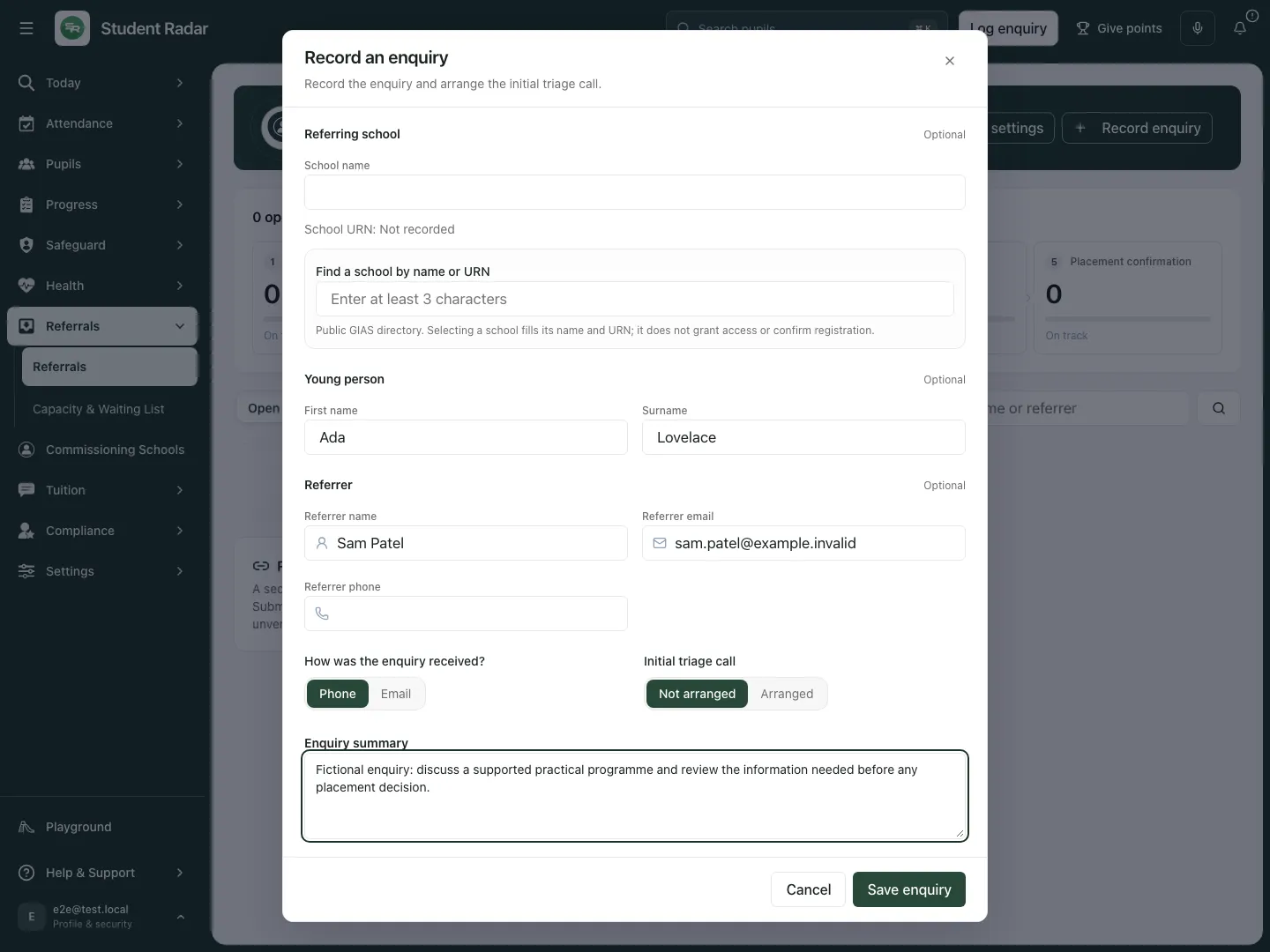
Fictional example: a phone enquiry records the contact and summary, with the initial triage call explicitly not arranged.
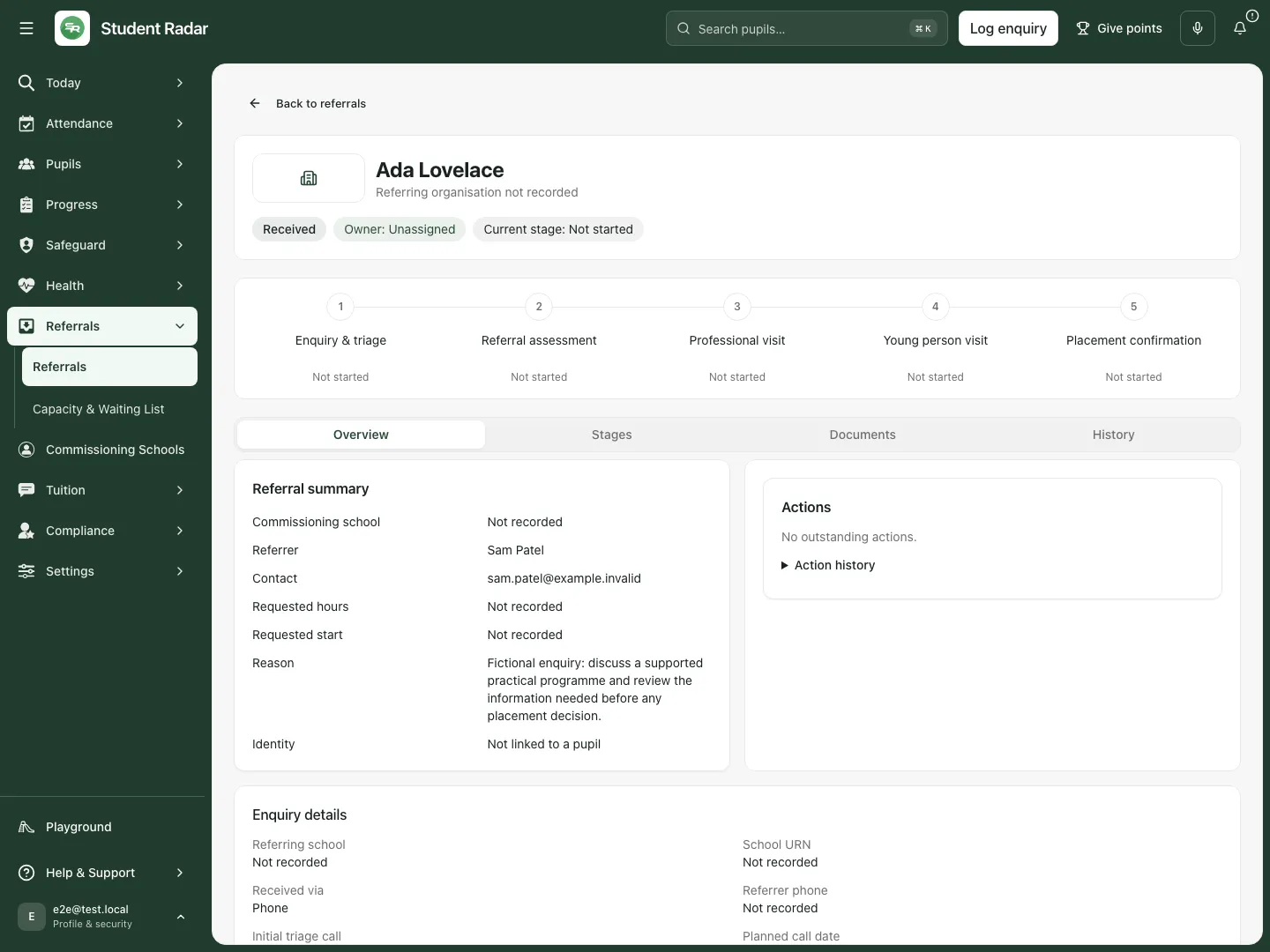
Fictional example: saving the enquiry opens the record without claiming that the referral has been assessed or accepted.
The reopened fictional enquiry retains Sam Patel’s contact, the summary and the initial-call state.
If phone/call details are temporarily unavailable, the page says so and still allows the supported enquiry fields. A planned call date records the arrangement here; it does not establish that a call happened or that an invitation reached someone.
C. Start the intended workflow and keep ownership clear
Section titled “C. Start the intended workflow and keep ownership clear”- Open Stages. If the record has not started, choose Site where shown and Workflow template. Review the exact published version/default before starting.
- Select Start workflow. Check the resulting current stage and requirements; starting is separate from completing a triage decision.
- In the editable overview, set Referral owner to the intended current staff member. Review Next action and Due or review date. In stage controls, use Stage owner, Stage next action and the stage date for the specific work.
- Wait for the draft save status to confirm the changes before leaving. A failed/conflicted save needs resolution; an edited field is not proof that the new owner or date was recorded.
- Use the stage’s required answers, documents and forms rather than assuming the default list applies to every referral. Conditions can make a requirement apply only after a particular answer, such as an EHC plan requirement when the young person has one.
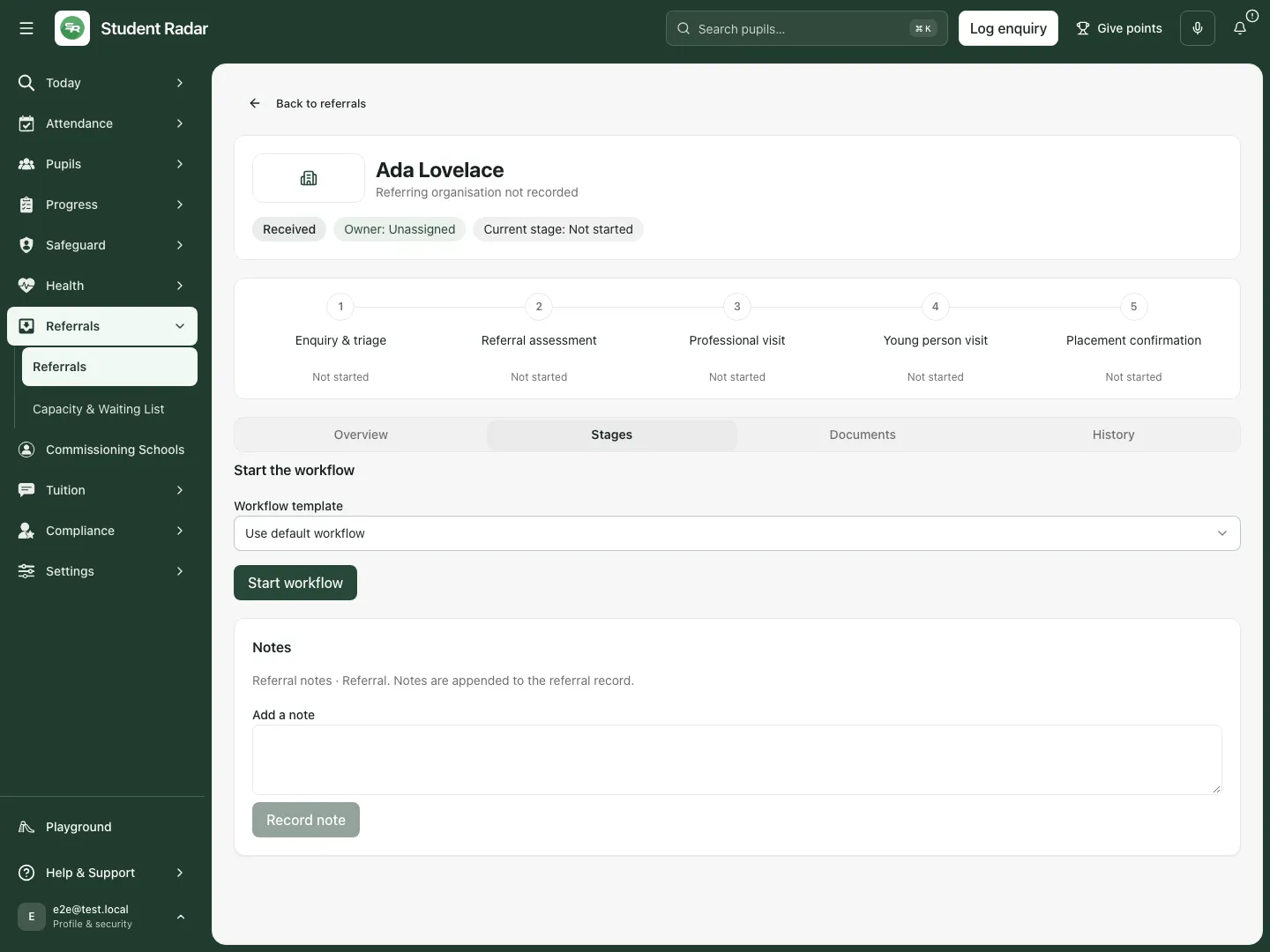
Fictional example: starting the selected published workflow is separate from recording the enquiry or a triage decision.
A published workflow version gives the referral its requirements. Changing the template library does not silently rewrite the version already attached to an existing referral. Use the explicit workflow review/adoption controls only after checking their effect on this record.
D. Record the triage call and human outcome
Section titled “D. Record the triage call and human outcome”- Open Enquiry & triage. Review the enquiry requirements and actual contact information first. The current action bar offers Decline, Request more information and Proceed to assessment; selecting an action opens its decision form, rather than immediately recording an outcome.
- For Proceed to assessment, enter Call record and the reason the referral should move on. Expand Triage call details (optional) for Call date and People on the call. Record an actual call as an actual call, not the planned intake date. The note supports up to 2,000 characters.
- Review Required information before proceeding if shown, then select the form’s Proceed to assessment to record that decision. Cancel closes the unsubmitted form without recording it.
- For Decline, record the required reason and confirm Decline referral. This closes the referral while retaining its call/history. For Request more information, enter Information needed (required) and its call record, then Record information request, or follow the separate email preview workflow when that is offered. Requesting information leaves triage open.
- Check the recorded call, decision and resulting stage before taking another decision. If the same submitted decision is uncertain, use Retry submitted decision, rather than recording a second call or a different outcome.
- Earlier workflow presentations show the fields inline under Triage call and decision, including Call date (optional), People on the call (optional) and Triage outcome. Use the matching final action there: Decline referral, Request more information / Record information request, or Proceed to assessment. A form without an outcome offers Record triage decision instead.
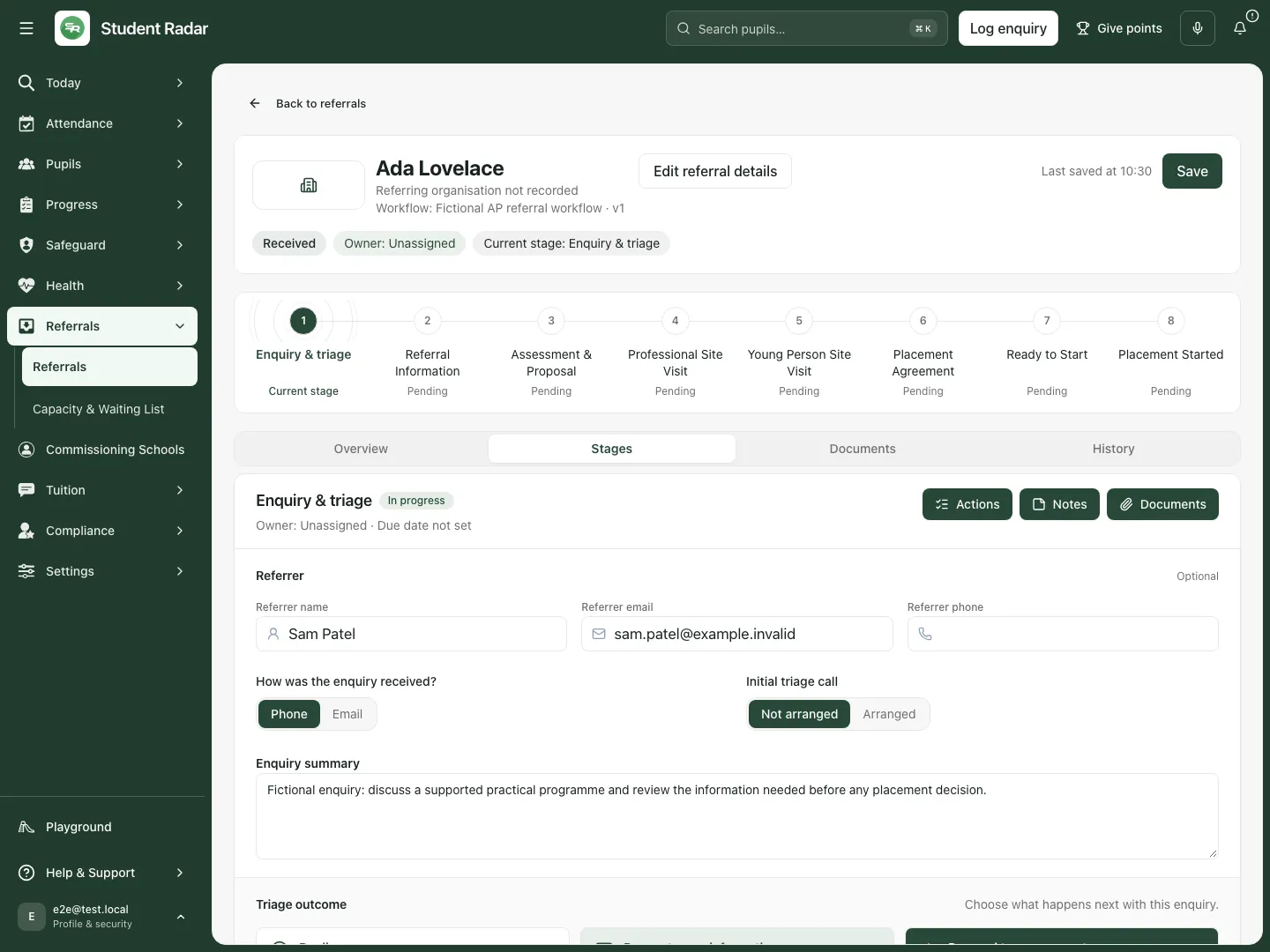
Fictional example: the started workflow shows the current enquiry/triage stage and its three human outcome choices.
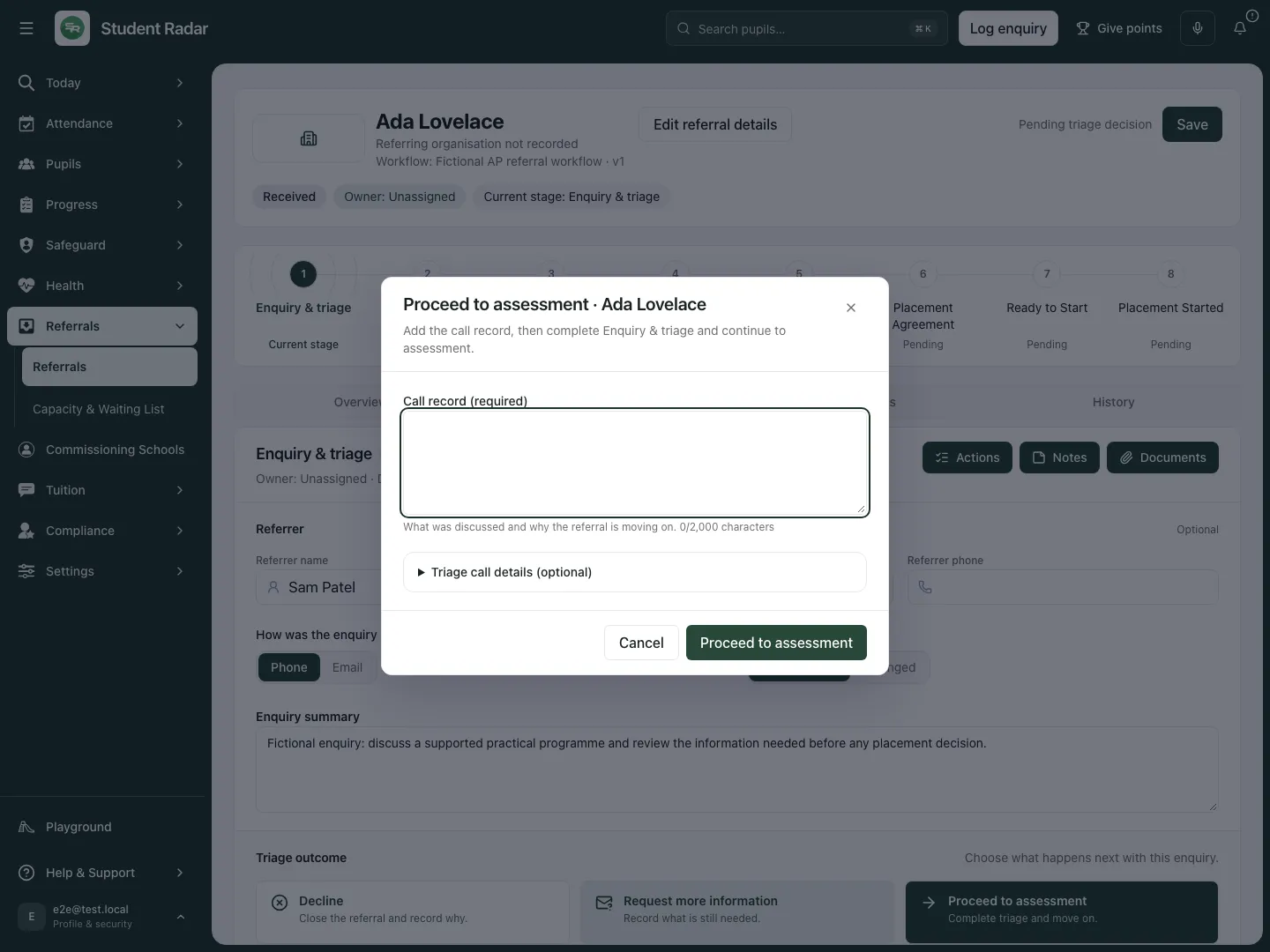
Fictional example: opening the decision form is separate from recording it. This example is cancelled without a triage decision.
The more-information action may open the separate email workflow described below. A recorded information requirement alone is not proof that an email was sent.
E. Gather and assess referral information
Section titled “E. Gather and assess referral information”- Open Referral assessment and inspect the information already received, its dates and the current required answers.
- Enter the factual Needs and support and Known risks and safety information answers when required. Preserve gaps and the source of an account; do not turn a missing answer into “no risk”.
- Review supporting documents/forms using sections F and G. Wait for draft saves to finish before a decision.
- Choose Assessment outcome: Decline referral, Request more information or Issue proposal. Issuing remains unavailable while the displayed requirements or your decision authority are missing.
- For a decline or information request, enter the Reason and any Information needed (required), then select the matching Decline referral or Record information request action. Check the recorded decision afterwards.
- For Issue proposal, review the proposed terms through the proposal form before its explicit issue action. Do not use a previous assessment decision after material referral information has changed; the page marks a previous decision that predates the update.
F. Request information by email deliberately
Section titled “F. Request information by email deliberately”- Select Request more information at the relevant stage. Check the saved referring contact; save a corrected contact on the referral first, then reopen the request for a fresh preview.
- Enter the requested message, How should they respond?, due date and document details shown for that request purpose. Keep the internal assessment reason separate from the message: the form identifies the reason as never sent to the referrer.
- Select Preview email. Review the recipient, content, response route and any secure link before proceeding. A preview is not a sent email.
- Use Edit request to amend the prepared request, or Cancel / Discard request as appropriate to the current state.
- Only when the actual communication is intended, select Send email, review Send this email now?, then select Yes, send email. Back to preview returns without sending.
- Read the recorded delivery state and request list afterwards. A queued/accepted request is not proof the recipient read it or supplied the requested evidence. If the result is unconfirmed, use Retry sending request for the original request rather than composing another.
This walkthrough explains the explicit sending controls. The fictional example does not send an email, issue a secure link or contact a referrer.
G. Upload, link and review the exact evidence version
Section titled “G. Upload, link and review the exact evidence version”- Open Documents or the supporting evidence area of the intended stage. Select Upload document.
- Set Link to stage and Document type when shown, choose the intended file and select Upload document. A signed SLA or LA placement document uses its own upload action and a PDF up to 10 MB, followed by review.
- Use the document card’s Preview or Download control to inspect the exact uploaded version. Select the requirement the document is intended to satisfy.
- Enter Document review note, then choose Accept or Request replacement. Notes are saved by those actions, not by typing alone. A replacement request needs at least five characters; forms that do not mark the review note optional also require a note of at least five characters. Notes support up to 2,000 characters.
- Recheck the requirement and accepted/rejected version after recording the review. A later upload does not make an earlier accepted review apply to a different version automatically.
- For an authorised waiver, choose Waiver requirement, enter General document and waiver note, and use the displayed waiver action. A waiver is an explicit reasoned decision, not a missing attachment interpreted as complete.
- For a form requirement, use the stage’s Attach form control, choose its published form version and attach it to the intended requirement. Complete/review its response through the form’s authorised workflow; a requirement marked as needing approval is not satisfied merely by opening or partially answering it.
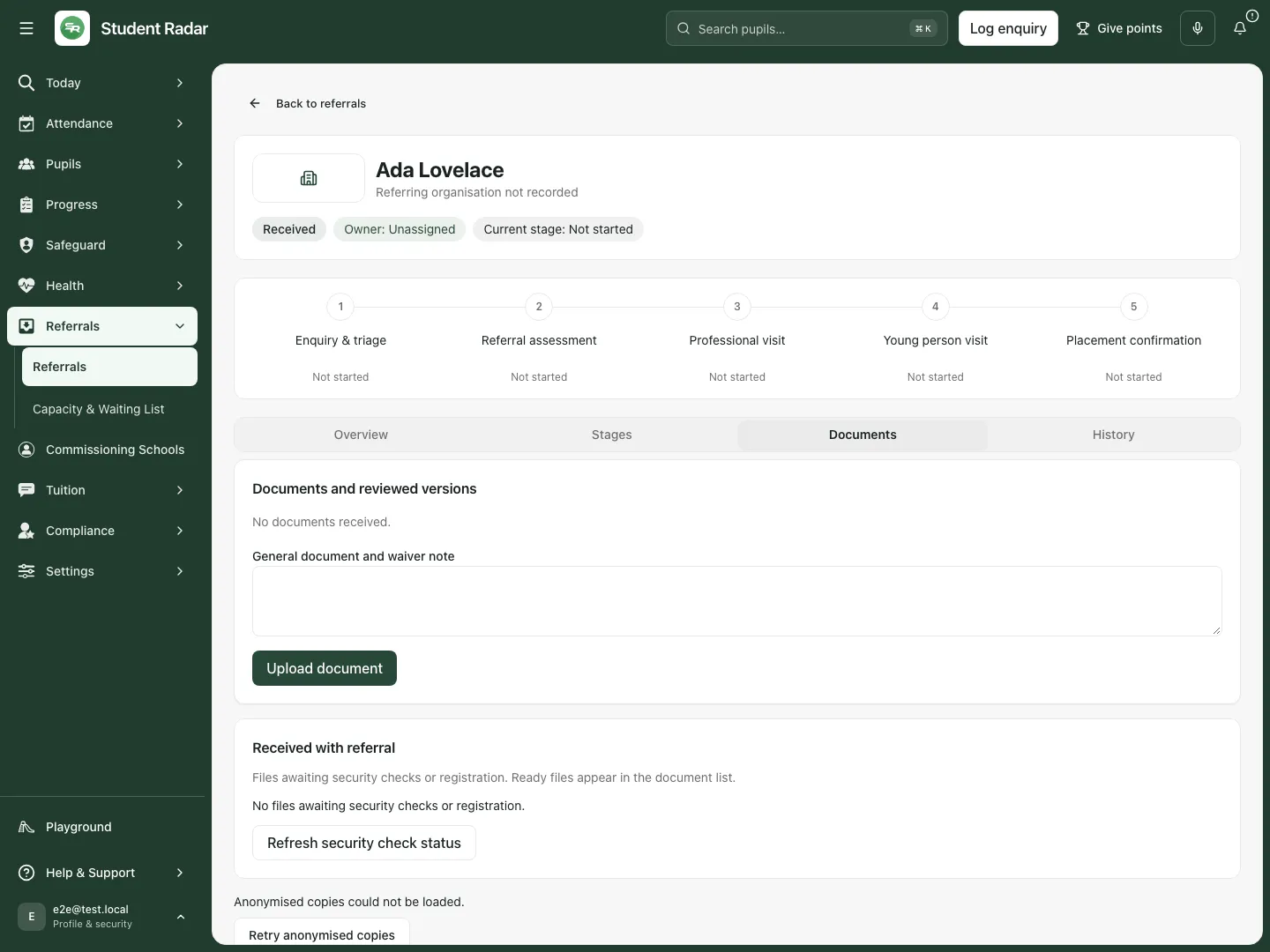
Fictional example: no referral documents have been supplied, so no accepted evidence is implied.
Deletion has its own confirmation. Do not delete evidence simply to hide an adverse review or an unmet requirement. Keep source versions and decision history distinct.
H. Review proposal terms and record actual acceptance
Section titled “H. Review proposal terms and record actual acceptance”- From Issue proposal, review the placement terms: weekly hours, sessions/day/start/end, staffing ratio, proposed start/review dates, provider/commissioner responsibilities, support requirements and notes.
- Check the proposed hours against sessions. If an authorised override is needed, use Offer hours override reason rather than silently accepting inconsistent terms.
- Review all required proposal checks before issuing. A saved draft is different from an issued proposal, and an issued proposal is different from acceptance.
- When acceptance has actually been received, record Person accepting the offer, Acceptance date and Acceptance evidence (or the field explicitly marked optional). Review the terms/version being accepted before confirming the acceptance action.
- If terms change, use the amendment workflow. Record its effective date and reason, and obtain/record acceptance for the changed terms as required. A pending amendment does not silently replace the currently agreed terms.
- When a proposal must be withdrawn/reissued, use Withdraw and reissue the proposal and Reason for withdrawing. Keep the superseded version and its outcome distinct from the new proposal.
Do not infer agreement from an email being sent, a proposal being opened or an internal task being completed. The current, pending and superseded terms have different meanings.
I. Book and record professional and young-person visits
Section titled “I. Book and record professional and young-person visits”- Open Professional visit or Young person visit, checking that preceding assessment/proposal requirements permit that stage.
- In Visit booking, enter Visit date and start time, Visit end time and the participant names/roles and contact details. Review the booking’s actual date/time before its explicit booking action.
- Treat booking, any separate invitation/email and attendance as different states. Record a cancellation when the booked visit does not go ahead; do not leave a booked visit looking attended.
- Record the actual Visit outcome and evidence. The outcome dialog can ask Visit date and start time, End time, Who was there and its note. Check what actually happened rather than copying a planned date uncritically.
- For professional QA, choose Approve professional visit and QA or Record concerns and enter Reason as required. The current quick workflow can offer Record visit and QA outcome, combining the actual attended visit and decision in one command; otherwise use the separate recorded-visit/QA controls.
- For the young-person decision, choose Decline referral or Proceed to placement confirmation. The combined action can be Record visit and proceed / Record outcome and proceed when the visit is being recorded with that decision. Read the form’s action before confirming it.
- Check the resulting recorded visit, outcome and stage. A booked visit alone does not establish attendance or approval. A late missing visit decision must be recorded through the placement confirmation prompt rather than invented in a note or duplicated as a new visit.
J. Confirm placement only after readiness checks
Section titled “J. Confirm placement only after readiness checks”- Open Placement confirmation and read Agreed placement, current accepted terms and every displayed blocker.
- Confirm the intended pupil identity. Where the form offers Create pupil automatically or Use an existing pupil, choose deliberately; search/select the exact Existing pupil when linking an existing record. A similar name is not enough to establish identity.
- Review Placement agreement. Use Prepare and send the SLA, Upload signed copy or Upload LA placement document according to what has actually happened. Preparation, sending, returned signature and accepted evidence are separate states; uploaded agreement evidence still needs its review.
- Review Placement checks and Before the placement starts, including the actual start date, required information/documents and any missing visit decision. Resolve a blocker at its source; do not waive it merely to enable a button.
- Select Confirm placement only when authorised and the current form is ready. Some earlier workflow presentations use Create placement under Placement readiness; both are consequential placement actions, separate from recording an enquiry or an assessment.
- Wait for the confirmed outcome, then open the placed pupil/placement record and verify its identity, dates, agreed terms and placement link.
- Treat billing separately. Advance invoice requires its own finance authority and reviewed source. Where the workspace says invoice preparation remains in Billing, Open Billing is the separate destination; confirming placement does not create an invoice automatically.
K. Record owned work, notes and state changes
Section titled “K. Record owned work, notes and state changes”- For work that needs an owner/date, use New action, enter its title, owner and due date, then Save action. Reopen it to verify the saved details. A referral supports up to 200 action records; completed/cancelled actions retain history.
- Use Complete action only after that work has actually been done and the control is permitted for you. Being named on an action does not itself grant access to the underlying referral.
- Use Cancel action and its confirmation when the action should not continue. Cancellation preserves its history.
- For a contextual note, use Add a note and Record note. Notes append to the referral; they do not replace a decision, a document review or an owned action.
- A permitted Put on hold action requires its reason and Hold review date. Resume referral, Withdraw referral, Decline referral and Reopen referral are distinct state changes. Read the confirmation and resulting state; do not use a note as a substitute.
L. Inspect history and saved versions
Section titled “L. Inspect history and saved versions”- Open History and read the event, actor, recorded time and workflow revision.
- Use Previous history / Next history when enabled. The current page is not necessarily the complete history.
- Compare the recorded revision with the current record after a decision or save. History is not editable, and a retained earlier proposal/decision is not necessarily the current one.
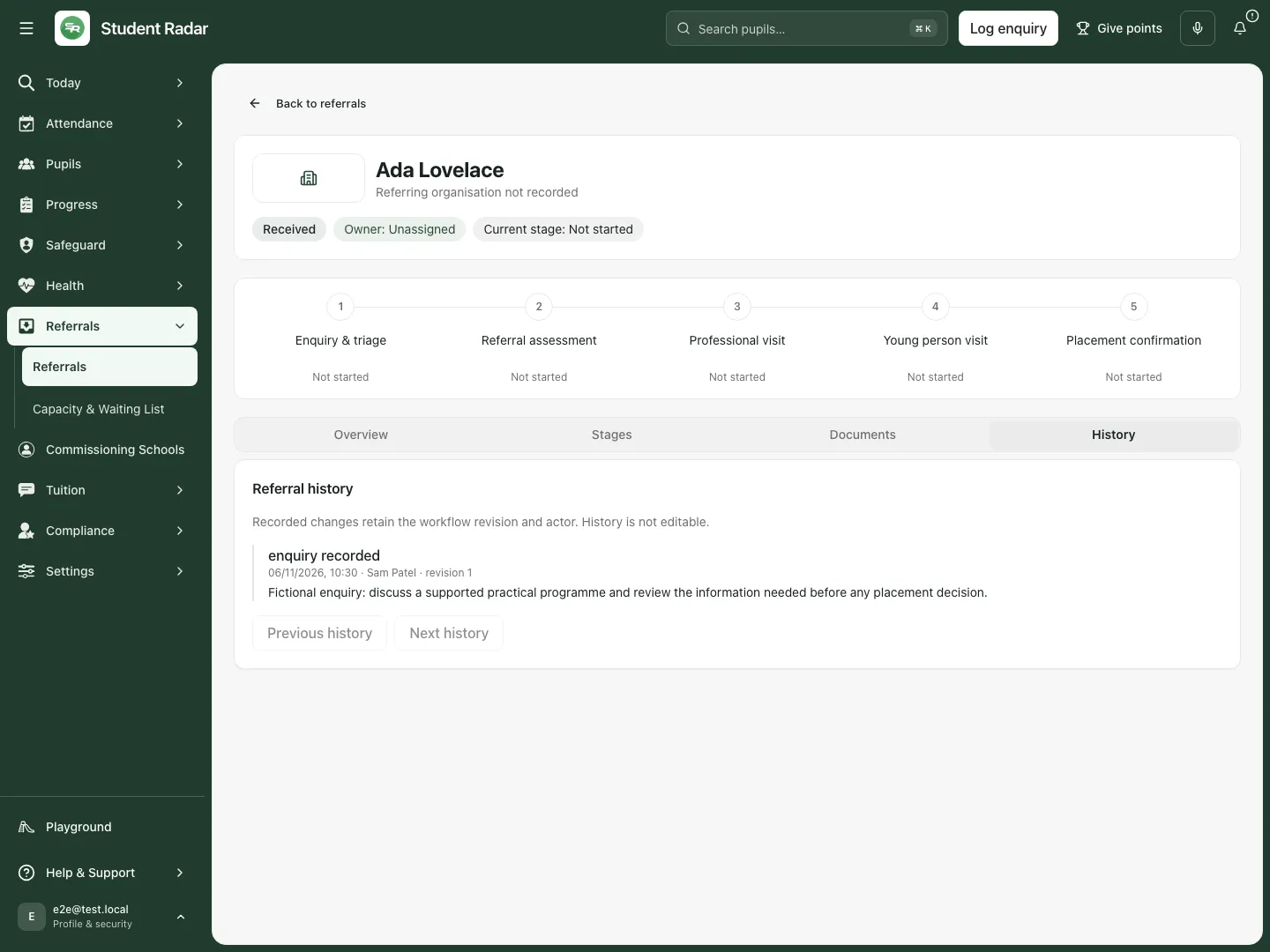
Fictional example: the recorded enquiry retains its time, Sam Patel as recorder and workflow revision.
M. Maintain workflow templates with explicit publication
Section titled “M. Maintain workflow templates with explicit publication”- Return to Referrals and open Workflow settings with the required configuration authority.
- Choose an existing template or New template. Review Template name, the version being edited/copied and the exact stages.
- Set each Stage name, Order, Default owner role, dependencies and any condition answer key/value. A dependency determines what must precede that stage; it is not only a display order.
- Use Add requirement for the needed answer/document, selecting its stable key, label, stage, evidence type, required state and condition. For a form, choose its immutable published form version and approval requirement. Add form to [stage] connects a form to that stage rather than creating a separate substitute form record.
- Review the intended version name and choose Publish new version. Each publication is a new permanent version; editing fields or pressing Enter in a text field does not publish it.
- Check Settings history and the published template library. Renaming, site/default selection, archiving/restoring a template or version and adopting another version on an existing referral remain separate actions; review their scope before confirming.
Troubleshooting and questions
Section titled “Troubleshooting and questions”Save enquiry could not be confirmed. Keep the submitted details and retry the same request. Check the referral list before recording another enquiry. Unconfirmed submitted details/retry state are held only on this page; leaving can lose that recovery context. Close editor differs from discarding a never-submitted draft with Cancel.
Another person changed the referral. Resolve the conflict/load the latest version, review their changes and then decide what is still needed. Do not blindly overwrite a newer stage or replay a stale decision.
The latest read failed but information is still shown. Retained information can be the last successful read. Read the warning and retry before relying on it for a new decision; a warning is not a successful fresh check.
A stage cannot proceed. Read its required answers, conditional documents/forms, accepted versions, prior dependencies and your current authority. Completing a task or uploading an unreviewed file may not satisfy the blocker.
A request is sent but no reply appears. Inspect its actual delivery/response state. Sending does not prove receipt, reading or evidence completion; follow up through the appropriate human process.
Does saving an enquiry create a pupil or place them? No. The example remains an unlinked received enquiry; identity linking and placement confirmation are later deliberate actions.
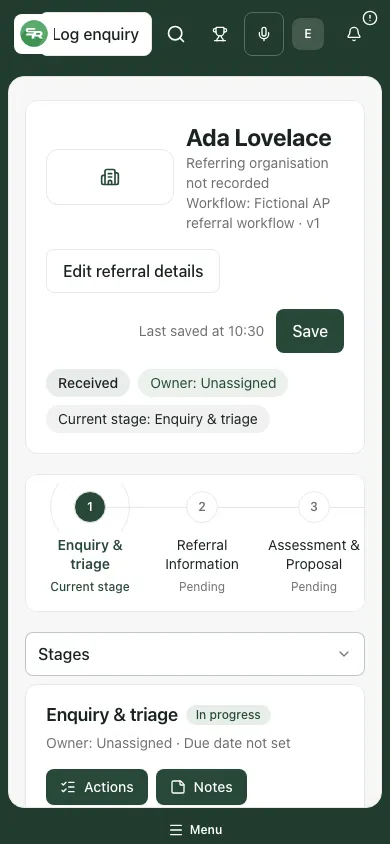
Fictional example: the started enquiry/triage stage remains available at phone width; no triage decision has been recorded.
Related guides
Section titled “Related guides”Use AP Progress Drivers, review careers and destinations and manage your tasks in My Actions.