Record a parent conversation and follow up a worry
Written for: Staff recording permitted conversations and safeguarding teams.
Record the child, contact and factual conversation, check the worry level and complete a separate safeguarding handover if needed.
It is a factual conversation record, with a separate safeguarding-concern handover when needed. It is not an email or messaging composer and does not contact the family for you.
All examples are fictional. Follow your school’s urgent safeguarding process whenever someone needs immediate help; do not wait for a digital record to be read.
Before you start
Section titled “Before you start”Check the school and the intended child. Access to the workspace, the child and safeguarding cases is checked separately. Different staff can see different permitted rows and totals. A saved conversation or linked concern does not grant the author general safeguarding-case access.
Prepare the actual conversation date/time, who was involved, how it happened and a factual summary. Separate direct words, your observations and agreed next steps. Do not record a planned future conversation as though it already happened.
1. Read existing conversations and the totals
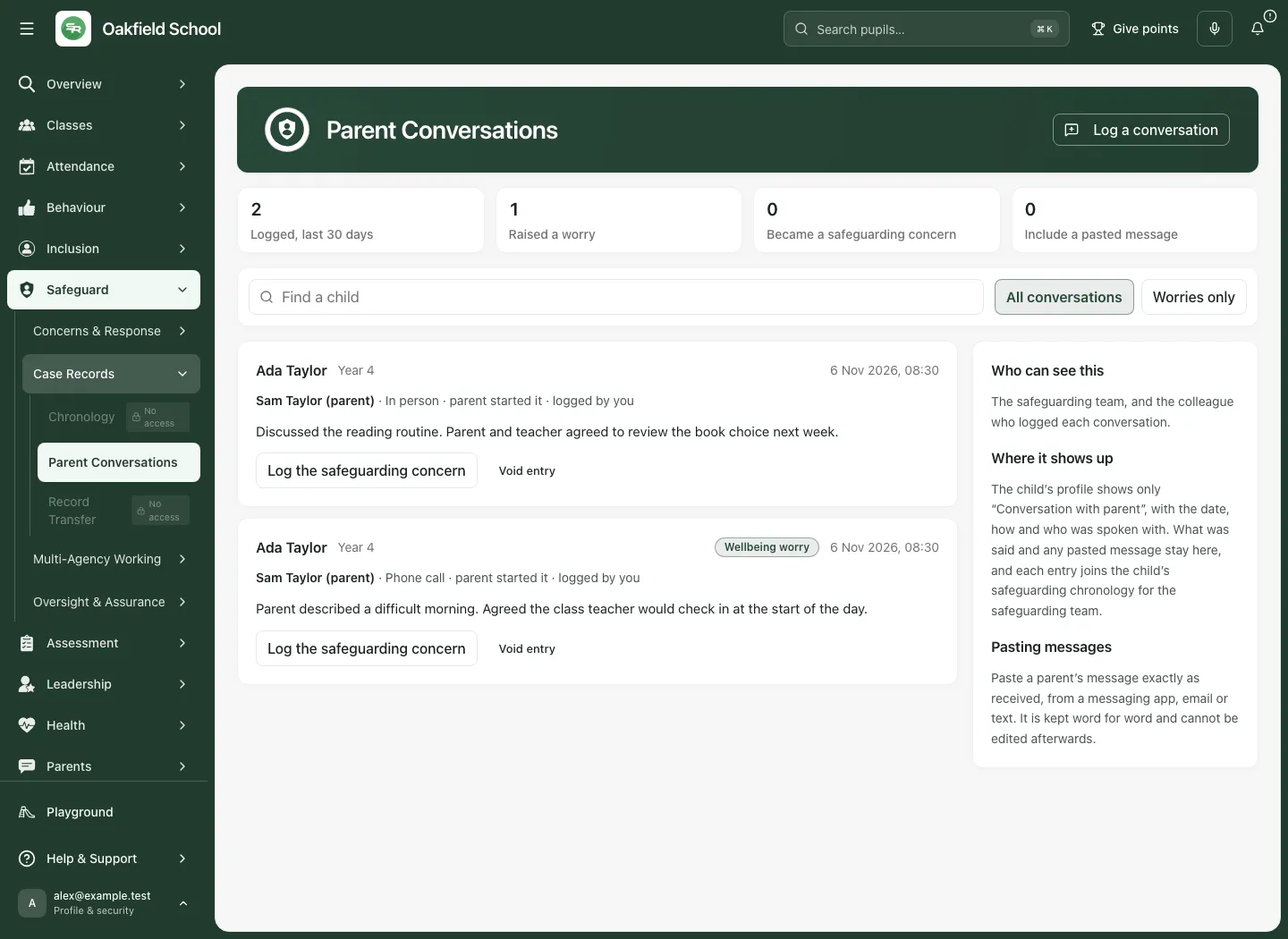
Section titled “1. Read existing conversations and the totals”- Open Safeguard → Case Records → Parent Conversations.
- Read the metric window and totals for logged conversations, worries, concerns and pasted messages. These relate to the records available to your current reader scope, not an unrestricted whole-school census.
- Use Find a child to search by pupil name. Enter at least two characters; a single character does not apply the server search.
- Choose All conversations or Worries only.
- Read the named child, date/time, parent or carer, channel, who started it and who logged it before using the summary.
- If Load more is offered, use it for further records. A later-page failure does not establish that there are no more conversations.
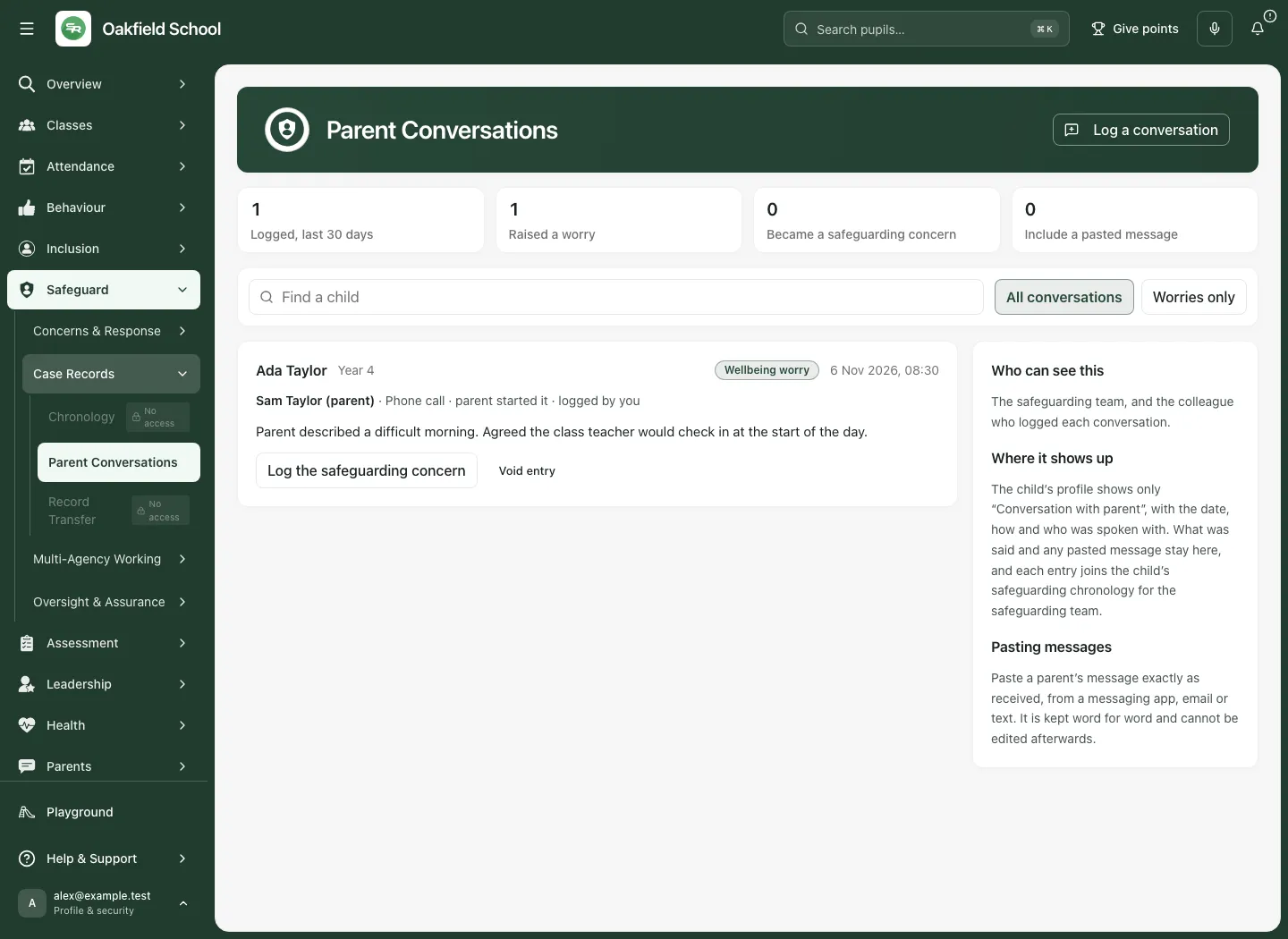
The child’s profile shows only Conversation with parent, its date, how it happened and who was spoken with. The summary and any pasted message stay in Parent Conversations, and the entry goes into the child’s safeguarding chronology for the safeguarding team. An original pasted message is kept word for word and cannot be edited afterwards.
A Wellbeing worry, Safeguarding concern or Safeguarding concern logged badge describes different states. Read the actual concern-link state rather than treating every worry as a submitted safeguarding case. A Voided entry remains part of the safeguarding record with its reason; it is not a deletion.
2. Choose the child and person you spoke with
Section titled “2. Choose the child and person you spoke with”- Choose Log a conversation to open Log a parent conversation. A child-specific entry point may already fix the Child.
- Otherwise, type at least two characters into Child and select the correct result in Matching children. Check the name and year group.
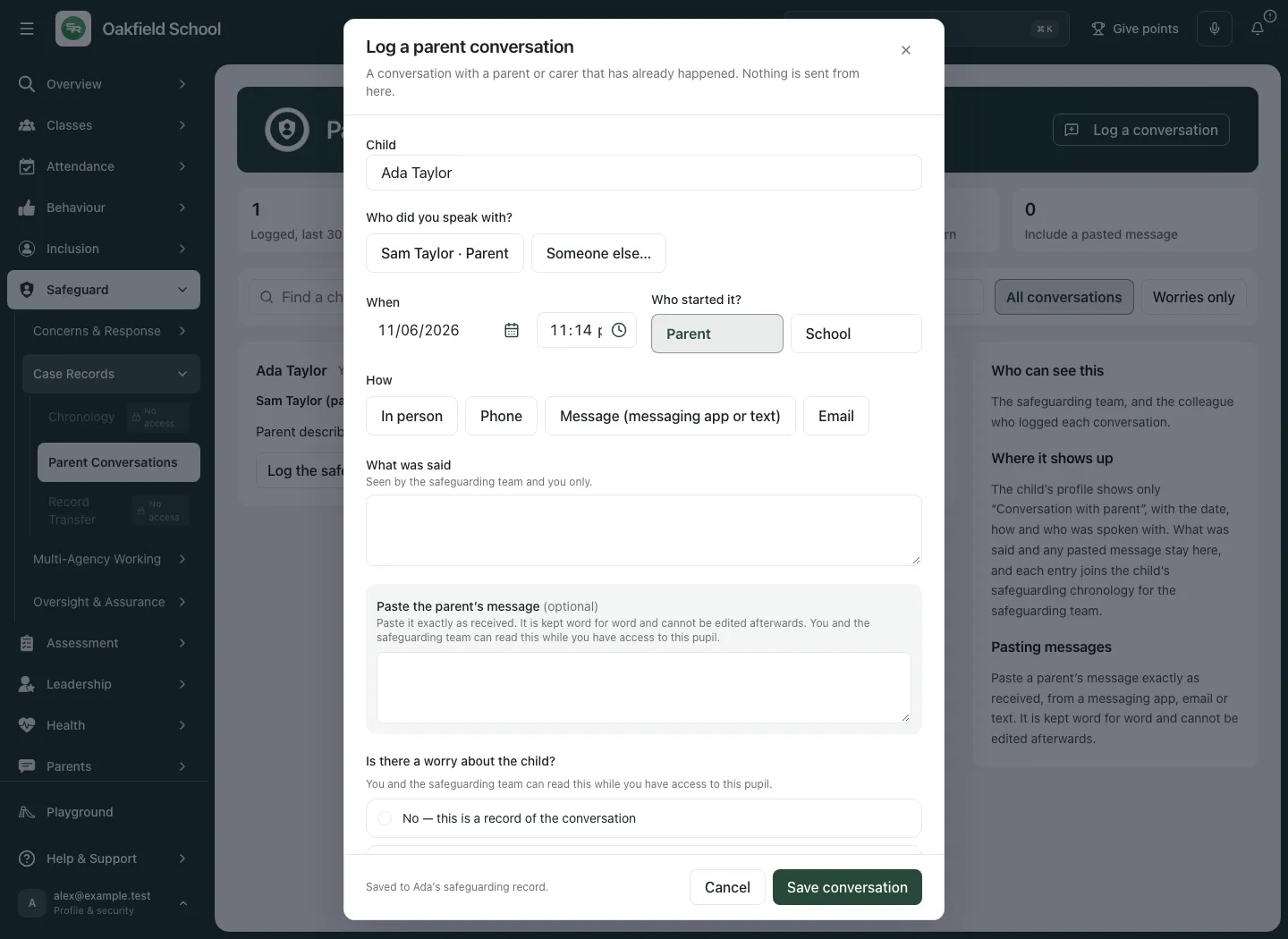
- Choose the actual contact from the child’s returned contacts. The name and relationship help confirm the person.
- If the person is not listed, choose Someone else…, enter Their name and Relationship to the child. This describes the conversation; it does not create a trusted contact relationship or give that person access.
- If contacts cannot be loaded, use Try again as offered. A refusal to record for that child is a permission boundary; do not choose a different child to work around it.
If a contact carries Court order, the dialog asks you to check the child’s safeguarding record and tell the safeguarding lead about the conversation. A visible directory name does not itself authorise disclosure or future contact. Follow the school’s instructions and current record.
3. Record when, who started it and how
Section titled “3. Record when, who started it and how”- Under When, set Date of the conversation and Time of the conversation using the school’s time basis.
- Under Who started it?, choose Parent or School.
- Under How, choose In person, Phone, Message (messaging app or text) or Email.
- Check these against what actually happened. The form refuses a conversation materially in the future; do not change the time simply to bypass a validation message.
The channel describes a past conversation. Choosing Email or Message does not send anything.
4. Write the record and optional original message
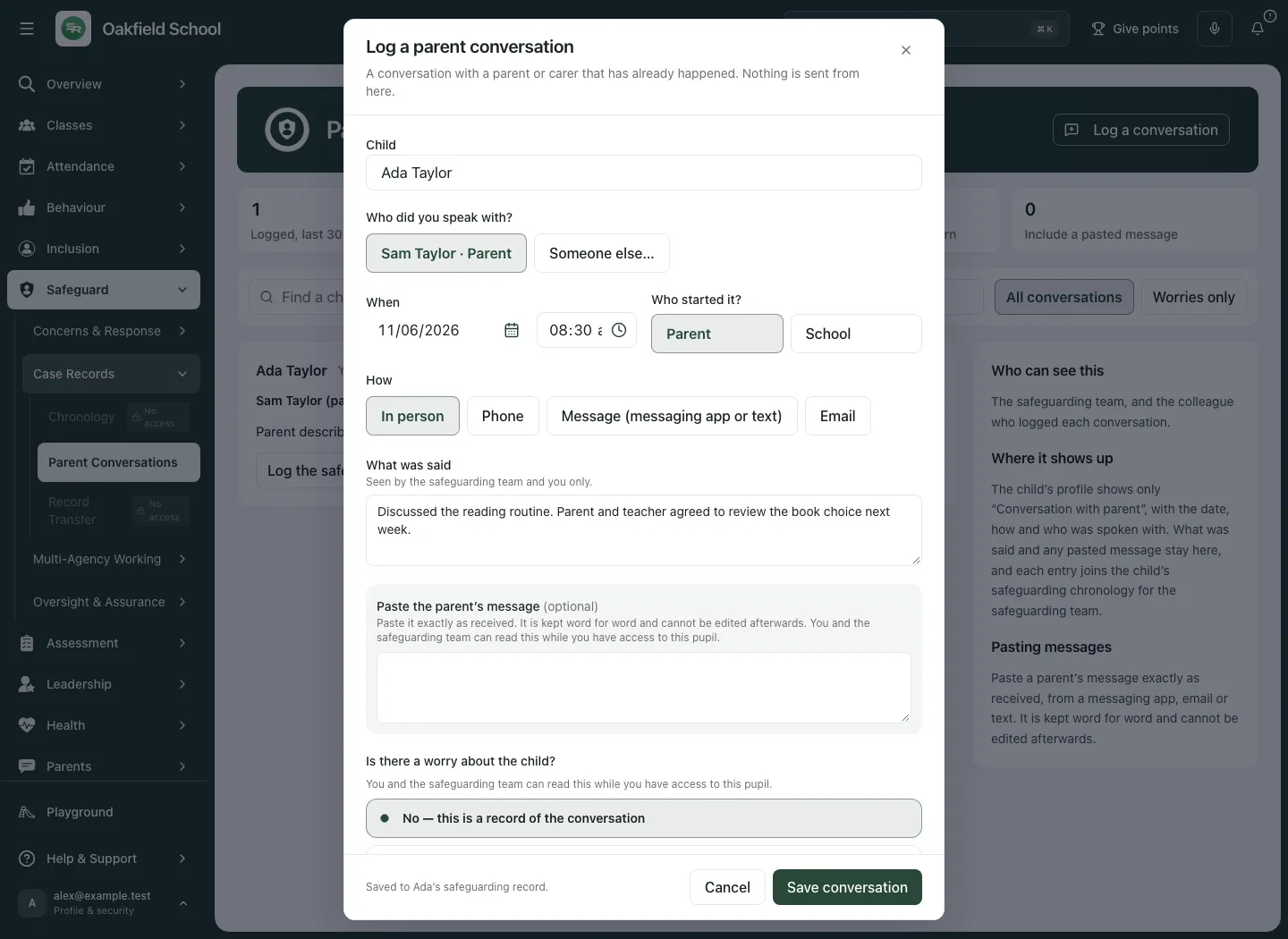
Section titled “4. Write the record and optional original message”- Enter What was said with a concise factual account, up to 4,000 characters. Include the relevant words, context and agreed next steps.
- Keep interpretation distinct: for example, “Parent said…” rather than presenting a reported fact as something you observed.
- If relevant, use the optional pasted-message field for the original message, up to 20,000 characters. Keep an explanatory summary in What was said too.
- If supplying received-time information, check Date the message was received and Time the message was received. These describe when the message arrived, which may differ from the conversation date.
- A received date other than today requires its time; correct the fields if the validation message asks for it.
- Review pasted content for relevance and unnecessary third-party information under the school’s record-keeping arrangements. Pasted text is recorded as text, not sent or treated as verified evidence.
5. Choose the worry level deliberately
Section titled “5. Choose the worry level deliberately”Under Is there a worry about the child?, choose the actual position:
- No — this is a record of the conversation: records the conversation without labelling it a worry.
- A wellbeing worry: records the conversation with a wellbeing-worry state. It does not automatically diagnose, refer or assign support.
- A safeguarding concern — also log a concern: saves the conversation and starts the separate concern workflow. The conversation save is not the same as successful concern submission and linking.
6. Save and check the record
Section titled “6. Save and check the record”- Review the child, contact, date/time, who started it, channel, summary and worry choice.
- For no worry or a wellbeing worry, choose Save conversation.
- Wait for the saved result and read the resulting card. Check its factual summary and badge.
- Return to the list or reopen the workspace to confirm you can find the intended record.
- If saving fails or the outcome is uncertain, read the error and retry the original intention as directed. The form keeps the original save request until success to avoid creating a second record after an uncertain acknowledgement; changed details can be refused rather than silently saved twice.
- Cancel, the close control and Escape use the draft’s discard check. Discard this conversation? does not save your work.
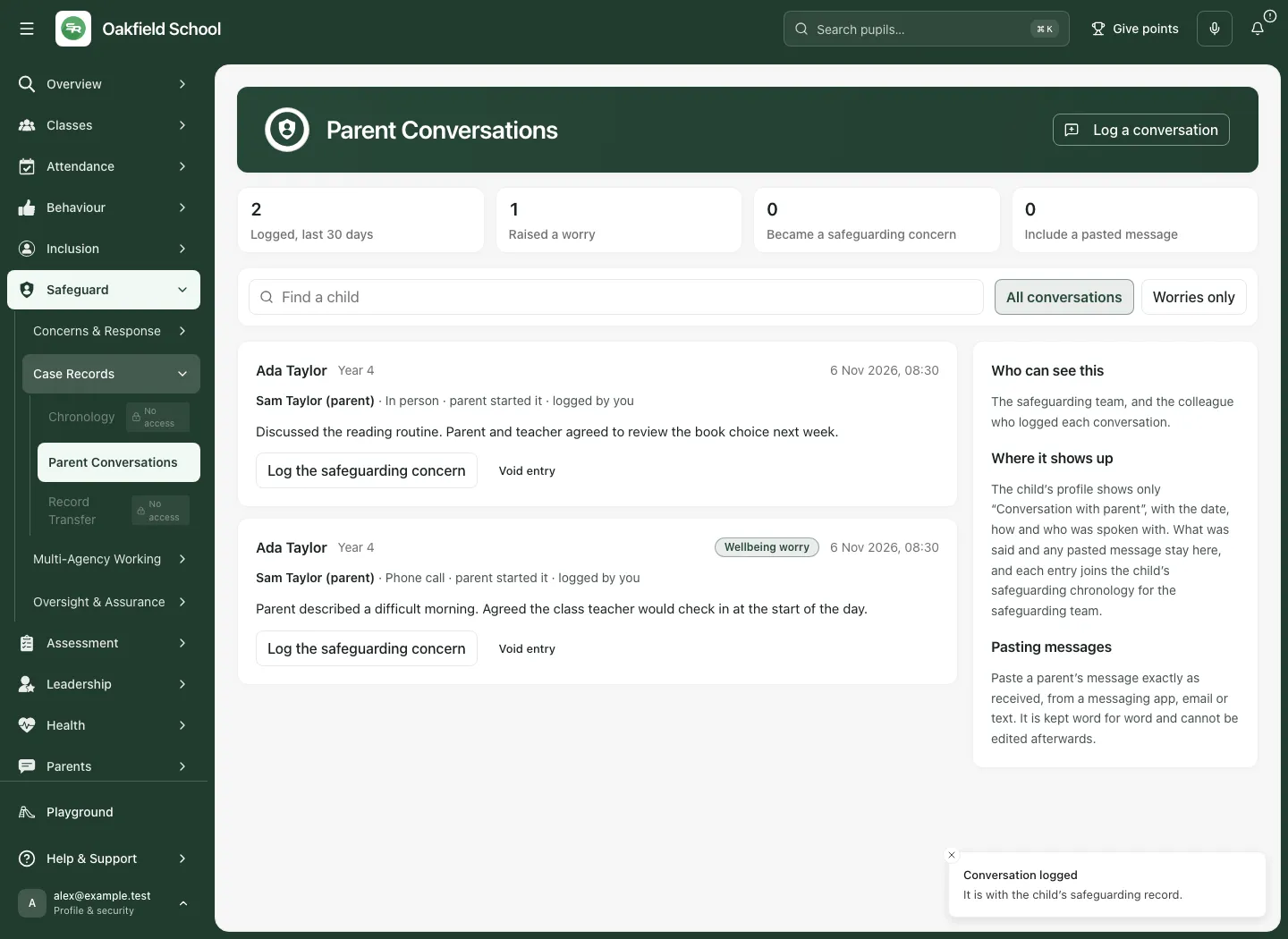
Saving makes the conversation available through the permitted record workflow. It does not prove someone else read it, contacted the family or completed the agreed action.
7. Complete the separate safeguarding-concern handover
Section titled “7. Complete the separate safeguarding-concern handover”- Choose the safeguarding concern worry option, then Save and log concern.
- The conversation is saved first, then the compact Raise a Safeguarding Concern overlay opens. This handover uses its own short form.
- Check the prefilled Pupil. Read the conversation context and write the factual concern in What did you see or hear? The description needs at least ten characters after spaces at either end are removed. Use the child’s exact words in quotation marks where relevant.
- Use the text box; Voice notes are currently unavailable in this overlay.
- Choose Raise Concern and wait for its actual submission and link result. There is no four-kind chooser or separate Check and send screen in this compact handover.
- If the original report may already be recorded, keep the form open and use Confirm original submission as shown before sending a different report. Later edits are not included in a recovered original. If confirmation continues to fail, contact the safeguarding team through the approved process.
- If you stop before submission, return to the conversation and use Log the safeguarding concern where offered.
- If intake accepted but linking failed, use Link the concern again. This retries the link to the recorded concern rather than creating a new concern.
- Read Safeguarding concern logged only when that state is actually returned. Use Open linked safeguarding concern only if the server returns that link for your current authority. Its absence does not mean no concern exists.
The workflow reserves one concern request for the conversation. Do not start a separate duplicate concern merely because its link is slow. If the screen says the conversation is saved but the concern still needs logging, keep that distinction in the handover to the safeguarding lead.
8. Void an entry logged in error
Section titled “8. Void an entry logged in error”Voiding is for a record logged in error, using the controls available to your authority. It is not an editing or deletion shortcut.
- Find the intended card and choose Void entry.
- Read Void this entry and verify that it is the wrong entry before continuing.
- Enter Reason, up to 1,000 characters, explaining the error.
- Choose Void entry in the dialog, or Cancel to leave it unchanged.
- Wait for the result. The record and reason are retained for the safeguarding team, and it stops showing on the child’s profile.
- If a correct conversation is still needed, record the accurate conversation through the normal process, clearly following the school’s correction arrangements.
Voiding a conversation does not imply that a related safeguarding concern was withdrawn, closed or removed. Review the linked source separately with the authorised safeguarding team.
9. Use the workspace on a phone
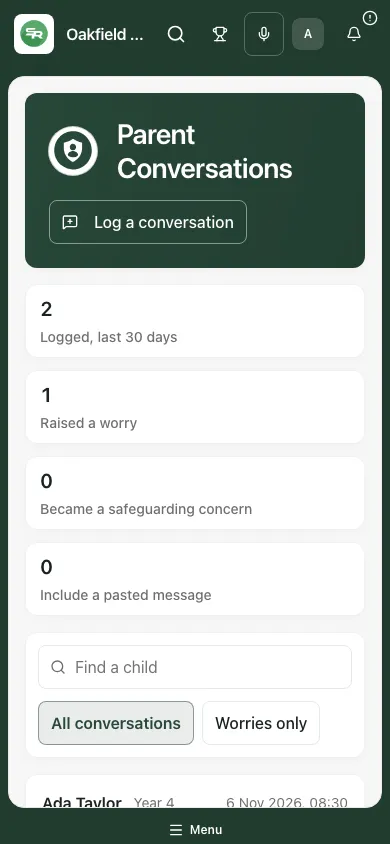
Section titled “9. Use the workspace on a phone”- Check Find a child and the conversation filter before reading the cards.
- Open Log a conversation and work through the same required fields, scrolling within the form as needed.
- Check the selected child again before the final save.
- Finish or cancel the draft and keep the device private.
Troubleshooting
Section titled “Troubleshooting”| What you see | What to do |
|---|---|
| No matching conversations | Check the pupil search, minimum two characters, worry filter and current scope. Do not infer there are no conversations anywhere in school. |
| Totals unavailable | The first read has not succeeded. Do not treat unavailable totals as zero. |
| Later records cannot load | Keep the already loaded records and the missing later-page limit distinct. Retry the offered load. |
| Contacts unavailable | Use Try again; a permission refusal needs the authorised access process. |
| The person is not a listed contact | Use Someone else… with name and relationship if appropriate to the actual record; it does not grant future contact permission. |
| Conversation date is rejected | Correct when it actually happened. Planned conversations belong in the school’s planning workflow. |
| Conversation saved, concern not yet logged | Use Log the safeguarding concern on the saved conversation where offered. |
| Concern recorded, link failed | Use Link the concern again; do not create a competing concern. |
| Save result uncertain | Keep the original request and read the recovery error before retrying or changing the details. |
Frequently asked questions
Section titled “Frequently asked questions”Does this send a message? No. It records a conversation or received message that already happened.
Does a wellbeing worry automatically create a safeguarding concern? No. The safeguarding concern option and handover are separate.
Can everyone see every colleague’s conversation? No. Rows and metrics are scoped to the current reader’s permitted records.
Can I open the linked case because I recorded the conversation? Only when current case permission permits it. The relationship does not grant access.
Does voiding delete the history? No. The record and reason remain for the safeguarding team.
Where can authorised leads review the response? Use the DSL Action Board and Chronology as permitted. Record Transfer and other companion guides are planned in this draft set.
For a concern begun independently from the main navigation, the Raise Concern guide describes that separate reporting entry point.