Review AP aged debt and maintain standard prices
Review the complete aged-debt ledger, choose a funder’s statement period and apply standard prices only to the intended placement. Credit control has three sections: Aged debt, Statements and Price list. It does not send chasers, manage disputes or record part payments.
Open Commissioning Schools → Credit control. Reading finance, managing prices and exporting statements are separate actions. A finance role/grant does not by itself guarantee the AP view is open to that account. Screenshots use a fictional funder, rate and placement; example prices are illustrative.
1. Start with a complete ledger and the school’s date
Section titled “1. Start with a complete ledger and the school’s date”In Aged debt, read Outstanding, Overdue, Over 90 days overdue, Funders owing and Unpaid invoices. Wait for complete invoice and credit/adjustment records. Unavailable or a failed read is not zero debt; use Try again and resolve the stated issue.
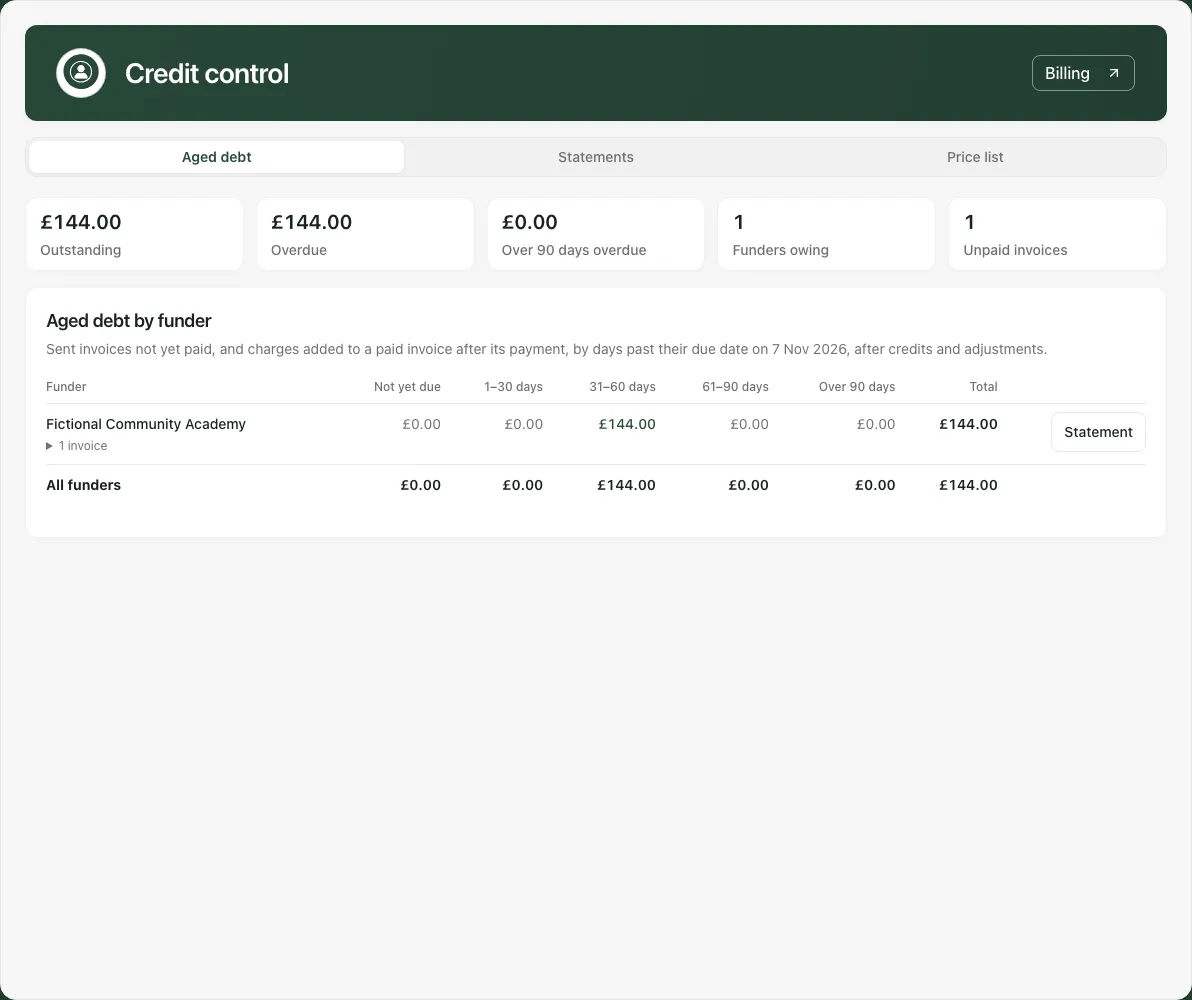
Aged debt by funder groups eligible issued debt by days past the invoice due date on the school’s displayed date. The bands are Not yet due, 1–30 days, 31–60 days, 61–90 days and Over 90 days. Exactly 90 belongs in 61–90; due today is not yet overdue.
Draft and void invoices are not debt. A sent invoice can be reduced by recorded credits/adjustments, and a Paid invoice can still have a charge added after its payment. Those later charges are aged from its invoice due date. A future recorded payment does not settle it before that date.
Funders typed with different capitals/repeated spaces are grouped as one account, using the latest issued spelling for display. This is not a merge of every similarly named organisation: check the actual funder identity and original invoices before discussing debt.
Credits after payment are explained separately and are not automatically offset against another funder’s balance. The page is a view of the recorded invoice ledger, not independent bank reconciliation or proof of cash received.
2. Open the funder’s statement and select its period
Section titled “2. Open the funder’s statement and select its period”Choose Statement for the intended funder (accessible name Statement for [funder]), or open Statements and choose Funder, From and To. Start must be on/before end. Dates you choose are retained when moving between sections, so check them before reusing a previously selected funder.
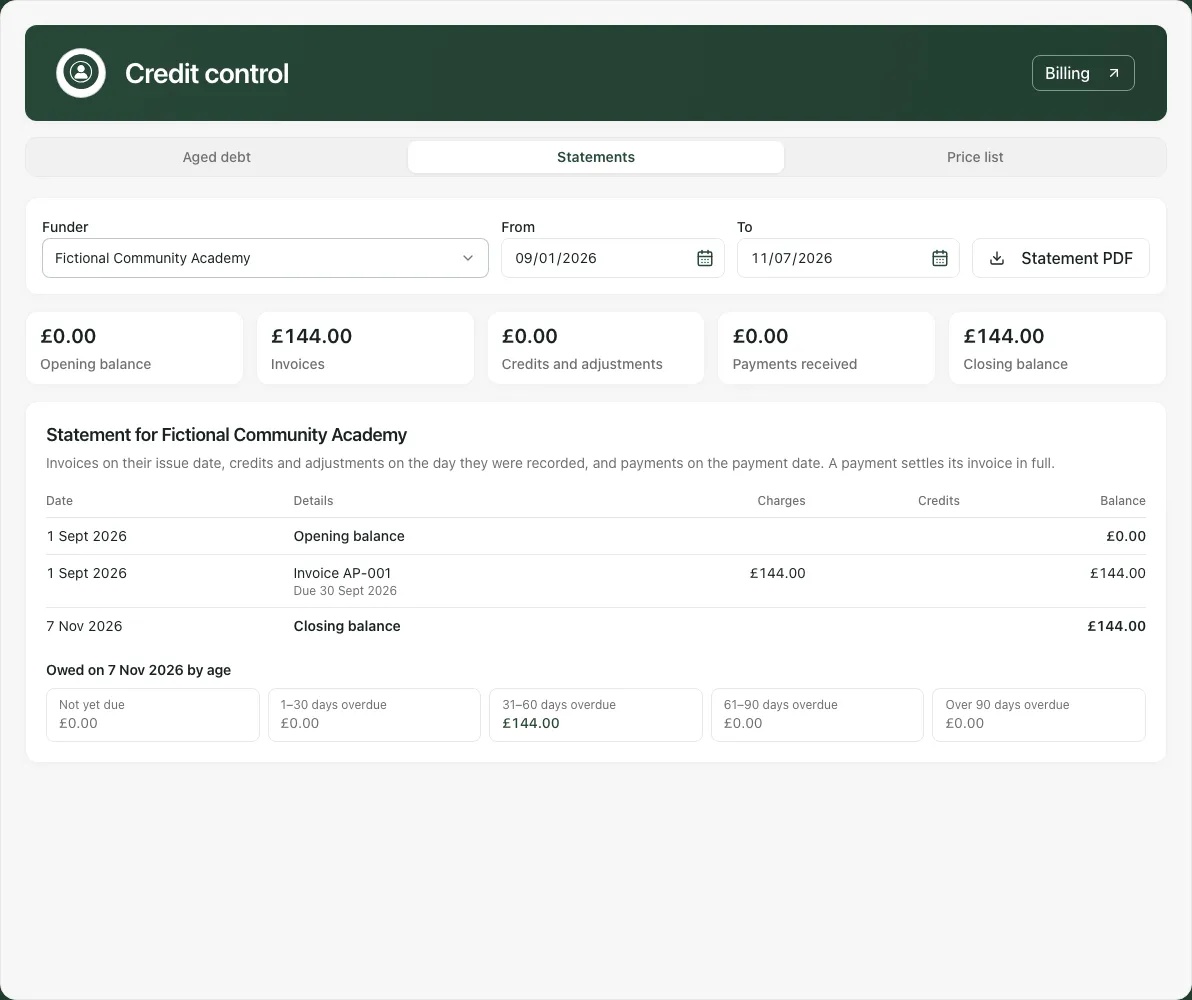
Read Opening balance, Invoices, Credits and adjustments, Payments received and Closing balance with the transaction list. The period determines entries, while the opening balance carries earlier activity. An invoice is placed on its issue date, an adjustment on its recorded school day and a payment on its payment date.
A payment here means an invoice marked Paid for its balance at that date. It is not a series of partial receipts. If a later credit/charge changes the picture, inspect the dated entries and explanation rather than forcing the closing balance to match a guessed payment amount.
There must be an issued invoice for a funder to appear. No statement yet is different from a failed/incomplete ledger read; the latter withholds the statement rather than substituting an empty list.
3. Download and check the statement before sharing
Section titled “3. Download and check the statement before sharing”Where permitted, choose Statement PDF. Inspect the resulting funder, date range, transaction dates, opening/closing amounts, credits-after-payment note and provision/bank details before sharing through the agreed route.
This creates a local output; it does not send a chaser, email a statement, log a dispute or certify receipt. Keep the appropriate issued evidence in the provision’s finance records and check its intended audience. A download count is not a collection action.
Changing school, losing export access known to the page or leaving Statements cancels the pending output for that view. Return to the intended school/funder/period and start the appropriate export again; do not assume an old pending file was prepared for the new context.
Payments are recorded on Billing, using the specific invoice’s full-payment action and actual Paid on date. A Billing link, where available, opens that page; it does not deep-link to the exact aged-debt invoice. See Use AP Billing.
4. Read the price list separately from placement rates
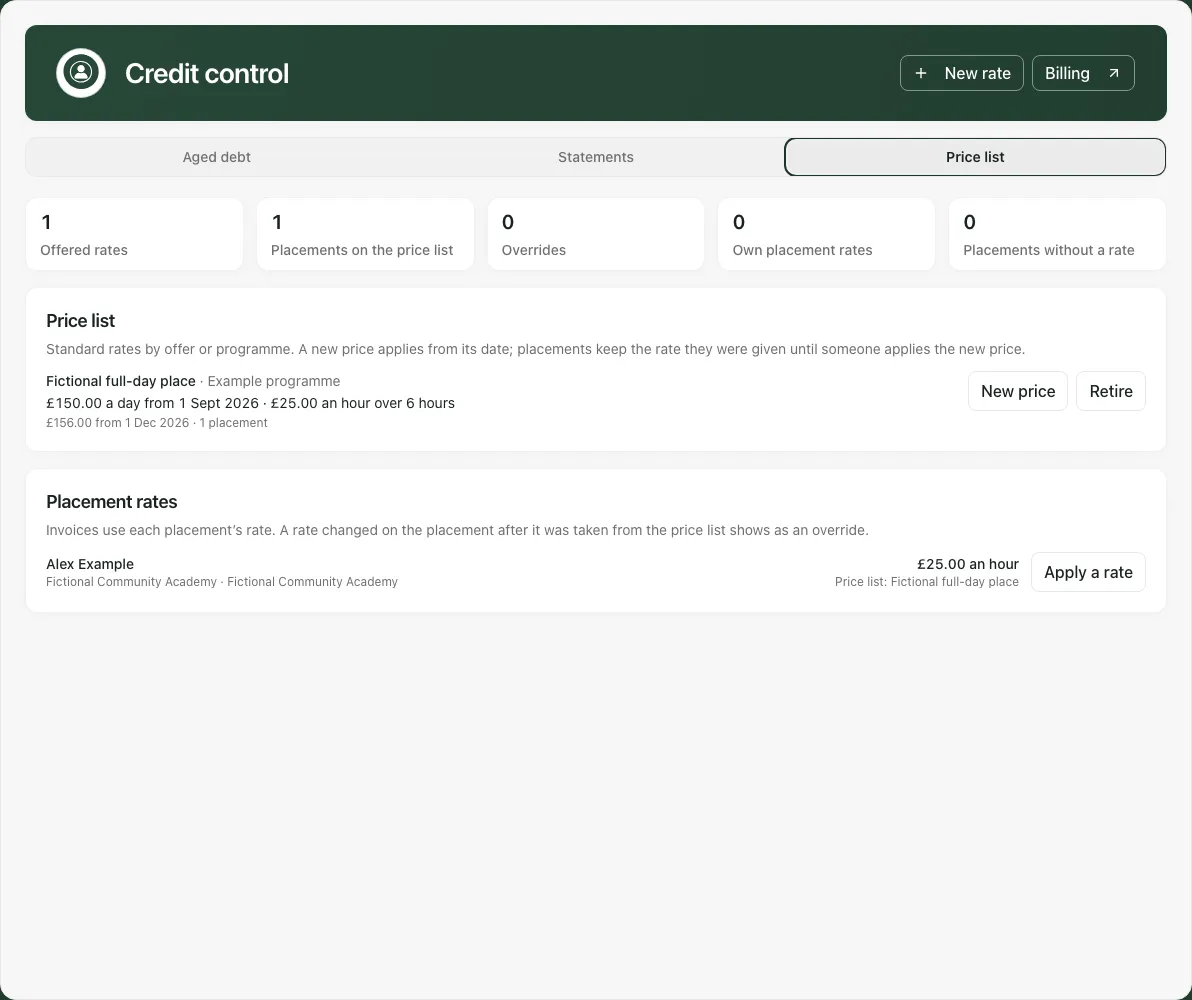
Section titled “4. Read the price list separately from placement rates”Open Price list. The metrics distinguish Offered rates, Placements on the price list, Overrides, Own placement rates and Placements without a rate. Read the separate Price list and Placement rates source states; a failed placement read need not mean the standard prices are unavailable.
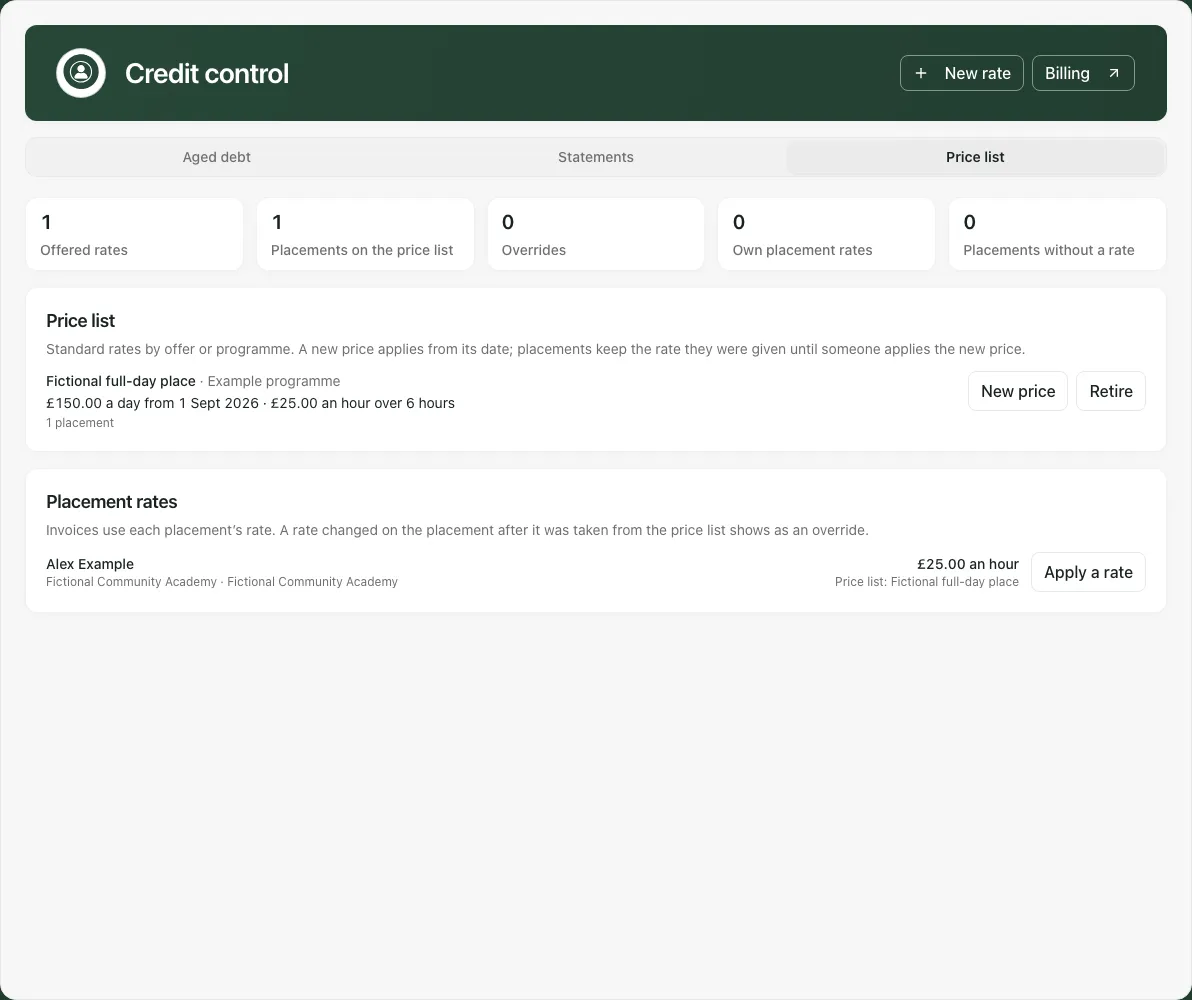
Each standard rate shows its name/offer, unit, current dated price, hourly equivalent for day/session units, next price/retirement where applicable and known placement use. A future first price is not available today. A rate can be offered but have no price effective yet.
Placement rates concerns current placements on the school’s date. Ended/past-ended placements are not counted as current merely because a status flag was not changed. The source text distinguishes no rate, own placement rate, a price-list source and an override. Missing pupil identity is not permission to substitute another person’s price.
5. Add a standard rate with its charging basis
Section titled “5. Add a standard rate with its charging basis”Choose New rate. Enter Rate name, optional Offer or programme (optional), Charged Per hour/Per day/Per session, Price (£) and Price applies from. For a day/session rate, enter Hours one day covers or Hours one session covers.
Check the shown hourly equivalent, then Add rate. Names/offers must be distinct, price is bounded to £10,000 and day/session hours to 12. These are input limits, not recommended contractual prices or hours.
Invoices use charged minutes at the hourly equivalent. For example, a fictional £150 day over six hours corresponds to £25 an hour, and shorter/longer charged time is pro rata rather than automatically a flat £150. Agree the charging arrangement with the responsible finance team before selecting it.
Check the returned rate and effective date before applying it to a placement. A newly added standard rate does not silently change existing placement prices.
6. Add a dated price and verify what stayed unchanged
Section titled “6. Add a dated price and verify what stayed unchanged”Use New price for the intended rate. The dialog is New price for [name]. Enter the price labelled for its unit, such as Price a day (£), and Applies from, then Add price.
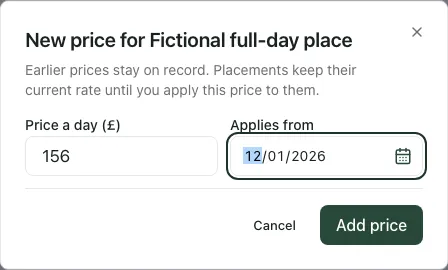
Earlier prices remain recorded. Reopen/reload the list and inspect the current price and the new future effective date. A future price is not the price available today, and saving it does not reapply it to placements.
If the rate changed since you opened the form, the page rereads it and retains your typed input. Compare the latest price/revision and your intention before another save. A refused first attempt differs from an unknown result; follow the recovery sequence below.
7. Apply the chosen price deliberately to a placement
Section titled “7. Apply the chosen price deliberately to a placement”In Placement rates, choose Apply a rate for the intended person. Check the current Price list rate, funder, Funder email, Purchase order or reference and Charge mode before Apply rate.
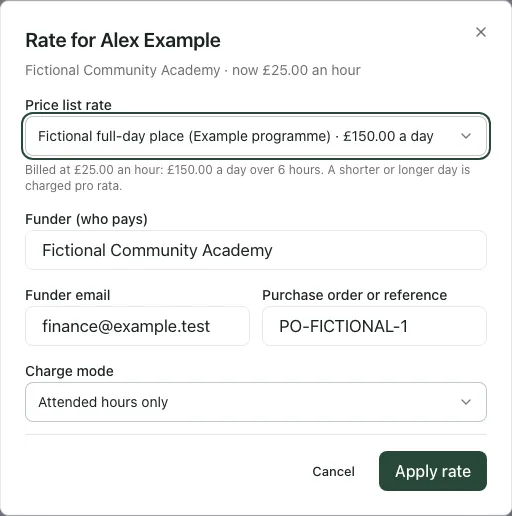
The picker starts from the placement’s existing rate where available, not a new first option. It uses the price effective on the applicable current date. Check the displayed hourly figure and charge-mode explanation before saving; a planned future price is not applied early simply because it appears on the list.
The applied price remains a placement decision. Adding another dated price does not automatically update it; apply the intended rate again once appropriate. A subsequent own-rate edit on Billing can create an override. Check the actual saved placement rate/source rather than inferring it from the standard price’s name.
8. Retire, change retirement or offer again
Section titled “8. Retire, change retirement or offer again”Use the specific standard rate’s Retire, choose Retire from, then Retire. From that date it is no longer offered for new application, while placements already using it retain their saved rate.
Change retirement changes the dated arrangement; Offer again makes the rate available again where allowed. Check the current rate/revision and effective date before acting. Retiring a standard price is not cancelling a placement or reversing an invoice.
The price list allows up to 200 offered rates and up to 100 dated prices per rate. A limit/refusal needs a deliberate records/pricing decision, not duplicate retries or silently deleting historical prices.
9. Recover an uncertain price-list change safely
Section titled “9. Recover an uncertain price-list change safely”The first submitted New rate, New price, Retire or Apply rate request fixes its actual values while waiting. If there is no clear answer, the form stays locked. Check again checks that same original request; editing it would not change what may already have been saved.
A later refusal while checking does not prove the first attempt did not commit. Use Close and check the price list when you need to leave the held request: it rereads the current list without sending another change. Only after reviewing the actual result should you make a new decision/request.
Closing/escape cannot cancel a request already on its way. A full browser reload or school change does not retain the in-memory held operation, so inspect current prices/placement rates before doing anything new. Two separately authorised applications can still overwrite each other’s placement price; agree the current arrangement with colleagues rather than using repeated Apply as conflict resolution.
In Billing’s combined price picker, a moved standard price can leave the typed old hourly figure as an own-rate choice. Check the selection and shown amount again after a refusal/refresh; do not assume a retained old figure is still the latest standard price.
Phone use and troubleshooting
Section titled “Phone use and troubleshooting”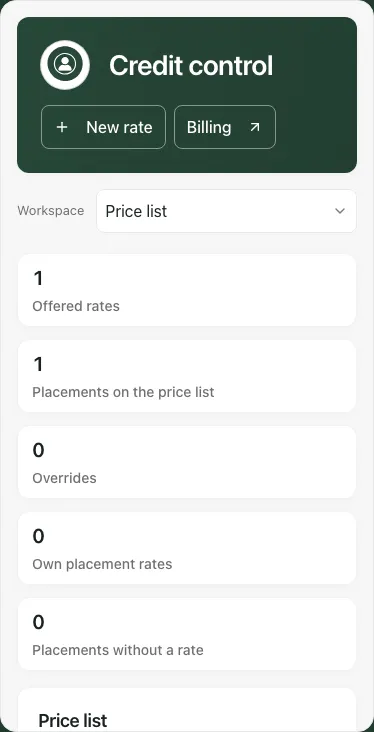
Use Credit control sections on a phone. Scroll cards/dialogs to check the intended funder/rate/person and complete save/recovery controls.
- No chaser/dispute/payment form: those workflows are not provided here. Use the provision’s agreed collections process and Billing’s full-payment record where appropriate.
- Ledger could not load completely: retry; no partial balance should be presented as the total.
- No price today: check the first effective date and whether the rate is retired, not just whether it exists.
- Placement rates unavailable: read the separate access/failure message; standard prices can remain usable even when placements cannot be read.
- Changed elsewhere or unknown save: inspect the reread/current result and recover the same held request before starting a new change.
For a focused standard-price sequence, see Keep a price list for placement rates.
Common questions
Section titled “Common questions”Will a new price-list entry change existing placement rates?
Section titled “Will a new price-list entry change existing placement rates?”No. Apply the intended standard price deliberately to the selected placement. The list and recorded placement rate are separate.
Where do I record a part payment or send a chaser?
Section titled “Where do I record a part payment or send a chaser?”Credit control does not provide those workflows. It supports aged debt, statements and the price list; follow the provision’s actual finance process.