Generate AP draft invoices and record finance decisions
Check invoice settings and placement rates, generate a bounded arrears draft and review the complete invoice before recording the next finance decision. Billing keeps issued amounts, credit revisions and accounting exports distinct; it does not email an invoice or reconcile a bank account for you.
Open Commissioning Schools → Billing in the AP workspace. Reading finance, managing it and exporting are separate permissions, and access to the page also depends on the school’s role/view configuration. Screenshots use a fictional funder, placement and invoice; example prices/VAT values are illustrations, not recommended terms.
1. Check access and the complete ledger
Section titled “1. Check access and the complete ledger”Wait for Invoices and the balance figures to settle. Outstanding, Overdue, Drafts and Paid this year answer different questions. Outstanding accounts for credits/adjustments and eligible charges added after an invoice’s payment; a Paid status alone does not necessarily mean no later charge is owing.
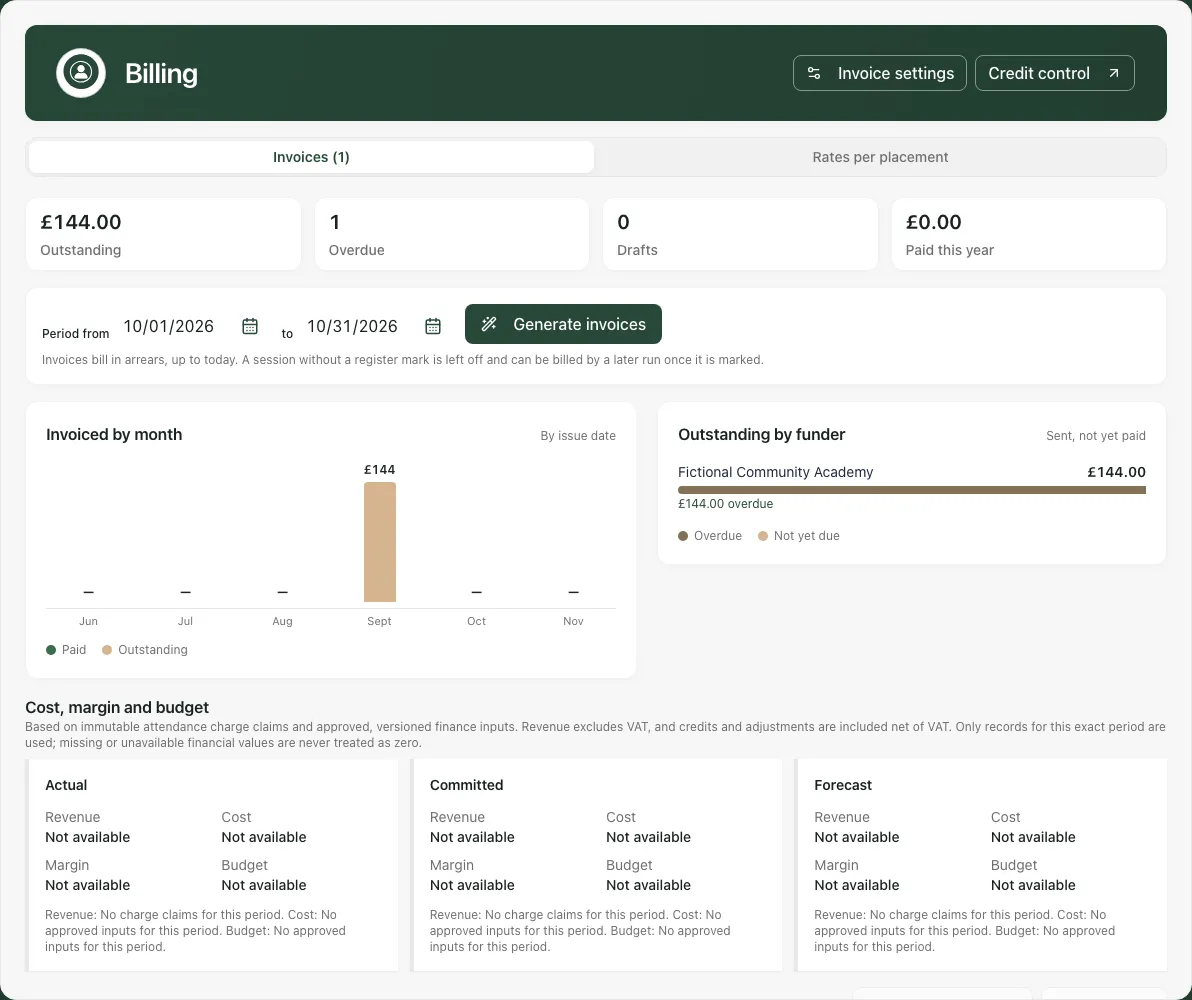
The money overview groups invoicing by issue date and shows the largest funders with the stated coverage. Use Credit control for the complete funder/aged-debt review. An unavailable/failed ledger is not zero debt: use Retry billing records and wait for complete records before relying on balances.
Costs and budgets follows the selected exact billing period. Actual, Committed and Forecast are separate scenarios; revenue excludes VAT and recorded credits/adjustments are treated net of VAT. Missing cost/budget/charge evidence remains missing rather than zero. Read coverage and any Retry cost and budget message; a revenue figure alone does not establish margin.
2. Set invoice details before relying on an output
Section titled “2. Set invoice details before relying on an output”Choose Invoice settings, or View invoice settings for a read-only account. Check Invoice prefix, Next number, Payment terms (days), VAT rate (%) and VAT number (if registered) with the person responsible for the provision’s finance arrangements.
Add the intended Bank, Account name, Sort code, Account number, Payment reference note, Address (one line per row), Contact email and Standard note on invoices, then Save settings. Use actual agreed information; the software does not determine your VAT treatment or payment terms.
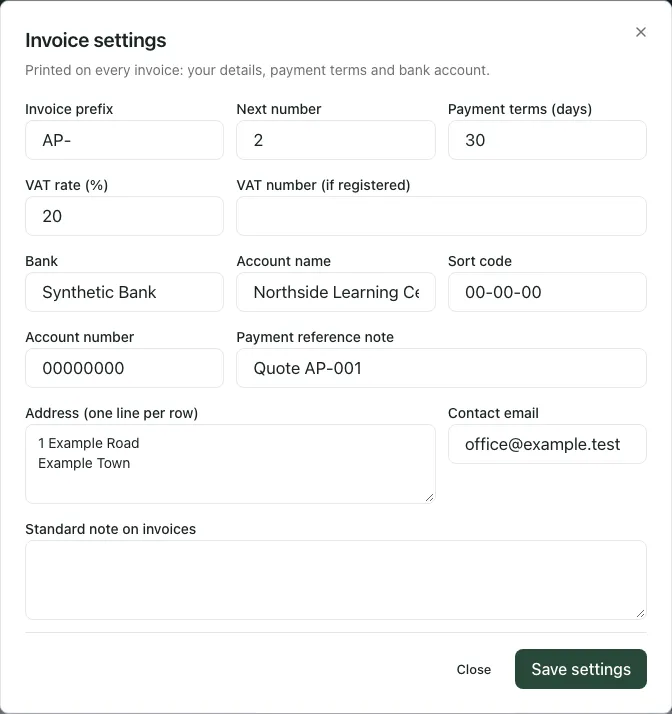
Read field validation. Blank numeric settings are not zero/default values, and invoice numbers only move forward. A failed settings read needs Retry invoice settings, not saving guessed replacement data. Reopen to verify the retained change.
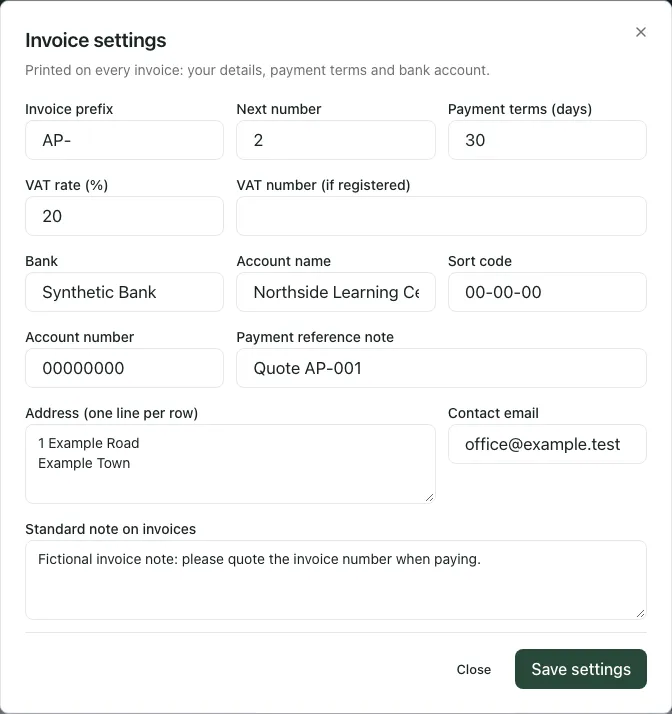
Native invoice reprints use current invoice settings, including bank/VAT details; advance invoices retain their reviewed snapshot. Preserve the actual previously issued file in the provision’s agreed record process rather than assuming every later reprint is byte-for-byte the original.
3. Set the placement’s actual rate and funder
Section titled “3. Set the placement’s actual rate and funder”Open Rates per placement. Read its unpriced count and distinguish current and ended placements. Use the explicit Set rate or Edit rate control for the intended person/placement; the accessible name also identifies that person.
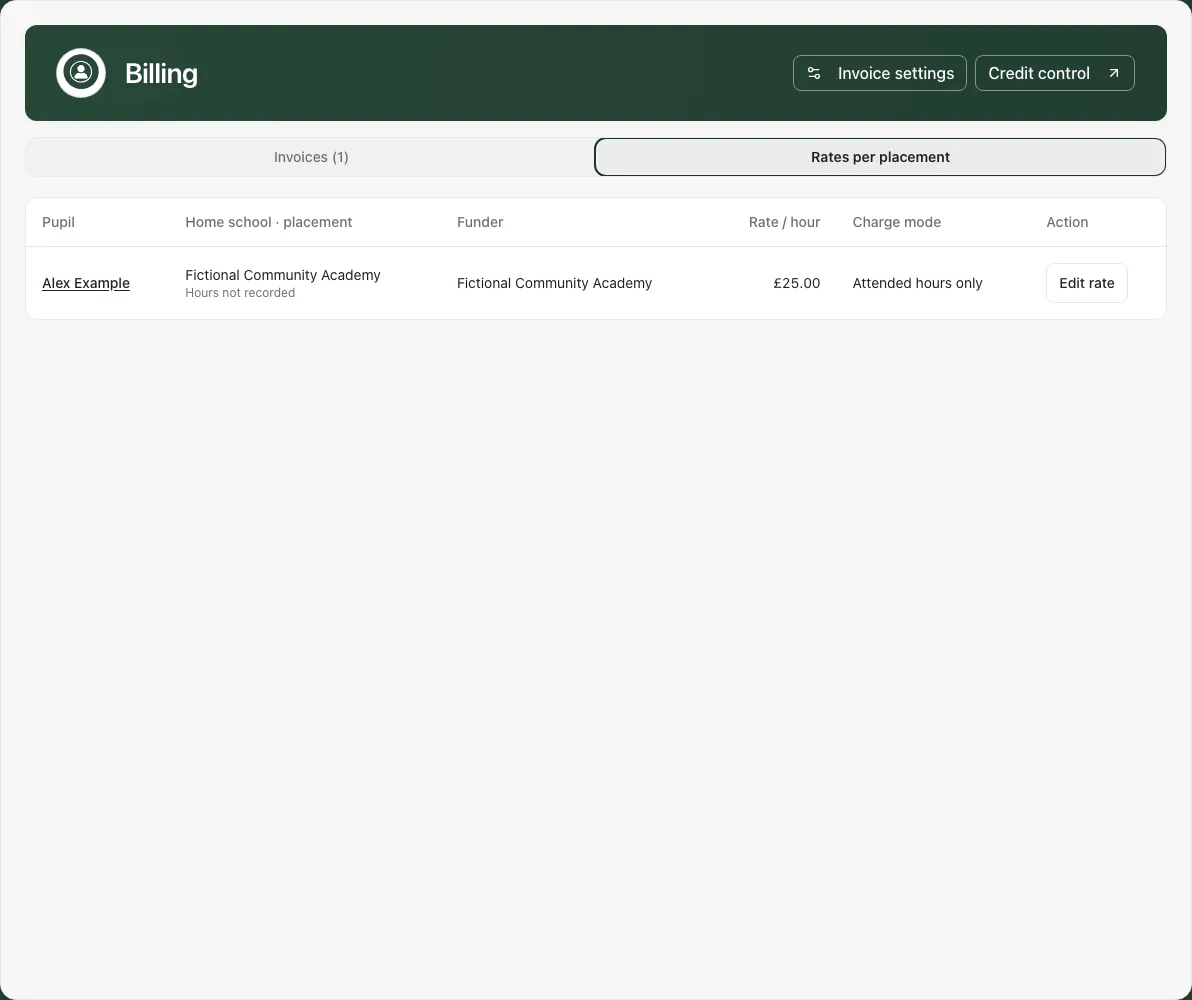
In Rate for [name], check Funder (who pays), Funder email, Purchase order or reference, Rate per hour (£) and Charge mode. The funder may differ from the commissioning school’s display name. A stored funder email does not activate an email-sending workflow.
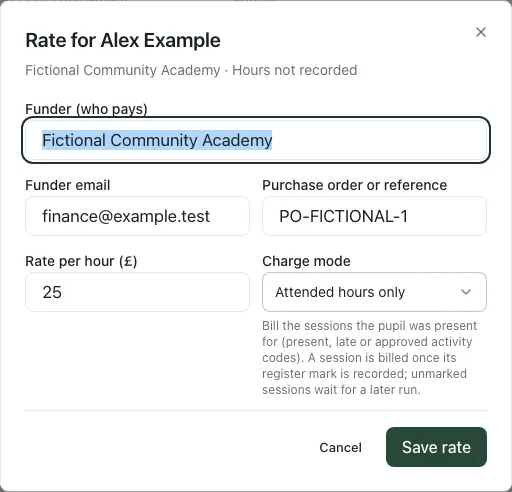
Choose an offered Price list rate where appropriate, or Own rate for this placement to enter the agreed hourly amount. Day/session prices are converted to their hourly equivalent and charged pro rata for actual charged minutes, rather than guaranteeing a flat daily charge. Check both the selected price and shown hourly amount before Save rate.
A price-list change does not automatically reprice existing placements. Applying a rate records its source; editing the hourly figure afterwards makes it a placement-specific override/own rate as shown. Ended placements can be corrected where allowed, but an edit is not an automatic reissue of earlier invoices.
Select the correct charge mode:
- Attended hours only uses eligible resolved attendance marks; it does not charge every unmarked planned session.
- All scheduled hours uses eligible past scheduled sessions according to the recorded arrangement, not future sessions simply because they are planned.
Save and reopen/check the placement rate. For dated standard rates and their recovery workflow, see Keep a price list for placement rates.
4. Generate a bounded arrears period
Section titled “4. Generate a bounded arrears period”In Invoices, set Period from and to. The default is the previous month on the school clock. Start must not follow end, the span must fit the 124-day limit and the end must be on/before today. The period also controls cost/budget analysis; it is not a filter claiming that every invoice listed was created in that period.
Check rates and register records, then Generate invoices. Inspect the actual number of drafts created and each draft’s funder, period and lines. A draft uses a number but is not an invoice sent to a funder. A run can produce a zero-value draft where the recorded eligible attendance results in no charge; review that deliberately rather than treating generation as revenue.
Read Sessions not billed by the last run. It can identify missing rates, unresolved attendance or a funder/period already invoiced. Set rates and Open Attendance Tracking lead to the relevant correction. Dismiss only hides that note; it does not resolve or bill the sessions.
Unmarked/not-yet-eligible sessions can be considered in a later run after the source is corrected. An already claimed absent session at zero minutes is different: a later attendance correction does not automatically create an extra charge on the issued invoice. Review the appropriate void/regenerate or authorised adjustment process with the finance lead; do not blindly rerun overlapping periods and assume every correction was picked up.
Advance invoicing belongs to the referral’s Placement confirmation → Advance invoice workflow. Confirming a placement does not itself raise an invoice, and a draft advance invoice must be issued through its referral process rather than the ordinary Billing Mark sent command.
5. Review the complete invoice and output
Section titled “5. Review the complete invoice and output”Open its invoice number. In Invoice [number], inspect funder/reference, period, created/issued/due dates, placement lines, sessions, hours, rate, amounts, VAT and total. Advance lines describe agreed sessions rather than falsely showing zero attendance.
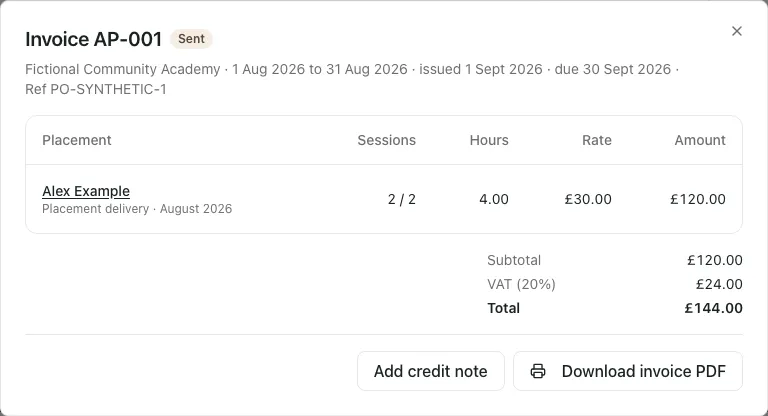
Read Charged on exact minutes; hours shown to 2 dp where shown. A rounded display of hours can differ from the exact minutes used for the charge; do not “correct” a reconciled total by multiplying only the rounded display.
If some lines cannot be shown, the warning says they do not add up to the subtotal and that totals are the invoice’s own. A former pupil’s unavailable identity is not a smaller invoice or permission to substitute another name. A failed detail read needs Retry invoice detail; no empty line list should be treated as the complete invoice.
Use Download invoice PDF where allowed, then check the actual file and intended recipient before sharing through the provision’s agreed route. The PDF does not print pupil names; on-screen names and file content are not identical. Downloading is not proof of sending or delivery.
6. Record sending, payment or voiding deliberately
Section titled “6. Record sending, payment or voiding deliberately”Use the specific invoice’s offered status action and read its confirmation.
Mark sent opens Mark invoice [number] as sent?. It records that you have sent it; Student Radar does not email the funder. For an ordinary native draft, Mark as sent dates it that day, preserves the payment-term interval and locks its lines/amounts. Review the actual issued dates after confirmation. Advance invoices follow their separately reviewed dates/workflow.
Mark paid asks Mark invoice [number] as paid?. Enter the actual Paid on date, on/before today, then Mark as paid only after the provision has verified the full payment. This is full-invoice settlement, not a part-payment ledger or bank reconciliation. A paid invoice cannot simply change status again, though an authorised credit revision may still be added.
Void asks Void invoice [number]?. Void invoice is irreversible; the invoice stays on record as void and its sessions can become available to a new run. Do not use it as a temporary hide control. Existing credits can remain against a void invoice, so review the whole revision history before acting.
Invoices exported to accounting cannot be voided through this workflow and require the appropriate credit note instead. If export state cannot be verified, voiding is withheld; resolve that read rather than assuming it was never exported.
7. Add a credit revision and recover an uncertain result safely
Section titled “7. Add a credit revision and recover an uncertain result safely”For an eligible sent/paid invoice, use Add credit note or the row’s Credit note action. Check the exact invoice and remaining allowance. Enter Credit amount including VAT (£) and a meaningful Reason of at least ten characters, then Record credit note. The revision is retained; it does not erase the original invoice or send a refund/message.
Credits/adjustments cannot take the invoice below zero. Read the actual returned revision and balance; an invoice total, credit allowance, later charge and amount owed are not interchangeable.
When an answer is lost, the submitted amount/reason stay locked. Check credit note → Check again checks that same submitted note, rather than creating another one. Close for now leaves a Check credit note route on the invoice while the held result remains unresolved. Do not unlock the situation by making a slightly different credit under another request.
The held check is temporary in the running app and does not survive a full browser reload. After a reload, inspect the invoice’s actual revision list before deciding whether any new credit is needed. A confirmed note followed by a failed refresh is a recorded note with out-of-date figures, not permission to record it again. Follow the specific message after a refusal or timeout.
8. Export checked issued revisions to an accounting package
Section titled “8. Export checked issued revisions to an accounting package”In Invoices, tick eligible sent/paid issued revisions in Export. Drafts are Not issued. The selection count states [number] of up to 50 selected, including choices across pages; inspect it before QuickBooks CSV or Xero CSV.
Wait for the downloaded CSV and check the intended package/import mapping. The selection clears after a successful export and export state is refreshed. This is a file for the provision’s accounting process, not proof that the package imported it, reconciled payments or emailed an invoice.
A repeated export can report nothing new; do not create duplicate accounting imports just to obtain another successful-looking download. A failed export or school change should be resolved in the correct school context before retrying.
Phone use and troubleshooting
Section titled “Phone use and troubleshooting”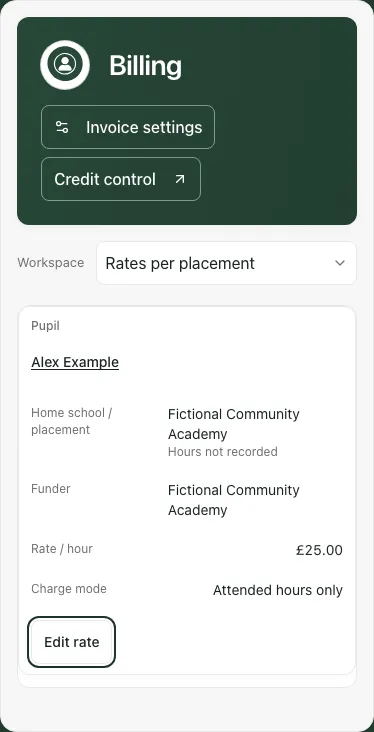
Use Billing sections on a phone. Scroll invoice/detail/settings dialogs to review the full record and save controls; expand Costs and budgets where needed.
- Access could not be verified: use the offered check again; it differs from a definite permission refusal. A finance job title/grant alone does not guarantee the AP page is available.
- Nothing new to invoice: check rates, period, resolved marks, existing funder-period invoices and the last-run note.
- Price-list change has no clear answer: use Check again for the locked original request, or Close and check the price list before a new deliberate decision; an unchanged old figure may now be an own-rate choice.
- Complete ledger unavailable: retry; do not rely on partial balances.
- Paid/void/exported correction: inspect the original invoice and revisions with the responsible finance lead; do not assume the status can be reversed or a source edit reissues it.
For a shorter first-invoice sequence, see Set placement rates and raise invoices. For funder statements and standard prices, see Use AP Credit control.
Common questions
Section titled “Common questions”Does generating a draft invoice send it to the funder?
Section titled “Does generating a draft invoice send it to the funder?”No. Review the complete draft and use the separate sending record appropriately. Billing does not email the invoice for you.
What should I check before exporting to an accounting package?
Section titled “What should I check before exporting to an accounting package?”Check the issued invoice revisions and intended export. An accounting export is separate from recording full payment or reconciling a bank account.