Record EYFS observations and review checklist gaps
Written for: Nursery and Reception staff.
Open the EYFS checklist, record observed statuses with notes or evidence, and identify goals needing another observation.
Each row is a child. Each column is an Early Learning Goal (ELG). Keep your professional judgement and the observation that supports it together.
The examples below use fictional children. The checklist’s ongoing Not yet, Emerging, Developing and Secure observations support day-to-day assessment. They are not the separate statutory EYFS Profile judgement or a prediction of a child’s future attainment.
Before you start
Section titled “Before you start”You need access to EYFS Assessment for the correct school and permission to record observations for the child. Opening a class or following a link does not extend that access. Ask your school’s Student Radar administrator if the page or child is unavailable. Check that you are in the right school before recording anything.
Have the observation ready: what the child did or said, the context, any support used and what you need to check next. A short, specific account is more useful than copying a goal’s wording. Follow your school’s arrangements for photographs and other evidence; avoid including unrelated children or personal details.
Open the checklist
Section titled “Open the checklist”- Open Assessment in the sidebar.
- Open EYFS, then EYFS Assessment.
- Alternatively, open Classes, choose Nursery or Reception and your class, then Assess. A class link keeps the checklist on that class.
- Check the selected year and class before making a change. Where the page names a selected class, choose another class through Classes.
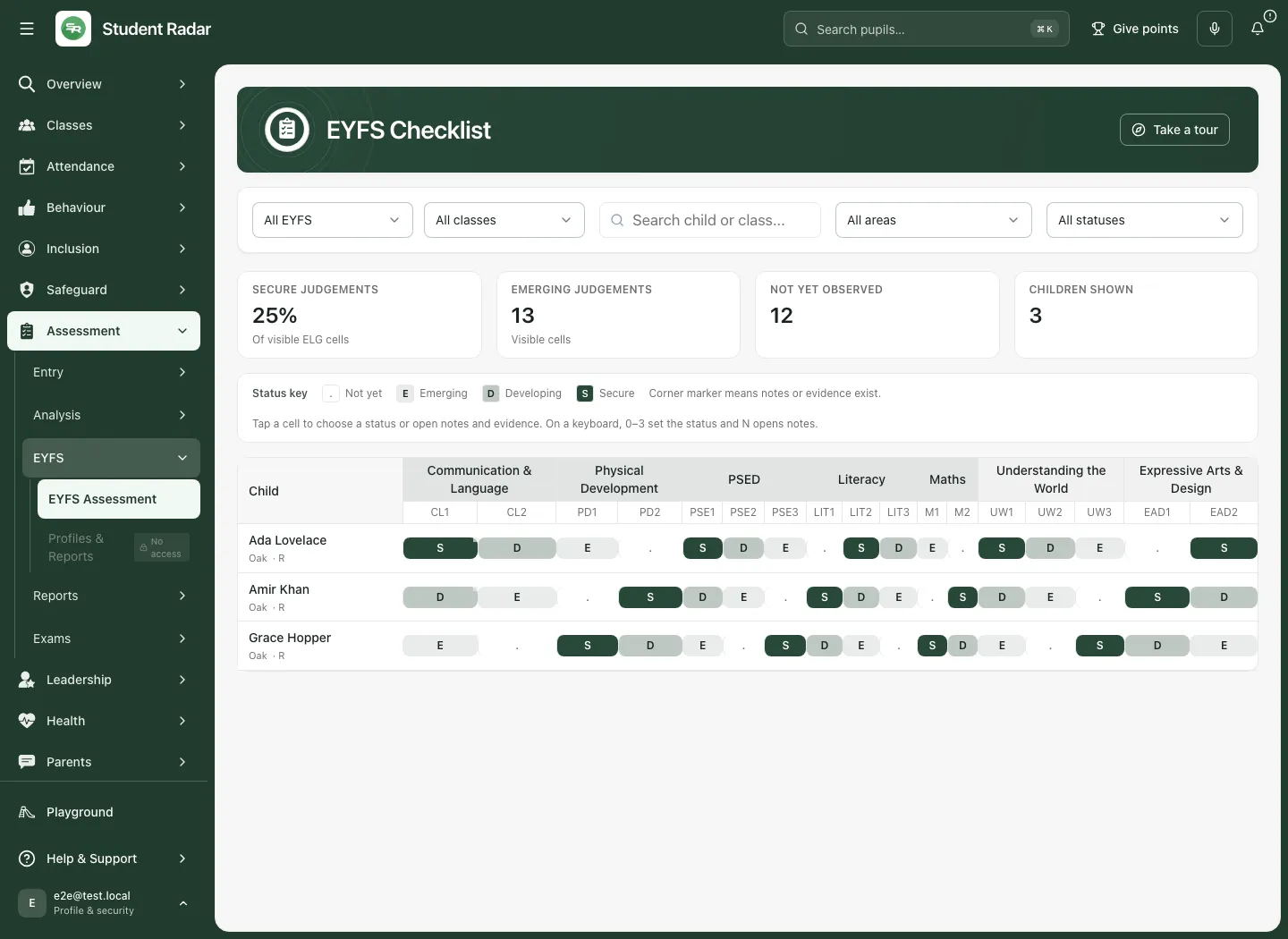
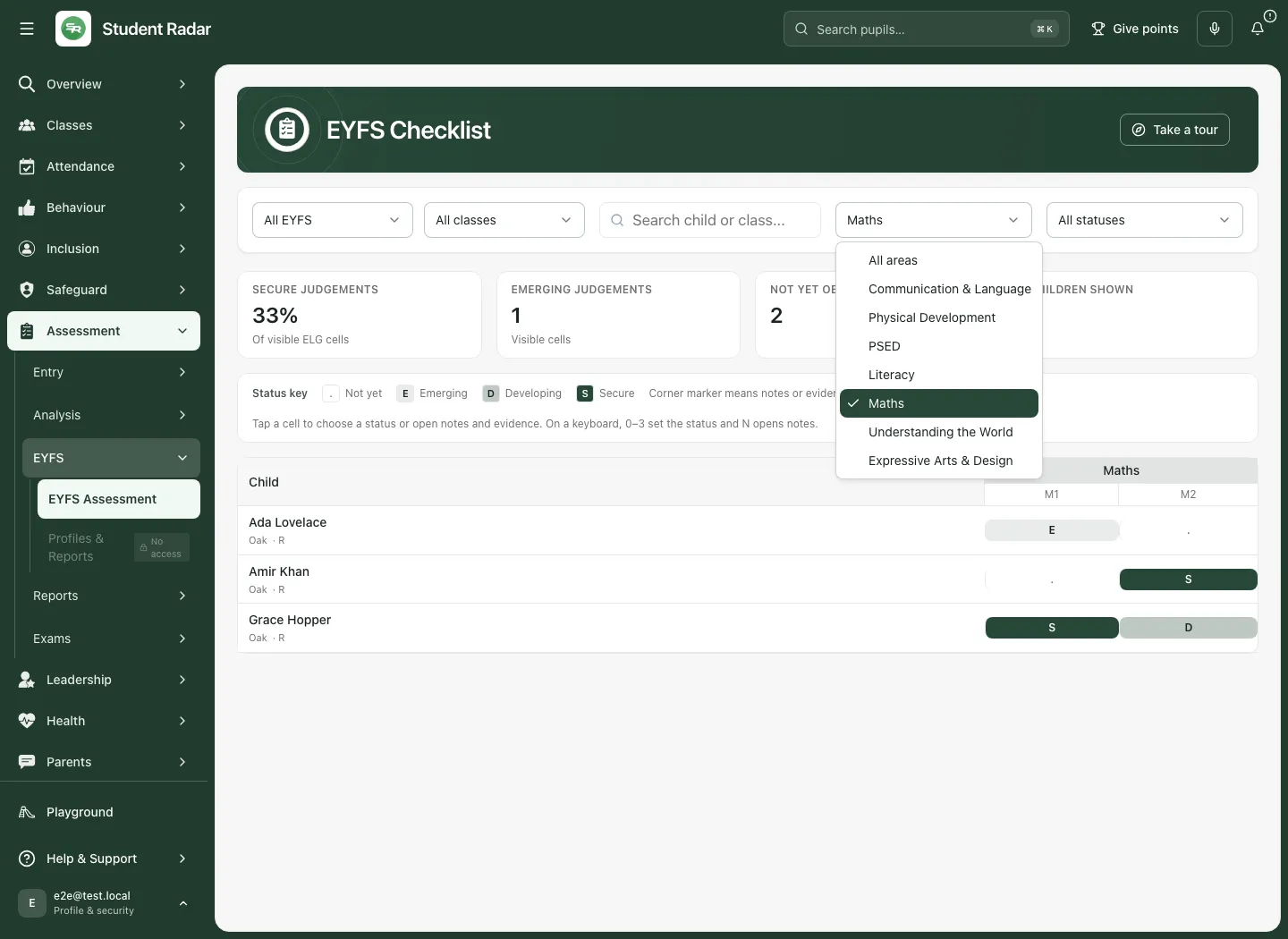
The standalone checklist has All EYFS and All classes filters. Choose Nursery or Reception, then the class you need. Search child or class… narrows the rows further. A mixed class can include older pupils: the checklist explains that Year 1 or older pupils use the marksheet and offers Open Assess when you have access.
Read the checklist without changing a judgement
Section titled “Read the checklist without changing a judgement”The status key explains the symbols: a dot for Not yet, E for Emerging, D for Developing and S for Secure. A corner marker means notes or evidence exist. It does not tell you how strong that evidence is; open the cell and read the detail.
The grouped columns cover Communication & Language, Physical Development, PSED, Literacy, Maths, Understanding the World and Expressive Arts & Design. A cell’s picker provides the goal’s name and description, so check the goal before recording an observation.
Secure judgements is a percentage of the visible ELG cells. Emerging judgements and Not yet observed count visible cells, while Children shown counts children. Filters change what is visible. Do not compare these figures across different selections as if they describe the same group, or treat a blank observation as evidence that a child cannot do something.
Record or change a status
Section titled “Record or change a status”- Find the child’s row and the correct ELG column.
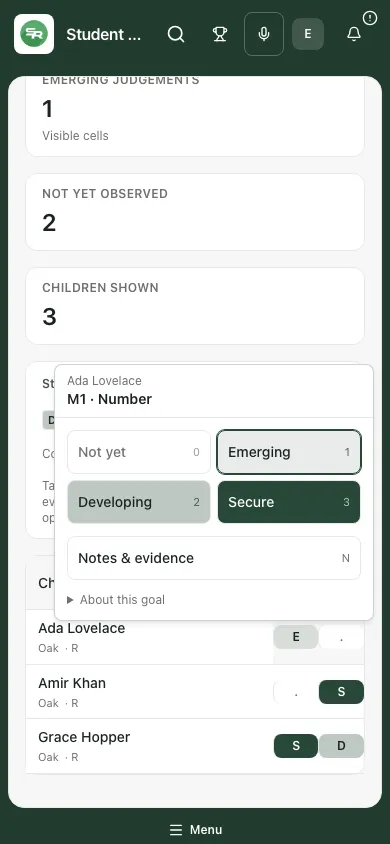
- Click or tap the cell. This opens a picker; it does not immediately cycle the status.
- Read the child’s name and goal in the picker.
- Choose Not yet, Emerging, Developing or Secure, according to the observation and your school’s assessment approach.
- Wait for the change to finish before recording another judgement. Check that the cell shows the status you intended.
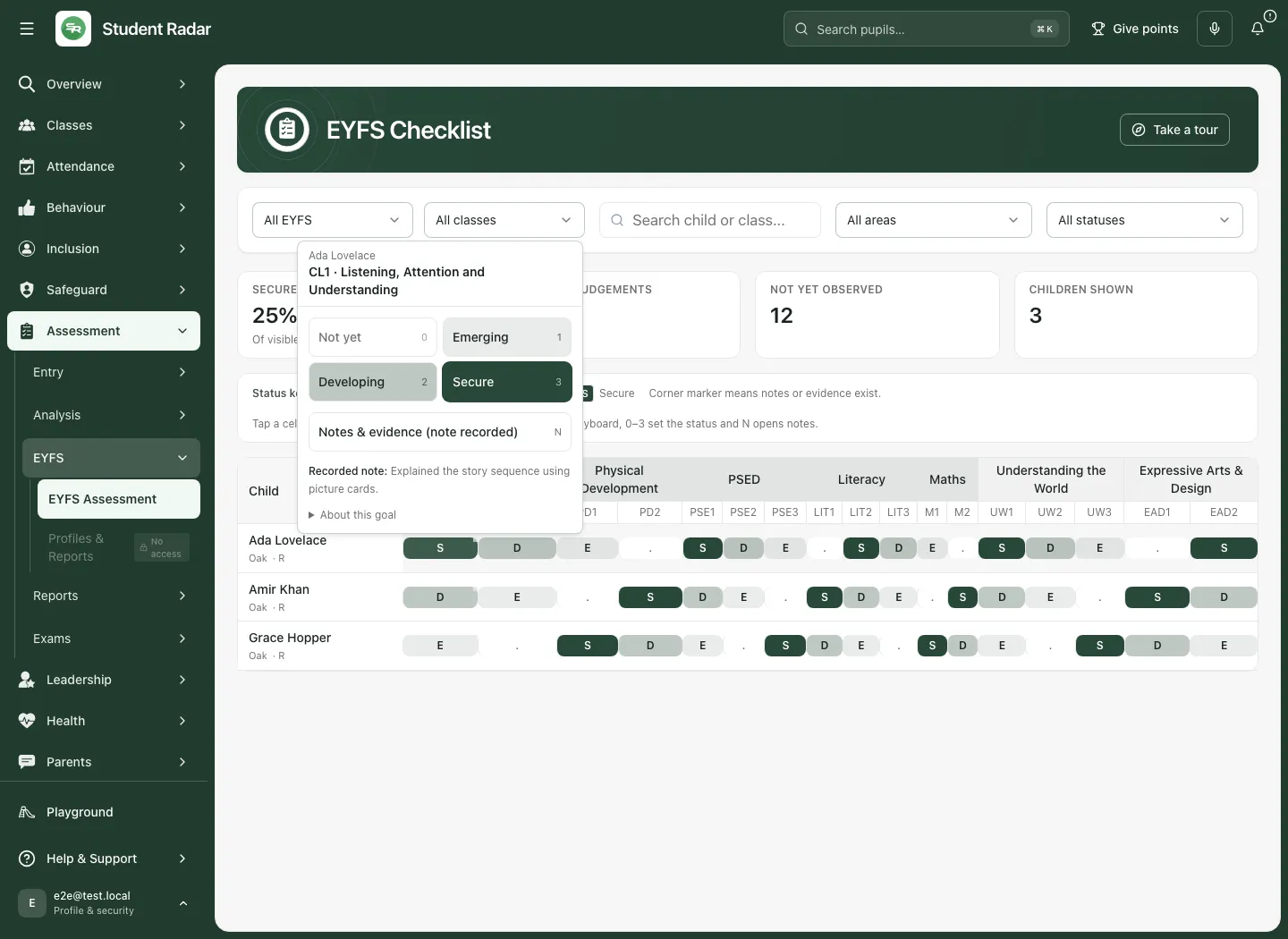
There is no separate whole-grid save button for a status choice. Selecting a different status submits that observation. If a save fails, read the message and check the cell before trying again; do not assume the displayed colour proves a successful save.
Use the keyboard
Section titled “Use the keyboard”Tab to the required cell, then use 0 for Not yet, 1 for Emerging, 2 for Developing or 3 for Secure. Press N to open its notes and evidence. These keys act on the focused cell, so check the child and goal first. Right-clicking a cell also opens its notes on a desktop computer.
Add a note or evidence
Section titled “Add a note or evidence”- Open the cell, then choose Notes & evidence. If detail already exists, the label tells you that a note or evidence is recorded.
- In Observation notes, check the child’s name and ELG code.
- Type what you observed in Add notes or evidence details. For example: “Retold three story events in sequence, using picture cards independently.”
- If useful and permitted by your school, choose Photo or Document. The photo control uses the device’s camera. Check the photograph before using it. For a document, check the accepted file types and size shown in the upload box.
- The voice control can turn speech into text. Read and correct the transcription; the control is dictation into the note, not a stored audio recording.
- Check any attachment’s name. Remove an unintended attachment before saving. One new photo or document can be selected for this save.
- Click Save and wait for the dialog to close.
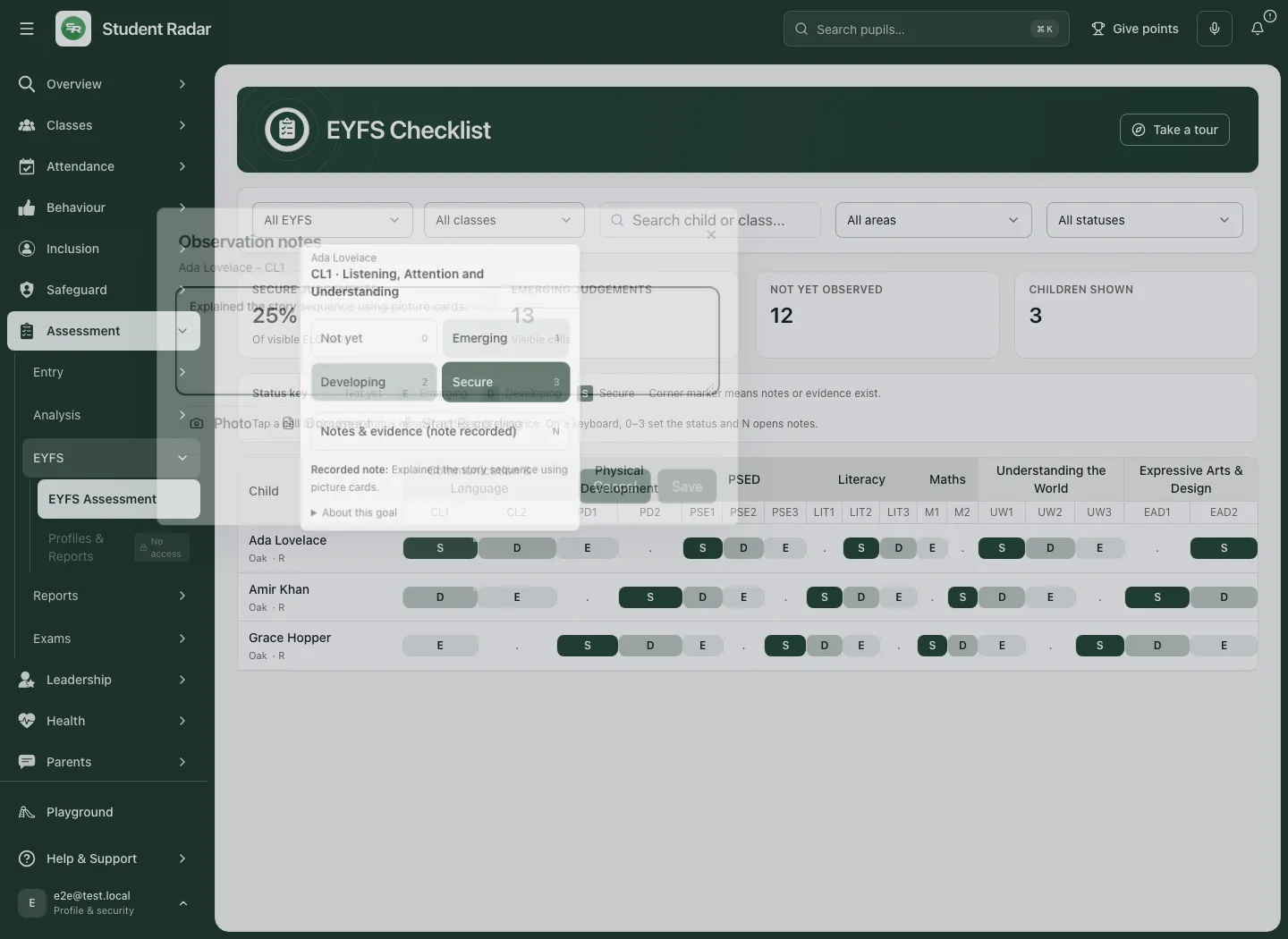
Saving an unchanged note without a new file is disabled. Adding notes keeps the goal’s selected judgement; it is not a reason to raise the status. Choosing a file is not the final save. If you leave the dialog without saving, the new note and file have not been recorded.
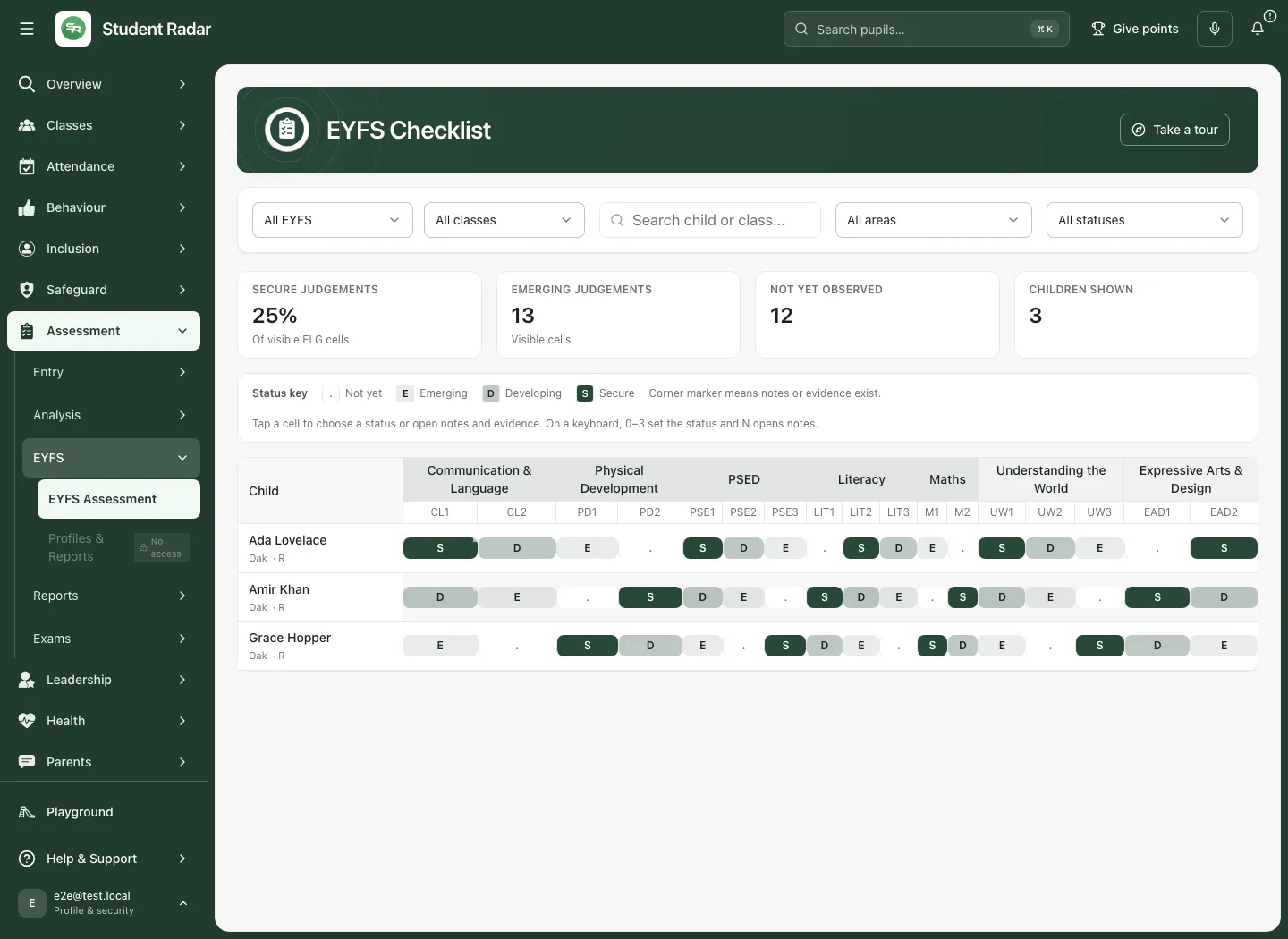
A previous attachment may already exist. Where offered, See it in the child’s portfolio opens the permitted portfolio. The checklist marker shows that detail exists; the portfolio is where you inspect the evidence itself. If a same-day observation is updated, verify the current saved detail rather than assuming every draft attachment becomes a separate permanent record.
Find gaps and plan another observation
Section titled “Find gaps and plan another observation”- Set the correct year and class first.
- Choose an Area, such as Maths, to work on a smaller set of goals.
- Choose a Status. Gaps and emerging brings together goals still needing observation or an emerging judgement. Other choices are All statuses, Not yet observed, Emerging, Developing and Secure.
- Read the relevant notes and decide whether another observation is needed.
- Agree who will observe, in what context and when. Record any resulting provision or follow-up in the appropriate school workflow; a checklist status by itself does not assign work or prove an improvement.
- Return to All areas and All statuses when you need the wider picture.
Use Profiles & Reports for the child’s portfolio and reporting views when your account permits them. Evidence can be added from a portfolio link that opens the checklist on one child and asks you to choose the learning goal. Use Clear child selection to return to the wider checklist. Statutory profile judgements should be entered and checked in their own profile workflow.
Work on a phone
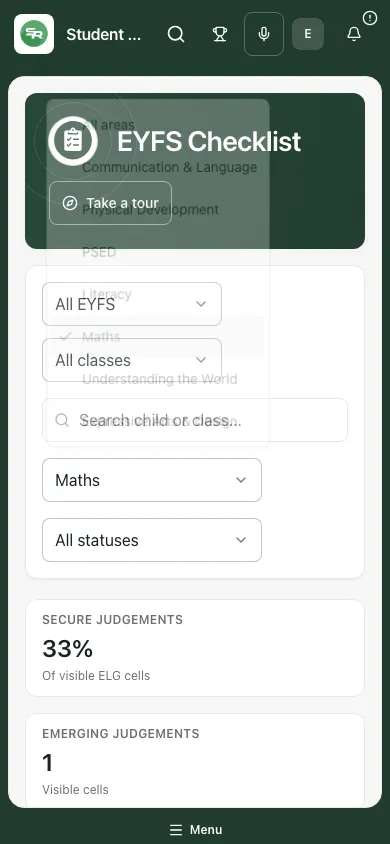
Section titled “Work on a phone”The same filters and status choices are available on a phone. Narrow the area first, then move across the grid to the goal you need. Tap a cell to open its picker and use Notes & evidence to add detail. Check the child and goal in the picker, especially after scrolling.
Troubleshooting
Section titled “Troubleshooting”| What you see | What to do |
|---|---|
| No EYFS pupils found | Check the school, year and class. Ask an administrator to check the roster if a child is missing. |
| No children match these filters | Clear the search, choose All classes, All areas and All statuses, then narrow the selection again. |
| More than 500 children match | Choose Nursery or Reception, or open one class through Classes. |
| Unable to check or resolve the selected class | Choose the class again or reload. Do not substitute a different child’s record. |
| Your account cannot open the EYFS checklist | Ask your administrator to check your EYFS access for this school. |
| You cannot record judgements for this child | Stop editing that child’s record and ask for an access check. Being able to see a name does not establish write permission. |
| The checklist was loaded too often, or too many changes | Wait a moment, then try again. Avoid repeatedly clicking the same control. |
| Attachment could not be uploaded | Nothing was saved by that attempt. Check the file and connection, then try again. |
| Attachment could not be linked | Remove the attachment and retry the observation as instructed. |
| Observation could not be saved | Keep your original note securely, check the connection and retry. Reopen the goal to confirm the saved detail. |
Frequently asked questions
Section titled “Frequently asked questions”Does clicking a cell change its judgement? No. It opens the picker. Choosing a different status records the change; the number shortcuts also set the focused cell directly.
Does Not yet mean the child cannot do it? It means the goal has not yet been observed in this record. Plan a suitable opportunity and use professional judgement.
Is Secure the statutory Expected judgement? No. The ongoing observation scale and statutory profile are separate workflows.
Can I record evidence without changing the status? Yes. Use Notes & evidence and save the note or attachment. Check the existing status before you start.
Does a percentage demonstrate impact? No. It describes the selected visible cells. Review the underlying observations and the consistency of the selection before drawing a conclusion.
Will this send a parent message or create an action? Recording an observation is not proof that a message was sent or follow-up assigned. Use the appropriate communication and work tools where needed.