Prepare and track an EHC needs assessment request
Written for: SENCOs and authorised SEND staff.
Prepare request evidence and family views, review the letter and record actual submission, receipt and LA decisions.
Parent-led evidence is a separate way to prepare a pupil evidence PDF; it does not create or submit a school request. School overview summarises the requests the viewer can read.
Check your school, pupil access and authority for each action. Suggestions, evidence gaps and draft wording support professional judgement; they do not decide that an assessment is necessary or change a statutory outcome automatically. The app’s timeline is a planning record of dates entered, not confirmation of the LA’s actual receipt or every applicable deadline.
The fictional examples use Grace Hopper and Sam Patel. No request, parent message, LA communication, paid AI, file upload or live pupil change was performed.
Find or start the school-led request
Section titled “Find or start the school-led request”- Open EHCNA and School-led requests. Read Open requests, Being prepared, Waiting on the LA and LA decision overdue with the tracked-request count.
- Search the current page and use Previous page or Next page for other pages. Search applies to the page shown; an absent search result does not prove that no request exists elsewhere.
- Select the pupil’s row or card. Read Stage, the 20-week clock, Next step, Held by and Files read. An unavailable file count is different from zero read files.
- Choose New request, select the pupil, enter the request date and preparation note, then choose Create request. This records a draft; it sends nothing to the authority.
- If an open request already exists, open that request instead of creating a second. Recheck after an uncertain save or a colleague’s change.
- Use Refresh to reload the list and Take a tour for the introductory walkthrough.
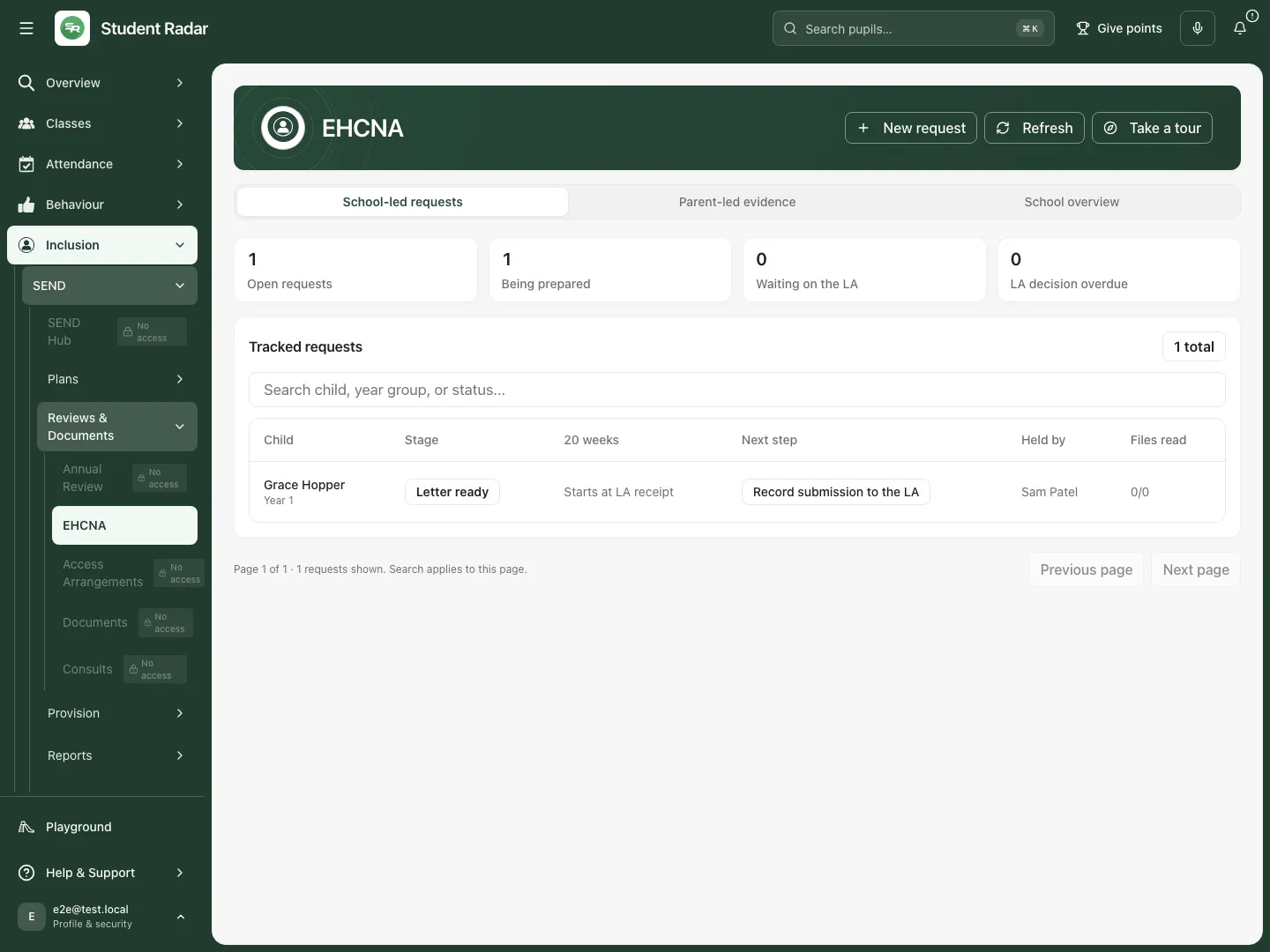 Grace’s fictional saved-letter request remains with the school. Its clock starts at LA receipt, which has not been recorded.
Overview: ownership and the correct authority
Section titled “Overview: ownership and the correct authority”- Open Overview. Read the timeline and lifecycle separately: a downloaded letter is not a submitted request, and submission is not proof of receipt.
- In Held by, choose Choose who holds it. Search the permitted staff list and select the colleague who should hold the request. The app offers staff with the necessary pupil access; the holder sees its dates in Calendar and next steps in My Actions.
- Check the Local authority information. A postcode suggestion uses an accessible contact explicitly recorded as living with the child, rather than the school’s address. Confirm responsibility with the family/authority, including any residence or placement exceptions.
- Enter or correct Confirmed authority for this request while the request is being prepared, then choose Confirm authority. Read the saved result. An unavailable lookup is not a confirmed authority, and saving a name sends nothing to that authority.
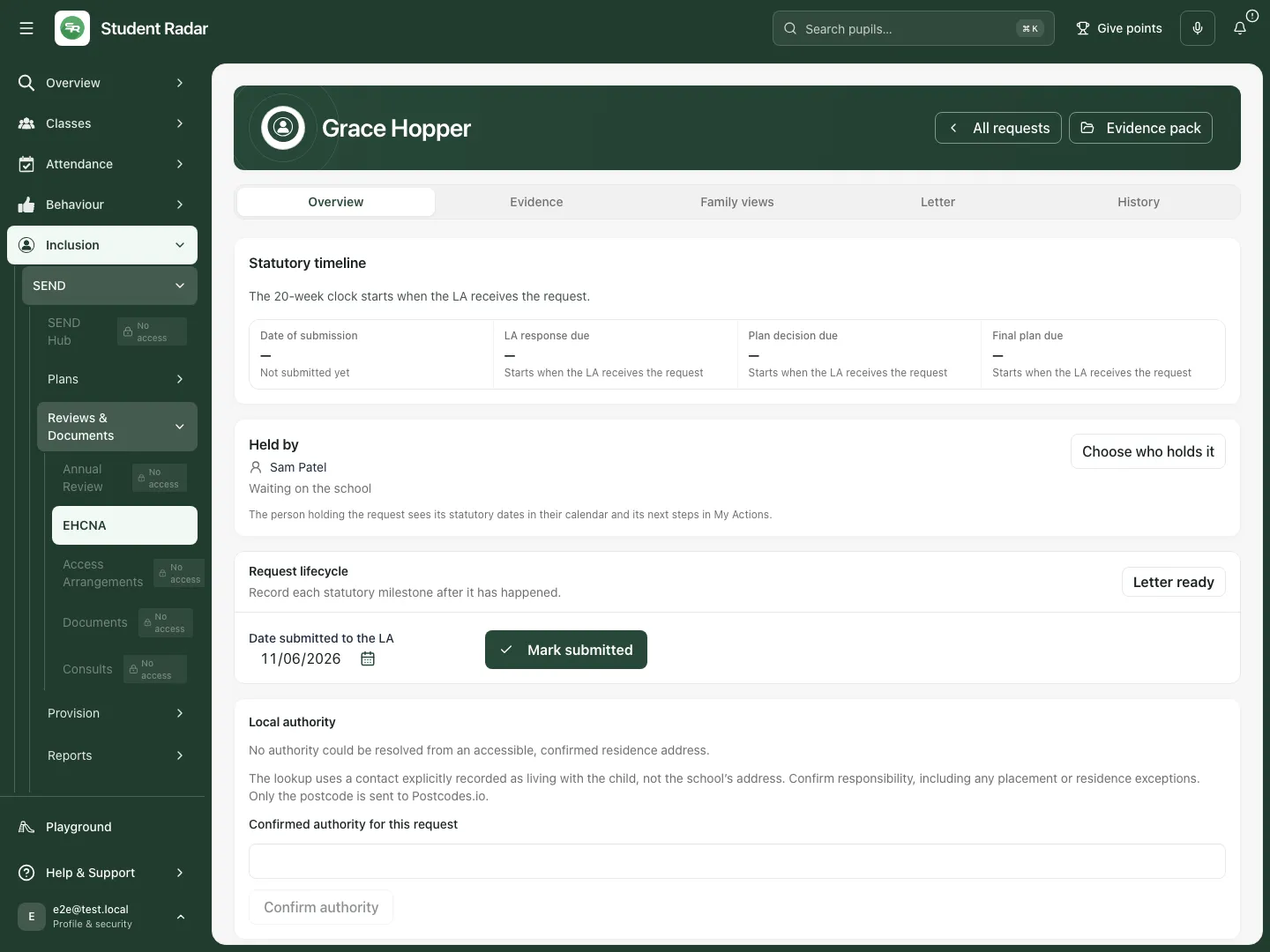 The fictional overview separates Sam’s ownership, the saved-letter stage and the missing LA receipt. The authority lookup is unavailable in this example.
Evidence: collect, read and classify the actual files
Section titled “Evidence: collect, read and classify the actual files”- Open Evidence and read the source summaries for attendance, behaviour, attainment, ISPs/provision, reviews, notes and resources. Missing records or warnings remain evidence gaps; do not fill them with assumptions.
- Choose Evidence checklist category before Upload evidence. Supported files are PDF, DOCX, TXT, CSV, Markdown, PNG, JPG/JPEG and WebP, up to 25 MB. Uploaded evidence also appears in the pupil’s Resources.
- After an upload, check whether text reading completed, failed or is unsupported. Choose Read unread evidence (up to 5 files) to process a bounded group. A file listed in Resources is not necessarily read evidence for the letter.
- Open Extracted text excerpt and compare it with the document. A filename alone does not establish what the file supports. Choose the relevant checklist item for the read file.
- When leaving evidence out of this request, choose Exclude, enter the reason and confirm it. Review the excluded-evidence list; include the file again if the decision changes. Exclusion affects this request’s bundle, rather than proving the original pupil evidence should be deleted.
- Review the checklist and source warnings before drafting. Local forms and current advice requirements vary; the checklist does not certify that all necessary evidence is present.
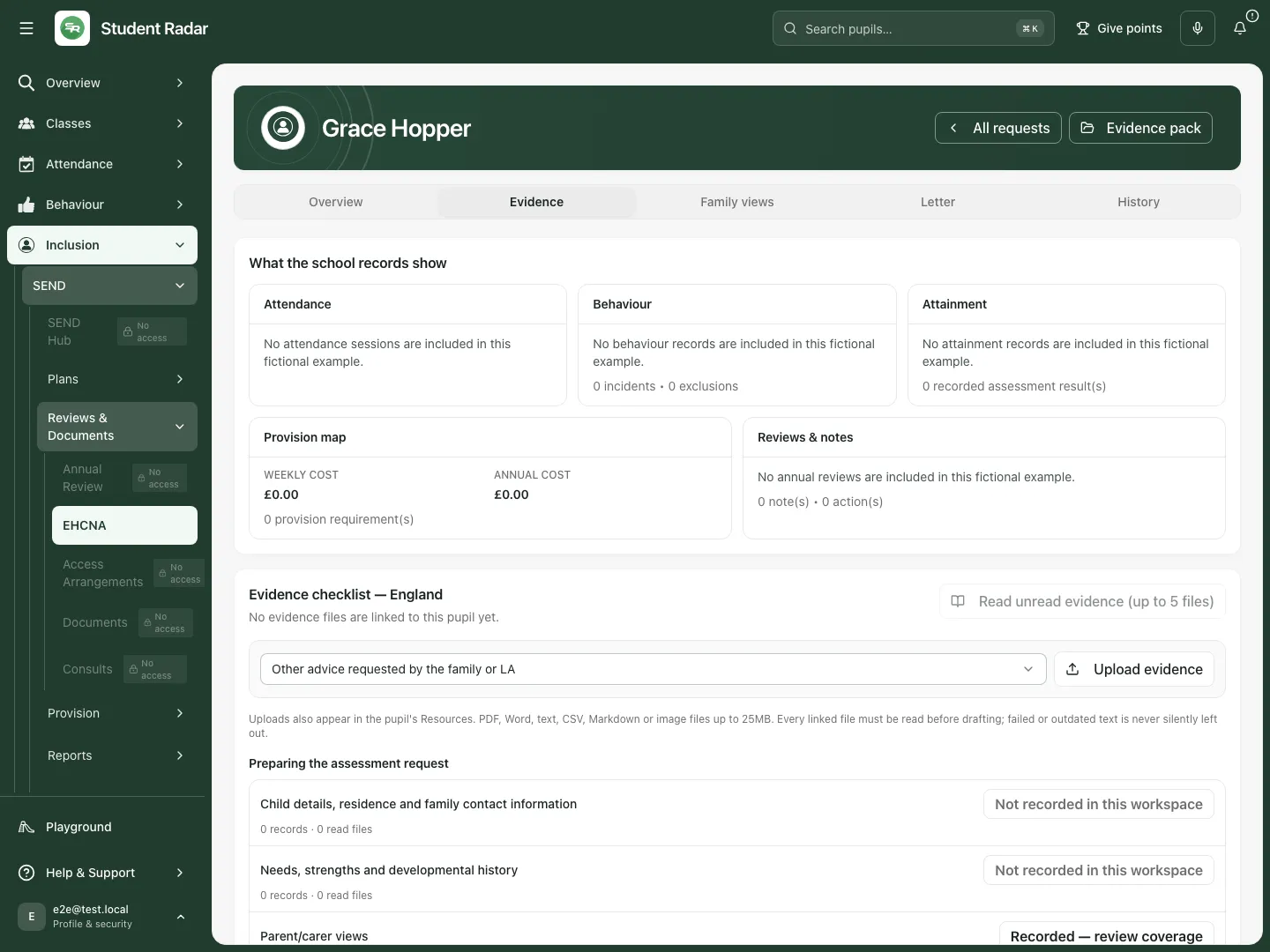 This fictional request has no included files. The page keeps evidence categories, reading and upload controls visible without inventing source evidence.
Family views: record and check the actual contribution
Section titled “Family views: record and check the actual contribution”- Open Family views. Enter Parent / carer voice and Child voice from the contribution actually received. Distinguish direct words from a staff summary; do not infer a child’s views from a generated paragraph.
- Check ISP response context for already recorded parent and pupil responses and the staff decision about them. These remain attributed context, not automatic agreement with the EHCNA letter.
- Choose Save voice. Reopen the request and check that the intended wording saved before regenerating or sharing anything.
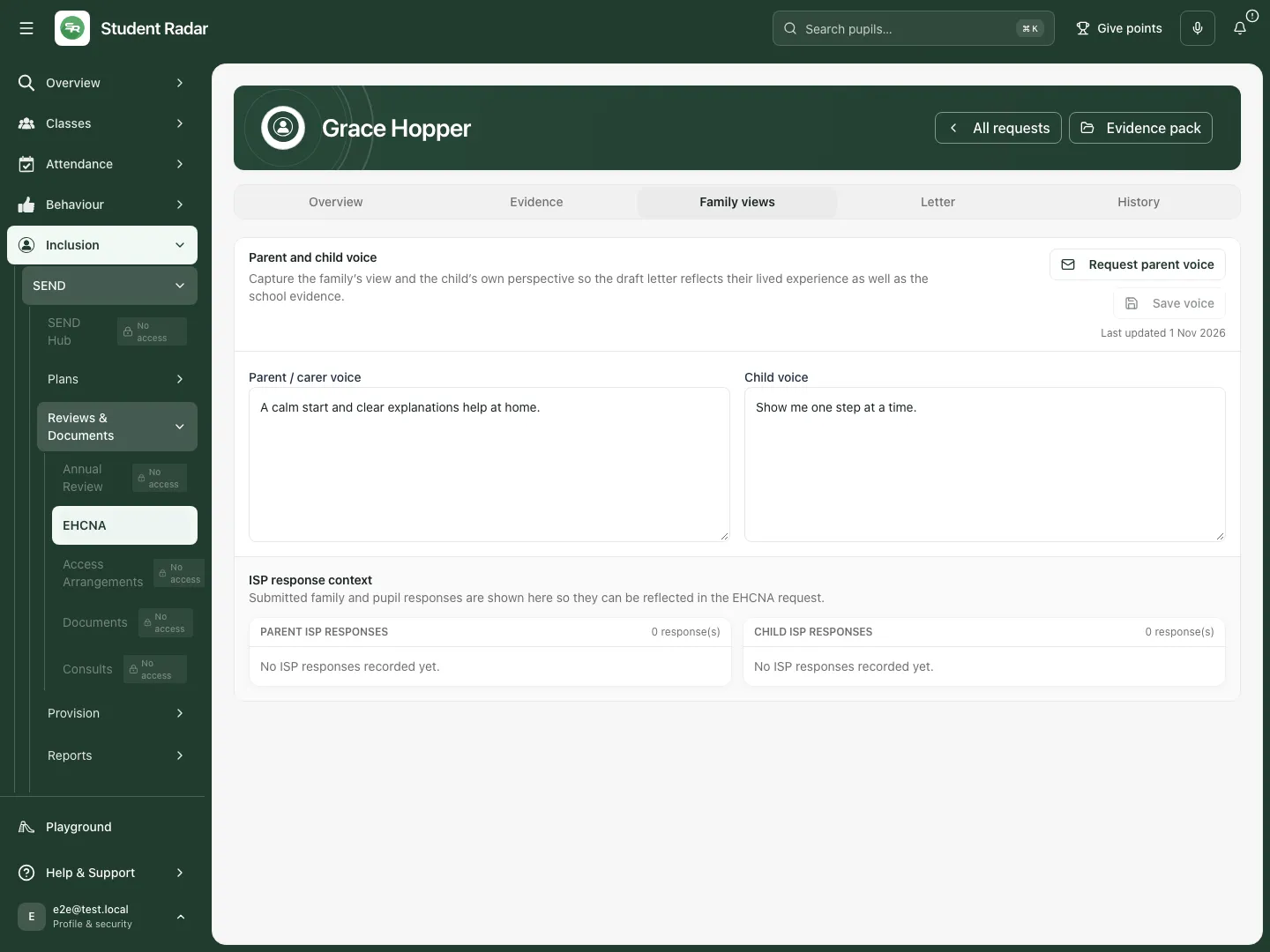 The fictional family and child perspectives occupy separate fields, with their last saved date.
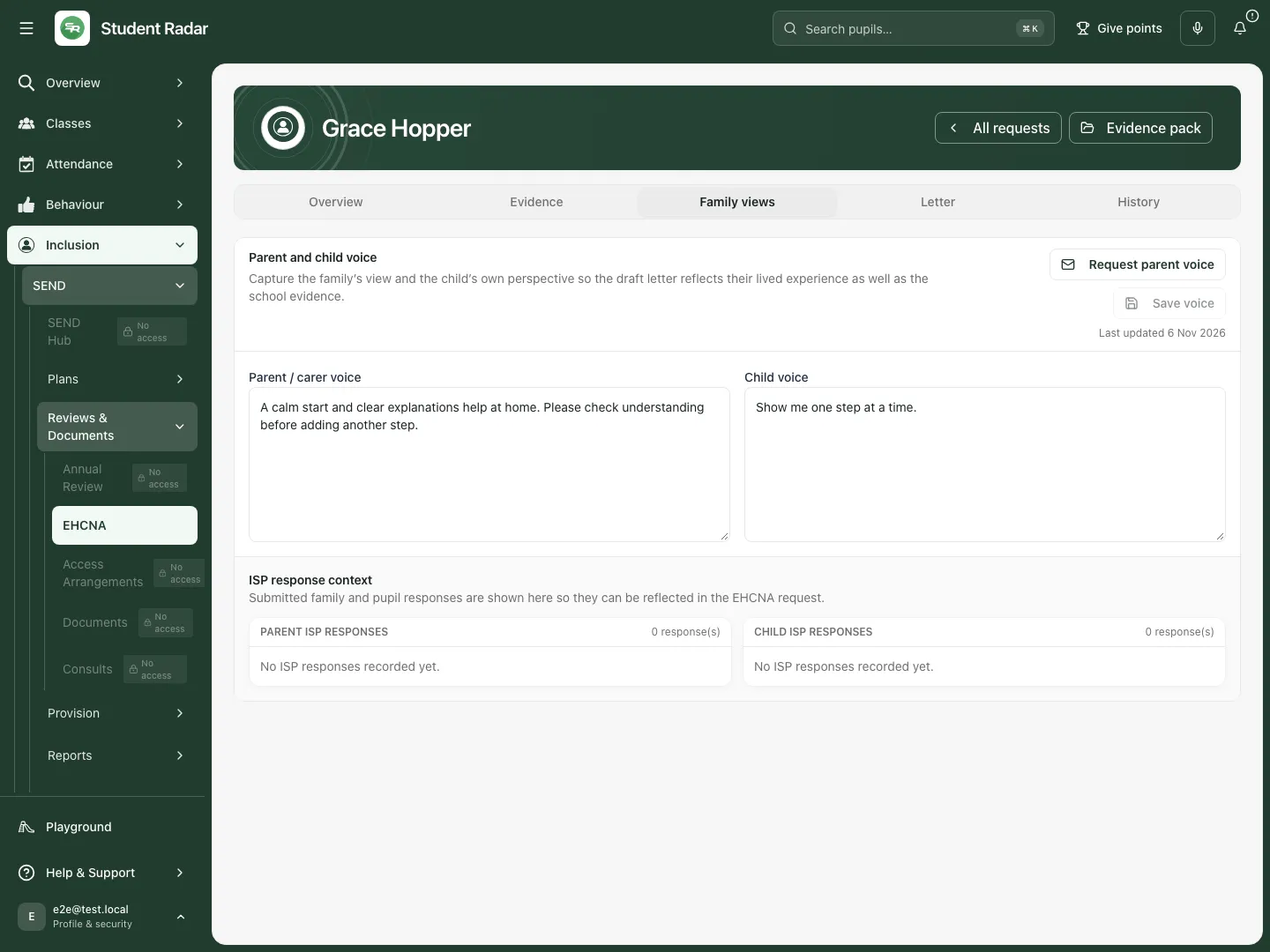 After a mocked save and reopening, the fictional parent summary retains the added request to check understanding. No parent message was sent.
Request parent voice through the separate communication workflow
Section titled “Request parent voice through the separate communication workflow”- Choose Request parent voice. Check that the contact list loaded successfully before using its recipients.
- Select the intended parent/carer contact or enter authorised Manual email addresses, separated by commas or new lines. The form permits up to six recipients at once; correct invalid addresses before sending.
- Review the request and authorise its send only when ready. A saved staff summary and a delivered parent invitation are different records.
- Inspect each request’s sending and response state. Use Check delivery to refresh delivery information and Cancel request when the request should no longer remain active.
- If the contact source is unavailable, resolve that read rather than assuming there are no contacts. Check an uncertain delivery before repeating a request.
This communication workflow is source-inspected only in this guide; it was not sent for the screenshots.
Letter: prepare, edit, save and download
Section titled “Letter: prepare, edit, save and download”- Save the relevant family views and check the read evidence first. Open Letter, then choose Generate letter only when authorised to run the optional drafting action.
- Read the generated letter against the sources. Check missing information, uncertainty, dates and the pupil/authority details. A prepared letter is a staff-review draft.
- Choose Edit. Use Bold, Italic, Heading, Bullets or Numbered to format the Generated EHCNA letter draft without changing its factual meaning. Preview shows the presentation.
- Choose Save letter. Watch the saved-state line and reopen the letter to check the current version. If another colleague changed it, refresh and reconcile before saving again.
- Choose Download PDF for the letter or Download bundle for the request bundle. The bundle uses the editable DOCX template and included evidence. If the template is missing, the PDF remains available but the bundle is disabled until the template is restored.
- Review every downloaded file and its evidence before using the school’s authorised submission process. Downloading does not submit anything to the LA.
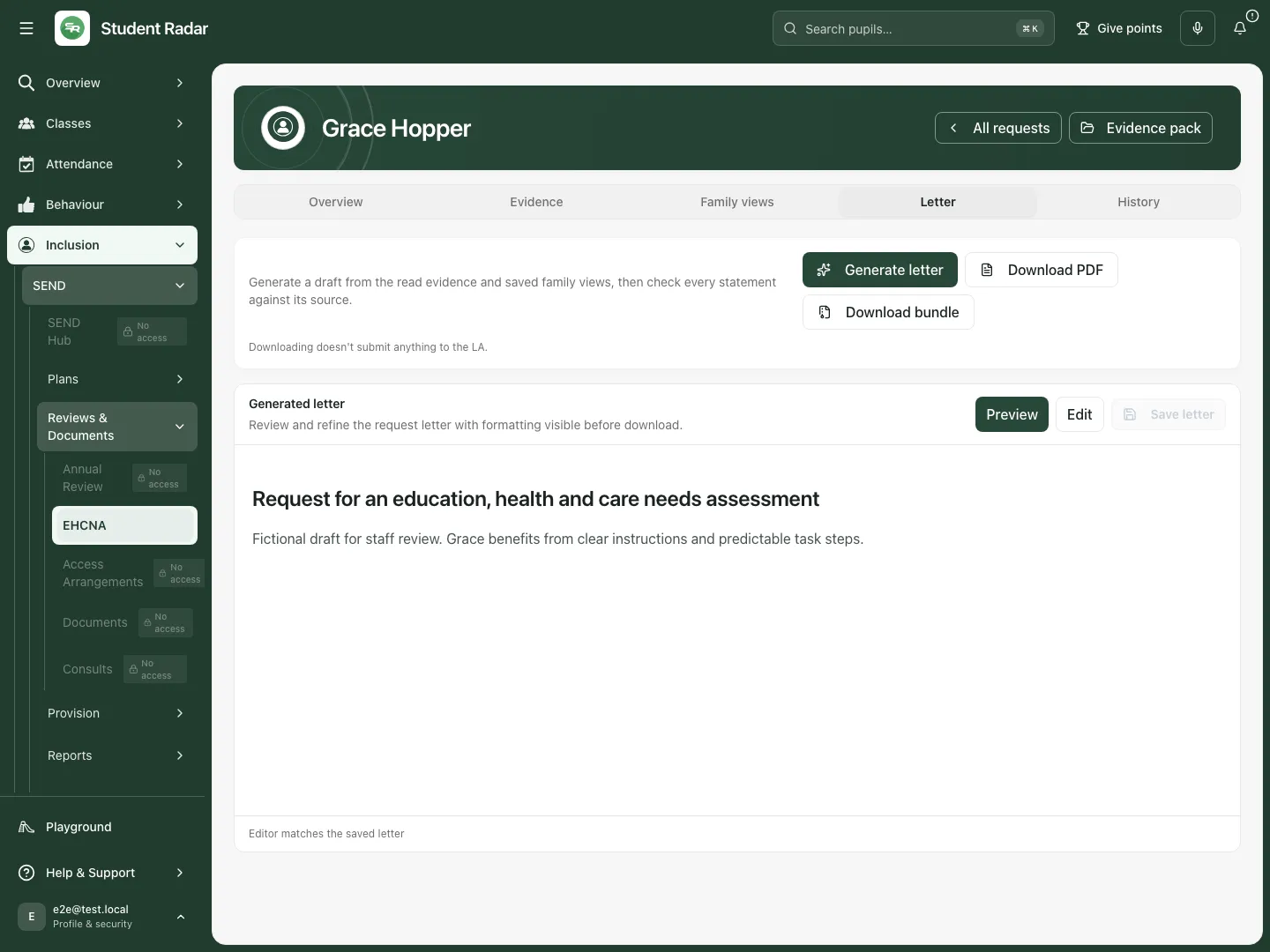 The fictional saved letter can be previewed or edited. PDF and bundle download remain separate from recording submission.
Record submission, receipt and the authority’s decisions
Section titled “Record submission, receipt and the authority’s decisions”Record events after they happen. Do not use future dates to make the tracker look complete.
- Once the reviewed letter is saved, open Overview. In the saved-letter stage, enter Date submitted to the LA and choose Mark submitted after the school has actually submitted it through its authorised route.
- Record the LA’s receipt date separately with Record LA receipt. Check the date against the actual acknowledgement. The timeline’s 20-week clock starts at LA receipt, rather than when the school starts drafting or downloads a bundle.
- While the request is submitted, use The LA’s decision on assessment to select Agreed to assess or Declined to assess. Enter Date of the LA’s decision and Note (optional), then choose Record decision. This saves the response and assessment decision together and moves the request to response received. This is a record of the external decision, not an app decision to assess.
- In response received, the decision panel shows the recorded assessment outcome. Do not record that same decision again. If an earlier response record has no assessment decision, the panel offers the missing assessment choice with Date of the decision and Record decision. After Agreed to assess, a separate plan-decision step records whether the authority will issue or not issue a plan, using that later decision’s actual date and Record decision.
- When a final plan is issued, enter Date the plan was issued and choose Record final plan. Review the next connected plan/review action; a recorded date does not itself upload or check the issued EHCP.
- When the request is finished, enter its closed date and choose Close request. Closed requests retain their history and are no longer editable as open preparation work.
- Read each confirmation/error before moving on. Milestones carry the revision they were recorded against; a stale screen can be refused after a colleague changes the request.
The screenshot shows the earlier saved-letter stage; later response and decision controls are conditional source-inspected workflows, not simulated LA outcomes.
Track professional advice and keep the history
Section titled “Track professional advice and keep the history”- In the assessment-stage advice card, choose Add advice. Select Advice from, enter the optional Service or professional, Requested, optional Due, and any received date, evidence reference or note.
- Choose Save advice. Record receipt only after the advice arrives, and check the evidence link against the actual file. A service name is not a parent/family contact.
- Use the relevant advice row’s edit/receipt controls to update it. Review the removal confirmation before deleting an incorrect advice record.
- Open History to inspect recorded changes, letter versions and the person/time attached to them. Compare the current saved letter with earlier versions when checking how wording changed.
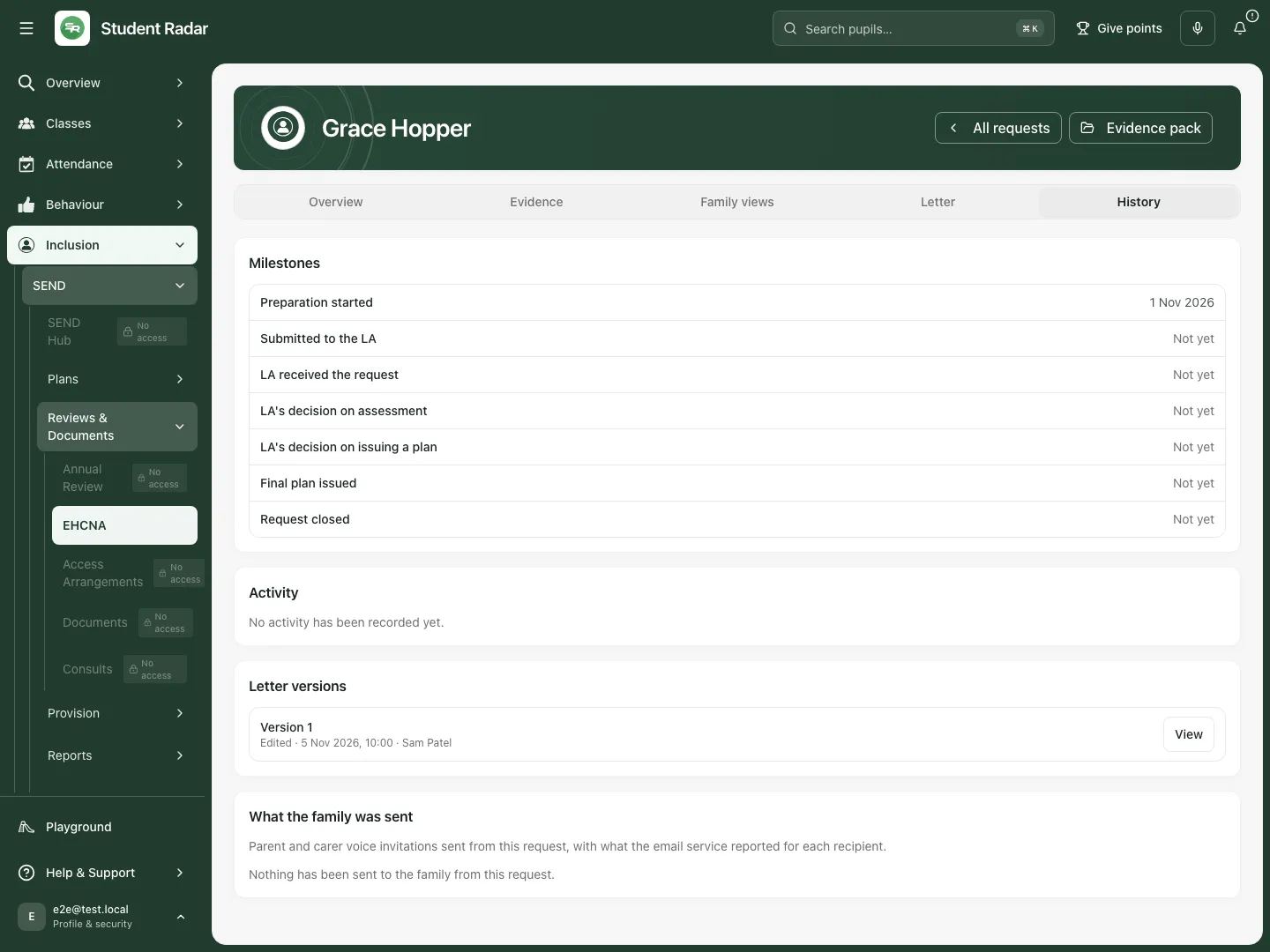 The fictional history keeps the edited letter version separate from submission and external decision milestones.
Review an evidence pack deliberately
Section titled “Review an evidence pack deliberately”- Choose Evidence pack for the pupil. Read the included evidence, source context and visible gaps before judging readiness.
- Choose Include for an appropriate evidence item. To leave one out, use Exclude, enter the reason and complete the exclusion; do not leave an unfinished exclusion while exporting.
- Enter SENCO judgement, explaining the evidence, reasoning and remaining gaps, then choose Mark ready to save the judgement and readiness decision.
- Choose Export Markdown only once inclusion changes and judgement are saved and the pack has been read again. Restore saved judgement restores the saved text instead of adopting unsaved edits.
- If a change or its audit record fails, use the offered retry or Keep the saved version. Export and Mark ready wait while the change remains unsettled. If a file downloads but its export record fails, the page reports that distinction.
Readiness and funding context must not be used as an automatic eligibility decision. The pack is a reviewed evidence record, not certification that an authority will agree to assess.
Parent-led evidence and school overview
Section titled “Parent-led evidence and school overview”- Choose Parent-led evidence, select Child, then Create one-click PDF bundle when authorised to prepare the accessible pupil evidence for review. It brings together recorded progress, support, family/pupil contributions and source gaps.
- Check the PDF before sharing it through the school’s authorised process. It does not create or submit a school-led request.
- Choose School overview for the permitted-request stages, timeliness and authority outcomes. Read the count/coverage and unavailable states. Small authority groups are combined and percentages can be withheld; do not reconstruct a family’s outcome from suppressed data.
Phone use
Section titled “Phone use”Open the pupil’s request card, then use Request sections to move between Overview, Evidence, Family views, Letter and History. Keep dates, save status and source warnings in view before taking an action.
 The fictional phone card retains the request stage, holder and next step.
Problems and questions
Section titled “Problems and questions”The request is missing. Check school, pupil access, page and search. Refresh a failed read. Open an existing request rather than creating another after an unclear response.
No LA dates appear. Check whether actual LA receipt has been recorded. A draft or submission date alone does not start that recorded clock.
The letter omits a document. Check inclusion, reading/extraction state and the selected checklist category. Read the file itself; retrying generation does not establish missing facts.
Family views or the letter will not save. Preserve your text, refresh the current revision and reconcile a colleague’s changes. Do not report an unconfirmed save as persisted.
Does Download bundle send the request? No. Submit through the school’s authorised route, then record the actual submission and LA receipt separately.
Can the app decide the request should be refused because spend is low? No. Funding context and evidence prompts support professional review; they are not an automatic assessment decision.
How do I archive an incorrect or retired request? In School-led requests use the selected pupil’s archive control. Read Archive this EHCNA request?, then choose Archive request to remove it from the active workspace; its statutory evidence and audit history are retained. Cancel leaves it active. Archiving is separate from recording the actual LA response or closing a completed request.
Related: SEND Hub, SEND Register, EHCPs, Annual Review. Outcome Tracking. The SEND Documents guide is planned.