Prepare AP placement reports for review and sign-off
Written for: AP staff preparing placement evidence and authorised leaders reviewing reports.
Prepare the selected placement evidence snapshot, write the professional summary and next steps and obtain leader sign-off before separate publication. Preparing, saving, signing, downloading and publishing to a school are separate actions.
Open the report workspace and check access
Section titled “Open the report workspace and check access”Open Commissioning Schools → Placement Reports in the AP sidebar. Check the provision. Viewing packs, preparing/editing them, signing them off and exporting them require separate current permissions. Assigned staff may see a narrower pupil set than leaders. Governor mode withholds preparation and operational actions. A route or pupil link does not grant access to its destination.
If report access or AP role access cannot be confirmed, use the offered retry or refresh. A failed check is not a positive permission or proof there are no reports. The examples use fictional pupils and evidence.
Read the list without assuming it is the whole history
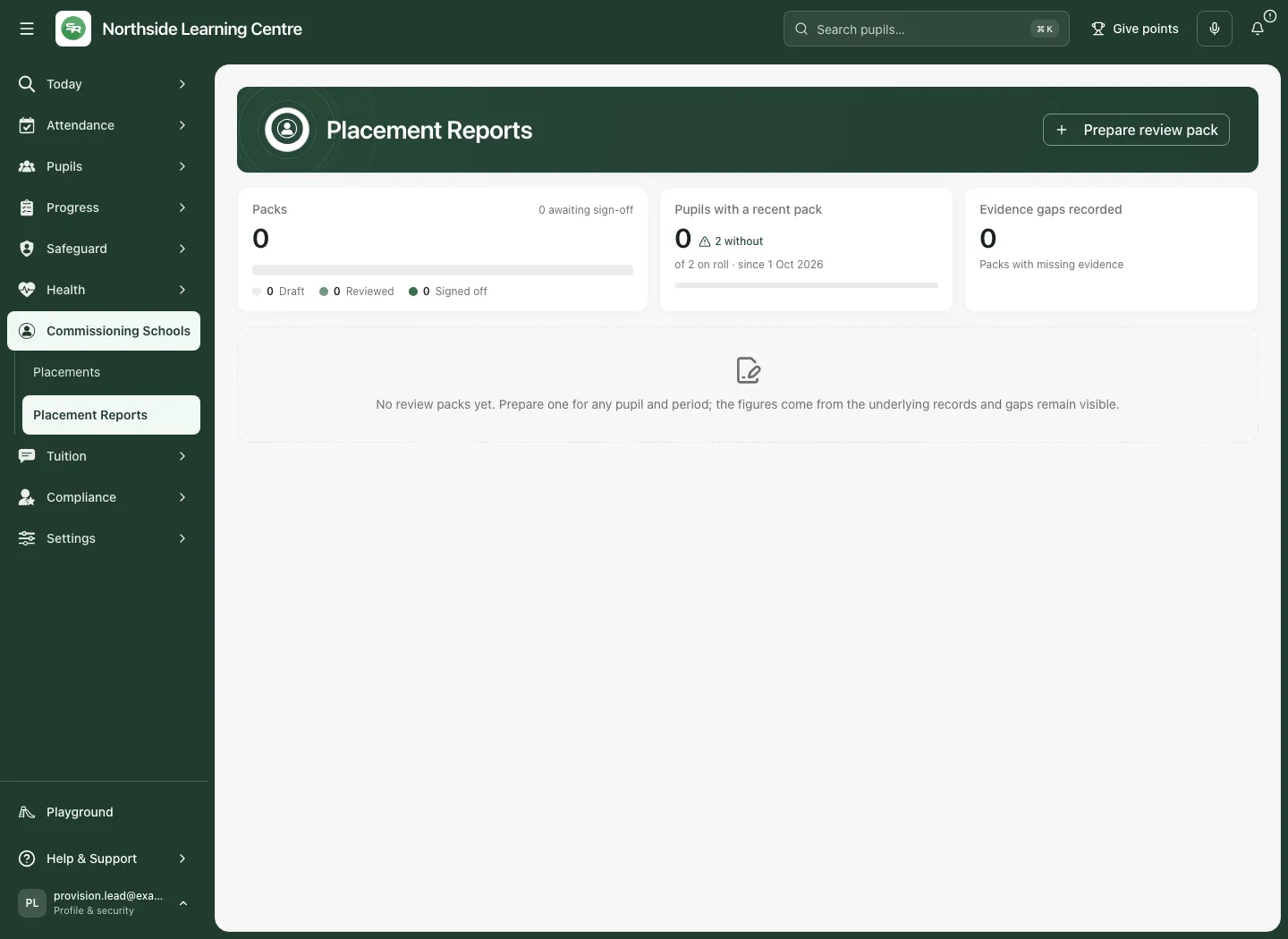
Section titled “Read the list without assuming it is the whole history”- Packs groups the loaded records as Draft, Reviewed, Signed off and, for older records where present, Sent. The awaiting count includes draft/reviewed packs; it is not a review deadline.
- The recent-pack card compares permitted pupils on roll with loaded packs ending since the start of last month on the school clock. It is a check for a recent pack, not proof a review meeting happened.
- Evidence gaps recorded counts actual recorded gaps or unknown legacy coverage. A pack is not automatically a gap just because compliance evidence was not selected: preparation currently does not offer that selection.
- The table keeps pupil, kind, commissioning school, period, attendance, status and sign-off name visible. Select a pack to read it.
The first page contains the latest 50 packs. Where offered, select Show older packs to widen the list and its totals. Counts and recent-pack checks cover the loaded list, not every pack ever created. A failed background refresh can retain the previous list with a stale notice; use Retry before treating it as current.
Prepare a report for the correct pupil and placement
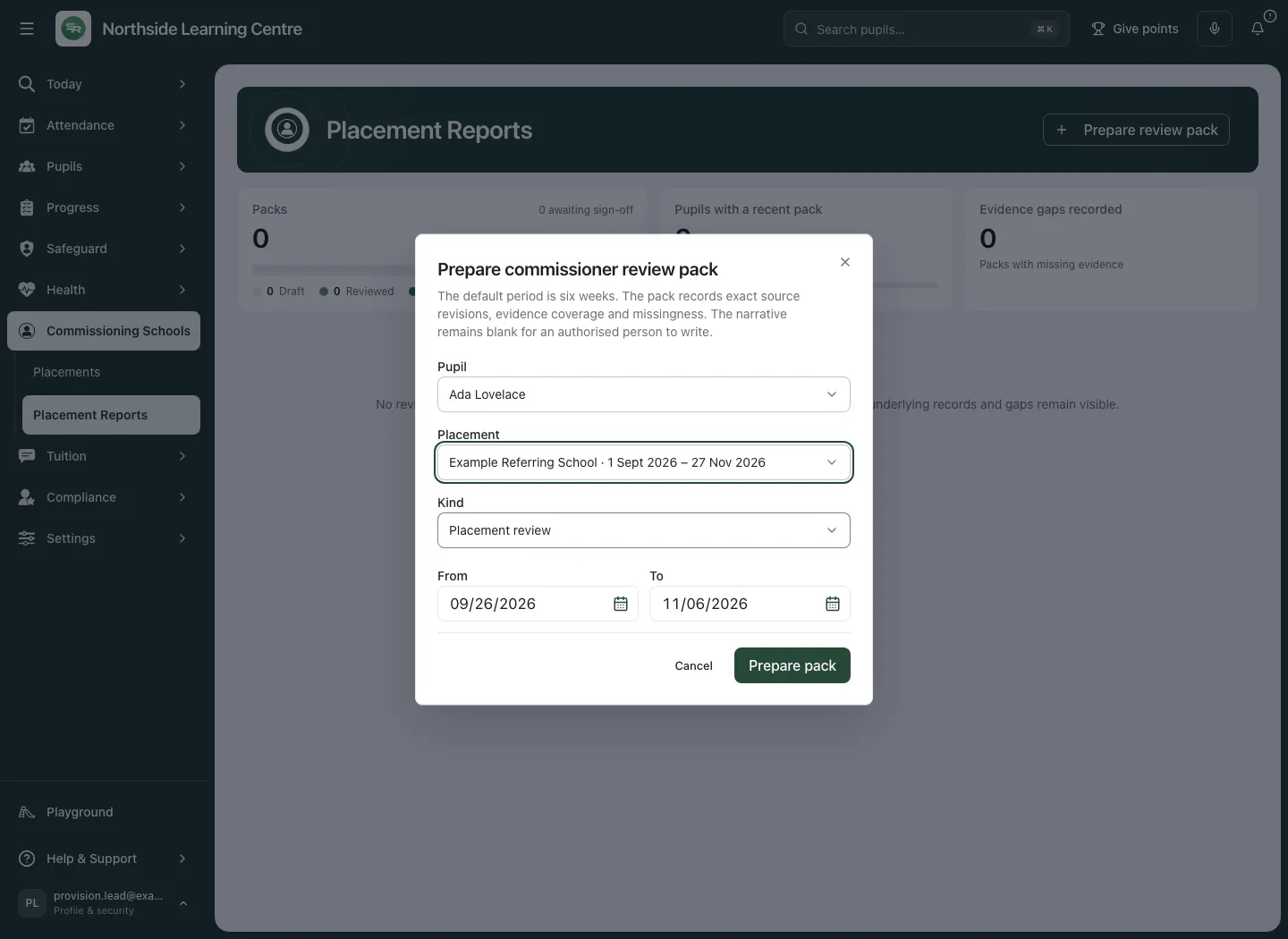
Section titled “Prepare a report for the correct pupil and placement”- Select Prepare review pack. The Prepare commissioner review pack dialog opens.
- Choose Pupil from the current permitted reporting list. A historical pupil can be labelled (historical); the reporting list is not simply the filtered current roll.
- Choose Placement when the report will be shared with one school. Only placements overlapping the chosen period are offered. All placements in period produces an overview across the pupil’s placements; a pack without one placement cannot be published to a school through placement sharing.
- Choose Kind: Weekly report, Monthly report, Termly report, Placement review or Final report. The default is a placement review.
- Check From and To. The default covers six weeks including the current school day. Dates must be in order and the period no longer than 366 days.
- Select Prepare pack. Wait for Review pack prepared from the records. The saved pack normally opens; if the subsequent list refresh fails, the message can confirm it is saved and tell you to open it from the list. Do not prepare a duplicate because the list is slow.
The report records source versions and evidence coverage. It does not invent a narrative or fill missing marks. Its summary is deliberately left for an authorised person to write.
Read the snapshot and its gaps
Section titled “Read the snapshot and its gaps”Check the pupil, report period, commissioning school and status, then read:
| Area | Read it as |
|---|---|
| Attendance | Statutory present sessions divided by counted possible sessions, with counted and planned totals. Missing, pending and invalid marks are separate. It is not booked-session time or all planned sessions attended. |
| Check-ins recorded | The number recorded in the snapshot. It does not automatically compare scores across scales or establish improvement. |
| Progress records | Recorded observations at their captured versions. Counts are not an impact measure. |
| Evidence links | The bounded selected compliance context, not a certificate that every requirement is met. |
| Evidence coverage | Observation window, actual source counts and named gaps. Unknown gap types remain visible rather than being discarded. |
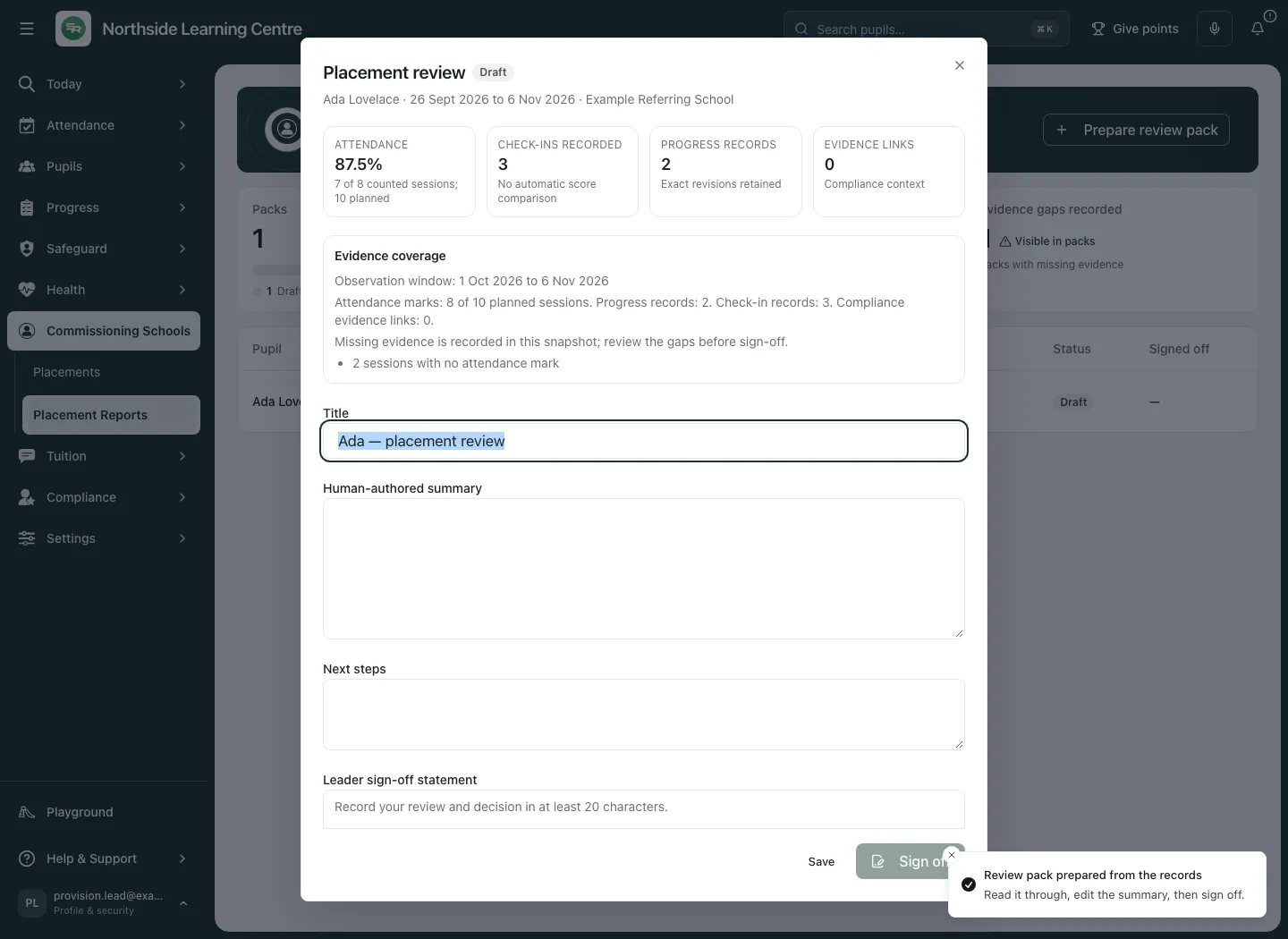
In this example seven of eight counted statutory sessions are present; two of ten planned occurrences have no mark. A high result on counted sessions does not remove that coverage gap. The report asks for 26 September–6 November in this example, while its observations span 1 October–6 November. The observation window describes the dated evidence actually used; it need not cover every requested day. Read that distinction before comparing reports. A snapshot stays tied to the versions used when prepared, so later source corrections do not silently rewrite the signed evidence; prepare a suitable new pack when current evidence is needed.
An older pack can show unavailable counts or This legacy report has no immutable evidence snapshot. It cannot be newly signed off. Do not interpret missing legacy evidence as zero. Prepare a current pack when necessary.
Read current accreditations separately
Section titled “Read current accreditations separately”Where your access permits, Accreditations in this period shows recorded units/awards, catalogue context and whether evidence is on file, missing or unconfirmed. This is a current separate record, explicitly outside the immutable signed report snapshot. A newly changed qualification record is not retrospectively part of what the leader signed. See Track accreditations and report achievement.
Write and save the professional review
Section titled “Write and save the professional review”- Check Title, up to 200 characters.
- In Human-authored summary, up to 6,000 characters, describe what the evidence supports, the support supplied and what is still unknown. Do not infer a sustained outcome from one prompted response.
- In Next steps, up to 3,000 characters, state the intended checks, responsible colleagues and review arrangements. Text here does not itself assign or complete a separate task.
- Select Save. Wait for Report saved as reviewed, then reopen the report and check the saved text and Reviewed status.
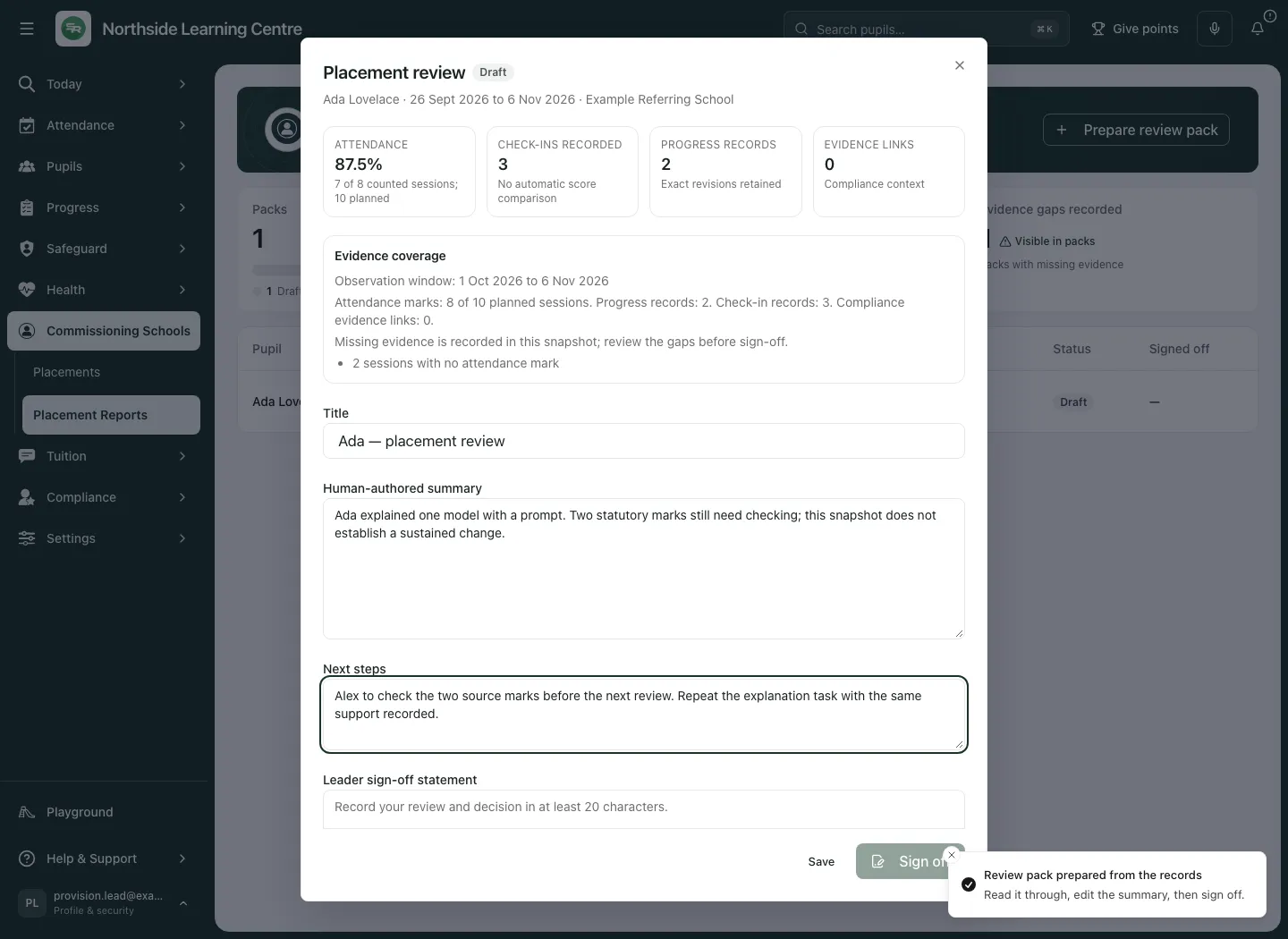
Closing, Escape or navigation can ask whether to discard unsaved report text. Choose to stay if you need to save or copy your work. Contact changes, source records and separate work retain their own save steps.
Sign off the saved evidence deliberately
Section titled “Sign off the saved evidence deliberately”- Read the current pack, its source window and gaps. Only an authorised approver sees the sign-off controls.
- Enter Leader sign-off statement, between 20 and 1,000 characters, recording your review and decision.
- Select Sign off. Unsaved title, summary or next-step changes are saved first where you have edit permission.
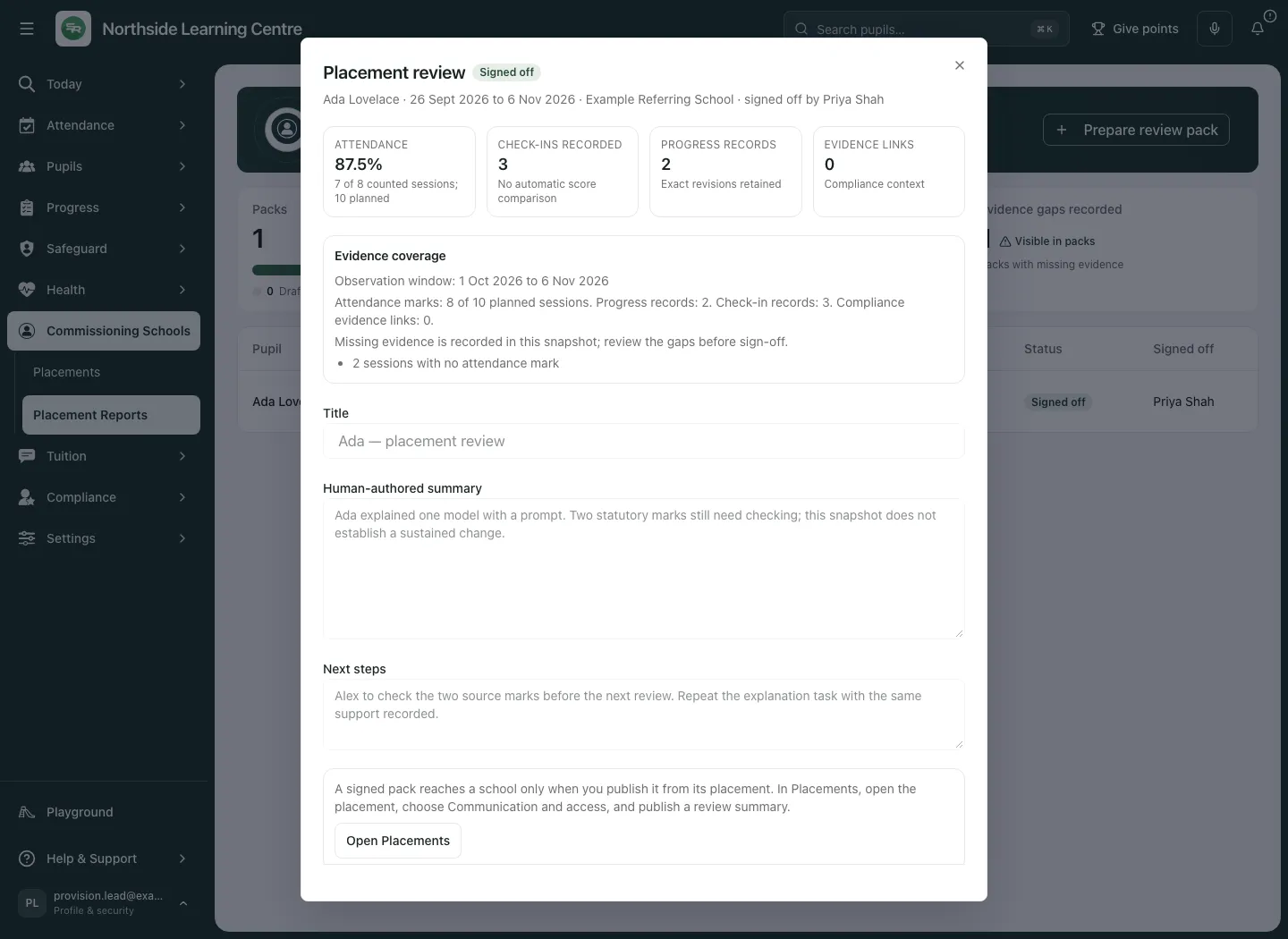
- Wait for Report signed off. Reopen and check Signed off, the sign-off name and locked text.
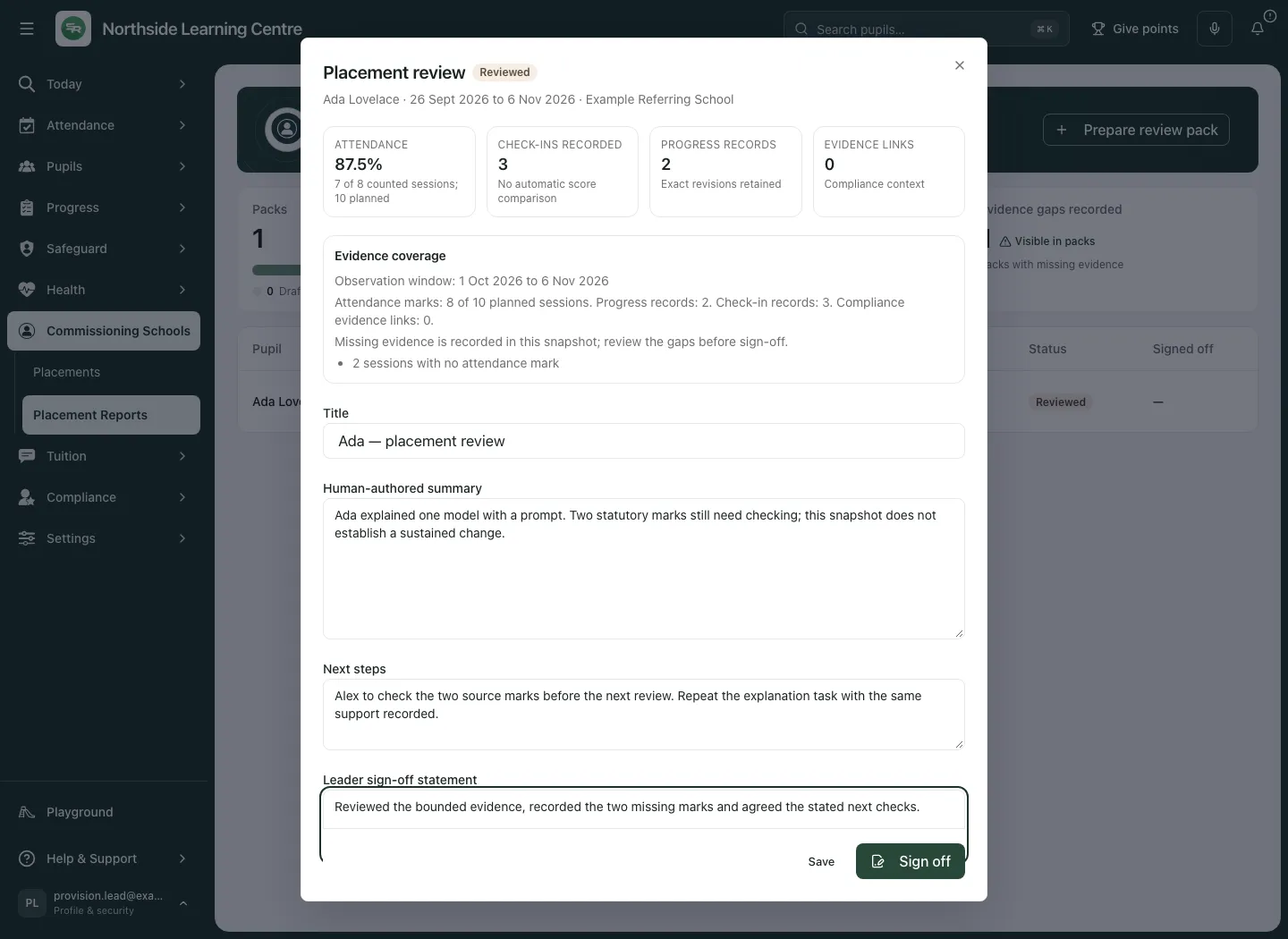
Sign-off can require a recent authenticator verification. If asked, verify through Profile & security, then return to the current report and try sign-off again. Saved, but not signed off means the text save succeeded but approval did not: check the new saved revision instead of assuming approval or re-creating the pack.
A signed or legacy sent pack is locked. A revision or source-snapshot conflict requires a fresh read and another deliberate decision; do not sign an older open version blindly. Sign-off records a human decision about this bounded report, not proof that the placement caused improvement or all required evidence exists.
Publish and download as separate next steps
Section titled “Publish and download as separate next steps”A signed single-placement pack reaches a school only through its placement’s authorised sharing workflow:
- Use Open Placements where available, or open the placement independently.
- Choose Communication and access and the review-summary publication controls.
- Check the named school relationship, recipient and approved report revision, then complete that workflow’s publication action.
- Check its resulting state. Report sign-off and download alone do not publish or email anything.
See Record a placement and share updates with the commissioning school. An all-placement pack cannot be published to a school as if it belonged to one placement. Historical Sent is retained history, with sent to information where recorded; it is not a new delivery receipt.
For your own authorised use, eligible staff can choose Download CSV or Download themed PDF under Export saved review pack. Save changes first. Export checks the saved revision and produces a local file; it does not publish to a school or send to a family. Check the file, scope and approved sharing channel before using it externally. If the report changed, reopen it; if rate-limited, wait rather than repeatedly requesting another export.
For statutory attendance evidence use the separately permitted Attendance exports or CSV / Excel attendance actions and Export statutory attendance evidence. Those exports have their own date, scope, notes and evidence controls; they are not the placement pack itself.
Use the review on a phone
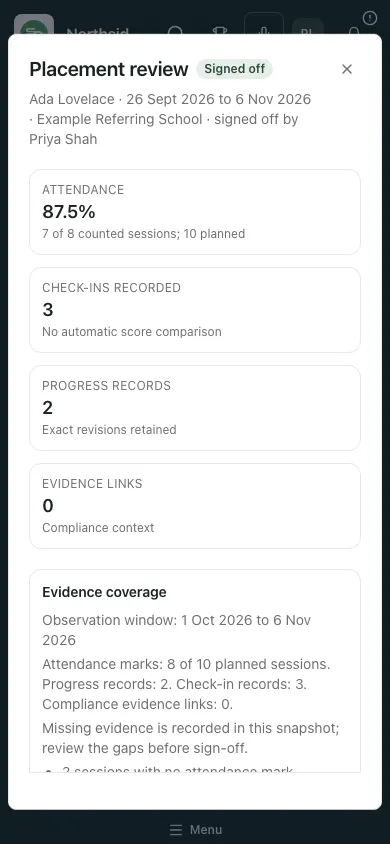
Section titled “Use the review on a phone”Open the same pack and scroll within it. Keep pupil/period, coverage, summary and sign-off separate; a control lower down the dialog is not absent permission until the record has been checked.
If something is refused or unavailable
Section titled “If something is refused or unavailable”| Situation | What to do |
|---|---|
| No reporting pupils or history cannot load | Close and reopen preparation; check current pupil access. Do not substitute a pupil ID from another view. |
| Blank, reversed or overlong dates | Choose a valid period no longer than 366 days, then recheck the placement. |
| Prepared but list refresh failed | Read the success message and refresh/open the saved pack; do not automatically create another. |
| No sign-off action | Check approval permission, source snapshot and statement length. Read-only access is not an approval role. |
| Saved but approval refused | Reopen the saved revision, complete any authenticator check and review it again. |
| Changed revision or snapshot | Copy unsaved review text, reload and compare the current source before deciding. |
| Export unavailable or failed | Save text first, confirm export permission and current revision, follow any wait/reopen instruction. A failed download is not a sent report. |
| Stale list or unknown legacy coverage | Retry and read the available source evidence; never replace the gap with a zero. |
Common questions
Section titled “Common questions”What should I check before asking a leader to sign?
Section titled “What should I check before asking a leader to sign?”Review the selected snapshot, professional summary, next steps and evidence gaps, then follow the authorised sign-off.
Does downloading a signed report publish it to a school?
Section titled “Does downloading a signed report publish it to a school?”No. Preparing, saving, signing, downloading and publishing are separate actions. Use the explicit school-publication workflow.
Related: Attendance tracking, Weekly rota, Placement sharing, Support.