Prepare and complete an EHCP annual review
Written for: SENCOs, review chairs and authorised SEND staff.
Gather advice, prepare the meeting and report, record the authority decision and retain outstanding work and the next review date.
Work through Prepare, Meet, Report, Decision and Close while keeping each action’s actual state visible.
You need access to Annual Review and the pupil. Creating or changing a review, approving a report and sending communications may require different permissions. Confirm the school and pupil before editing. Dates shown by the app support planning; check the individual case and school’s agreed process rather than treating a screen as proof that every obligation has been met.
The screenshots use a fictional Grace Hopper review chaired by Sam Patel. No invitation, evidence request, pack, meeting link or final report was sent, no recording or paid AI was run, and no live review was changed.
Find the review and the next action
Section titled “Find the review and the next action”- Open Annual Review. Read Current reviews with its pupil denominator, then check meetings, advice, reports and decision counts.
- Use Search annual reviews, Review cycles, Year group and Due status to find the relevant cycle. Current and historical cycles are different records.
- Read the row’s Stage, Next step, Works to date and Chair. The date relates to the current step; it is not always the meeting date.
- Choose Open review for the pupil. The six-week deadline view below the register offers dated advice and meeting actions. Refresh annual reviews retries the register read.
- Use Take a tour for an introduction to the workflow, then return to the actual pupil record before making changes.
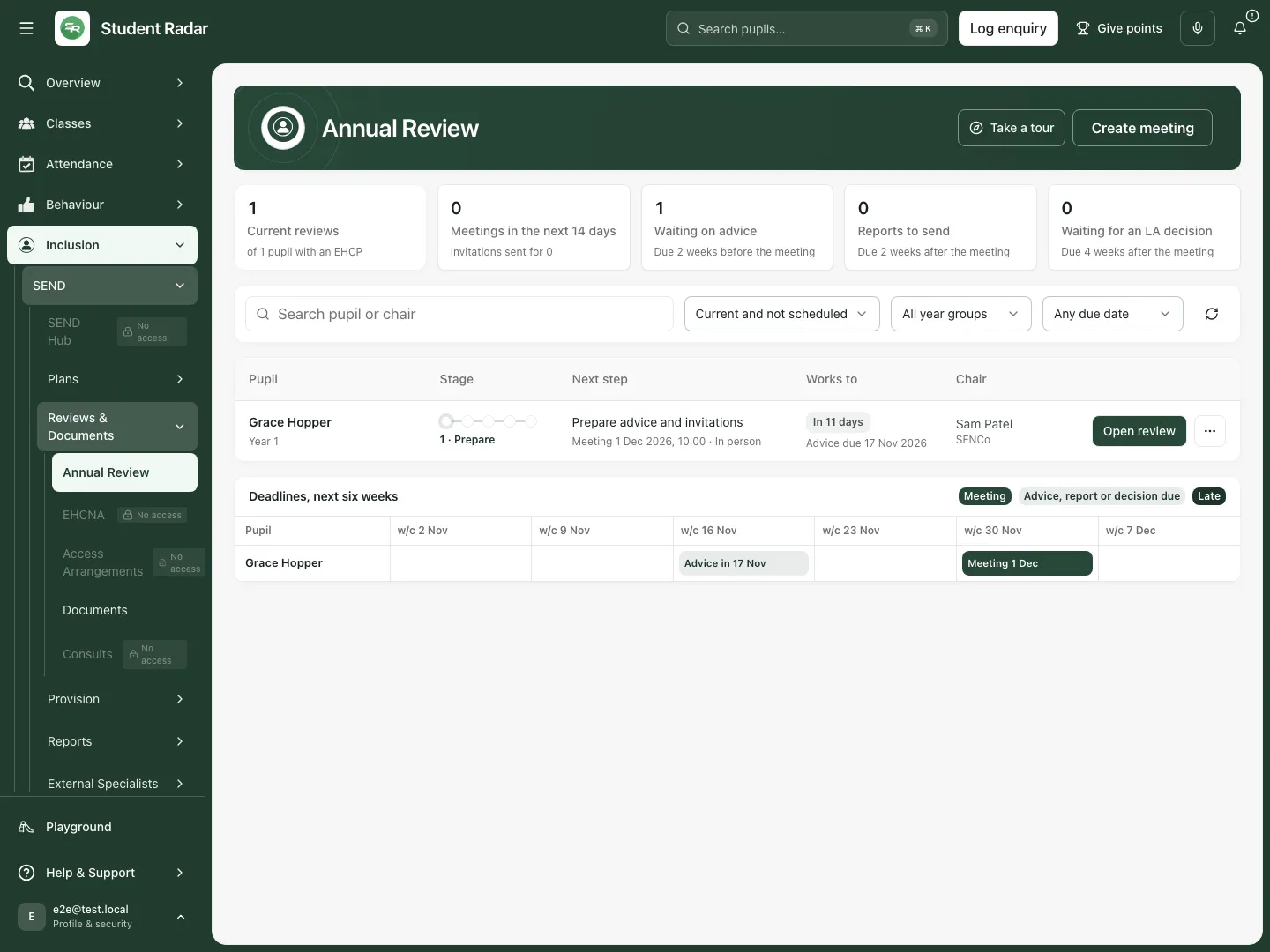 The fictional register shows one current review for one pupil with an EHCP, with advice due before the scheduled meeting.
Create or update the meeting
Section titled “Create or update the meeting”- Choose Create meeting and select the pupil.
- In Meeting details, enter the required Date and Time, choose Format: In person, Online or Hybrid, and check the required Review due date. Under Responsibility, enter the required Chair / owner name and optional Role. Check the existing review context before saving.
- Choose Create meeting to save. If the pupil already has an active review, the form becomes Update meeting and retains its notes and evidence.
- Open the saved review and check the pupil, meeting date/time and chair. Do not create a duplicate cycle because an initial save response was unclear: refresh and check first.
- Use the pupil row’s More actions menu when changing the existing meeting. Completed or cancelled reviews remain history; do not use them as editable new cycles.
Prepare: gather advice and identify gaps
Section titled “Prepare: gather advice and identify gaps”- Open Prepare. Read the evidence-check count and the table’s Document, Type, Status, Source and update information. An empty list means no evidence or requests are recorded in this review, not that none is required.
- Choose Add document. Enter Document, choose Status, and use Upload attachment when adding the actual supporting file. Choose Add document after checking the details. A checklist entry and a received attachment are different things.
- Choose Request information. Select Request type for information or Document upload. Enter Request title, Recipients, Response due and Request details; for a document request, also enter Document name. Review the recipients before choosing Send request. This is a delivery action, not a private draft save.
- Use Ping staff to prepare a staff evidence request in the composer and Send Ping only after reviewing its recipients and wording. Link existing attaches an appropriate existing Ping instead of starting another.
- Open a recorded request to check its response and any received document. A sent request is still outstanding until the information or file is recorded. Retry a failed request only after checking its displayed state.
- Use Add attendee to open Annual review attendees. Add names, roles and email addresses; record attendance status or an apology reason when known. Save without inviting saves the list. Invite attendees also starts invitations. Check partial-save or delivery notices before repeating an action.
- Review the original EHCP, uploaded advice and relevant SEND evidence. The EHCP header link opens the source plan; it does not silently replace missing review evidence.
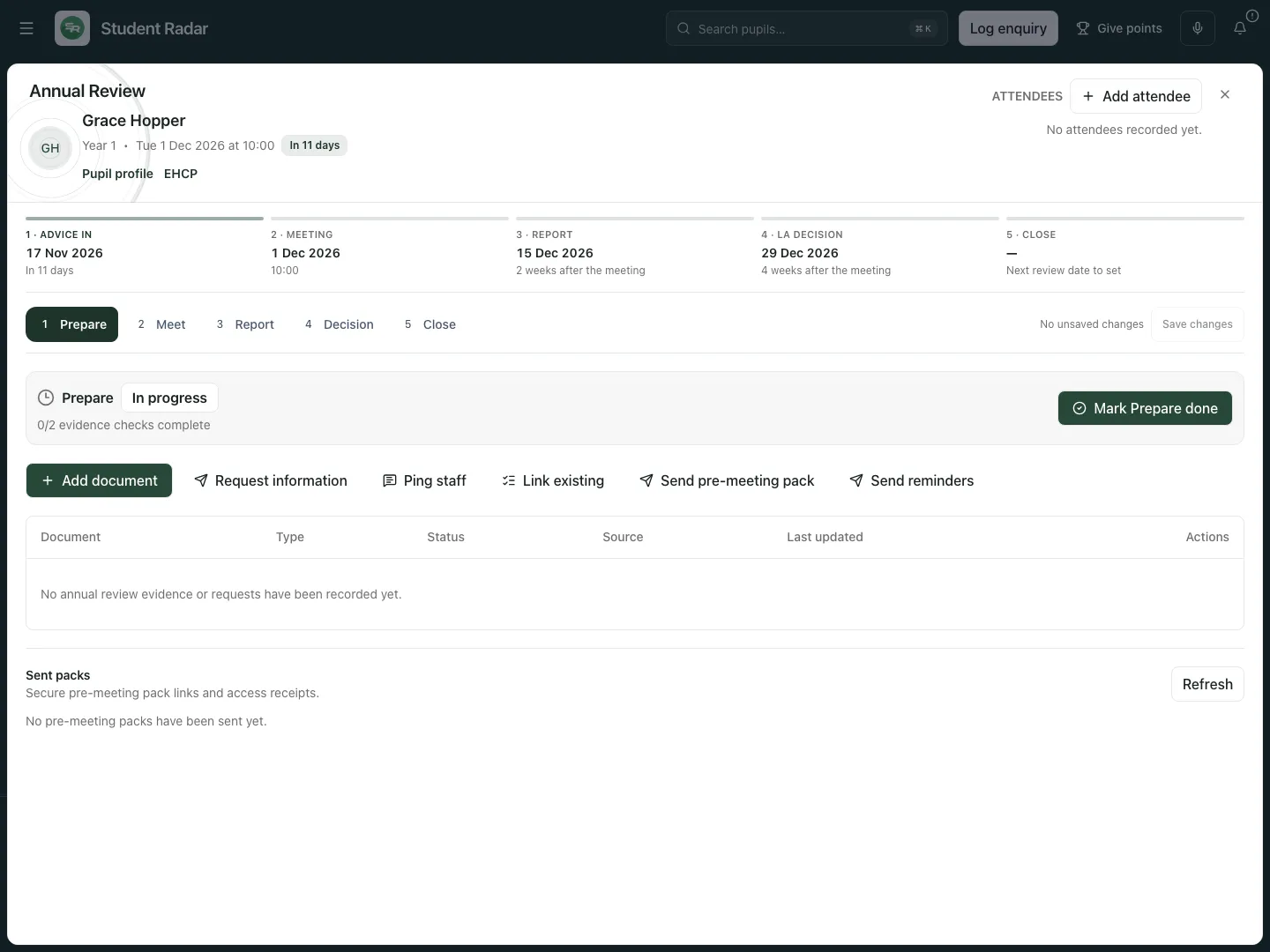 Grace’s fictional Prepare phase is deliberately incomplete: no evidence, attendees or pre-meeting pack has yet been recorded.
Prepare and check a pre-meeting pack
Section titled “Prepare and check a pre-meeting pack”- Choose Send pre-meeting pack. Review the available documents, select the intended ones and check every selected recipient. Add extra recipients only when authorised.
- Review the Shared message, document count, recipient count and link expiry. A secure link is still a communication containing access to pupil information.
- Choose Send secure links only when ready to deliver. Opening the pack form sends nothing.
- Return to Sent packs and use Refresh to inspect per-recipient results and access receipts. Dispatch, successful sending and someone opening a link are separate events.
- Use Send reminders only after checking what remains outstanding and who should receive a reminder.
- Choose Mark Prepare done and read Mark Prepare as done?. The app checks that requested information is received and the latest pack was successfully sent to every recipient. Resolve the reported gap rather than assuming a completion tick sends a missing pack.
Meet: discuss each section and record actual responses
Section titled “Meet: discuss each section and record actual responses”- Choose Meet. Use the section rail from A through K, including H1 and H2, or Meeting EHCP section on a narrow screen. Previous and Next section move between sections.
- Read Original EHCP wording. If no uploaded content is available, open the source EHCP and resolve the gap; do not present absent wording as a reviewed source.
- Enter Section meeting notes and review Evidence used in this section. Keep clear which evidence supports the discussion.
- Record Participant agreement for each attendee from their actual response. Add attendees first. Silence or a generated paragraph is not agreement.
- Edit Editable proposed wording when the meeting agrees a proposal. Generate suggestion and Refresh after meeting are optional drafting actions; review their output against the evidence and disagreements before adopting it.
- Choose Save progress and check the save status. Choose Mark section complete when the section is ready. A section can remain not started, needing evidence or in disagreement while the rest of the meeting progresses.
- Use Record only with the school’s authorised recording process. Stop recording ends capture; keep an eye on connection and transcript status. An uploaded recording and the live meeting transcript are separate sources.
- Review and correct the Meeting transcript where permitted. Clear transcript asks for confirmation and deletes the saved transcript text and associated live transcript state; preserve necessary evidence before authorising deletion.
- Share meeting link starts a separate sharing workflow. Review who should join before authorising it. Finish meeting completes the meeting workflow; it does not prove everyone agreed with the recommendations.
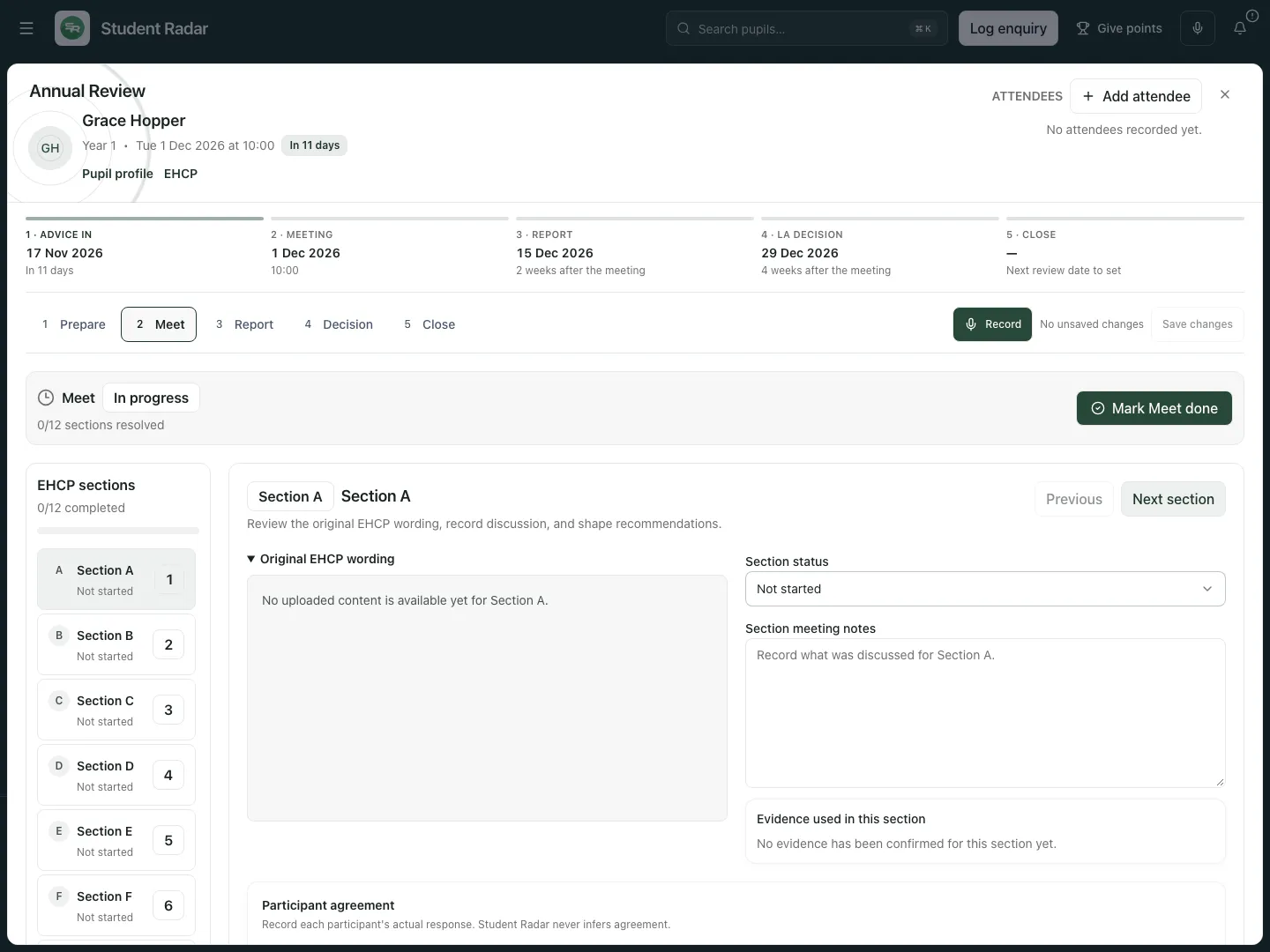 The fictional meeting has working notes but no uploaded Section A wording or participant agreement. The gaps stay visible beside the drafting controls.
Report: draft, edit, approve, export and send
Section titled “Report: draft, edit, approve, export and send”- Choose Report. If coming from Meet with unresolved sections, the app warns that sections still need review. Resolve them, or select Report again to continue knowingly; the warning does not fill gaps.
- Review Follow-up tasks. Use Add follow-up task to record needed work, and update task completion from evidence of the work. A complete task is not evidence of improved pupil outcomes.
- Review Section drafts, source evidence and the report’s status before choosing Generate report. This optional AI action prepares a report draft; it does not approve or send it.
- In Annual review report draft, switch between Preview and Edit. Correct the text, missing evidence and attribution, then choose Save report. Save changes also flushes outstanding workspace edits.
- Choose Approve report only after authorised review. If the text changes afterwards, save and re-approve it before sending.
- Export report produces a PDF of the report. Exporting and sending are different actions.
- Choose Send final report only after checking approval, the saved text and intended recipients. Read the reported send result or error and any previous attempted-send information before retrying.
- Choose Mark Report done when the actual report workflow is complete. A phase tick is not a substitute for approval or delivery evidence.
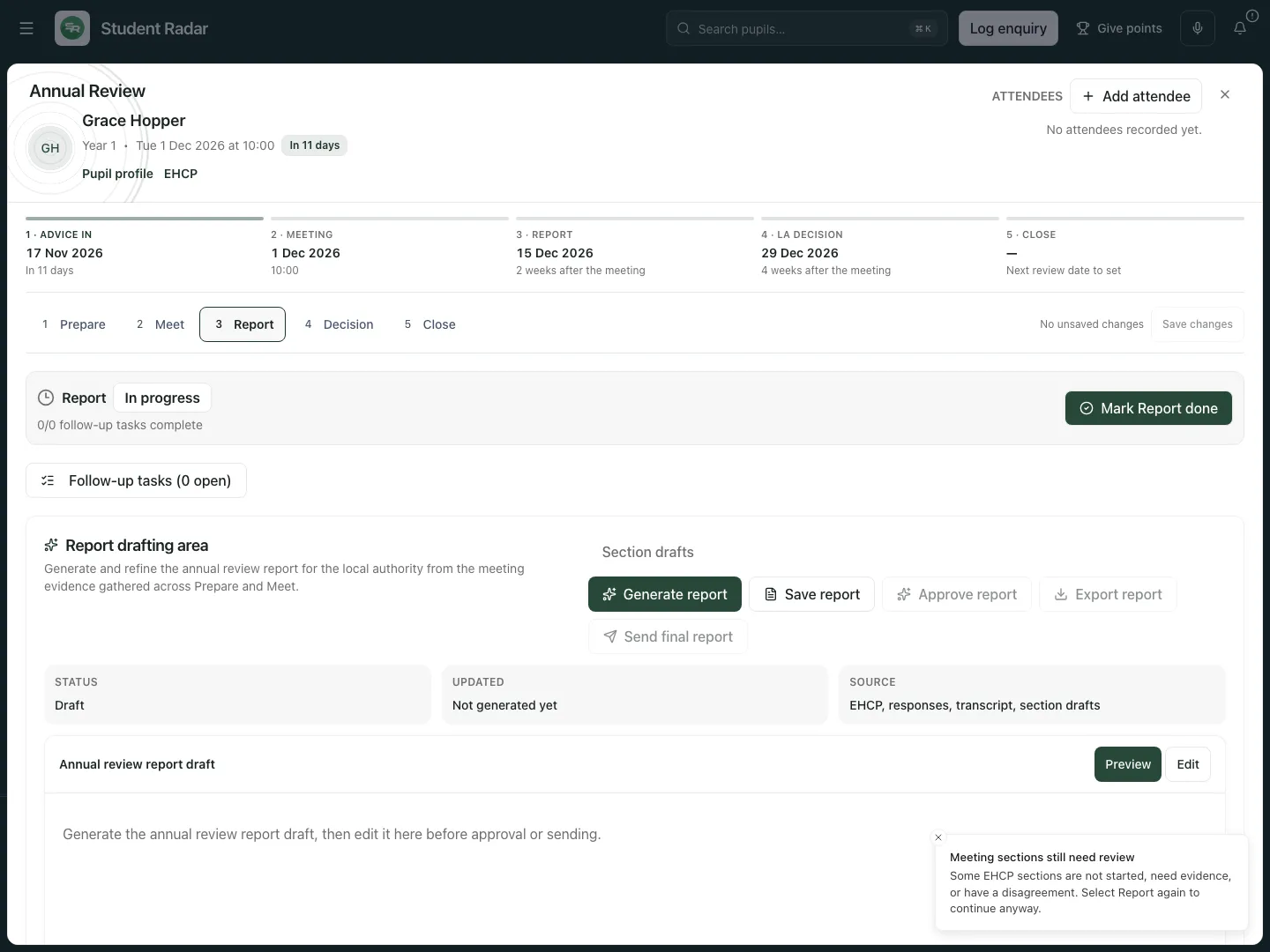 The fictional report has not been generated. Save, approval, export and final sending are separate controls and states.
Decision: separate the recommendation from the authority’s decision
Section titled “Decision: separate the recommendation from the authority’s decision”- Choose Decision. Under School recommendation, select Recommendation: Maintain EHCP, Amend EHCP or Cease EHCP, reflecting the review meeting’s recommendation.
- Under Local authority decision, leave LA decision as Not received until the written decision arrives. When received, select its actual decision, enter Date received and the optional Decision letter reference.
- Choose Save decision record. Reopen the review and check both fields; a saved school recommendation must not be mistaken for an LA decision.
- Choose Mark Decision done when the recorded decision workflow is complete. A date entered without the written decision is not a substitute for that decision.
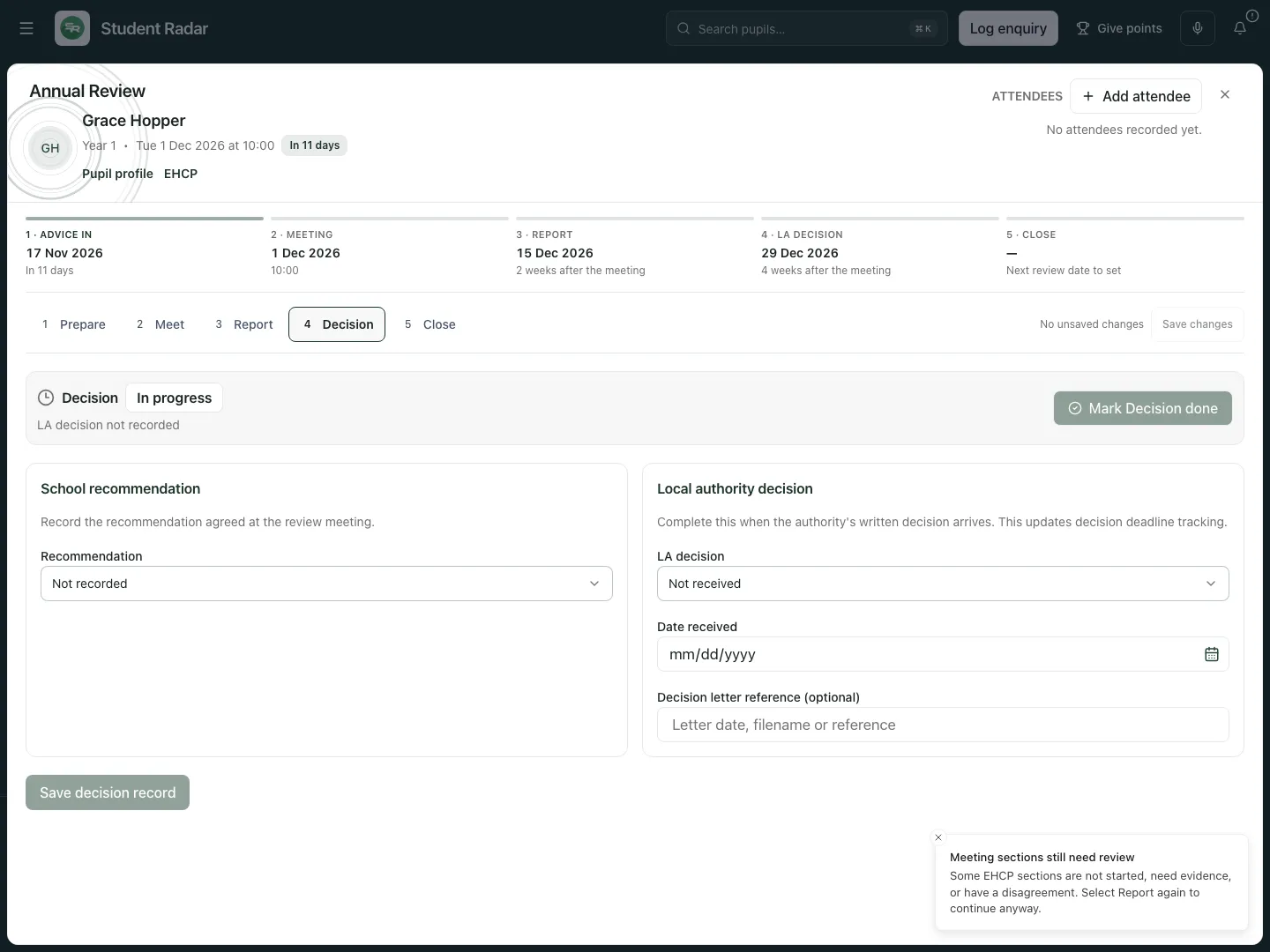 The fictional review initially has neither a recommendation nor an LA decision recorded.
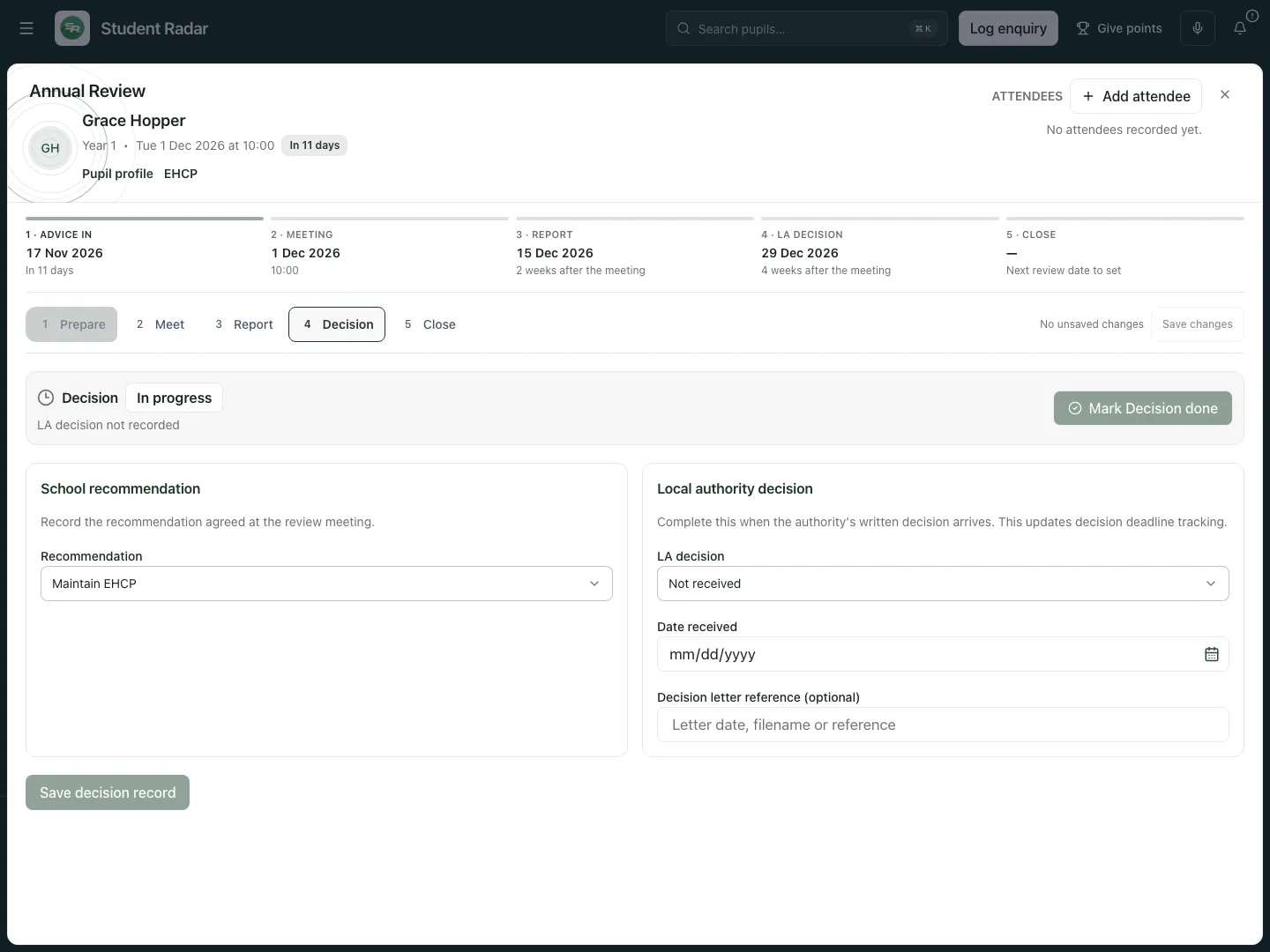 After a mocked save and reopening, Maintain EHCP is the school recommendation. The LA decision remains Not received.
Close: retain the next review date and outstanding work
Section titled “Close: retain the next review date and outstanding work”- Choose Close and read Before closing. The app asks for the LA decision and its receipt date first.
- Check the number of open follow-up tasks. These remain available after closure; closing the review does not complete them.
- Enter Next review date and Next review notes.
- Choose Complete this review only after checking the record and the school’s completion process. This closes the current review; it does not automatically create the next meeting.
- When ready, return to the register and create the next meeting. Keep the previous cycle as the completed record.
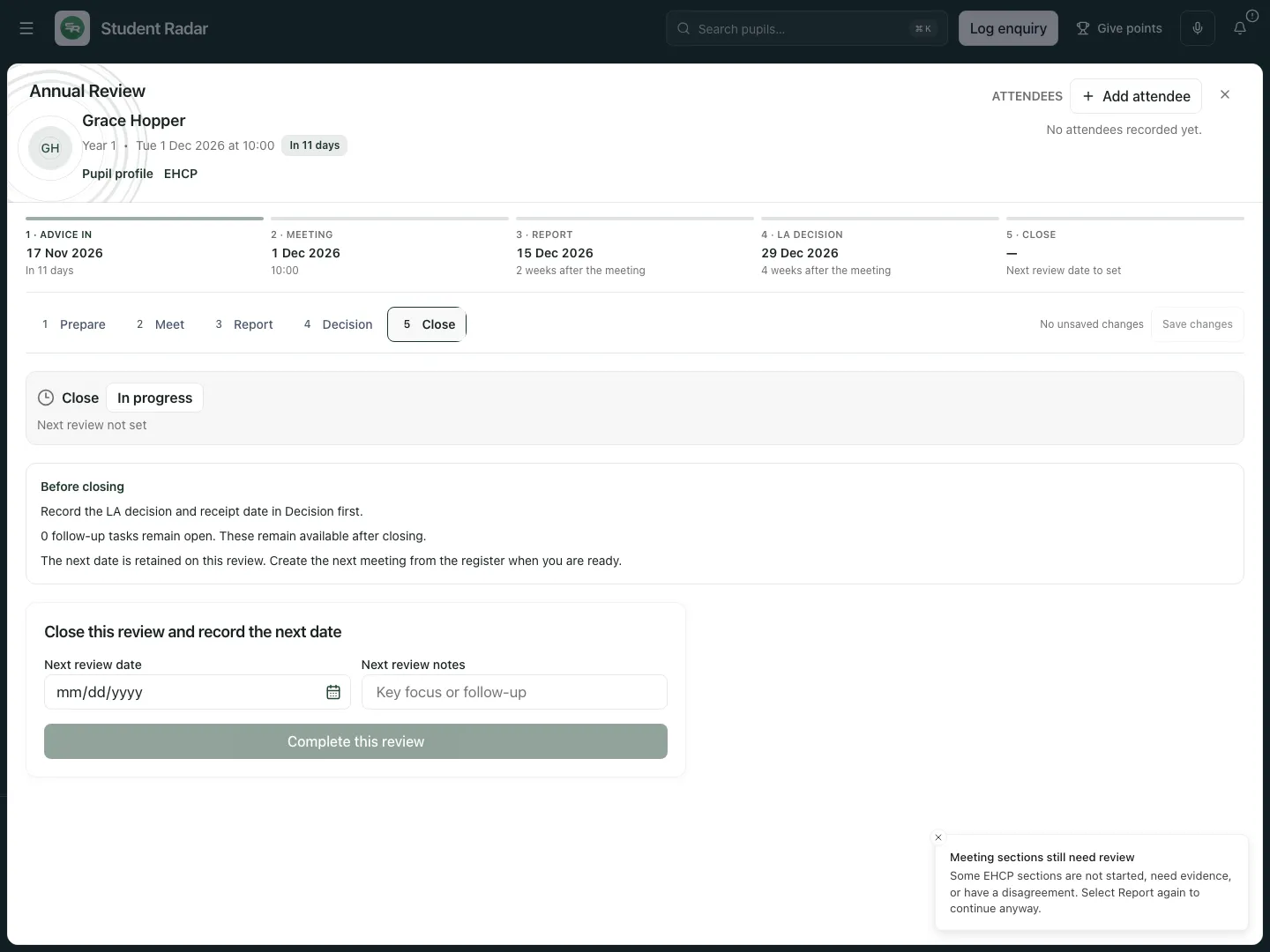 The fictional Close phase explicitly identifies the missing LA decision and retains separate fields for the next date.
Dates, saving and recovery
Section titled “Dates, saving and recovery”The deadline strip distinguishes advice circulation, meeting, report, LA decision and next review. The app derives advice circulation 14 days before the meeting, the report 14 days after, and the LA decision 28 days after, with recorded overrides used where supported. These are the app’s date calculations; review them against the actual case. A received decision changes deadline tracking, while the next review date is retained separately.
Watch No unsaved changes, saving or failure messages as you edit. Meeting, decision and next-review drafts use saved revisions to detect another editor’s changes. Save changes flushes pending edits before moving on. If the review changed elsewhere, the draft remains open: copy needed text, reload the saved review and reconcile it before trying again. Do not repeatedly overwrite a newer record.
A save failure offers Retry save, Copy draft and Discard local changes. Copy draft preserves draft text for recovery; it does not save it to the review. Keep the window open if copying fails. A server response that does not confirm the saved revision is treated as an unconfirmed save.
Phone use
Section titled “Phone use”- Open the register and use the same search and cycle filters.
- Open the pupil’s review. Move through the five phases and use Meeting EHCP section for meeting notes.
- Review the save status and delivery results before leaving a form.
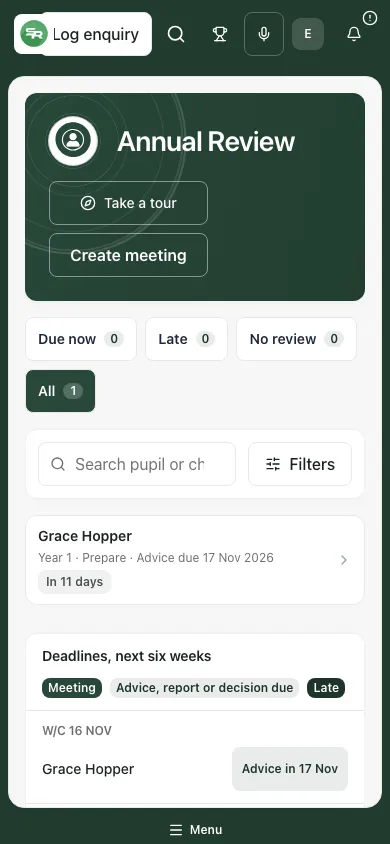 The fictional phone view retains the current review, stage and next action in a compact layout.
Problems and questions
Section titled “Problems and questions”The pupil is absent. Check the school, EHCP eligibility, cycle filters and pupil access. A failed register read is not evidence that no review exists.
Prepare will not complete. Check outstanding advice or document responses and the latest pack’s per-recipient sending results. A queued request, checklist entry or unsent pack does not satisfy those checks.
Report did not open on the first click. The app warns when meeting sections remain unresolved. Review the warning and section states; select Report again only when appropriate.
My report cannot be sent. Check permission, saved edits, approval and any attempted-send error. Re-approve changed content before sending; do not assume an earlier approval covers new text.
Can I delete an attachment or request? The deletion confirmation explains its effect. A received-file deletion also affects the pupil evidence record and may remove the stored file if unused elsewhere. A request deletion can remove its upload records. Review carefully; these are not harmless list filters.
Does the recommendation update the LA decision? No. They are separate fields, as the reopened fictional example shows.
Does closing start next year’s review? No. The next date stays on this record; create the next meeting from the register when ready.
Related: SEND Hub, SEND Register, EHCPs, Pupil Passports. EHC needs assessment and SEND Documents guides are planned.