Record school assets, loans and returns
Find the asset and record the actual assignee and handover, then check returns, condition and the item’s history. A physical loan is different from reserving a room/resource. Record who has the item and the real handover, rather than treating a planned booking as custody.
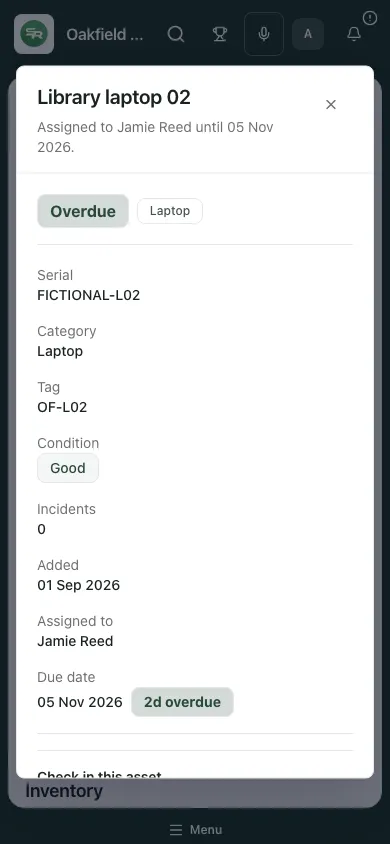
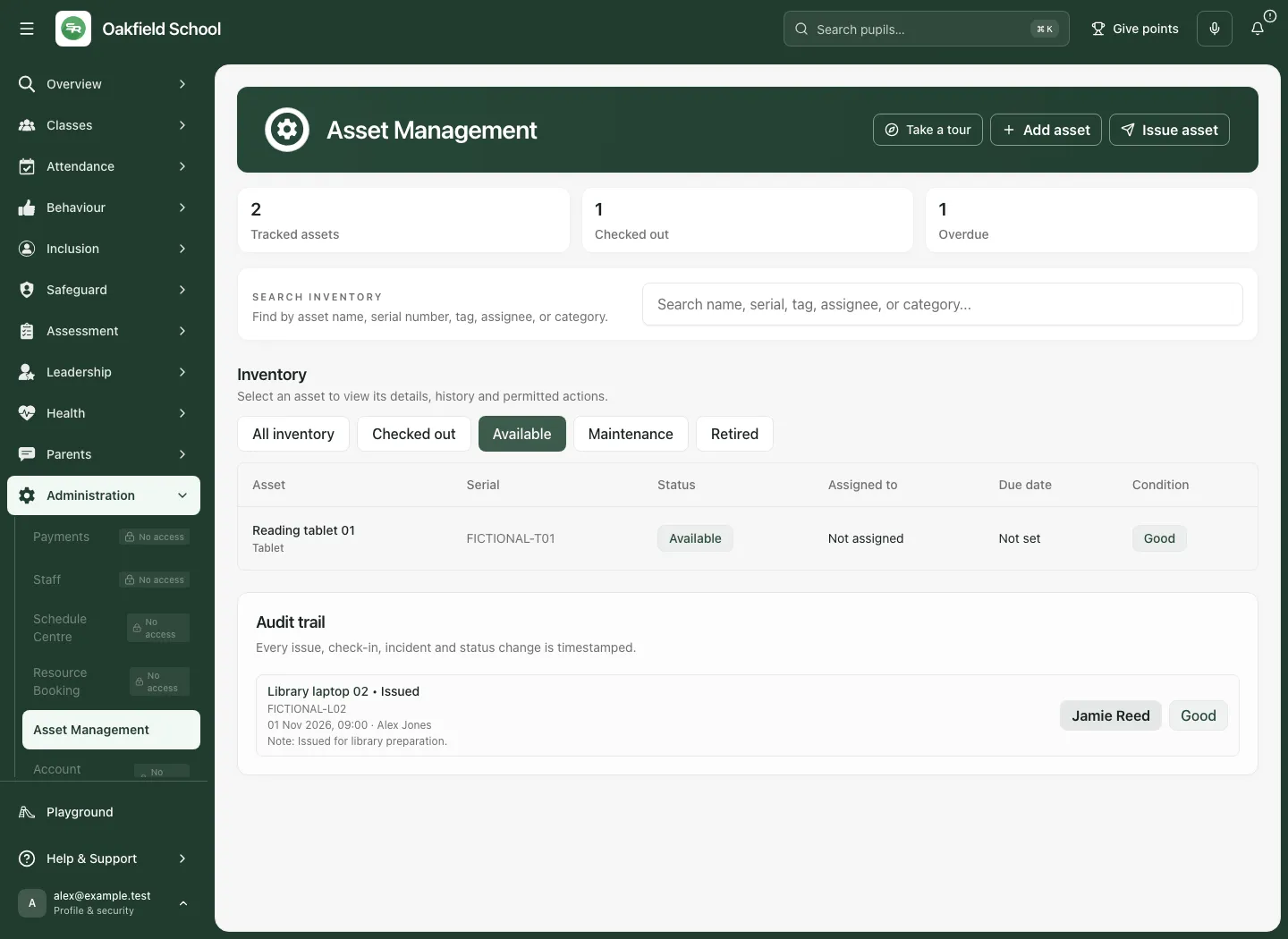
The fictional inventory has an available reading tablet and an overdue library laptop. Jamie Reed is recorded as an Other assignee on the example loan, with no linked staff identity. A typed name is not proof that a staff or pupil account was linked.
1. Check the current school and action access
Section titled “1. Check the current school and action access”Open Asset Management under Administration. This area requires an authenticated school staff account; anonymous demonstration sessions are refused. Viewing, adding, issuing, returning, logging incidents and managing inventory status are separately checked.
Read any access-check or changed-session message. The workspace rechecks current authority, including when you return to the tab. A temporary recheck failure can preserve the last view and typed work; it is not a fresh permission grant. Each command still checks current authority on the server.
Agree how the school labels devices, who can issue/check in equipment and what to do when an item is damaged or overdue. Keep serials/tags unique enough to distinguish similar devices. Do not put passwords or restricted pupil information in asset notes.
2. Find the actual item
Section titled “2. Find the actual item”- Read Tracked assets, Checked out and Overdue. Overdue is computed from the open loan’s due date on the school clock.
- Use Search inventory to find an asset name, serial number, tag, assignee or category.
- Use All inventory, Checked out, Available, Maintenance or Retired to choose the relevant status. The initial checked-out view is not every asset.
- Read the asset name/category, serial, status, assigned person/type, due date and condition.
- Select the actual item to open its details, history and permitted actions. Check the serial/tag before recording a handover.
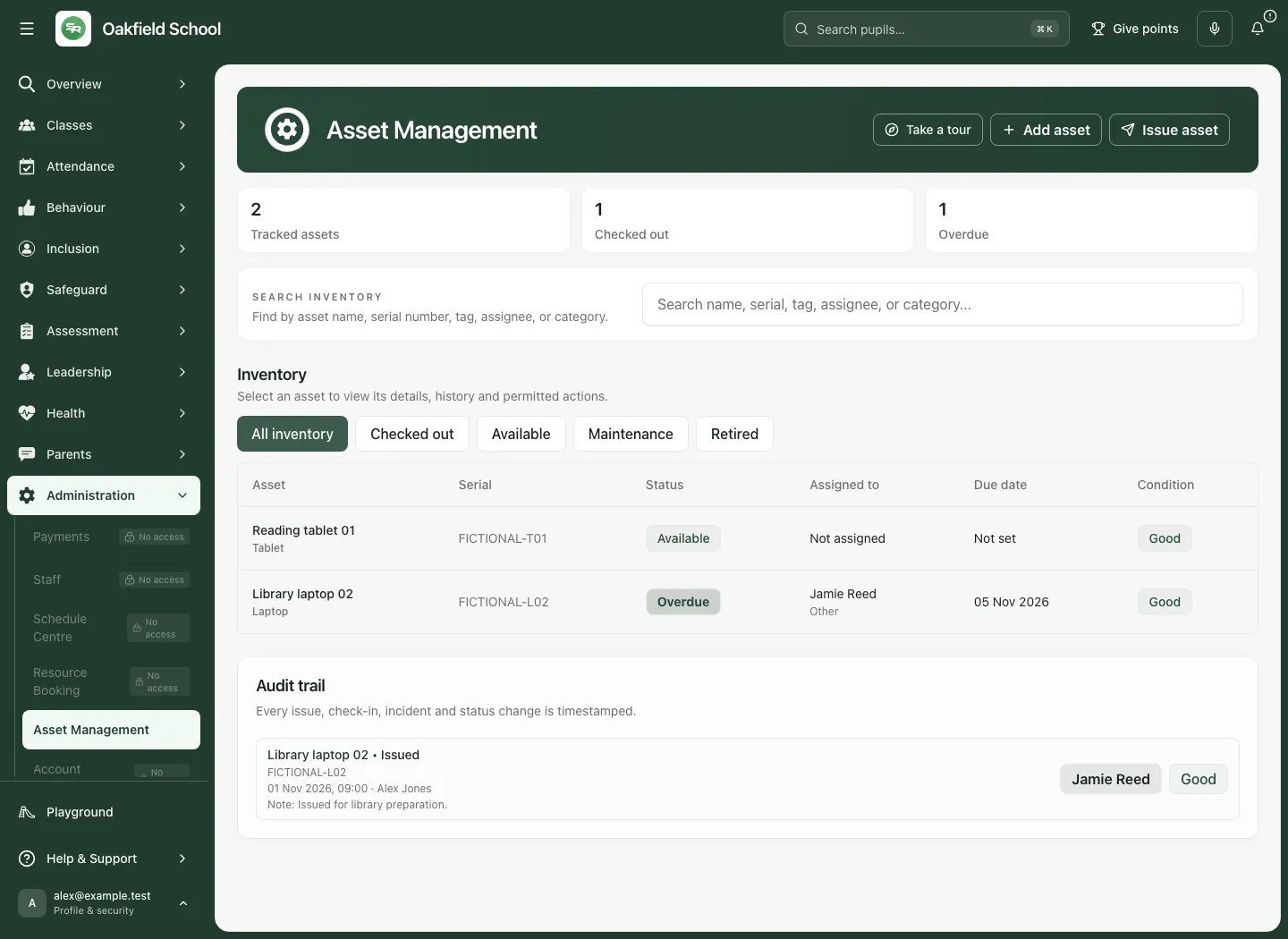
A displayed-row limit or Show more control means the first page is not the entire result. Search/filter deliberately. Automatic refresh keeps open views current while visible, but a displayed status should still be checked immediately before issuing or returning an item.
3. Add an asset record
Section titled “3. Add an asset record”- Choose Add asset with creation permission.
- Enter Asset name, Category, Serial and Tag as applicable.
- Choose the initial Status and Condition. A newly recorded available item is different from an item already under maintenance or retired.
- Add useful Notes, such as identifying or storage details, without secrets or unnecessary personal data.
- Choose Add asset and wait for confirmation.
- Reopen the new item and check the saved serial/tag and status before issuing it.
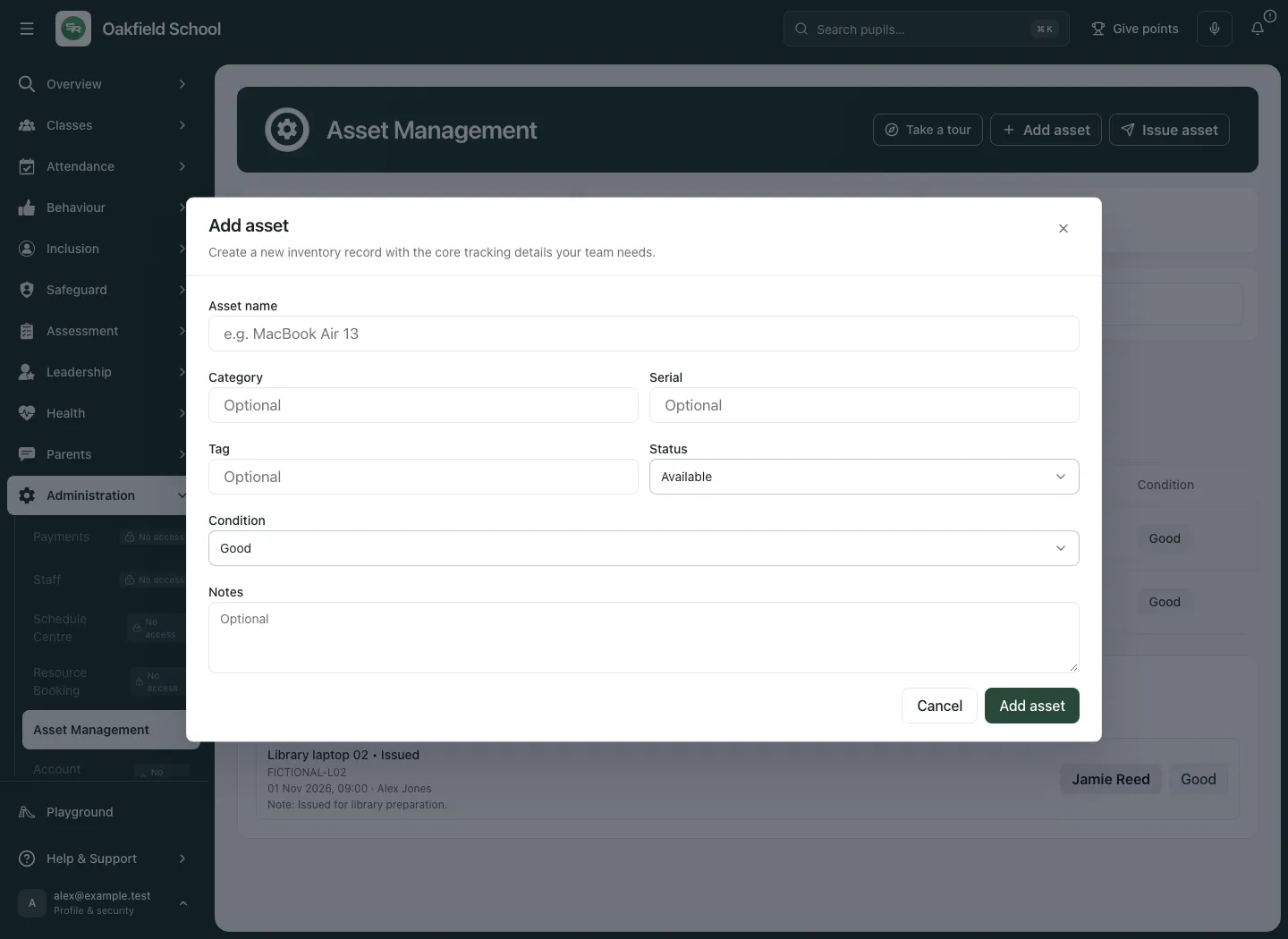
If the name/details are invalid or the current access check has changed, keep the entries while resolving the specific error. Do not repeatedly add the same device because a response is slow; check the inventory first.
4. Issue an available item
Section titled “4. Issue an available item”- Choose Issue asset and select Asset. Confirm that the intended item is currently available.
- Choose Assign to: staff, pupil/student or other, as offered.
- For staff/pupils, use the verified Name result from the permitted directory. Select the actual identity; free text alone must not be treated as a linked account.
- For Other, enter the actual recipient name according to school policy. The record remains a named loan rather than a staff/pupil account link.
- Set Due date and Condition at handover. The due date cannot already be in the past when issuing now.
- Enter Notes (condition, handover, incidents) where needed.
- Choose Issue asset and wait for the result. Reopen the item and check its open loan, recipient/type, issued date and due date.
- Complete the physical handover only according to the confirmed school process; a filled form before submission is not a saved loan.
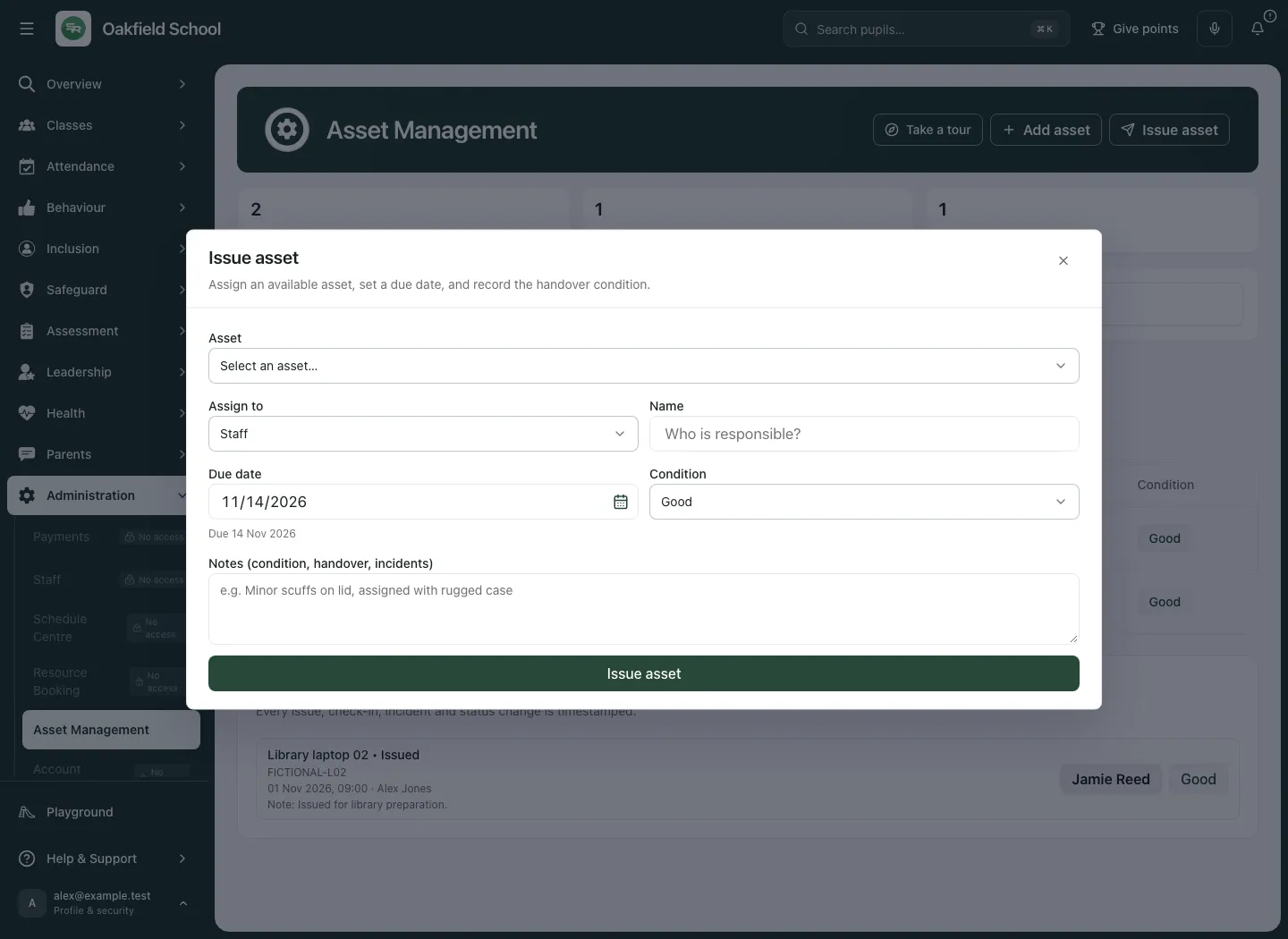
If another person issued the item meanwhile, reload the current item and resolve the actual custody. Do not force a second loan onto an already checked-out asset. A stale list is not proof it remains available.
5. Review an open or overdue loan
Section titled “5. Review an open or overdue loan”- Open the checked-out item and review Assigned to, recipient type, issue date, due date and current condition.
- Read the overdue indicator relative to the school date. Overdue describes the recorded loan; it is not evidence of damage or loss.
- Read the identity note. A linked identity, a missing identity or an Other name can have different follow-up needs.
- Use the recorded source/person relationship to arrange a return through the school’s actual communication process. The overdue label does not itself prove a reminder was sent.
- Check the item history before taking another action, particularly if a colleague has already recorded a return or incident.
6. Check an item back in
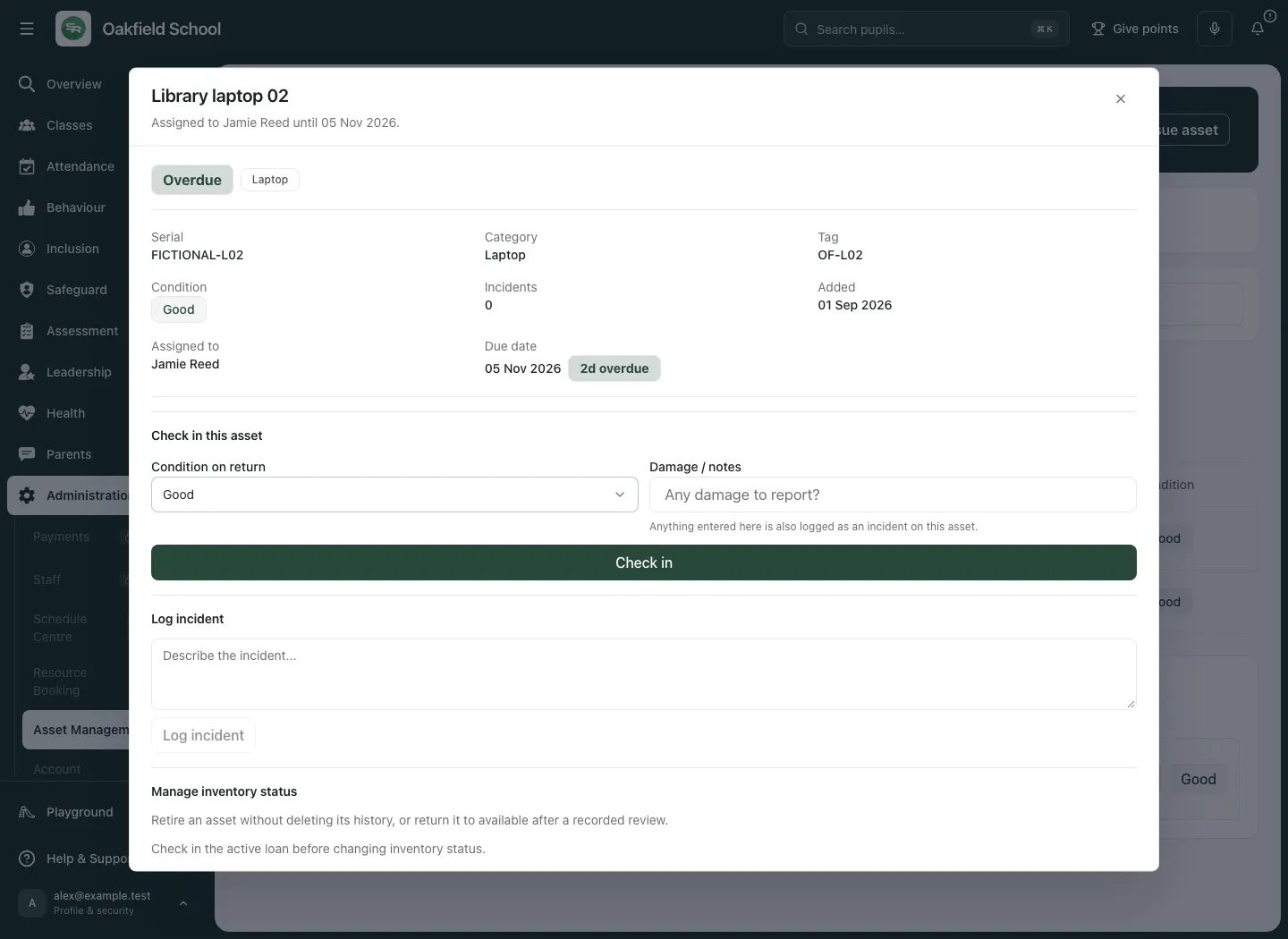
Section titled “6. Check an item back in”- Open the correct item with its active loan.
- Review the physical item and choose Condition on return.
- Enter Damage / notes where appropriate. The interface explains that anything entered here is also logged as an incident on the asset; do not enter routine unrelated commentary in that field.
- Choose Check in and wait for confirmation.
- Reopen/check the item, returned loan and updated inventory state. A local condition selection is not a confirmed return.
- If the item needs maintenance, review the returned condition and resulting status, then follow the school’s repair process. Do not mark it available until that is justified.
Do not check in a device merely to make an overdue count disappear if the school has not actually received it. Accurate custody and accurate condition are separate responsibilities.
7. Log an incident
Section titled “7. Log an incident”- Open the intended asset’s details and review any existing incidents.
- Enter a factual description in Incident details, then choose Log incident.
- Check the new incident/history entry and any incident count. Record only the necessary asset facts, not sensitive unrelated pupil context.
- Decide separately whether the item needs a status change or other owned work. Logging an incident does not automatically establish that the item was repaired, retired or returned.
For an uncertain lifecycle result, use Retry same request rather than creating a fresh status command.
A return note can also create an incident. Check history before logging the same event again through both routes.
8. Manage maintenance, retirement and availability
Section titled “8. Manage maintenance, retirement and availability”Inventory management has separate permission. It is not the same as changing the dropdown when adding a new item.
- Open the asset’s lifecycle controls and read its current state/version.
- If there is an active loan, check in the active loan before changing inventory status. Do not remove the loan to bypass this requirement.
- Choose Inventory action for the intended supported transition, Return from maintenance, Retire asset, Restore to available, or Mark as available for a checked-out record with no active loan, according to the actual state.
- Review Reviewed condition where shown and enter Reason for this change.
- Choose the same named lifecycle button and wait for the updated record/history.
- If the current details changed elsewhere, review the latest version and use Continue with the latest details before making a new deliberate decision.
Retiring an asset preserves history; it is not a deletion of earlier custody evidence. Returning an item to available status must reflect its actual condition and the permitted transition. Do not use status changes to disguise an open loan or an unresolved incident.
9. Read the audit trail and item history
Section titled “9. Read the audit trail and item history”The workspace Audit trail records issue, check-in, incident and status events with timestamps. Item details show history for that selected asset. Read the event type, actor, recipient, condition, due date and note together.
The recent workspace trail and per-item history have bounded limits. A message that older entries are omitted means the visible list is not the complete life of the asset. No recent entry is different from proof that nothing ever happened. Dates/times use the school context; check both the event and the current loan rather than reconstructing custody from a title alone.
Take a tour helps locate the current controls. It does not create an asset or submit a loan.
Troubleshooting
Section titled “Troubleshooting”The area asks for a signed-in account. Anonymous demonstration sessions are deliberately refused. Use an authorised school staff account; retrying an anonymous session cannot change that answer.
An action is missing/disabled. Check the exact current action permission, school/context and access-check state. View access does not grant every asset command.
The available item disappeared while issuing. Another person may have changed its state or issued it. Reload the current item and resolve the physical custody.
The typed person is not linked. Select a verified staff/pupil directory result. An Other name or stale/unavailable identity remains a different record type.
The due date is refused. Check the school date and choose a valid future/current date for the actual loan; do not backdate a new issue into an overdue state.
Check in or a status change fails. Review the current open loan and asset version. A lifecycle change cannot bypass an active loan; check it in first through the supported route.
A return added an unexpected incident. The Damage / notes field is also incident evidence. Use it deliberately and avoid duplicate logging.
Counts/history seem incomplete. Check filters, search, displayed-row and history limits, refresh state and current school. A bounded list is not a whole-life export.
Questions schools often ask
Section titled “Questions schools often ask”Does a resource booking issue a device? No. Bookings reserve time; an asset loan records custody.
Does typing a name link their account? No. Use a verified identity result; Other loans are distinct.
Does overdue mean lost? No. It means an open loan is past its due date on the school clock.
Can we move a loaned item straight to retired? The active loan must be checked in before the supported inventory-status change.
Does logging damage complete a repair? No. Incident evidence and maintenance/work outcomes remain separate.
Does retirement delete history? No. Earlier custody and status evidence remains part of the record.
Related guides: Resource Booking, Staff and Connect.