Maintain allergy records and review connected plans
Written for: Authorised medical leads, SENCOs, school leaders and readiness reviewers.
Find the pupil’s allergy entry and review the connected plan, consent, device checks and training before updating the intended record. An active register entry, an active plan, an approved consent and an in-date checked device are separate facts.
Use current clinical instructions and the school’s allergy and emergency procedures. This guide explains the app’s recording controls, not clinical treatment, legal compliance or emergency decision-making. The examples are fictional. Permissions determine which records and actions you can use; supply/governor views can mask sensitive detail, and governors receive an aggregate view rather than pupil clinical records.
Find and interpret the register
Section titled “Find and interpret the register”- Open Allergy Register under Health → Medication & Clinical Safety.
- In Register, use Search allergy register to find the pupil or allergen. A masked view limits the search/detail available.
- Check the entry’s status, severity, anaphylaxis/AAI flags and review date. Not recorded severity must not be read as mild or low risk.
- Read Register entries, Pupils at anaphylaxis risk, Open MIS conflicts and Time to adrenaline with their source state. An unavailable readiness figure or a dash is not an assurance of readiness.
- If Allergy records unavailable appears, choose Retry allergy records. An unreadable register/source comparison does not mean there are no allergies.
- Select an entry to open its pupil’s action-plan context. A permitted link does not grant access to hidden clinical information.
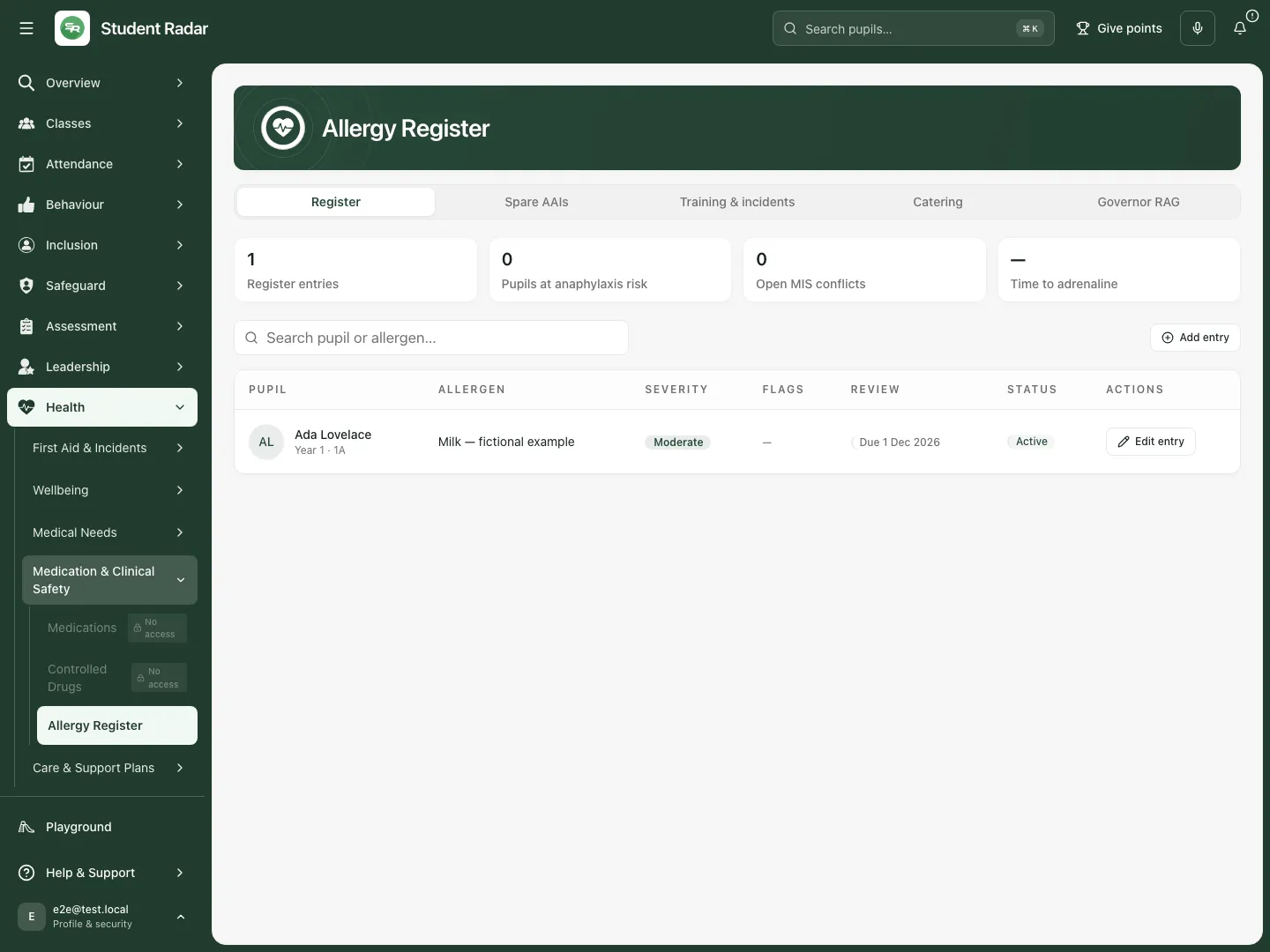 The fictional milk entry is active with recorded moderate severity. That entry alone does not establish an active action plan or approved consent.
Add, amend or activate an entry
Section titled “Add, amend or activate an entry”- Choose Add entry, then select the intended Pupil. For an existing entry choose Edit entry, or Review and activate on a draft.
- Enter Allergen and choose Category. For food allergies review Food allergen group and select the applicable group from the recorded information.
- Set Severity from the agreed record, plus Anaphylaxis risk, Needs an adrenaline auto-injector (AAI) and Review date as applicable. Choosing anaphylaxis-risk severity also selects the risk/AAI flags; review them rather than assuming the app has made a clinical assessment.
- For an incomplete new entry use Save as draft. It still requires pupil and allergen; absent severity remains visibly unconfirmed.
- Use Save and make active only after checking the information and recording severity. The app refuses another live entry for the same pupil/allergen; edit the existing entry instead.
- For an existing active entry choose Save changes. Reopen Edit entry and check the saved value. An error leaves the form available for correction/retry; it is not proof that a change succeeded.
- Cancel closes an unsaved edit. Changing the review date records a date; it does not prove that a clinical review took place.
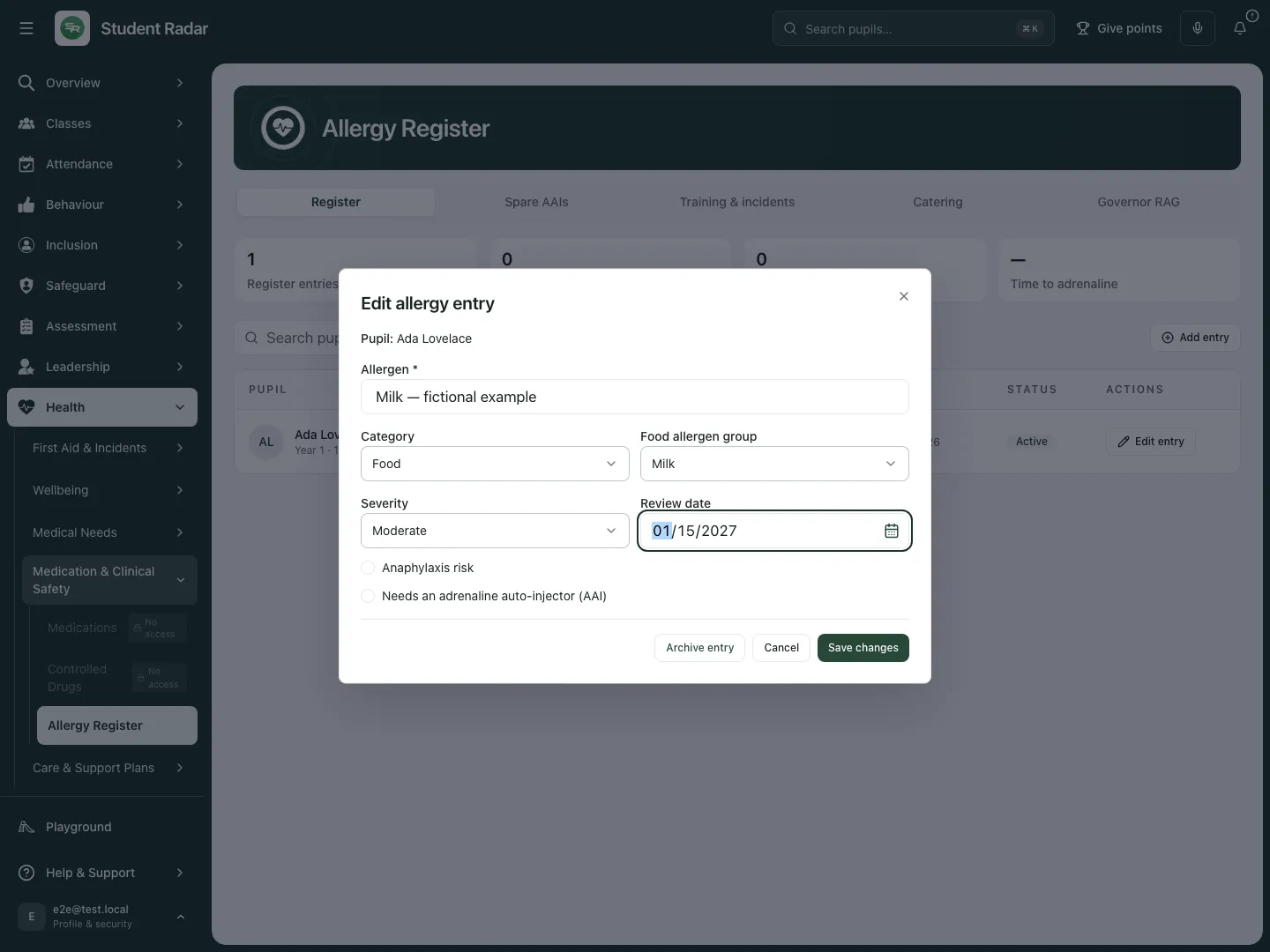 The fictional review date is being changed while the allergen and severity remain visible for checking.
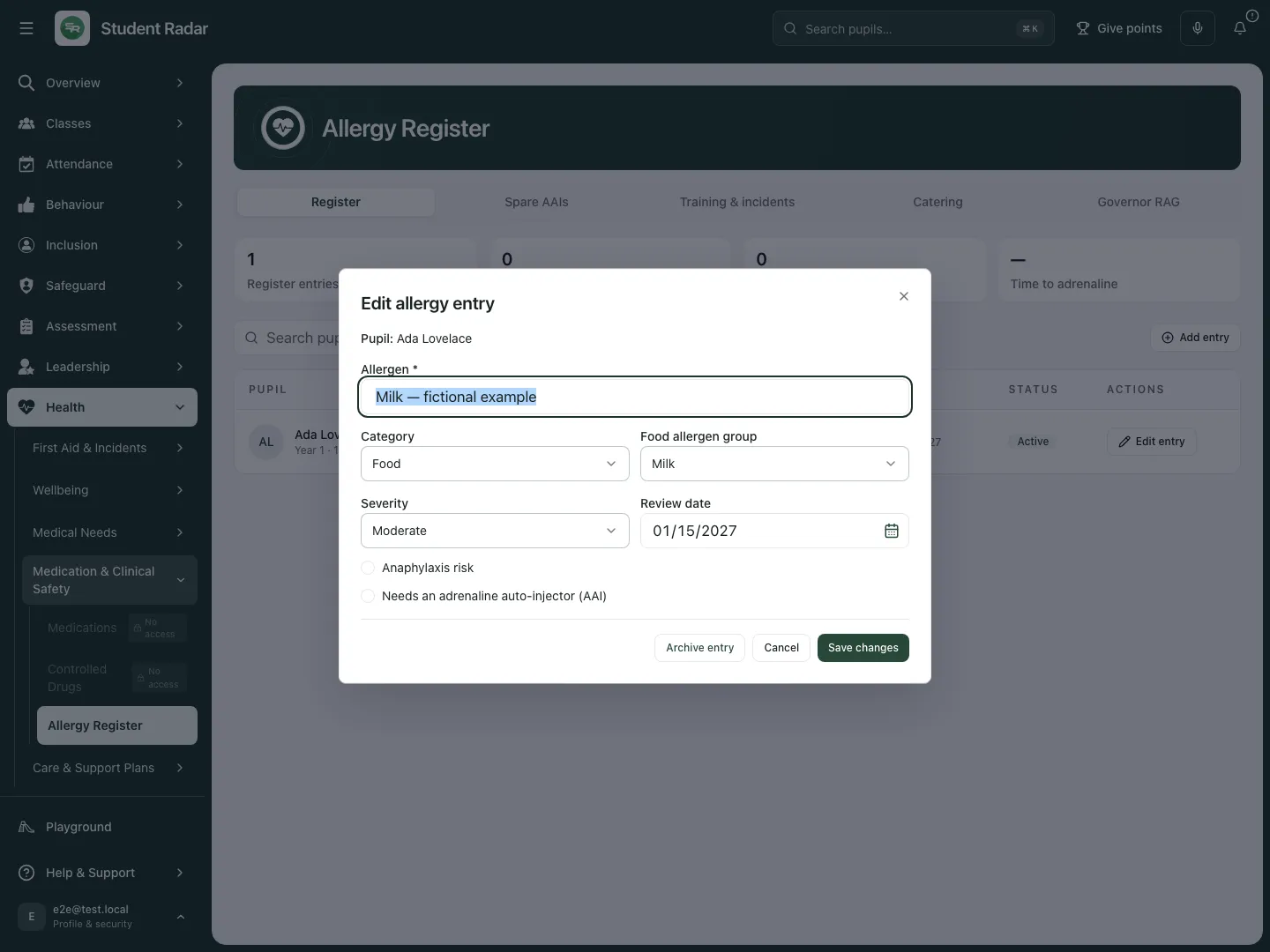 The reopened fictional entry retains 15 January 2027. Saving that date has not activated an action plan or recorded a completed review.
Review MIS suggestions and conflicts
Section titled “Review MIS suggestions and conflicts”- Review unconfirmed MIS suggestions at the top of the list before treating them as authored register entries.
- Choose Confirm for a checked suggestion or Dismiss when it should not become an entry. Inspect pupil identity, allergen and available source detail first.
- Where a Confirm … batch control is available, review the high-confidence suggestion list and its count before confirming. A source match is not a clinical verification of missing severity or plan detail.
- On a changed MIS record, Accept applies the source change while Dismiss records the decision to keep the authored information.
- For a removed MIS source, Archive entry and Keep entry are different decisions. Check the actual circumstances before acting; disappearance from the MIS is not proof that an allergy ended.
- Reopen the resulting entry and check its status/review information. Retain the distinction between source suggestions, human-confirmed records and unresolved conflicts.
Prepare and save the action plan
Section titled “Prepare and save the action plan”- Select the register entry to open Allergy action plan. Wait for the current plan read; Retry action plan resolves a failed lookup. A read failure is not proof that no plan exists and must not be used to overwrite a newer record.
- Choose Plan type appropriate to the actual agreed plan. Review Review date, recorded AAI dose/brand, second-dose interval and device location where relevant. Use current approved clinical information; the form is not a prescriber.
- Complete the recorded context: location notes, asthma/self-carry flags and prior reactions as appropriate.
- In Emergency contacts, check name, relationship and phone; Add another contact adds another contact row.
- In Recognising anaphylaxis, review the signs selected for the plan. Review Mild / moderate reaction steps and Severe reaction (anaphylaxis) — additional pupil-specific notes, plus the other instruction fields, against the approved clinical plan. Pupil-specific notes do not replace the PDF’s standard emergency wording.
- Record Clinician name and Clinician signed date only for an actual sign-off. Select The school holds the parent or carer’s consent to this plan and its date only when that consent is held.
- Choose Save draft for a working plan, or Save changes on an active plan. Inspect the saved plan; saving is separate from activation.
- Cancel abandons unsaved plan edits. Resolve a concurrent/current-plan warning before retrying rather than creating a replacement blindly.
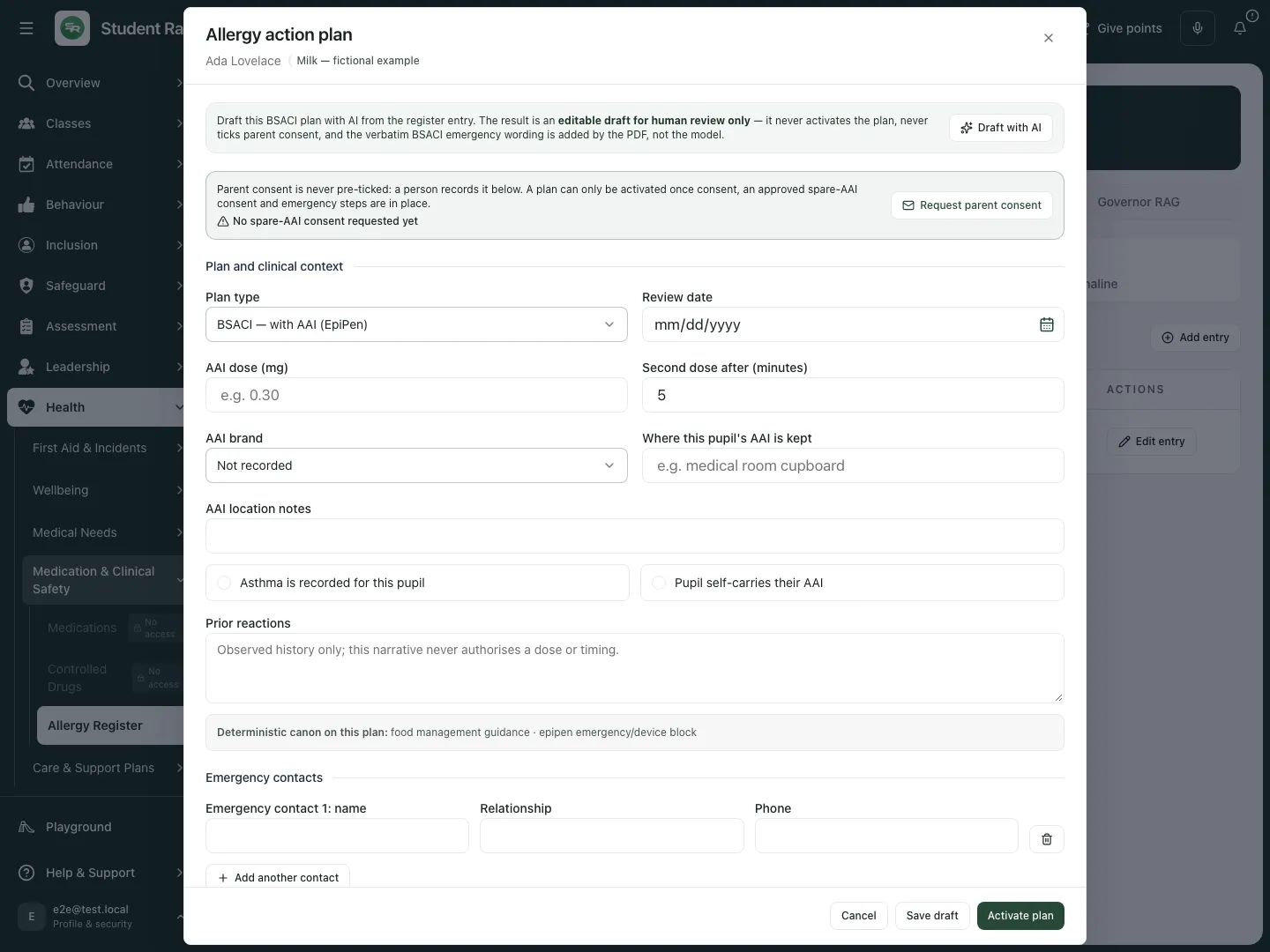 The fictional pupil’s plan form exposes clinical-context and sign-off fields. No plan has been activated in this example.
Keep optional AI drafting under human review
Section titled “Keep optional AI drafting under human review”- In the editable plan review the register entry and existing clinical information first.
- Choose Draft with AI only where authorised and appropriate. Wait for its resulting editable draft or error; it does not activate the plan or tick consent.
- Review every proposed field against actual evidence and clinical instructions. Correct or remove unsupported text; do not infer diagnosis or consent from generated wording.
- Choose Save draft only after reviewing the intended content. Use the normal activation checks separately. If drafting fails, retain/inspect the existing plan rather than assuming anything was saved.
Request consent and activate deliberately
Section titled “Request consent and activate deliberately”- Choose Request parent consent to inspect the intended recipient/request. Review the preview before the separate Send request or Send request + text control; Cancel leaves it unsent. Follow school authority for any actual communication.
- Check the eventual consent state. No request, pending, declined, expired and approved are distinct; a sent request is not approval or delivery proof.
- Before Activate plan, resolve the displayed checklist: recorded allergen and confirmed severity, both emergency-step fields, at least one usable emergency contact, actual clinician name/date and recorded parent plan consent.
- For a plan involving an AAI, activation also requires approved spare-AAI consent and a recorded pupil AAI location or confirmed self-carry. A plan explicitly without an AAI, where the register does not require one, does not have that spare-AAI-consent requirement.
- Choose Activate plan only when the content and sign-offs are correct. Inspect the resulting active state. Quarantined/unsafe content blocks activation; review and correct the clinical content rather than bypassing the warning.
- A read-only saved plan offers Download plan PDF. Check the pupil, status/version and permitted detail in the output. Masking also applies to the PDF. A generated PDF is not proof that recipients received or adopted it.
Archive an entry with its plan consequence
Section titled “Archive an entry with its plan consequence”- Open Edit entry, then Archive entry.
- Read the warning. Archiving the pupil’s last live allergy entry also retires their current action plan; check that this is the intended result.
- Choose Confirm archive or Cancel. Inspect the resulting register and plan status.
- Archived entries cannot simply be brought back through this editor. Follow the authorised new-record process if circumstances change, retaining the prior history. Do not archive to conceal a source conflict or a missing review.
Add and check spare devices
Section titled “Add and check spare devices”- Open Spare AAIs. Review Eligible-pupil coverage with the pupil risk/AAI flags, consent and age-matched in-date-device information. No eligible pupils is different from missing coverage data.
- Choose Add device. Complete Brand, Dose, Batch number, Expiry date, Storage location and location notes from the actual device.
- Choose Add to register; Cancel abandons the unsaved device. Inspect the saved device and physical location through the school’s checks.
- On a device choose Record check to open Monthly check. Select a different Second checker, then record the actual In date, Accessible and Intact checks and Notes.
- Choose Record check. An expired device cannot be made in-date by ticking a box; record its actual status and replacement through the school’s process.
- To retire a device, open Take out of service, choose What happened to it, record Notes and confirm Take out of service. Recording the status does not physically remove or dispose of a device.
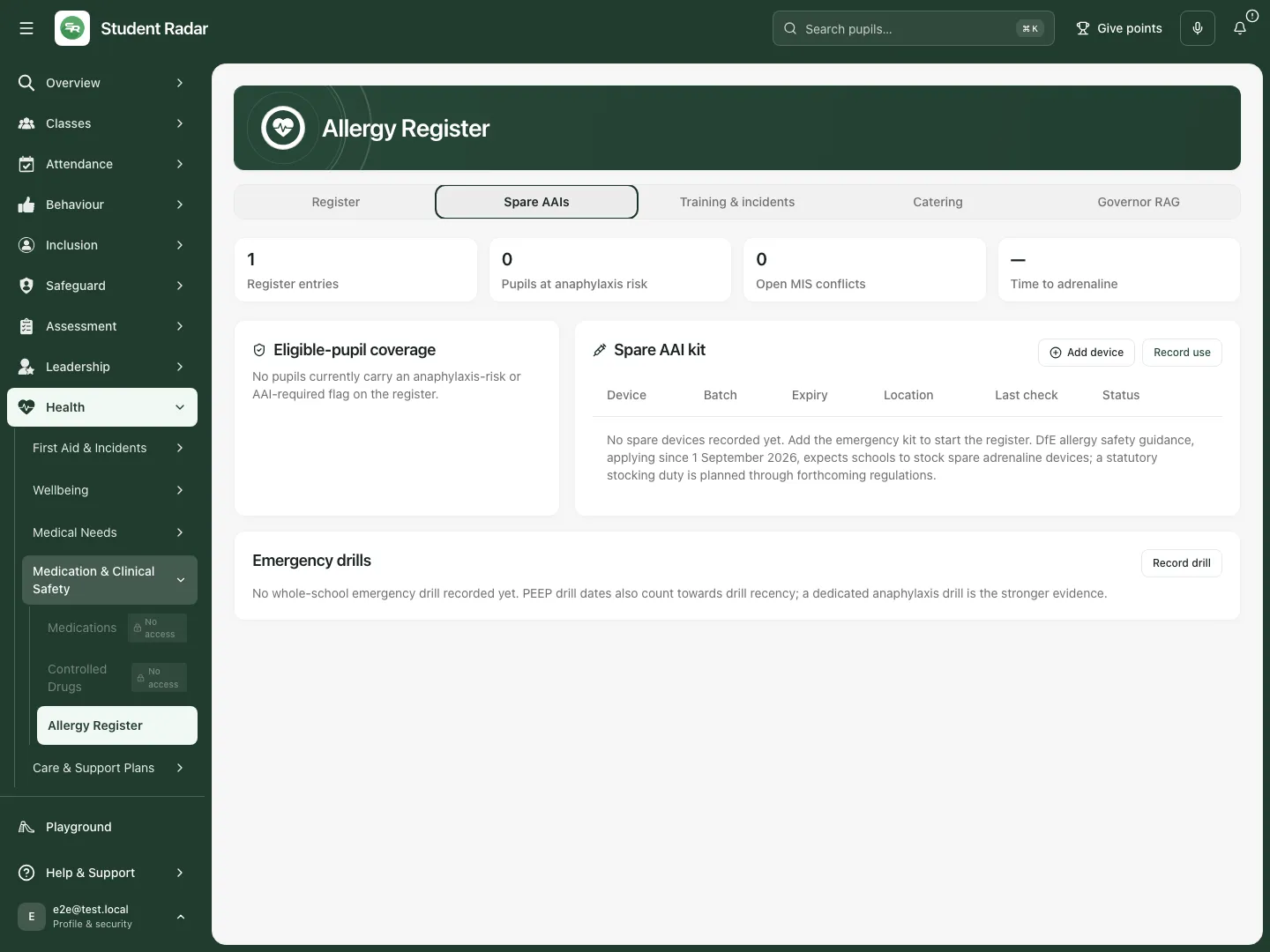 The fictional register has no AAI-required pupil or spare device. That is the example’s recorded scope, not an assurance of a school’s provision.
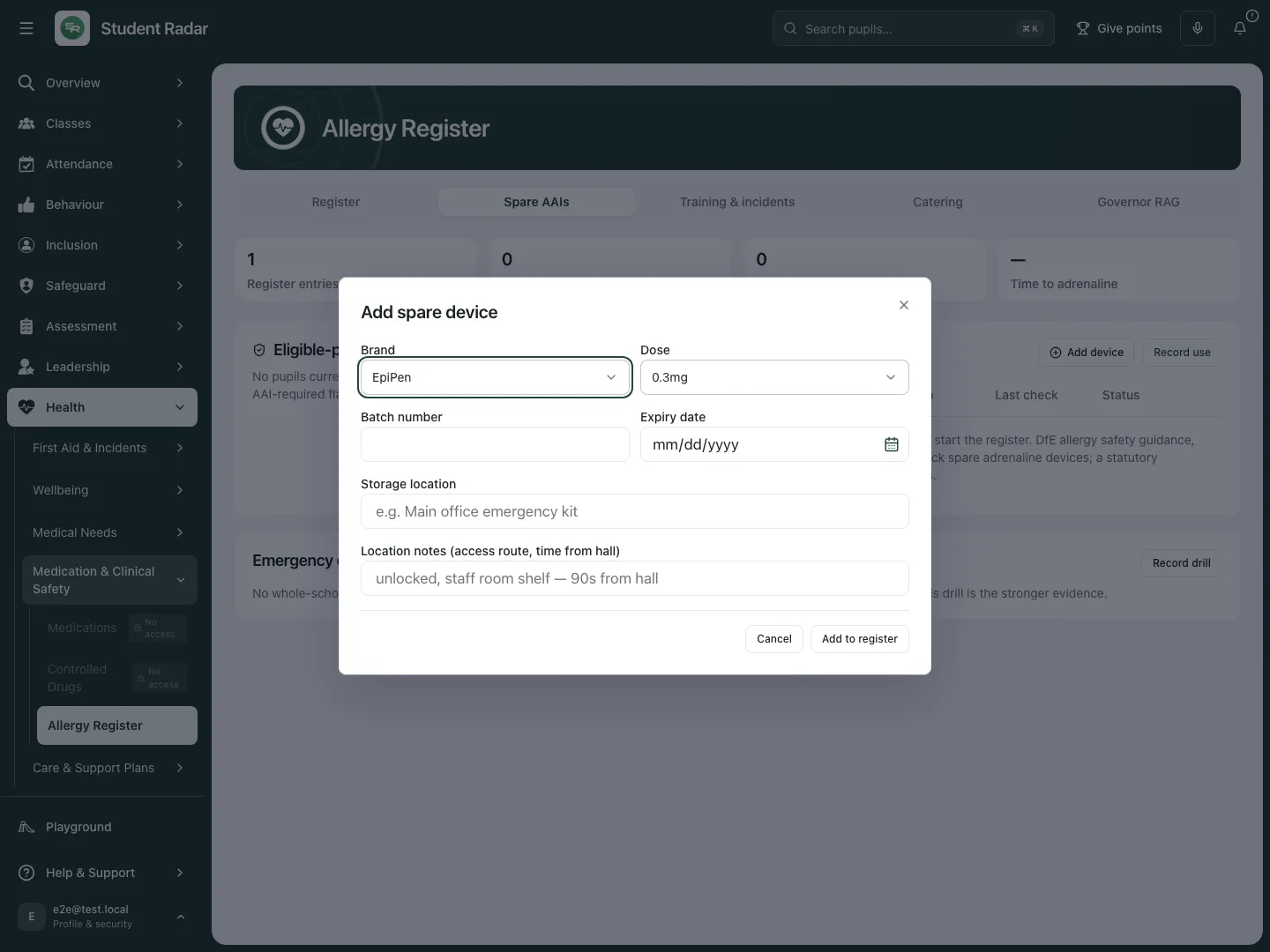 The native device form records the actual device and location. This fictional example has not added one.
Record actual device use, replacement and drills
Section titled “Record actual device use, replacement and drills”- Use Record use only to record an actual event. Select Device used, the pupil where known/on roll, the actual ambulance-contact state and Outcome notes.
- Review Also log a first-aid incident. It requires a selected pupil and the relevant First Aid permission; its connected inform-parents flow is separate from sending a message. Without that permission, record the AAI use and arrange an authorised incident record separately.
- Choose Record use, then inspect the use record and used-device status. This control records events; it is not emergency treatment guidance or an emergency-service call.
- Add the replacement device, then choose the intended device in Link replacement… on the record of use; selecting it records the link. Replacement-needed and linked-replacement states are different.
- For an actual drill choose Record drill. In Record emergency drill, set Drill type, Date, optional Participants, optional Response time, seconds and Notes, then save with Record drill. A drill time describes that exercise; it is not a guaranteed real response time.
Maintain policy and training records
Section titled “Maintain policy and training records”- Open Training & incidents. Enter Published URL (school website), Responsible governor and Adopted on for the actual policy, then Save policy details. Saving a URL does not publish a policy.
- Use Record annual review, the post-incident review control where available, and Brought to everyone’s attention only for events that actually happened. These create recording evidence, not the underlying review or communication.
- Generate & download produces the policy document from the school’s recorded context/template. Review it through the school’s policy process before adoption or publication; generation does not establish compliance or publish it.
- Choose Record training. Select Staff member (MIS) or record the permitted non-MIS staff name, choose Training type, set Completed and add Evidence note (optional).
- Choose Record training in the form and inspect the resulting record/date. Cancel leaves it unsaved. Coverage depends on workforce/source coverage and recorded training; a provisional figure is not whole-workforce assurance.
- Choose Email attestation links, set Training type, search MIS staff and select the intended recipients. For someone not on the MIS, use Add person, then their full name and email. Choose the count-labelled Preview … recipient(s), inspect recipients and skips, then use Send links only for an authorised send. Review the reported result; a requested attestation is not completed training or confirmed delivery.
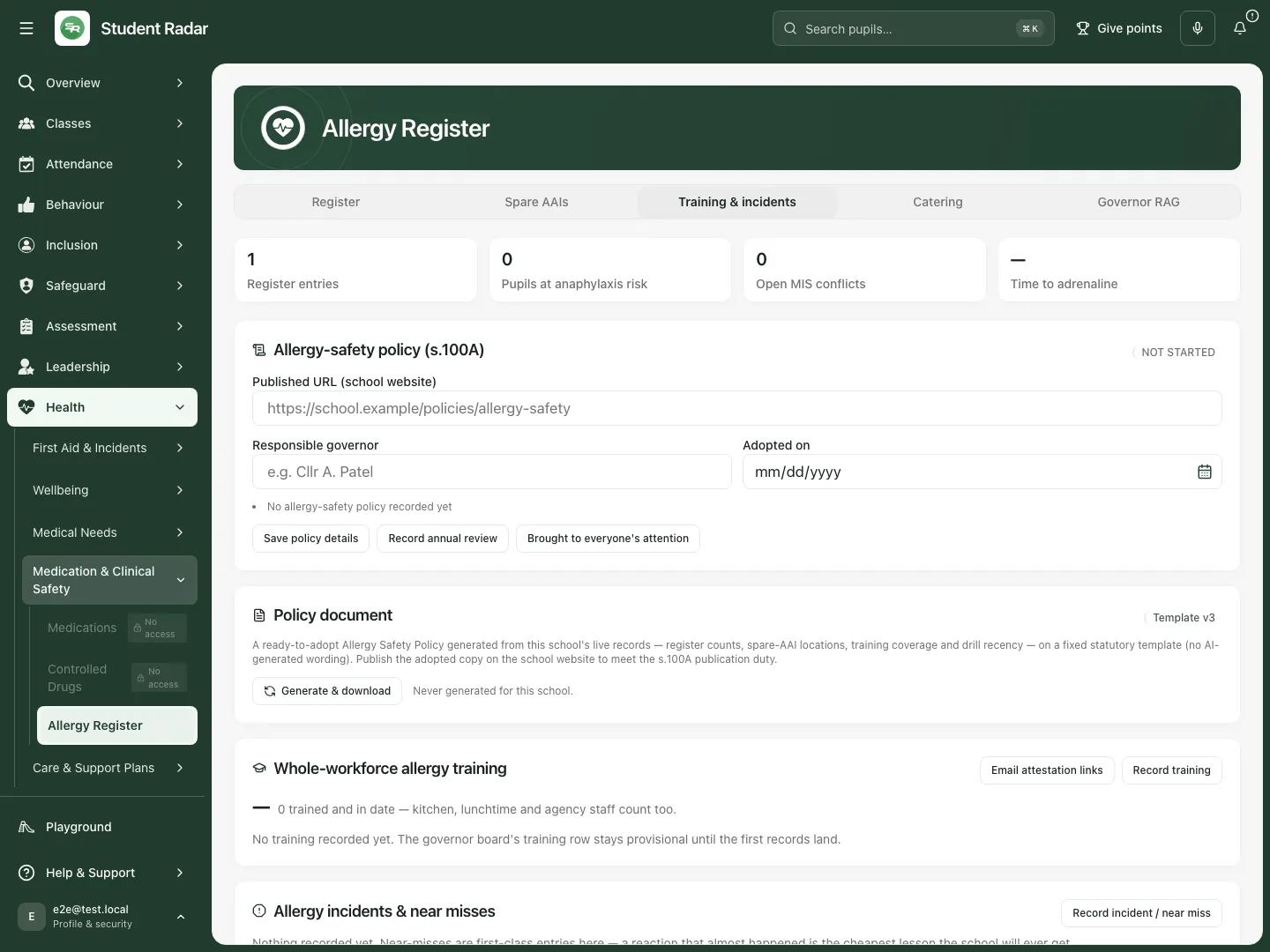 The fictional school has no recorded policy or training history here. The controls distinguish recording facts from generating documents or requesting attestations.
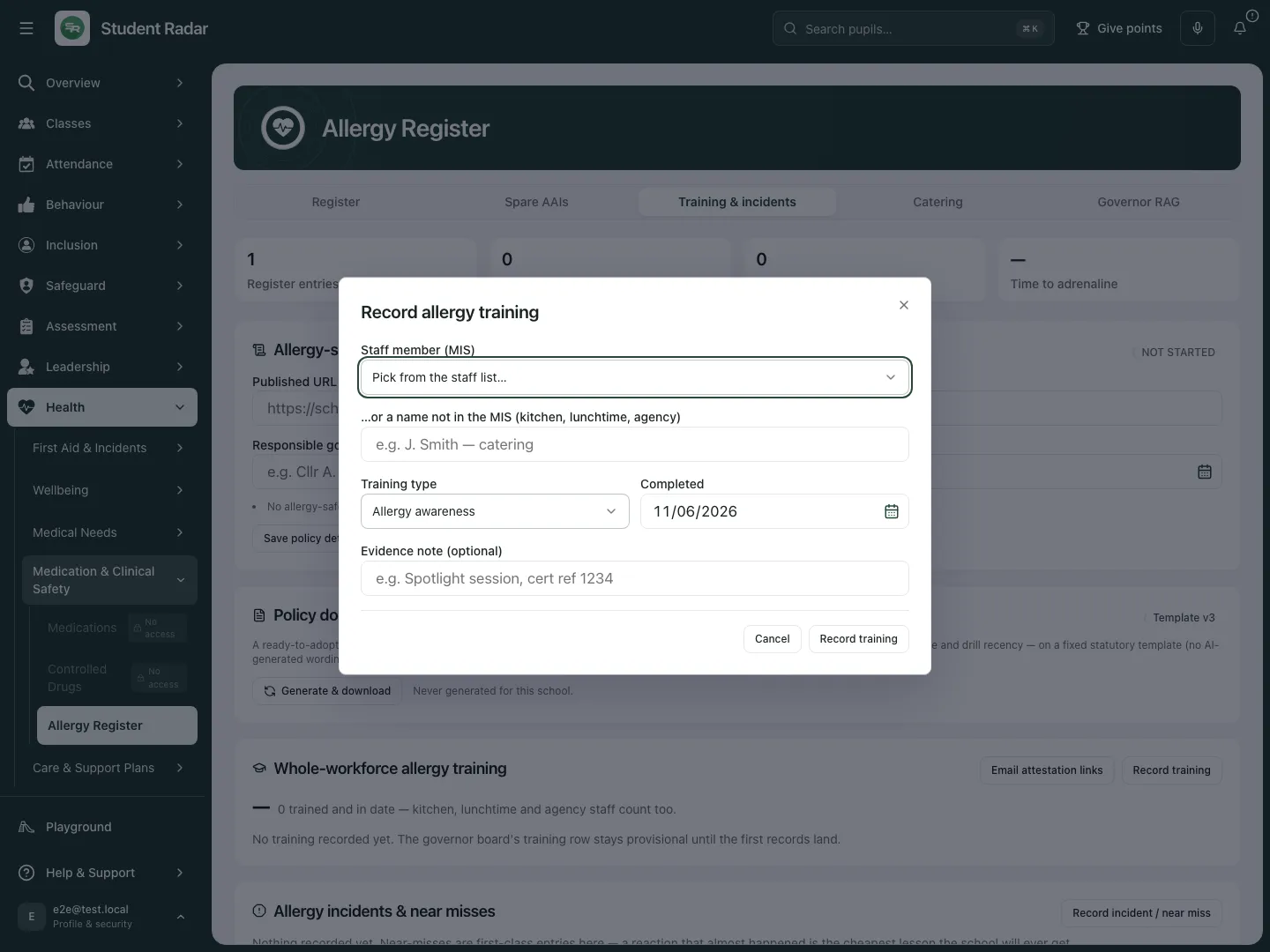 The native training form asks who completed which training and when. Opening it records no completion.
Record incidents, near misses and lessons
Section titled “Record incidents, near misses and lessons”- Choose Record incident / near miss.
- In Record allergy incident or near miss, set Severity, the pupil if relevant, What happened, Allergen, Location, Lessons learnt — what failed, Lessons learnt — what changes and Review due.
- Choose Record after checking the factual account. A near miss remains a first-class record; do not invent an injury or reaction to record it.
- For a subsequent lessons review, open the incident’s review action. In Lessons-learnt review, complete What failed and What changes, then Record review. Cancel leaves the review unchanged.
- Review the resulting incident/review state and record any owned operational work through the relevant action workflow. A completed review does not prove that its proposed change prevented another incident.
Prepare catering information and governor evidence
Section titled “Prepare catering information and governor evidence”- Open Catering and check the active-entry count and source state. The Pupil × top-14 allergen matrix, Servery photo board and Class lunch cards have different audiences/content.
- Choose Download PDF beside the intended artefact. Inspect the pupil/class scope and content before handing it to the intended staff; the app logs the generated print record but cannot prove physical receipt or reading.
- Read never-printed/stale warnings against the current register state. A previous print may predate a changed entry.
- Handle any photographs and health information under the school’s information controls. Allergy-aware artefacts do not replace ingredient or cross-contamination checks.
- In Governor RAG, review aggregate rows and their missing/provisional sources. Use Download evidence pack for the identifier-masked aggregate PDF. Colours and a downloaded pack support human review, not legal certification.
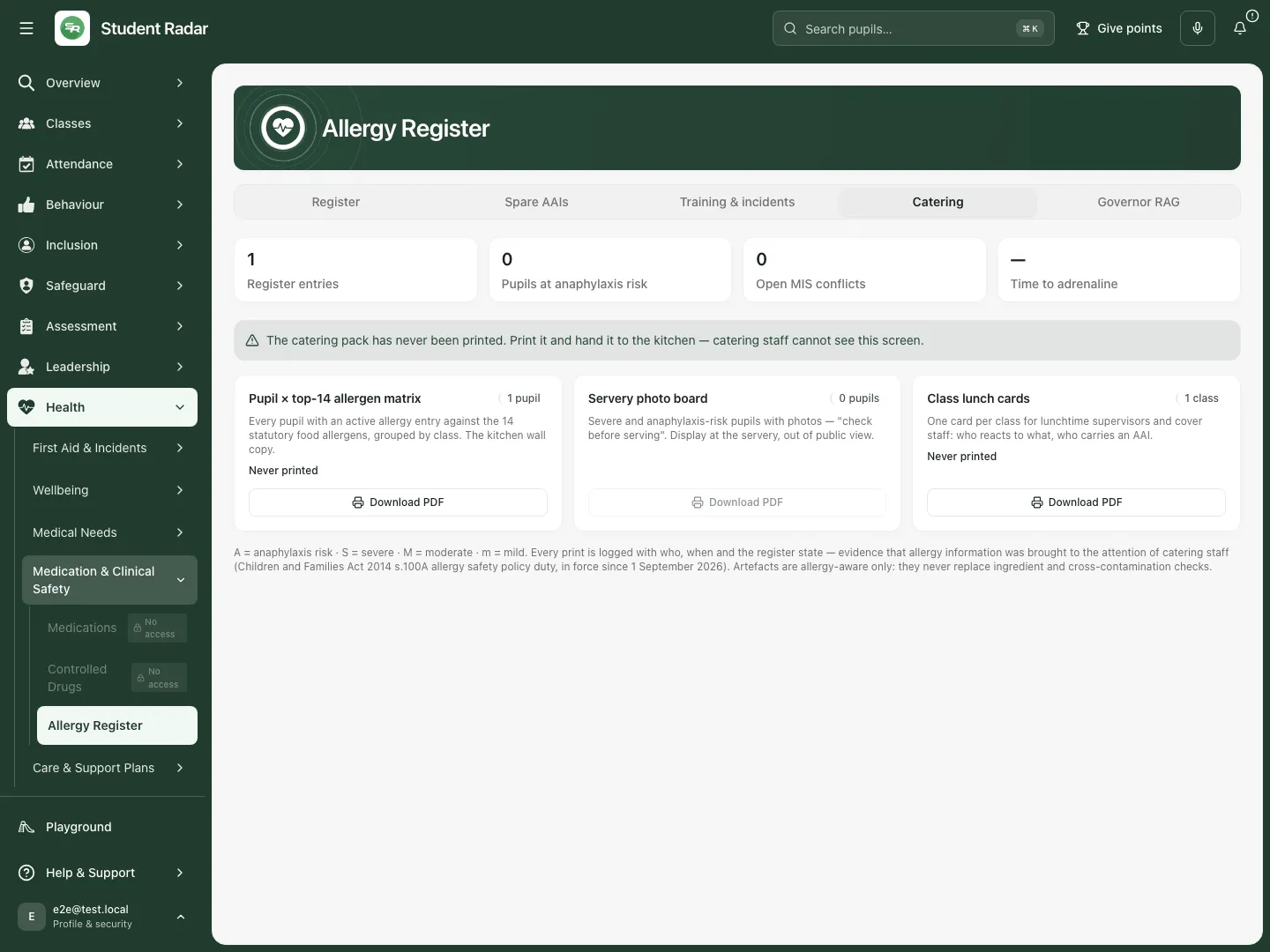 The fictional active entry appears in the relevant catering scope. No PDF was downloaded or handed to staff in this example.
Phone use and questions
Section titled “Phone use and questions”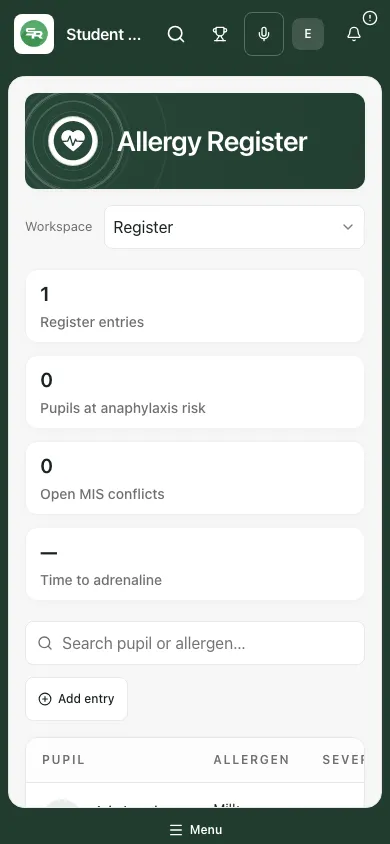 The fictional phone view retains entry status and the pupil context for permitted review.
I can see a register row but not the clinical detail. Check the masking/access notice. Access to an aggregate or register is not authority to view every plan or emergency detail.
The plan cannot activate. Resolve the specific missing information, real consent/sign-offs or unsafe-content warning. Saving a draft is useful while those facts remain outstanding; do not tick them merely to pass a checklist.
An MIS change conflicts with the authored record. Review the actual source and human decision. Accepting or dismissing is deliberate; do not assume the latest source is clinically correct.
Does saving the review date mean a review took place? No. It records the date. Record the actual review and agreed changes separately.
Does an empty readiness metric mean everyone is covered? No. Inspect missingness, eligible-pupil scope, consent, device and training sources before reaching any judgement.
Related: Medications, First Aid, Pupil Welfare.