Arrange a detention and complete the duty register
Arrange an authorised detention, check family-notice choices and record duty-register outcomes with the save receipt.
Authorised staff can arrange a session, check any family-notice arrangements, record attendance and retain the reason for later correction or cancellation.
Screenshots use Alex Example and a fictional session. The page records school decisions; it does not decide whether a detention is appropriate or supply legal advice. Follow the school’s policy and the authorised decision for the pupil.
Before you begin
Section titled “Before you begin”Open Behaviour → Response and Escalation → Detentions. Reading, managing sessions, marking attendance and configuring types are different permissions. If Add detention, Mark register or Manage types is absent, ask the school administrator to check the action you need.
Dates and displayed session times follow the school clock. Confirm the school and the intended day before saving, especially if you are working away from school.
1. Find the session or pupil
Section titled “1. Find the session or pupil”The top figures count sessions, pupils and assignments in the displayed register. One pupil can have several assignments; those figures need not match.
The default range covers the last 30 days through tomorrow. Change From and To, choose Detention type, or use Find a pupil. Refresh reloads the current records. Sessions groups pupils by detention; Pupils groups their assignments by pupil.
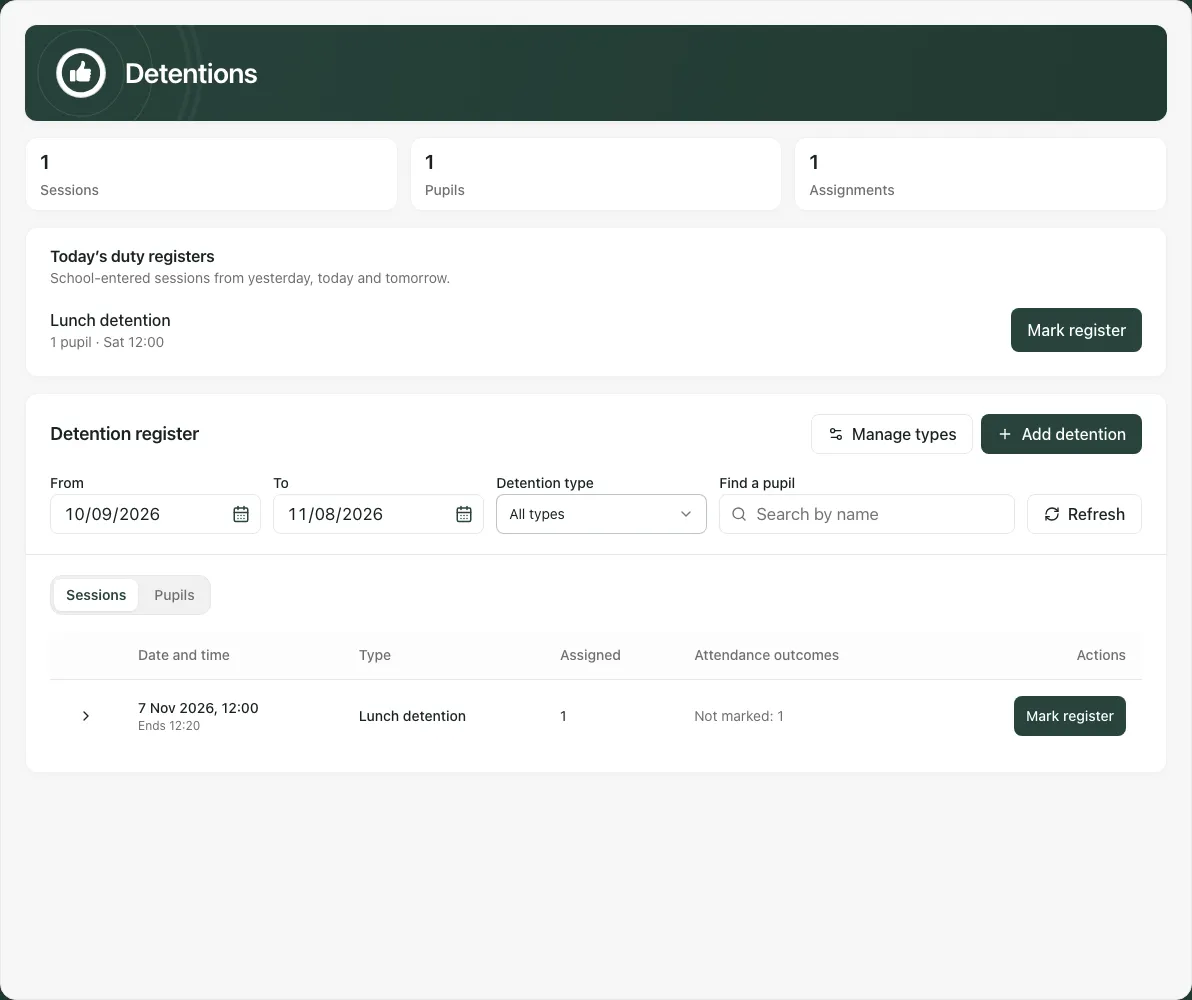
Today’s duty registers includes school-entered sessions from yesterday, today and tomorrow. Being listed there does not mean the session has occurred. Record outcomes when known under the school’s process; do not mark future attendance as though observed.
Expand a session with its Show pupils assigned to… arrow to read pupil assignments, origin, reason and arrangements. School-entered records can offer local management actions. MIS-synced records must be changed or cancelled in the MIS. A link outside the selected dates may need a different date range.
2. Add an authorised detention
Section titled “2. Add an authorised detention”Select Add detention. Under Pupils, use Search for a pupil to add, choose a verified result and repeat as needed. A single draft supports up to 50 pupils for the same session. Remove a pupil with the adjacent × if they should not be included. If an identity is unavailable, stop and have it checked rather than selecting another child.
Choose Detention type. Its defaults fill the usual start time and duration. Check Date, Starts and Ends; the end must be after the start on the same day. Use type defaults restores the configured times.
Write a concrete Reason and, where useful, Arrangements or location. Recheck every selected pupil, the type and date before saving. Do not put unrelated sensitive detail into a shared operational note.
Save detention remains unavailable until the required fields and notice requirements are valid. A school-configured notice period may show the earliest suitable time with Use. Choose that later time or ask an authorised staff member to record the genuine Reason for overriding the notice period, where offered. The input is an application control, not a statement of the law or school policy.
3. Make a deliberate family-notification choice
Section titled “3. Make a deliberate family-notification choice”Parent/carer notification is optional and separate from creating the detention. Before turning on Notify parents or carers, check that the school has enabled it and that this is the authorised communication choice.
Review the recipient/channel preview for every pupil. The screen identifies contacts who can be told and pupils whose families cannot be told, with the reason. A detention can still be saved without a notice; arrange any necessary contact through the school’s normal route.
Read the displayed delivery mode carefully. Some configurations say that parents will see the detention in the portal and that no email or text is sent. Where messages are enabled, quiet hours may delay them. A session starting too soon can mean no advance notice is sent. Queued, held, unavailable and delivered are different states; do not promise delivery from a save toast alone.
After Save detention, read the actual outcome: the detention may be saved while a notice was not queued. If the reply is lost, inspect the register before recreating the session. An unchanged retry uses the draft’s request identity where supported, but verifying the stored result is still the practical first step.
4. Open the duty register
Section titled “4. Open the duty register”Choose the correct session’s Mark register and confirm its name/time before marking. The pupil list shows the current outcome and any prior missed count supplied by the register. A prior count is context for authorised review, not an instruction to escalate.
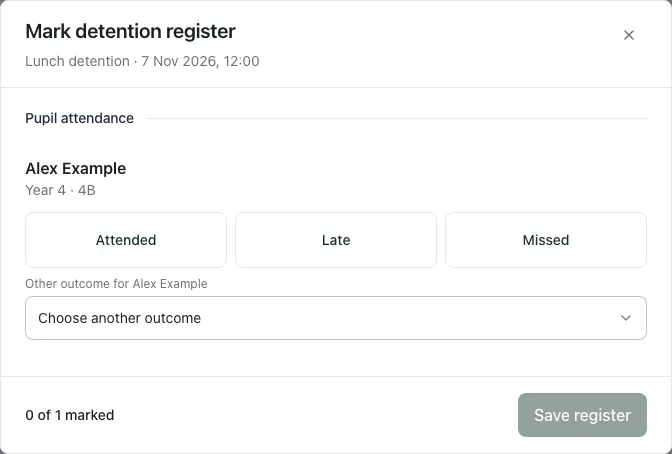
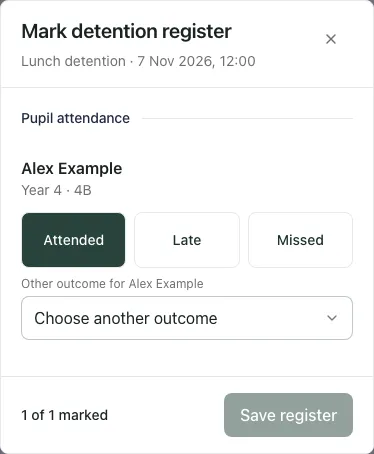
The common choices are Attended, Late and Missed. Other outcome offers the additional recorded states, including Partially attended, Excused absence, Refused, Cancelled by school and Rescheduled. Choose what actually happened; do not use Missed for an unknown outcome.
Rescheduled records that outcome only. It does not create a replacement detention. Arrange any new session separately through an authorised decision. Similarly, a configured escalation order is not evidence that the next session was automatically created.
5. Save the outcomes and check the receipt
Section titled “5. Save the outcomes and check the receipt”Select the observed outcome for each pupil you are marking. The marked count helps you see coverage. Selections remain a local draft until Save register succeeds.
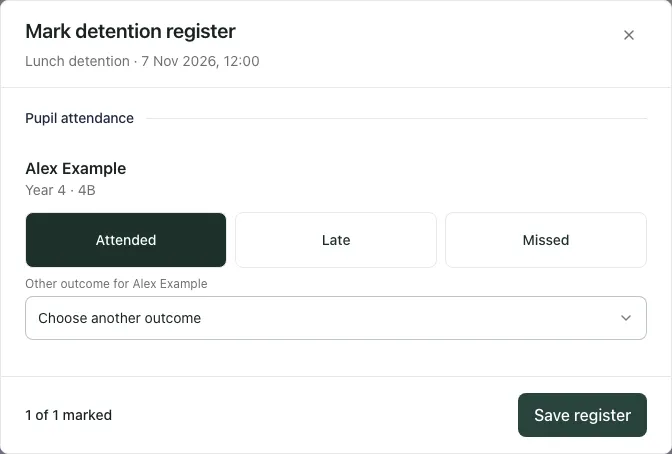
Choose Save register. Wait for the saved confirmation, then reopen the register to check the stored outcome. Do not infer successful attendance or a communication to families from clicking the save button.
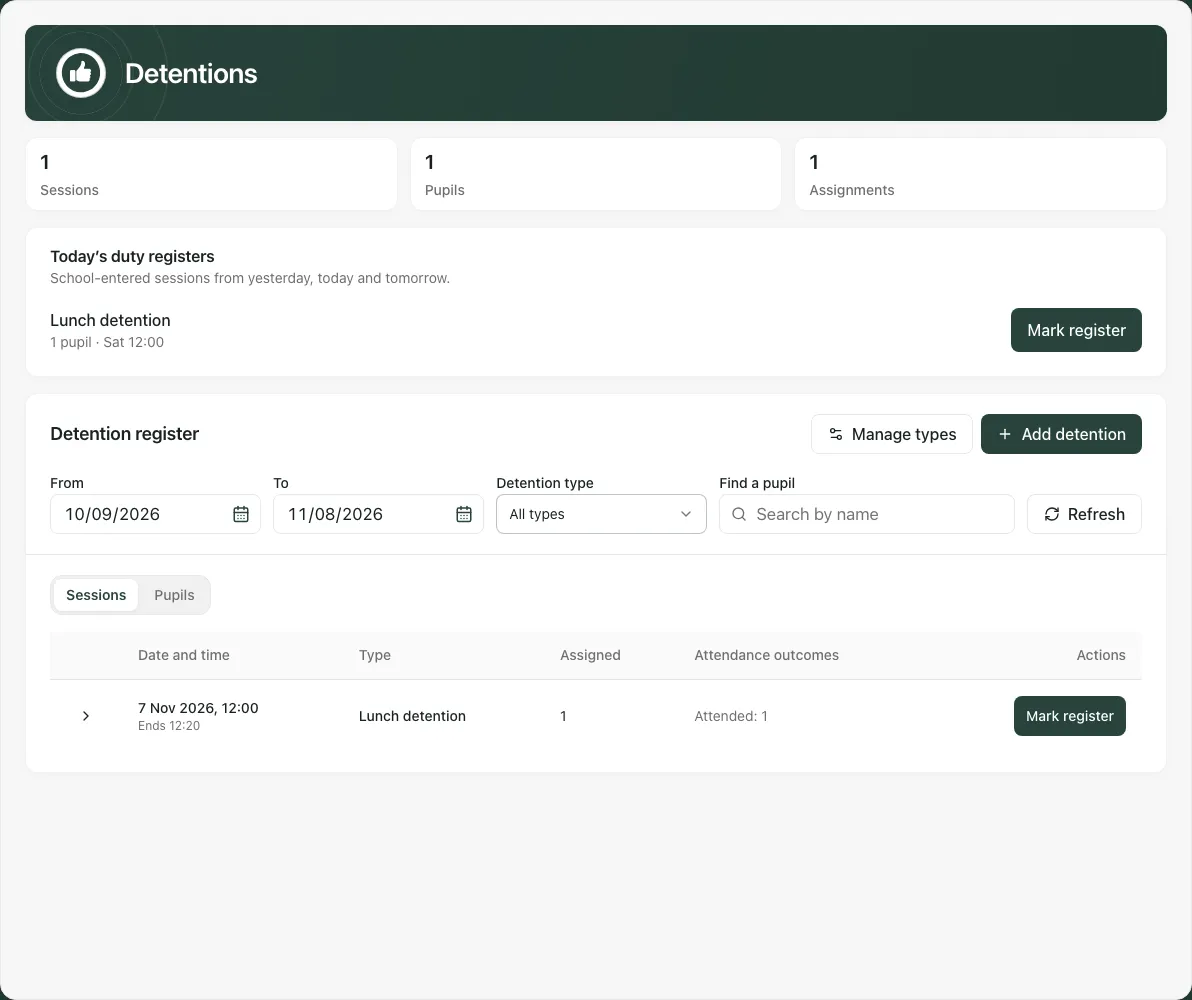
A changed outcome is a correction to the record; previous marks remain part of its history. If another colleague has changed the register, use Reload register when offered. Their newer mark for the same pupil wins on reload, while your unrelated choices can be retained for review. Check the resulting list before saving again.
A temporary save failure can offer Retry save. A load failure uses Try again. These are different: a failed load is not an empty pupil roster, and a failed save is not proof that no server update happened. Read the message and inspect the stored record when uncertain.
6. Cancel an unmarked assignment or session
Section titled “6. Cancel an unmarked assignment or session”For a school-entered session, expand its pupils and choose Cancel pupil assignment to remove one pupil, or Cancel detention for the session. Enter the real Reason for cancellation and choose Confirm cancellation. Check which pupils will be affected before confirming.
Once an assignment has a live attendance mark, cancellation must not erase that attended or missed record. The page hides cancellation where it would remove marked work and can tell you to record Cancelled by school instead. Follow the authorised correction process rather than trying to delete history.
Unsent parent notices can be withdrawn. A notice already in progress or a family already told may need a cancellation update, depending on school settings. Read the reported result and arrange follow-up if needed; do not assume all channels were recalled.
7. Manage types only with the right authority
Section titled “7. Manage types only with the right authority”Manage types controls configured names, duration, usual start time, ordering, active status and notice settings. An archived type should not be used for a new detention. An escalation reference/order is configuration context; this page does not automatically turn every missed attendance mark into the next detention.
Changing a type is not a substitute for reviewing an individual pupil decision. There is no session capacity/room-limit control or one-click reschedule workflow on this page.
8. Use the phone register on duty
Section titled “8. Use the phone register on duty”The same pupil outcome controls are available in a phone-sized dialog. Confirm the session, choose the outcome and use the footer save control. Reopen to verify the receipt before leaving the register.
If something does not work
Section titled “If something does not work”| Situation | What to do |
|---|---|
| No session in the list | Check school, date range and filters; a load error is not an empty result. |
| Type no longer available | Close the draft, refresh and choose an active configured type. |
| Too little notice | Use the offered later time or seek an authorised, recorded override. |
| Recipient cannot be verified | Refresh the preview or save without notification and use the school’s approved contact route. |
| Detention saved but notice failed | Keep the saved detention; arrange the missing communication separately. |
| Register changed | Reload, review colleagues’ marks and recheck your remaining changes. |
| Pupil removed or session cancelled while marking | Stop and reopen the current record; do not force a stale save. |
| Marked assignment cannot be cancelled | Retain its attendance history and use the appropriate recorded outcome/correction. |
| MIS record needs changing | Make the change in the MIS and check the synced result. |
| Large register warns about a limit | Narrow the dates/filters; do not treat the displayed subset as a complete school count. |
Common questions
Section titled “Common questions”What should I check after saving the duty register?
Section titled “What should I check after saving the duty register?”Read the save receipt and confirm the intended attendance outcomes were recorded.
Does a missed detention automatically create another sanction?
Section titled “Does a missed detention automatically create another sanction?”No. A recorded miss or rescheduled outcome does not authorise or create a further sanction. Follow the school’s decision and policy.