Write pupil reports and coordinate school review
Select the reporting cycle and pupil, write and save the teacher draft, then preview and move it through school review. Report Writer keeps the teacher’s wording, suggestions and sign-off state separate, so a saved draft is easy to distinguish from an approved report.
Open Assessment → Reports → Report Writer. Screenshots use fictional examples.
1. Select the reporting cycle and pupil
Section titled “1. Select the reporting cycle and pupil”In Write, choose Term and Academic year before starting. A previous year’s report belongs to that year even if you open it today. Changing either selector can discard unsaved report edits after confirmation; save first if you want to retain them.
My classes starts with the classes you teach. All I can report on lets you find other pupils you can report on; use the year filter and Search pupils. Selecting a pupil opens their report, not a blank report for every pupil in the class.
The headline figures distinguish Not started, Drafted, Ready for review and Approved. They describe report workflow, not pupil attainment. Sent (not set up) means sending is unavailable here; it does not mean no parent has ever received a copy through another approved process.
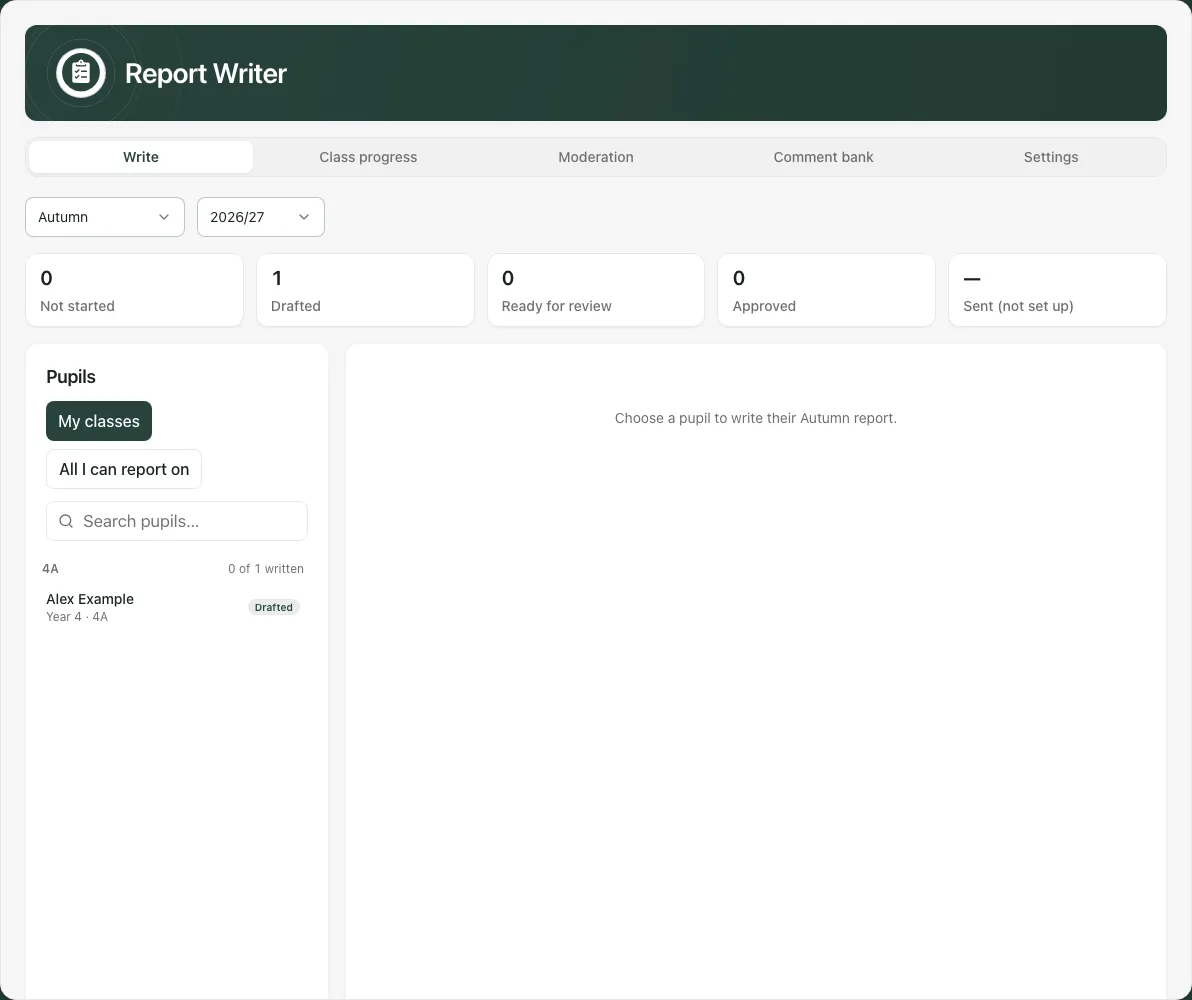
The fictional example has one drafted report in 4A and no reports ready for review. A class’s “written” count includes ready, approved and sent reports; saving a draft alone does not increase that count.
2. Write and save a teacher’s draft
Section titled “2. Write and save a teacher’s draft”- Select the pupil and keep Edit selected.
- Type in each named section. The school’s settings determine section titles, optional effort menus and word or character limits for the chosen term.
- Where an Effort menu appears, choose the appropriate recorded judgement or leave Not recorded. Effort is separate from narrative and attainment.
- Check the live count beside each section. Over the limit identifies wording to shorten before review or approval.
- Select Save draft. Wait for confirmation, then reopen the pupil or return later to check the saved wording.
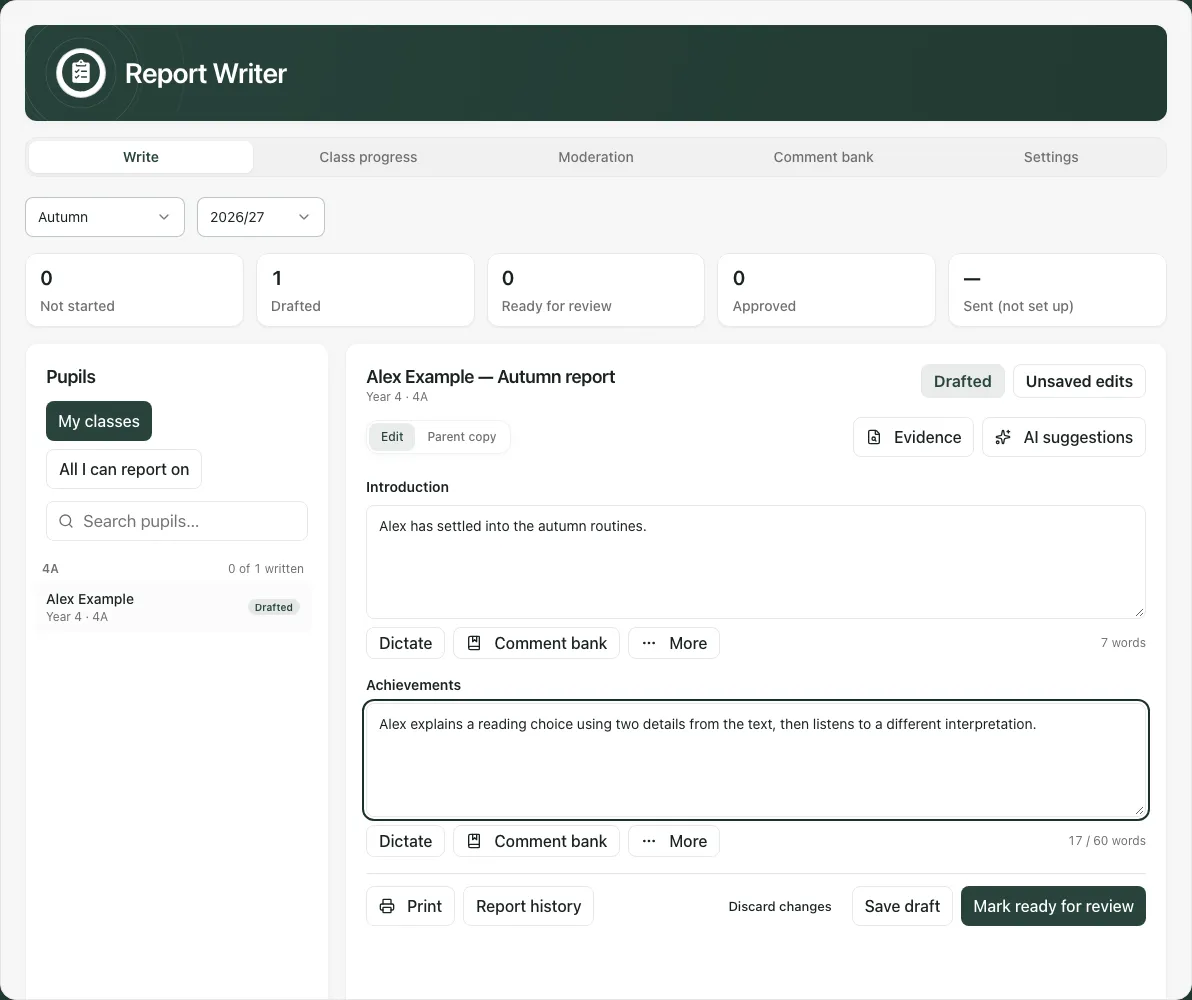
Saving keeps the draft editable; it does not approve or send it. You can save an unfinished draft. Every section must contain wording and be within its limit before the report can move forward. Apply or cancel pending dictated additions and examples before marking it ready.
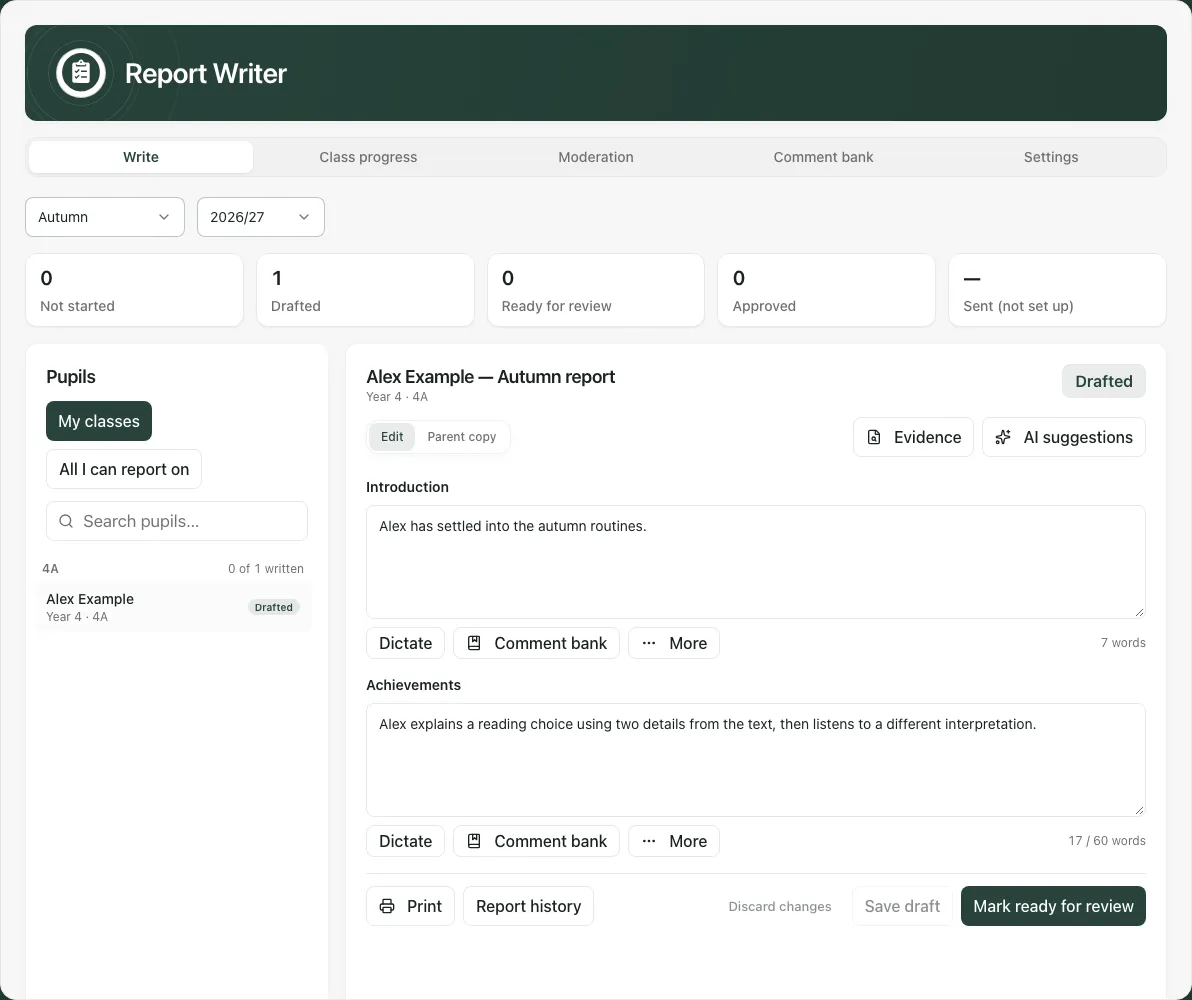
Use Discard changes to return to the saved version; a new unsaved report uses Discard. Leaving the pupil, cycle or workspace with unsaved input asks for a decision. Switching between workspace sections preserves in-progress editing; it is still wise to save before leaving the page.
If someone else changed the same report, use Discard changes to load the latest saved version before applying your changes. Do not assume an error saved your text or repeatedly overwrite the other person’s review.
3. Add useful wording without losing the specific example
Section titled “3. Add useful wording without losing the specific example”Each section offers Dictate, Comment bank and More. Dictation adds reviewed text to the section: check the transcription and apply it deliberately. Do not leave an unapplied addition when moving the report forward.
More offers Tidy spacing, Add contact line, Add a specific example and Save to comment bank. Tidy spacing changes presentation rather than checking facts. A contact line still needs the correct school wording. A specific example should describe what was observed, with enough context to make the statement meaningful; adding an example does not verify an event automatically.
Open Comment bank for the active section to search and insert useful wording. Review any substituted pupil placeholders and adapt the sentence to this child. An inserted generic comment is not evidence that the child demonstrated it.
In the workspace Comment bank section, use Search comments, Comment category and Comment bank filters. To add wording, enter Label, Comment text, a category and optional Department, then Add to bank. Use Edit, Save comment changes, Archive or Restore only where offered for that entry. Archiving stops the comment being offered in the active bank; it does not retract wording already inserted into reports.
4. Check evidence and review AI suggestions deliberately
Section titled “4. Check evidence and review AI suggestions deliberately”Select Evidence in the pupil’s report to inspect the reporting window and available source material. Check the dates, observed-through point, missing records and any capped selections. Recorded attendance sessions are not necessarily all expected sessions. Missing or unavailable evidence is not a zero result, and an absence of recorded concerns is not proof that no concern exists.
AI suggestions are optional drafting support. They do not replace the teacher’s sections simply by being generated. Review the suggested text alongside the teacher’s wording and its source context. For each offered section choose Use suggestion, Use and edit or Dismiss. Confirm factual claims, names, dates, support and tone before saving or approving the report.
Do not turn a task’s completion into evidence that an intervention improved the child’s outcome. Keep a provisional interpretation distinct from an observed result. The saved report remains the teacher’s reviewed wording; recording a suggestion decision and saving the report are separate steps.
Generation can be unavailable or paused. Manual writing and saved reports remain the practical starting point. Do not repeatedly start a class run when the service reports a pause; review what has already been produced before resuming.
5. Preview the parent copy and inspect history
Section titled “5. Preview the parent copy and inspect history”Select Parent copy to read the report in its family-facing arrangement. Check pupil identity, cycle, section wording and current status. This is a preview of the report content, not evidence that a family can already open it.
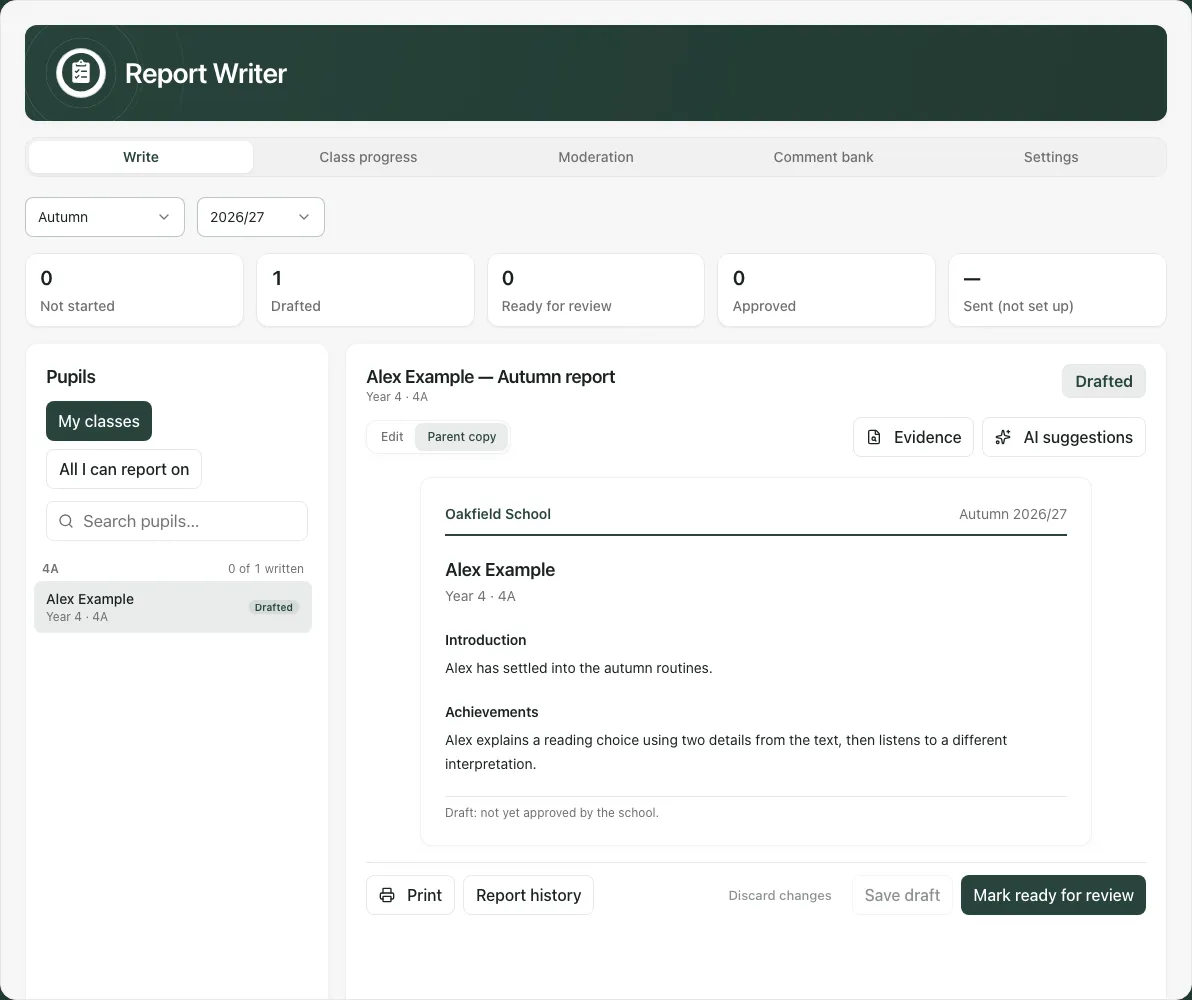
Use Print to open the print view, then check the browser’s preview, destination and page layout before making or sharing a copy. If nothing opens, allow the print window. Printing does not approve the report or mark it sent; handle any copy through your school’s agreed process.
Report history shows available recorded revisions with their dates, statuses and section wording. Expand an entry to compare earlier text. An unavailable history message is different from a report with no earlier revisions.
6. Mark ready, moderate and reopen
Section titled “6. Mark ready, moderate and reopen”When the wording is complete, saved and checked, select Mark ready for review. A ready report is locked for ordinary editing. Where offered, Withdraw to edit returns it for changes.
Staff with review access can use Moderation to see reports waiting for review, open and read the report, then Approve or Return with note. To return it, explain what needs changing and select Return to teacher. A return note is required; make it specific enough for the author to act on. Approval is a human sign-off, not a family-send command.
If your school enables Teachers approve their own reports, the author’s forward action is Approve rather than Mark ready for review. Follow the school’s agreed policy; the presence of a button does not replace professional checking. Reviewer access is checked for the pupil when the action is made.
An approved report offers Reopen for editing to staff allowed to do so. Reopening returns the report to editing; check the new version and review it again. Do not describe a changed draft as the same approved wording.
7. Use class progress and set deadlines
Section titled “7. Use class progress and set deadlines”Class progress helps staff see how far each class has reached in the selected term/year. It separates classes you teach from other visible classes and distinguishes not-started, drafted, ready, approved and sent states.
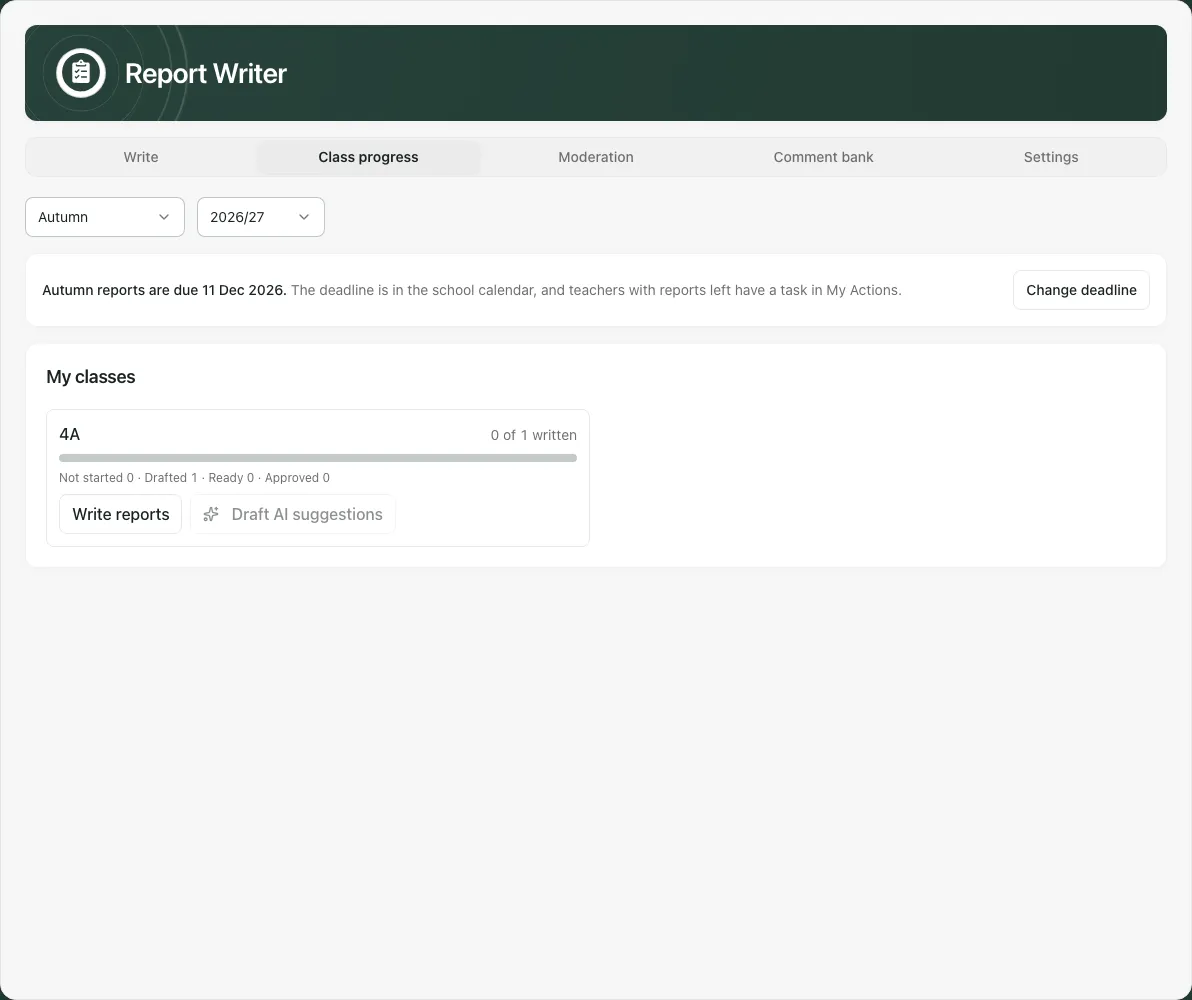
Where Draft AI suggestions is available, review the proposed pupils and confirm the class/cycle before requesting suggestions. This is optional AI drafting, not batch approval. Stop a run when needed and inspect individual suggestions. A run can pause after a busy response or repeated failures; earlier completed suggestions are not a reason to rerun the entire class blindly.
Leaders can set [Term] reports due, then Save [Term] deadline for the selected academic year. The deadline appears in the school calendar. Teachers with reports still to write receive one task in My Actions, which closes when their classes are done. This is a work reminder, not evidence of report delivery.
To remove an existing deadline, select its Remove and confirm. The associated calendar entry and open report tasks are cancelled. Check the year before changing a date; changing the year selector does not save an unfinished deadline.
8. Configure sections and school sign-off
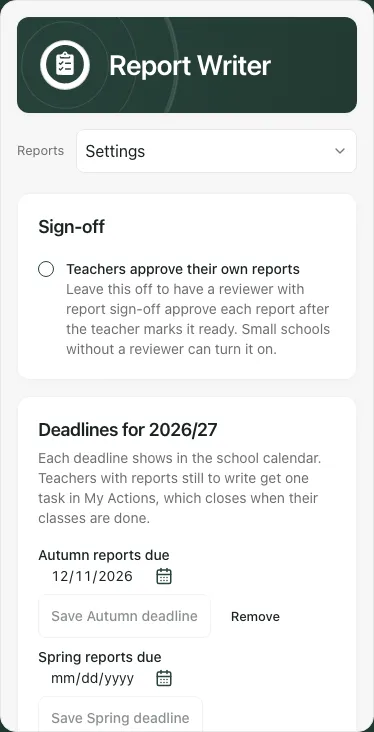
Section titled “8. Configure sections and school sign-off”In Settings, authorised staff can choose Teachers approve their own reports and configure Report sections for each Term for report sections. Edit Section title, Limit (no limit, words or characters), Maximum, and optional Effort scale (comma-separated, optional).
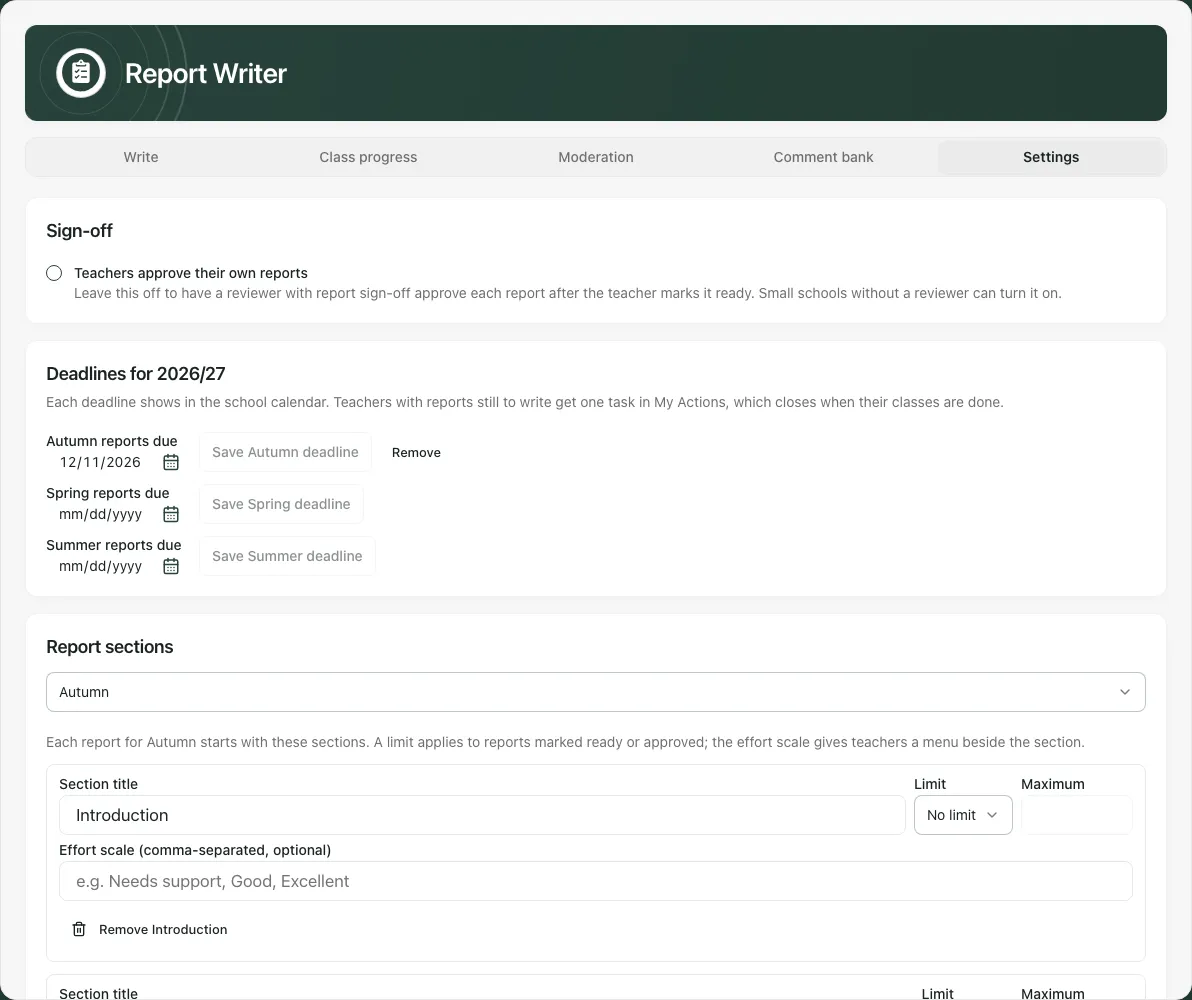
Use Add section up to the offered limit, Remove [section] where available, or Copy from [term] to bring another term’s structure into this term. Check every title, limit and effort choice before Save settings. Discard changes reloads the saved settings; if another session changed them, discard to load the latest before editing again. These are school settings, not one pupil’s report text.
On a phone, use the workspace section selector to move between Write, progress, bank and settings. Scroll to the intended field and save controls, checking the pupil/cycle before acting.
Troubleshooting
Section titled “Troubleshooting”- The pupil list or settings could not load: retry the failed read. Do not start on guessed default settings or treat an unavailable class list as no pupils.
- Save is unavailable: check whether anything changed, the report is ready/approved, another action is running or dictation/example input is still pending.
- Cannot mark ready: complete every section, bring counts within the school’s limits and resolve pending additions.
- Cannot approve: the report’s status, pupil review access or self-approval policy may prevent it. Ask the report reviewer rather than copying the report into a second workflow.
- Evidence or history unavailable: retain the distinction from no recorded evidence. Return to the original record or ask the appropriate colleague to check it.
- No family delivery control: this page shows sending as not set up. Approval, parent preview and print are not proof of sending or receipt.
For a shorter author/reviewer sequence, see Write and approve pupil reports.
Common questions
Section titled “Common questions”How do I check that my report wording was saved?
Section titled “How do I check that my report wording was saved?”Choose Save draft, wait for confirmation and reopen the pupil or return later to check the stored wording.
What should I do when a section says Over the limit?
Section titled “What should I do when a section says Over the limit?”Shorten the wording against the school’s term-specific word or character limit before review or approval.