Record and review an ABC behaviour observation
Written for: Staff authorised to record or review ABC observations.
Record what happened before, during and after a behaviour, review history and treat optional AI insights as hypotheses.
Record the circumstances factually, then review several observations to explore patterns. A possible function or an AI suggestion is a working hypothesis for staff to consider; it is not a diagnosis or an established cause.
Screenshots use Test Pupil, a fictional pupil, and a fictional writing-task observation.
Before you start
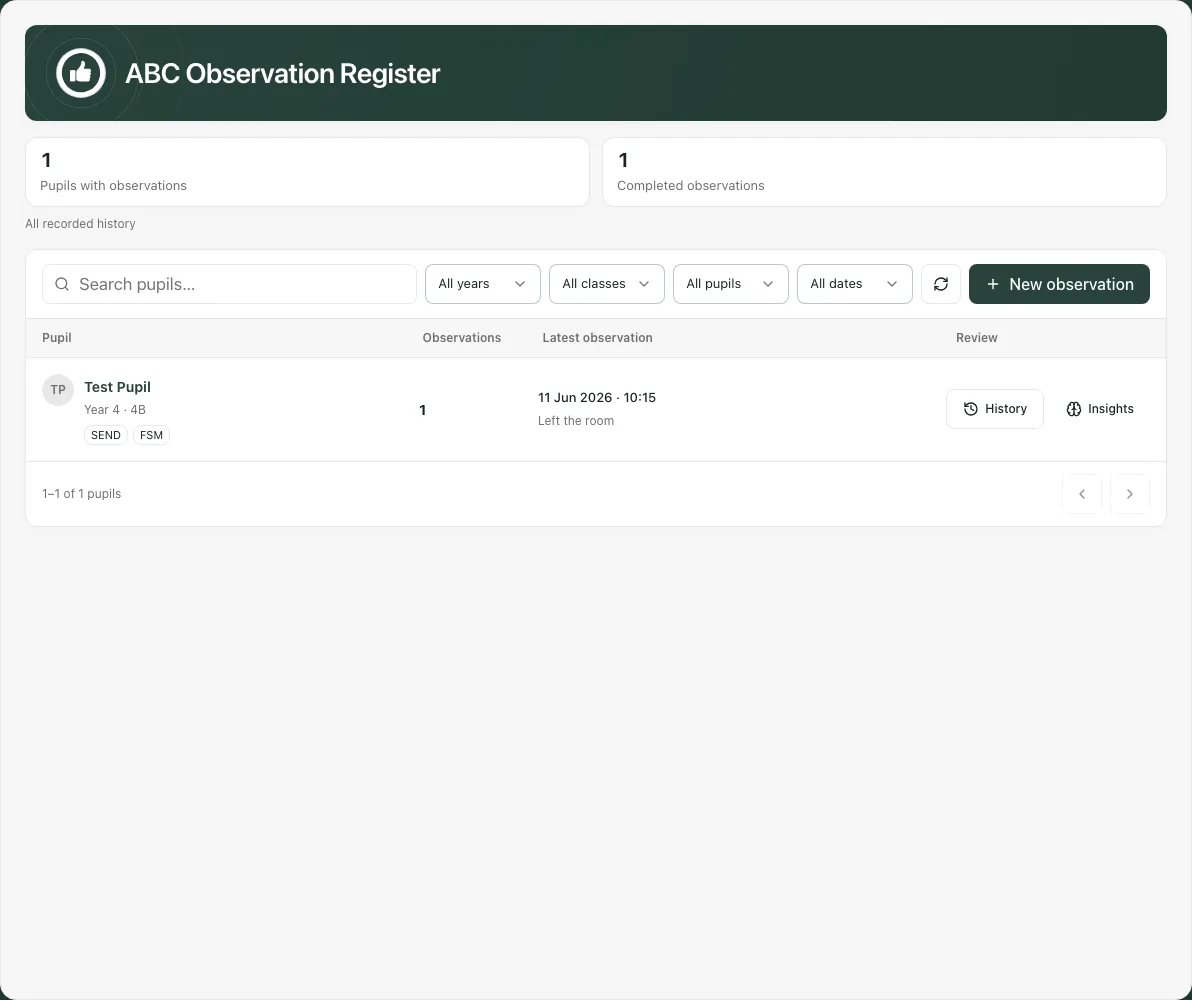
Section titled “Before you start”Open Behaviour → Assessment → ABC Observations. The page heading is ABC Observation Register. Alternative-provision menus can also offer this workspace.
Check school and pupil access. You can have register-reading access without permission to create an observation. A missing New observation control is not a reason to record the child under another pupil or through an unrelated form.
Wait for the register to load. A failed read is not evidence there are no observations. Keep pupil names and narrative details on a private screen.
1. Find the pupil and the right period
Section titled “1. Find the pupil and the right period”Use the name search and available Year, Class and pupil-group filters, such as SEND, EHCP or EAL. Select Observation period for the available date window. The standard register can start with All dates; an alternative-provision view can start with the last 30 days.
Read the period summary and counts together. Pupils with observations and Completed observations describe recorded observations in the chosen view, not every pupil in school or every incident that occurred. Some rows can have unavailable identity, which must not be treated as an identified child.
Use Clear filters to widen the result, and the page controls to move through the pupil list when more rows exist. Filters apply together with your existing access. A pupil missing from one filtered page is not proof that their record does not exist.
2. Record an observation
Section titled “2. Record an observation”- Select New observation. A phone can use a shorter New label; alternative-provision rows may offer Record observation for that pupil.
- In New ABC observation, open Choose pupil, type at least two letters and select the correct pupil. Confirm their name and class.
- Check Date, which starts on the school’s current date. Add Time (optional) if known. Do not invent an exact time or use a future date.
- Fill the observation fields below.
- If useful, open Optional interpretation and notes to record a clearly labelled working hypothesis separately.
- Select Save observation, wait for success and check the pupil’s history.
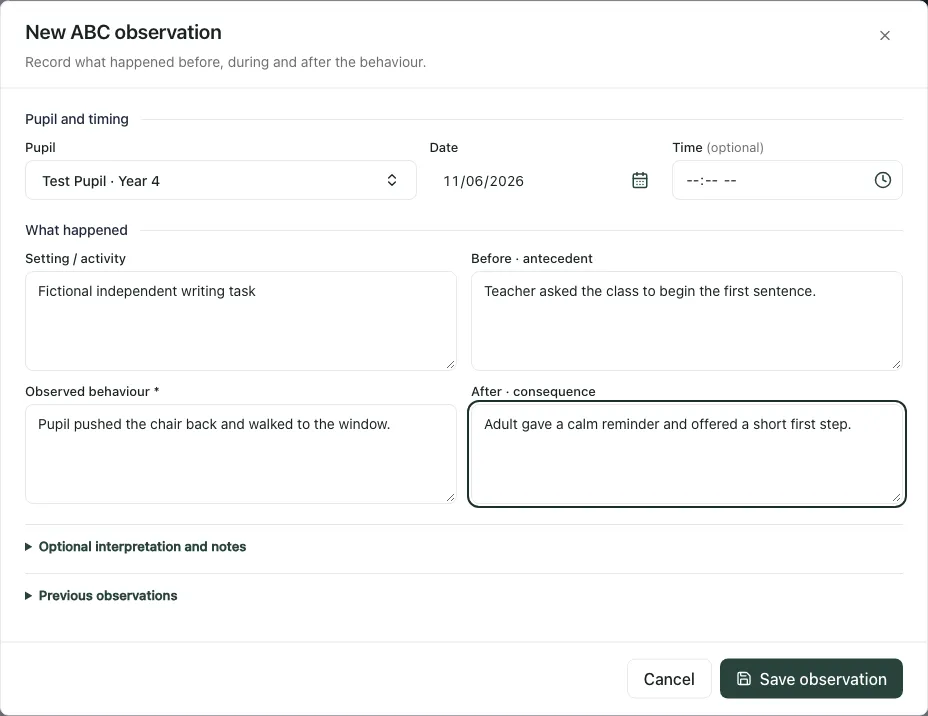
| Field | What to record |
|---|---|
| Setting / activity | Where the pupil was and what activity was underway. |
| Before · antecedent | What happened immediately before, including an instruction or change if observed. |
| Observed behaviour * | What you saw or heard. This is required. Describe observable actions rather than a judgement such as “defiant”. |
| After · consequence | What happened next, including the actual adult response and environmental change. |
| Possible function | A working explanation to explore, kept separate from observation. It is not a conclusion. |
| Additional notes | Relevant factual context that belongs in this observation record. |
For example, “pushed the chair back and walked to the window” describes an observation. “Wanted attention” is an interpretation and needs to remain a hypothesis, supported or challenged by further evidence.
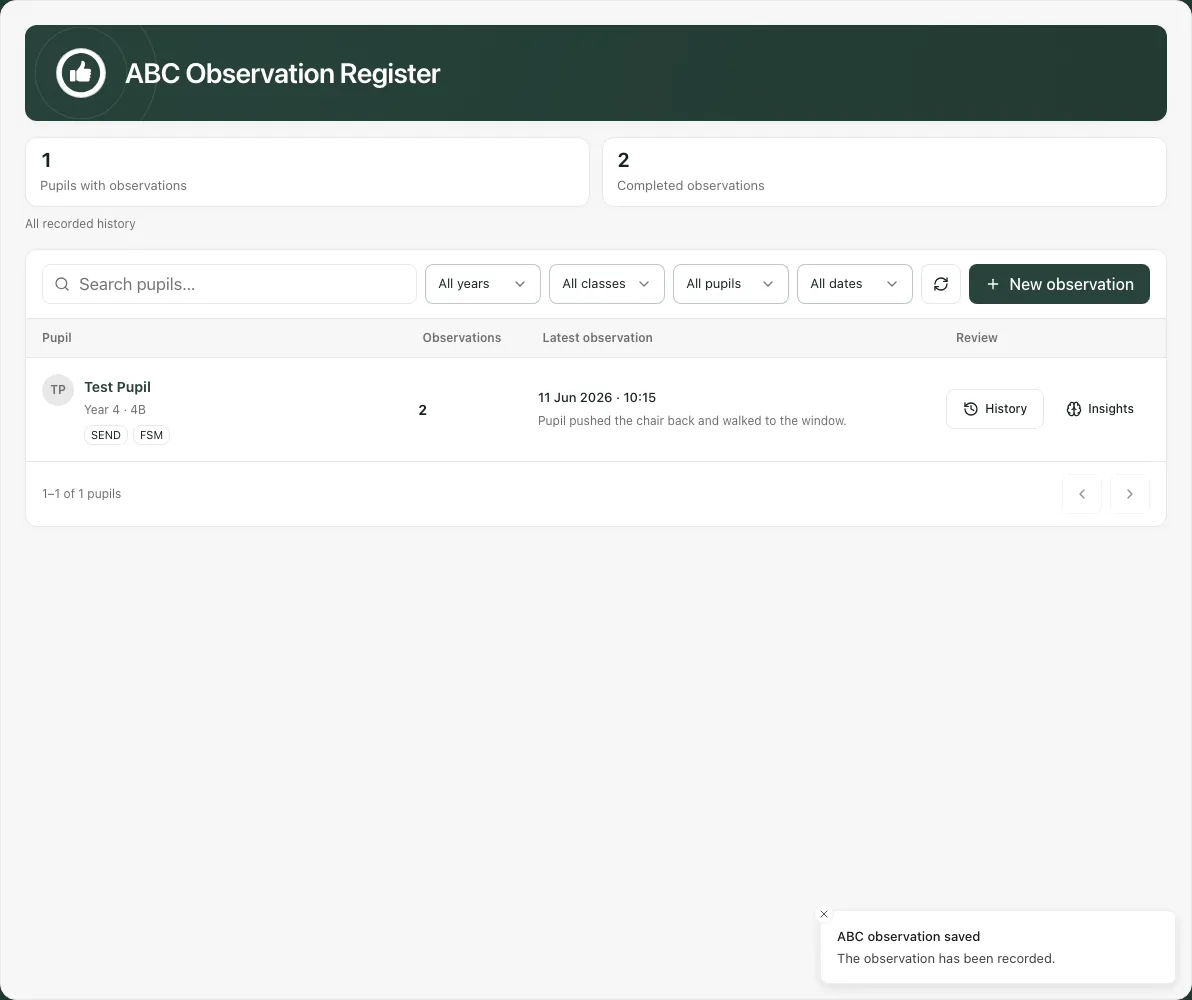
The form can show Previous observations after you choose a pupil. Read them for context without copying another person’s interpretation as though you observed it yourself. If you cancel after typing, read Discard this observation? before choosing whether to lose the draft.
For a concern requiring a safeguarding or emergency response, use the school’s established route. Recording an ABC observation does not make that response happen automatically.
3. Review history and keep revisions clear
Section titled “3. Review history and keep revisions clear”Choose History for the pupil. The dialog lists observations in date order. Select a record to read its setting, antecedent, behaviour, consequence, author and dates. Open Interpretation and notes for any hypothesis or additional narrative.
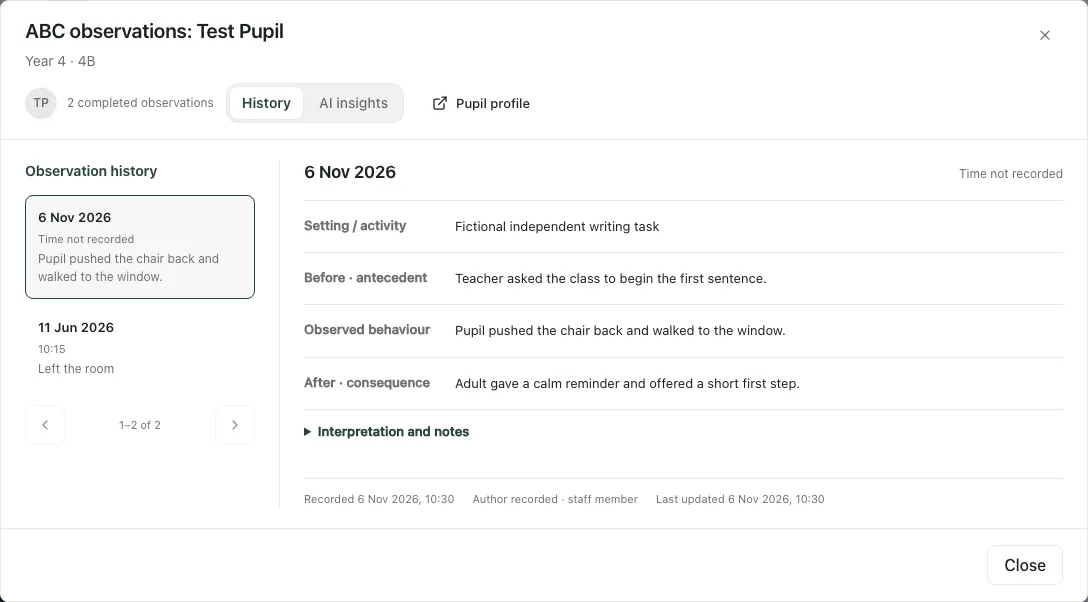
Read the history count and page controls. A bounded page is not the whole record. Pupil profile opens the permitted pupil context; a link does not confer extra access.
Where your view offers Review & edit, open the intended record, check the version and use Save changes after correcting the facts. If the observation changed elsewhere, keep your draft and reread the current record before trying again. Do not overwrite a later colleague correction blindly.
An updated observation can make an earlier analysis stale. Review the current facts first; do not assume a previously generated insight refreshed when you edited the history.
4. Read AI insights as suggestions
Section titled “4. Read AI insights as suggestions”Choose Insights on the pupil row or AI insights in the history dialog. A saved analysis can contain a summary, possible triggers, maintaining factors, hypothesised functions, strategies to consider, patterns/questions and limitations.
Read its generated date, source coverage and revisions before relying on it. The current analysis is bounded to a limited recent set of observations, up to 25 where supported. It is not automatically every observation ever recorded. Truncated text, missing dates or older analyses without recorded revisions are material limitations.
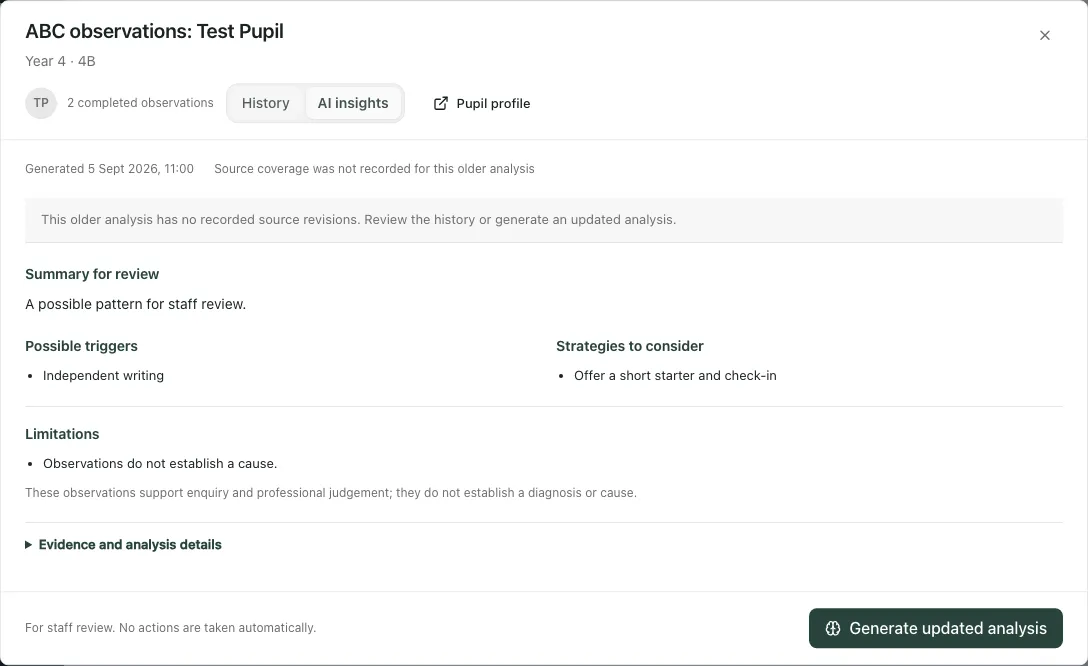
If no analysis exists and your account offers it, Generate analysis requests one. Generate updated analysis can request a new version when observations have changed and the action is available. Check the current history and the stated limits first; regeneration is not a way to establish a desired explanation.
The app explicitly states that observations support enquiry and professional judgement, do not establish diagnosis or cause, and take no action automatically. Check a suggested strategy with the right staff and individual plans before choosing a response. An AI phrase must not become a factual event in a new observation unless someone actually observed it.
5. Use the phone and alternative-provision view
Section titled “5. Use the phone and alternative-provision view”The phone register keeps the pupil, counts and primary controls compact. Scroll or open filters to check the intended period. Observation and history dialogs keep their own scroll areas; review the pupil at the top before saving.
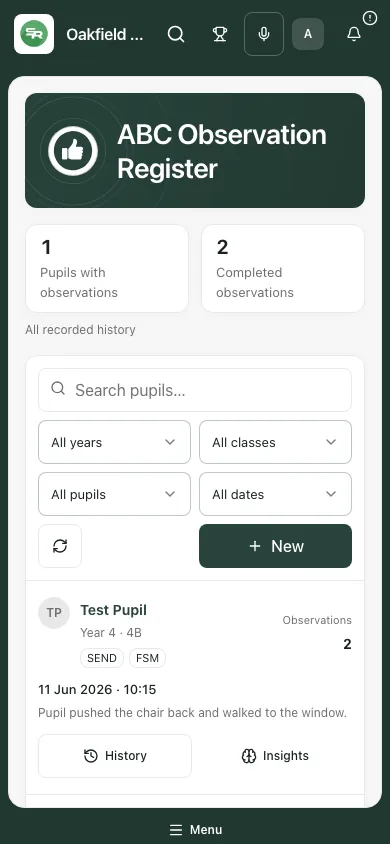
Alternative-provision defaults can focus recent observations and offer row-level record/review actions. The same separation of observation and hypothesis applies. Different controls do not change the need for authorised pupil access and a human decision.
If something does not work
Section titled “If something does not work”| What you see | What to do |
|---|---|
| Describe the behaviour | Complete Observed behaviour with factual observed actions. |
| Pupil not accessible or not selected | Choose the pupil again; ask an authorised administrator to review access if they are missing. |
| Date invalid or after today | Correct the actual observation date. Do not substitute today’s date just to pass validation if the event happened earlier. |
| Save refused or connection uncertain | Keep the draft, read the error and inspect history before repeating the save. |
| No observations match filters | Check period/search/cohorts and clear filters if appropriate. |
| Register/history failed | Retry; a failed read does not mean no records. |
| Observation changed elsewhere | Reread the latest version and apply only the intended correction. |
| Older analysis has no source revisions | Review the history and limitations; request an updated analysis only where appropriate and available. |
| Analysis unavailable/refused | Use the recorded observations and professional review. Repeated clicks do not grant access or establish a cause. |
For the focused capture steps, see Record an ABC behaviour observation.
Common questions
Section titled “Common questions”What belongs in the three parts of an ABC observation?
Section titled “What belongs in the three parts of an ABC observation?”Record what happened before, the behaviour you observed and what happened afterwards. Keep circumstances factual.
Can I record a suggested function as an established cause?
Section titled “Can I record a suggested function as an established cause?”No. Possible functions and optional AI insights are hypotheses to review against observations, not diagnoses or confirmed explanations.