Build AP forms and attach reviewed versions to referrals
Written for: Alternative provision form owners, referral managers and authorised staff.
Build and preview the form, review its staff audience and publish the approved version before attaching it to a referral stage. Build and save a draft, check the staff audience and publication arrangements, publish the approved version, then attach that exact version to its intended referral stage. A saved draft is not a published version, and a published version is not automatically attached to a workflow or completed by staff.
The fictional example has one published discussion form at version 1, used by one of two stages in a fictional intake workflow. The walkthrough changes its draft introduction and reopens it; the stage keeps the existing published version until a separate publication and workflow change.
Before you begin
Section titled “Before you begin”Open Custom Forms for the intended provision. Form-library access, creating/editing, publishing/approval and referral management are separate permissions. Owners, Forms managers, editors and viewers can see different controls. Reading a form does not grant access to its responses or a restricted referral.
Agree the purpose, questions, data classification, required answers, publication reviewer and intended stage before building. Use the specialist application for its own facts and decisions; a custom form should not become a substitute pupil identity, clinical record or placement decision.
A. Read the library and stage usage
Section titled “A. Read the library and stage usage”- Open Custom Forms and read Library. It separates Published, Awaiting approval, Approved, ready to publish and Draft only.
- If counts have + or the page says they cover forms loaded so far, do not describe them as the full library total. Load more forms as needed.
- Read In referral stages. It shows what new referrals ask staff to complete, including the workflow, stage, form and attached published version. A form with a newer published version is not silently substituted into an existing requirement.
- Check Forms on … of … stages against the particular workflow. It counts stages with forms, not staff responses or completed referrals. Only the first two active workflows are shown in the overview; use referral settings to inspect others.
- If stage usage fails, use Try again. The form library can remain available while usage is unknown. An unavailable or incomplete version list is not evidence that a form is unused.
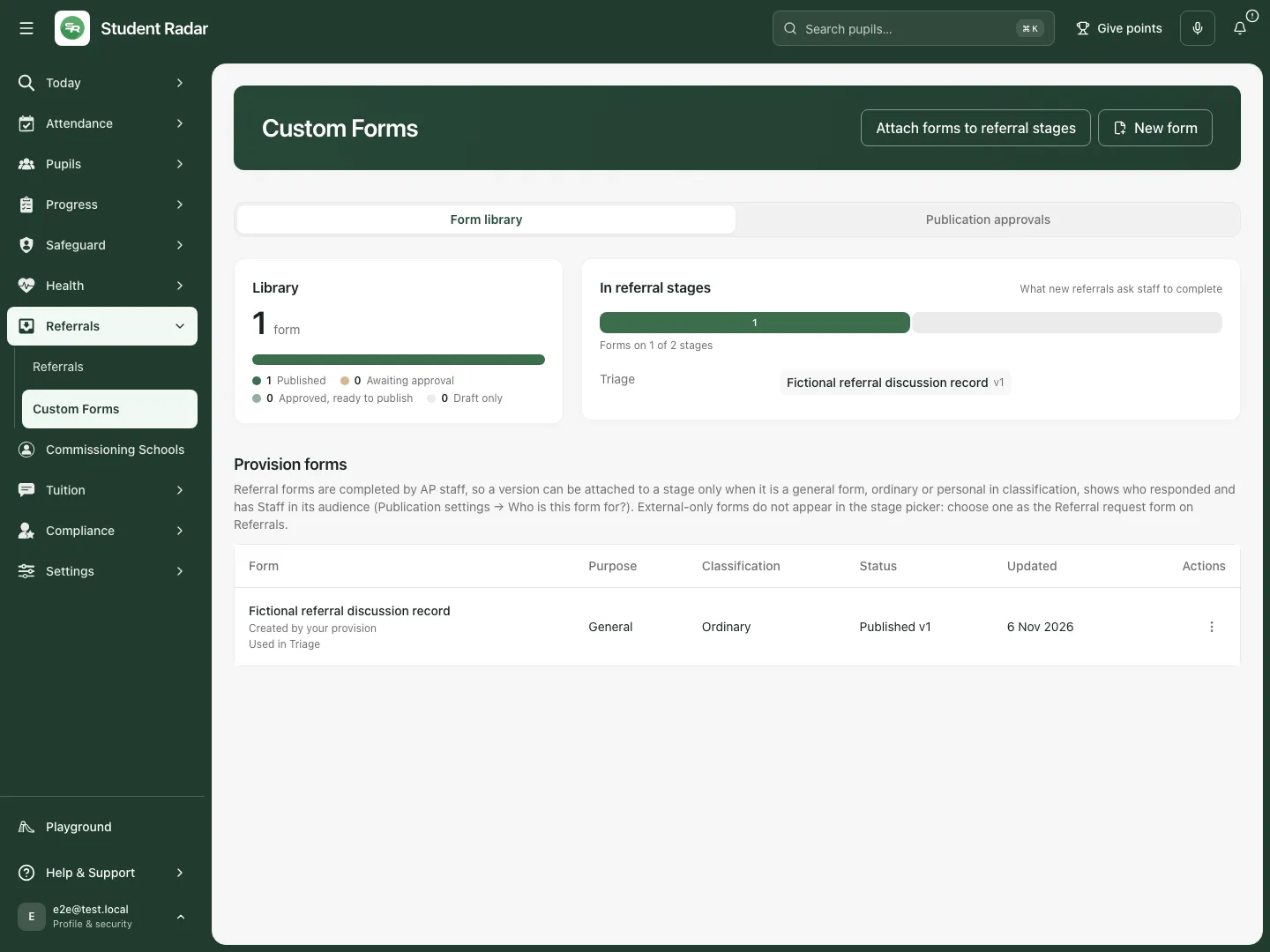
Fictional example: one published form is attached to one of two intake stages, at its explicit version.
B. Open or create the intended form
Section titled “B. Open or create the intended form”- Use Actions for [form title] and Edit form, or View form if you have read-only access.
- For a new AP library form, select New form. This opens the blank form editor; it differs from the broader school Forms starter catalogue.
- In Build, enter Form title and Introduction, then check Purpose and Data classification. For a staff referral-stage form, use general and ordinary or personal, as appropriate to the information genuinely needed.
- Add at least one field before the first Create draft. An empty new form cannot be saved or published.
- Keep the title and purpose honest. Once a version has been published, purpose and classification cannot be changed to disguise a different use of that established form.
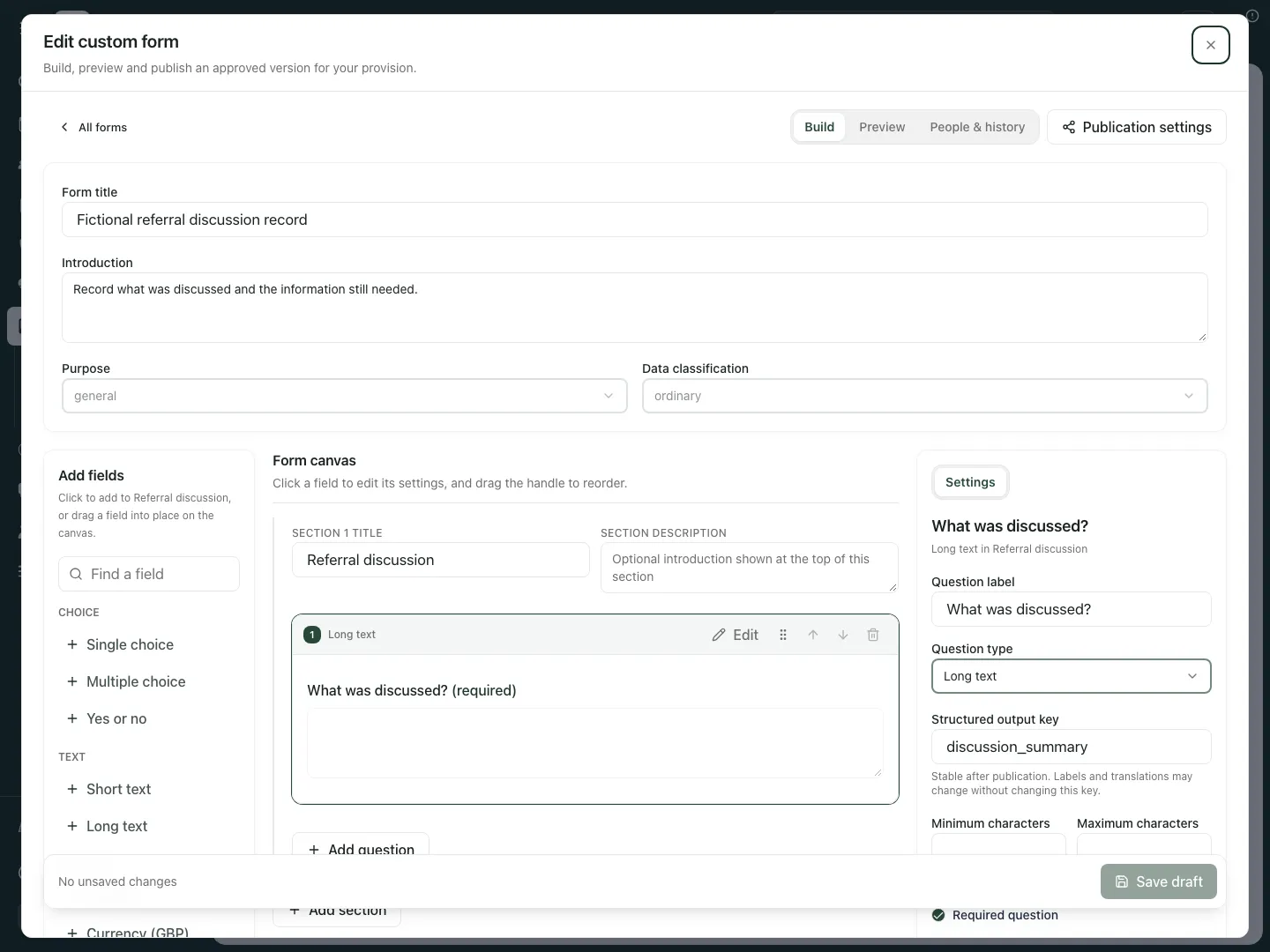
Fictional example: a general, ordinary form asks staff to record what was discussed.
C. Write sections, fields and validation
Section titled “C. Write sections, fields and validation”- Set Section title and Section description for each topic. Use Add section to separate another topic.
- Use Add field in the newer builder, or the existing form’s Add question control. Select the field and use Edit to open its settings.
- Set Question label, the appropriate type, Help text and required state. Text, choices, dates, numbers, contact/address fields, rating/matrix, repeating groups, files, declarations/signatures and guidance content have different settings; choose the type that matches the information.
- Preserve each answer field’s stable Output key. It identifies the answer for rules/reporting; changing a visible label does not justify reusing another field’s key.
- Set relevant limits such as Minimum characters, Maximum characters, Earliest date, Latest date, Minimum value, Maximum value, Minimum items and Maximum items. Replace all example choices before publication.
- For a repeating group, use Add repeated field, set each field’s label, output key and type, then check its permitted item count. For files, review allowed types and Maximum per file (MB), Maximum files and Maximum total (MB) within the platform’s displayed limits.
- For declarations/signatures, review Declaration wording carefully. It is the wording people respond to, not merely a heading. A captured signature does not by itself complete a separate specialist approval.
- Use the move controls/drag handle to order fields, then review dependencies before deleting anything. A rule that points at a removed question must be corrected.
- For an AP staff stage form, remove Trusted prefill rather than relying on a prefilling field to establish referral identity. The stage eligibility requirements below still apply even if another general form supports prefill.
The newer blank builder, rules and reporting depend on the environment’s enabled features. An existing version 2 form can retain its established builder, as in this example; do not infer an enabled upgrade from another provision’s screenshot.
D. Preview every relevant path
Section titled “D. Preview every relevant path”- Select Preview and read the recipient-facing introduction and questions.
- Enter representative answers, including missing required answers and boundary values. Check choice wording, declarations and file guidance.
- For conditional questions, check both the shown and hidden cases. In a newer enabled builder, use Rules and branching → Add rule, set Rule name, Evaluate after section, Match, answer conditions and the later action/target. Add condition and Add action extend the rule.
- Keep source questions before their dependent fields/sections. Show/require/skip/end actions are different; preview every affected route after changing their order.
- Return to Build, correct validation messages and save. Preview does not submit a real response or publish the form.
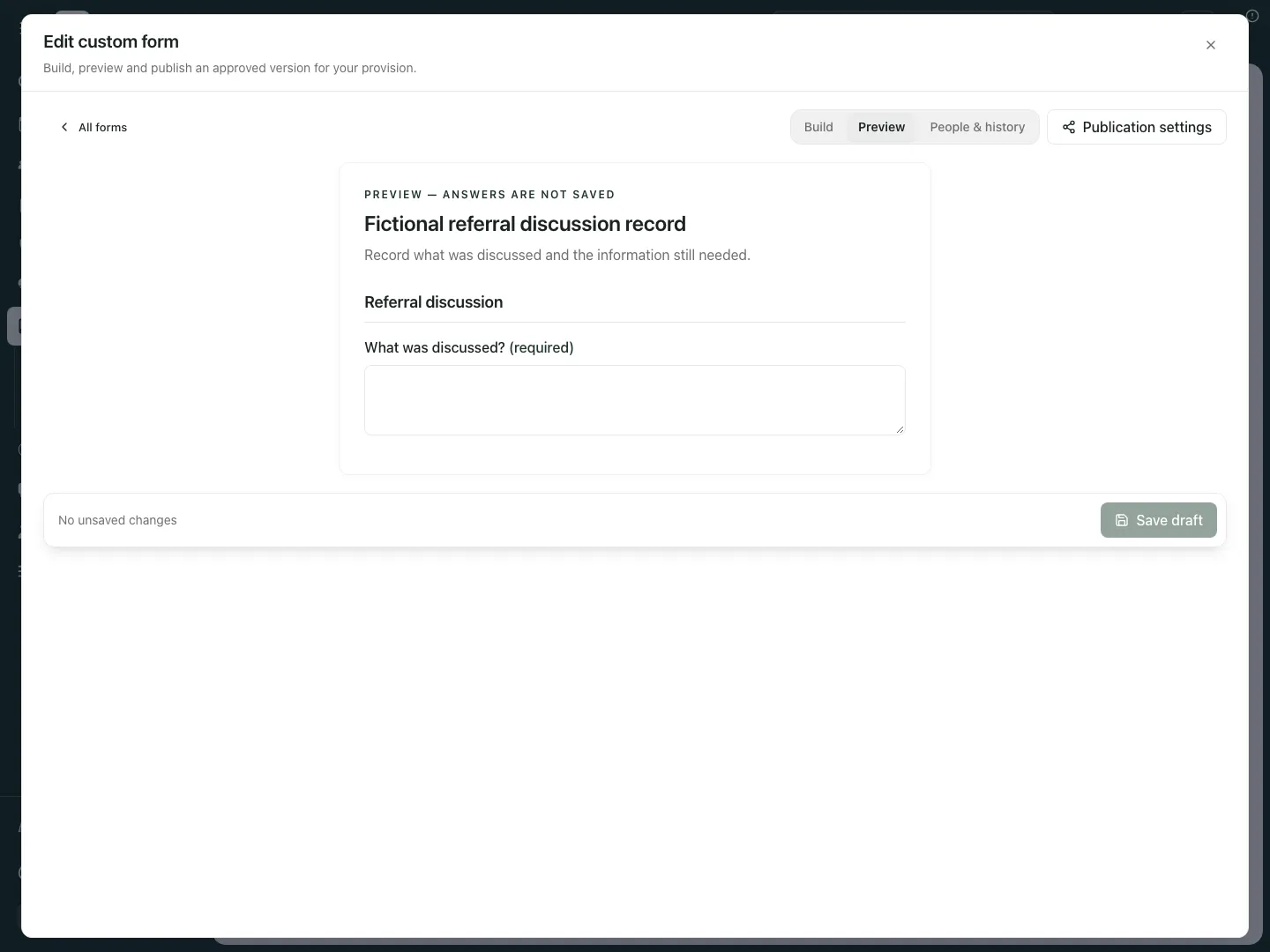
Fictional example: preview shows the actual staff-facing discussion question without creating a referral response.
E. Set publication and staff-stage eligibility
Section titled “E. Set publication and staff-stage eligibility”- Open Publication settings. Under Who is this form for?, include Staff.
- In Can you see who responded?, choose Yes — responses show who submitted them for a referral-stage form.
- Set Approval before sharing and Review responses before accepting them deliberately. Publication approval and response approval are different decisions. Use the required authorised colleague(s), rather than sharing an account to approve your own draft.
- Review reminder and advanced settings, including language/privacy/retention references, according to the provision’s approved arrangements.
- To be offered in the staff-stage picker, the published form must use the current supported format (version 2 or 3), general purpose, ordinary or personal classification, Staff audience and identified responses. Remove payment requests, a specialist-record link, external webhooks and trusted prefill. The editor explains incompatible choices; the server still decides whether a particular version is eligible.
- Select Done, then Save draft if you changed settings. Closing the settings dialog is not publication or a separate save.
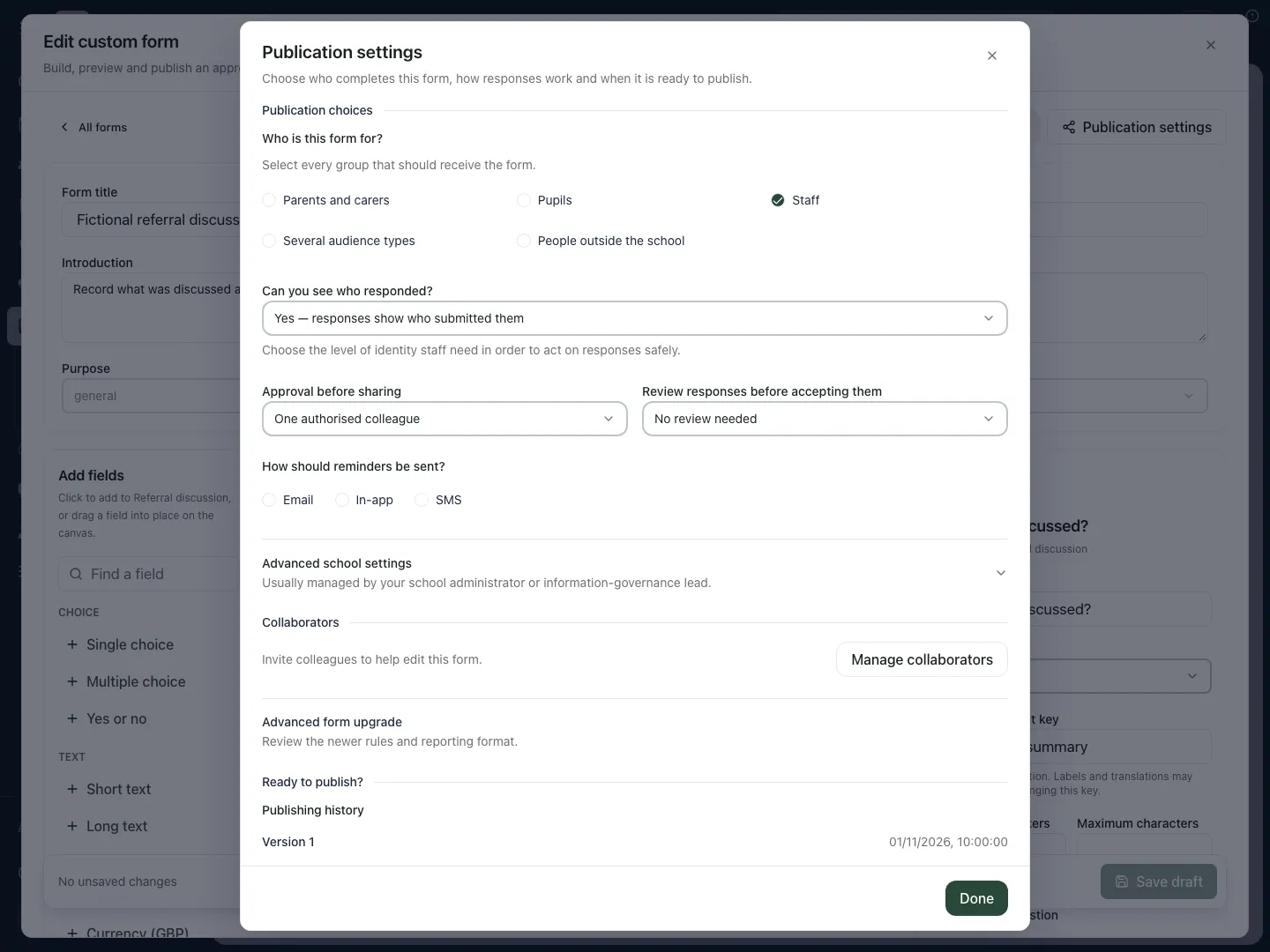
Fictional example: the staff audience, identified responses and publication arrangements remain separate from the already published version.
An external-only form is a different workflow. It is not offered as a staff-stage form; choose an appropriate published external form as the Referral request form on Referrals instead. Do not relabel sensitive data as ordinary merely to make it attachable.
F. Save and reopen the draft
Section titled “F. Save and reopen the draft”- Finish edits and select Save draft, or Create draft for a new form.
- Wait for confirmation. If saving fails or the revision changed elsewhere, keep your edits available, reload/review the current draft and resolve the conflict before trying again.
- Select All forms, open the same form’s action menu and choose Edit form.
- Check the exact text/settings changed. A second open tab is not proof that the first draft saved.
- Review Publishing history separately: the saved draft can be newer than the version currently used in referral stages.
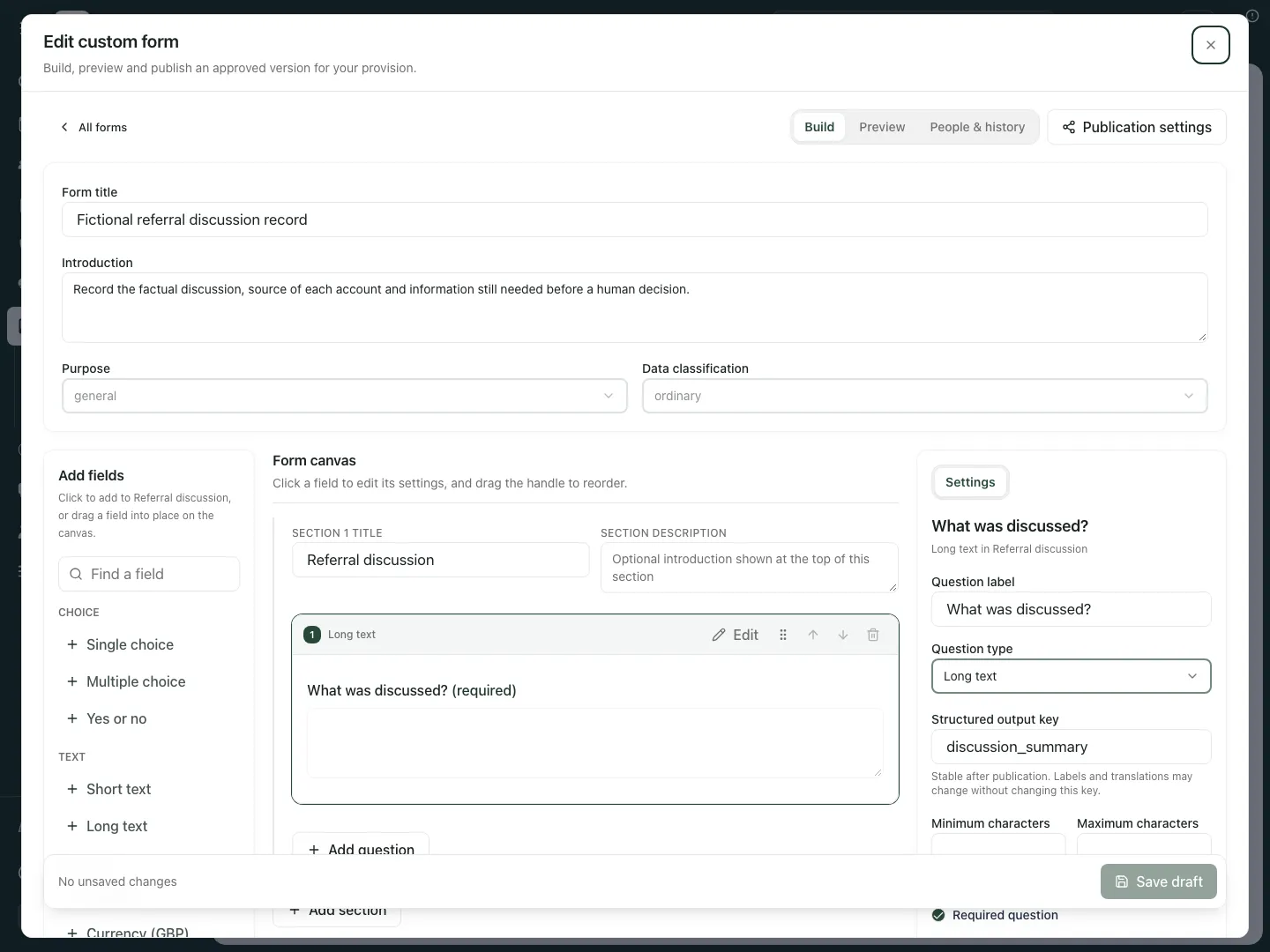
The reopened fictional draft retains the revised introduction. Its existing published version 1 remains the stage’s version.
G. Publish the exact approved revision
Section titled “G. Publish the exact approved revision”- Save the final draft and preview it, then open Publication settings and inspect validation messages and Publishing history.
- If independent approval is required, select Send for approval, read the confirmation and confirm Send for approval. The state becomes Awaiting approval.
- An authorised approver uses Approvals, reviews the exact revision and selects Approve exact revision. Where two authorised colleagues are required, one person cannot provide both decisions.
- Select Publish approved revision when that is the permitted next step. If direct publication is permitted, choose Publish form, review Publish this form?, then confirm Publish form.
- Check the resulting published version number. Approval alone is not publication, and publication alone does not replace a form version on an existing referral requirement.
- If the draft changed after an approval request, send the newly saved revision for approval again. Do not assume the old approval applies to changed wording.
H. Attach the published version to a workflow stage
Section titled “H. Attach the published version to a workflow stage”- Return to the library and select Attach forms to referral stages. This opens Referrals → Workflow settings; it does not attach anything by itself.
- Choose the intended workflow/version for editing and find the intended stage. Use Add form to [stage].
- Set the form requirement label, stage, stable key and published form version. Choose the exact eligible version, not an unpublished draft or a different form with a similar title.
- Decide whether the requirement is required and whether the latest submitted response must complete its approval workflow. Add a condition only when the requirement genuinely depends on that answer.
- Review the workflow’s stage names/dependencies and requirements, then Publish new version. This publishes a new workflow version; it does not complete a form response or retrospectively change every existing referral.
- Return to Custom Forms and check the displayed stage usage/version. Review existing referrals separately before explicitly adopting another workflow version.
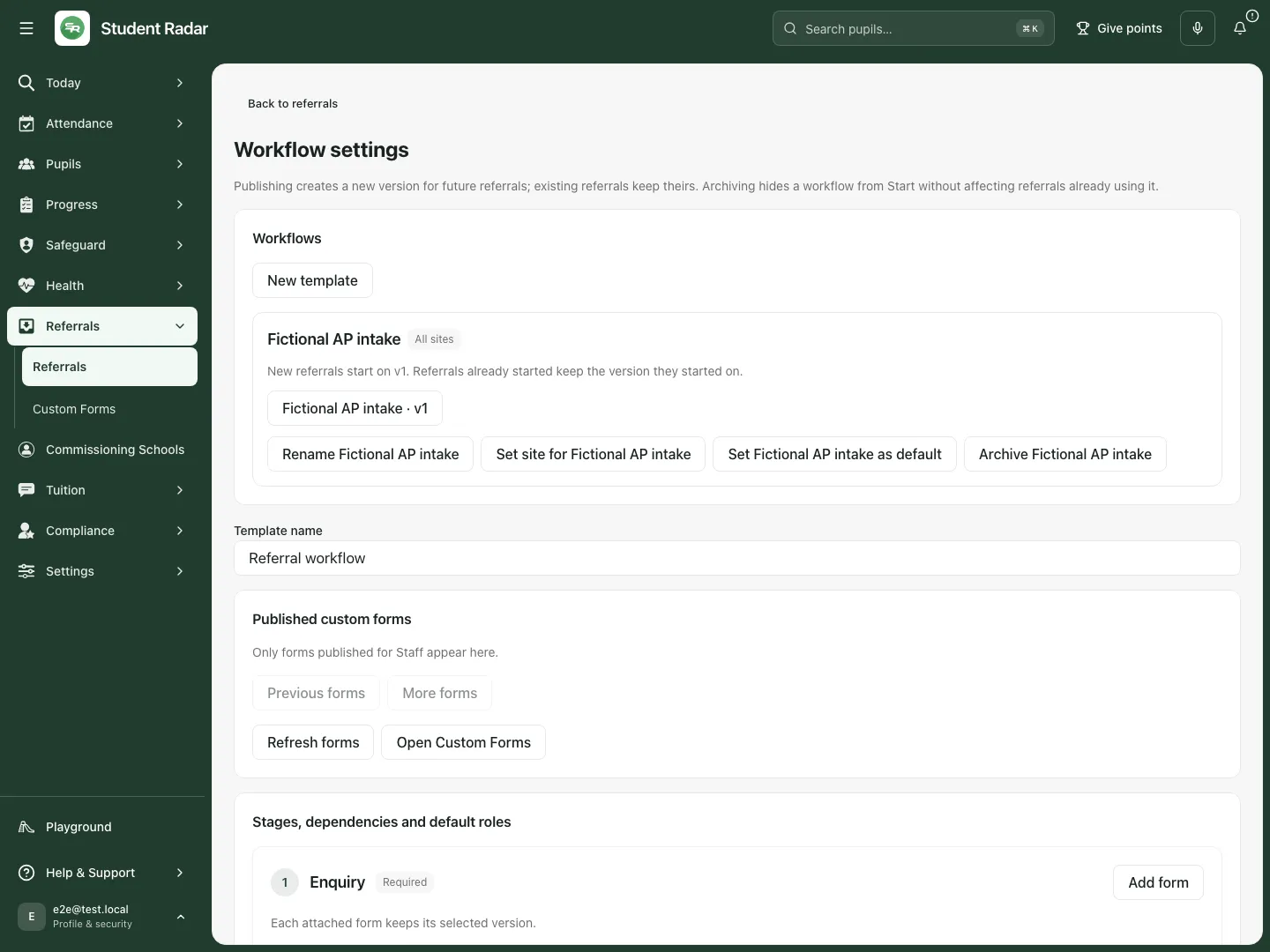
Fictional example: the separate workflow settings choose the form version used by a stage; this example does not publish a replacement workflow.
I. Complete and review the form from its referral
Section titled “I. Complete and review the form from its referral”- Open the intended referral and stage, then its attached form requirement. Check the young person, requirement and published version before beginning.
- Use the requirement’s authorised start/open control to enter its response in the shared Forms workflow. The referral keeps the form reference; answers remain with the form response rather than a second copied answer record.
- Complete the required questions and submit using the response form’s control. A draft or opened assignment is not a satisfied requirement.
- If response approval is required, an authorised reviewer reviews the exact response and records the required decision. Check the referral’s requirement status after that decision.
- Use the shared Forms guide for the detailed response review, correction/conflict, evidence, translation and campaign controls. Access to a referral link does not independently grant response-review authority.
J. Collaborators, versions and archive
Section titled “J. Collaborators, versions and archive”- Open People & history for the selected form. Owners/Forms managers use the collaborator controls to assign the appropriate editor/viewer role to attached staff; do not share an account.
- Review Publishing history when handing work over. Keep draft revision, published version, workflow version and response revision distinct.
- Use the form’s Archive action and confirmation only when you intend to retire the definition from active use. Check its current stage usage first and arrange the intended replacement workflow/version.
- Do not use archive or a new title as a way to erase an existing response, change historical declaration wording or silently replace a version already attached to a referral.
Troubleshooting and questions
Section titled “Troubleshooting and questions”The form is not offered for referral stages. Open the form and read its eligibility messages. Check supported format, purpose/classification, Staff audience, identified responses, payment/specialist/webhook settings and trusted prefill. Publish the corrected approved version; a compatible unsaved draft does not change the old published version.
A newer version exists but the stage still shows the old one. That is a versioned reference. Edit/publish the intended workflow version deliberately and review any existing referrals separately.
Stage usage is unavailable or incomplete. Retry it. The form library and stage usage have separate reads; do not treat unknown usage as “not used”. The usage reader stops after its bounded version pages and marks incomplete coverage rather than proving absence.
Can I use a parent information form as a staff requirement? Only an eligible published staff-stage version is attachable. External-only forms belong in the separate referral-request workflow.
Does Save draft change a form staff already completed? It saves the draft; a different published version or response is a separate record and decision.
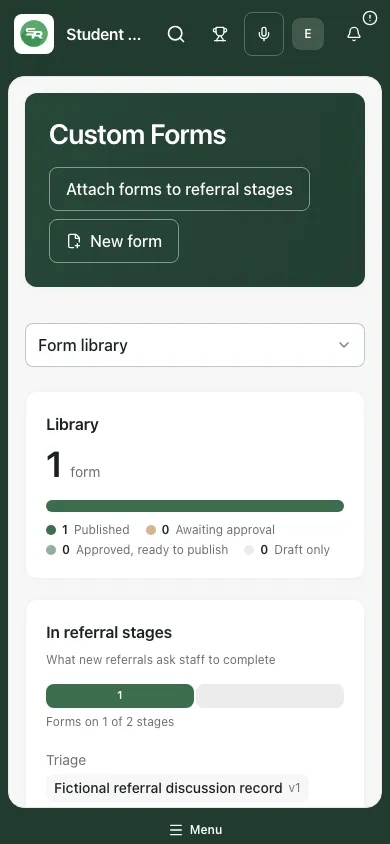
Fictional example: the library and current stage-version usage remain available on a phone.
Related guides
Section titled “Related guides”Use Forms, manage AP referrals and manage your tasks in My Actions.