Map AP quality standards and record evidence gaps
Maintain the intended quality standard, link evidence already held and record or resolve explicit gaps for review. The map’s Evidenced state is your recorded completeness decision. It is not an award, external accreditation judgement or proof of pupil impact.
Before you begin
Section titled “Before you begin”Open Quality Mark in the AP workspace. Read and manage access are separate; limited views may show progress without source evidence. Documents, compliance duties and linked workspaces retain their own access checks. Ask your provision lead for the specific duty you need.
Have the actual framework or commissioner expectations, reviewed evidence and known gaps ready. Suggested headings are a starting point: adapt them to your framework instead of presenting them as an official assessment scheme.
1. Start and read the standards map
Section titled “1. Start and read the standards map”- Open Standards. On a phone use Quality Mark sections.
- If the map is empty and you manage it, choose Use suggested headings, or Add my own standard. Review the resulting headings against the scheme you actually use.
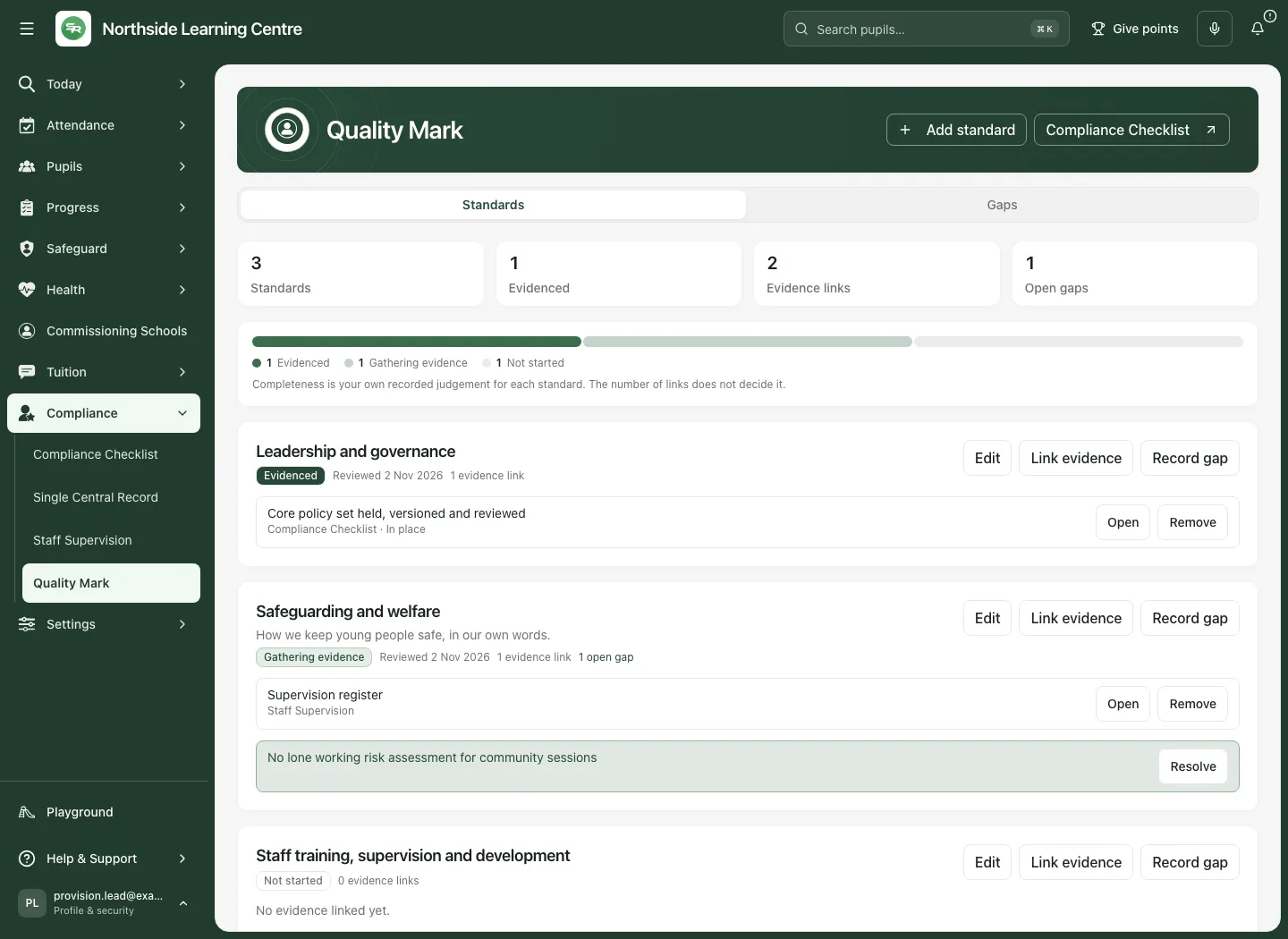
- Read Standards, Evidenced, Evidence links and Open gaps together where offered. A restricted progress view may show fewer source details.
- Read each standard’s heading, summary, completeness, reviewed date, evidence links and gaps. Not started, Gathering evidence and Evidenced represent separate recorded states.
- Open the original evidence where permitted. A failed source load is shown as unavailable, not proof that no evidence or gap exists.
2. Add or edit a standard
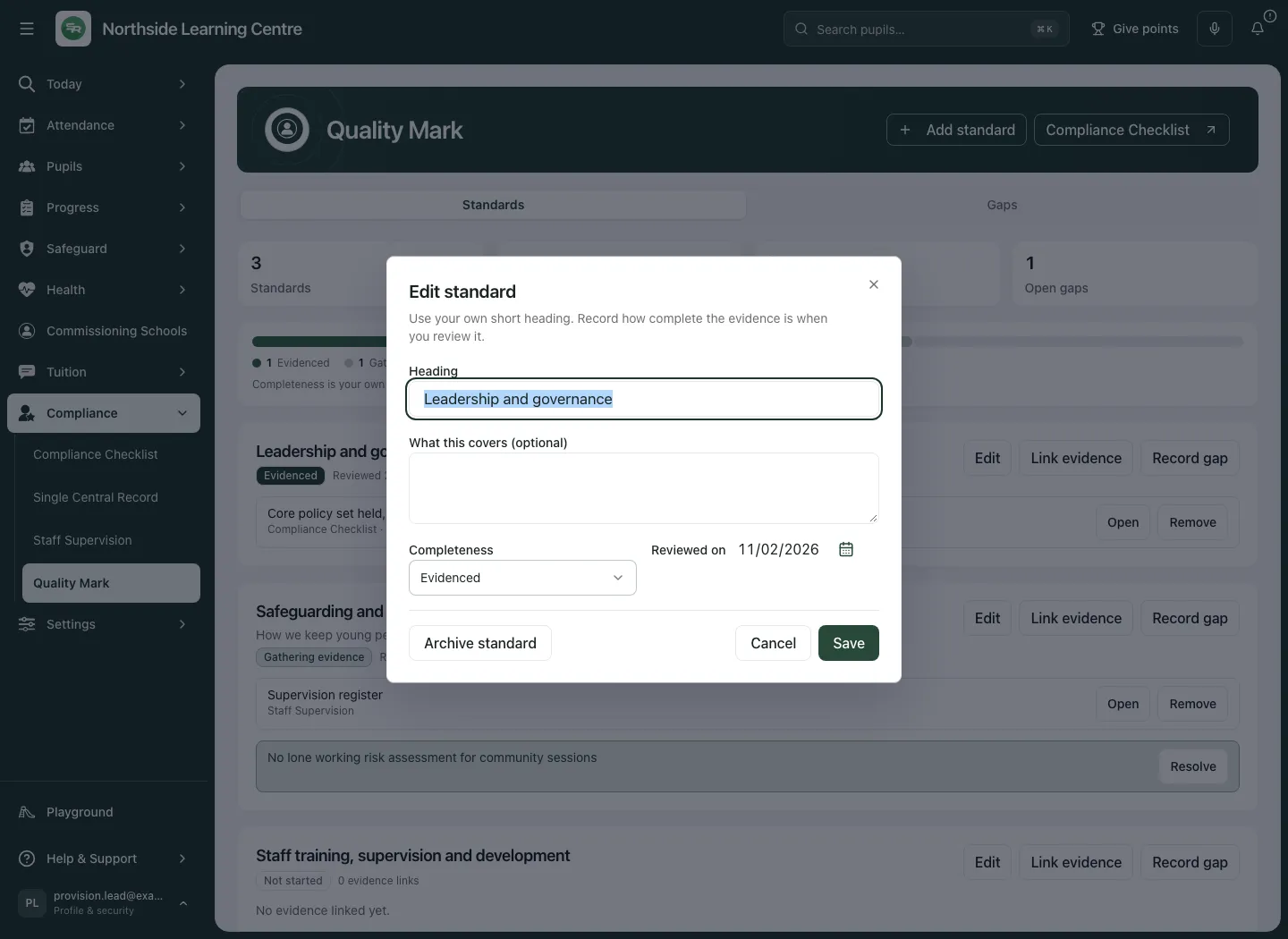
Section titled “2. Add or edit a standard”- Choose Add standard, Add my own standard, or Edit on the intended existing standard.
- Enter Heading and What this covers (optional). Use wording that a reviewer can match to the real framework.
- Set Completeness to Not started, Gathering evidence or Evidenced after reviewing the material. Linking a file does not choose this state for you.
- Check Reviewed on, required for a reviewed state. Selecting Gathering evidence/Evidenced can fill today’s date; correct it to the date the human review actually happened. Future review dates are not accepted.
- Choose Save, wait for confirmation and reopen the standard to check the heading, summary, state and review date.
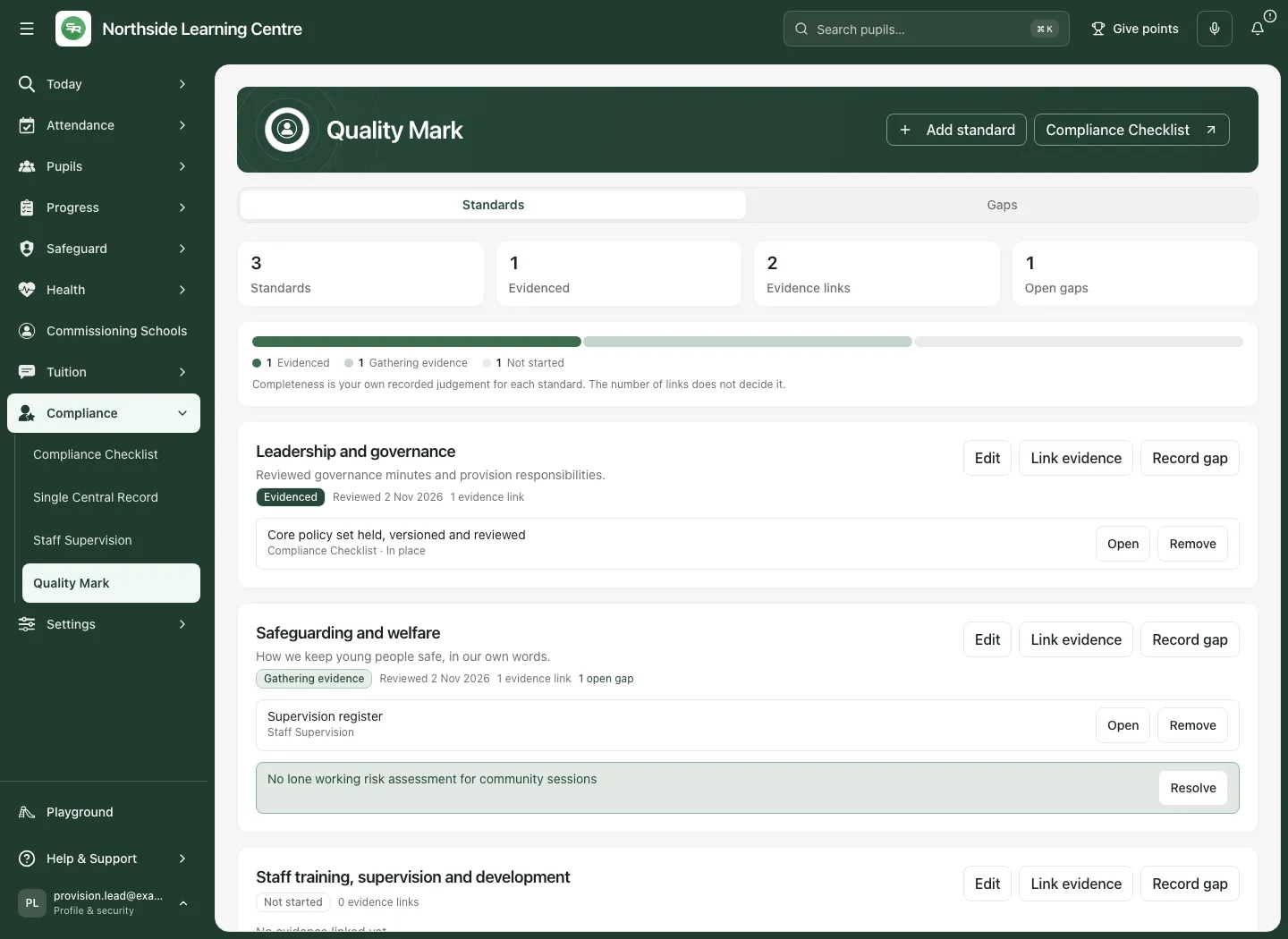
If the standard changed while you edited it, inspect the newer record and the conflict/reload guidance before deciding what to save. An unconfirmed read must not be treated as a confirmed new baseline.
3. Link evidence already held
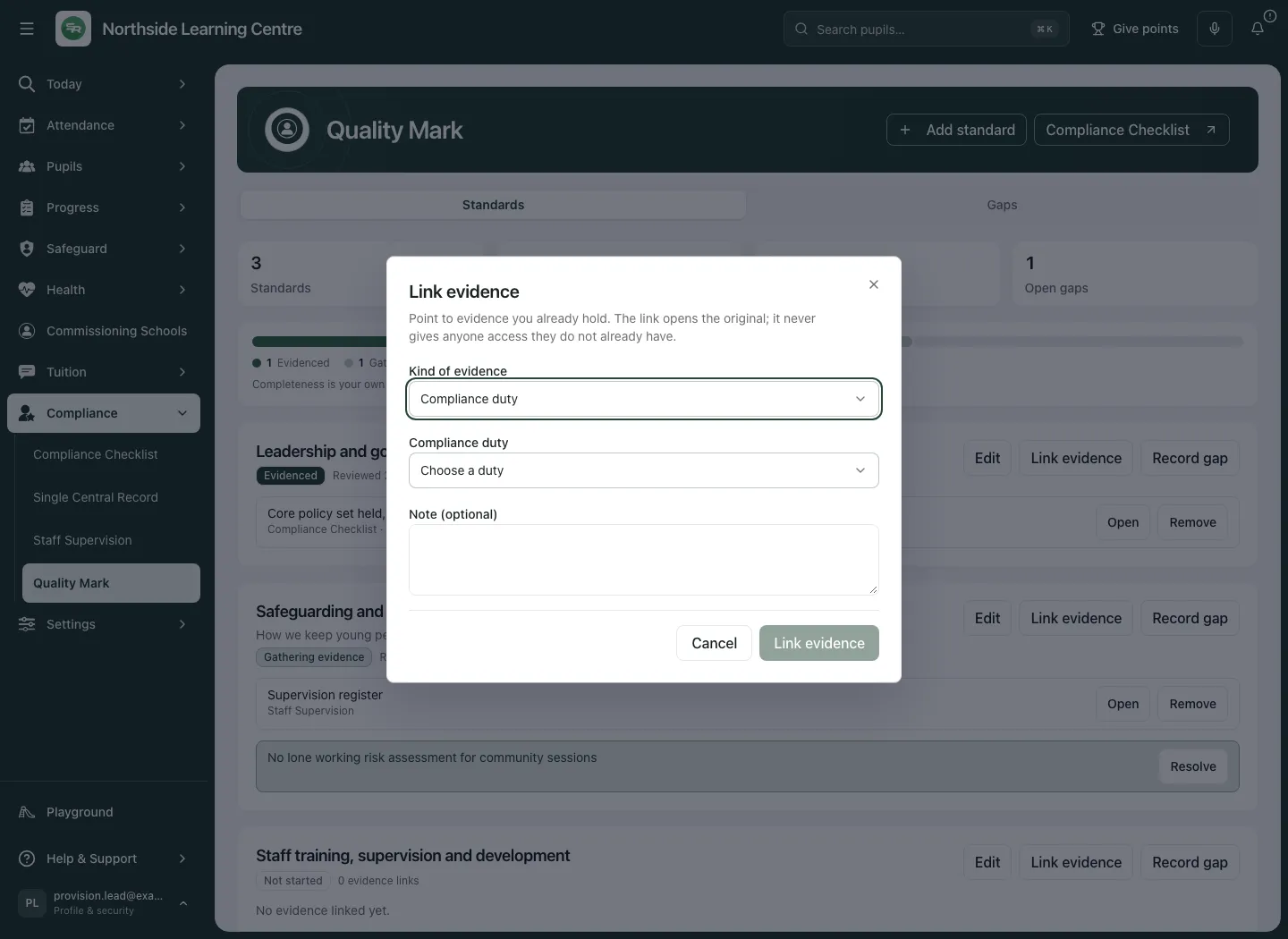
Section titled “3. Link evidence already held”- On the intended standard choose Link evidence.
- Choose Kind of evidence: Compliance duty, Document or policy, Student Radar workspace or Evidence held elsewhere.
- For Compliance duty, select the exact Compliance duty. For Document or policy, choose Document from the available permitted records. Where capped, only the 300 most recently updated documents are listed; absence from the picker does not prove absence from the store.
- For Student Radar workspace, choose Workspace and check its Label. For Evidence held elsewhere, enter What the evidence is so another authorised reviewer can identify the source.
- Add Note (optional) explaining the relationship, up to 500 characters. This note is about why evidence supports the standard, not an automatic conclusion about its quality.
- Choose Link evidence, wait for confirmation and check the standard’s evidence list.
- Open the original source where a destination is available and confirm that it is still appropriate. A context link never grants access to the source.
If a document list cannot load, choose Retry. If no accessible documents are offered, add or locate them in Evidence Store or Policies first. Do not substitute an unrelated document merely to make a standard look complete.
4. Remove an outdated relationship
Section titled “4. Remove an outdated relationship”- Locate the exact evidence relationship on the standard and choose its removal action.
- Read Remove this link? and the source title. Removing it also removes the note on that relationship; it does not delete or change the evidence itself.
- Choose Keep the link to cancel or Remove link to confirm.
- Check the remaining relationships and reconsider the standard’s completeness. Removing a link is separate from a human assessment of the standard.
5. Record and resolve a gap
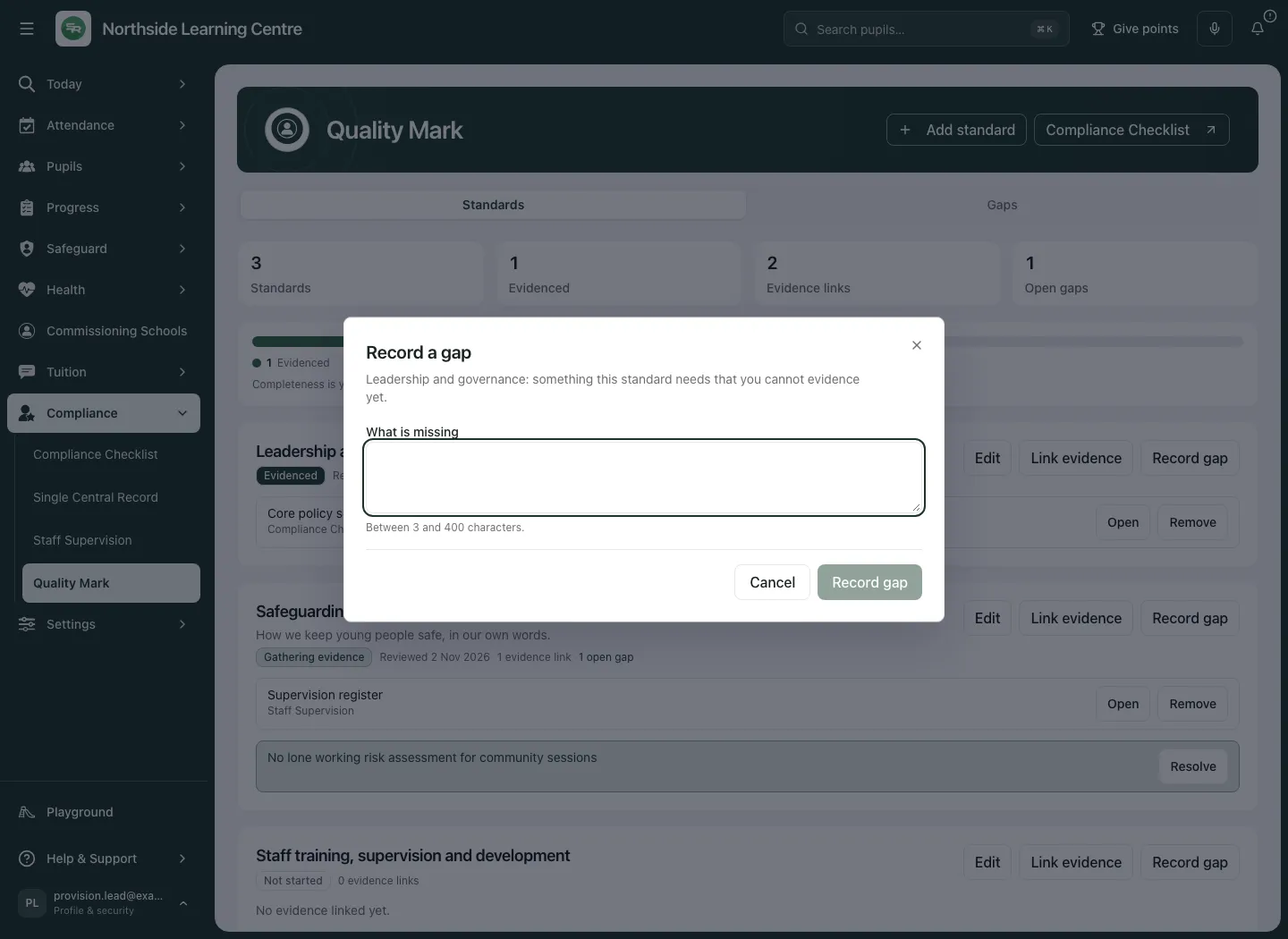
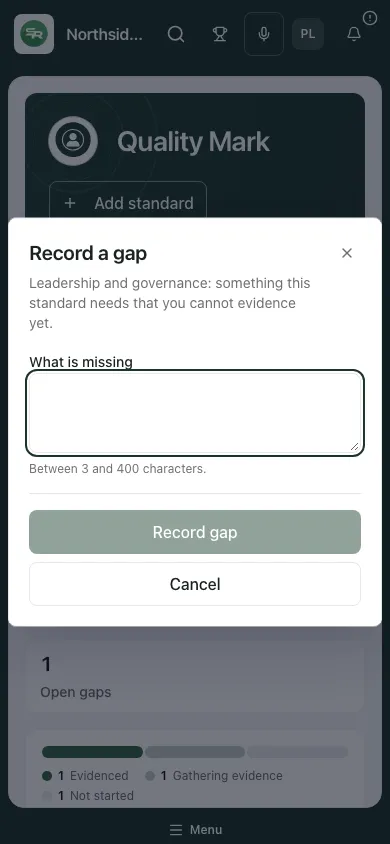
Section titled “5. Record and resolve a gap”- Choose Record gap on the intended standard to open Record a gap.
- Enter What is missing with a concrete description of the missing evidence or provision. Check the standard named in the dialog.
- Choose Record gap, wait for confirmation and verify the open gap under that standard and in Gaps.
- Arrange the required owned work through the appropriate source workflow; a gap description alone does not prove a task was assigned or a message sent.
- When the gap has actually been addressed, choose Resolve for the intended gap.
- In Resolve this gap, enter How it was resolved (optional) and choose Resolve gap. Review the result and the supporting evidence before changing Completeness.
Resolving a gap records your decision about that gap. It does not automatically establish accreditation, improvement or a successful pupil outcome.
6. Archive an unwanted standard
Section titled “6. Archive an unwanted standard”- Choose Edit on the exact standard, then Archive standard.
- Read the confirmation, including the evidence-link count and open-gap count leaving the map with it.
- Choose Keep standard if the standard should remain, or Archive standard again to confirm the deliberate decision.
- Check the remaining map. This page cannot bring an archived standard back; do not archive merely to hide an inconvenient open gap.
The source evidence itself is not deleted by removing a standard from the map. Use the owning document or specialist workflow to maintain it.
7. Review progress and source boundaries
Section titled “7. Review progress and source boundaries”Use Gaps to review outstanding work across standards and Compliance Checklist where offered to inspect the authoritative duty. A compliance status, document version, workspace link and quality-map completeness are different facts; none automatically updates all the others.
Review the actual framework periodically, update evidence links as sources change and record a new human review date/state where justified. Keep the accountable person, expected result and review point in the owned work used to address gaps. The map is a route into the evidence, not a substitute for it.
Troubleshooting and questions
Section titled “Troubleshooting and questions”- Map unavailable: use Retry where offered. Completeness and gaps cannot be confirmed until the source loads.
- Last-known data is shown: read the stale-data notice and retry before making a decision based on currency.
- Source names/statuses unavailable: the relationship may still exist. Retry the source rather than deleting links as if they were empty.
- Cannot choose a document: check access, recent-document limit and whether the evidence record exists in Evidence Store/Policies.
- Save was refused as out of date: reread the newer standard and review your intended change before saving again.
- Access changed: stop using the previous restricted view; refresh and use only the source material your current role permits.
Does Evidenced mean we have achieved a Quality Mark? No. It is a recorded completeness state in your internal map. External assessors make their own decisions.
Does a link copy the evidence or change its permissions? No. It points to the original source where a source link is available and preserves its access boundary. Evidence held elsewhere records an identifying label and note rather than a navigable source.
Will resolving every gap prove impact? No. Review the evidence of outcomes separately from administrative completion.
Related: AP Evidence Store, AP staff supervision.