Record pupil transport and check today's journeys
Written for: AP colleagues who organise, meet or review permitted pupil transport.
Use Transport to check the day’s pick-ups and drop-offs, keep an agreed pupil arrangement up to date and record a delay, no-show, operator cancellation or change already passed on. A transport entry supplies context; it does not change an attendance mark or contact the operator.
Before you start
Section titled “Before you start”Open Provision → Transport in the AP sidebar. Check the provision and selected date. Your permitted pupils, ability to record events and ability to manage arrangements can differ. View opens an arrangement without edit controls; Edit requires management access. Teaching and support staff’s permitted pupil list is not the whole provision. Office access and named operational access must not be assumed. Read-only demos do not save changes.
Use the provision’s agreed arrangements and immediate safeguarding procedures. A journey marked late or a recorded handover note does not establish where a pupil is, approve an escort, verify a DBS check or release a pupil to an adult.
The examples show fictional pupils and transport details.
Check today’s journeys
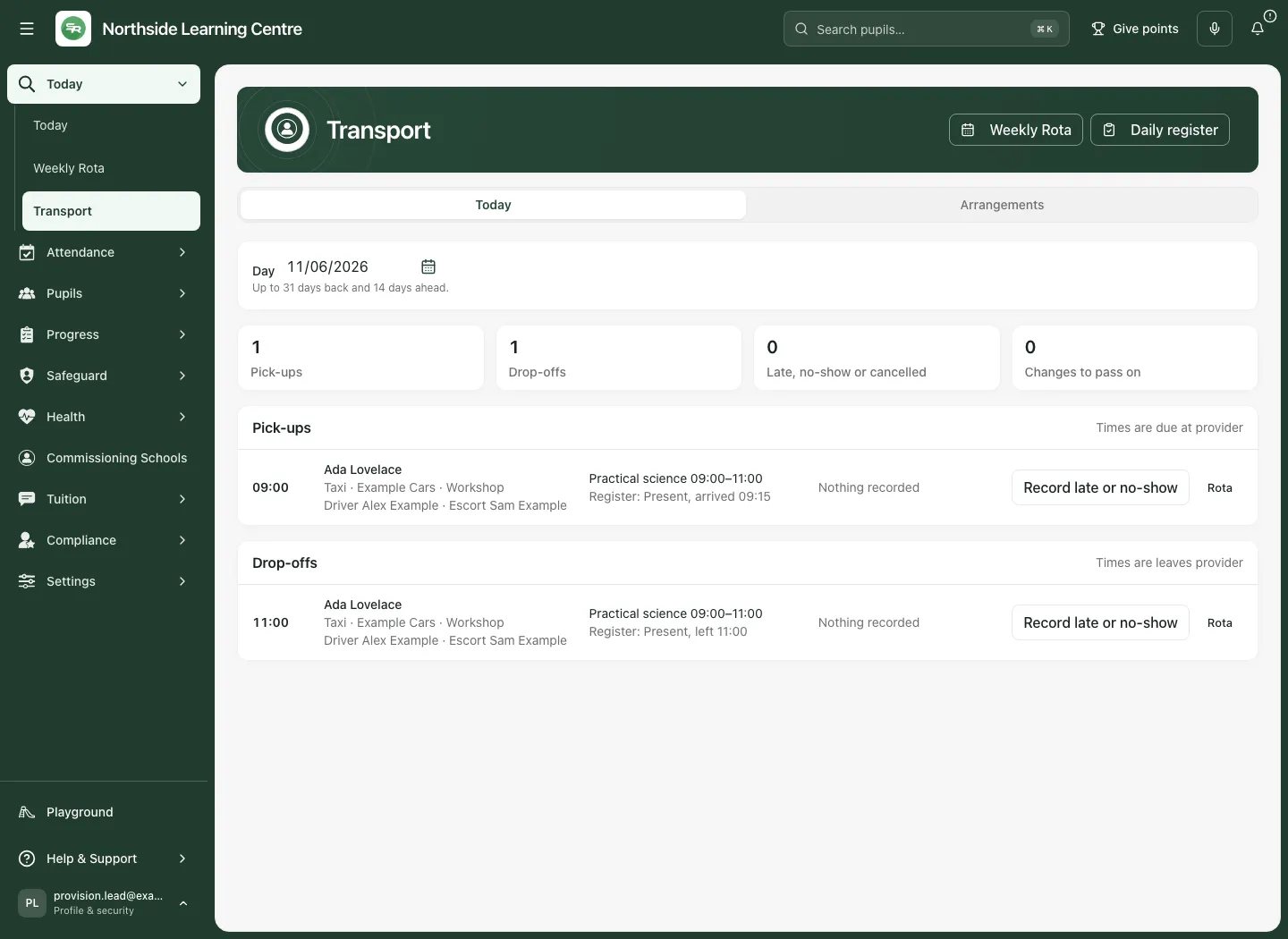
Section titled “Check today’s journeys”- Select Today, then check the day. You can read the 31 days before the current school day and the next 14 days.
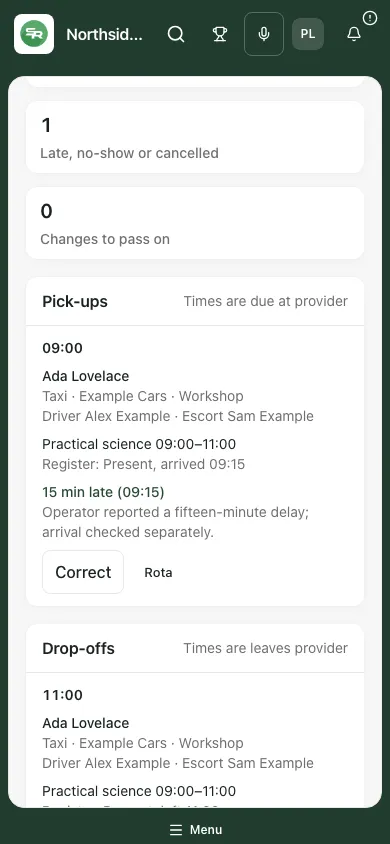
- Read Pick-ups, Drop-offs, Late, no-show or cancelled and Changes to pass on. These are journeys and recorded events, not a count of pupils who are safely present.
- Under Pick-ups, the planned time means Due at provider. Under Drop-offs, it means Leaves provider; it is not a promised arrival time at the pupil’s home.
- Read the pupil, travel mode, operator/escort information, session and recorded status. Nothing recorded means there is no current transport incident record; it is not confirmation of an on-time or completed journey.
- Check the register information separately. A late vehicle collecting a pupil is different from a pupil arriving late. Select Rota where offered to inspect that day’s actual session.
A placement agreement can supply an expected session even when it is not yet on the rota. Read any not-on-rota or cancelled-session warning rather than assuming the absence of a rostered slot cancels transport. The page refreshes on focus and periodically; check the current day again before acting on an old open screen.
Record a late or missed journey
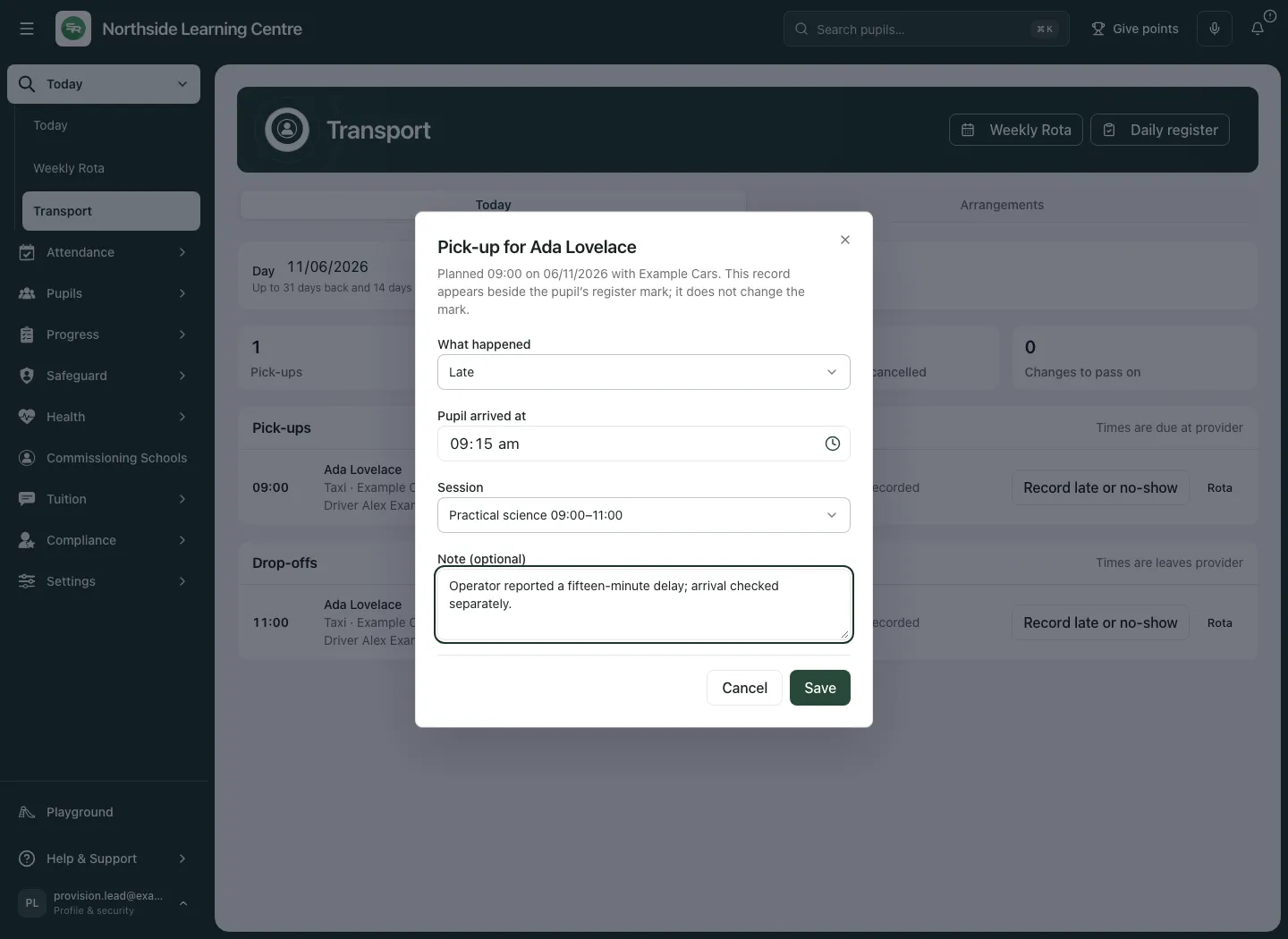
Section titled “Record a late or missed journey”- Find the correct pupil, date and direction. Select Record late or no-show.
- In What happened, choose Late, No-show, Cancelled by operator or Operator told of change, according to the fact you are recording.
- For Late, enter Pupil arrived at for a pick-up. For a vehicle drop-off, enter Vehicle arrived to collect at; a non-vehicle collection uses Collected at. The time must be after the planned time and no more than 12 hours later. Do not substitute the pupil’s register departure time for the vehicle’s arrival.
- Under Session, select the affected session or Not linked to a session. A cancelled session is labelled as such.
- Add a concise Note (optional), up to 500 characters, separating a reported explanation from a fact you checked.
- Select Save. Wait for the confirmation and check the event on the selected day. In the example 15 min late (09:15) records the pupil’s arrival against the 09:00 plan.
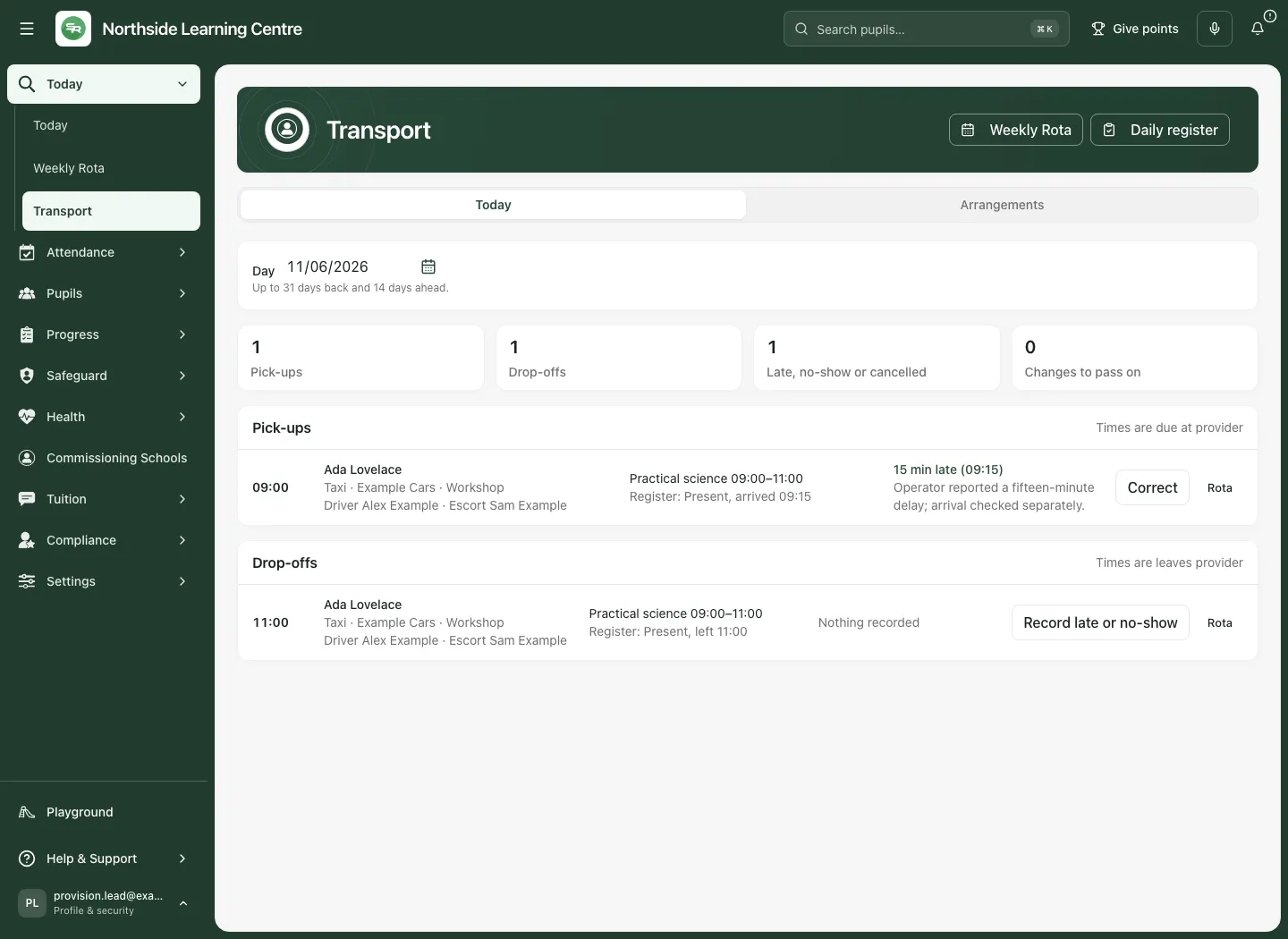
Take or correct attendance in the actual register. The transport entry never assigns or changes that mark. See Take today’s register.
Events can be added or corrected within 14 days either side of today, but a future day only permits Operator told of change. The form keeps the pupil, journey and date you opened even if the background page moves to another day or the school date changes. Check its heading before saving.
Pass a change to the operator, then record it
Section titled “Pass a change to the operator, then record it”A taxi or provider minibus with a cancelled session or no session can appear under Changes to pass on.
- Confirm the changed arrangement with the responsible colleague.
- Tell the operator using the provision’s normal channel. Student Radar does not send the message for you.
- Select Record operator told on the correct journey.
- Check What happened is Operator told of change, add any useful note and select Save.
- Check the resulting status. Recording it is a statement that the contact already happened, not delivery evidence from a messaging service.
The same process can record an operator notice for an eligible future day. Follow up any outstanding change; the warning is not a cancellation instruction sent to the operator.
Add, view or change the pupil’s arrangement
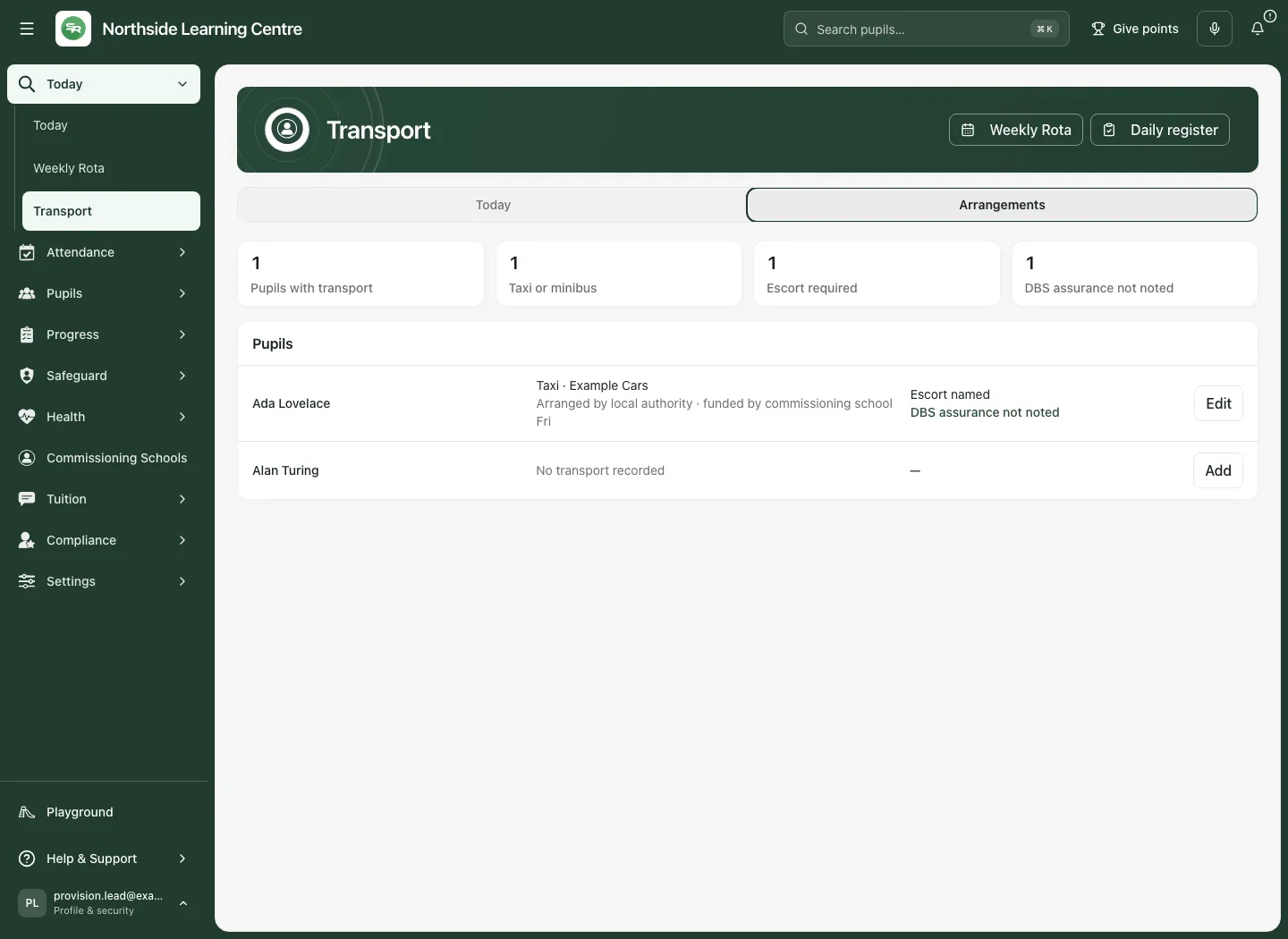
Section titled “Add, view or change the pupil’s arrangement”- Select Arrangements. Read the current cohort and the counts for Pupils with transport, Taxi or minibus, Escort required and DBS assurance not noted.
- Find the pupil. A missing arrangement is unknown, not a default taxi or an assumption that the family transports them. Select the offered Add, Edit or View action; the accessible button includes the pupil’s name.
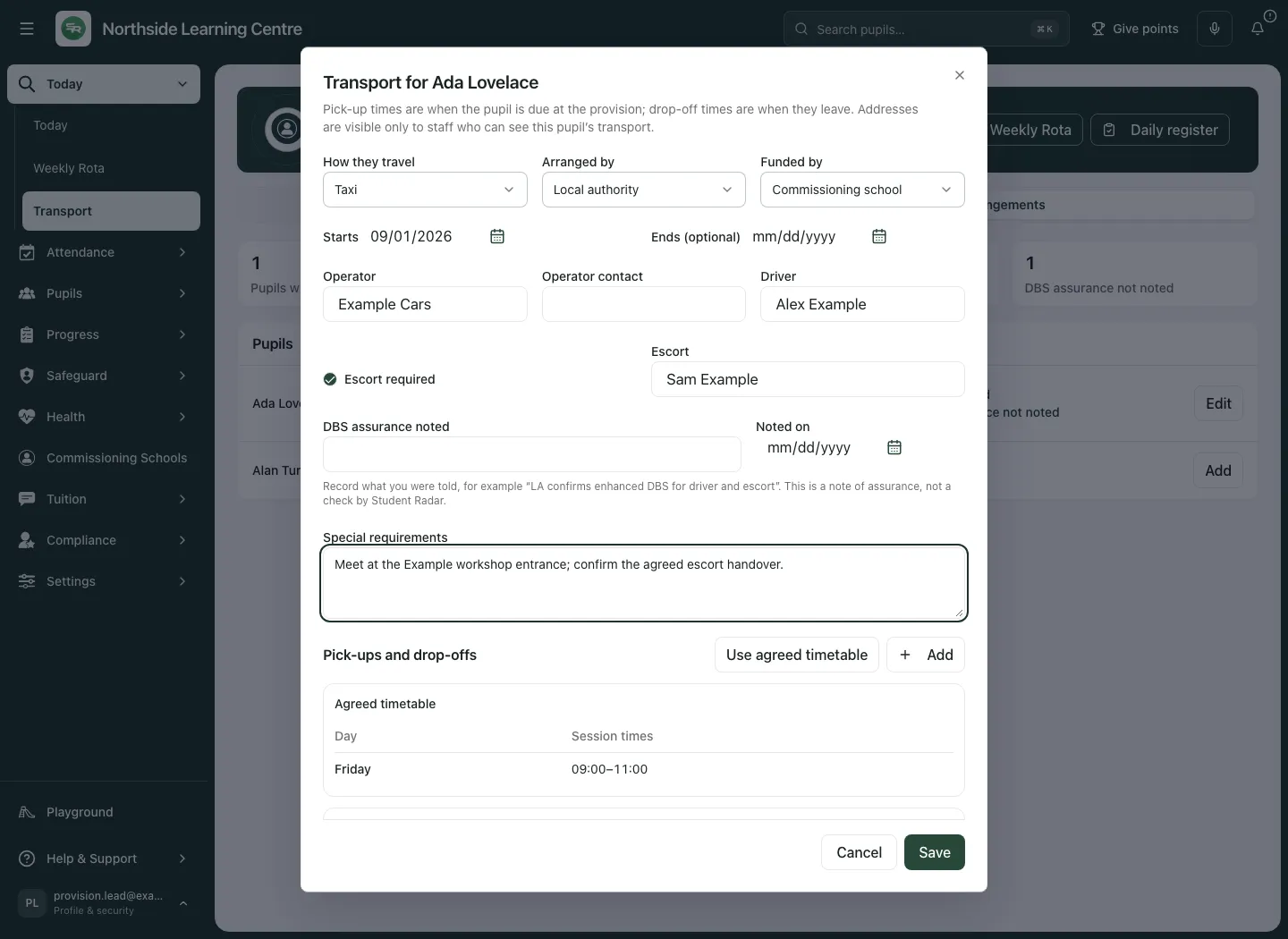
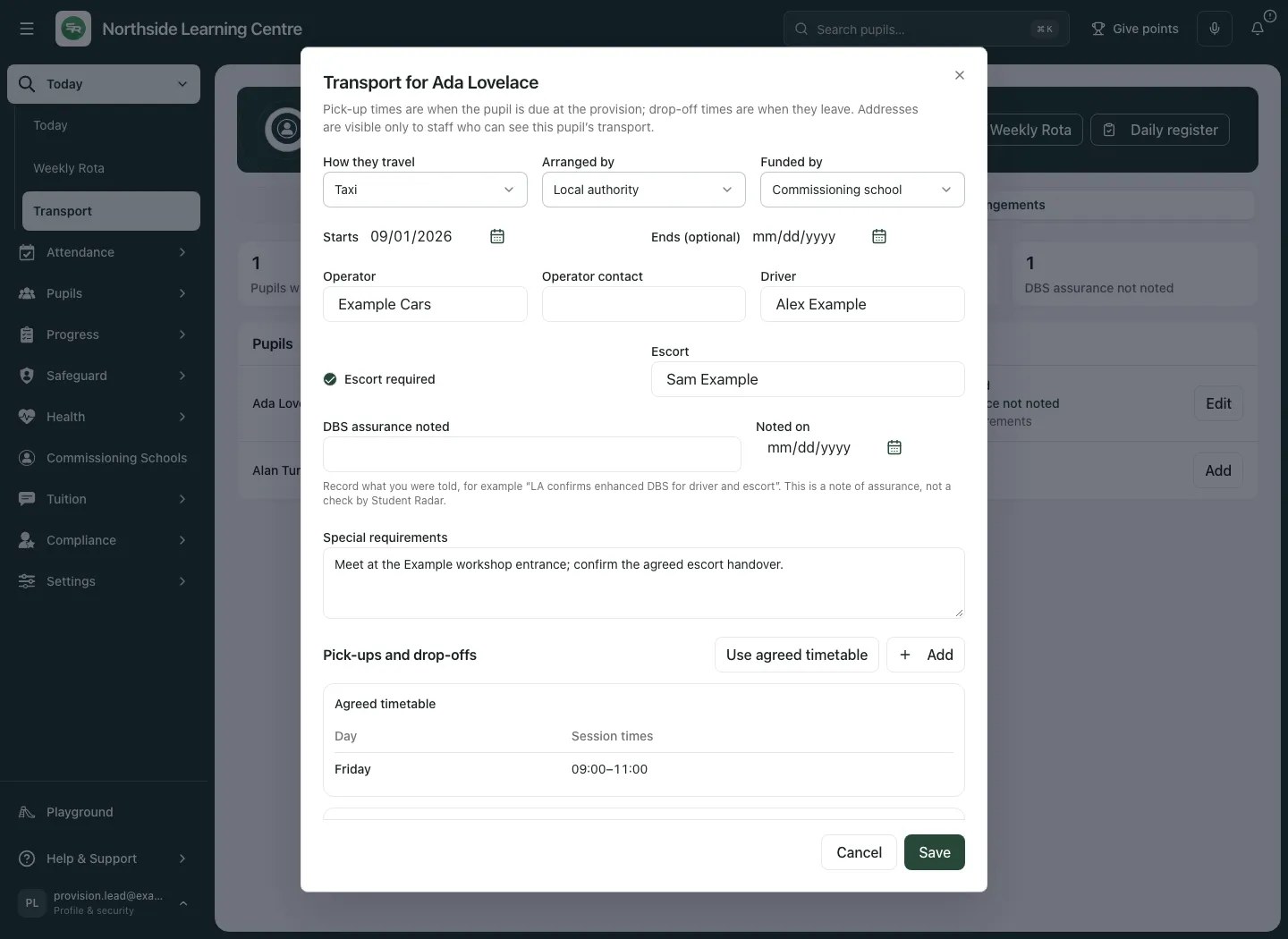
- In Transport for [pupil], choose How they travel: Taxi, Provider minibus, Public transport, Parent or carer, or Walks or cycles.
- Record Arranged by and Funded by separately. Choices include Local authority, Commissioning school, Provider and Parent or carer. Payment responsibility is not inferred from who made the booking.
- Set Starts and, if known, Ends (optional). The end cannot precede the start. A start is limited to 366 days ahead or 3,660 days back; an end is limited to 1,100 days ahead of today.
- For vehicle journeys, record the known Operator, Operator contact, Driver, escort and address information. Tick Escort required before naming the Escort. Do not invent a name to clear a warning.
- Record DBS assurance noted and Noted on only from the assurance actually received. A date needs the assurance text and cannot be in the future or more than 3,660 days back. This records an assurance, not a verified clearance or safeguarding judgement.
- Add appropriate Special requirements. Use only the transport information needed by permitted colleagues, rather than copying restricted case detail.
- Check the journeys below, then Save. Reopen the pupil’s arrangement and check the saved details.
Set the journey days and times
Section titled “Set the journey days and times”Use Use agreed timetable when the placement has an agreed timetable; otherwise add the journeys manually with Add journey leg. Inspect the result even when copied from an agreement.
For each leg, check the weekday, Pick-up or Drop-off, time, any travel-mode override and relevant collection/destination address and Provision location. A per-journey taxi/minibus override can require vehicle details even when the overall mode is different. There can be one pick-up and one drop-off per weekday, up to 14 legs. Remove an unwanted leg rather than leave two conflicting journeys for the same direction/day.
Compare Due at provider with session start and Leaves provider with session end. A timing warning is a prompt to resolve the actual agreement; saving an arrangement is not approval that it is suitable. To finish an arrangement, set the agreed Ends (optional) date and check which future journeys remain, rather than treating a transport incident as the arrangement’s cancellation.
Correct or withdraw an event without losing its history
Section titled “Correct or withdraw an event without losing its history”- Find the day and current event, then select Correct.
- Change the factual detail and add Reason for the correction, at least five characters.
- If the event itself should no longer stand, tick Withdraw this record. This withdraws the incident record; it does not delete the transport arrangement, attendance or earlier history.
- Select Save and check the new status. A withdrawn event is no longer counted in Late, no-show or cancelled.
- If a withdrawn entry must be recorded again, select Record again and give Reason for recording this again.
Use Transport on a phone
Section titled “Use Transport on a phone”Select the required section and scroll through its pupil cards. Check the date and direction before opening a record; keep the difference between vehicle collection and pupil arrival visible in your decision.
If information is missing or a save fails
Section titled “If information is missing or a save fails”| Situation | What to do |
|---|---|
| Records unavailable, an access refusal or a read limit | Use Try again where offered. Unavailable records are not counted as empty. The transport read is bounded to 300 relevant pupils; ask support if the provision exceeds the supported complete read. |
| No pupils with a live placement that you can see | Check the permitted placement and dates; the view does not establish that the provision has no pupils. |
| No journeys on the selected weekday | Inspect the current arrangement’s dates and legs. Do not infer how the pupil actually travelled. |
| Escort not named, DBS assurance not noted or Address missing | Obtain the missing information from the responsible colleague; the app does not verify suitability. |
| Use agreed timetable unavailable | Confirm the placement agreement or add the verified journeys manually. |
| Another colleague changed the record | Keep a copy of your intended correction, close/reload the current record and compare it before trying again. Do not overwrite newer information blindly. |
| Network, request-limit or unconfirmed save | Keep the form, wait if asked and check the refreshed source before deciding whether to retry. A click is not confirmation. |
| Day outside the recording window | Read the history; use the provision’s agreed correction process rather than changing the date to bypass the limit. |
Related: Weekly rota, Placement agreements, Sites, Student Radar support.