Review and save school settings by section
Open the relevant settings section, check its authority and save behaviour and reopen the changed value to verify it. Each section has its own authority and save behaviour. There is no single button that saves every tab.
The fictional example uses Oakfield School’s mainstream settings. The hours example changes a late threshold, saves through the section’s automatic save and reopens the setting. Other screenshots show available settings, not evidence that their changes were applied to a real school.
1. Before changing anything
Section titled “1. Before changing anything”Open School Settings in the correct school. Read any current-settings load error before editing. Missing settings are not treated as an empty saved school configuration; retry the source before making changes.
View access does not permit every change. School hours, general school settings, parent portal, behaviour, SMS, safeguarding retention and AP activation have separate permissions. Country/region is read-only for school staff. Use the smallest authorised change for the actual school decision.
The main tabs are Term Dates, School Hours & Operations, Day & Points, Communications, Safeguarding, Access & Values, Note categories, Behaviour and Setting Profile. A genuinely manual school also has Set up your school. Opened tabs keep local edits while you move between them; that does not make every unsaved edit durable.
2. Term dates
Section titled “2. Term dates”- Open Term Dates and read the academic year and current term/event list.
- Choose Add term date.
- Enter Name, Type, Academic year, Start date, End date and Notes (optional). Check the inclusive date range and the actual intended event type.
- Choose Create and confirm the new entry appears in the correct year.
- To edit, open the existing entry and change the intended fields. Existing edits auto-save; wait for Saving… to finish and read any failure before Done.
- If the current edit could not be saved, correct/retry it or use Close without this change only when deliberately abandoning that edit.
- Use archive/restore actions on the actual record. Show archived reveals retained entries; Restore is different from creating a duplicate.
- Review whether an entry is a Published calendar source. Calendar publication and changes still follow the term-date source lifecycle rather than a second manually duplicated event.
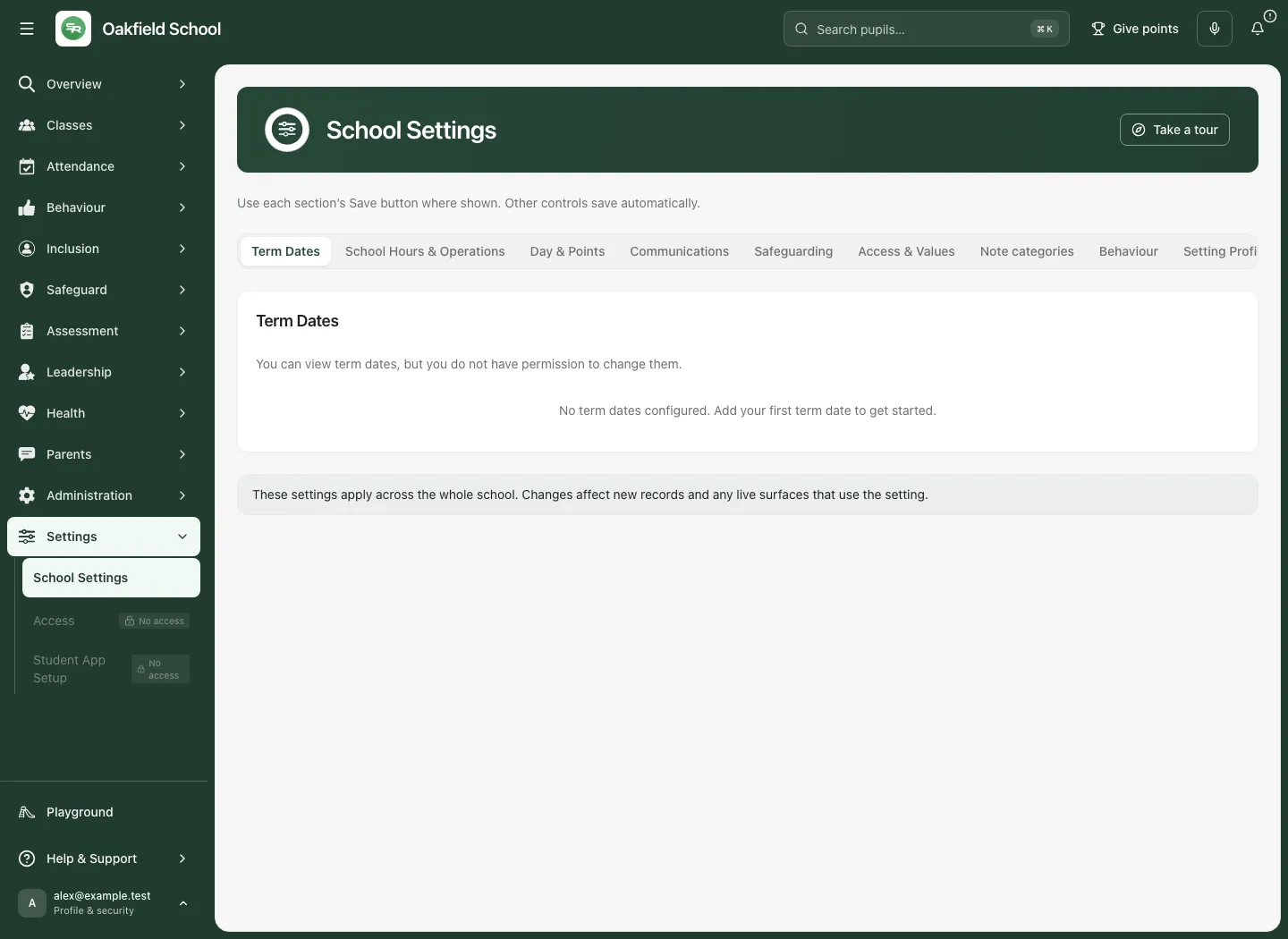
An empty list for the selected year does not prove another academic year has no dates. Check the filter before adding duplicates. Term dates and individual session cancellations remain different records.
3. School hours and contact hours
Section titled “3. School hours and contact hours”- Open School Hours & Operations and read the current School Hours.
- Set Start Time and End Time for the school day.
- Set Late Threshold in whole minutes, within the displayed 0–120 range. Review the explanation combining school start and threshold; it affects how later arrival is interpreted.
- Under Contact Hours, set Contact Start and Contact End for office availability.
- These controls auto-save valid changes after a short delay. Wait for the save result before leaving or relying on the new value.
- Reopen the section or reload the page and check the confirmed value. An input temporarily showing your edit is not proof it saved.
- Read validation: invalid/reversed times or invalid threshold values are shown as This change has not been saved. Correct them; do not interpret a restored value as the intended change.
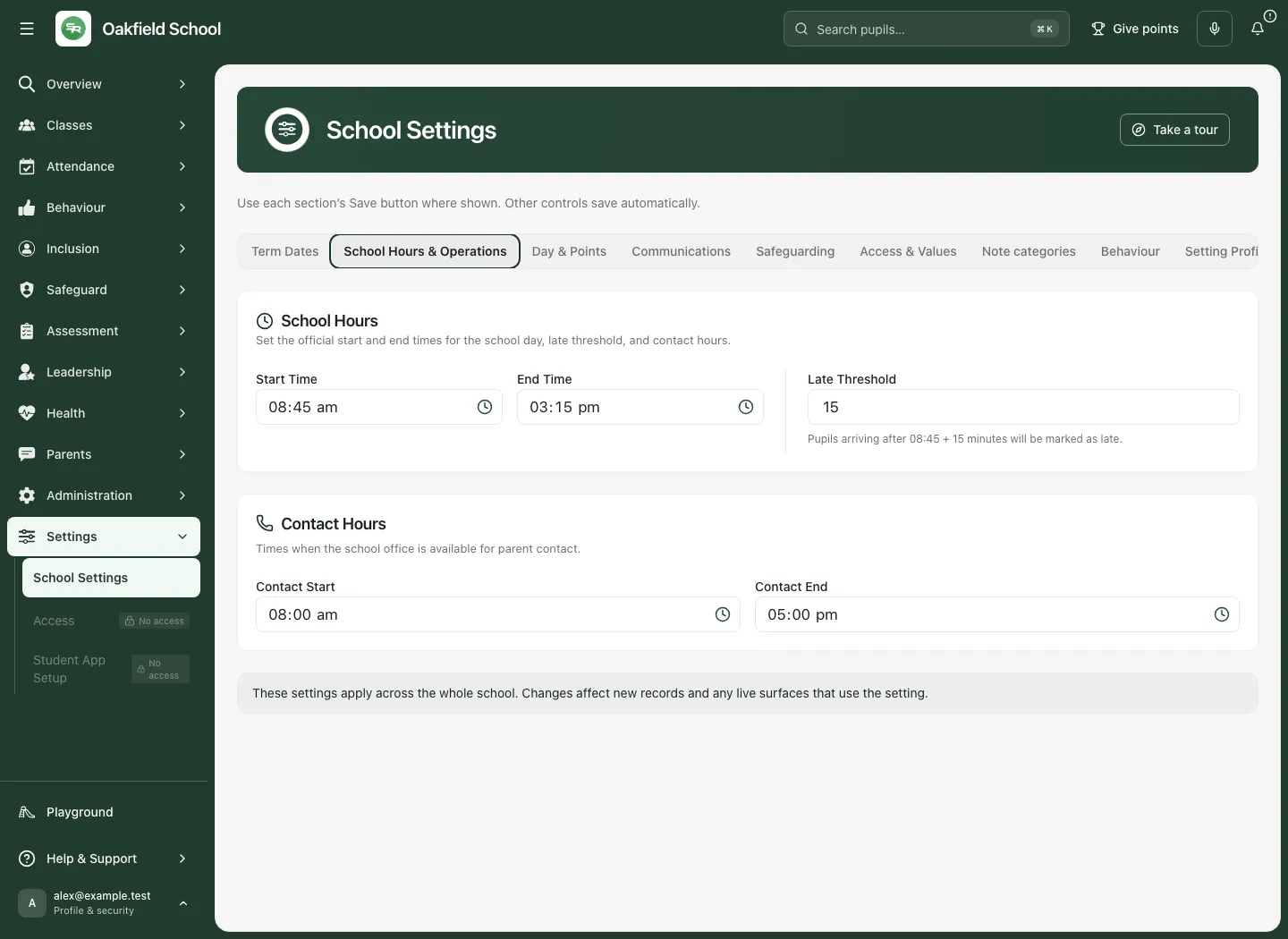
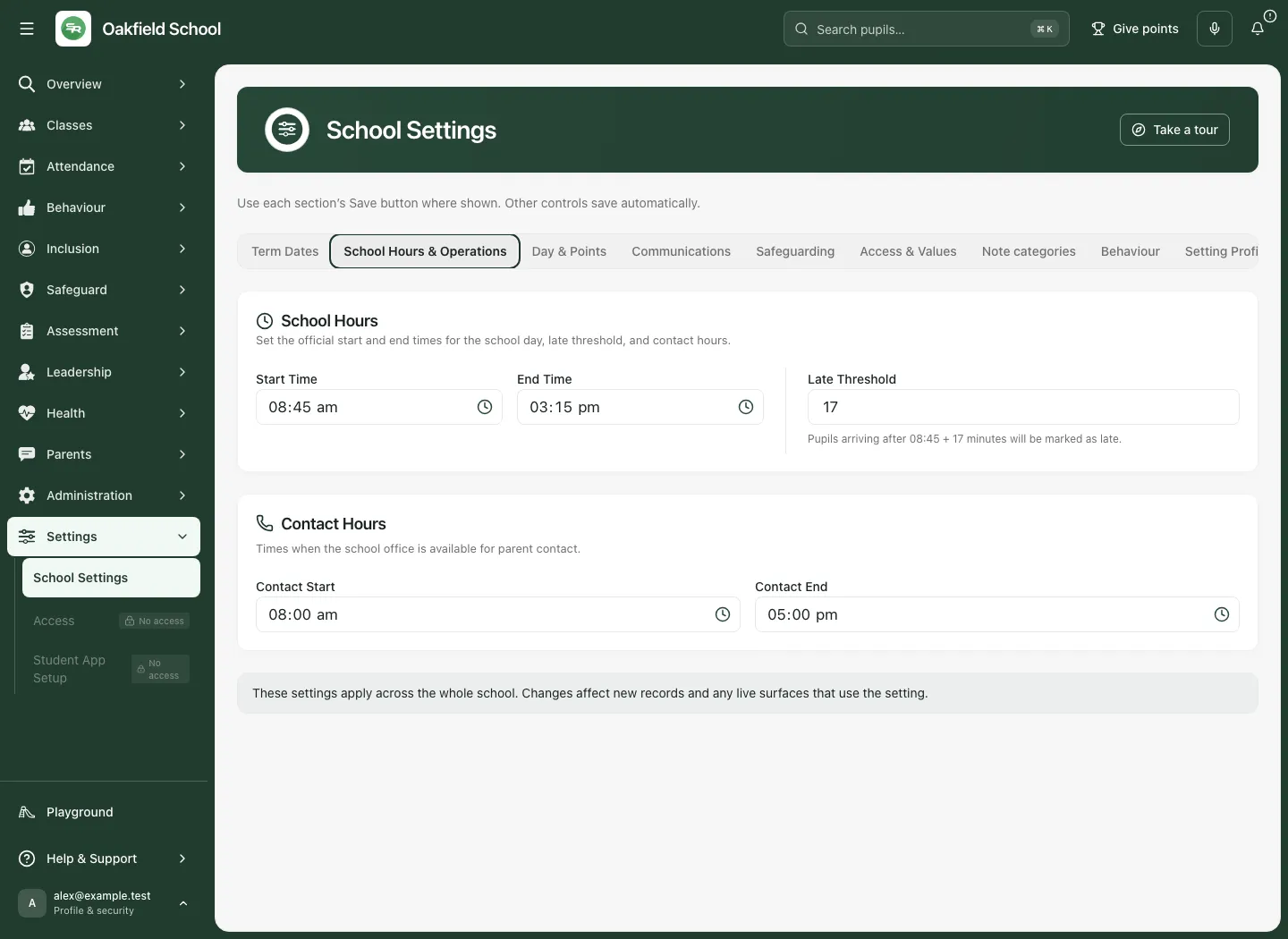
The section saves only its changed settings. A failed save can restore the last confirmed values; read the error and current state rather than repeatedly editing another tab to force the change.
Registers per day
Section titled “Registers per day”The register mode is a jurisdiction-aware decision. Schools following England’s attendance rules take two registers; the screen does not offer an unrestricted one-register override.
Where the school is eligible:
- Read the current Registers each day state and any scheduled future change.
- Select One — a morning register or Two — morning and afternoon.
- Choose the effective date offered by the control; it must not be in the past.
- Review the exact change and choose Save register settings.
- Check the resulting history/current/future state. Earlier registers retain their historical expectation; do not reinterpret earlier dates using only today’s mode.
If mode coverage cannot be confirmed, resolve that uncertainty before changing or reporting register coverage.
Attendance codes
Section titled “Attendance codes”Where local attendance-code management is available, open Attendance codes, inspect existing definitions and jurisdiction restrictions, and use Add starter codes only when the supported initial set is appropriate.
For a code, choose Add a code, enter Code, Meaning and Counts as, then Add code. For an existing code use Edit and Save. Review whether a code is active before using it; preserving a historical code is different from allowing new marks. Change the Persistent absence line only with authority, then Save. These configuration choices are not a substitute for the school’s attendance policy or statutory rules.
4. Day schedule and points caps
Section titled “4. Day schedule and points caps”- Open Day & Points and read Day Schedule & Points Caps.
- Review Enable day schedule and points caps. With the feature off, Save opt-in records the intended enablement choice; with it on, use Save schedule.
- Set Daily positive cap and the available per-type caps deliberately. Read the displayed validation and scope; a cap is not evidence of a pupil outcome.
- In Register periods, use Add slot, enter the slot label/type/start/end and choose whether it is registerable.
- Review order, overlap, school time zone and all slots before saving. Remove only the intended row.
- Choose Save schedule or Save opt-in, wait for confirmation and reopen/check the saved schedule.
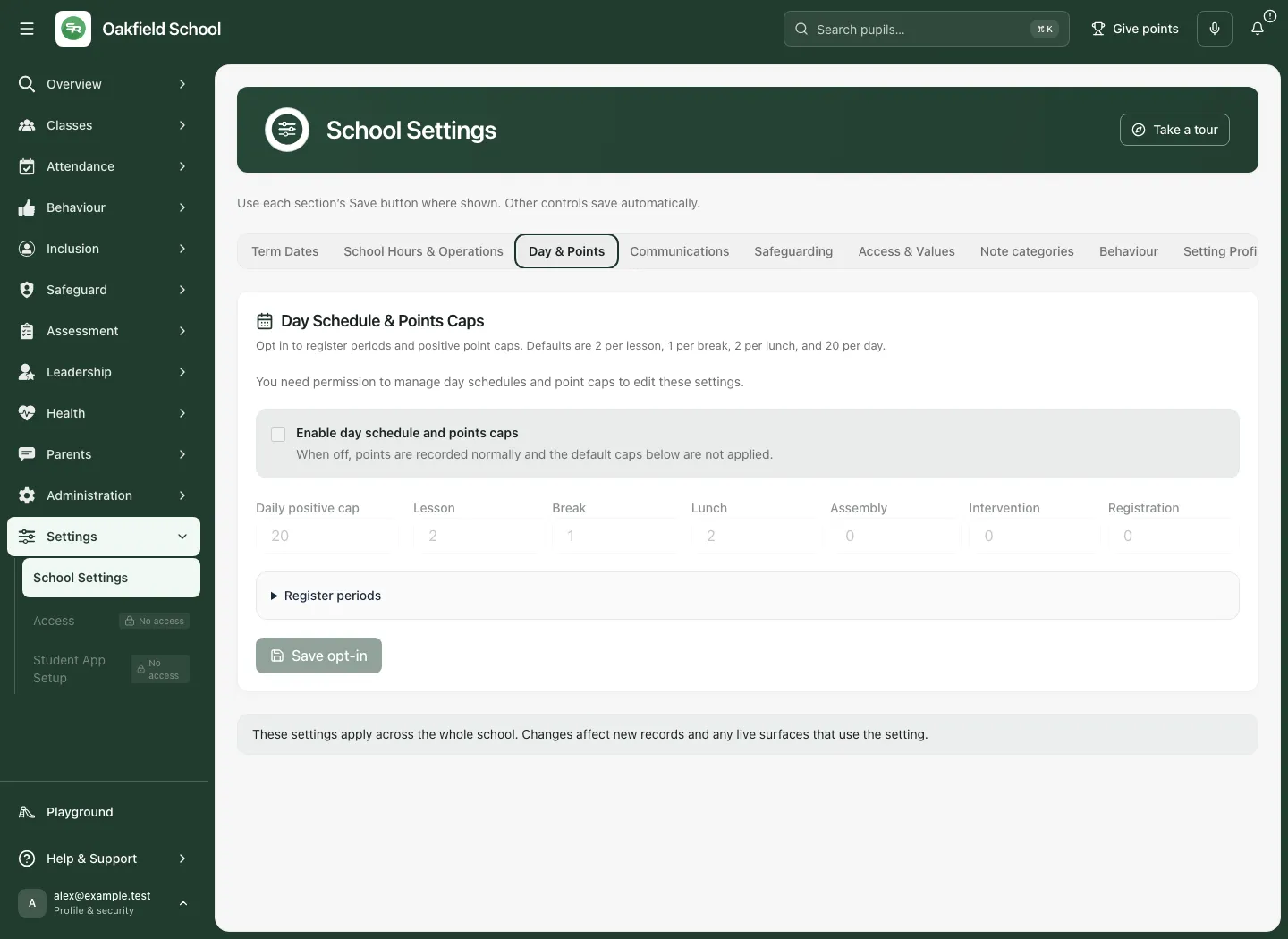
A failed schedule read offers Retry schedule; do not populate an apparently blank form as if it were the confirmed current schedule. Registerable slots and the school’s AM/PM statutory expectation are related but distinct settings.
5. Family access, recognition and school values
Section titled “5. Family access, recognition and school values”Open Access & Values. Individual adult-child permissions belong in Account Connections; the school-wide switch does not replace that relationship review.
- Use Manage individual parent access to open the named parent’s child Access controls. See Account Connections.
- Review Show behaviour recognition to parents. The behaviour-sharing policy separately controls which categories/comments/sanctions families can see.
- Where available, use Manage behaviour sharing for that separate policy rather than assuming the recognition toggle publishes everything.
- Review Allow secure ISP review links. These are time-limited, revocable links to one ISP; they do not create a parent account or provide general platform access.
- These permission-controlled switches save their specific change. Wait for confirmation/error and recheck the current value.
- In School values, enter each value and its optional explanation, use Add value/Remove deliberately, then Save values. They appear in the family dashboard with the supported explanation behaviour.
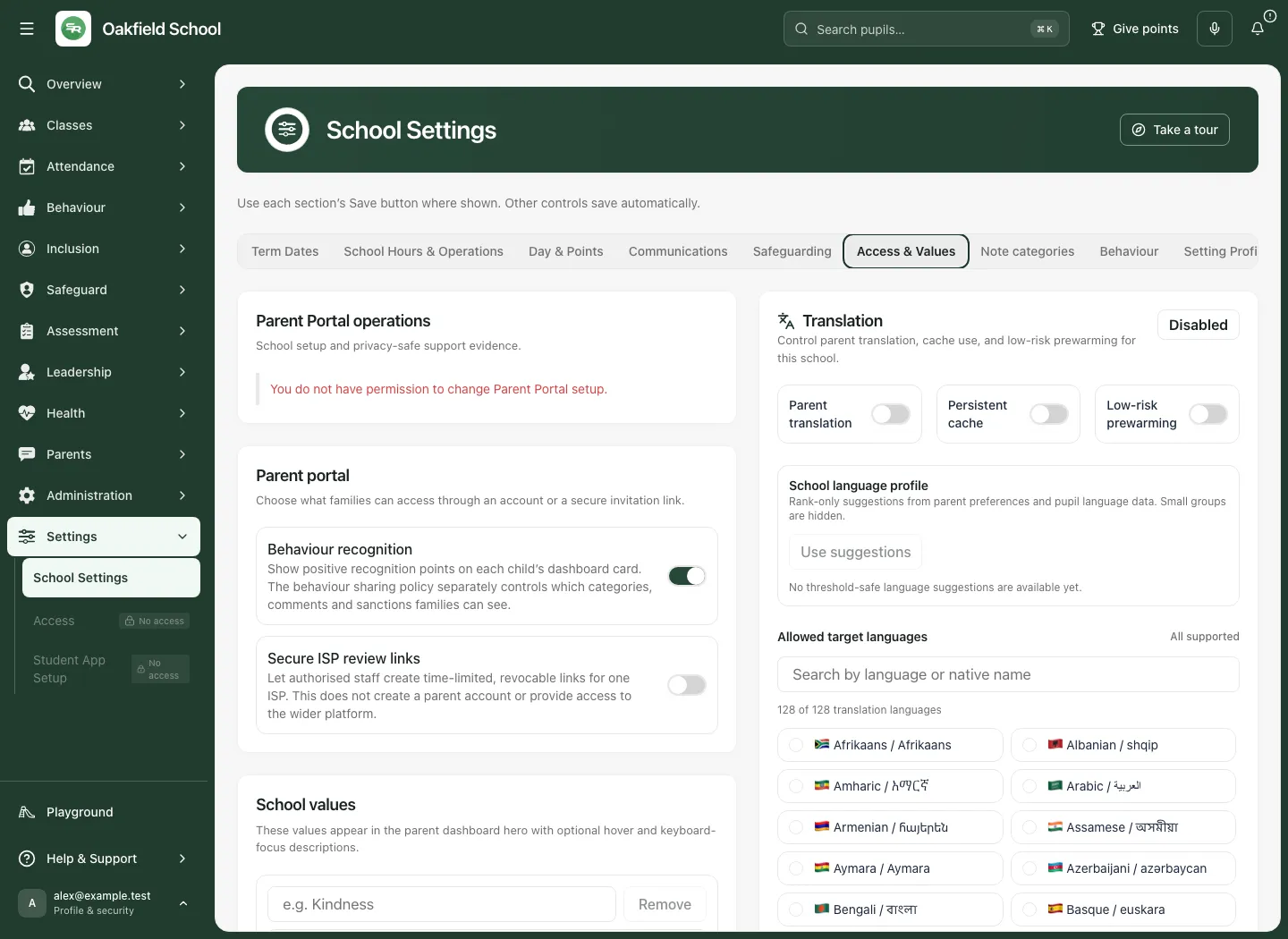
Translation controls and review
Section titled “Translation controls and review”In the translation area:
- Read whether translation is enabled and which modes/languages the school allows.
- Choose supported target languages deliberately, reviewing privacy-protected suggestions rather than assuming a full language census is shown.
- Review persistent cache, prewarming and sensitive SEND/legal translation choices. Availability does not mean sensitive content is automatically approved for sharing.
- Choose Save translation settings and read the result before relying on it.
- In translation review, inspect the source namespace/content, language, translated text and review state. Record an authorised review decision with its required reason; a generated translation is not a human-approved version.
- Provider configuration is a separate privileged setup. Do not put credentials in ordinary school-value or message fields, and review provider readiness and usage controls before choosing a translation action.
If a language/provider/review source is unavailable, the page should remain honest about that coverage. An official original or required human translation remains relevant to the recipient’s decision.
6. Communications and delivery setup
Section titled “6. Communications and delivery setup”Communications links Open parent portal settings and Open translation settings to Access & Values. It also contains SMS sender and staff-alert email configuration. Do not look for an invented global message-send button here.
For SMS:
- Read the current sender/approval status.
- Enter Sender name, select Default SMS mode and choose Save SMS sender when authorised.
- A sender change can require approval; saved configuration is not proof the provider can send under that identity.
- To review a test, enter Test mobile number and use Preview test text. Read the preview and any final dispatch confirmation carefully: an actual send is a real external effect, not part of simply viewing settings.
For Staff alert emails, review the available categories, the exact switches and What the email says. A school release message can explain that choices are saved while email sending remains off until support enables it. Do not describe a saved preference as an email delivered. Alert content/recipient rules and sensitive source permissions still apply.
General message drafting, independent approval and delivery evidence are explained in Connect.
7. Safeguarding menu, welfare flag and retention
Section titled “7. Safeguarding menu, welfare flag and retention”In Safeguarding, review Enable safeguarding menu and concern actions and Teacher sanitised welfare flag only with the appropriate school authority. These switches affect the offered staff navigation/quick actions and sanitised signal; they do not remove safeguarding duties, delete records or give teachers case details. Wait for the section-specific save outcome.
Retention is a separate restricted policy workflow:
- Read the record domain, current policy basis, years, grace period, revision and review status.
- Choose Create draft or Edit draft, complete Retention basis, years/grace/enabled choices offered for that domain, then Save draft.
- An authorised reviewer opens Review revision N, enters Human policy review reference of at least ten characters and uses Record review only.
- Review the recorded revision and run history. The screen explicitly says review cannot activate effects; a reviewed dry-run policy is not an executed deletion.
- Follow legal holds, eligibility, effectful-mode controls and operational authority through the owning retention workflow. Do not treat this settings page as permission to delete records or waive a hold.
No retention execution is shown in the fictional example.
8. Note categories and behaviour
Section titled “8. Note categories and behaviour”Note categories
Section titled “Note categories”- Open Note categories and review the current names and underlying categories.
- Enter Category name and Underlying category, then choose Add category.
- For an existing item, edit it and use Save category; use its explicit activation/retirement controls where shown.
- Check Category saved. and the refreshed list. A duplicate or changed version can require another review; do not create near-identical labels to avoid a conflict.
The displayed school label and underlying category serve different roles. Changing a label must not be presented as changing every specialist record’s meaning or access.
Behaviour configuration
Section titled “Behaviour configuration”- Open Behaviour and wait for the current configuration. Retry behaviour configuration is for a read failure.
- Review positive-recognition and sanction/reason rules, points and supported limits. Complete the marked missing/invalid reasons before saving.
- Add/remove only the intended reason rows and review policy/visibility implications with the behaviour owner.
- Choose Save changes. If the save succeeded but refresh is still needed, use Reload to confirm the current configuration; do not repeat a potentially completed save blindly.
- Review family-sharing policy separately. Configuring a reason does not automatically authorise publishing an incident/comment to a family.
9. Establishment profile and operational activation
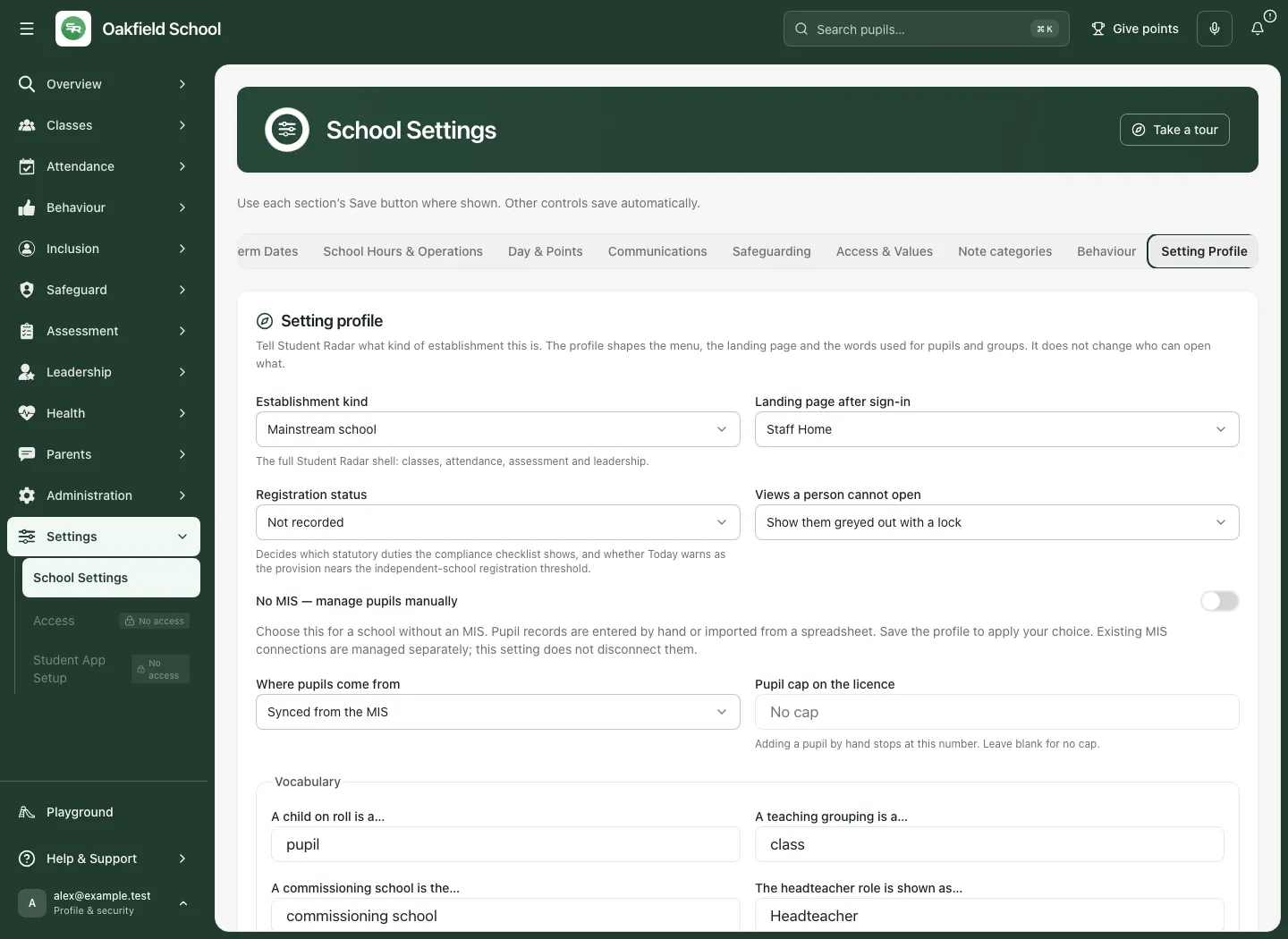
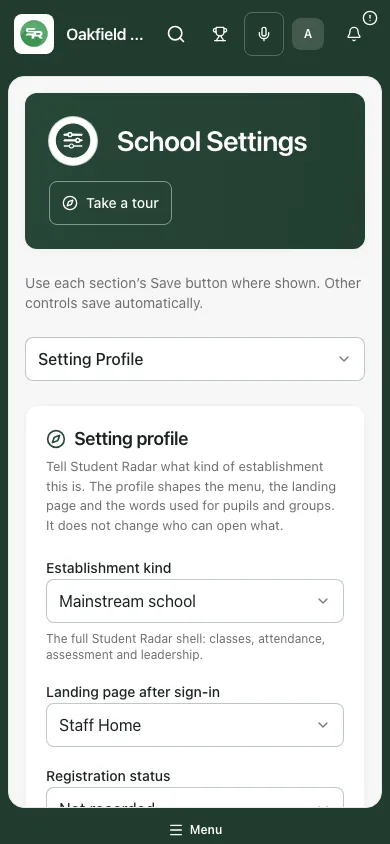
Section titled “9. Establishment profile and operational activation”Open Setting Profile with school-settings authority.
- Review Establishment kind, Landing page after sign-in, registration/grouping choice and Views a person cannot open.
- For a school with no MIS, review No MIS — manage pupils manually, Where pupils come from and Pupil cap on the licence. Existing MIS connections are not silently deleted by selecting a manual profile.
- Review the terminology fields: A child on roll is a…, A teaching grouping is a…, A commissioning school is the… and The headteacher role is shown as….
- Read validation/impact explanations, then choose Save profile. Use Discard changes only to abandon the local draft.
- Reopen/check the saved profile and expected navigation/labels. Choosing an establishment kind is not a blanket grant of every feature or role.
Alternative Provision operations are separate
Section titled “Alternative Provision operations are separate”Changing establishment kind never automatically activates AP operations.
- Read Alternative Provision operations, current state/revision and Refresh status where offered.
- Use the intended activation/deactivation action only with the exact authority.
- Enter Reason for activation or Reason for deactivation, between 8 and 500 characters, based on the approved operational decision.
- Read the confirmation and choose Confirm activation or Confirm deactivation.
- If refused/changed elsewhere, refresh the current revision and review it before trying again.
Country and region
Section titled “Country and region”Country and region is read-only for school staff. Review jurisdiction, time zone, currency, academic-year/term naming and applicable statutory context. Ask Student Radar support for an authorised correction; changing a terminology/profile dropdown is not a country change.
Leadership framework
Section titled “Leadership framework”The Leadership framework setting uses the current canonical framework edition and source. If available and authorised, select the intended framework and any early-years/post-16 scope, use Review framework selection, read the consequences and choose Confirm framework. Finish/discard area edits and pending work before changing it. A missing framework stays unavailable; it must not silently become an England/Ofsted default. The fictional capture deliberately shows the unavailable-source explanation for this separate area.
10. Set up a genuinely manual school
Section titled “10. Set up a genuinely manual school”Set up your school appears only when the stored roster/MIS state supports manual management. An AP preset alone is not enough. Staff records and account access also have separate ownership; see Staff.
- Add pupils individually: choose Add a pupil, review the full admissions fields and contacts, then Save pupil. Check the created record before adding another. A directory pupil is not automatically a pupil/parent login.
- Upload school documents: choose the document and use the dedicated upload action with document/confidential access. Use Open Document Control for its evidence lifecycle. Uploading an admissions spreadsheet does not mean its pupils have been imported.
- Import review: use the dedicated preview/review process for structured pupil/incident imports. Resolve validation and identity matches before applying a reviewed import; do not describe an uploaded file as applied data.
- Classes: choose Class type, the current Class and Class name; use Create class or Rename selected class. Select the actual Pupil for add/remove membership actions. Class staff and membership changes need their own saved review.
- Year groups: review the current structure and cohort membership before a deliberate change. Do not infer year from a free-text class label alone.
- Move-up/rollover: preview the intended academic-year move, review exceptions/leavers and apply only the confirmed mapping. Continue the move-up resumes an existing operation; it is not a new duplicate batch. Teachers/TAs remain with their class and should be checked afterwards.
- Leavers: keep leaving, re-joining and correction histories distinct. Read the affected pupil/date and follow the explicit confirmation; retained records are not new admissions.
For uncertain manual changes use Retry same change where offered before starting a different command. These are consequential school records; the confirmed preview and actual result matter more than a row appearing selected.
Troubleshooting
Section titled “Troubleshooting”Settings could not be confirmed. Retry the current source. Do not edit defaults as if they were the school’s saved values.
A section is read-only. Check its exact permission. General view access is not a grant to change family access, retention, provider configuration or school profile.
A value reverts after editing. Read the save/validation message and last confirmed value. Some sections auto-save; others need their own Save button.
My tab changes are still visible. Opened tabs retain local drafts, but that is not persistence. Wait for the section’s save confirmation and reopen/check it.
Register/code choices differ by school. Read the current jurisdiction and eligibility. An England school cannot bypass statutory register expectations with a local dropdown.
A saved sender/preference sends nothing. Read provider approval and school release state. Saved settings and delivered notifications are separate.
The setting profile changed but AP operations did not. Activation is a separate authorised command and reasoned decision.
Country/framework information is unavailable. Resolve the owning source; do not invent an official context from a fallback or a different school’s screenshot.
Questions schools often ask
Section titled “Questions schools often ask”Is there one Save for every tab? No. Each section has its own immediate, delayed or explicit save route.
Does family recognition share every behaviour record? No. The family-sharing policy and source permissions still apply.
Does enabling secure ISP links create parent accounts? No. They are controlled links to one ISP.
Does recording a retention review delete records? No. Record review only cannot activate effects.
Does changing establishment kind activate AP operations? No. The operational activation boundary is separate.
Does uploading a spreadsheet import the school roster? No. Structured import preview/review/apply is a separate workflow.
Related guides: Account Connections, Staff, Schedule Centre and Connect.