Review a concern about an adult in your provision
Written for: Alternative provision leads who review concerns and allegations about adults.
When someone reports a concern about an adult who works at your provision, it goes to Staff concerns review. There, the person who reviews it reads the original report, records a human assessment and notes any escalation they’ve made. Student Radar keeps the record of the review. It doesn’t decide what the concern means, and it doesn’t contact anyone outside your provision.
Important: your provision’s procedure for concerns and allegations about adults still applies, including when to contact your local authority designated officer and how quickly. If a child may be at immediate risk, follow that procedure first.
Who can see it
Section titled “Who can see it”Only people set up to review concerns about adults can open Staff concerns review. Nobody else sees it in the sidebar, so the menu doesn’t show whether the page is in use.
In an alternative provision, Student Radar support sets this up for your provision’s named lead. If you’re the lead and Staff Concerns doesn’t appear under Safeguard, contact Student Radar support. See Contact Student Radar support.
To report a concern about an adult, rather than review one, see Report a concern about a member of staff.
Open Staff concerns review
Section titled “Open Staff concerns review”In the sidebar, open Safeguard, then Staff Concerns, and choose Staff concerns review.
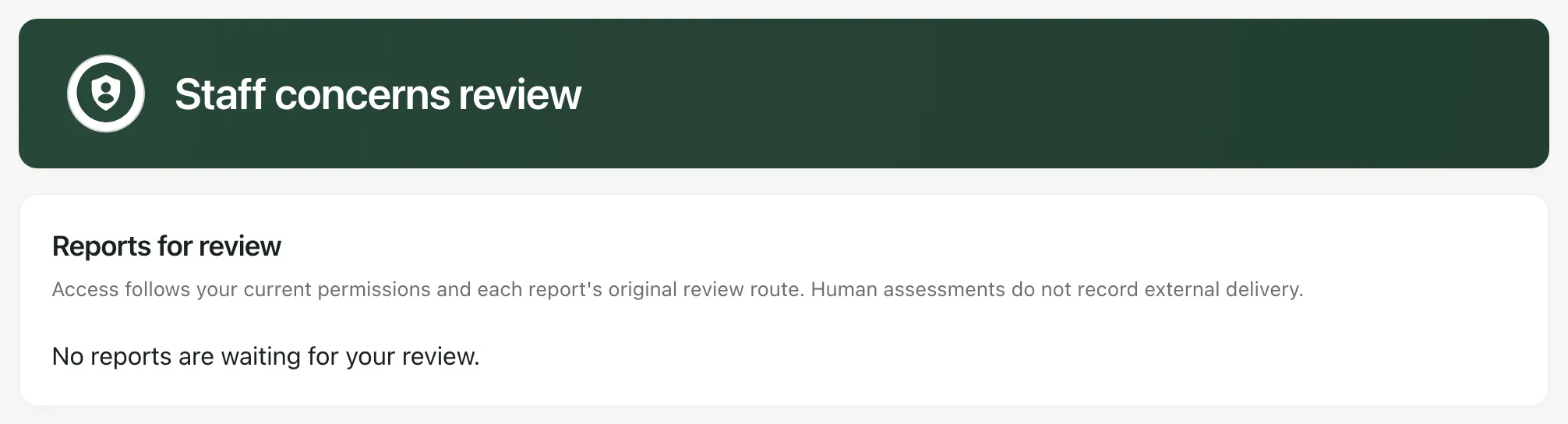
Reports for review lists the reports waiting for you. Click Older reports to see earlier ones, and Newest reports to come back.
Read a report
Section titled “Read a report”- Click a report in Reports for review.
- Read the original report: who the reporter said it was about, and what they described. The original report is never changed.
- Check the Review route line. It shows how the report reached you and which procedure applies.
- Click a history heading to open it: Assessment history, Review routing history, Identity resolution history, Chronology or Attachment history.
- To read an attachment, click Open authorised attachment. It opens in a new tab.
Current case actions shows any actions on the case, with their owner and status. An action marked complete records that the work was done. It isn’t evidence of an outcome.
Record your assessment
Section titled “Record your assessment”- Under Human assessment, choose Unclassified, Low-level concern or Harm concern. This is your professional judgement, made under your provision’s procedure.
- Under Human rationale, explain your reasons.
- Under Manual escalation decision, record what you decided about escalation:
- Manually recorded: you’ve escalated or referred the concern outside Student Radar, for example to the designated officer. Add the details under Manual escalation note.
- Human decision: not required: you’ve decided it doesn’t need escalating.
- Not recorded: you haven’t recorded a decision yet.
- Click Record human assessment.
When it’s saved, you’ll see “Current operation completed.” Each assessment is added to Assessment history. Earlier assessments aren’t overwritten.
Student Radar doesn’t send anything to the designated officer, the police or anyone else. Make any referral in the usual way, then record it here.
- Read-only access: if Human assessment is greyed out, your account can read reports but not record assessments.
- Your provision’s words: the page uses your provision’s Setting profile, so it says provision rather than school, and uses your lead’s title.
- Confidentiality: don’t discuss a report with the adult it’s about, or share what’s on this page, except as your procedure allows.
If something doesn’t work
Section titled “If something doesn’t work”| What you see | What to do |
|---|---|
| “Staff concerns review is not available to your account.” | Your account isn’t set up to review concerns about adults. If you’re your provision’s lead, contact Student Radar support. |
| “No reports are waiting for your review.” | There’s nothing for you to review. |
| Record human assessment is greyed out | Write your reasons under Human rationale. If it stays greyed out, your account can’t record assessments. |
| “Outcome unconfirmed or currently unavailable. Recover the frozen original before another command.” | The connection dropped before Student Radar confirmed your save. Click Recover original outcome before you do anything else on the report. |
| “Current adult report content is unavailable.” | Click Check current source. If the report still doesn’t load, your access to it may have changed. |
| “The current review queue is unavailable.” | Reload the page. If it keeps happening, contact Student Radar support. |
| “History unavailable under current authority.” | Your account can’t open that part of the report’s history. |