Review a safeguarding case and agree the next action
Written for: Designated safeguarding leads and authorised safeguarding staff.
Read the safeguarding case and chronology, agree an owner and next action, then record review or closure decisions.
Start with what needs a decision today, read the original report, agree an owner and next step, and record the professional decision. A card’s position describes the current workflow; it does not establish that a child is safe or that an intervention has worked.
All screenshots show fictional cases. The examples do not represent a real safeguarding response. Follow your school’s emergency arrangements whenever someone needs immediate help.
Before you start
Section titled “Before you start”You need a school account with permission to open this workspace and the individual case. Being able to see a case does not necessarily let you change it, share it or export its evidence. Staff allegations have a separate workspace and restricted access; do not place allegation details in general pupil notes to work around a restriction.
Use a private screen and a suitable setting. Check the current school, case reference and person before recording a decision. A navigation link or pupil relationship does not itself grant access to safeguarding material.
1. Read today’s queue and its coverage
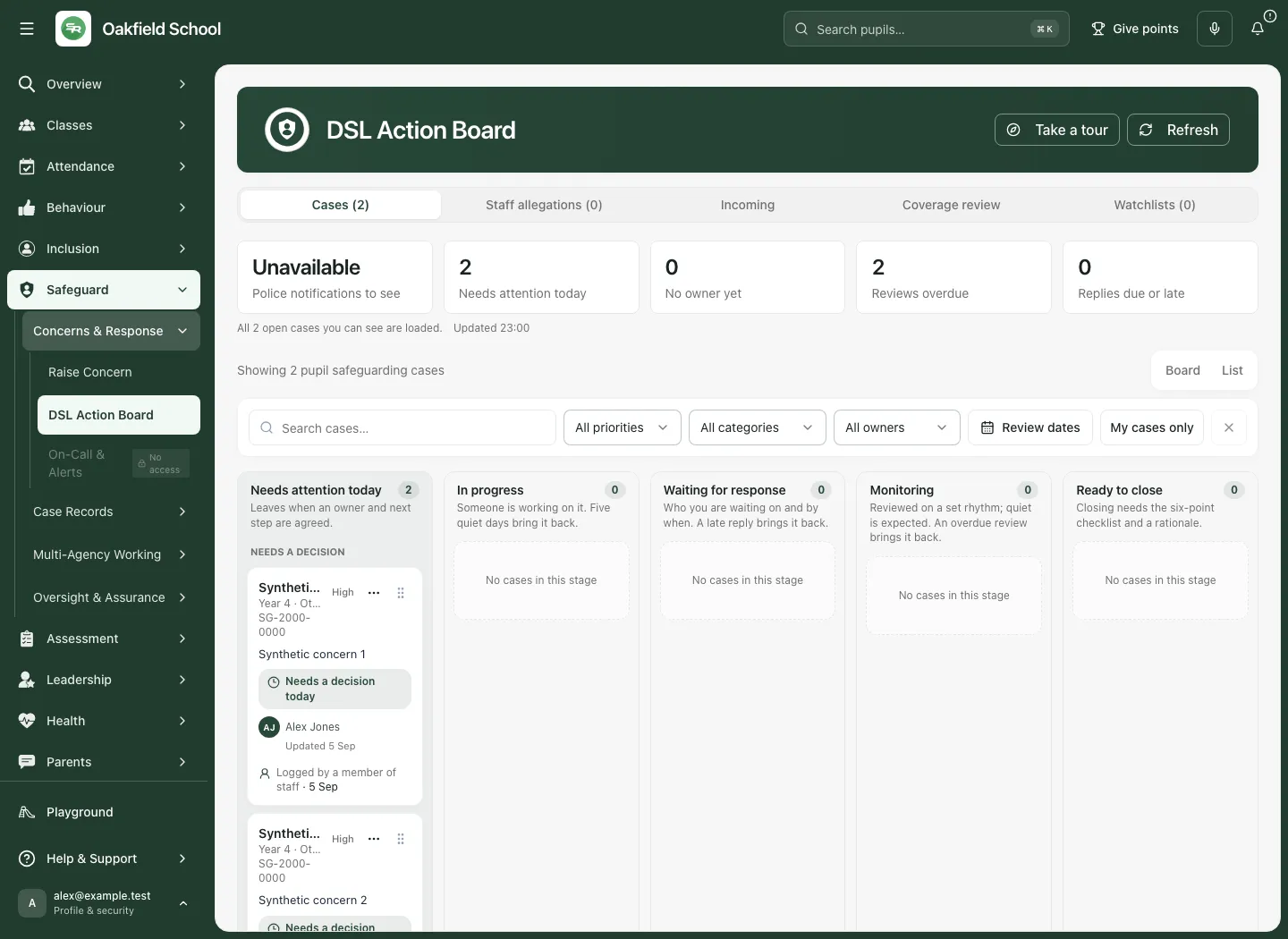
Section titled “1. Read today’s queue and its coverage”- Open Safeguard → Concerns & Response → DSL Action Board.
- Start in Cases. Other workspace choices are Staff allegations, Incoming, Coverage review and Watchlists, where available to you.
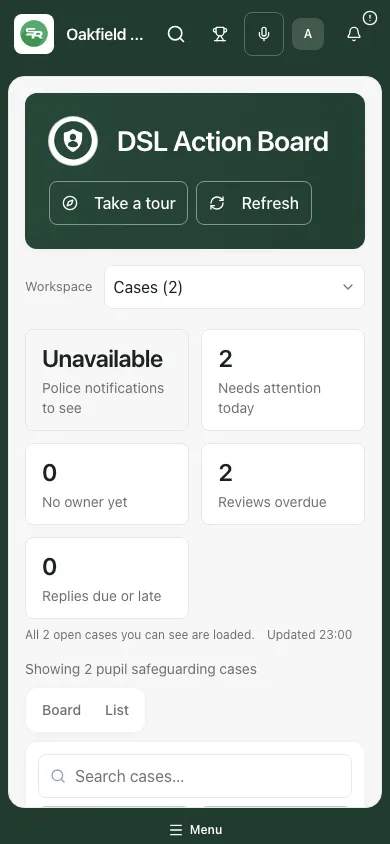
- Read the Today figures: Police notifications to see, Needs attention today, No owner yet, Reviews overdue and Replies due or late. A figure can be unavailable; that is not zero.
- Read the coverage message and update time. “All … open cases you can see are loaded” describes the permitted loaded queue, not every case in school. A partial or unavailable result needs attention before drawing conclusions from totals.
- Use Refresh to request current information. Do not repeatedly submit a decision if a refresh or acknowledgement is slow.
- Use Take a tour if you need an introduction to the board.
2. Find a case and choose a useful view
Section titled “2. Find a case and choose a useful view”- Use Search to narrow the cases you can already access.
- Combine Priority, Category, Owner and Review dates as needed. My cases only helps focus on your own responsibilities.
- Choose Board for stages or List for a row-based view. On a phone, use the stage selector to focus the available space.
- If an expected case is missing, check your workspace, filters and coverage message. Use Clear filters, then Refresh.
- Select the case card. Its accessible name starts Open case: followed by the person. Read the reference before proceeding.
A filtered view is not a complete school count. A case absent from your queue may have a different stage, restriction or source state. Ask an authorised lead to resolve access through the approved process rather than exchanging screenshots.
3. Read the case before deciding
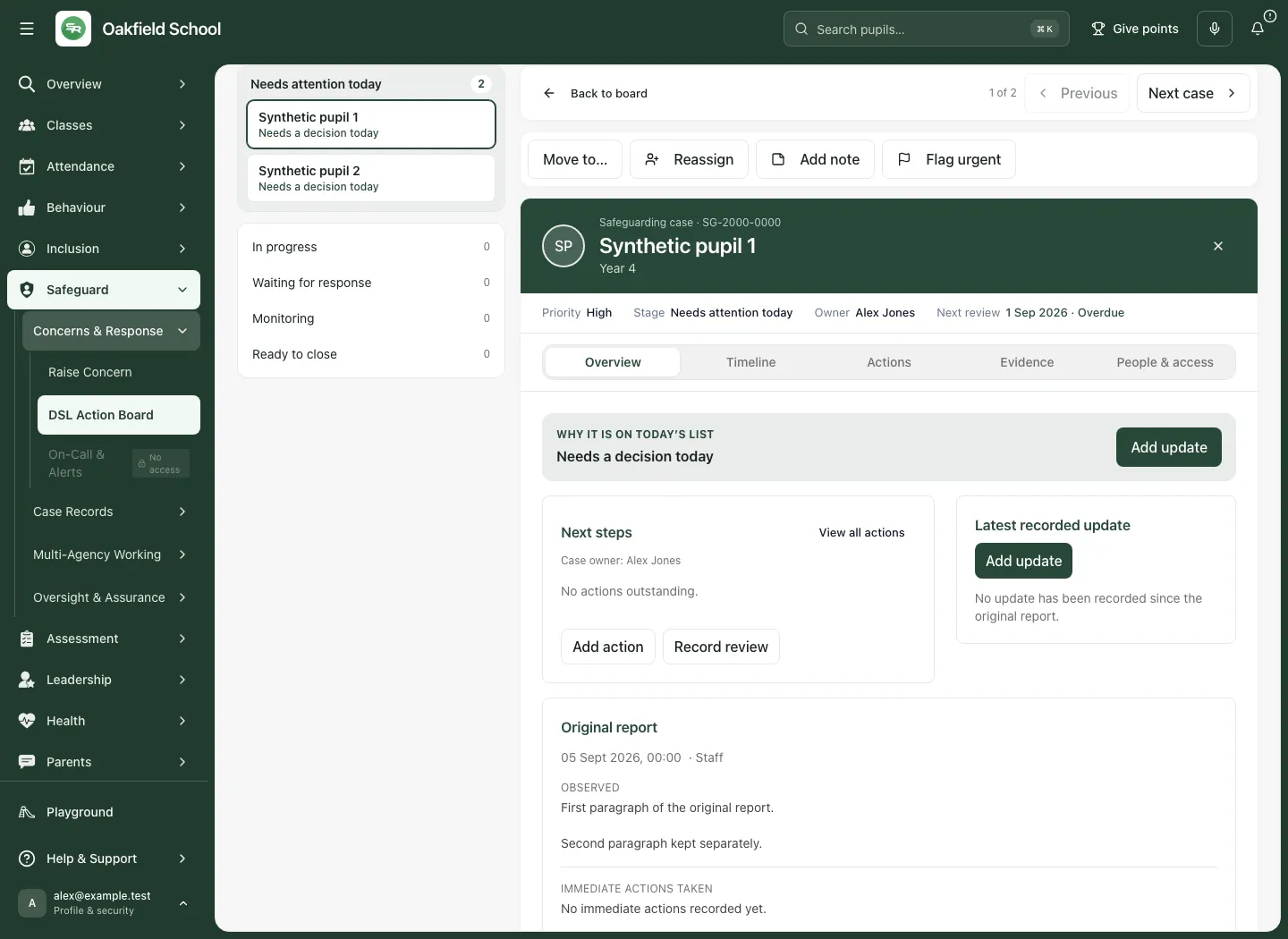
Section titled “3. Read the case before deciding”- In the inline case pane, check Priority, Stage, Owner and Next review. An overdue date needs a professional review, not simply a new date.
- Read Why on today’s list, the latest recorded update and the Original report. Separate the reporter’s observations from later interpretation.
- Use Overview for current context and next steps. Show pupil context, where available, provides permitted supporting context; it is not a replacement for the safeguarding source record.
- Use Previous or Next case to work through the current queue. These follow the queue you opened, rather than silently making a new whole-school list.
- Select Back to board when finished. Resolve any unsaved-change prompt before leaving.
4. Read and add to the chronology
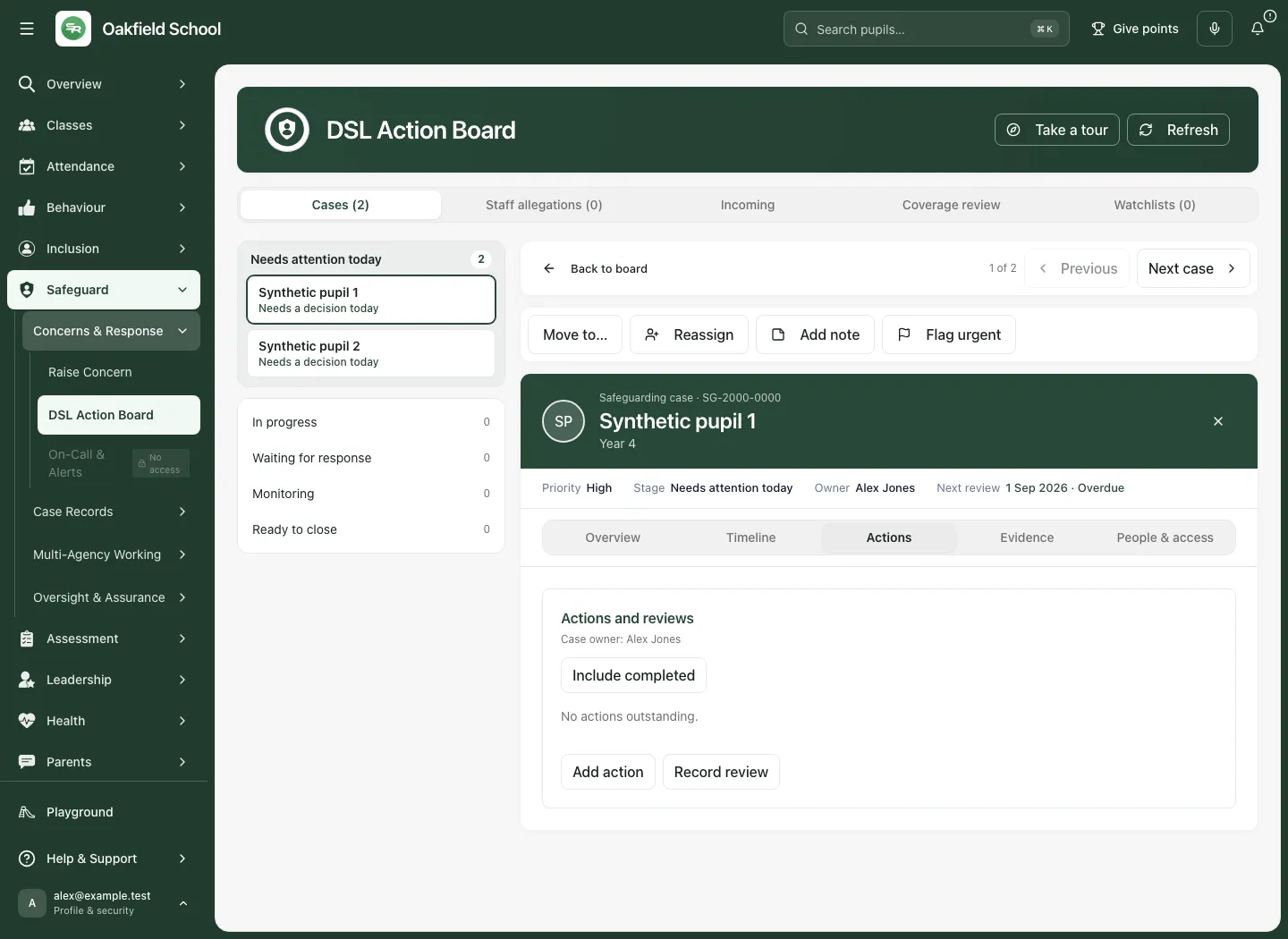
Section titled “4. Read and add to the chronology”- Open Timeline.
- Use Latest first and the type choices All, Observation, Action, Communication and Review to find the relevant entries.
- Read dates, authors and the content of the entries. An empty timeline is different from an unavailable timeline.
- Use Add update to record the new factual update using the fields offered. Make the event time and what happened clear; distinguish a report received from a decision taken.
- Check the resulting entry after saving. If the operation reports an uncertain outcome, recover or refresh the original operation before trying again.
- Prepare chronology PDF and Prepare case evidence ZIP start an evidence preparation workflow. Preparation rechecks the current authorised source separately from the cached timeline. Review the result and its coverage before using it; a preparation request is not a downloaded or delivered file.
5. Agree an owner and record a concise note
Section titled “5. Agree an owner and record a concise note”Reassign changes case responsibility; it does not prove the new owner has read or accepted it.
- Open the correct case and choose Reassign.
- In Assign case, use Search staff and select the intended Assignee.
- Choose Assign. Wait for confirmation and check the case’s Owner.
- Follow your school’s handover arrangements for anything time-critical.
For a quick board note:
- Choose Add note.
- Complete Title and Details with the relevant facts and decision context.
- Choose Save note and check the refreshed case or timeline. A note records information; it does not automatically complete an action or communicate with a family or agency.
Use Flag urgent when the case genuinely needs urgent attention under your school’s process. Do not use a digital flag as a substitute for direct urgent contact.
6. Move a case for a clear reason
Section titled “6. Move a case for a clear reason”Use Move to… in the case pane or the board’s case controls. Moving into particular stages asks for the information that makes the stage meaningful. Changing a stage is a professional decision, not a housekeeping shortcut.
| Stage | Practical meaning and next check |
|---|---|
| Needs attention today | The case needs a decision today. Agree who owns the response and what happens next before moving it on. |
| In progress | Someone is actively working on the response. Five quiet days can bring the case back for attention; a card staying here does not establish progress. |
| Waiting for response | Identify whom you are waiting on and when a reply is expected. A late reply brings the case back for attention. |
| Monitoring | Record why monitoring is appropriate and set its review rhythm. An overdue review returns the case for attention. |
| Ready to close | The case is ready for a closure decision. It is still open until the authorised decision and checks are recorded. |
Leave Needs attention today
Section titled “Leave Needs attention today”- Read the original report and agree the owner and next step.
- Choose the destination with Move to….
- Where asked, enter What are you working on? (optional).
- Choose Confirm move. Complete any further destination-specific questions before treating the transition as complete.
Record Waiting for response
Section titled “Record Waiting for response”- Choose Waiting for response.
- In Who are you waiting on?, enter Waiting on (required).
- Record How you asked and When you asked accurately.
- Set Reply expected by (required) to the agreed follow-up date.
- Choose Move to Waiting for response and check the resulting stage. The board’s date is a follow-up prompt; it does not send the agency request for you.
Start Monitoring
Section titled “Start Monitoring”- Choose Monitoring.
- Enter Monitoring rationale (required), explaining the decision and what staff should look for.
- Choose Review cadence and First review date (required).
- Choose Save monitoring. Check the stage and next review date, and make sure the owner knows the review arrangement.
7. Manage actions and record a review
Section titled “7. Manage actions and record a review”Add a practical action
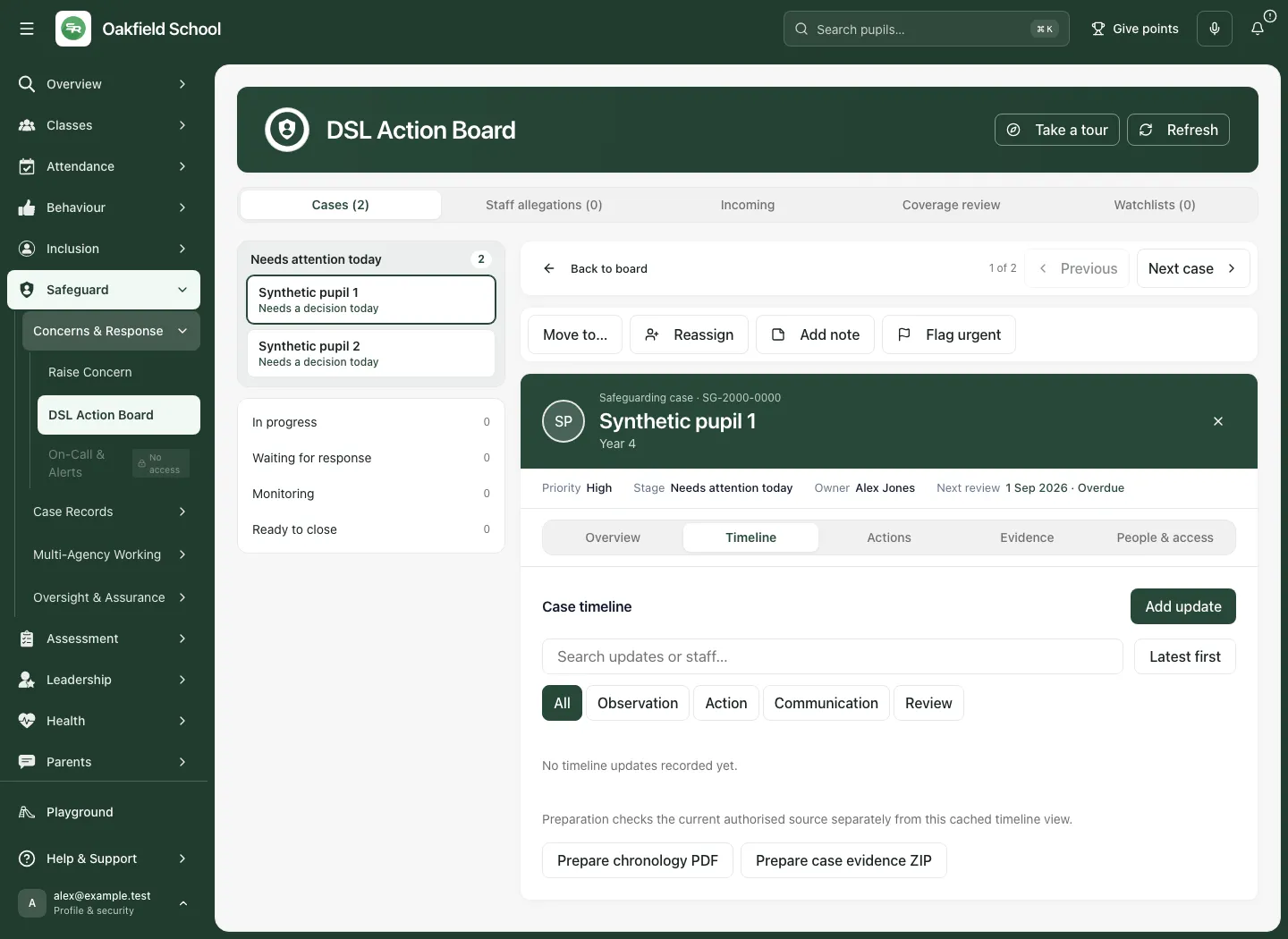
Section titled “Add a practical action”- Open Actions and read the Case owner. Use Include completed to distinguish completed work from what remains outstanding.
- Choose Add action. In the dialog, enter the required Action (up to 250 characters), explanatory Details (up to 10,000 characters) and Due date where appropriate.
- The dialog does not offer a separate action assignee. Agree responsibility with the case owner and make any specific handover clear in Details; use Reassign for case ownership when appropriate.
- Choose Save action and wait for the confirmed result. If saving fails, the dialog keeps the draft and explains that it was not saved.
- Inspect the resulting action and its due date. Saving or completing work does not demonstrate that the intended outcome was achieved; record the observed outcome separately.
Record an overdue review
Section titled “Record an overdue review”- Choose Record review when the review is overdue.
- Enter What happened at this review? (required), describing the review, evidence considered and decision (up to 1,000 characters).
- Choose Review frequency, then check Next review. Changing frequency can suggest a new date; review it deliberately. The next date must be today or later.
- Choose Record review in the dialog. Read the result and check the refreshed next review date. If it was not saved, the changes remain available for correction or retry.
Change a forthcoming review
Section titled “Change a forthcoming review”- Open the review-date control offered for a case whose review is not overdue.
- Add Reason for the change (optional) where useful, choose Review date and Review frequency.
- Choose Save review. This adjusts review arrangements; it is different from recording what happened at an overdue review.
- Return to Overview to check the case’s owner, next steps and review date together.
The example has no outstanding actions. This is an empty fictional example, not a statement that the case needs no further action.
8. Review evidence and the people who may see it
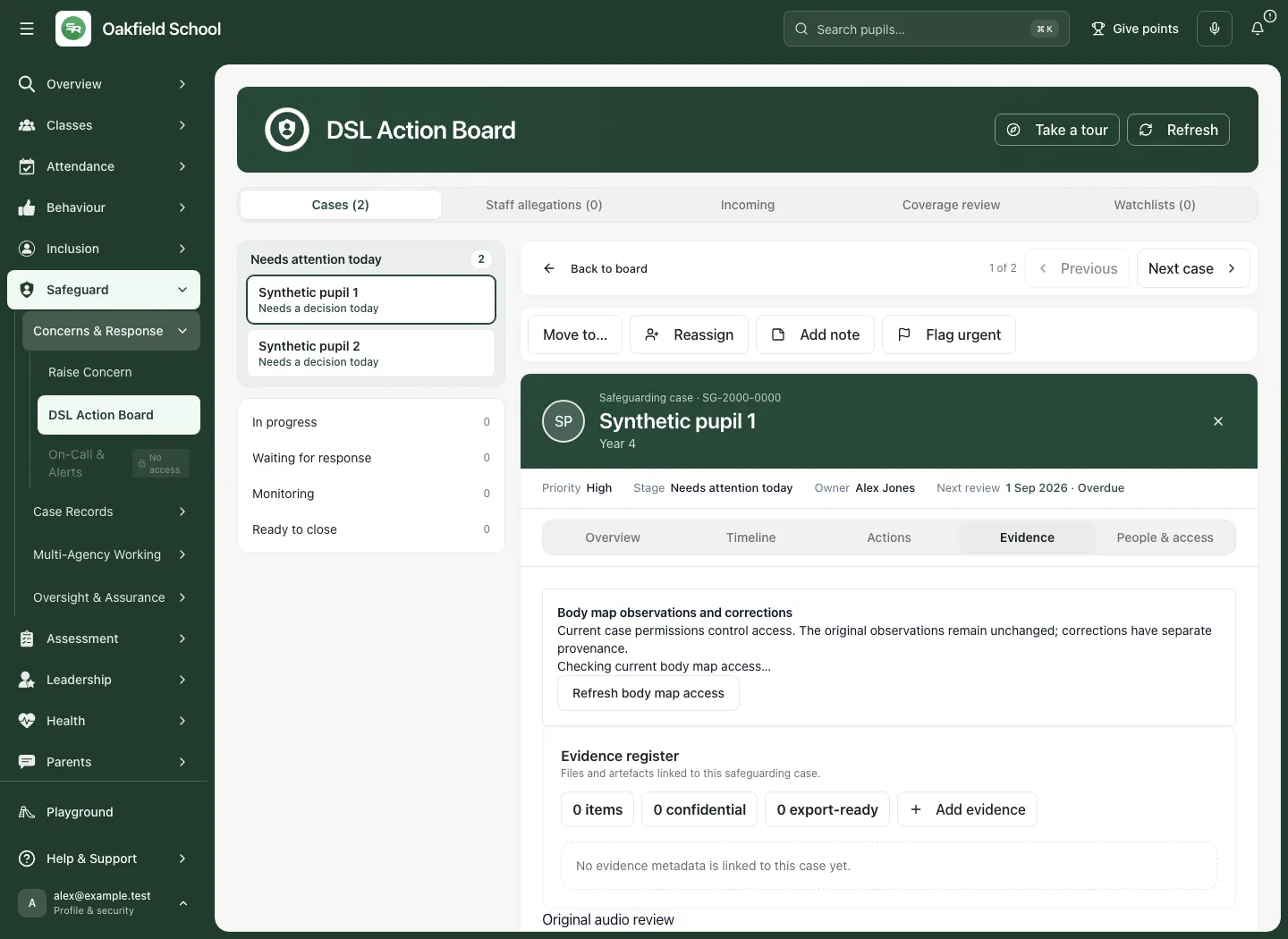
Section titled “8. Review evidence and the people who may see it”- Open Evidence to inspect the evidence available for the case. Read filenames, source context and any unavailable or restricted state before drawing conclusions.
- Use the provided evidence controls for the evidence type you are recording. Preserve what was supplied and distinguish later professional interpretation.
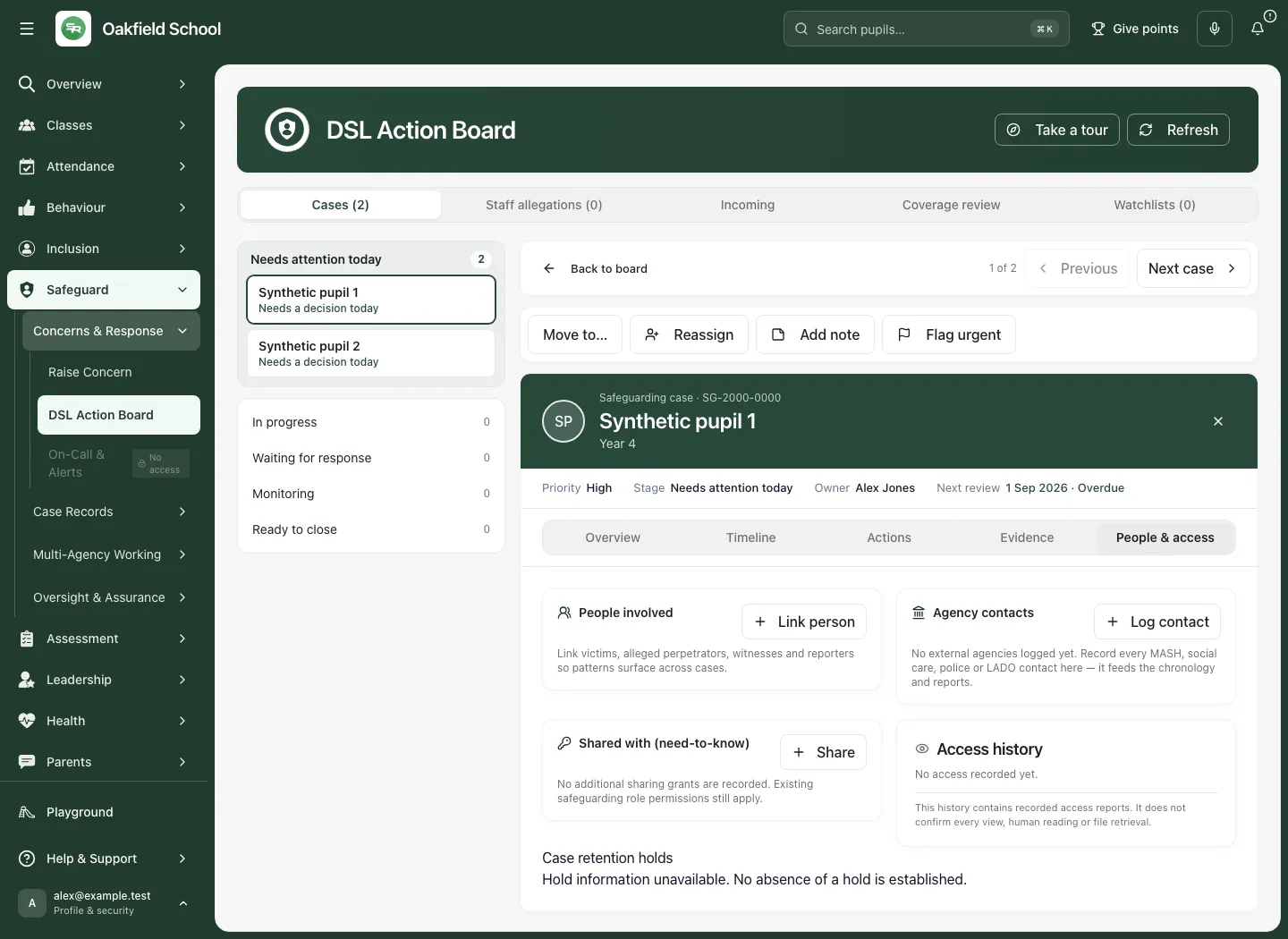
- Open People & access. Link person records relevant victims, alleged perpetrators, witnesses and reporters; check the role carefully.
- Use Log contact under Agency contacts to record the agency contact and its actual outcome. Recording a contact is not sending a referral.
- Read Shared with (need-to-know). Use Share only for an authorised, necessary grant and check its scope. “No additional sharing grants” does not remove existing safeguarding role permissions.
- Read Access history with care. It contains recorded access reports and does not confirm every view, human reading or file retrieval.
- Read Case retention holds. If hold information is unavailable, no absence of a hold has been established. Do not infer that archiving or disposal is allowed.
9. Review a case for closure
Section titled “9. Review a case for closure”- Move to Ready to close only when that reflects the professional position. Complete the entry information requested; moving the card does not close the case.
- Use Review for closure when the control is available.
- Choose the actual Decision: Close case, Continue monitoring or Escalate.
- For Close case, supply Actual closure date (required) and complete the six Closure checklist checks: Chronology reviewed, Evidence reviewed, Outstanding actions resolved, Parent/carer communication considered, External agency communication considered and DSL closure rationale recorded.
- Enter Rationale (required). Explain the decision; do not tick a check that has not been carried out.
- Choose Confirm decision. Check the returned case state. A failed or unconfirmed result is not a completed closure.
Considering communication does not mean communication was appropriate or was sent. Record the relevant decision and any actual communication in the proper source workflow.
10. Use the board on a phone
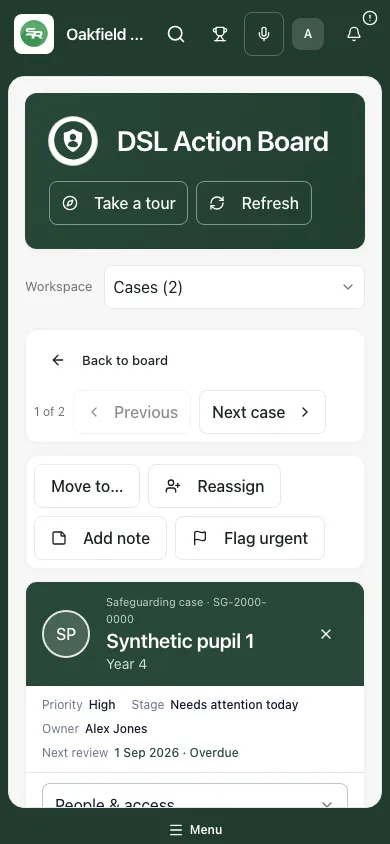
Section titled “10. Use the board on a phone”- Choose the safeguarding workspace and stage from the compact controls.
- Open a card and review the case identity before expanding or using its tabs.
- Work through Overview, Timeline, Actions, Evidence and People & access as needed.
- Use Back to board when finished. Keep the screen private and avoid leaving a sensitive case open on a shared device.
Incoming, coverage and watchlists
Section titled “Incoming, coverage and watchlists”Incoming brings source reports into the safeguarding workflow. Read the source and its current state before linking it to a case or taking another offered action; an incoming item is not itself proof that a response has been completed. Coverage review is for reviewing available coverage information and unresolved coverage work. Missing or unavailable source coverage must not be represented as a clear result. Watchlists are a separate working view: membership is a professional decision, not an automatic diagnosis or a permission to expose the case to other staff.
These workspaces can show different controls according to your authority and the available source. Follow the explicit questions and confirmation shown for the selected item. Do not treat a blank, partial or unavailable result as “nothing to do”.
Troubleshooting
Section titled “Troubleshooting”| What you see | What to do |
|---|---|
| Unable to load safeguarding cases | Case totals are unavailable. Use Refresh; follow the school process for urgent incoming reports meanwhile. |
| A case is missing | Check workspace, search, filters, coverage and access. Do not assume the case was deleted or closed. |
| A change is rejected because the case changed | Refresh and reread the current record. Review the new facts before repeating your intended decision. |
| A dialog remains saving or the outcome is uncertain | Wait for the result and follow the recovery guidance. Do not create a second competing decision. |
| No action buttons | Your current authority may permit reading but not acting. Ask the authorised lead to resolve the task. |
| Timeline, evidence, holds or source preparation is unavailable | Keep the uncertainty visible. An unavailable source is not an empty or cleared source. |
| Case returns to Needs attention today | Read why it returned: quiet work, a late response or an overdue review can need a new decision. |
Frequently asked questions
Section titled “Frequently asked questions”Does the board make safeguarding decisions? No. It organises permitted information and work. Authorised staff decide, record their reasoning and review the outcome.
Is Ready to close the same as closed? No. The closure decision, checklist, rationale and actual closure date are separate.
Can every staff member who reported a concern open its case? No. Reporter acknowledgements and case access are separate. A case link does not grant permission.
Does a completed action show that support worked? No. Record the observed outcome and review evidence separately.
Can an empty Access history prove nobody read the case? No. The panel explicitly limits what its recorded access reports establish.
Where should I begin a new concern? Use Raise Concern. The wider safeguarding chronology, on-call and record-transfer guides are planned companion guides in this draft set.